Movavi Photo Editor

Restore old photos and enhance image quality with AI tools

Meet the Photo Restoration Software for a PC and Mac

Get a free download of Movavi Photo Editor

Restore old photos with AI enhancement

Quickly improve the quality of aged or damaged images using AI-powered tools. Try our free photo restoration software for a PC and Mac, which automatically enhances sharpness and reduces noise. It also adjusts lighting and colors to restore details and improve overall image clarity with minimal manual editing.

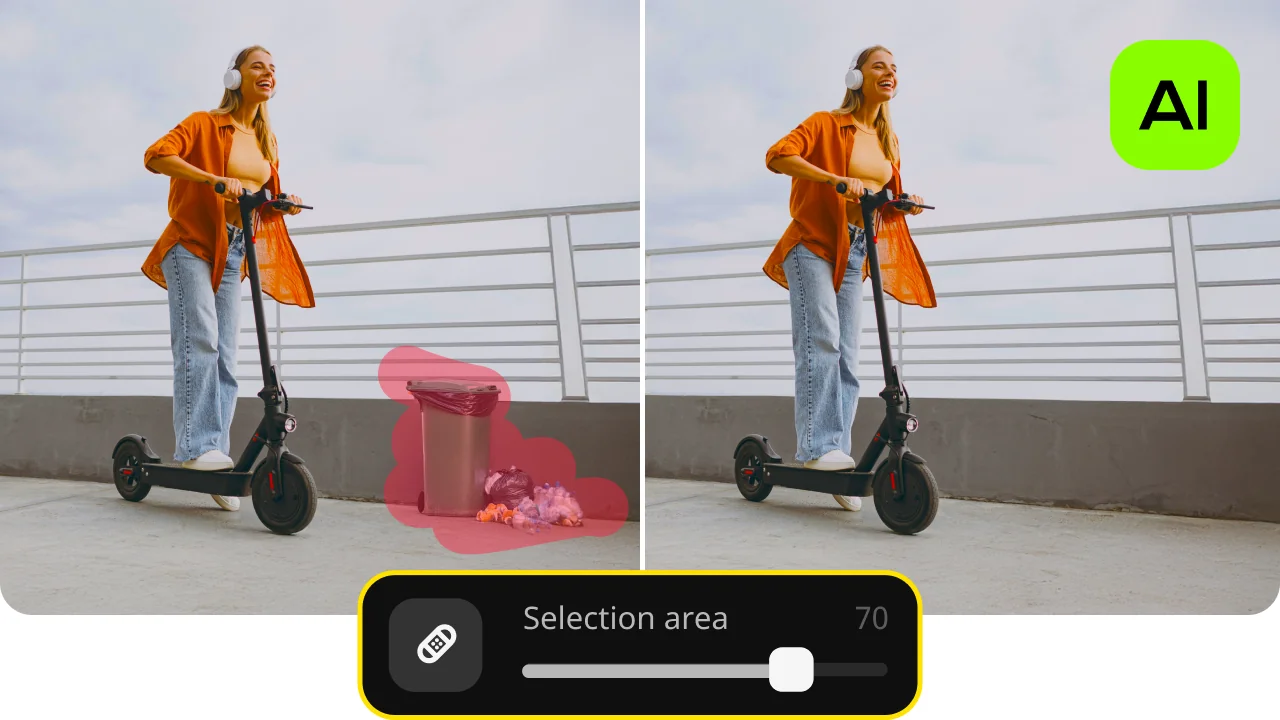
Remove unwanted objects and defects

Easily eliminate scratches, dust, creases, and other imperfections from old photos. With intuitive object removal and restoration tools, you can repair damaged areas while preserving natural textures and backgrounds.

Colorize black-and-white images

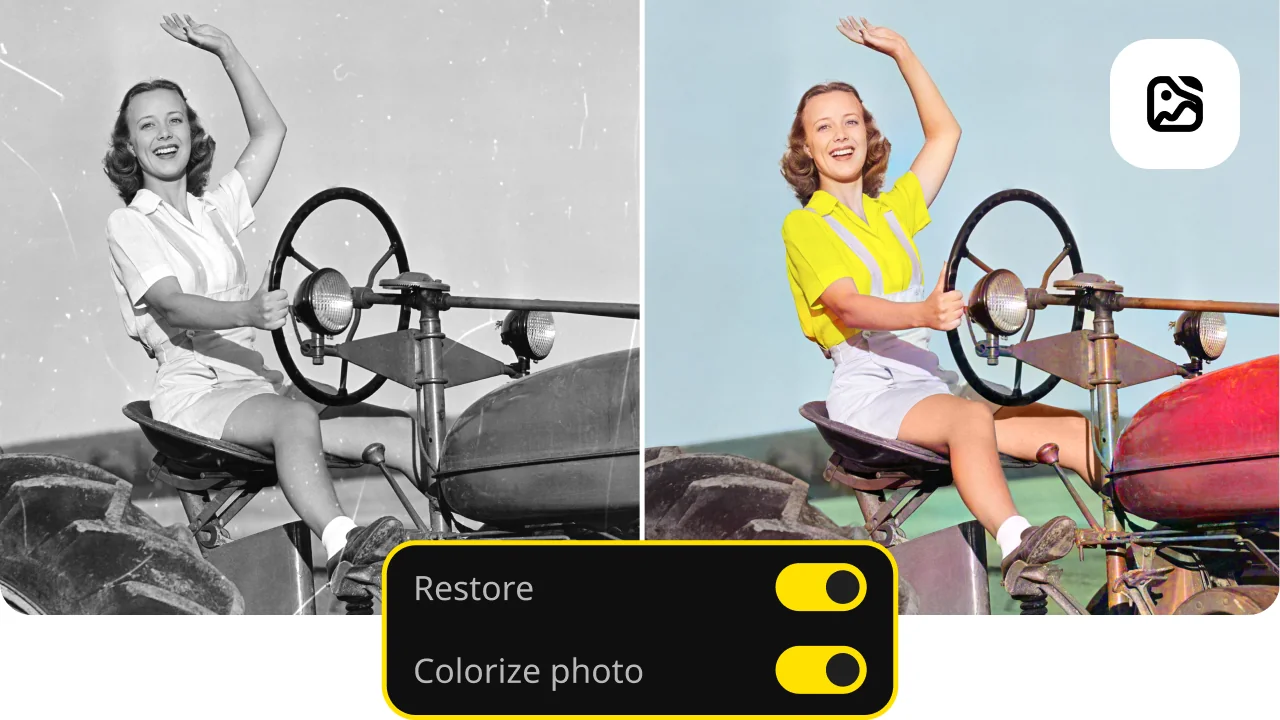
Transform vintage black-and-white photos into color images with realistic tones. The automatic colorization feature analyzes the image and applies natural-looking colors, helping you bring old memories to life in just a few clicks.

Restore your photos for free

Got a stack of old photos that have lost their color or picked up scratches over the years? Movavi Photo Editor makes it easy to clean them up and bring them back to life without getting lost in a complicated tool. This photo repair software helps you handle common issues quickly and efficiently.

With built-in AI features, you can sharpen blurry shots, remove dust and damage, and even add natural-looking color to black-and-white images. If needed, you can also tweak brightness, contrast, and tones to make the picture look more balanced and true to life. The interface is straightforward, so you can focus on the image itself instead of figuring out what to click next.

How to restore old photos

Step 1. Install Movavi Photo Editor

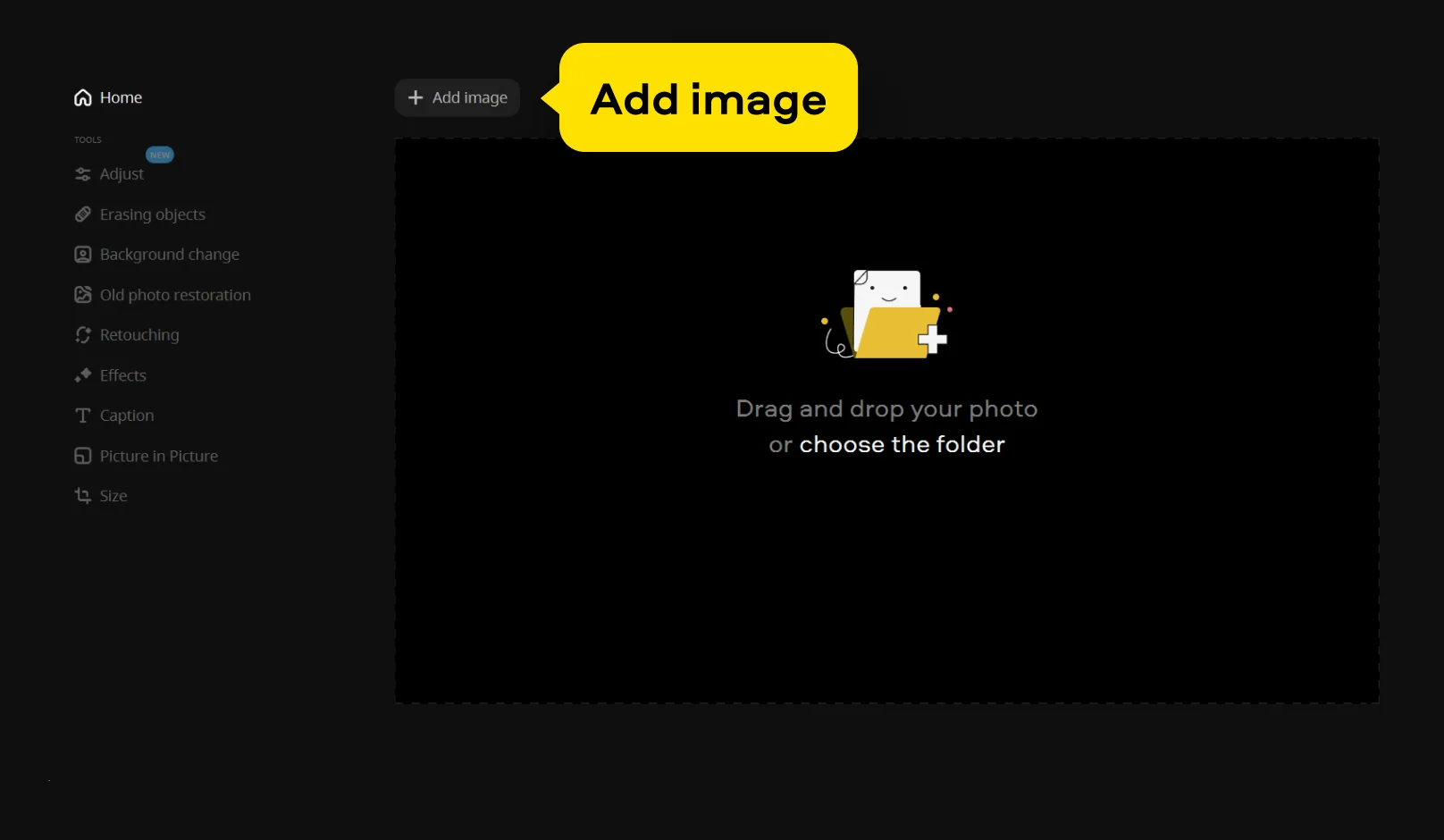
Download and install Movavi Photo Editor on your Windows PC or Mac using the official website. After installation, launch the program and click Add image to browse your files and select the photo you want to restore. You can also drag and drop the image directly into the app to open it quickly and begin editing.
Step 2. Restore damage and enhance the photo

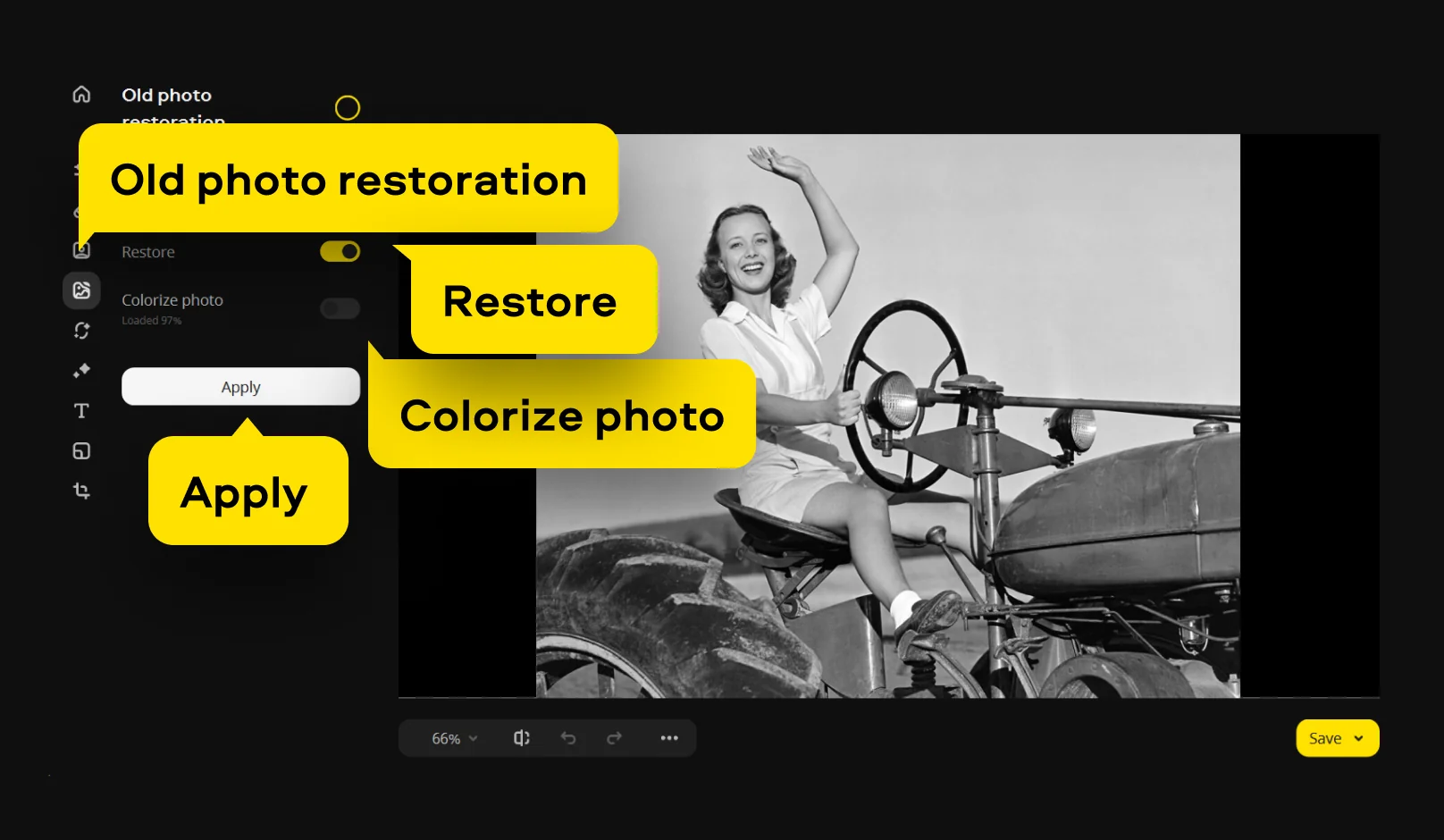
Open the Old photo restoration tab and enable Restore to automatically fix common issues such as scratches, creases, stains, and image noise. Click Apply to process the restoration.
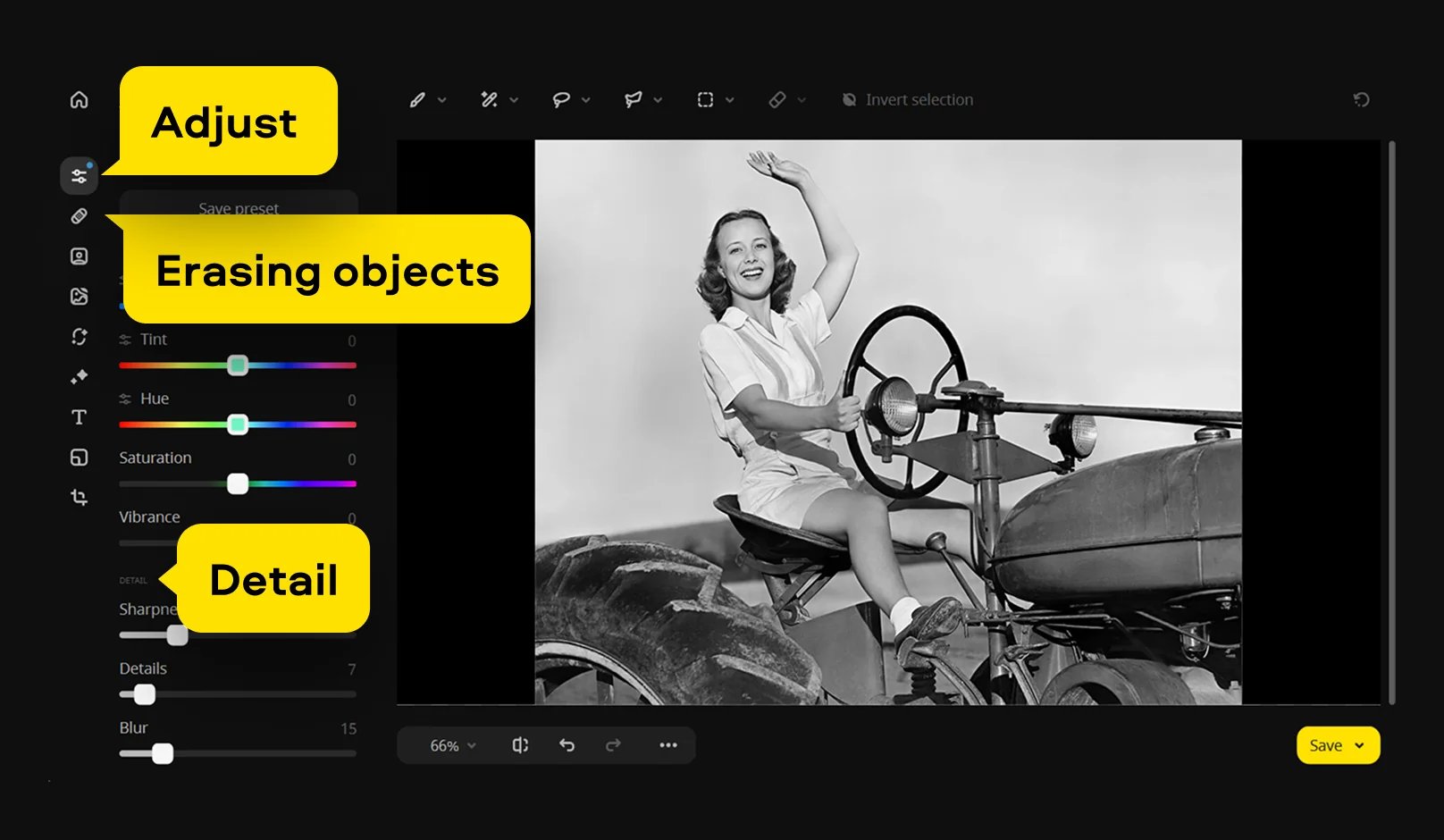
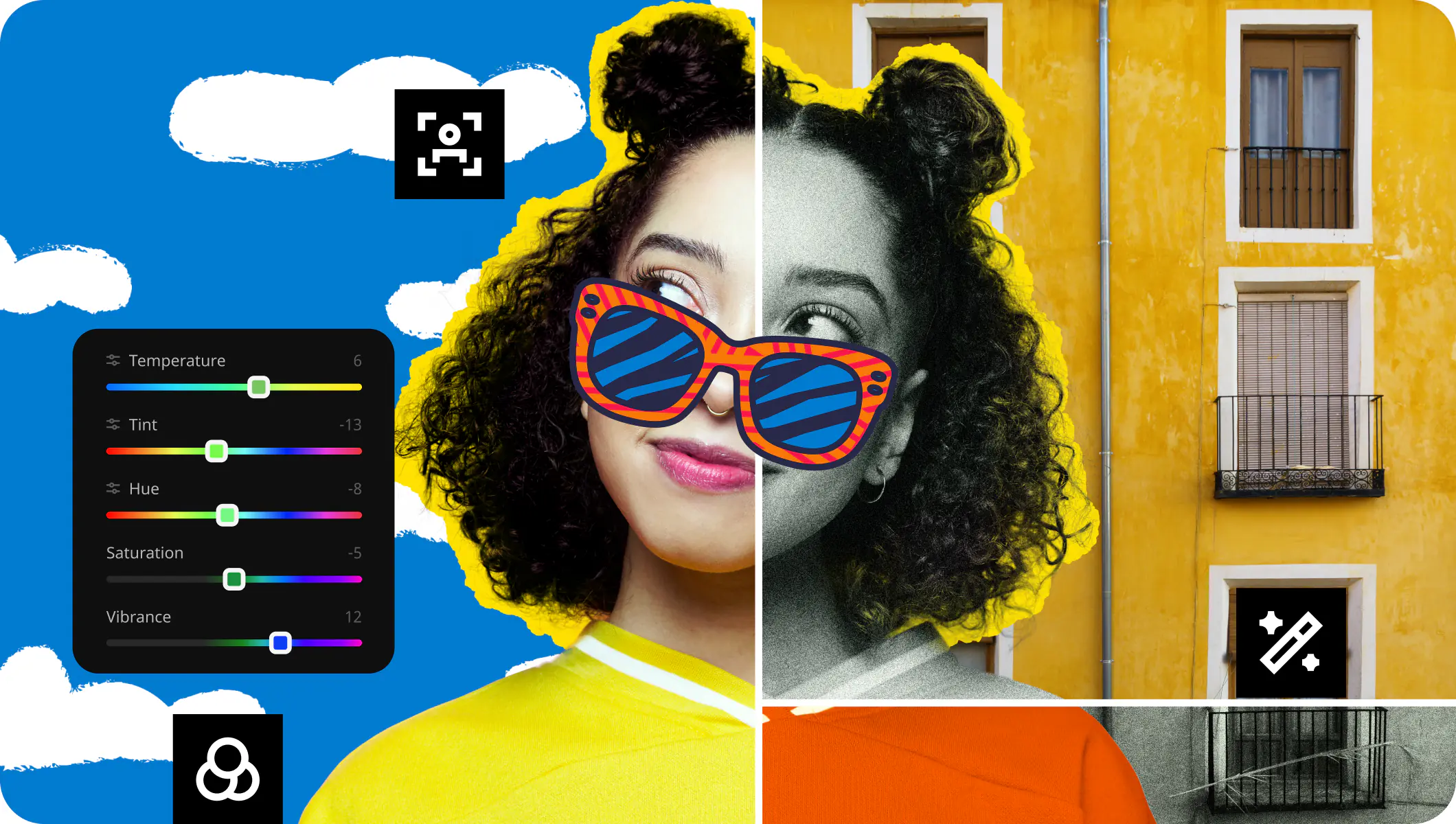
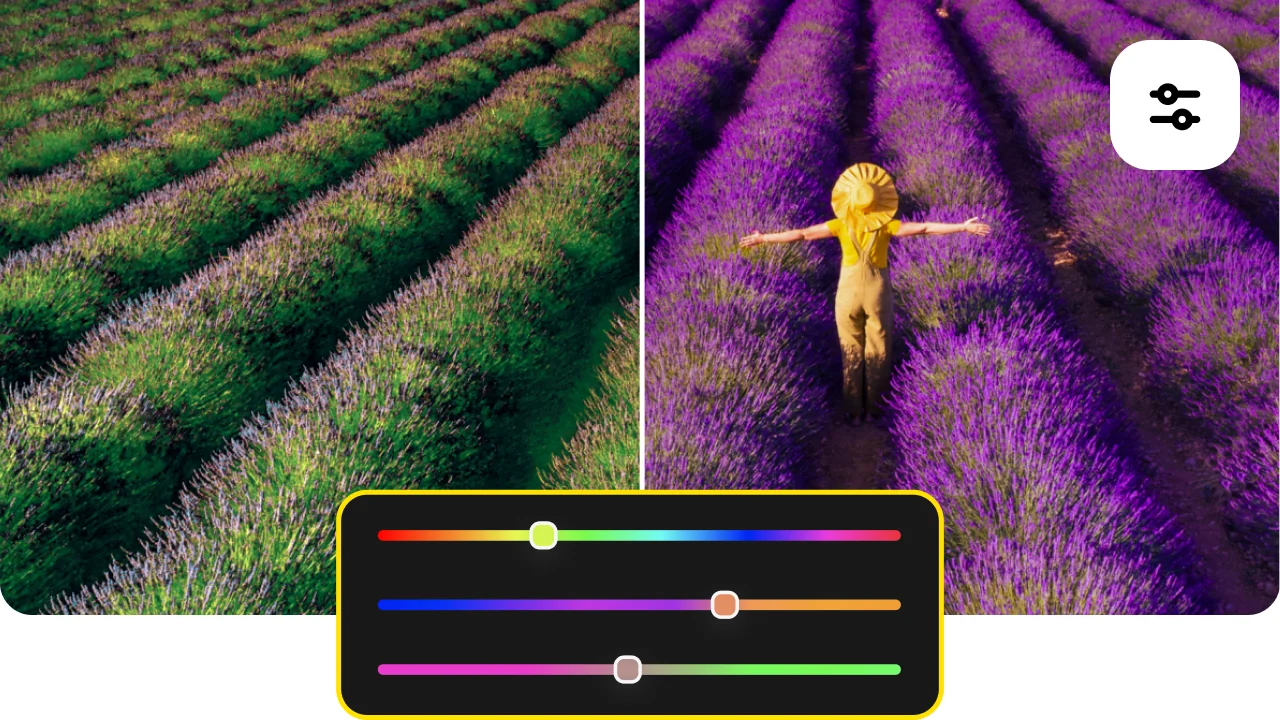
Next, go to the Adjust tab to fine-tune the image by modifying brightness, contrast, and color balance for a more natural look. Use the Details tools to improve sharpness and bring out finer elements in the photo.

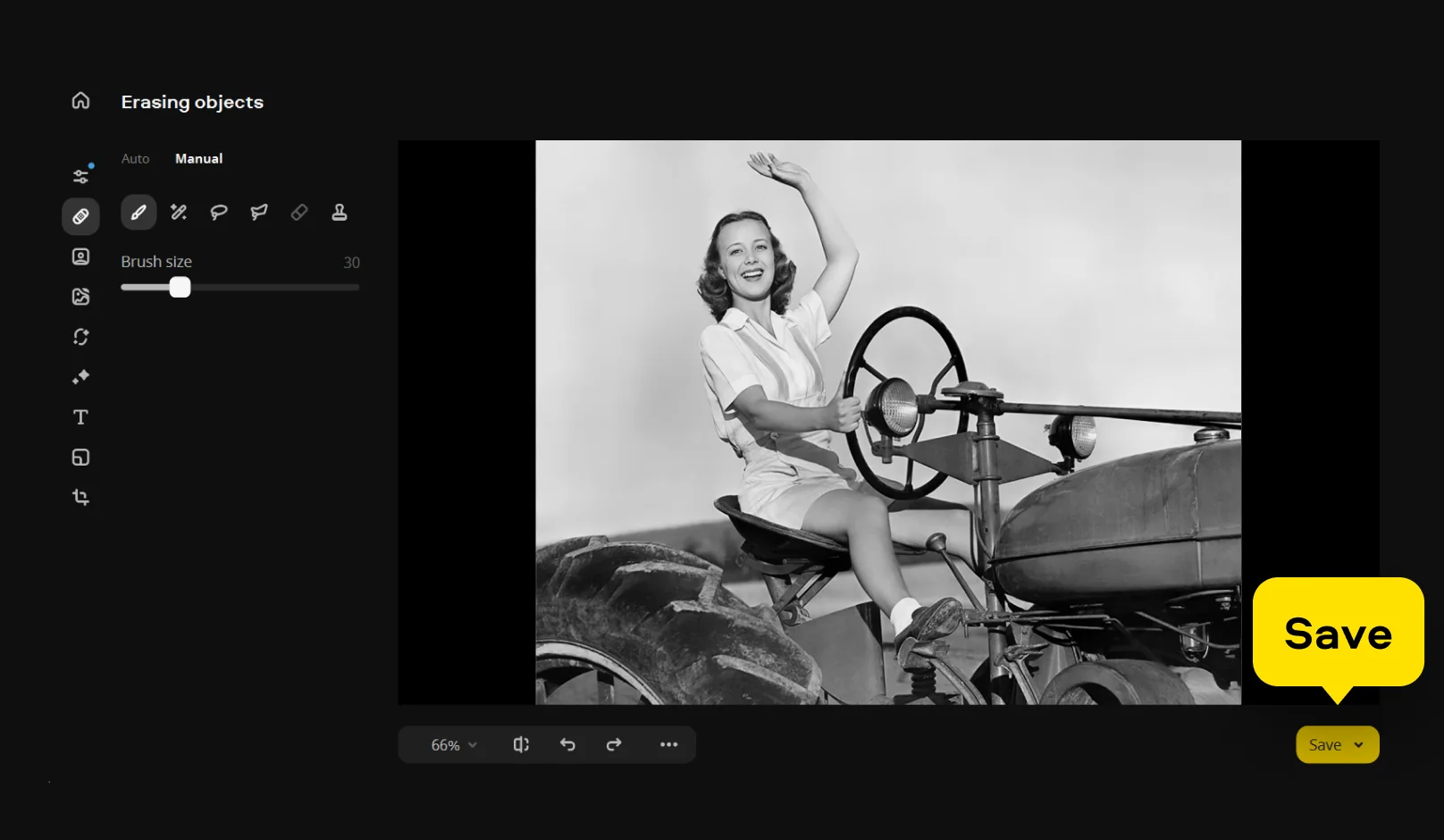
If small defects are still visible, open Erasing objects, highlight the unwanted areas manually, and apply the changes to clean up the image more precisely.

If you want to add color to a black-and-white image, return to the Old photo restoration tab and enable Colorize photo, then click Apply.

Step 3. Save the result

When the restoration is complete, click Save, choose the desired file format and location, and export the final image to your computer.

Movavi Photo Editor
Easily enhance images and get professional-grade results in a snap.

*The trial version of Movavi Photo Editor has the following restrictions: you can save up to 10 images with added watermark, screenshots are disabled.

Why choose Movavi

We’re the #1 choice for millions of people from all around the world. Join our thriving community and create stunning content with incredible ease.

70M+

users

190+

countries

15+

updates per year

10,000+

effects to choose from

Frequently asked questions

Is it possible to restore old photos?

Yes, you can restore old photos, even if they look badly worn or faded. Movavi Photo Editor offers one of the best ways to handle this task by combining automatic tools with manual control. You can reduce noise, repair scratches, improve sharpness, and bring back lost colors, then fine-tune the image using additional enhancement settings if needed.

How do I fix corrupted photos on a PC?

If a photo looks damaged or partially distorted, you can try restoring it with photo editing software. In Movavi Photo Editor, open the image and use the Old photo restoration tools to clean up noise and visual defects. You can then remove remaining imperfections with Object removal and adjust brightness, contrast, and sharpness in the Adjust tab. Once the image looks right, save it in a common format like JPEG or PNG.

Movavi Photo Editor
Easily enhance images and get professional-grade results in a snap.

*The trial version of Movavi Photo Editor has the following restrictions: you can save up to 10 images with added watermark, screenshots are disabled.

Join us for discounts, editing tips, and content ideas

1.5M+ users already subscribed to our newsletter

By signing up, I agree to receive marketing emails from Movavi and agree to Movavi's Privacy Policy.