Step 1. Download the app and import your video
Download Movavi App from the App Store. Open the app and tap the + icon to start a new project. Select the video you want to mute. The clip loads onto the Movavi App timeline.
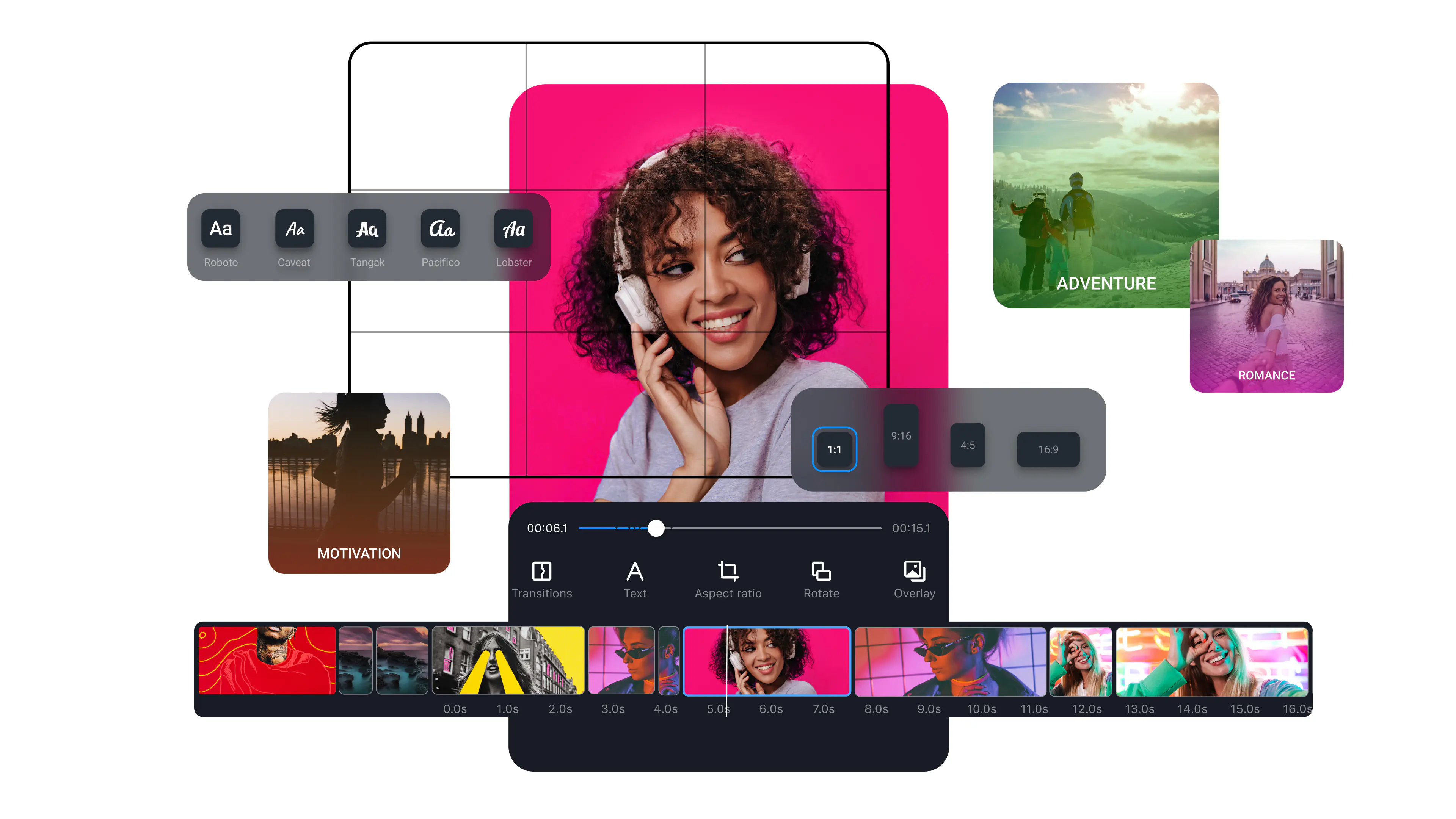
Movavi App lets you remove or mute the audio from any video in seconds – import a clip from your camera roll, mute the original audio track, and save the silent video straight back to your photos.
Whether you need to remove sound from a video to share it without background noise, replace the original audio with music, or send a silent clip that plays cleanly in any environment, Movavi App gives you full audio control and a complete mobile editor in one free app.
Millions


Mute, replace, or fine-tune audio – all in one mobile app.
Remove sound from any video instantly
Movavi App removes the audio track from any video clip. Select the video on the timeline, tap the audio volume control, and drag it to zero. The video exports as a standard silent file that plays on any player, with no audio track attached.
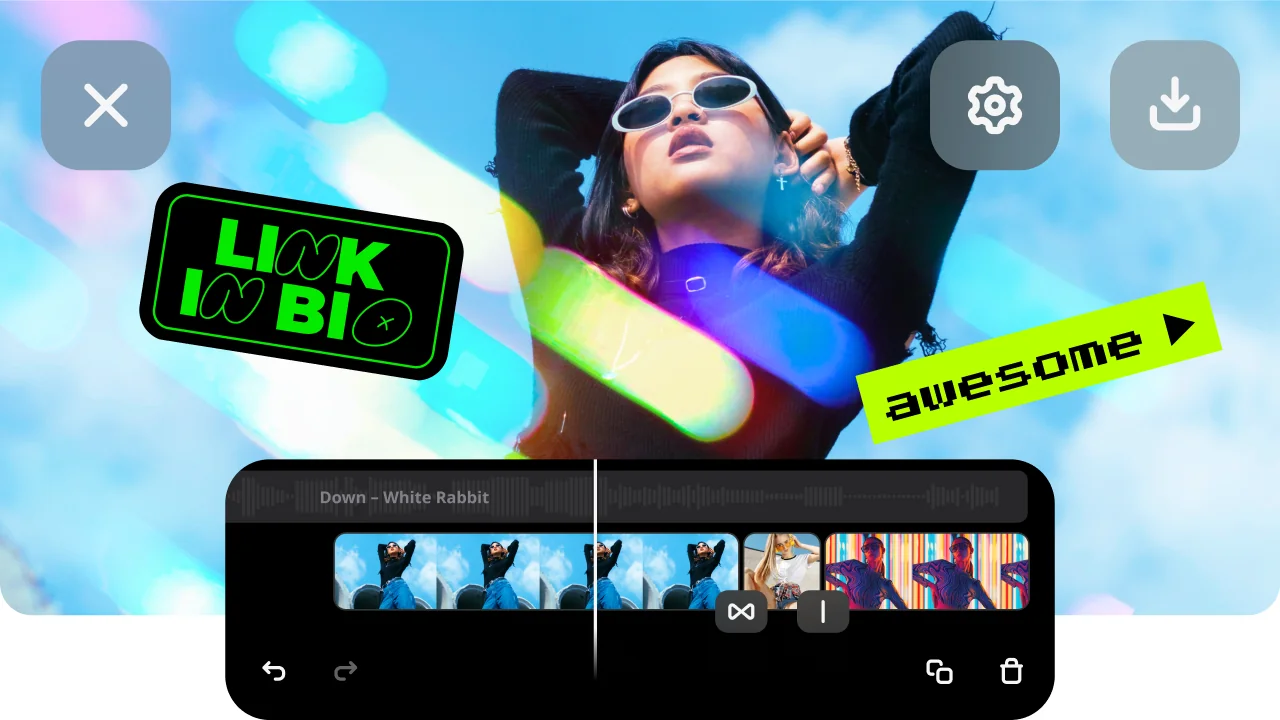
Remove original sound and add new music instead
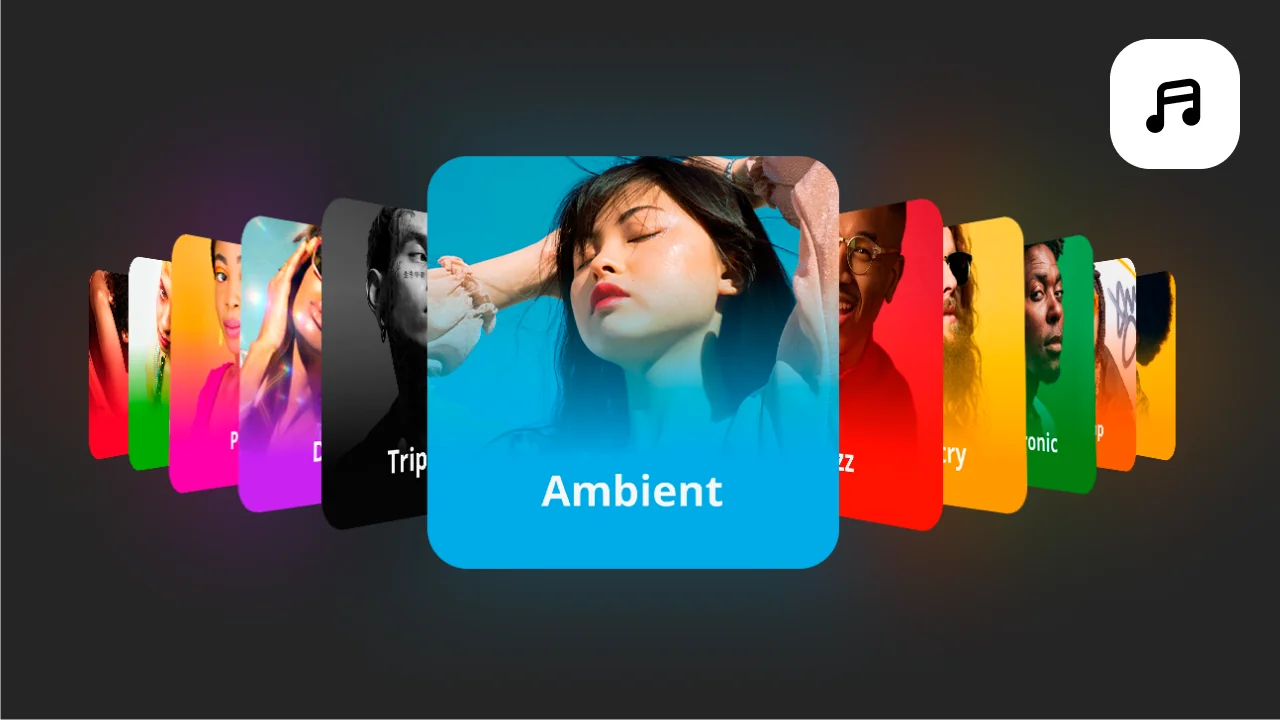
The most common reason to remove audio from a video is to replace it with better sound – background music, a voiceover, or a royalty-free track. In Movavi App, mute the original audio, then open the Music section and add a track from the built-in royalty-free music library or import your own file. Sync the replaced audio to the video and export as a single combined file.
Reduce unwanted background noise
Not every situation calls for complete silence. Sometimes you only need to reduce loud background noise or lower ambient audio before adding music on top. Movavi App’s per-track volume slider lets you dial the original video audio down to any level while keeping a music track at full volume – or reduce both to a balanced mix. More flexible than a hard mute.

Three reasons Movavi App is a great choice for removing sound from videos on your iPhone.
From your camera roll to a silent exported video in three steps.
Download Movavi App from the App Store. Open the app and tap the + icon to start a new project. Select the video you want to mute. The clip loads onto the Movavi App timeline.
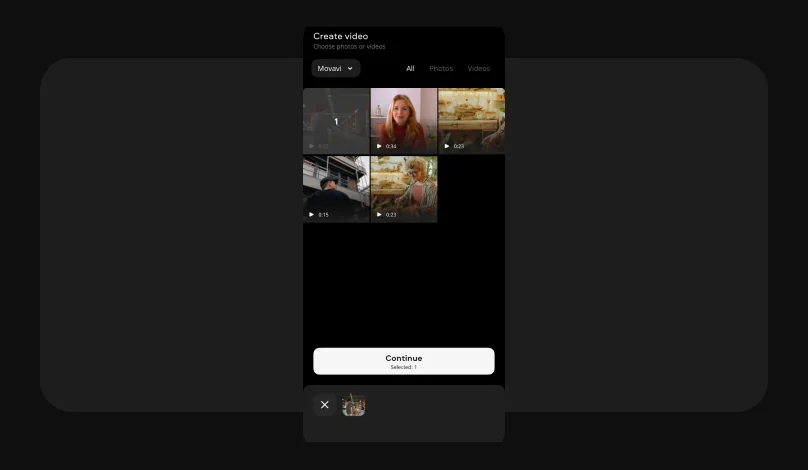
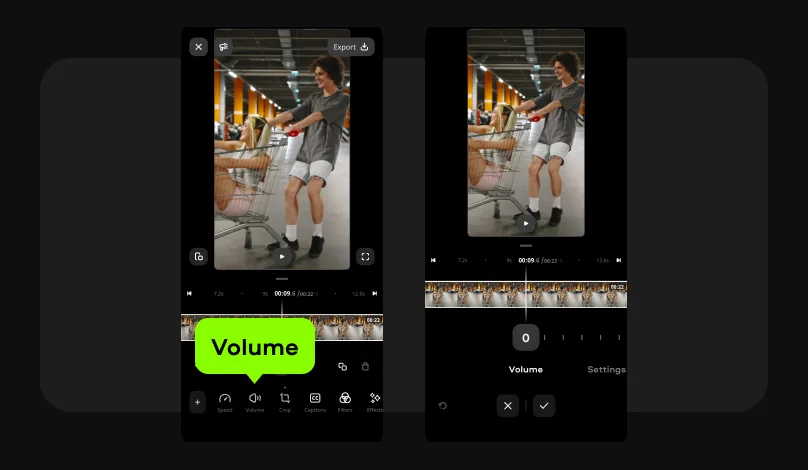
Tap the video clip on the timeline to select it. Tap the Volume icon in the clip settings and drag it to zero. Tap the checkmark icon to save changes.
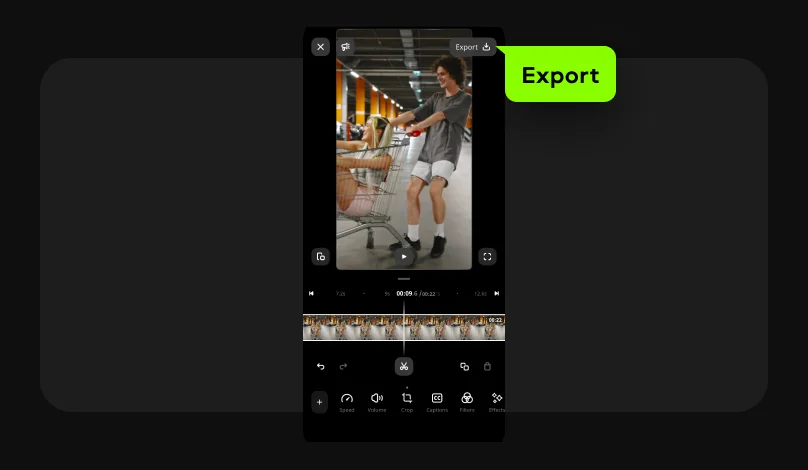
Tap the Export button in the top-right corner and select Save. Movavi App exports the video without audio to your camera roll as a new file. Your original clip with audio remains untouched. The exported file plays silently on any player and can be shared via Messages, WhatsApp, email, or any other platform without sound.
Removing audio from a video is a common need across content creation, personal sharing, and business use.
Create scroll-stopping videos for your socials in a few taps

Common questions about how to remove audio from a video on an iPhone.
To remove audio from a video on an iPhone using Movavi App:
The exported file has no audio stream and plays silently on every device and platform. This is the correct method to remove sound from a video on an iPhone when you need a permanently silent file, not just a playback mute. Your original clip with audio remains untouched in your camera roll – Movavi App saves the muted version as a new file.
The fastest way to send a video from your iPhone without sound is to remove the audio using software like Movavi App first, then share the exported silent file.
In Movavi App: import the clip, tap Volume and move the slider to zero, then export to your camera roll. The resulting silent file can then be sent via Messages, WhatsApp, email, or AirDrop like any normal video file. Note that iOS’s native tool in Photos does not have audio removal – edited videos exported from Photos still include their original audio. Movavi App is the correct mobile tool for producing a video file without sound that you can share from your camera roll through any app or service.
Yes – it is free to remove audio from a video on iPhone using Movavi App. Download the app at no cost from the App Store. The audio muting feature is available in the free tier without a subscription. The free tier includes a watermark on exported videos – to remove the watermark, an in-app subscription is available. iOS’s native Photos app does not include a video audio removal feature at all, so Movavi App is one of the simplest options available for this task.
The iOS Photos app does not include a feature to remove sound from a video. When you edit a video in Photos and export it, the full original audio is included in the saved file. There is no mute button or audio track option in the Photos editing screen for videos.
To remove audio from a video that’s currently in your Photos library: open Movavi App, start a new project, import the clip from your Photos library, use the Volume tool to mute the audio track, and export the silent version back to your Photos. The silent file saves alongside the original without replacing it.


1.5M+ users already subscribed to our newsletter