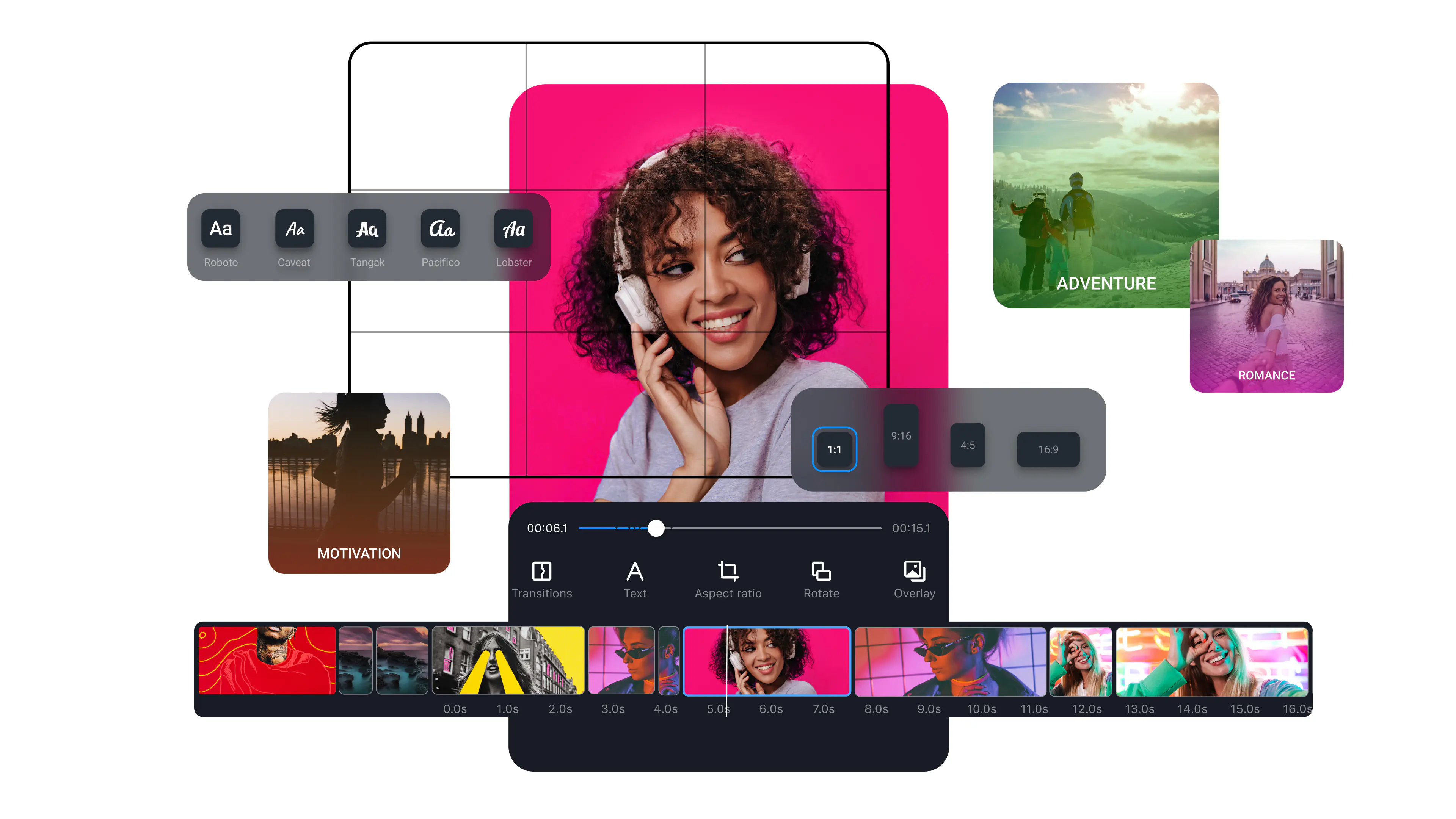
Step 1. Download the app and import your video
Download Movavi App from the App Store. Open the app and tap the plus icon. Select the video you want to speed up from your iPhone camera roll. The clip loads into the app’s mobile timeline.
Millions


Every tool you need to make any clip faster.
Precision speed slider – 0.1× to 10×
Movavi App includes a speed slider that goes from 0.1× (extreme slow motion) all the way to 10×. For speeding up iPhone camera roll videos, the most-used range is 2×–10× – enough to turn a 3-minute clip into a punchy 30-second highlight. The preview updates in real time as you drag the slider, so you can hear and see the result before exporting.
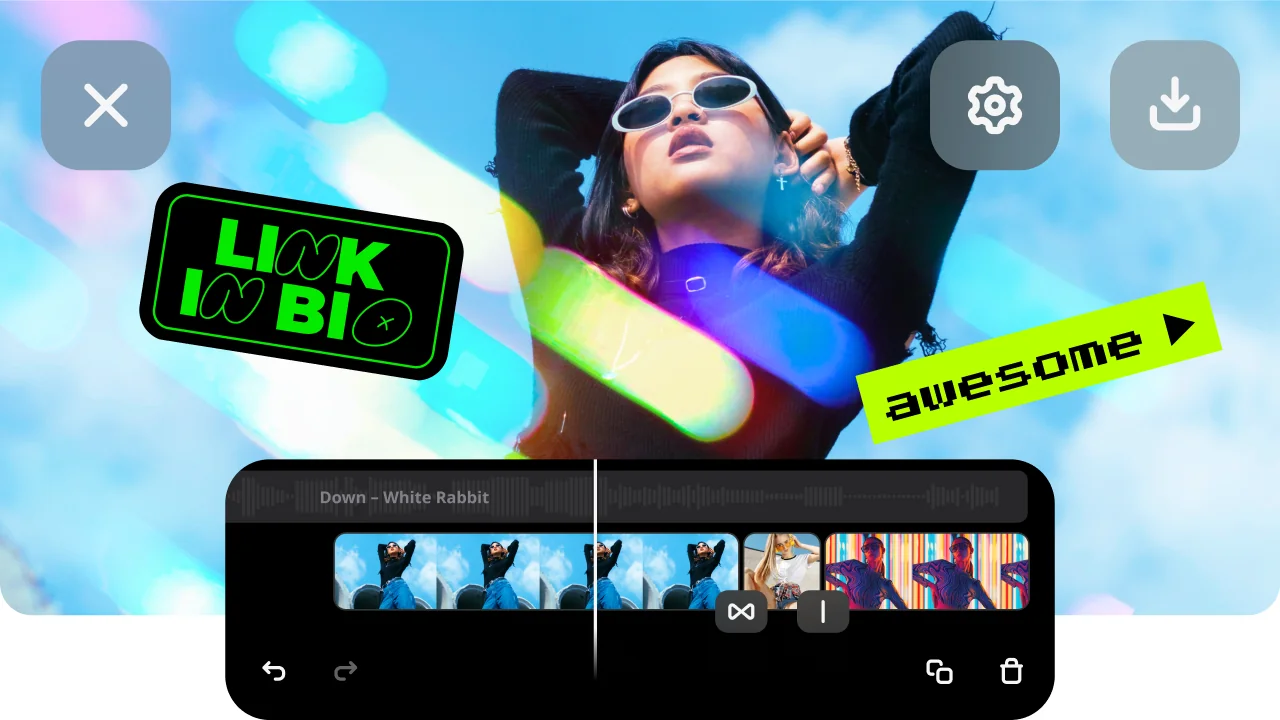
Speed up straight from your camera roll
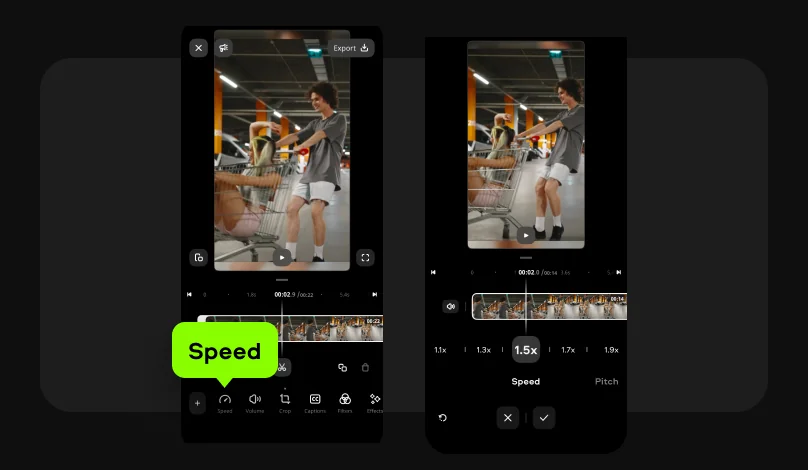
Movavi App lets you speed up a video directly from your camera roll without transferring anything to a computer. Tap the Speed tool in the timeline panel, select a multiplier (1.5×, 2×, 4×, or custom), and preview instantly. The app exports to your Photos library in the original resolution – up to 4K on supported iPhones.
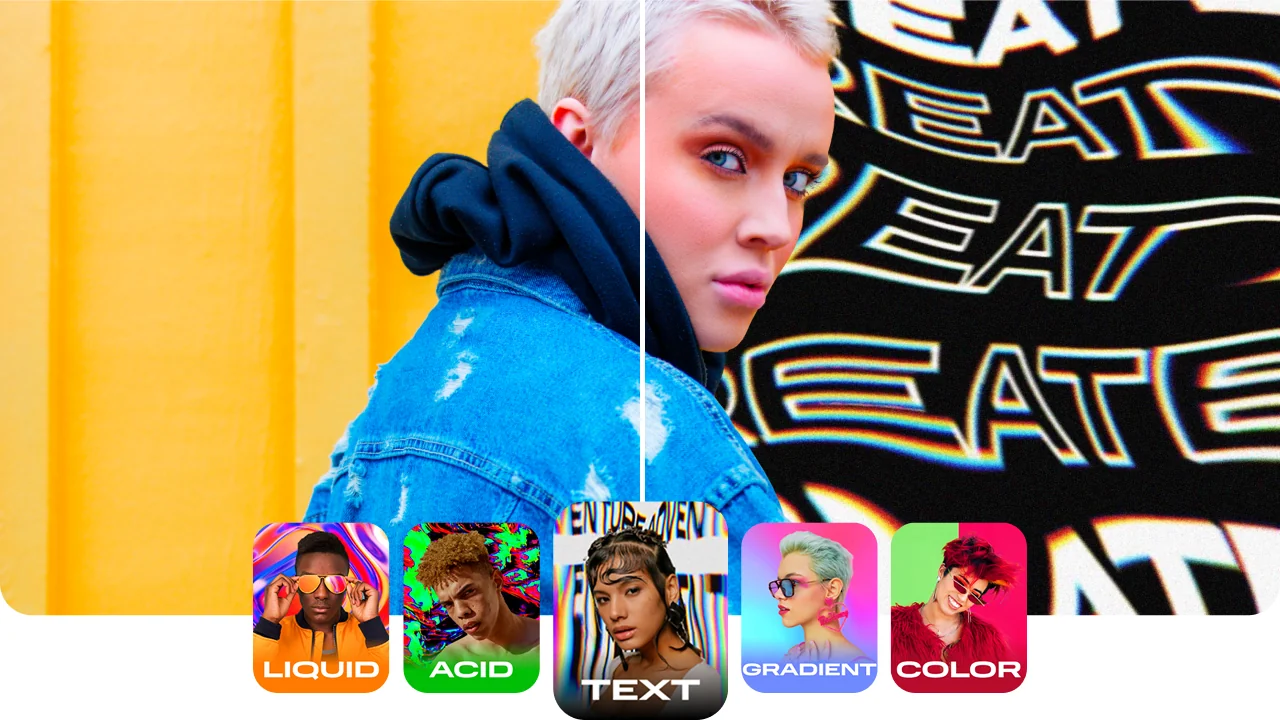
Turn any iPhone video into a timelapse
Stack speed increase with the Movavi App’s timeline to create professional timelapse clips from footage shot in normal video mode – no need to switch to iPhone’s built-in Timelapse camera mode before recording. Import the clip, apply 10× speed, add music from the built-in royalty-free library, and export.

Three reasons creators choose Movavi App for the video speed control.
Best for quick edits directly on your iPhone, no computer needed.
Download Movavi App from the App Store. Open the app and tap the plus icon. Select the video you want to speed up from your iPhone camera roll. The clip loads into the app’s mobile timeline.
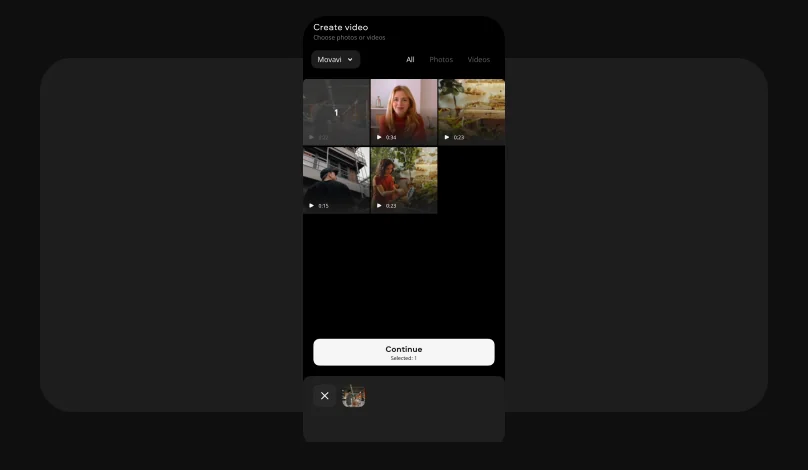
In the editing toolbar at the bottom of the screen, tap Speed. A slider appears with preset multipliers: 1.5×, 2×, 3×, 4×, and more. Drag the slider to set the speed. The timeline shortens the clip in real time to reflect the new duration.
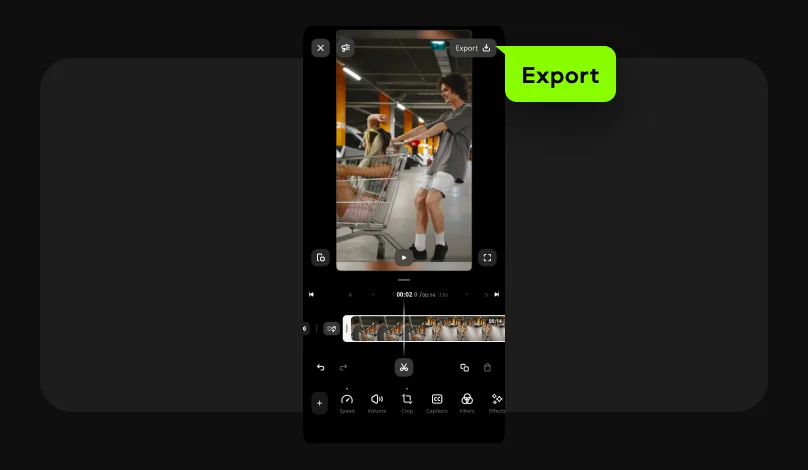
When the speed looks right, tap the Export button in the top-right corner of the app. Select Save. Movavi App exports the sped-up video in your chosen resolution and saves it directly to your iPhone camera roll – ready to share to Instagram, TikTok, or any other platform.
Speeding up videos from an iPhone camera roll is one of the most-requested mobile-editing tasks – across creators, everyday users, and businesses.
Create scroll-stopping videos for your socials in a few taps

Common questions about speeding up iPhone videos from the camera roll.
If you’re wondering, “can I speed up a video on my iPhone that’s already recorded?” – yes, you can. iPhone’s native Photos app does not include a speed-up feature, but several apps do. Movavi App includes a speed slider directly on the mobile timeline – tap Speed in the project toolbar, set your multiplier, and export back to Photos. iMovie has a basic pinch-to-zoom crop but no dedicated video speed tool. CapCut and InShot both include speed controls in their free tiers.
To speed up a video you already took on your iPhone:
Playing a video at 2× speed on an iPhone is different from exporting a sped-up video.
For playback only: Apple’s built-in Videos app and Safari support playback speed adjustment via the AirPlay menu. Tap the playback controls while a video is playing and look for the speed button (1× > 1.25× > 1.5× > 2×). The Podcasts and Apple TV apps also support 2× playback.
For third-party videos in the Photos app, there’s no built-in 2× playback tool. To save a clip as a permanently sped-up file to your camera roll, use the Movavi App to set the speed to 2× and export. The resulting file plays at the new speed in any player without needing any app software setting.
In Movavi App on an iPhone:
The clip shortens to half its original duration and plays at double the original speed.
To speed up a video on an iPhone to other multipliers, drag the custom slider in the app to any value between 0.1× and 10×.


1.5M+ users already subscribed to our newsletter