Step 1. Download and install the AI video background remover
Start by getting the download file and complete the setup on your device. This step is quick and does not require special configuration. After installation, open the program.
Meet the Video Background Remover Software – Easily Remove a Background from a Video
Remove your video background in seconds with Movavi’s smart AI tools

Smart background removal
Use the fast AI detection to remove a background from a video without manual masking.

Easy controls
Enjoy simple controls to adjust edges and refine the cutout in real time.

High-quality output
Export your videos with stable quality on Windows and Mac systems.
Remove a background from a video
Movavi Video Editor is the ultimate video background remover for everyday projects on Windows and Mac computers. You don’t need advanced editing skills to get a clean result. The interface is self-explanatory, made for beginners. That means you don’t waste time looking for the right tool. You can just load your clip and let the built-in AI take care of most of the background removal.
This background remover for videos also gives you control when needed. You can adjust details, swap scenes, or refine edges without slowing down your workflow. It’s useful if you want to delete a video background for presentations, social clips, or tutorials. The process feels direct and does not overload you with settings.
If you are looking for a video background remover free solution that still feels complete, this software fits the purpose. It combines speed and control in one place. You can erase a video background, replace it, and export your file without jumping between apps. The software runs well on both Windows and Mac, letting you work on almost any setup.
Start by getting the download file and complete the setup on your device. This step is quick and does not require special configuration. After installation, open the program.
Click Add Files or drag your clip directly into the window. Place it on the Timeline to begin editing. Then go to Tools and find the Background removal utility. Choose between Quick or Precise mode depending on your footage. Click Remove and let the system process the clip. This is the core step if you wonder how to remove background from video without manual work.
After the cutout is ready, you can place a new image or video behind it. Add the new file to your project and position it on the main track. Move your subject clip to the overlay track above it. Adjust placement using Position settings if needed.
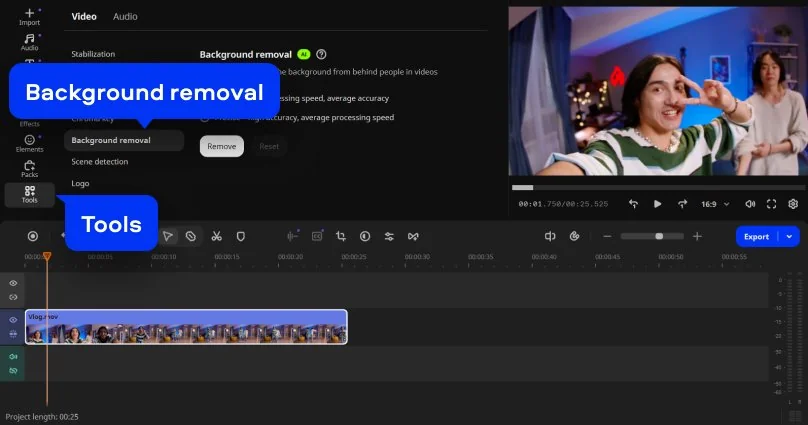
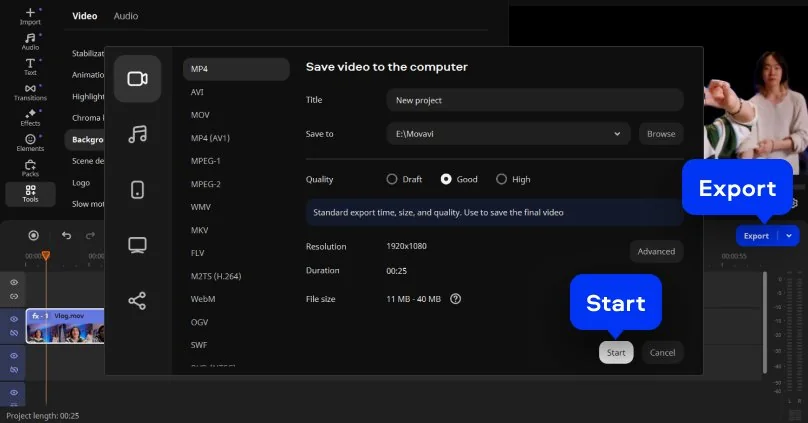
When everything looks right, click Export, choose format, and save your file.

We’re the #1 choice for millions of people from all around the world. Join our thriving community and create stunning content with incredible ease.
Millions


The easiest way is to use artificial intelligence for such jobs. For example, Movavi Video Editor comes with a robust AI video background remover built right into it. It detects the subject and separates it from the background automatically. You don’t need to draw masks or adjust frames one by one. This saves a lot of time, especially for short clips. It also works well for casual editing tasks.
Yes. Movavi Video Editor allows for Chroma Key editing. You can work with green screen footage and replace the background with another image or video. The tool lets you select the background color and adjust settings for a cleaner result. This helps refine edges and improve blending. It’s a practical option if you already use green screen in your projects.
Yes, some free tools include settings to refine edges. You can adjust softness, detail, or noise levels. This helps improve the final look of your subject. It’s useful when working with hair or complex shapes. Small adjustments can make a visible difference.
Yes, Movavi Video Editor works with many types of clips. You can use it for social posts, tutorials, presentations, or simple personal videos. It does not matter much what you are editing, the same tools stay available. The background removal tool also handles different lighting and scenes without much trouble. It feels steady whether your clip is short or a bit longer.
*The free version of Movavi Video Editor may have the following restrictions depending on the build: watermark on exported clips, 60-second video or 1/2 audio length limit, and/or some advanced features unavailable when exporting videos.


1.5M+ users already subscribed to our newsletter