
Movavi’s online video cropper is made for quick edits. You open it in your browser, drop in a clip, frame the shot, and export. The interface is clean and practical: a big preview in the center, a left panel for aspect ratios, and the Export Result button that’s hard to miss.
- Fast and easy editing: cut, crop, adjust colors and speed
- One-click AI tools: auto subtitles, noise removal, and more
- Hundreds of filters, transitions, titles, overlays
By clicking the download button, you're downloading a trial version of the program.*
Free Online Video Cropper
How to use the online video cropper
Step 1. Add a file to crop video
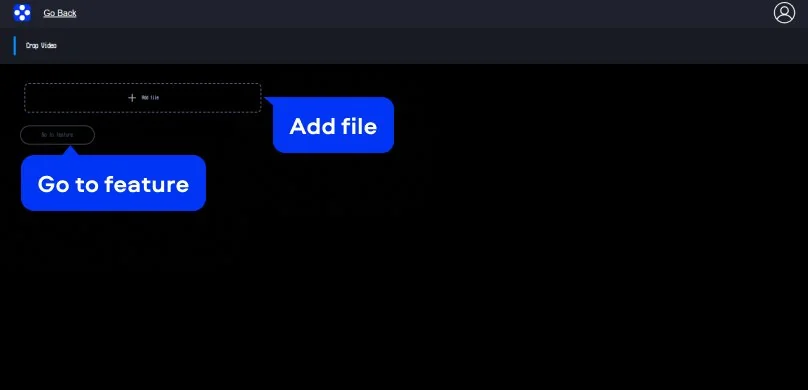
Click the Add file button to upload your video. Once your video loads, you’ll see it listed at the top, and you can jump in with Go to feature.
Step 2. Set the frame and crop
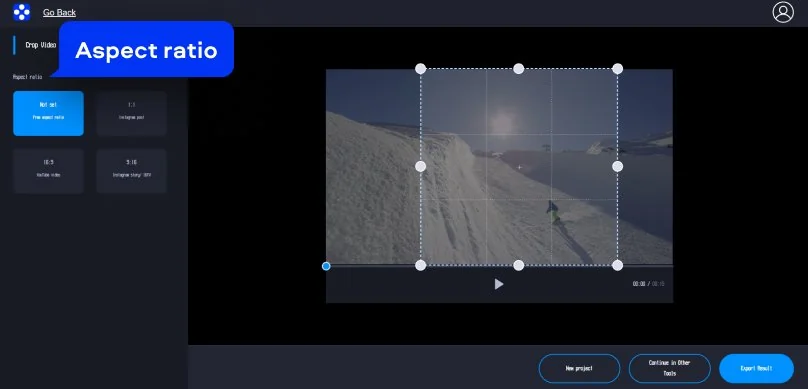
In the preview, you’ll get a resize box with corner handles and a grid, so you can tighten the composition without guessing. Pick an aspect ratio on the left – 1:1 for an Instagram post, 16:9 for YouTube, 9:16 for Stories, or keep it Not set if you want full control. This is the core of how to crop a video: drag the frame until it shows exactly what you want, then preview it with the play button.
Step 3. Export the result
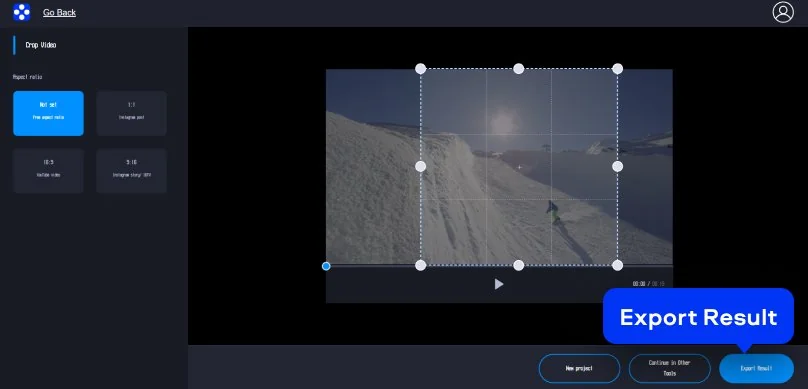
When the framing looks right, hit Export Result and save your updated clip. It’s a straightforward way to crop videos online when you just need a clean cut and a finished file fast.
How to crop a video on desktop
Movavi Video Editor is a strong option if you prefer working on a PC and want more control than a web tool can offer. The app runs on Windows and Mac, and it’s built as friendly software that still feels capable when you need precision. You can fine-tune framing, adjust aspect ratios for different platforms, and keep quality consistent across multiple clips. It’s also a good fit when you’re dealing with larger projects, since everything stays local after the initial download – no waiting on a web upload queue, no surprise slowdowns.
Step 1. Upload your video
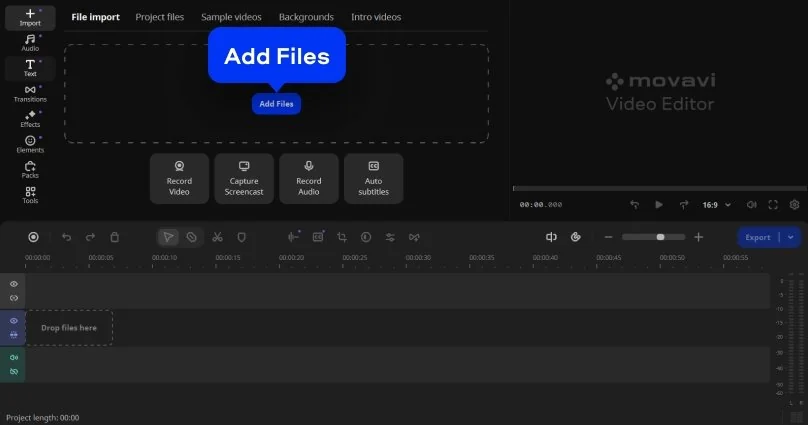
Click Add Files and select the video you want to crop.
Step 2. Set the crop area
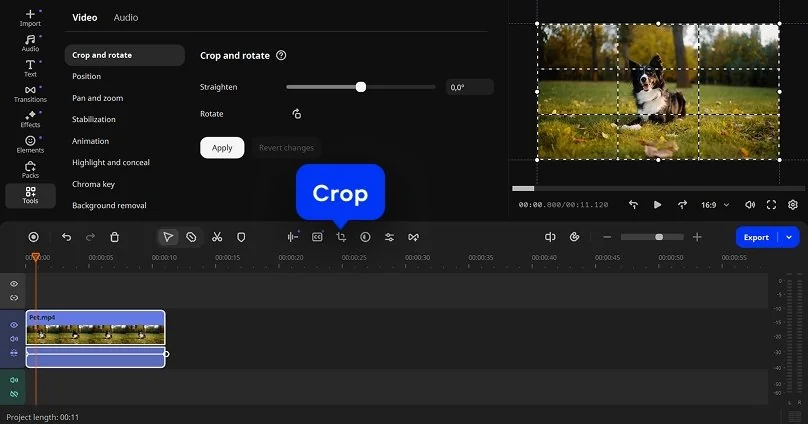
Click the Crop icon. Resize and move the frame to keep only the part of the video you need. To save changes, click the Apply button.
Step 3. Export the video
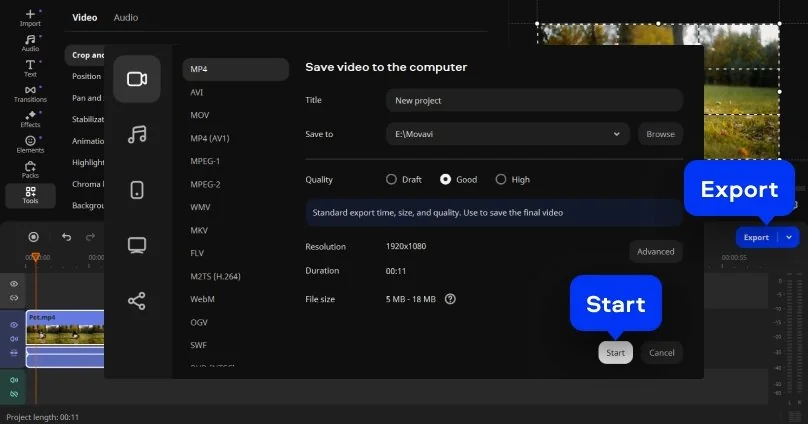
Click Export, select the export option, and save the file to your computer. The video is saved with the new frame and without extra borders.
Why choose Movavi
We’re the #1 choice for millions of people from all around the world. Join our thriving community and create stunning content with incredible ease.
Frequently asked questions
Can I crop videos for free?
You can crop videos online for free with Movavi, but the free version adds a watermark to the exported file. To get a cropped video with no watermark, you need to subscribe or pay for a single export. The process itself is straightforward: upload the file, set the frame, and save the result.
What video file types can I crop in your tool?
Movavi works with the formats people actually use. MP4, MOV, AVI, and similar files open without trouble. If a video plays on a standard device, it is very likely supported.
Will cropping the video reduce the file size or quality?
Cropping only changes what is visible in the frame. The image itself stays sharp. File size may shift slightly.
What video file size can I crop online?
Videos up to 500 MB can be uploaded and cropped. That is enough for most phone recordings, tutorials, and screen captures without any pre-processing.
Can I crop videos for TikTok?
Yes. Movavi lets you switch to a vertical layout and adjust the frame so the subject stays in view. The video fits TikTok’s format without awkward cuts or re-shooting.
*The free version of Movavi Video Editor may have the following restrictions depending on the build: watermark on exported clips, 60-second video or 1/2 audio length limit, and/or some advanced features unavailable when exporting videos.
1.5M+ users already subscribed to our newsletter