Movavi Video Editor

  • Fast and easy editing: trim, cut, crop, adjust colors and speed

  • One-click AI tools: auto subtitles, noise removal, and more
  • Hundreds of filters, transitions, titles, overlays

By clicking the download button, you're downloading a trial version of the program.*

Free Online Photo Video Maker

How to create a video from photos online

Movavi’s online tool is a browser-based photo-to-video maker that lets you create a video from photos in just a few minutes for free. You don’t need to install any software or create complex projects. Everything works directly in your web browser. The tool allows you to upload images, arrange them in the right order, add music, and export the finished video online. It’s a convenient solution for creating birthday slideshows, travel memories, family videos, or simple social media clips.

If you’re looking for how to make a video with pictures quickly and easily, follow these three simple steps using Movavi’s picture-to-video maker.
Step 1. Add your files

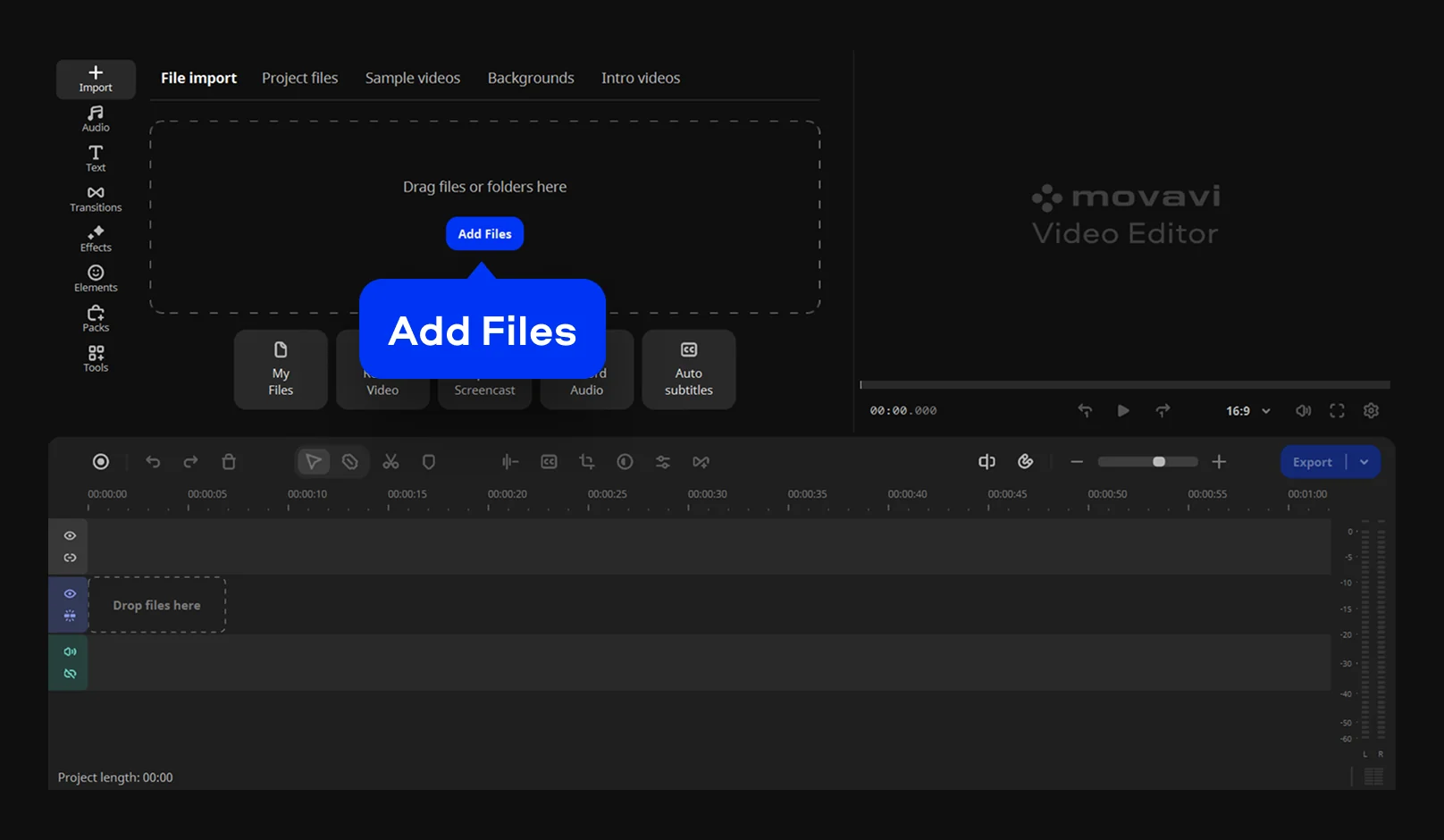
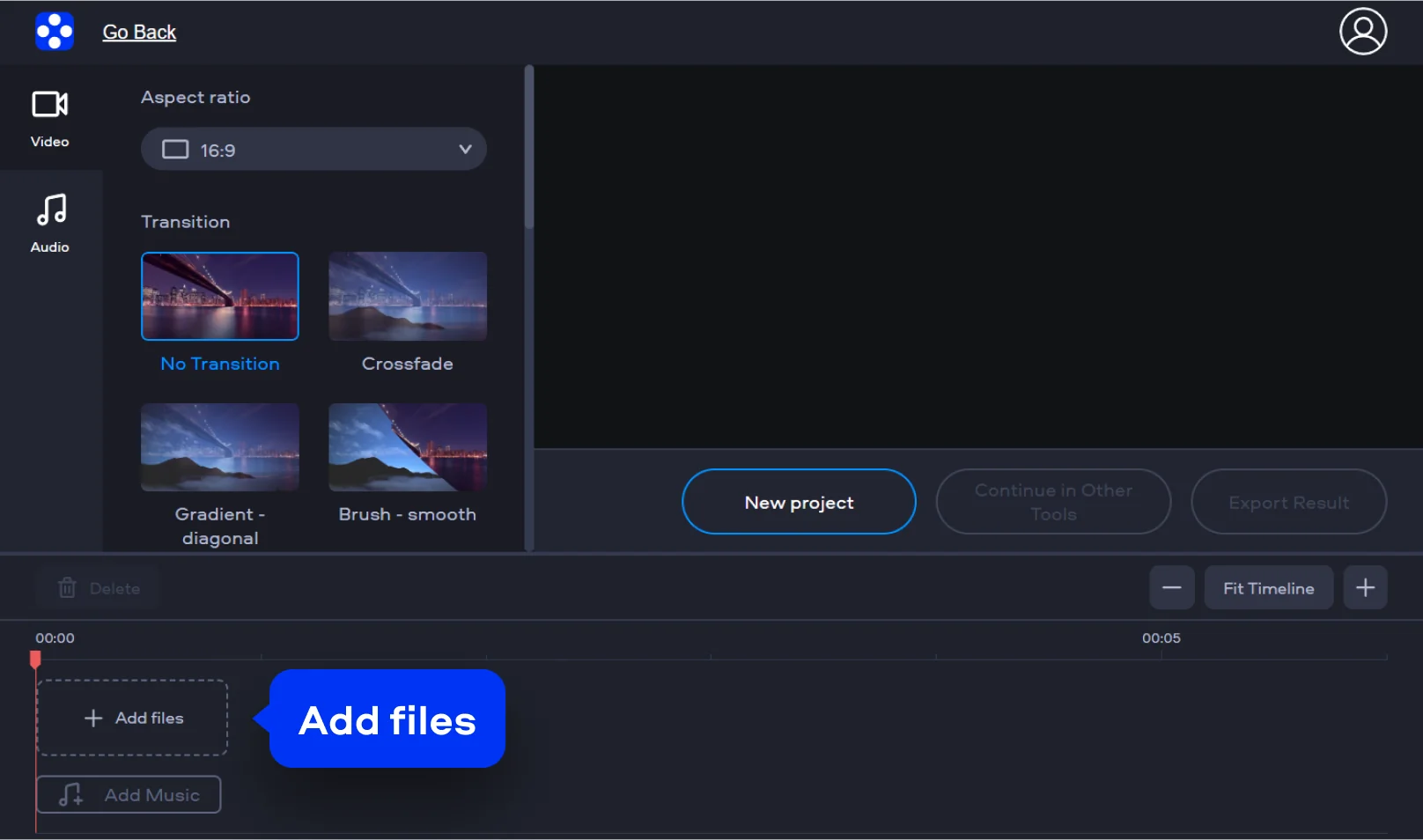
Click Add files and select the photo you want to use from your computer. Once the upload is complete, your first photo will appear in the editing workspace. Click Add files on the timeline to upload other photos you want to use.

Step 2. Arrange and customize your pictures

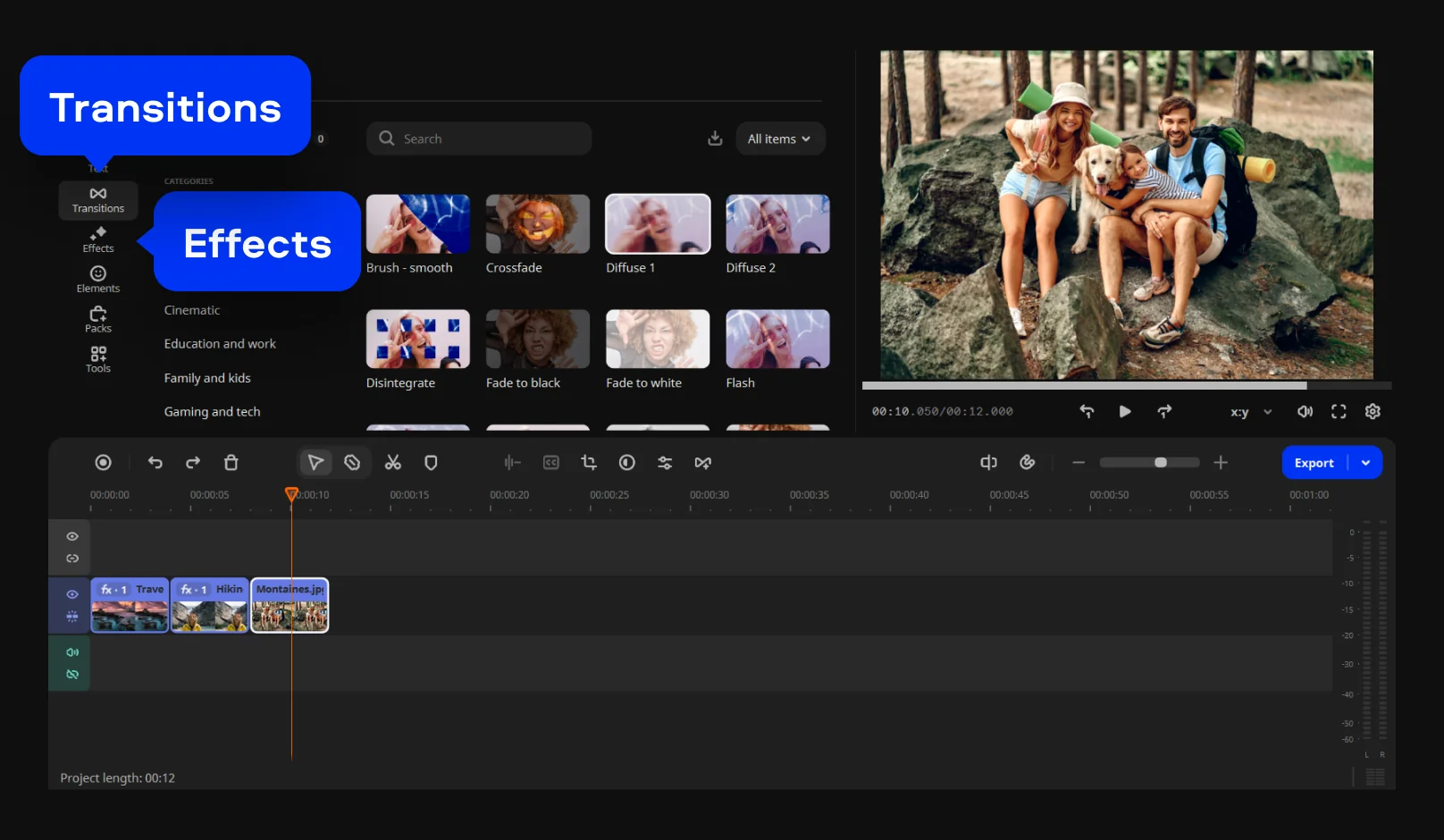
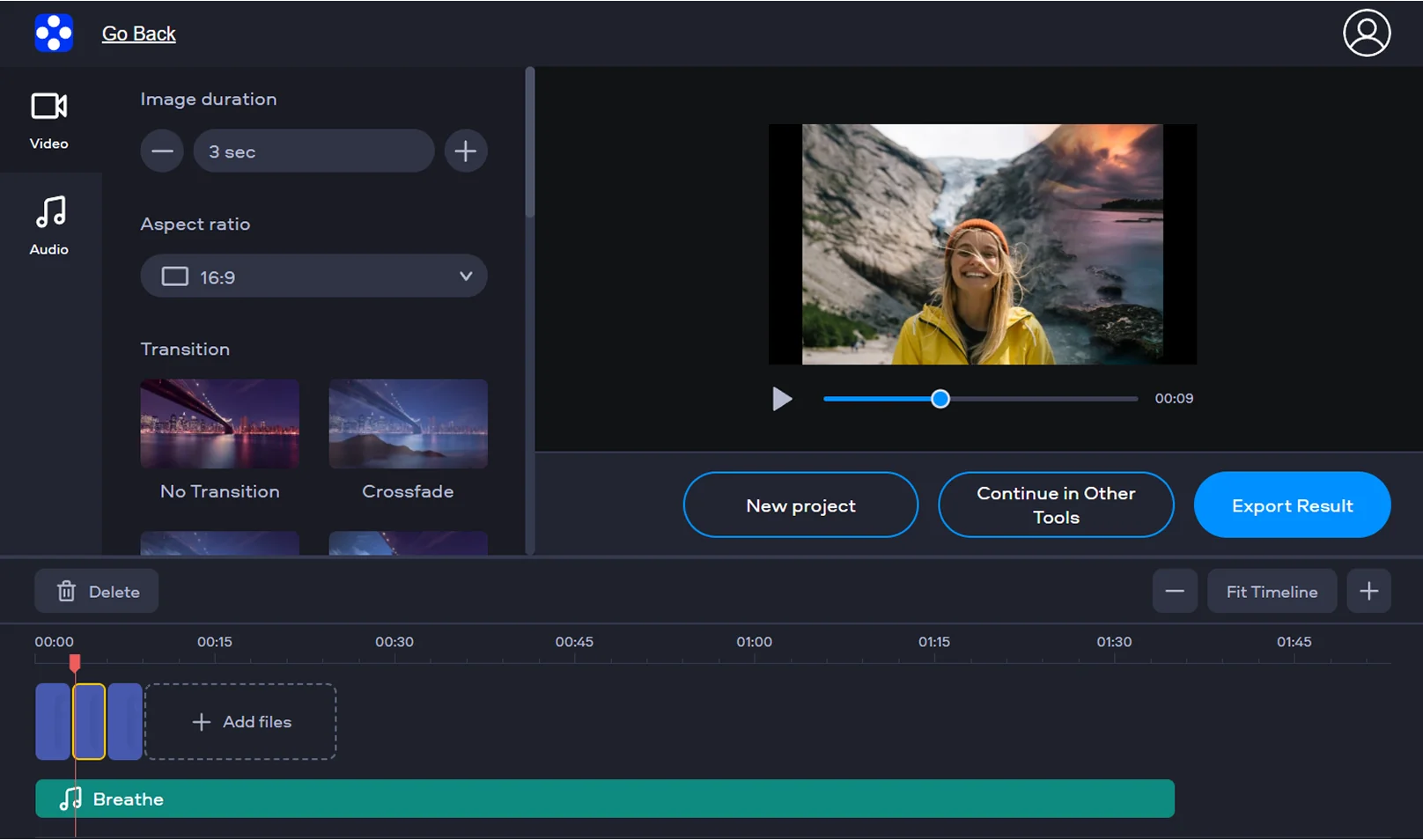
Once your images are uploaded, arrange them in the order you prefer. Then choose a transition style from the available options, and it will be applied automatically to all the photos in your slideshow.

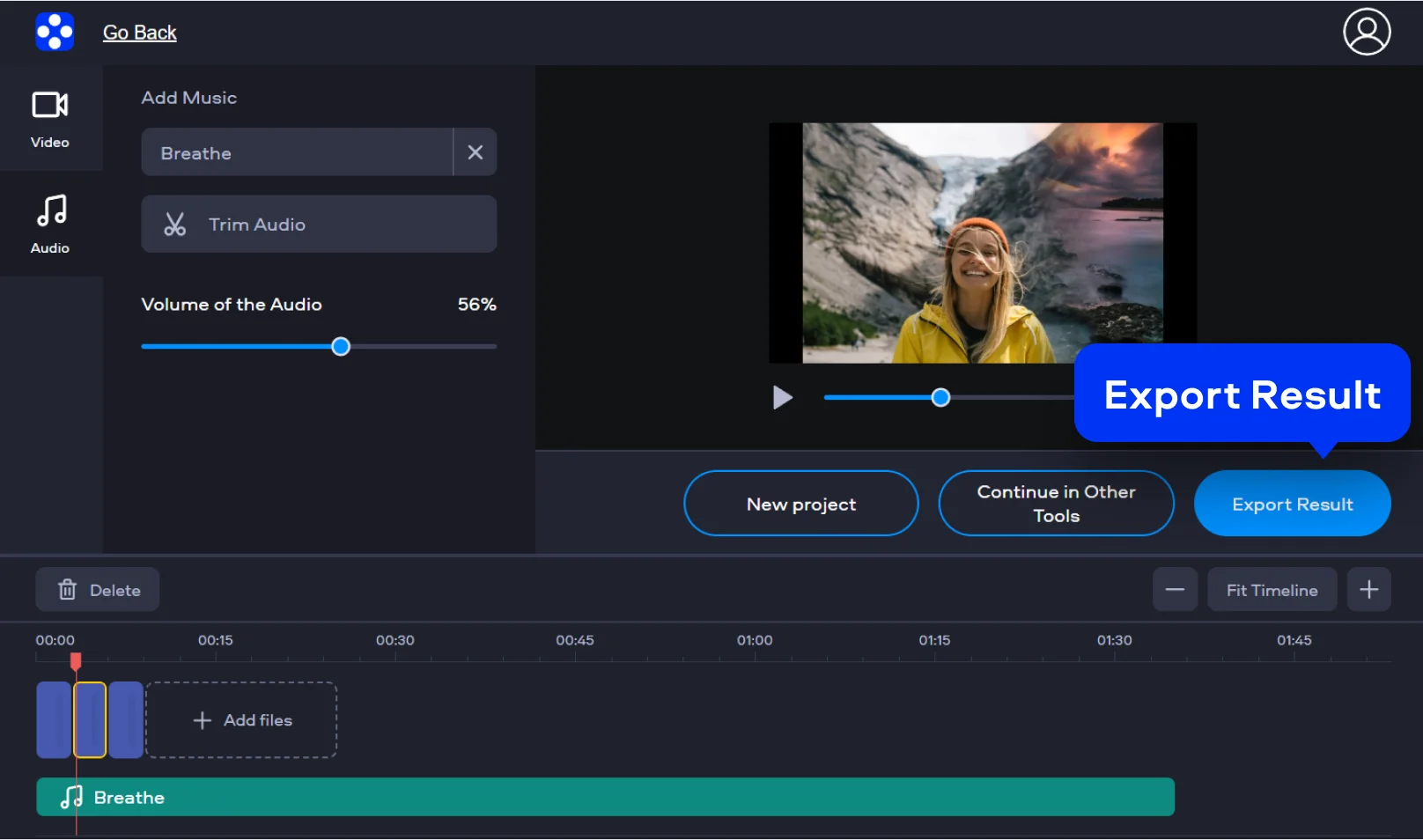
To add music, upload an audio file from your computer and trim it if necessary. You can also pick a track from the built-in music library and add it to your project in a couple of clicks.

Step 3. Export the video

When you are satisfied with the result, click the Export Result button to finalize your project and wait for the tool to process your video. Once it’s ready, download the finished file to your PC or any other device you are using.

How to make a video with pictures on desktop

Desktop software tends to make more sense when you’re dealing with longer videos or larger file sizes. Movavi Video Editor works on both Windows and Mac and helps even things out with simple edits, captions, and calm pacing, making videos suitable for celebrations or keepsakes.

Step 1. Install Movavi Video Editor

Download and install Movavi Video Editor on your computer. Launch the program to start working with your pictures.

Step 2. Import your photos

Add images by clicking the Add Files button or dragging files into the program window. Place photos on the timeline in the order you want to build your video.

Step 1. Mute video on PC or Mac.

Step 3. Customize transitions and effects

Apply transitions, filters, and animations between images. These tools help transform static pictures into a smooth and engaging photo video.

Step 4. Add music and titles

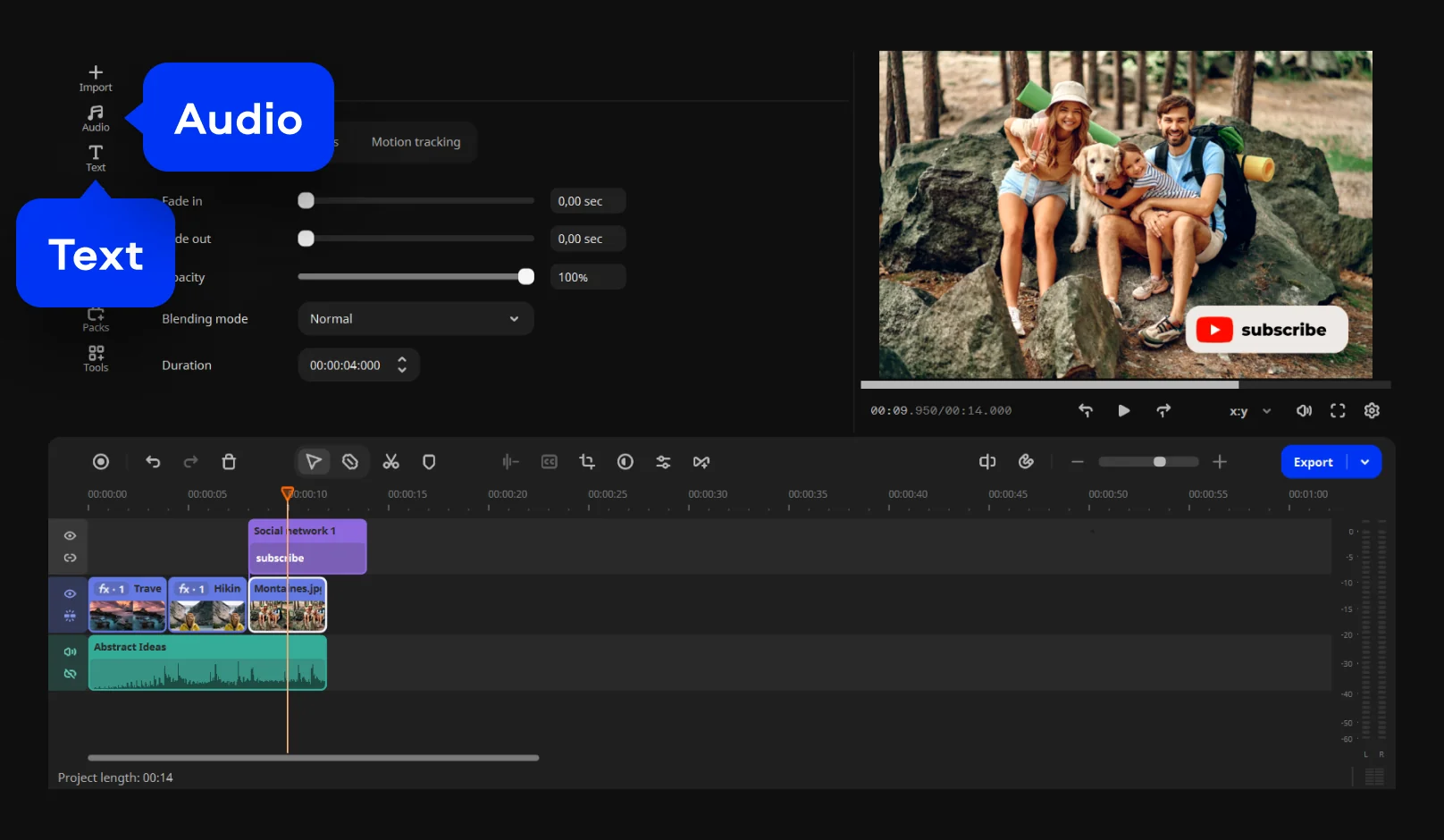
Insert background music or a favorite song, then adjust the volume to match your visuals. Add titles or captions to highlight key moments and give your video more personality.

Step 5. Export the finished video

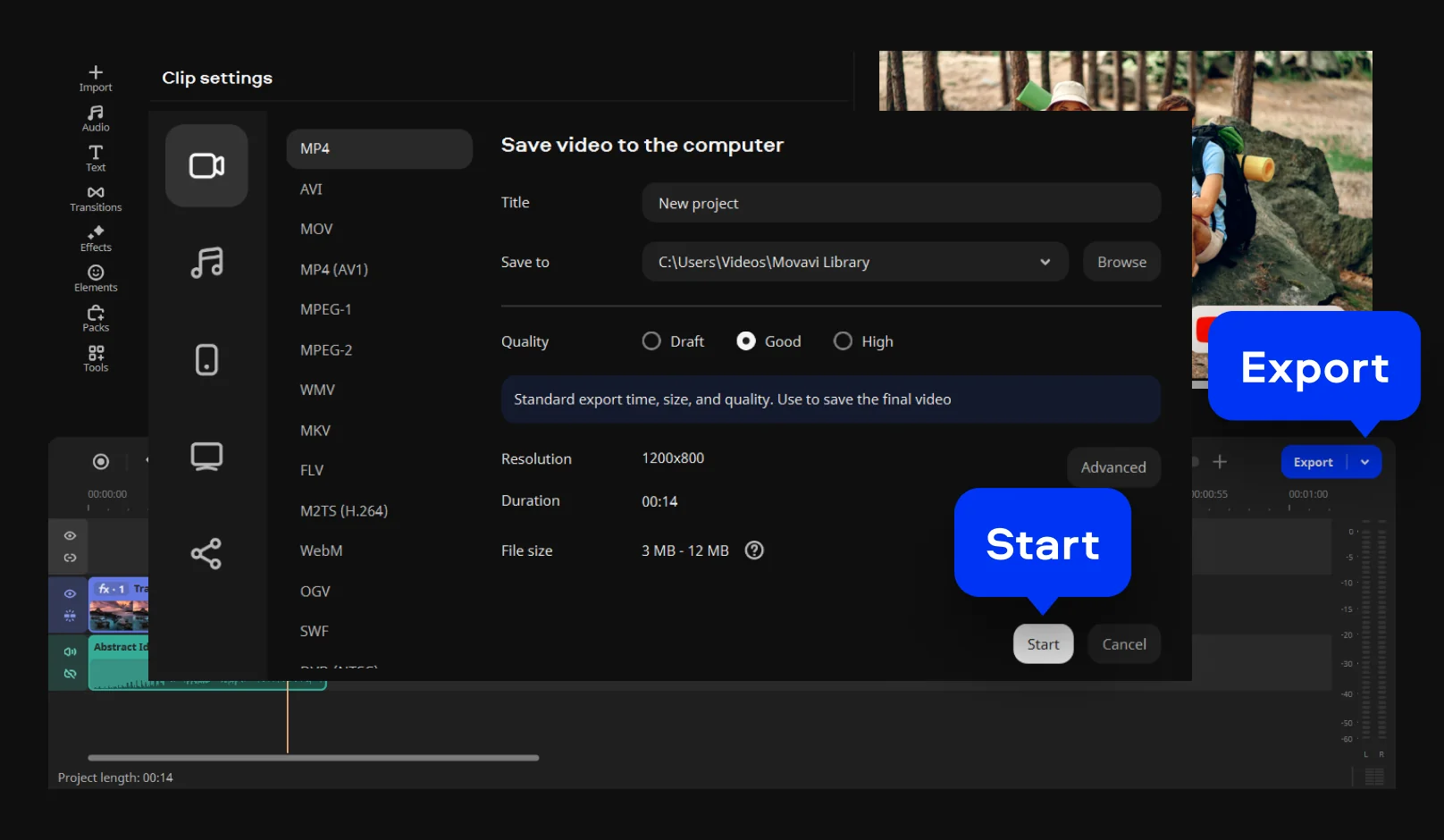
Click Export and select the desired format and resolution. Your video will be ready for saving, sharing, or uploading online.

Movavi Video Editor
Create awesome videos easily

*The free version of Movavi Video Editor may have the following restrictions depending on the build: watermark on exported clips, 60-second video or 1/2 audio length limit, and/or some advanced features unavailable when exporting videos.

Why choose Movavi

We’re the #1 choice for millions of people from all around the world. Join our thriving community and create stunning content with incredible ease.

70M+

users

190+

countries

15+

updates per year

10,000+

effects to choose from

Frequently asked questions

How can I make a video from my photos?

Most people start by opening a folder full of images and wondering what to do next. A simple editor like Movavi Video Editor solves that quickly. You drop the photos onto a timeline, adjust the order, and preview the flow. If you have ever searched how to create a video with pictures, this is the moment it finally clicks. The whole process feels like a clean image to video conversion, without technical distractions.

Where can I make a video with pictures and music for free?

Free usually comes with trade-offs, and that is something you notice fast. Online tools can be handy, but limits appear almost immediately. Movavi’s free trial gives a more realistic experience, especially if you want sound. When people ask how to make a video with pictures and music, this kind of desktop editor feels more reliable. It works as a flexible photo to video maker that lets you experiment before committing.

How to create a video from iPhone photos?

You do not have to leave your iPhone to make a video from your photos. A mobile editing app is enough. With Movavi’s iPhone app, you pick the images, put them in order, tweak how long they appear, add music, and save the result without much effort. It feels natural when all your photos are already on your phone.


If at some point you want deeper control, the desktop version is there. For quick ideas and short videos, the mobile app is usually all you need.

What is the free video maker using photos?

A free video maker using photos is simply a tool that lets you test the full process before paying. Some people call this type of software a picture video maker, especially when the goal is storytelling rather than effects. With Movavi Video Editor, you can turn into a finished video something that started as a random photo collection, and see if the workflow suits you before deciding to upgrade.

Movavi Video Editor
Create awesome videos easily

*The free version of Movavi Video Editor may have the following restrictions depending on the build: watermark on exported clips, 60-second video or 1/2 audio length limit, and/or some advanced features unavailable when exporting videos.

Join us for discounts, editing tips, and content ideas

1.5M+ users already subscribed to our newsletter

By signing up, I agree to receive marketing emails from Movavi and agree to Movavi's Privacy Policy.