Step 1. Open your video in Movavi Video Editor
Launch Movavi Video Editor and drop your clip onto the timeline. The interface is clean, intuitive, and ready for quick sound fixes without hunting through menus.

Video Volume Booster with a Free Download
Add your file to Movavi Video Editor.
Increase the volume level.
Export and share the result.
How to make video louder with Movavi Video Editor
Step 1. Open your video in Movavi Video Editor
Launch Movavi Video Editor and drop your clip onto the timeline. The interface is clean, intuitive, and ready for quick sound fixes without hunting through menus.
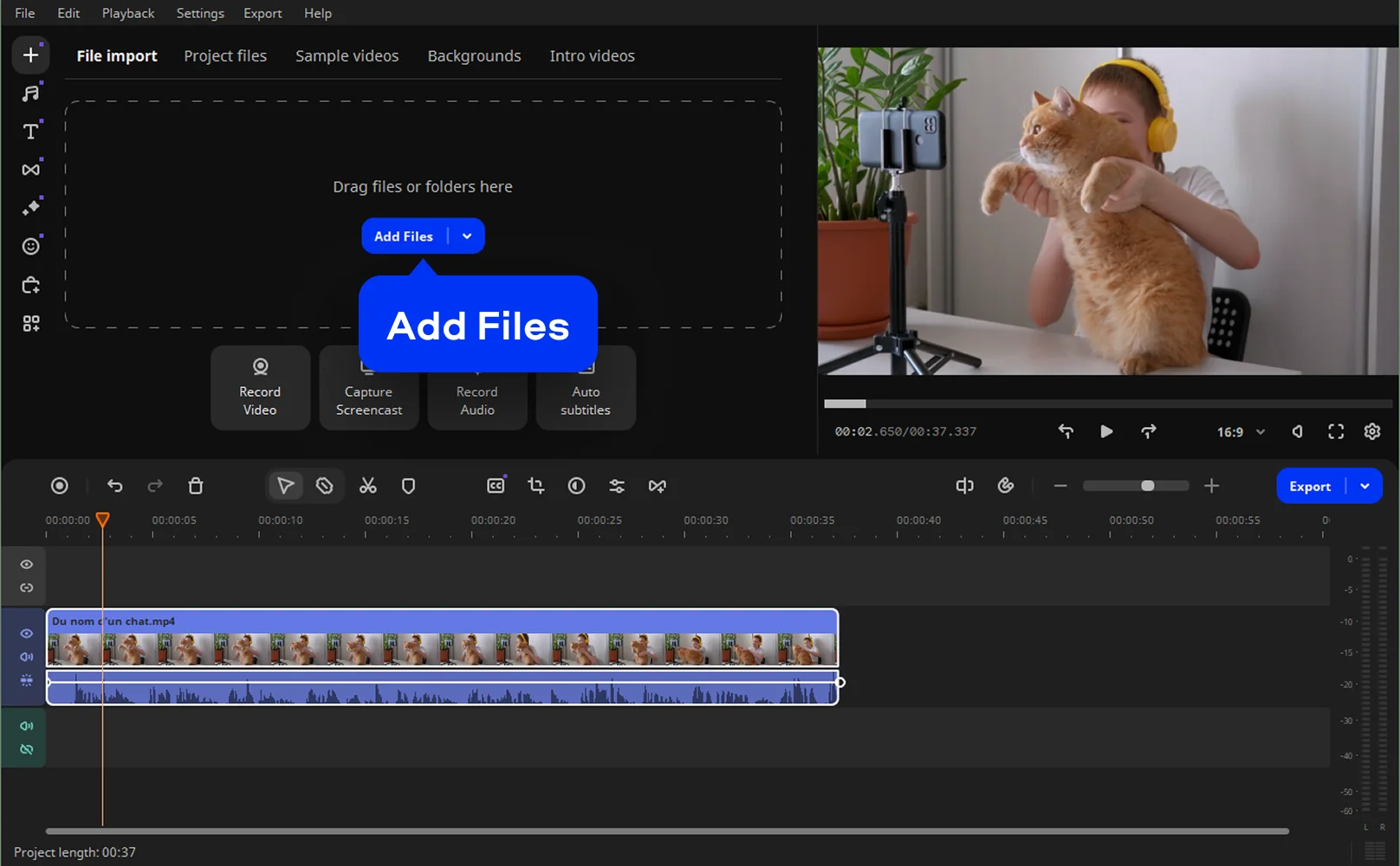
Step 2. Select the audio track
Double-click the audio waveform under your video. This activates volume controls and ensures changes apply precisely where you need them, not globally or by accident.
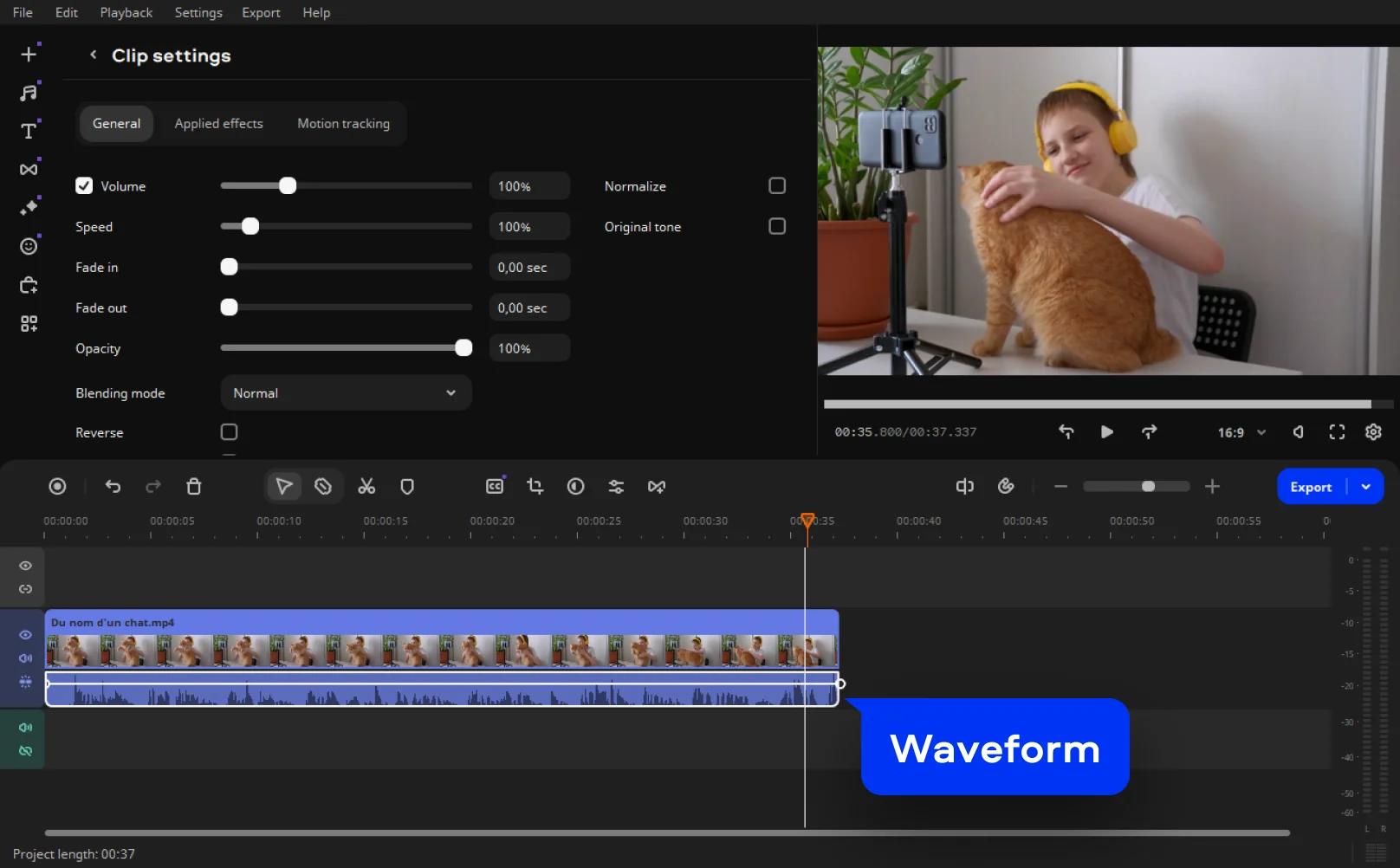
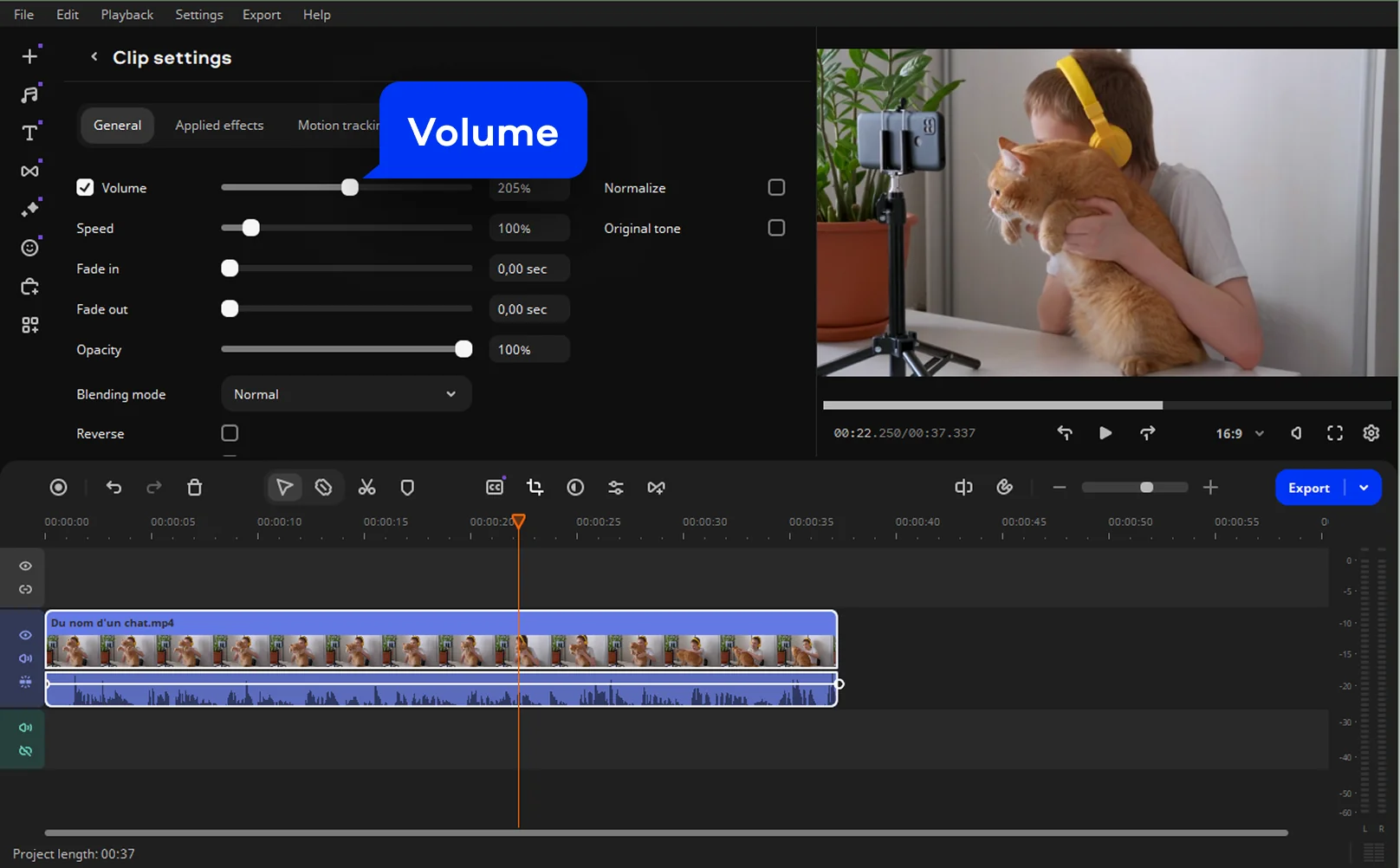
Step 3. Adjust the volume level
Use the volume slider to make the video louder gradually. Movavi Video Editor shows real-time feedback, so you can hear changes instantly and avoid distortion or blown-out sound.
Play the clip back through speakers or headphones. If needed, tweak volume levels or apply subtle enhancements to keep dialogue clear and balanced.
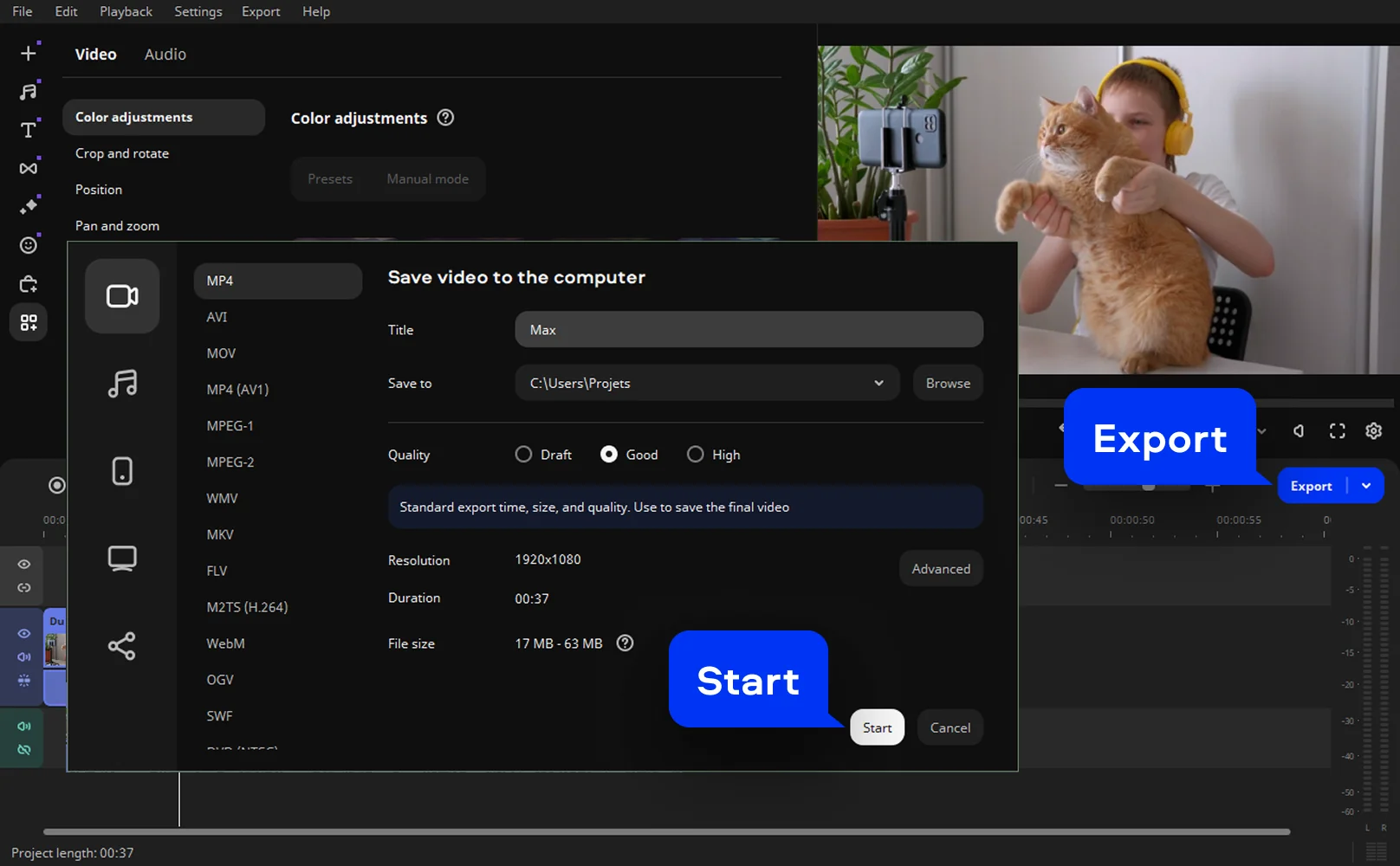
Step 4. Export your video
Click Export to save your project in the desired format and resolution. Your video now sounds fuller, clearer, and actually audible – as it should have from the start.
We’re the #1 choice for millions of people from all around the world. Join our thriving community and create stunning content with incredible ease.
70M+


Frequently asked questions
Absolutely. A quiet video isn’t a lost cause – it just needs a thoughtful touch. With a proper video volume booster, you can raise sound levels while keeping voices intelligible and balanced. The trick is restraint. Increase the volume gradually, listen back often, and stop before the audio starts sounding strained or brittle. Loud is good. Clear is better.
Yes, and thankfully, no time machine is required. Even if a clip was recorded too quietly, you can still make video louder in post-production. Import the file, adjust the audio track, and export a new version with improved balance. It’s one of those fixes that feels small but dramatically improves how watchable a video becomes.
The simplest way is to open the file in editing software and adjust the audio track directly. Most editors include built-in controls to increase video volume safely. Preview your changes as you go, especially through regular speakers, so the sound feels natural rather than forced when you hit export.
An mp4 file is one of the easiest formats to work with. Import it into your editor, select the audio waveform, and raise the volume until dialogue or music sits comfortably. Since MP4 is widely supported, there’s no need for conversion, just adjust, preview, and save.
Start by loading the recording into an editor and boosting volume in small steps. Listen closely after each adjustment. If the sound feels thin, a subtle video sound enhancer can help bring clarity back before you export the final file.
Yes, you can increase video volume online using browser-based tools, and they’re fine for quick fixes. That said, desktop editors usually offer more control, fewer upload limits, and better sound quality – especially if you care about how the final video actually feels to listen to.
Install video-editing software on your computer and work directly with the audio track. This gives you more precision than browser tools and lets you use a proper video audio booster without worrying about compression or file-size caps.
It can – if you push things too far. Extreme boosts introduce distortion and harsh clipping. Moderate adjustments, frequent previews, and a light touch go a long way. Think of volume as seasoning, not the main ingredient.
Yes, and this is where good editing really shows. You can isolate sections, boost a quiet quote, or lift an intro without touching the rest. A focused increaser makes your video feel intentional rather than uniformly loud.
*The free version of Movavi Video Editor may have the following restrictions depending on the build: watermark on exported clips, 60-second video or 1/2 audio length limit, and/or some advanced features unavailable when exporting videos.




1.5M+ users already subscribed to our newsletter