
Step 1. Add your files
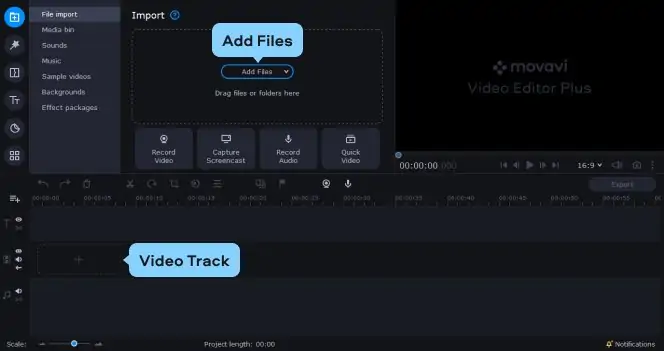
Click the Add Files button and select the videos you want to use. The videos will appear in the Media bin. Drop the files onto the Video track on the Timeline.
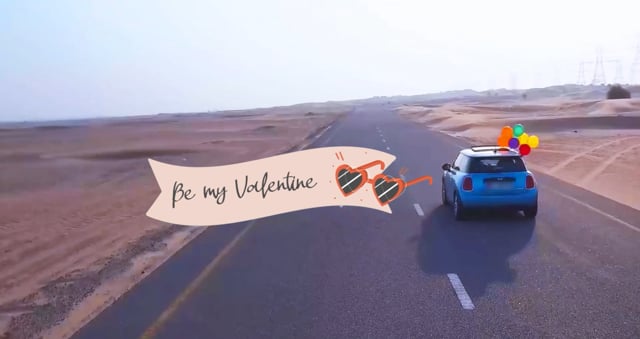
Read this article to learn:
What motion tracking is
How to add captions to a moving object
How to draw attention to a moving object
How to blur a person’s face
In video editing, motion tracking tracks the movement of people or objects. It’s used to match the movements of any objects in your footage with additional elements such as captions, stickers, or masks. Motion tracking also comes in handy when you want to blur or highlight certain parts of your video.
Motion tracking can be used in a variety of creative ways. Let’s see how to use this tool in Movavi Video Editor.
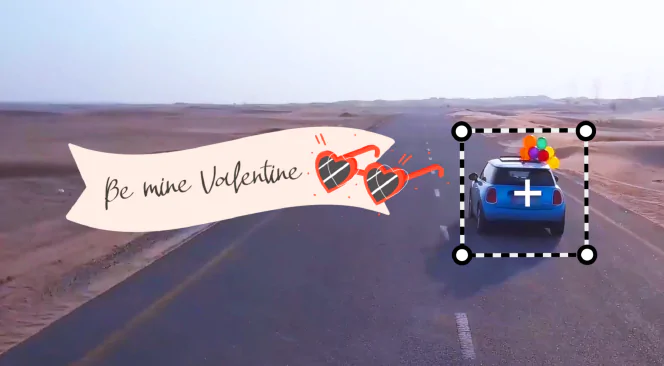
Text captions following a moving person or object add context and engagement. Use motion-tracked titles to tell a story in a video or include a call to action. Draw your audience’s attention to important details in your footage.
If you want to attach captions to a moving object, follow the steps below.
Click the Add Files button and select the videos you want to use. The videos will appear in the Media bin. Drop the files onto the Video track on the Timeline.
Open the Titles tab. Choose a caption and drag it onto the Titles track on the Timeline. You’ll see the Text tab in the Clip Editing section.
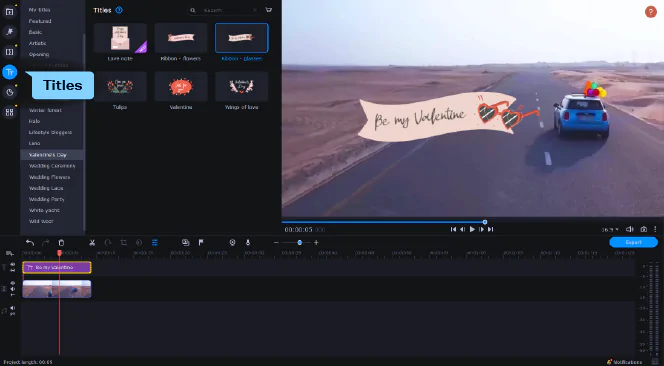
Enter your text and choose the font size, color, and style.
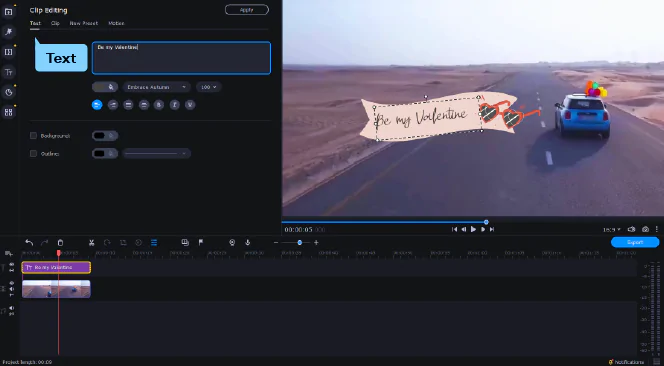
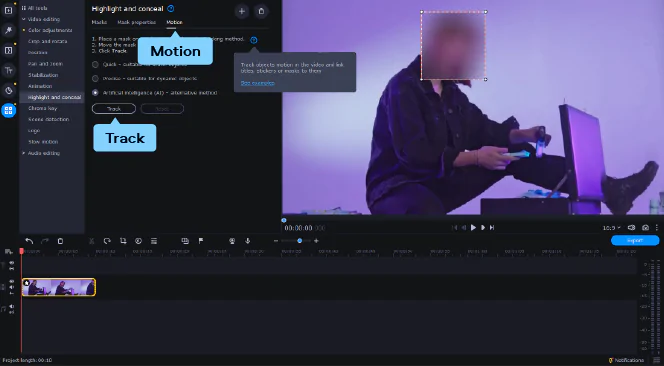
Open the Motion tab in the Clip Editing section. Place the frame on the target object and select the desired tracking method. Click Track. Move the title in the player to link it to the object. Click Apply.
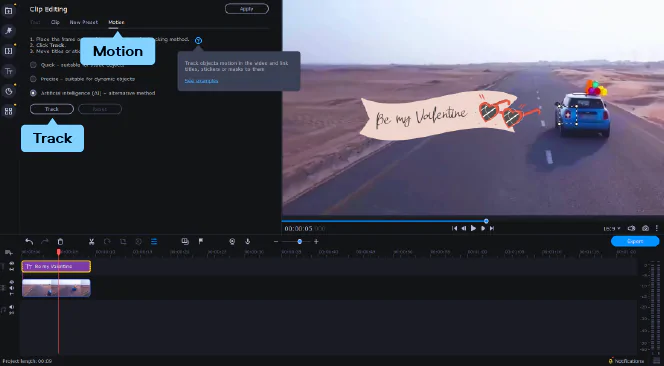
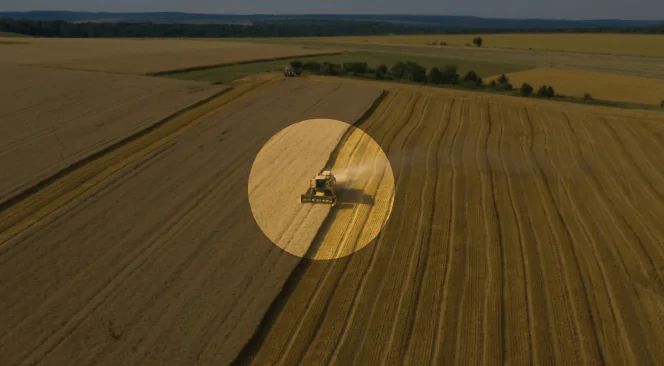
Use the motion tracking tool to highlight important elements in your videos. Here’s how to do it.
Click the Add Files button and select the videos you want to use. The videos will appear in the Media bin. Drop the files onto the Video track on the Timeline.
Open the More tools tab and choose Highlight and conceal from the video-editing tools list. Click the Masks tab. Select the clip on the Timeline and the mask you want to use to highlight the object.
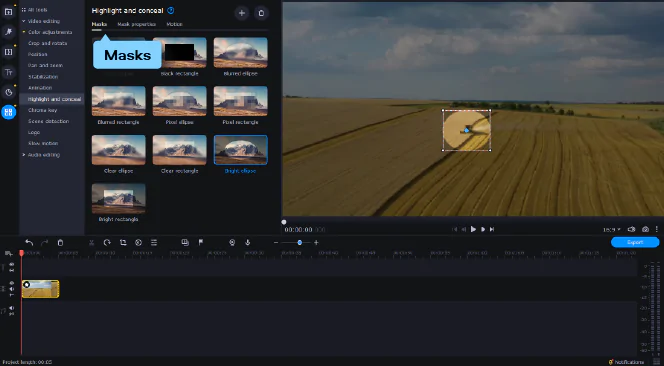
In the Mask properties tab, adjust the opacity and feathering settings.
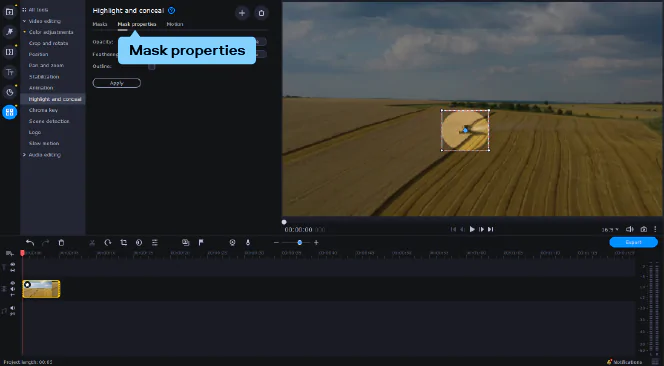
Open the Motion tab. In the player, place the mask on the object you want to highlight. Select a tracking method from the list. Move the mask to set the tracking area and click Track.
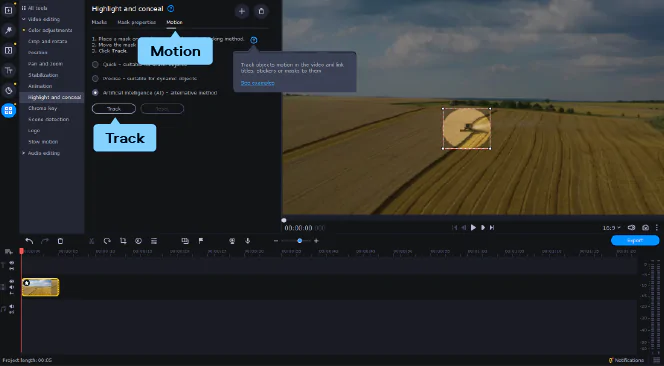
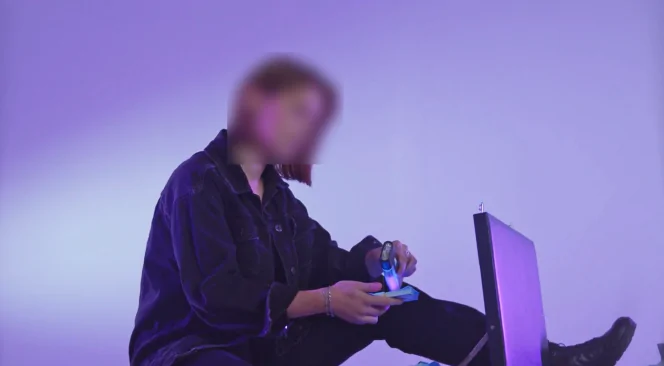
Motion tracking is widely used for censoring and concealing personal information in video. You can easily cover any object or a person’s face with a motion-tracked blurring mask.
Here’s how you can use the blur effect in Movavi Video Editor.
Click the Add Files button and select the videos you want to use. The videos will appear in the Media bin. Drop the files onto the Video track on the Timeline.
Open the More tools tab and choose Highlight and conceal from the video-editing tools list. Click the Masks tab. Select a blurring mask from the list, such as Blurred ellipse or Pixel rectangle.
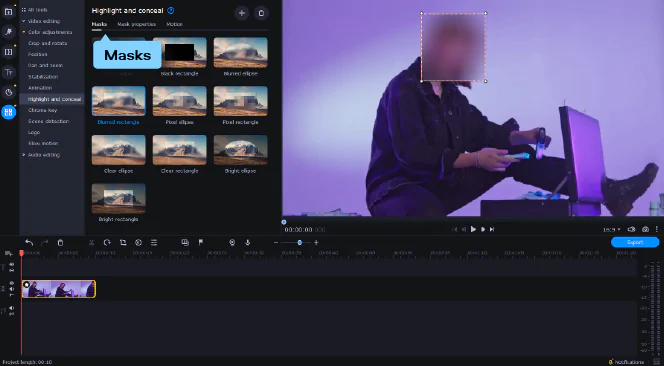
Adjust the settings in the Mask properties tab.
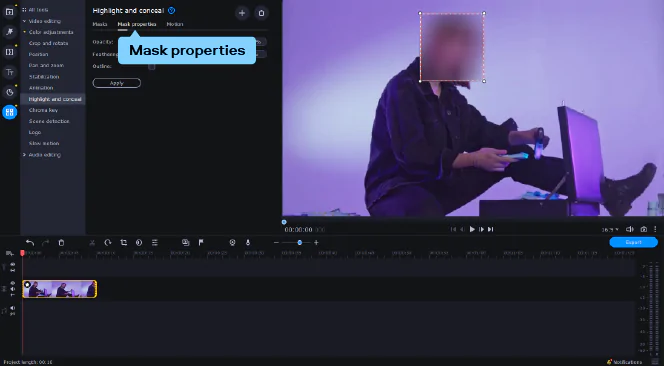
Click the Motion tab. In the player, move the frame over the face of the person you want to conceal. Select the tracking method from the list. Move the mask to set the tracking area and click Track.
Now that you know how to use the motion tracking tool in Movavi Video Editor, you can get creative and make your videos look captivating and professional.



1.5M+ users already subscribed to our newsletter