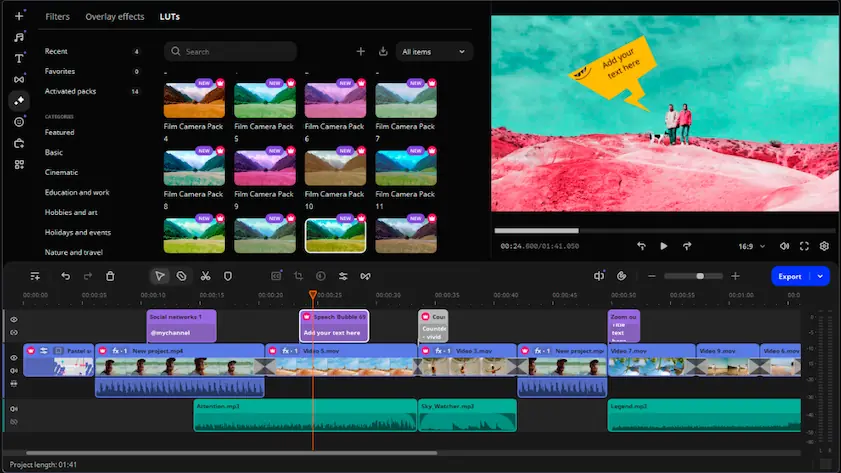
One excellent alternative to InShot for a PC is Movavi Video Editor, an advanced video-editing program for Windows and Mac. Movavi Video Editor is packed with various powerful video-editing tools that you can use to make your videos appear professionally edited. The program’s straightforward user interface makes these top-level tools easy to learn, even if you are an amateur without video editing experience.

InShot for PC: The best desktop alternatives
Try Movavi Video Editor on your PC!
Fast and easy editing: cut, crop, adjust colors and speed
Intuitive tools for quick and easy video editing
AI: background removal, motion tracking, noise removal
Drag-and-drop filters, titles, transitions, overlays
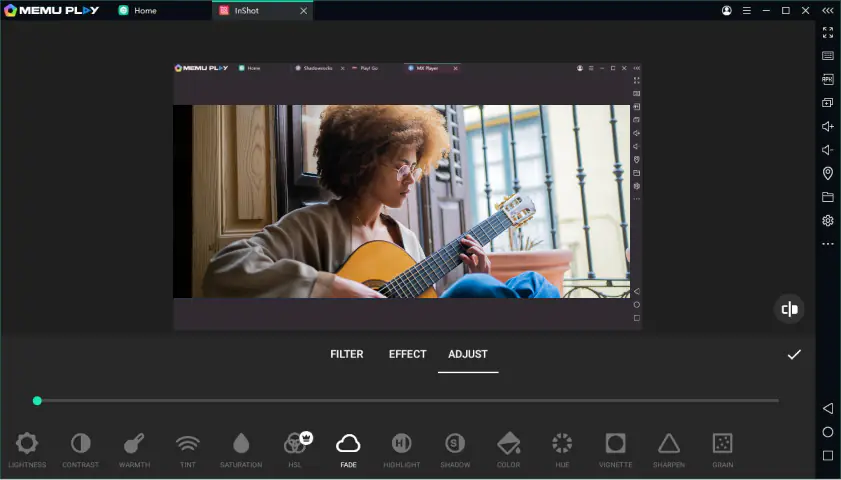
InShot is a powerful and widely used video-editing program that is currently only available on mobile devices. While there might not be a version of InShot for a PC, you can run the mobile app on your desktop through an emulator or download a desktop alternative like Movavi Video Editor.
Best InShot alternatives for a PC
How to download InShot to a PC
InShot might be one of the most popular professional video-editing apps, but a version of the InShot video editor for a PC is still just a dream. If you’re looking for a version of InShot for a PC Windows 10, Mac, or any other desktop computer, you have two options.
The first is an alternative video-editing software. Movavi Video Editor, for example, is an advanced video editor that is available on Windows and Mac. It comes with a full suite of powerful editing tools, supports most file formats, and is easy to learn.
The second option is to run InShot on a PC through an emulator like BlueStacks. To do that, follow these instructions:
- Install BlueStacks on your PC. Make sure you download the emulator from the official website.
- Open BlueStacks. There should be a search bar at the top of the application window.
- In the search bar, type “InShot” and hit Enter to search.
- InShot should be included in the search results. Click on the InShot icon to open the application page.
- Click the Install button. InShot will download on your PC. How long this takes will depend on your network connection.
- Once the download is complete, navigate to the list of installed applications within BlueStack. You should see InShot listed there.
- Open the InShot app by clicking on it.
Best desktop alternatives to InShot
Many types of file format are supported
Free to download and try
Extensive library of visual effects, filters, and transitions
Intuitive user interface
Full editing toolkit, including speed and color adjustment
Limitations of the free trial
One of the limitations of using InShot on a PC through an emulator is potential performance issues. Emulators can slow down the editing process, especially with high-resolution videos, that’s why a dedicated PC video editor will provide smoother and faster performance.
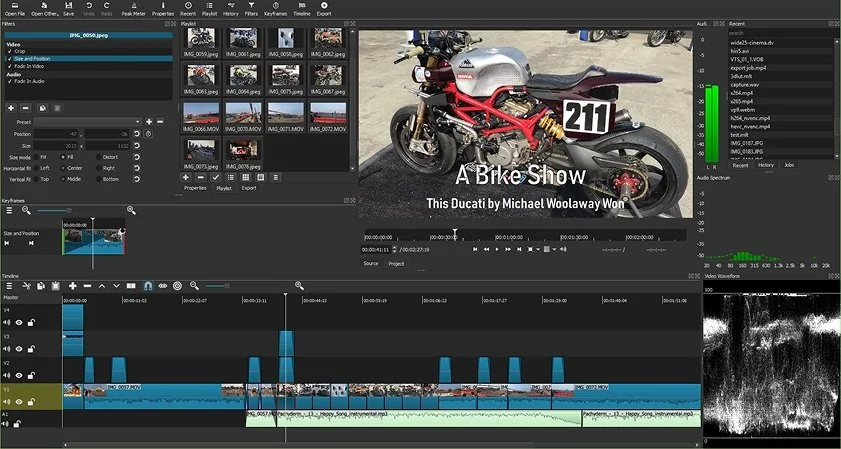
Another free alternative to having InShot on your PC is Shotcut. Shotcut isn’t just free, it’s open-source, which means the program’s code is available for you to examine and for experts to improve.
Thanks to twenty years of such improvements, Shotcut now supports practically every video and audio file format, high-resolution editing, and a wide array of hotkeys to help you edit more efficiently.
Hundreds of file formats supported
Single project can support multiple different formats, resolutions, and frame rates
Capture audio and video from your computer
Free and open-source
Initial learning curve steeper than other programs
User interface can be complicated for beginners
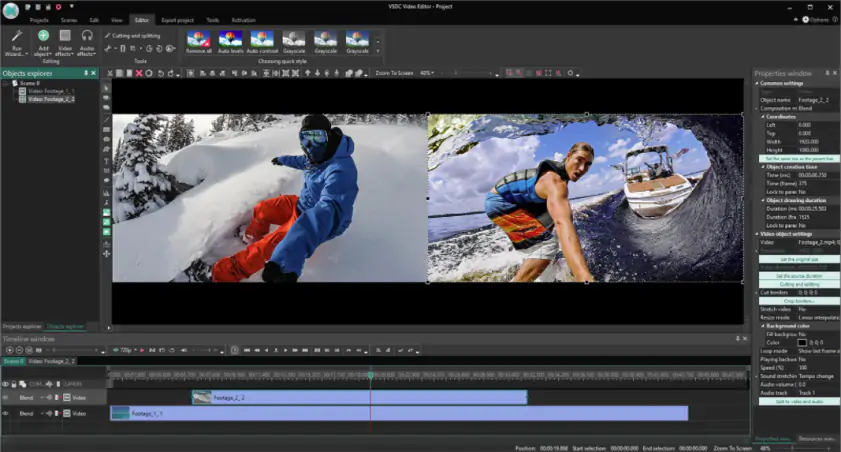
If you use a Windows computer, an excellent alternative to InShot for desktop is VSDC Video Editor Software. You can download the 64-bit or 32-bit version of this capable video-editing program for free.
You’ll then be able to use a variety of powerful editing tools, including mask creation and special effects. Some of the program’s features are quite unique, like the ability to blend multiple video tracks together. You can use these to create novel effects that might be far more difficult to achieve in other programs. However, other unique aspects of the program, like the fact that the media timeline is read from the bottom to the top, could make VSDC a little trickier to learn than other video-editing software.
Extensive suite of professional editing tools, including color editing and video stabilization
Share content directly to social media platforms
Many file formats supported
Only available on Windows computers
Some features require payment
User interface might be confusing for amateur users
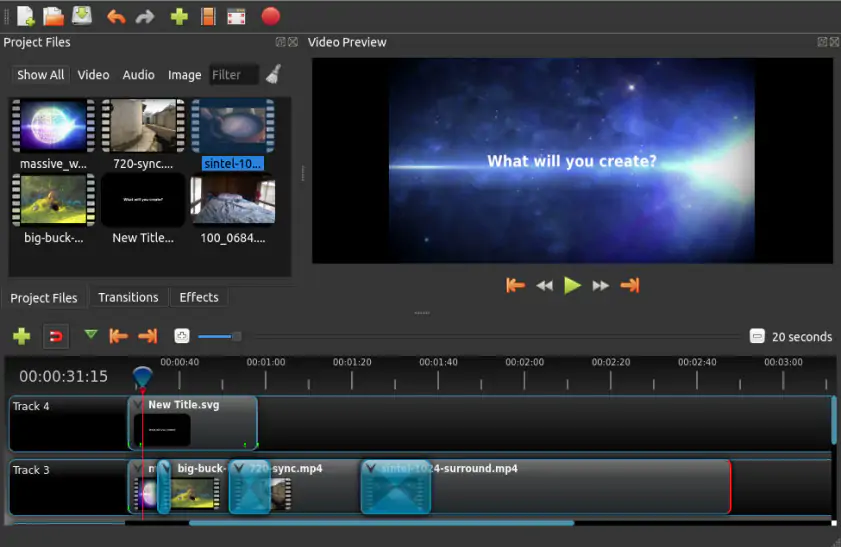
If you want the simplicity that a mobile app like InShot offers, then a great PC alternative is OpenShot. Completely free and open-source, OpenShot was specifically designed with ease of use in mind. That hasn’t prevented the developers from adding a wide range of powerful editing tools to OpenShot, though.
For example, OpenShot allows you to add complex visual effects to your projects, including 3D animations. Some of these tools can be a little difficult to find, sometimes requiring a little bit of searching through the various menus. However, those searches are often rewarding, bringing up tools that are surprisingly powerful for such a simple and free video editor.
Straightforward user interface makes for a pleasant learning experience
Extensive set of powerful editing tools
Support in over 70 languages
Compatible with Linux, Mac, and Windows
Older computers might struggle to run OpenShot stably
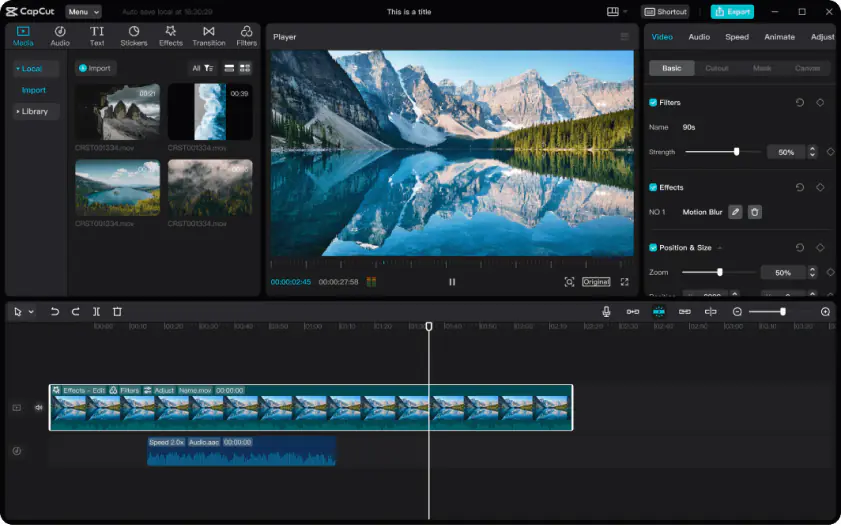
Like InShot, CapCut is a mobile video-editing software. Unlike InShot, CapCut does offer an official version for a PC. As you might expect from a mobile-first editing program, CapCut is designed for editing shorter-form content.
That makes it excellent for putting together videos intended for social media, but means it could struggle with longer, more ambitious video-editing projects. In fact, the longest you can go is 15 minutes, which is the limit imposed by the software itself. Still, that’s more than long enough for most social media videos, but keep it in mind if you think you’ll ever want to try making some longer content.
Free on both mobile and desktop
Mobile-first user interface is easy to learn and use
Complete suite of basic editing tools, such as headings and cropping
Editing features somewhat limited compared to other PC video-editing programs
Only one audio and video track permitted
Older devices might take a while to render completed videos
Summary
As you’ve seen, there is no shortage of alternatives for InShot on a desktop. Remember, though, that there’s no single “best” option. Consider your specific goals, requirements, and abilities, and select the program that works best for you.
*The free version of Movavi Video Editor may have the following restrictions depending on the build: watermark on exported clips, 60-second video or 1/2 audio length limit, and/or some advanced features unavailable when exporting videos.

Frequently asked questions
What is Inshot?
What is Inshot?
If you're looking for a powerful and user-friendly video editing software, Movavi Video Editor is the perfect choice. With its intuitive interface and comprehensive editing tools, you can easily create stunning videos from scratch. Whether you're a beginner or a seasoned editor, Movavi Video Editor has everything you need to bring your creative vision to life. Movavi Video Editor is ideal for anyone who wants to edit videos for personal projects, social media, or business purposes.
Is Inshot available for PC?
While Inshot is primarily a mobile app, if you're looking for a professional video editing software for your PC, Movavi Video Editor is a great option. It offers a wide range of features and tools that are not available in Inshot, making it ideal for both beginners and experienced users. Movavi Video Editor is a great choice for anyone who wants to create high-quality videos for personal or professional use.
What is Inshot app used for?
If you're looking for a versatile tool to edit videos, create slideshows, and add effects, Movavi Video Editor is an excellent choice. It offers a wide range of features that allow you to edit your videos with ease. Whether you're a content creator, a business owner, or just someone who wants to create fun videos for friends and family, Movavi Video Editor is a great option.
Is Inshot app free?
Is Inshot app free?
Movavi Video Editor offers a free trial, so you can try it out before you commit. You can also purchase a paid version for full access to its features. This makes it a great option for anyone looking for a user-friendly and affordable video editing software. Movavi Video Editor is suitable for both individual users and businesses looking to create high-quality videos.
What is balance in photography?
To achieve a balanced composition in your photos, Movavi Video Editor is a great tool. It offers a variety of features that help you adjust the composition of your photos, including cropping, resizing, and rotating. Movavi Video Editor is ideal for photographers of all skill levels, from beginners to professionals.
1.5M+ users already subscribed to our newsletter