
Step 1. Install Movavi Video Editor
Hit the button below to download the installation file. Launch the program and follow the on-screen instructions. Launch the app once the installation is complete.
How to apply LUTs to a video with Movavi Video Editor
Ever wondered how creators get those rich colors in their videos? It’s often thanks to LUTs (Look-Up Tables) – color presets that transform your footage in one click. Think of them like filters that instantly give your video a warm or moody look without hours of experimentation.
The best part? Applying LUTs with Movavi Video Editor is super simple, letting you add mood, warmth, or a bold cinematic look to your videos in seconds. Whether you’re editing travel vlogs or short films, using LUTs can make your footage stand out with minimal effort.
Step 1. Install Movavi Video Editor
Hit the button below to download the installation file. Launch the program and follow the on-screen instructions. Launch the app once the installation is complete.
Step 2. Import your videos
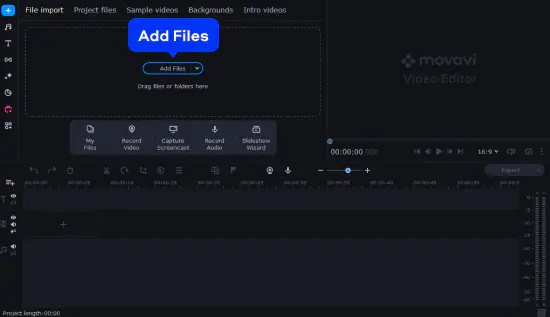
Click Add Files and choose the videos you want to edit, or simply drag and drop your files into the program window. Then place your video on the timeline.
Step 3. Apply LUTs
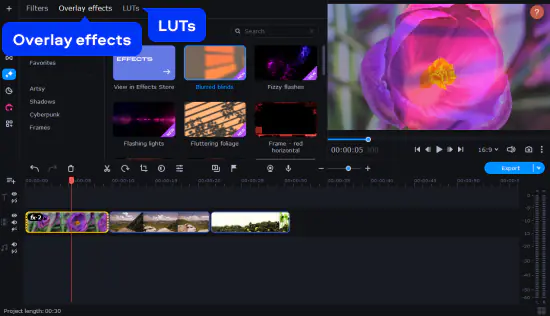
On the left side panel, click Effects and filters and open the LUTs tab. Simply choose the LUT you like best and drag it onto your video. Preview different options to find the perfect look for your footage.
Step 4. Explore more LUTs with Movavi Effects
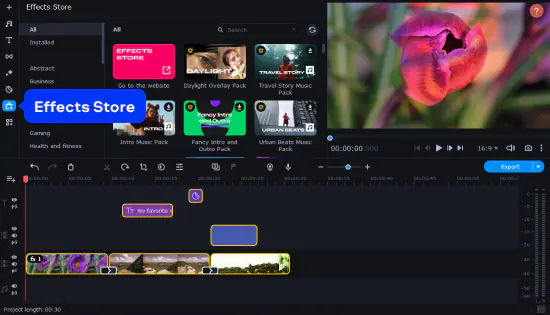
Want to play around with more creative filters? Movavi Effects offers 70+ eye-catching LUTs to match any video style. Unlock Movavi Effects and supercharge your videos with more than 10,000 effects and 1,500 music tracks. All effects packs are available on subscription.
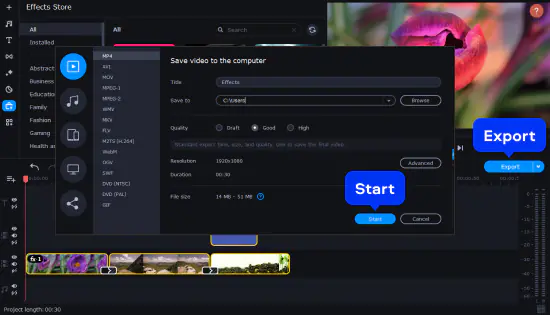
Step 5. Export your video
Awesome! Now, it’s time to export your video with its stunning LUT-effects. Click Export, set your desired output parameters, and hit Start.
Get infinite video-editing opportunities
Drag-and-drop filters, titles, overlays, and more – Movavi Video Editor has all you need to make striking content right away.
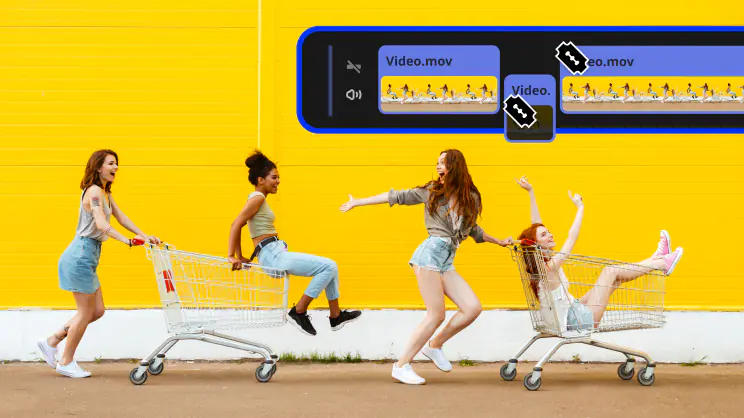 Blade tool
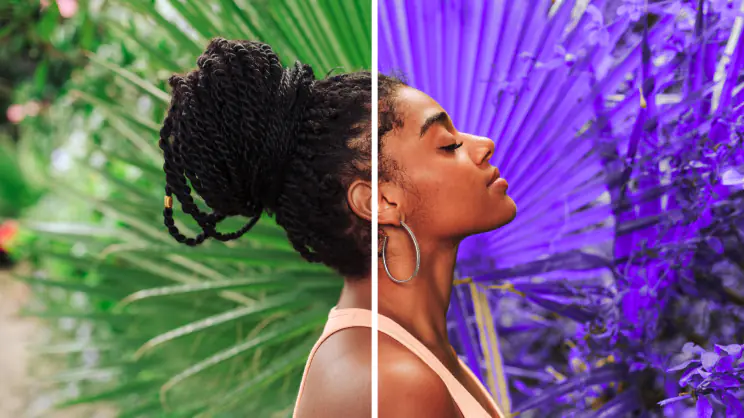 Filters and LUTs
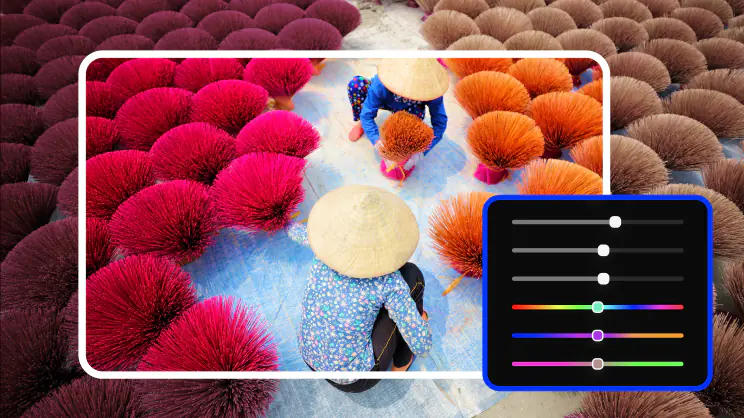 Color correction
 Transitions
 Overlays
 Stickers
 Intros
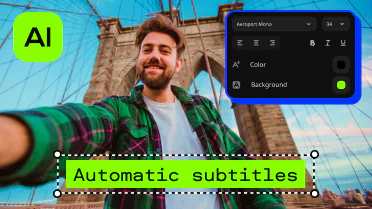 Automatic subtitles Blade toolFilters and LUTsColor correctionTransitionsOverlaysStickersIntrosAutomatic subtitles
  Stabilization
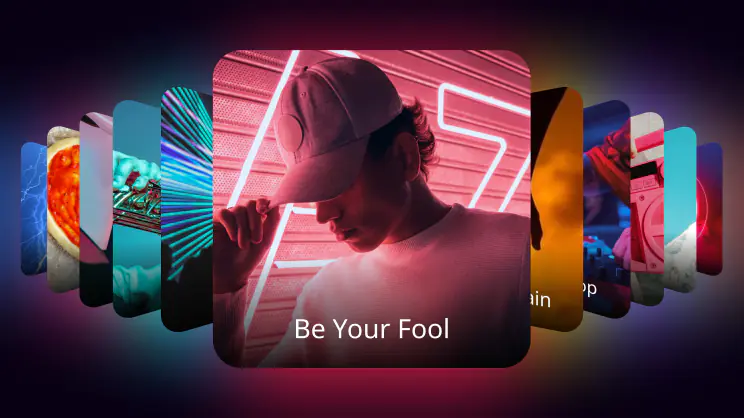 Free music and sounds
 Audio editing
 Motion tracking
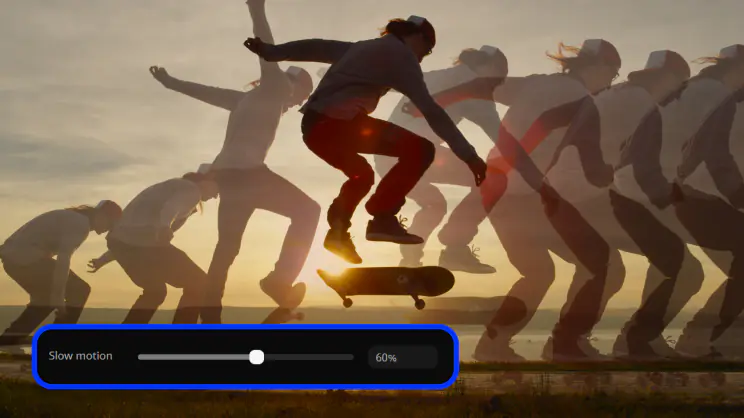 Slow motion
 Chroma key
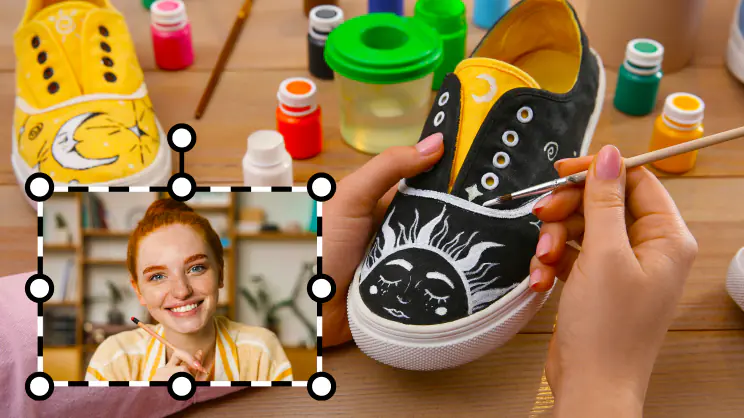 Picture in pictureStabilizationFree music and soundsAudio editingMotion trackingSlow motionChroma keyPicture in picture
*The free version of Movavi Video Editor may have the following restrictions depending on the build: watermark on exported clips, 60-second video or 1/2 audio length limit, and/or some advanced features unavailable when exporting videos.

Movavi Effects
A huge library of creative effects and background music to lift your videos from wow to wowzers



1.5M+ users already subscribed to our newsletter