*The free version of Movavi Video Editor may have the following restrictions depending on the build: watermark on exported clips, 60-second video or 1/2 audio length limit, and/or some advanced features unavailable when exporting videos.
Top 6 Best Free Alternatives for Pinnacle Studio
Trim, cut, crop, and rotate videos
Add titles, stickers, and transitions
Apply visual effects
By clicking the download button, you're downloading a free version of the program.*
I recently started a YouTube channel to share snippets of my work and everyday life. However, just a few videos in and it became apparent to me that I needed a full-featured video editing suite to help me achieve share-worthy content. The first one I found was Pinnacle Studio, but because I’m not fully committed to becoming a creator just yet, I thought it would be wise to check free alternatives first.
After some research and testing, I found 6 alternatives to Pinnacle Studio editing software that are free to download (with some caveats.) Learn more about my top 6 recommendations, what makes each one different, and why they might be the right one for you.
1. Movavi Video Editor
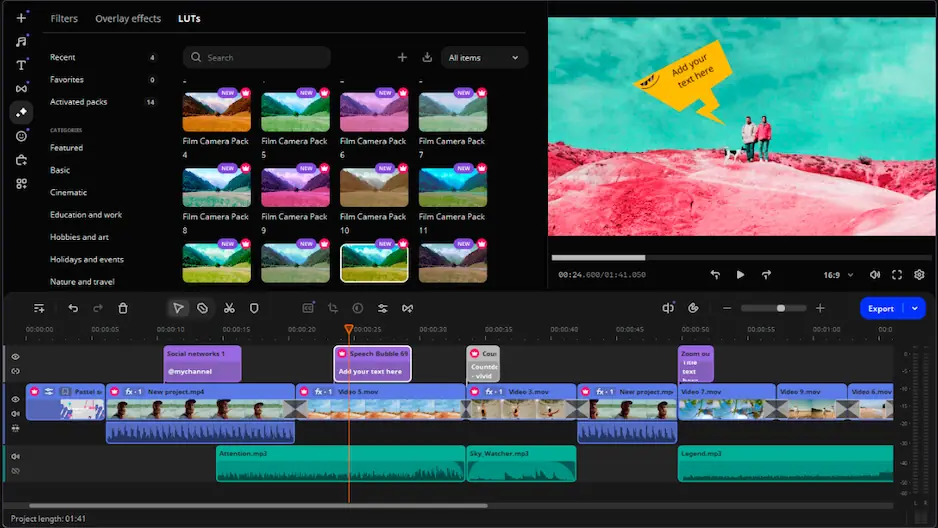
When it comes to video editing projects whether for work or personal use, Movavi Video Editor works like a charm. I’ve used this program for all sorts of video editing tasks and I thoroughly enjoy its streamlined interface and intuitive workflow.
For editing YouTube videos, I find Movavi Video Editor’s chroma key and motion tracking features to come in especially handy. And because it also incorporates some AI-powered features, this software can help you achieve more advanced editing functions with little effort, thanks to its automated tools.
Now, the caveat is that it’s only free during the trial period. But even then, the program gives you 7 days to explore its full range of features before prompting you to make a purchase. If you decide to push through, you’ll be happy to know that Movavi Video Editor costs less than Pinnacle Studio without sacrificing the extent of its editing capabilities.
Beginner-friendly, intuitive interface and workflow simplifies the editing process, great for working with vlog-style videos.
AI-powered tools produce high-quality output and achieve professional effects with zero learning curve.
Comes with tools and features comparable to Pinnacle Studio, ideal for budding content creators.
Free trial lasts just 7 days, but the lifetime license is cheaper than Pinnacle Studio’s.
When selecting products to include in our reviews, we research both demand and popularity.
All products mentioned in this article have been tested by Movavi Content Team.
When testing, we compare key parameters, including video and audio trimming, visual effects, stabilization, video quality adjustments, saving and sharing videos, and other significant features.
We study user reviews from popular review platforms and make use of this information when writing our product reviews.
We collect feedback from our users and analyze their opinions of Movavi software as well as products from other companies.
2. Shotcut
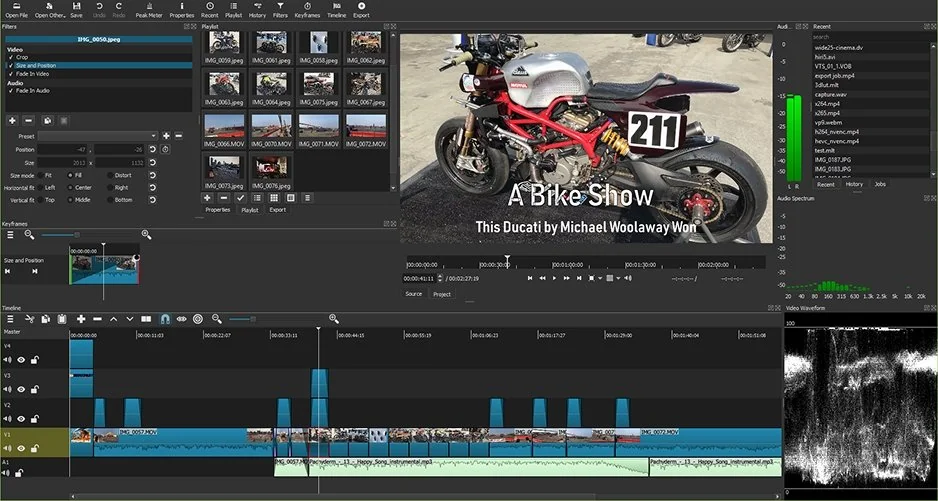
What really stood out to me when I first tried Shotcut is that it uses a native editing workflow that lets you drag and drop videos into the timeline and get started on editing with zero downtime. This made my workflow so much faster since I didn’t have to wait to import large video files into my project.
On top of that, Shotcut offers a wide video format compatibility that lets you work on virtually any video file type simultaneously. This multi-format timeline mixing feature makes it possible to edit videos from different sources in a single project with no need for conversion.
As an open-source program, Shotcut provides users the whole range of editing tools (including 4k rendering, a broad library of transitions and filters, and advanced export options) sans any sort of paywall. Just download and install the program, and it gives you full access to its features with no hidden fees and charges.
Works with virtually any file type, allowing you to mix different video formats in one project.
Native editing workflow trims down a lot of waiting time, making it great for working on longer, vlog-form videos.
As an older, open-source video editing software, Shotcut has a wealth of online resources to help newbies learn the ropes.
Don’t expect a clean, streamlined interface with Shotcut. The program’s many menus and somewhat cluttered interface can feel clumsy to navigate.
3. Avidemux
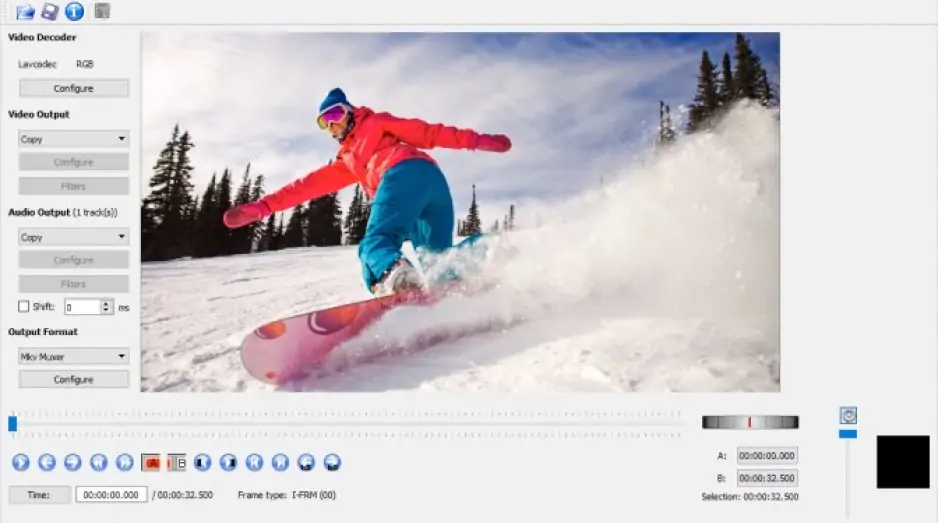
Another open-source video editing software, Avidemux is a lightweight Pinnacle Studio alternative targeted towards users with low to mid-range system specs. It doesn’t come with particularly heavy editing tools, but that means it works seamlessly on less powerful rigs.
Great for simple editing tasks, Avidemux provides all of the basics for merging multiple clips into one, cohesive file. I find that it works great for simple trimming/cutting/merging tasks to create quick video content with some background music or voice overs. And because it offers lossless encoding, Avidemux lets you preserve the original quality of your edited videos.
All in all, I think this program is a nifty tool to have when you want to make ready-to-publish videos that merge together different clips and add some music, narration, and simple effects. Because it's a compact suite, you can be sure that it’ll work seamlessly even on older computer systems.
Small, lightweight, and compact video editing program ensures smooth, hitch-free performance on low to mid-range computers.
Offers lossless video rendering, keeping your completed projects as clear as the original files.
Great for simple editing tasks, producing ready-to-publish videos with effects and music.ing
Because it doesn’t have the same range of features as a full video editing program, Avidemux is not equipped for more complex projects.
4. Lightworks
Lightworks offers a freemium version that you can access and use indefinitely, albeit with some limitations. The reason why I think Lightworks might be a good alternative to Pinnacle Studio is because unlike Pinnacle, this program works on Windows, MacOS, and Linux, offering much better cross-platform flexibility.
While exploring its functions, I also learned that Lightworks offers the option to publish or export completed video projects directly to web platforms like YouTube, cutting down the steps between editing your content and getting out into the world.
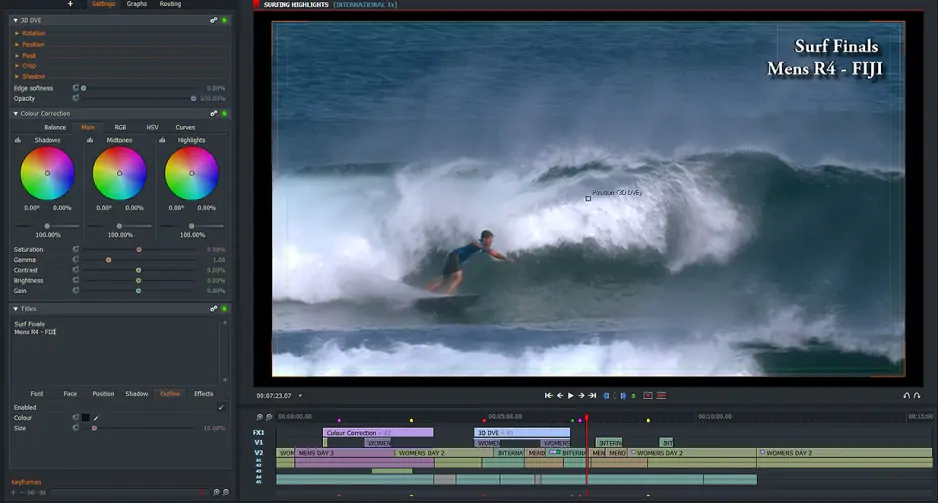
Sure, the U/I might feel a little confusing for beginners, but that’s not something a little practice won’t fix. Especially with its timeline-based non-linear editing workflow, Lightworks gives users precise control over every second of their video output. Even in the freemium version, this program gives users access to a broad range of tools including text overlays, audio editing and mixing, color correction, and visual effects.

Runs on Windows, MacOS, and Linux for excellent cross-platform flexibility.
Comes with the option to publish completed videos straight to the web, reducing the steps to share your content.
Complete range of editing tools makes it feel like a full-featured video editing program without the heavy price tag.
For the freemium version, Lightworks caps export quality at 720p which might not be good enough for creators that are heavy on visual details.
5. OpenShot
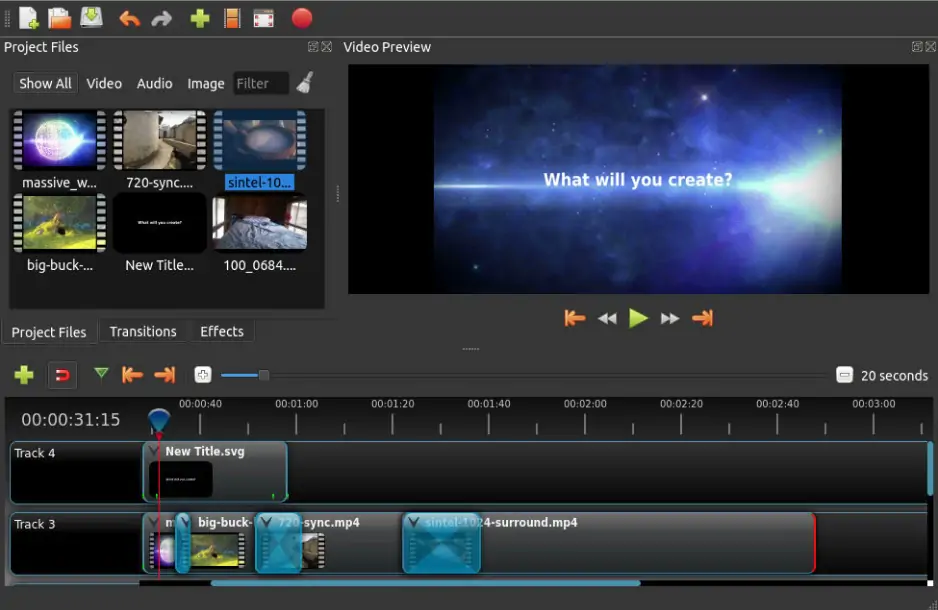
Like Lightworks, OpenShot runs on Windows, Linux, and MacOS, giving it an edge over Pinnacle Studio’s Window’s only compatibility. This open-source video editing software is heavy on visual editing, which means its interface provides you with controls, tools, and features that you can figure out at a glance.
What I especially like about OpenShot is its ripple editing function that lets you trim and move videos around without disrupting alignment with other assets like music and voice over audio.
While it’s not as robust or advanced as Pinnacle Studio, OpenShot is a worthy contender, offering all of the basics of video editing including overlays, effects, and transitions that can give your video content the same, share-worthy appeal.
Great cross-platform compatibility with versions supported by Windows, MacOS, and Linux
Ripple editing feature works to keep different media assets aligned even after trimming, cutting, and deleting certain segments
The program’s workflow is highly visual, allowing beginners and newbies to get a feel of all its features at a glance.
I find that OpenShot lacks certain pro-grade features like advanced transitions, color grading, and object tracking, which can limit what I can do with my edits.
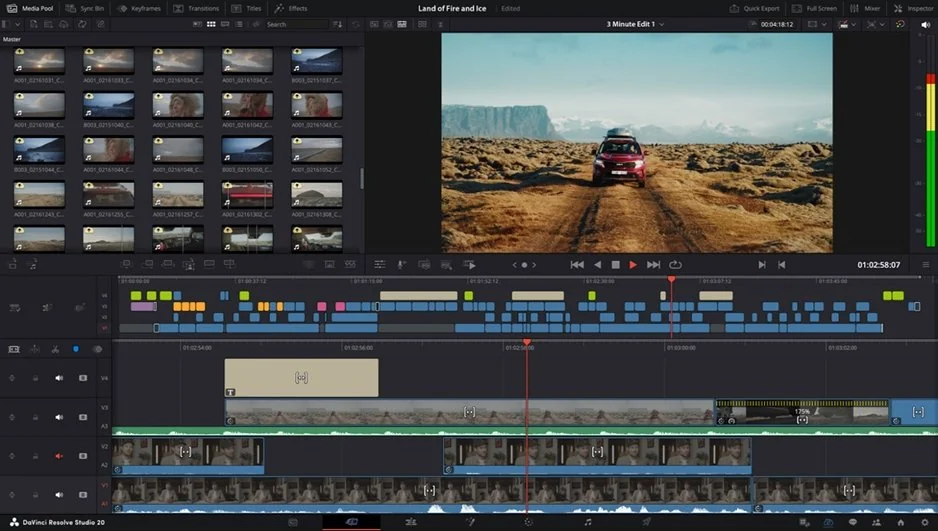
I was initially surprised to learn that DaVinci Resolve was a free video editing program, especially considering what it can do. This robust software is an all-in-one pro-level suite that combines editing, color-grading, visual effects, and audio mixing into one, powerful program.
After exploring the software for a while, I discovered that it also has advanced visual effects and compositing functions that let you do motion graphics, overlays, and more. This can come in particularly handy for creating cinematic or stylized video edits rather than just basic cut, trim, and merge output.
Finally, I can’t overlook DaVinci’s advanced audio editing and mixing tools which feel like they should be a separate software considering the extent of its capabilities. DaVinci provides users audio tools that are head and shoulders above other programs, serving impressively capable mixing and sound design functions that most video software can’t deliver.
Complete, professional suite offering highly advanced video editing tools for high-quality output
Highly capable audio mixing and sound design tools give content crisp, engaging audio
Functions as an all-in-one post-production suite for creators that want to produce video content that’s a little more polished than what’s usually seen online
Demanding on computer systems, usually requiring powerful specs to run smoothly.
Its workflow isn’t designed for consumer-style convenience. To get high-quality output, you’ll have to put in the work and learn the ropes.
How to choose the best free Pinnacle Studio alternative
If one thing’s for certain, it’s that all of these programs have their place under the sun. The question now isn’t whether they’re good alternatives for Pinnacle Studio – it’s whether or not they’re the right tool for you.
Everyone has their own, unique expectations, needs, and preferences. Understanding what you’re looking for in a video editing software makes it easier to choose a program that actually deserves that spot in your software library.
Personally, for all-around video editing, Movavi Video Editor, DaVinci Resolve, and Shotcut provide a relatively complete set of features that closely compete with Pinnacle Studio. These programs let you achieve high-quality edits with polished results, perfect for more serious content creation tasks.
For casual vlogging and quick edits, Avidemux, OpenShot, and Lightworks are suitable alternatives to Pinnacle Studio. These programs offer no-frills performance with easy workflows that let you get your projects done in no time.
Frequently asked questions
Is MP3 quality better than MP4?
It’s important to point out that MP3 and MP4 are two different file types. MP3 is a type of audio file, while MP4 is a popular video file container. That said, there’s really no comparing the two in terms of quality since they’re in two different media categories.
Can an MP3 player play MP4 files?
If we’re talking about handheld MP3 player devices, then no, they can’t play MP4 files especially if they’re designed specifically for audio files. On computers and mobile phones, however, certain MP3 player programs also play MP4 files, especially if they’re all-around media players intended for both audio and video.
Is MP4 a video or audio file?
MP4 (or MPEG-4 Part 14) is a digital multimedia container format used to store a combination of video, audio, subtitles, and/or images. These files play as a video, and are popular across the media landscape for its relatively small size and wide compatibility.
Is it better to convert to MP3 or MP4?
It depends on what you need. Converting to MP3 means you get an audio file, while converting to MP4 means you end up with a video file format. Both of these formats are good in that they’re widely compatible with various softwares and media players. Ultimately, it depends on whether you need an audio or video file.
1.5M+ users already subscribed to our newsletter