Movavi’s online video flipper is one of those tools you open for a quick fix – whether you need to flip or mirror videos – and end up appreciating more than expected. It runs right in your browser, keeps the interface clean, and focuses on one job: flipping your video the way you need it – no clutter, no unnecessary steps.
Movavi Video Editor
Mirror or flip videos horizontally and vertically in one click with Movavi Video Editor, the easy way to correct camera orientation.
By clicking the download button, you're downloading a trial version of the program.*
Flip Videos Online for Free
How to use the online video flipper
Step 1. Add your file
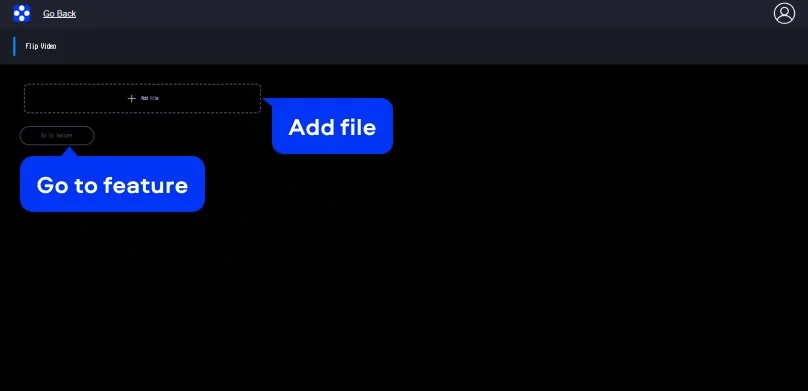
Start by clicking the Add file button. Once your clip uploads, you’ll see the file name appear at the top. Hit Go to feature to move into the editing screen.
Step 2. Flip the video online
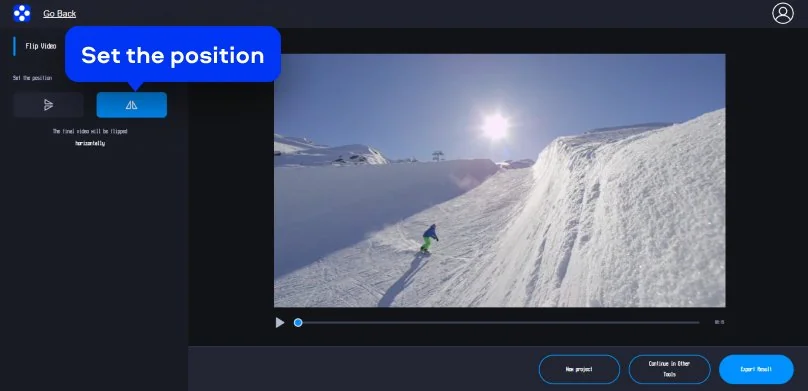
Inside the editor, the layout is simple: preview on the right, controls on the left. Under Set the position, you’ll see flip options. You can flip the video horizontally, vertically, or both if you need to fully invert video orientation. The preview updates instantly, so you can check whether the image looks natural or intentionally mirrored. If you filmed something upside down or are wondering how to mirror a video for social content, this is where you fix it.
Step 3. Preview and export
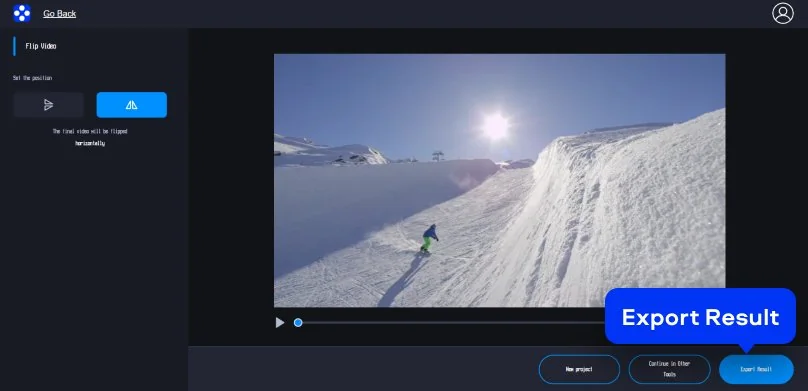
Play the clip using the timeline slider to make sure everything looks right from start to finish. When you’re satisfied, click Export Result. In a few moments, your flipped video is ready to download and share.
Supported formats for online video editing
MP4, AVI, MOV, WMV, M4V
How to mirror a video on desktop
Movavi Video Editor keeps the main controls easy to spot and easy to use. One click, clear preview, done. This straightforward video-flipping software supports common formats like MP4, MOV, and AVI, plus files straight from your phone or camera. Read on to learn how to flip a video on your Windows PC or Mac.
Step 1. Import your video
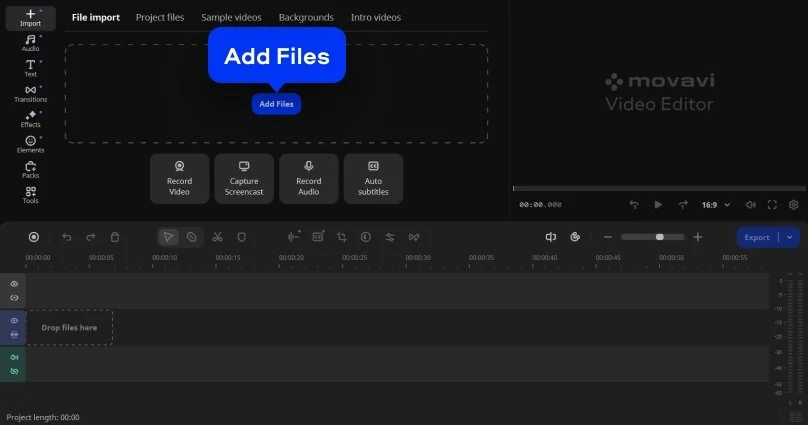
Click Add Files and choose the video you want to edit from your device. Most common video formats are supported, so you can upload files without converting them in advance.
Step 2. Choose a flip option
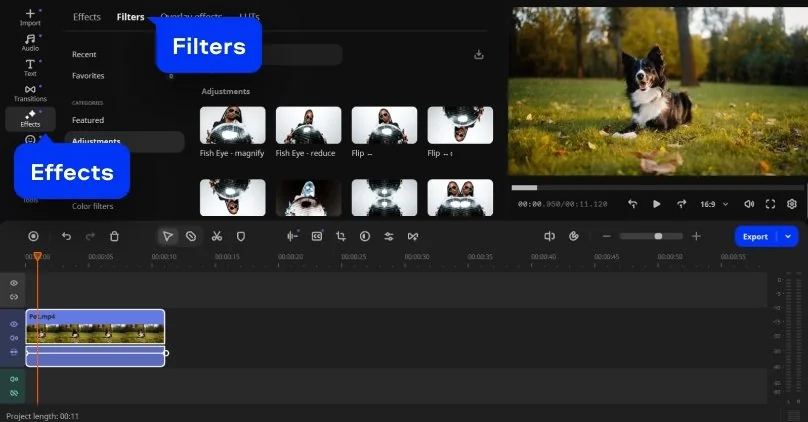
Open Effects > Filters. Select the Adjustments menu. Choose horizontal or vertical flipping from the available tools. The video updates immediately, allowing you to see how the new orientation affects the footage.
Step 3. Save the video
Watch the flipped video in the preview window to confirm that the orientation is correct. If needed, switch between flip options until the result looks right.
Click Export and choose an export option that suits your needs.

Supported formats for video editing on PC and Mac
3GPP, 3GPP2, ASF, AVI, DivX, FLV, SWF, M2TS, M2T, MTS, TS, MKV, MOV, MP4, MPG, MPEG, MPE, M1V, MOD, TOD, MWV, M4V, MXF, OGV, QuickTime, RM, RMVB, WebM, WTV

Why choose Movavi
We’re the #1 choice for millions of people from all around the world. Join our thriving community and create stunning content with incredible ease.
Millions


of users
countries
updates per year
effects to choose from
Frequently asked questions
Is it possible to flip a video?
Is it possible to flip a video?
Yes. This usually becomes clear the moment you watch the clip back. A selfie looks strange. Text is backwards. Motion feels wrong. Flipping the video fixes the orientation without touching anything else. In Movavi Video Editor, it is a small correction, not a full edit, which is exactly how it should be.
Is mirroring a video the same as flipping?
Is mirroring a video the same as flipping?
No. Mirroring reverses the image from left to right, or horizontally, which is why text or hand movements can look wrong. Flipping can also mean turning the video upside down. You can flip a video online or mirror a video online and preview each option.
How do I flip a video to vertical?
How do I flip a video to vertical?
This usually happens after recording without thinking too much about orientation. A phone rotates. A camera mount ends up inverted. A vertical flip turns the image top to bottom and puts everything back in place. In Movavi Video Flipper, you apply the flip, watch the preview, and move on once it looks right.
See other useful online tools
Movavi Video Editor
Create awesome videos easily
*The free version of Movavi Video Editor may have the following restrictions depending on the build: watermark on exported clips, 60-second video or 1/2 audio length limit, and/or some advanced features unavailable when exporting videos.
Similar guides
Online Video Merger – Combine Video Clips for Free
Resize Video Online for Free With No Watermark
Online Video Cropper – Crop Video Clips for Free
Rotate Video Online for Free With No Watermark
Add Filters to a Video Online for Free
Change Video Speed Online for Free
[OFFICIAL] Video editor
Reverse a Video | Free Online Video Reverser
Join us for discounts, editing tips, and content ideas


1.5M+ users already subscribed to our newsletter