If you’ve been searching for a quick way to join clips without a learning curve, Movavi’s online video merger keeps it simple. Open the online tool in your browser, and the layout is easy to get: preview on the right, timeline along the bottom, and the main controls on the left. It’s built for people who want to merge videos online without turning it into a whole project.
Movavi Video Editor
Combine multiple clips into one seamless movie with cinematic transitions and AI-enhanced stabilization in Movavi Video Editor.
By clicking the download button, you're downloading a trial version of the program.*
Free Online Video Merger
How to combine videos online
Step 1. Add your files
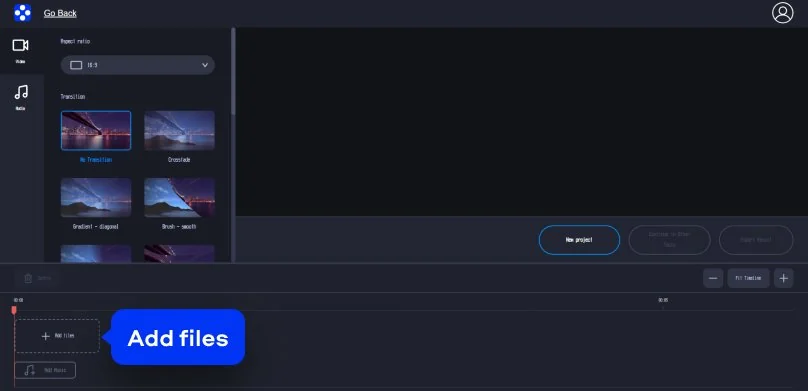
Click Add files to upload your video. Your first video drops onto the timeline at 00:00, and you can add more in the same way.
Step 2. Merge the videos
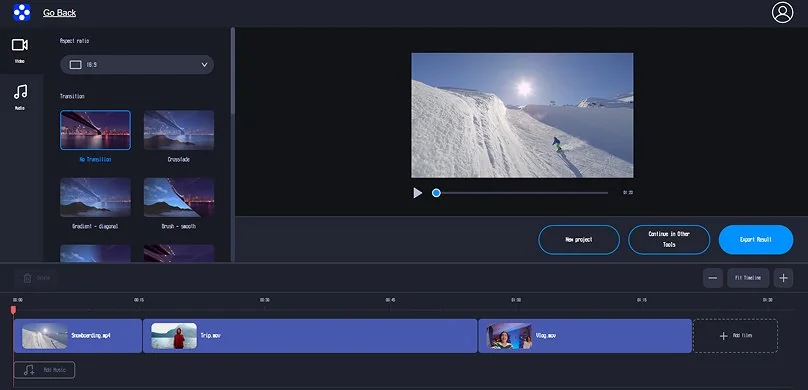
Drag clips along the timeline to arrange them. Want two videos together? Just place one right after the other. If you need a different look, use the left panel to set the aspect ratio (like 16:9) and pick a transition such as No Transition or Crossfade.
Step 3. Export your result
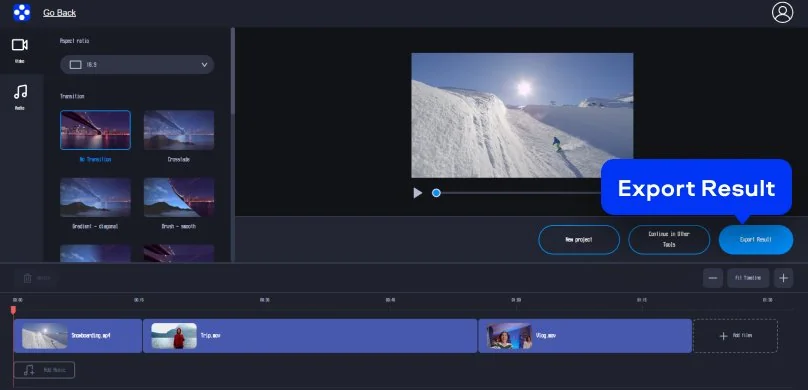
When everything looks good in the preview window, click Export Result. The tool processes your project quickly, and you can save the final video without installing extra software or running a heavy download. It’s fast, practical, and ideal for everyday edits.
This online video combiner is perfect for quick social posts, birthday montages, or travel recaps – especially when you just want to merge videos without overthinking it.
Supported formats for online video editing
MP4, AVI, MOV, WMV, M4V
How to use the desktop video combiner
Movavi Video Editor is a practical option if you want more control on Windows or Mac. It runs well on a PC and gives you a full timeline for cleaner edits. You can trim precisely, add transitions, adjust color, work with titles, and handle audio in one place. It stays beginner-friendly, but it still has enough tools to help you combine videos into something that feels finished. Read the guide below to learn how to combine videos on your computer.
Step 1. Import your video files
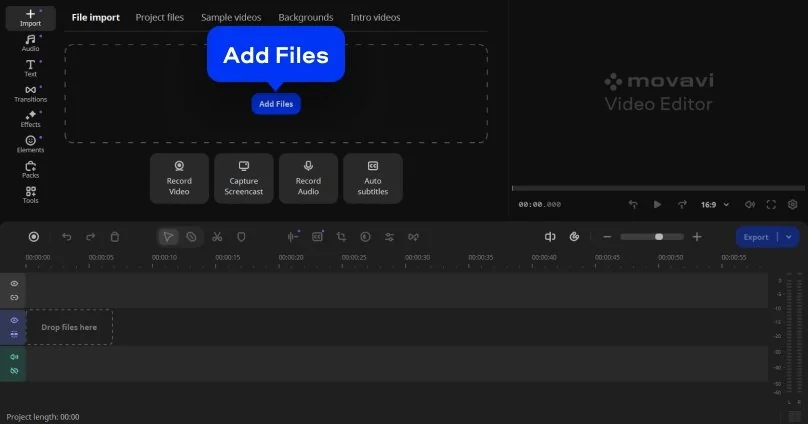
Launch Movavi Video Editor on your computer and click Add Files to upload all video clips that need to be merged. Then drag them on the Timeline, where they can be arranged in the desired order.
Step 2. Arrange and trim the clips
Place the videos sequentially on the timeline and adjust their position if necessary. Unwanted sections can be trimmed, and the preview window allows you to check how smoothly the clips connect.
Step 3. Add transitions if needed
To create smoother transitions between clips, select a transition effect in the Transitions tab and place it between videos on the timeline. This step is optional if a simple, direct merge is preferred.
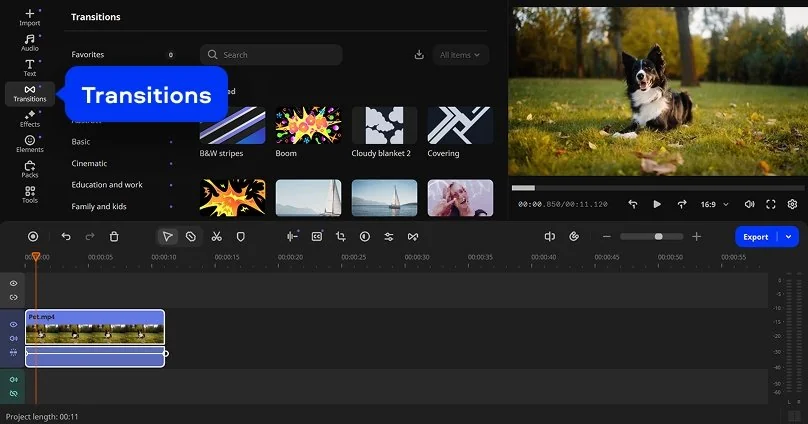
Step 4. Export the merged video
Click Export, select the output format and resolution, and start the rendering process. Once completed, the merged video will be ready for viewing or sharing.
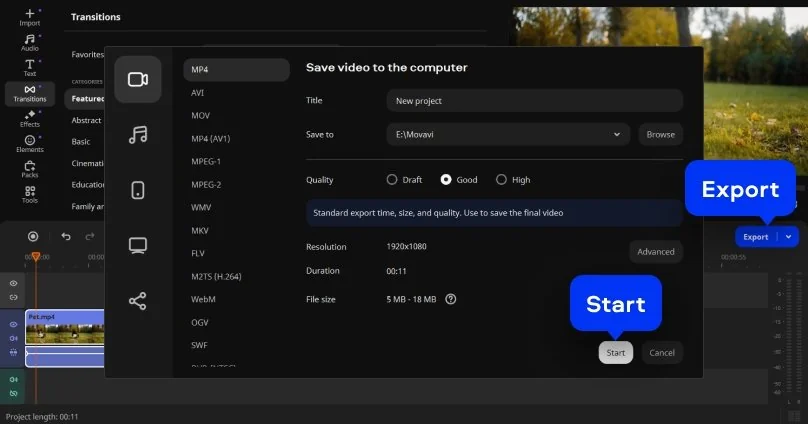
Supported formats for video editing on PC and Mac
3GPP, 3GPP2, ASF, AVI, DivX, FLV, SWF, M2TS, M2T, MTS, TS, MKV, MOV, MP4, MPG, MPEG, MPE, M1V, MOD, TOD, MWV, M4V, MXF, OGV, QuickTime, RM, RMVB, WebM, WTV

Why choose Movavi
We’re the #1 choice for millions of people from all around the world. Join our thriving community and create stunning content with incredible ease.
Millions


of users
countries
updates per year
effects to choose from
Frequently asked questions
What types of video files can I merge?
What types of video files can I merge?
Short answer: most of the ones people actually use. If your video plays on a phone, laptop, or smart TV without complaining, it’s almost certainly merge-friendly. MP4, MOV, AVI, MKV, WebM… they all jump on the same timeline without making a fuss.
Can I merge videos of different formats?
Can I merge videos of different formats?
Absolutely, and this is where modern tools quietly do the heavy lifting. You throw in a mixed bag of formats, and the software smooths things out in the background like a good editor should. From your side, it feels suspiciously simple: drag, drop, merge, done.
Does the quality get affected when I merge videos online?
Does the quality get affected when I merge videos online?
Only if you let it. Quality loss isn’t some unavoidable curse – it usually happens when compression is cranked too high or export settings are rushed. Choose sane settings, don’t squash the resolution, and your final video will look like it was always meant to be one piece.
How do I join MP4 videos together?
How do I join MP4 videos together?
MP4 is the path of least resistance. Most tools handle it effortlessly, whether online or on desktop: upload the files, line them up, hit export. It’s the rare video task that doesn’t turn into a technical puzzle, and that’s part of its charm.
Movavi Video Editor
Create awesome videos easily
*The free version of Movavi Video Editor may have the following restrictions depending on the build: watermark on exported clips, 60-second video or 1/2 audio length limit, and/or some advanced features unavailable when exporting videos.
Similar guides
Video Collage Maker – Download for Free
Split Video Online for Free With No Watermark
MP4 Video Editor – Edit Videos Online for Free
Add Watermark to Video Online – Add Logo to Video Easily and 100% Free
Best Software to Combine AVI Files | Download Movavi’s AVI Joiner
Video Montage Maker: Quick and Simple Tool – Movavi
How to Merge MKV Files: 7 Best Ways to Combine MKV Videos
Online Video Editor | Try New Video Maker for Free
Free Video Merger | How to Combine Videos Online
Join us for discounts, editing tips, and content ideas


1.5M+ users already subscribed to our newsletter