Step 1. Download and install Movavi Screen Recorder
Download the latest version of Movavi Screen Recorder to your PC or Mac. Run the installation file, follow the on-screen instructions, and launch the program.
One-click screen recording
Easily make engaging screencasts with Movavi Screen Recorder
Full-screen or custom area recording
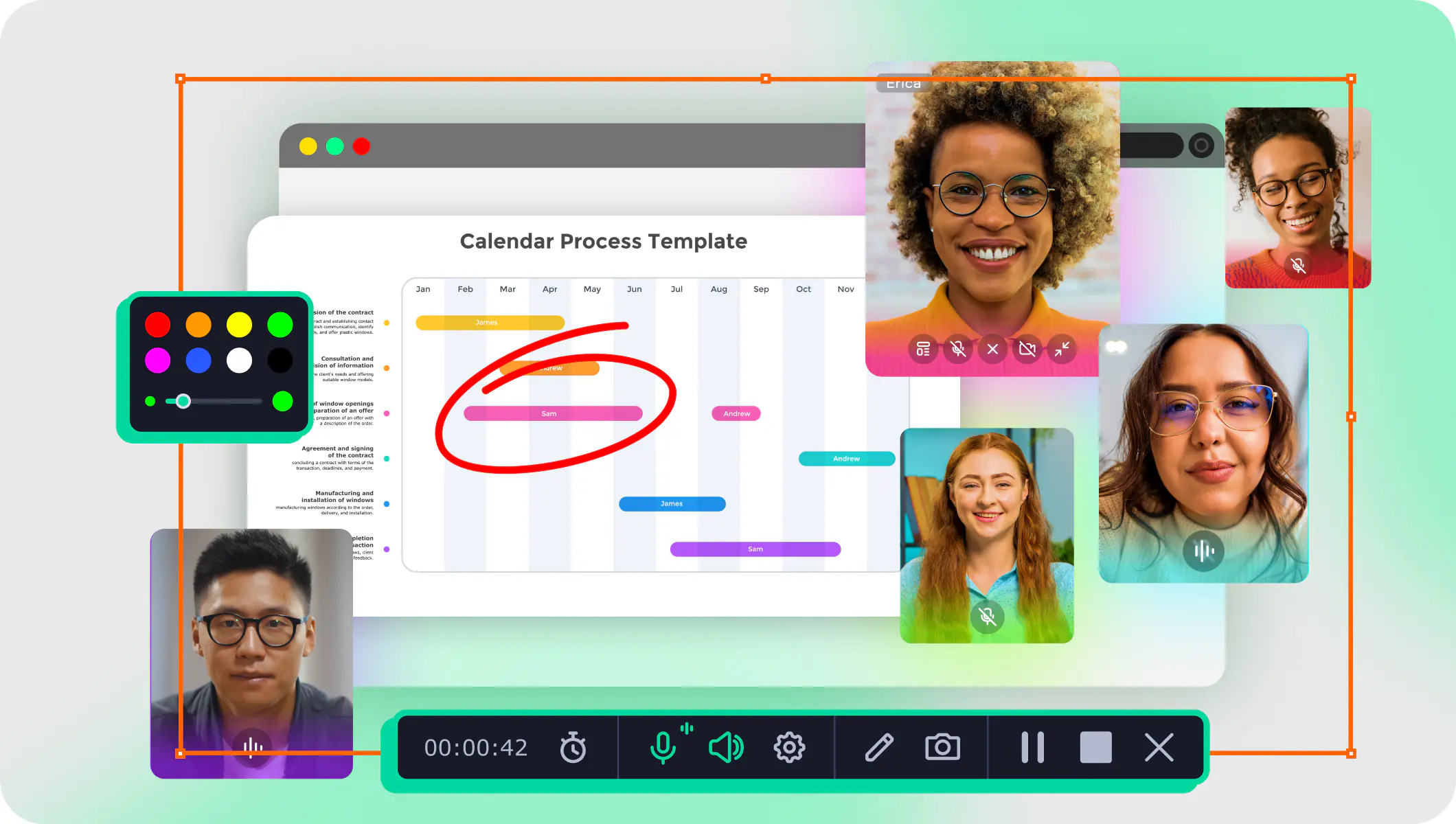
Webcam capture and drawing on recordings in real time
Highlighting mouse cursor and keystrokes
How to record your computer screen

Effortlessly capture screens so you never miss a single thing. Select full-screen or custom area recording, then grab online calls, webinars, video lessons, and more.
Step 1. Download and install Movavi Screen Recorder
Download the latest version of Movavi Screen Recorder to your PC or Mac. Run the installation file, follow the on-screen instructions, and launch the program.
Step 2. Select the recording area
Click on the Screen recording button. Use your mouse to draw a frame around the area you want to capture.
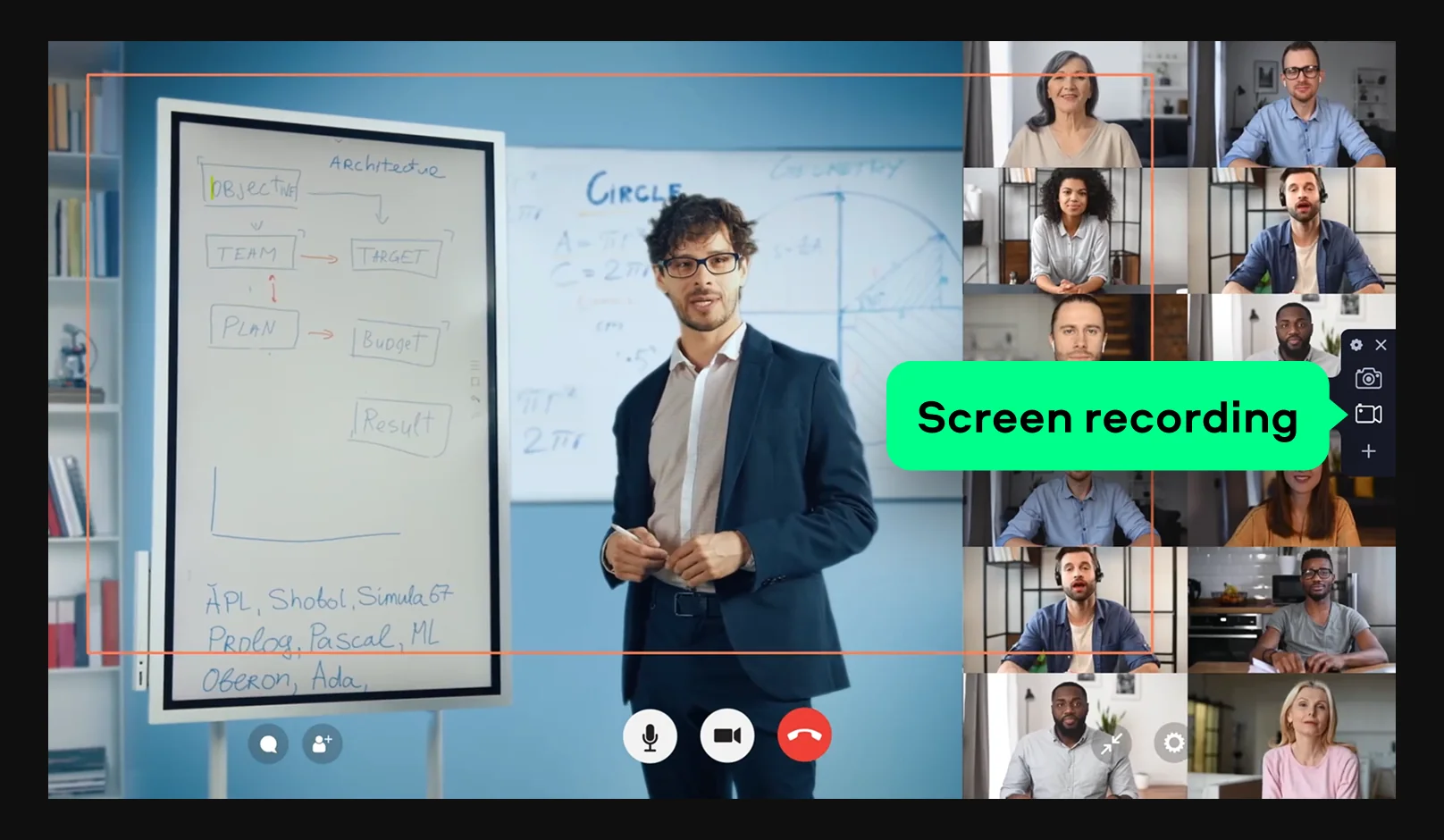
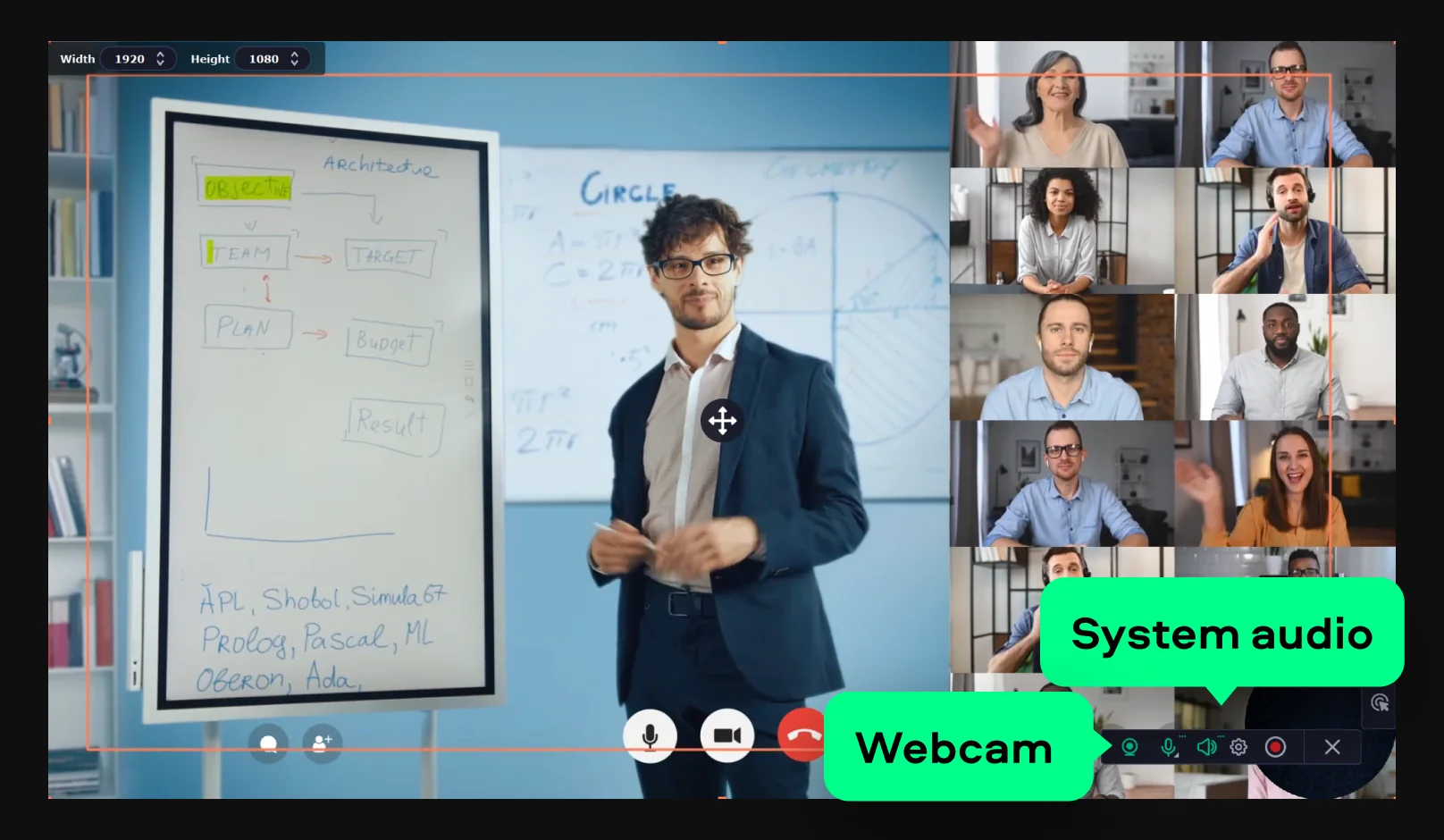
Once you select the capture area and release the mouse button, you’ll see the recording panel on the screen. Activate the System audio, Microphone, and Webcam buttons if you want to enable these audio and video inputs.
Step 3. Start recording
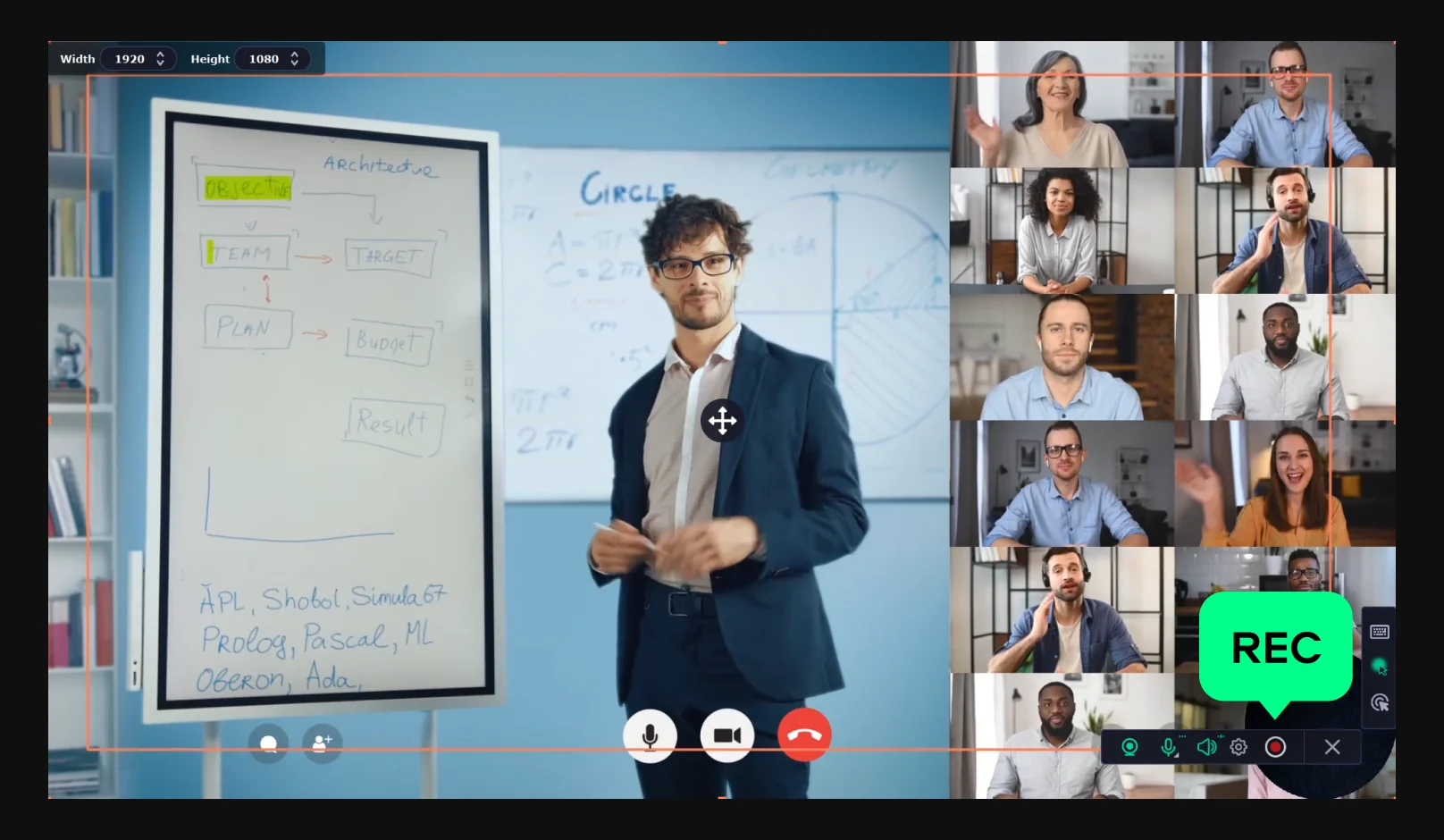
Click the REC button to start recording.
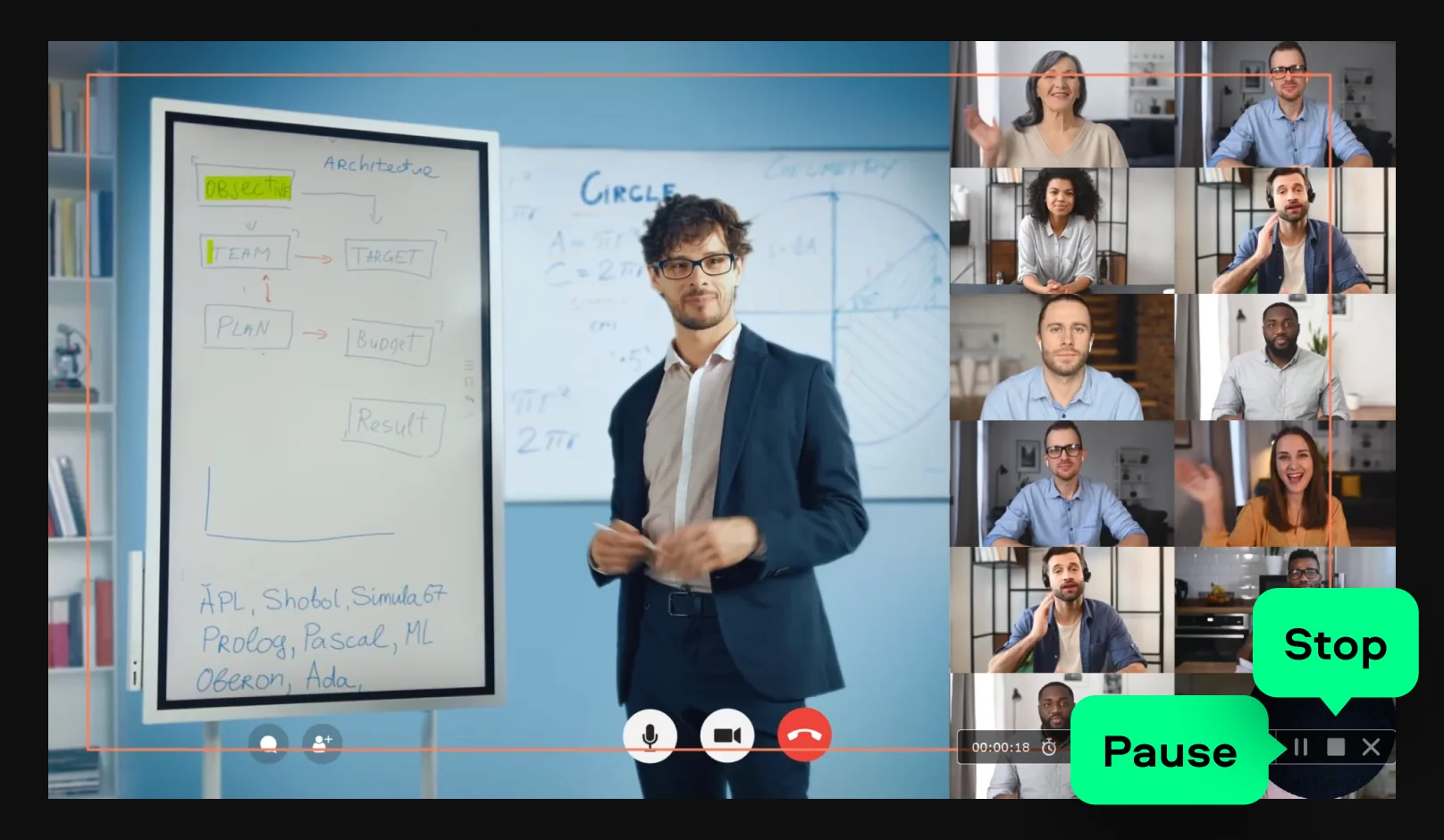
As you record, you can click Pause to temporarily halt the process and Stop to end the session.
Step 4. Edit and export
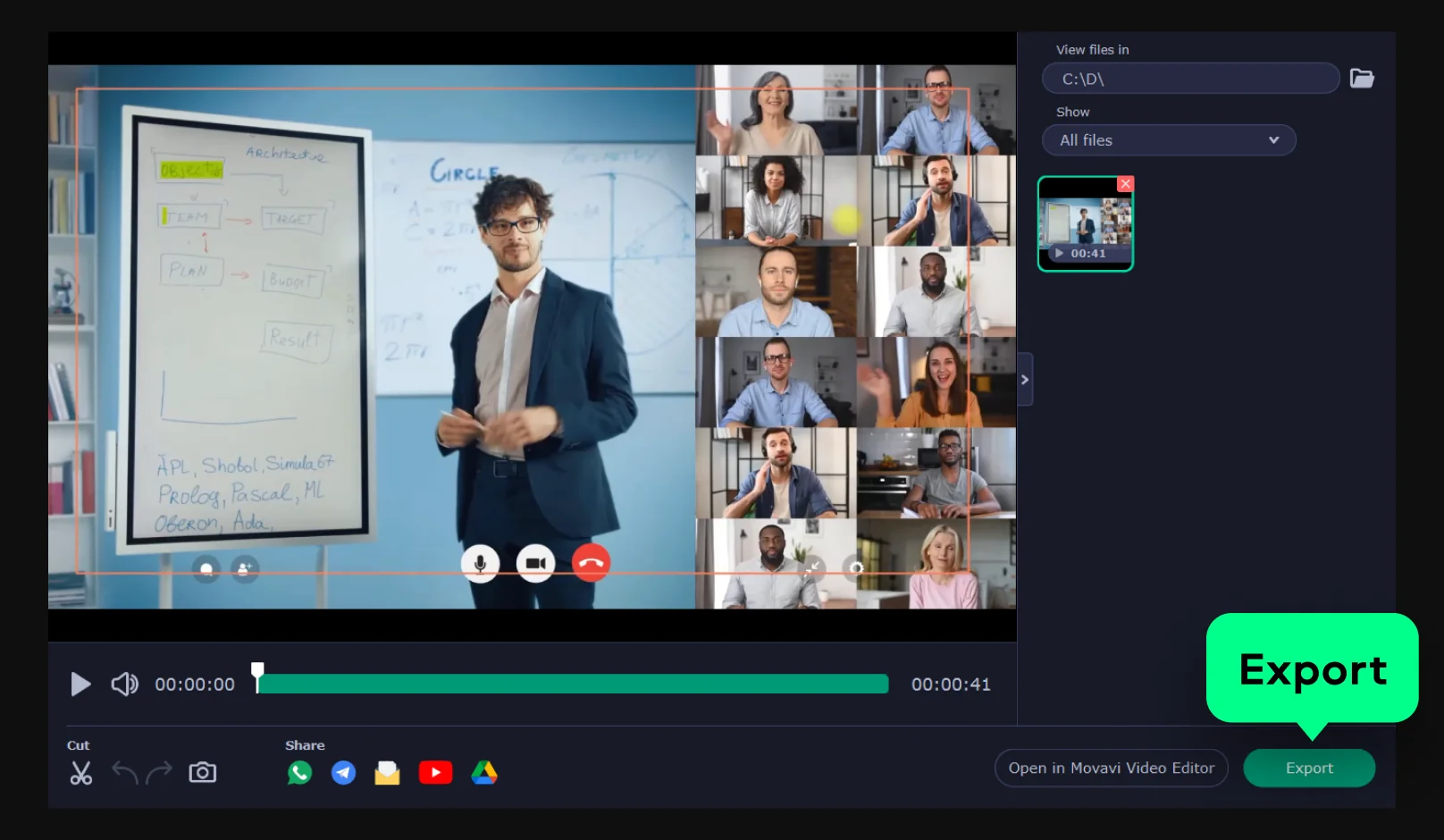
After stopping the recording, use the built-in editing tools to trim or cut your video.
Once you’re happy with the result, click Export to save the video in the desired format and resolution.
Your hassle-free screen capture tool for more efficient projects
Looking for a program to edit video files?


1.5M+ users already subscribed to our newsletter