Step 1. Download and install Movavi Video Editor
Get the latest version of Movavi Video Editor for Windows or Mac and install it on your device. The program will open automatically after the installation.

Movavi Video Editor lets you blur faces in a video using motion tracking. The blur mask follows the person as they move through the frame, so privacy protection holds for the entire shot.
Choose from three blurring modes – Quick, Precise, or AI-powered – to automatically hide a face, a license plate, personal information, or any other object that needs to stay out of frame, then export the finished video in any popular format.
Millions


Three blurring modes, motion-tracked masks, and the full editing toolkit – all in one app.
AI face blur automatically detects and tracks faces
Movavi’s AI-powered motion tracking is the fastest way to blur faces in a video. Place the ellipse mask over the face you want to hide, switch to the AI method in the Motion tracking tab, and click Track – the software analyzes the footage and automatically follows the face through every frame. No manual keyframing, no frame-by-frame adjustments. The AI effect delivers clean, consistent privacy protection even through fast movement.
Blurred ellipse, pixel mosaic, and custom shapes
The Highlight and Conceal section in the Tools panel gives you a range of mask shapes to blur or hide anything in a video: blurred ellipse, pixel ellipse, pixel rectangle, solid fill, and more. All of them work with motion tracking so the mask stays locked to the face or object as it moves. The same tool handles license plates, addresses, documents, and any other sensitive information you need to remove from the shot.
Quick, precise, and AI – Pick the right method for the job
Quick mode gives you a fast result for simple shots. Precise mode lets you fine-tune the tracking path for better accuracy in challenging scenes. AI mode does the heavy lifting automatically and produces the best results on complex footage with fast movement, partial occlusion, or multiple people in frame. All three are accessible from the same Motion tracking tab – you can switch between them on any clip without restarting the process.
Blur faces and finish the edit in the same app
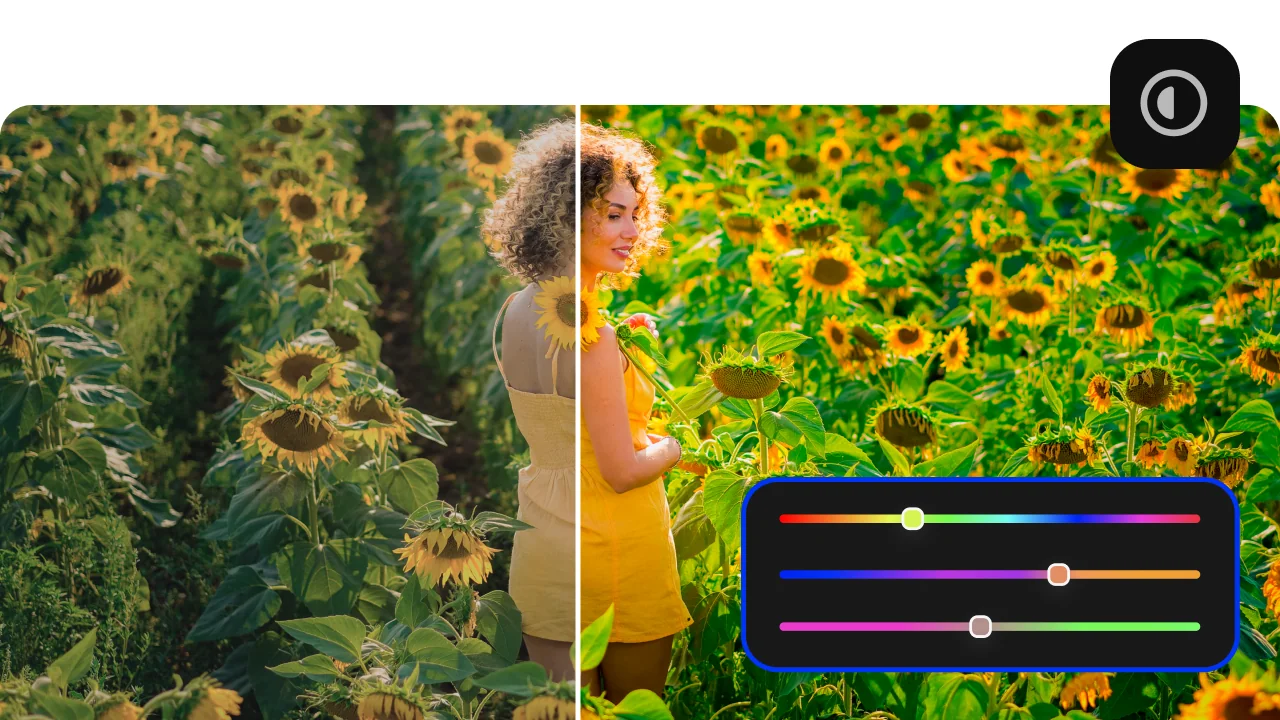
Because the face blur tool lives inside Movavi Video Editor, you can blur a face and then immediately trim the clip, color grade it, add a soundtrack, drop in transitions and titles, and export – all without leaving the app. The blur effect is just one feature in a complete video editing software package that includes AI audio denoising, background replacement, filters, and more.

Three reasons creators and professionals reach for Movavi when privacy protection matters.
From raw footage to a privacy-protected, export-ready video – done in minutes.
Get the latest version of Movavi Video Editor for Windows or Mac and install it on your device. The program will open automatically after the installation.
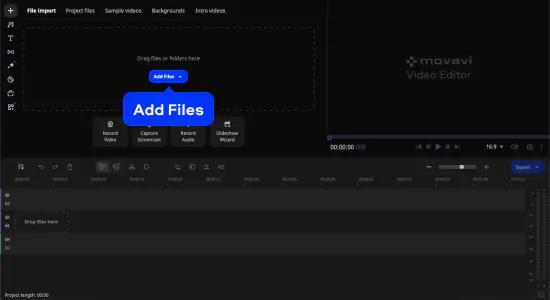
Click Add Files to import your videos to the program or just drag your clips into the program’s window. Your videos will appear in the Project files section. Drag them to the Timeline before you start working with them. You can also use default video clips from the Sample videos section.
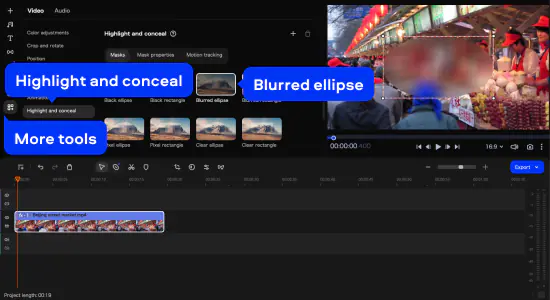
Before you apply motion tracking, select one of the tools to blur out a face in a video. Here in this example, we’re using Blurred ellipse. If you want to apply the same effect, go to Tools, then select Blurred ellipse in the Highlight and conceal section. Add this effect to your clip and adjust the ellipse’s size and position.
You can also use other tools to blur a face in a video: pixel ellipse/rectangle, non-transparent black ellipse/rectangle, and more. Use a clear ellipse/rectangle if you want to blur the background of your video.
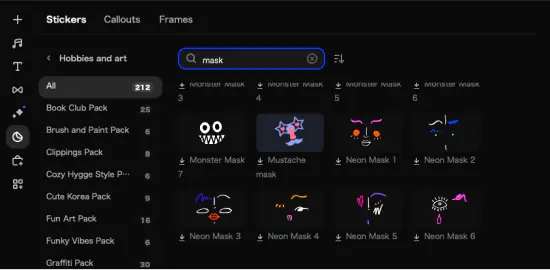
If you want to apply a different effect, check out the Elements tab for amazing themed stickers and overlays that you can use to cover a person’s face. The process is the same for any element/effect you choose. We’ll proceed with our blurred ellipse.
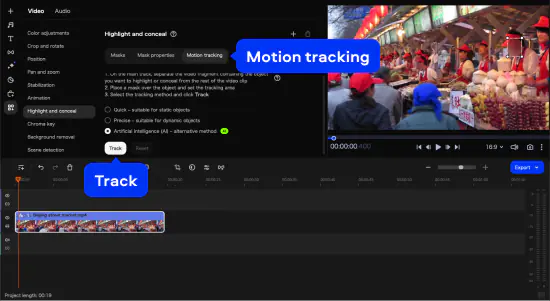
Here’s how to blur an object in a video. While you’re still in your ellipse’s settings window, go to the Motion tracking tab and select one of the three options available: Quick, Precise, or AI-powered method. While creating this guide, we used the AI feature. Put the frame on the face that you want to blur throughout your video and click Track. You can see the result in the Preview window.
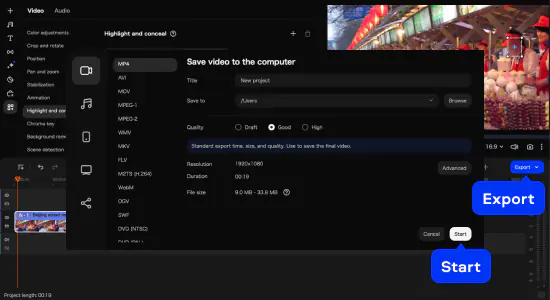
When you are satisfied with the result, click Export. In the window that appears, you can choose the output format and video quality. Click Start to save your video.
Privacy protection in video is a real need across journalism, content creation, and everyday situations.

Common questions about blurring faces and hiding identities in videos.
To blur one face in a video using Movavi Video Editor:
For a clip with multiple people where you need to blur only one face, use the tracking frame to target just that person. The mask will track that specific individual and leave other faces untouched.
Yes, but you’ll need a video-editing app to do it – iPhone’s built-in Photos app doesn’t support face blurring. On mobile, CapCut includes a Smart Cutout feature and background blur feature that can be repurposed to hide a face, though it’s not purpose-built for privacy protection blurring. iMovie on an iPhone doesn’t support face blur at all. The most practical workflow for iPhone videos is to transfer the file to a Mac or Windows computer and use Movavi Video Editor, which handles the blurring faces automatically through AI motion tracking. For a purely phone-based option, Blur Video – Censor & Pixelate on the App Store is a dedicated face-blurring app for iOS that applies a static or moving blur over selected areas.
There are several ways to hide a person’s face in a video. The most robust is motion-tracked blurring using video-editing software like Movavi Video Editor – the blur mask follows the face automatically as it moves. Alternatively, you can use a solid black or colored rectangle (also available in Movavi’s Highlight and Conceal section) for a censorship bar look. For a creative approach, Movavi’s Elements section offers stickers and overlays that can be tracked to a face – an emoji or graphic that covers the face and moves with it throughout the clip. Whichever tool you choose, the tracking method is the same: place the mask, click Track, and let the software follow the face.
CapCut has basic blur and Smart Cutout features, but it’s not specifically designed to blur faces in video with motion tracking. In CapCut mobile:
CapCut desktop has slightly more control but still lacks dedicated motion-tracked face-blurring. For clean, reliable blurring faces in a video – especially when the person moves or turns their head – dedicated video-editing software like Movavi Video Editor with AI motion tracking produces significantly better results than general blur effects.


1.5M+ users already subscribed to our newsletter