Step 1. Upload your media
To start, click the Upload Files button on the banner above. Select the clip you want to loop in the video repeater online. No download required for this initial step.
Movavi Video Editor
Create seamless video loops and repetitive sequences effortlessly in Movavi Video Editor, designed for smooth playback and high-quality exports.
By clicking the download button, you're downloading a trial version of the program.*
Loop Video Online for Free
How to use the online video looper
Sometimes a single moment is so good you just want to see it over and over again. Here is where Movavi’s online tool proves handy. When you need a quick way to repeat video content, this browser-based editor is a no-brainer to use online: it is fast, secure, and requires no technical expertise. It allows you to create an infinite video loop without installing heavy software. You can edit your clips directly in your web browser. feature-rich and zero-cost, it also lets you trim and loop with precision. This free online tool handles the hard work for you. You can even mute video tracks for a cleaner look. It is the perfect video repeater online for quick projects.
Step 1. Upload your media
To start, click the Upload Files button on the banner above. Select the clip you want to loop in the video repeater online. No download required for this initial step.
Step 2. Set the parameters
Once the video uploads, you can choose the loop count. Decide how many times the clip should repeat. You can also trim and loop specific sections of the footage. You may also mute video audio if necessary.
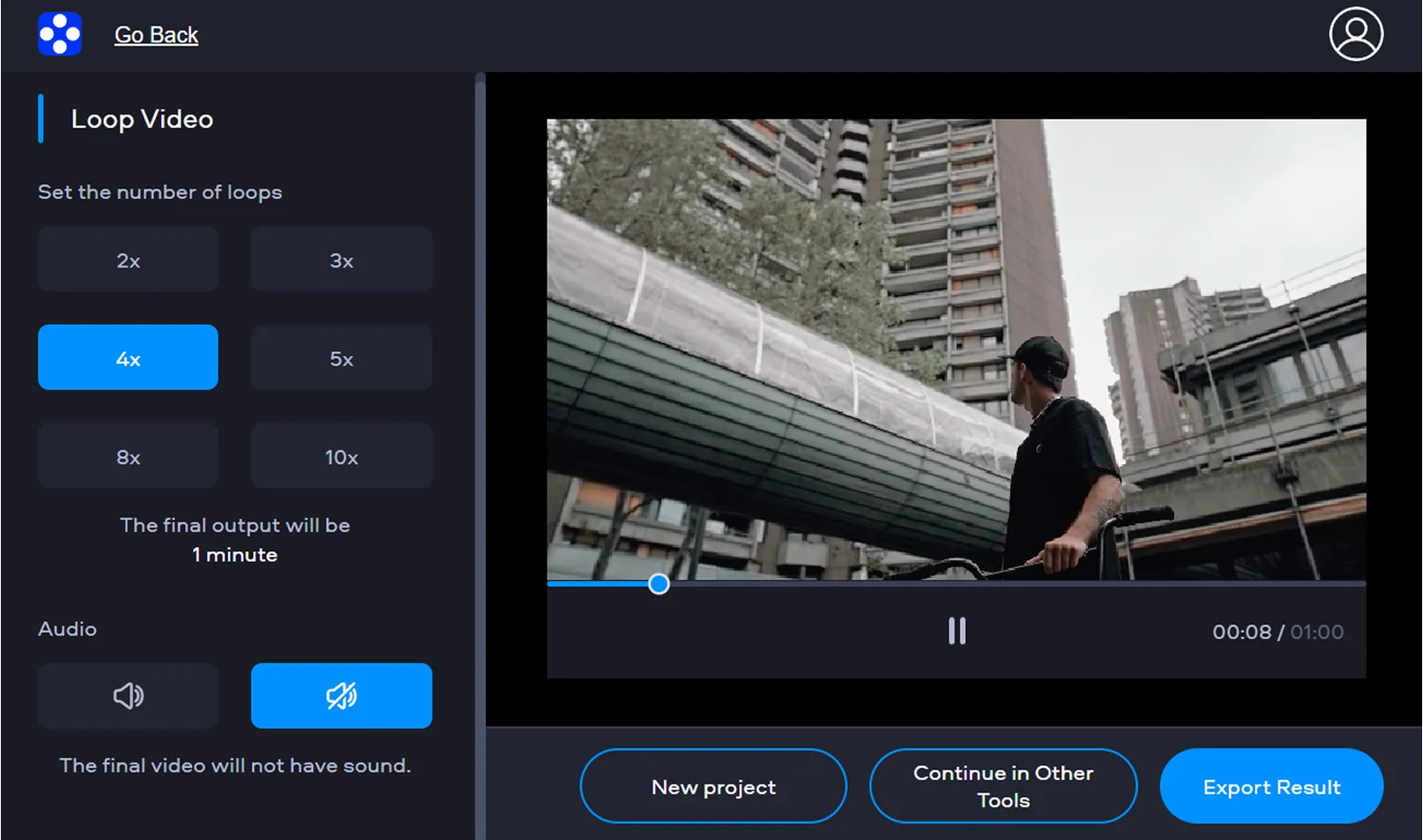
Step 3. Export the video
Check the preview to see how the video cycle tool worked. When everything looks good, click the Download button. The process is quick and keeps your video clear.
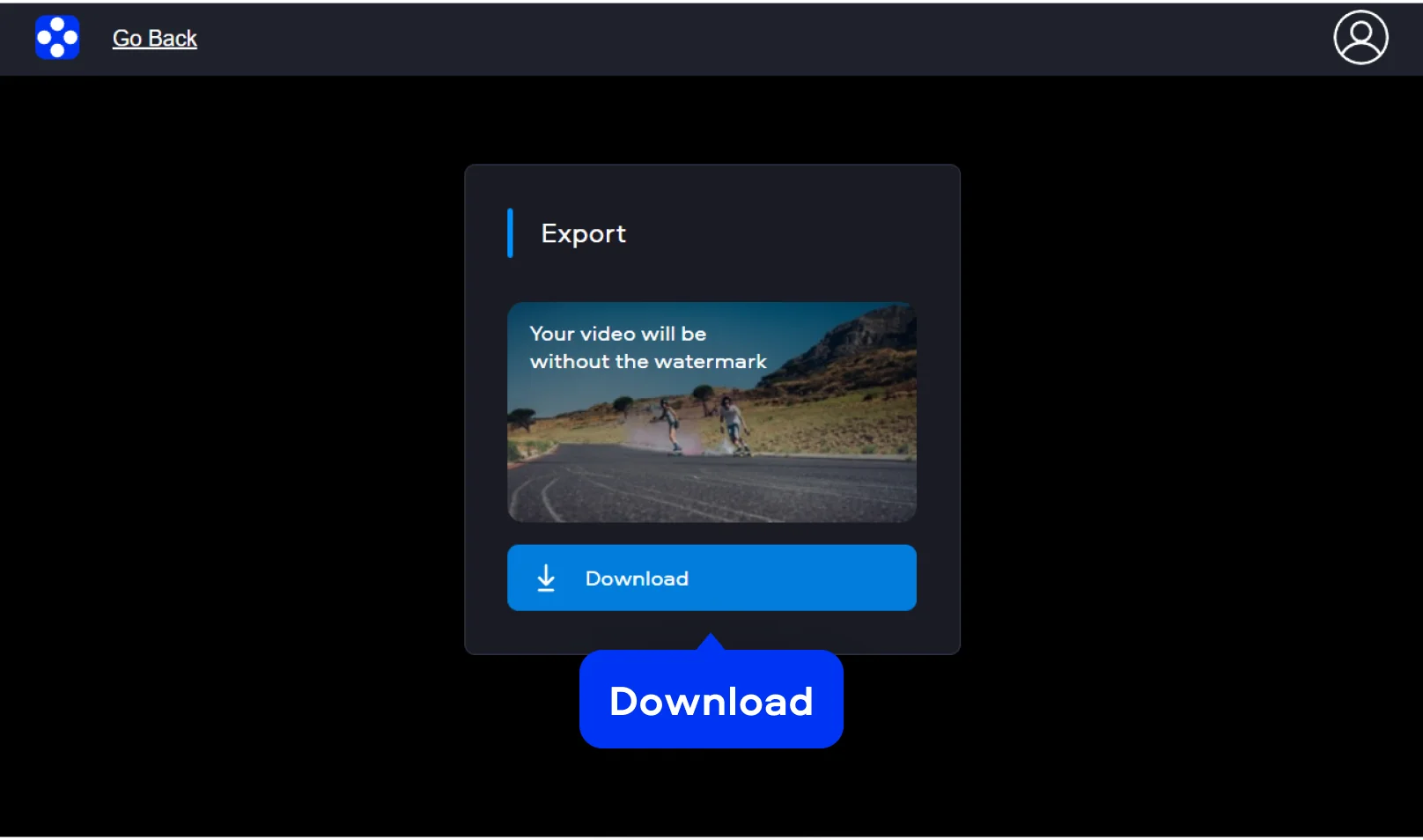
How to make a video loop on desktop
For more complex tasks, Movavi Video Editor provides professional power. This downloadable software is ideal for creators who need precise control. It offers more than just a basic video looper function. You can add effects, transitions, and advanced audio tracks. It is a complete suite for high-quality production. The interface is intuitive for beginners and experts alike.
Step 1. Import video
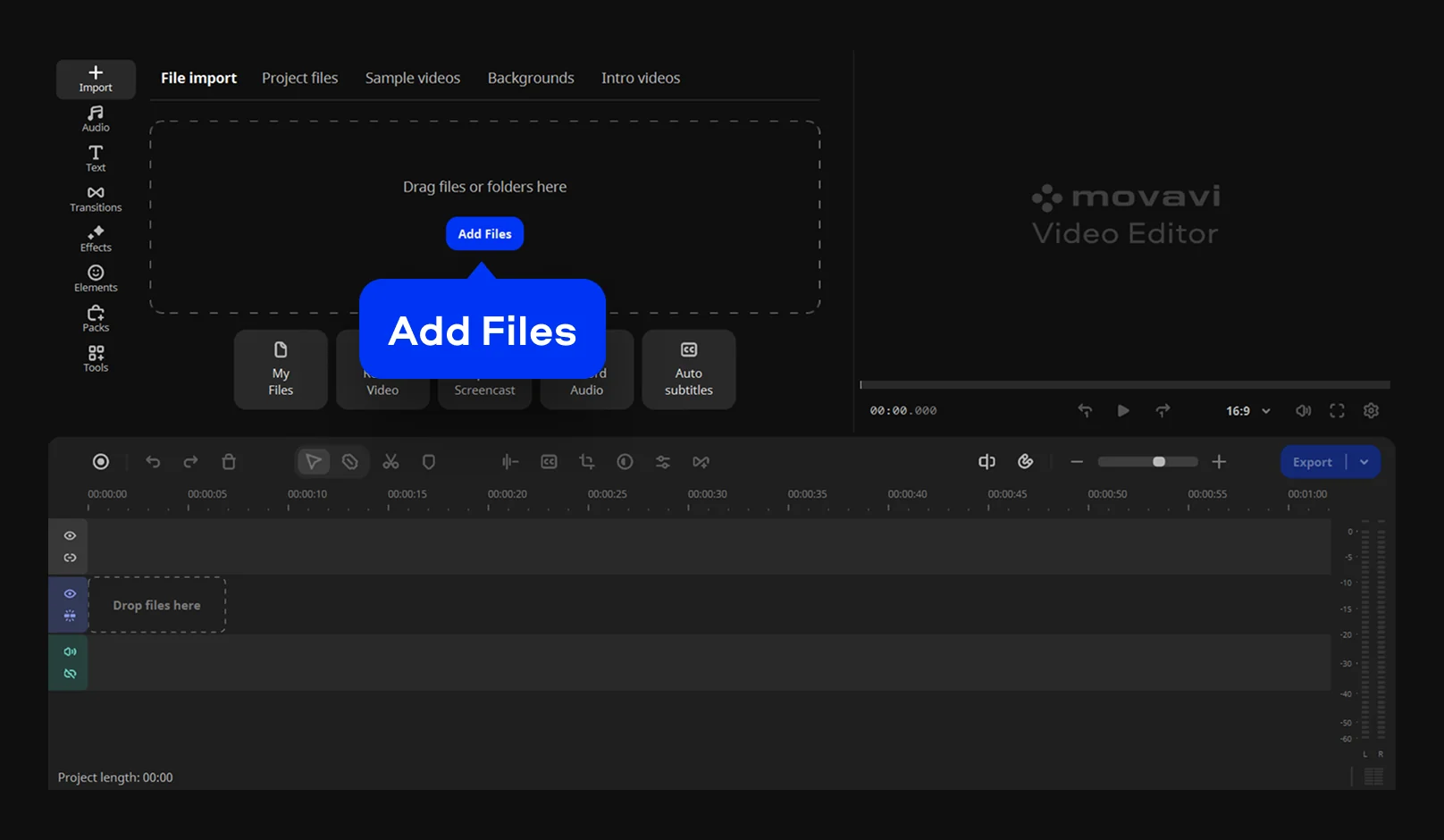
Install Movavi Video Editor on your computer and launch the program. Click Add Files to browse your media. You can also drag your video into the media library. Drag the clip from the library onto the timeline.
Step 2. Create looped video
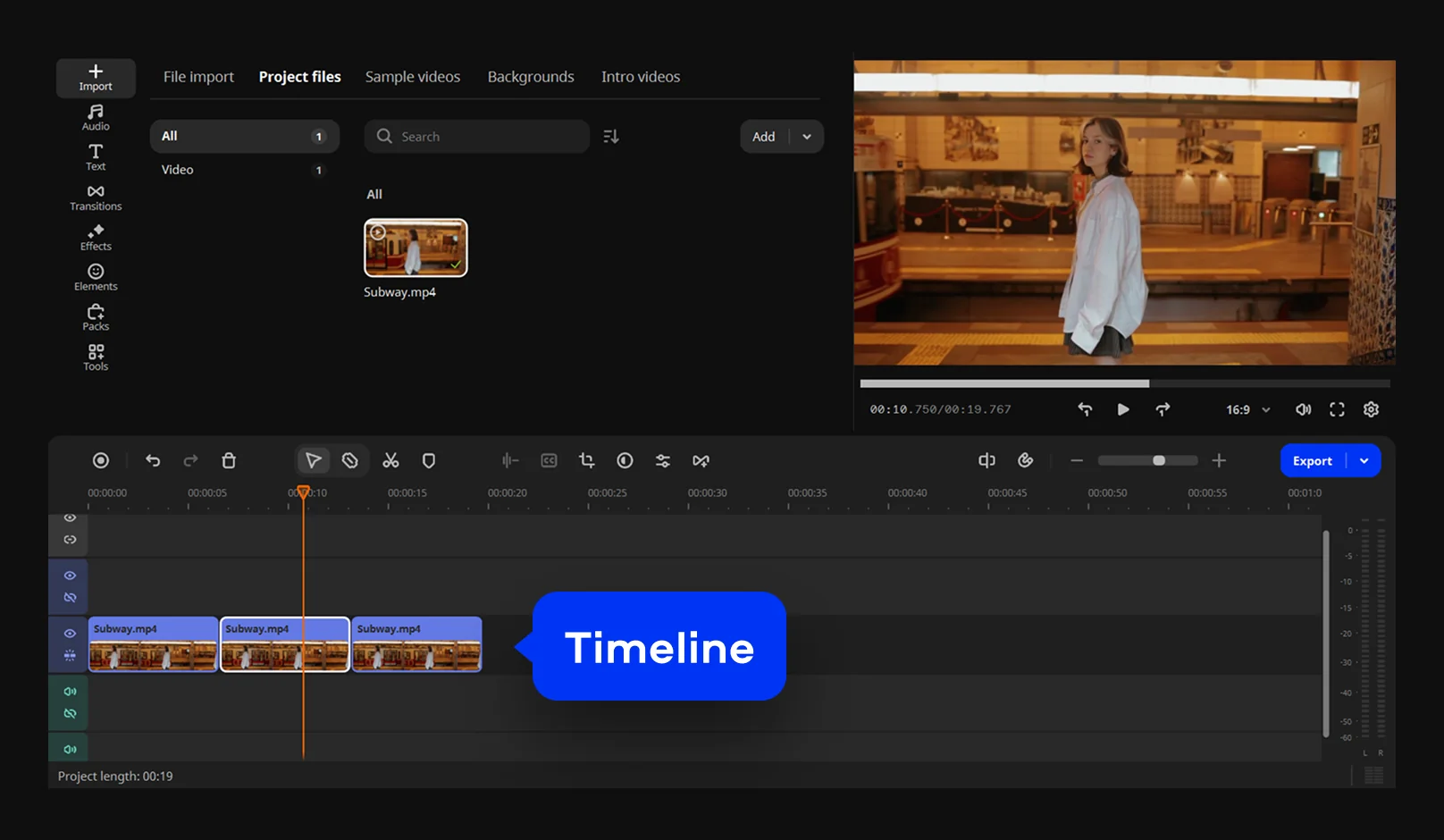
To make a video loop, you simply need to duplicate the clip. Select your video on the timeline. Drag the playhead to the very end of the clip. Press Ctrl + C and then Ctrl + V. Repeat this action to reach your desired length.
Step 3. Save the result
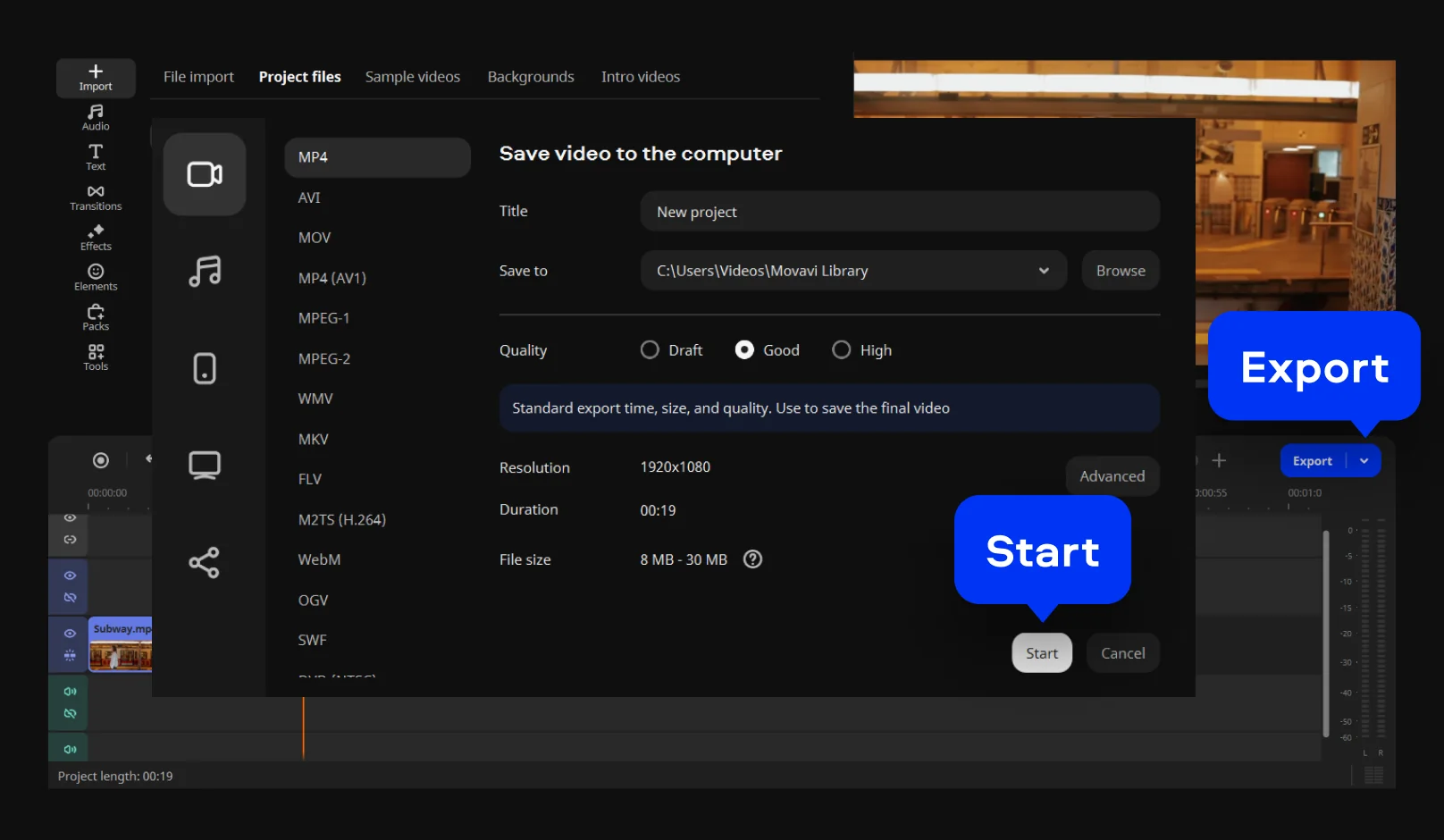
Click the blue Export button when you are finished. Choose the best settings for your specific project. Select the save location on your hard drive. Click Start to begin the rendering process. Your looped video is now saved and ready to use.

We’re the #1 choice for millions of people from all around the world. Join our thriving community and create stunning content with incredible ease.
70M+


Frequently asked questions
You can use a free online tool like Movavi’s video looper. Simply upload your clip to the website. Set the number of repetitions you need. The tool processes the file in the cloud. Finally, download the finished file to your device. It is a simple, cost-free solution for everyone.
Yes, modern tools ensure a high-quality export every time. The online looper maintains the original resolution of your file. On the desktop, you can choose specific bitrate settings. This prevents any visible compression during the process.
To loop a video for Instagram and socials, keep the total length short. Social media platforms prefer vertical formats for stories. Use the looper to repeat a catchy moment. This creates a fun, engaging looped video for TikTok. Save the file as an MP4 for easy uploading. Both platforms handle these files perfectly for your followers.
Mobile users can access the online video looper via any mobile browser. There is no need for a dedicated app. Simply visit the website and upload your footage. The interface is mobile-friendly and very responsive. You can perform clipping video segments right on your phone. It works smoothly on both iOS and Android systems.
Many users worry about branding on their content. It’s true that free versions of these tools include a small watermark. To remove branding, you will need to buy a license, so your content stays clean and professional after editing. You can then convert a video to GIF with no markings. An MP4-to-GIF loop looks best without extra logos.
Yes – it works on both Android and iPhone, and it’s free to use.
Yes. All features are available for free – no payment required.
No. You can export videos without a watermark.
*The free version of Movavi Video Editor may have the following restrictions depending on the build: watermark on exported clips, 60-second video or 1/2 audio length limit, and/or some advanced features unavailable when exporting videos.


1.5M+ users already subscribed to our newsletter