Movavi Video Editor
  • Fast and easy editing: cut, crop, adjust colors and speed
  • One-click AI tools: auto subtitles, noise removal, and more
  • Hundreds of filters, transitions, titles, overlays

By clicking the download button, you're downloading a trial version of the program.*

Free Online MP4 Video Editor

How to use the MP4 editor online

There’s a very specific kind of annoyance: you’ve got an MP4 file, it’s almost fine, and you can already feel your life draining away at the thought of installing yet another thing. No thanks. You just want to edit an MP4 video and get on with your day.

That’s where an MP4 editor online earns its keep. Movavi’s MP4 video editor runs in your browser, feels clean and uncluttered, and works whether you’re on Windows or on a Mac. It’s the kind of tool that doesn’t make you “commit” to editing – it just lets you do it.
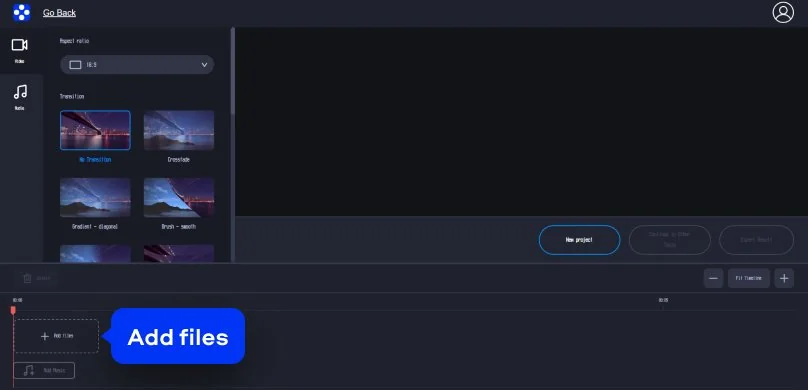
Step 1. Add your file

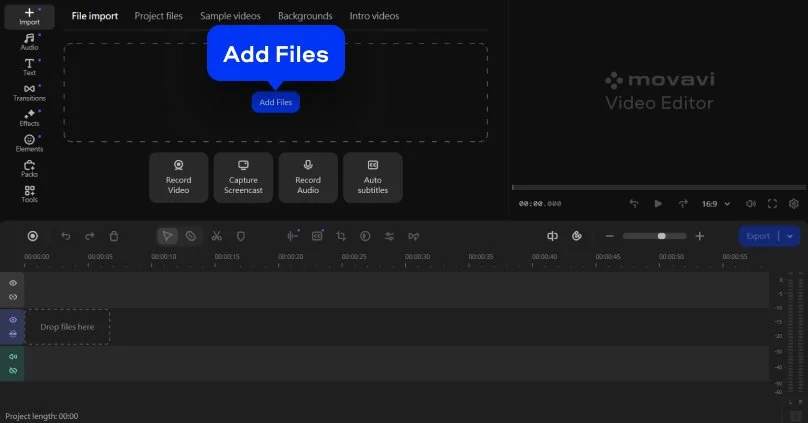
Click the Add files button to upload your video. Select the MP4 file from your computer, and the editor pulls it into the project.

Step 2. Edit your video

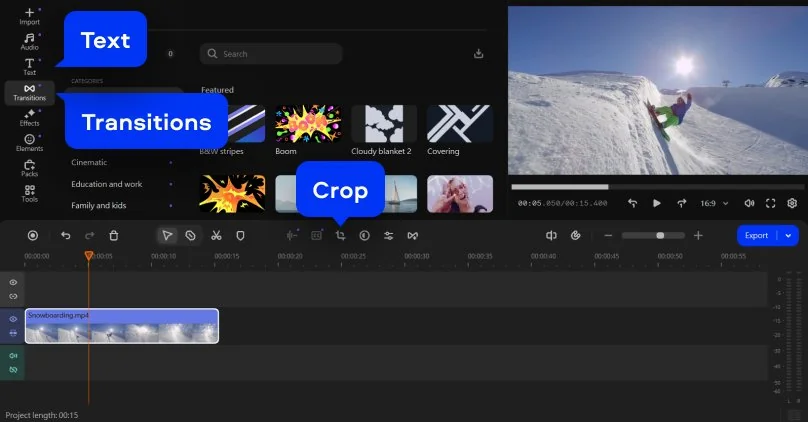
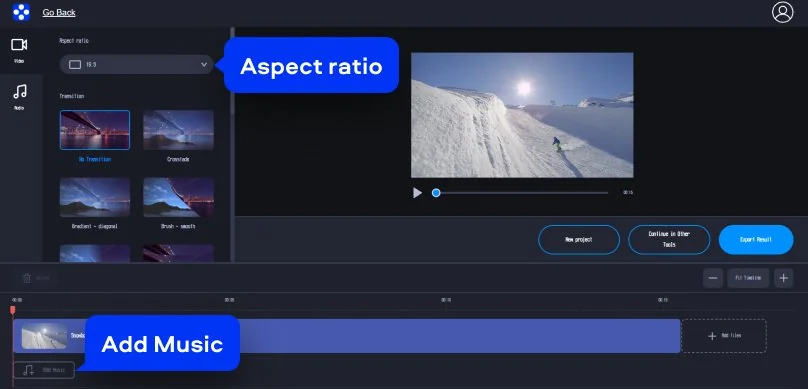
Once your clip is in, you can edit your MP4 online: trim or cut out unwanted parts and add transitions.

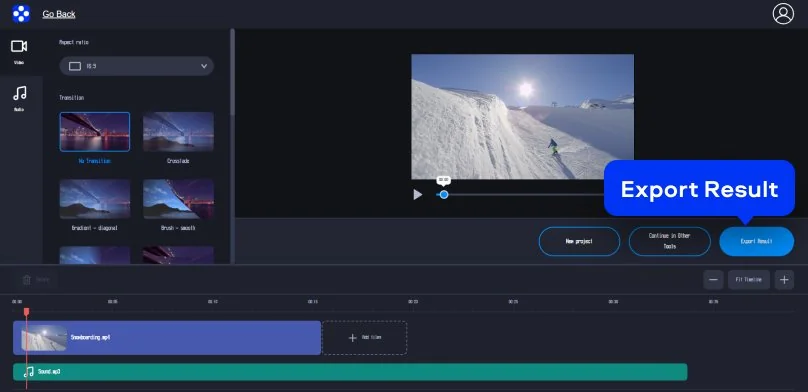
Need music? The bottom-left Add Music button is right there, waiting to make your video feel less like raw footage and more like something intentional.

And if you want the project to match a platform, use the left panel: Video > Aspect ratio (it’s set to 16:9 by default). Click the dropdown to switch formats.

Step 3. Export the result

When your edits are done, go to the right side of the preview controls and click Export Result to save the project and download the updated MP4. For quick fixes, this workflow is often the simplest way to edit an MP4 video for free – no heavy software, no complicated setup, just a cleaner video in a few minutes.

How to use MP4-editing software on desktop

Online editors are great when you want a fast cleanup. But sometimes you want the kind of control that lets you shape a story, not just trim the edges. That’s where MP4-editing software on desktop earns its keep.

Movavi Video Editor is aimed at people who want solid results. It works on a PC and Mac, and it’s friendly enough that you can dip in for one project or stick around for a routine.

Step 1. Import your MP4 file

Download Movavi Video Editor and install it on your computer. Open the program, bring your MP4 file into the media library, and drag it onto the timeline.

Step 2. Edit the video

This is where the desktop experience starts to feel different: you can layer clips, add audio, and control timing with precision. You can also trim and crop, add titles, try transitions, adjust the look, edit the sound.

Step 3. Export your final MP4 video

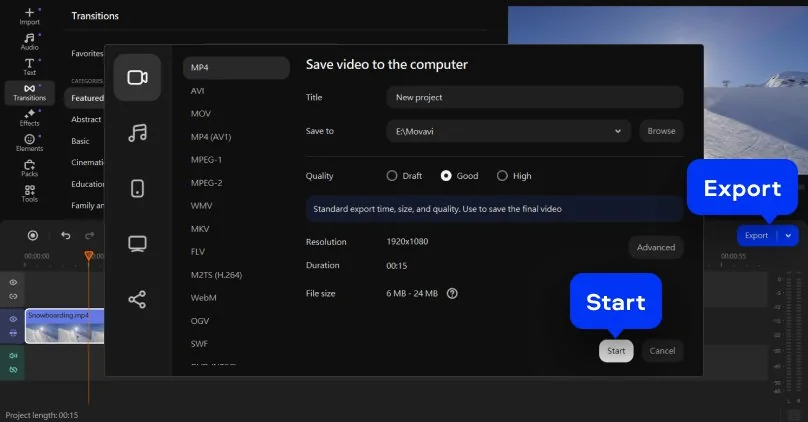
When it all clicks, export the project in MP4 format with the quality settings you want.

If you’re editing often, desktop MP4-editing software is simply the smoother way to edit MP4 video compared to a quick online pass – more control, fewer compromises, and a workflow that scales.

Movavi Video Editor
Create awesome videos easily

*The free version of Movavi Video Editor may have the following restrictions depending on the build: watermark on exported clips, 60-second video or 1/2 audio length limit, and/or some advanced features unavailable when exporting videos.

Movavi Video Editor

Why choose Movavi

We’re the #1 choice for millions of people from all around the world. Join our thriving community and create stunning content with incredible ease.

70M+

users

190+

countries

15+

updates per year

10,000+

effects to choose from

Frequently asked questions

How can I edit an MP4 file?

If you’re doing something simple (cut a section, shorten a clip, remove a pause), an online MP4 editor is usually enough. Open it in your browser, upload the MP4 file, drop it onto the timeline, trim what you don’t need, then export.

If the project is bigger – multiple clips, audio cleanup, titles, more detailed control – you’ll probably prefer desktop MP4-editing software. After you download and install it, you can import the file, arrange everything across tracks, fine-tune audio, and export with custom resolution settings.

What is the best free MP4 editor?

The best free MP4 editor depends on what “free” needs to mean for you – and how intense the edit is.

If you want to edit MP4 video free without installing anything, go with an MP4 editor online. You’ll work directly in the browser: upload the file, make quick edits, export the result. It’s ideal for short clips and quick corrections.

If you’re doing more detailed work, desktop editors with a free version or trial can be a smarter option. They usually give you a fuller timeline experience and stronger export controls.

Does Windows 10 have an MP4 editor?

Yes – Windows 10 includes basic video editing tools. You can use the Photos app for simple trimming, and Clipchamp can also handle straightforward edits.

That said, these built-in options are mostly for quick adjustments. They’ll cut and rearrange, but they’re not always what you’d pick for consistent, repeatable results.

If you want more flexibility, dedicated MP4-editing software installed on your PC is the more comfortable route. It’s what people tend to use once editing becomes a habit instead of a one-off rescue mission.

Which video editor is 100% free?

There are editors that are genuinely free. Open-source options like Shotcut and OpenShot let you edit MP4 files without paying for a license – no trials, no surprise paywalls, just the full toolbox.

If you want something simpler and faster, you can also start with an MP4 editor free option online, like Movavi’s web tool, for basic trims and quick cleanups.

If you’re editing regularly and want a steadier workflow, desktop software tends to feel more predictable – especially once your videos get longer.

Can I use Movavi Online Video Editor on iPhone and Android smartphones?

Yes, Movavi Online Video Editor can be used on iPhone and Android smartphones, completely free of charge.

Is Movavi Online Video Editor completely free?

Yes, Movavi Online Video Editor is a completely free video editing tool.

Does Movavi Online Video Editor add a watermark on videos?

No, you can export your files without a watermark completely free of charge.

Movavi Video Editor
Create awesome videos easily

*The free version of Movavi Video Editor may have the following restrictions depending on the build: watermark on exported clips, 60-second video or 1/2 audio length limit, and/or some advanced features unavailable when exporting videos.

Movavi Video Editor
Have questions?
Have questions?
If you can’t find the answer to your question, please feel free to contact our Support Team.
Join us for discounts, editing tips, and content ideas

1.5M+ users already subscribed to our newsletter

By signing up, I agree to receive marketing emails from Movavi and agree to Movavi's Privacy Policy.