7 Best Free Screen Recorders for Windows 7 in 2026

Edited by
Ben Jacklin
88,054

Windows 7 users have fewer options than modern OS versions, but several reliable screen recorders still work perfectly on this classic system. I tested seven solutions on an older Win7 machine, focusing on performance, recording quality, and system compatibility. Movavi Screen Recorder delivered the most consistent results, while online alternatives like Screencapture.com worked well for quick captures without software installation.

Key takeaways

  • For basic screen recording: Movavi Screen Recorder and Icecream Screen Recorder handle everyday captures and place a light load on older systems.
  • For gaming sessions: Bandicam records intensive sessions at steady frame rates with manageable file sizes.
  • For quick clips: Online tools like Screencapture.com and Apowersoft work directly in the browser when you need something fast.
  • For presentations and tutorials: EaseUS RecExperts includes annotation tools and webcam integration for professional-looking content.
  • System considerations: Most modern recorders dropped 32-bit support, so verify compatibility before downloading. Test audio sync and check available storage space for longer recordings.

Best Windows 7 screen recorders compared

Software

Platform

Best for

Price

Link

Desktop

All-around performance

Free trial, paid license

Desktop

Tutorials and presentations

Free with watermark

Desktop

Gaming and long recordings

Free with limitations

Desktop

Quick everyday captures

Freemium

Desktop

Screen sharing and collaboration

Free

Online

Browser-based recording

Free

Online

Instant recording, no install

Free with ads

Desktop screen recorders for Windows 7

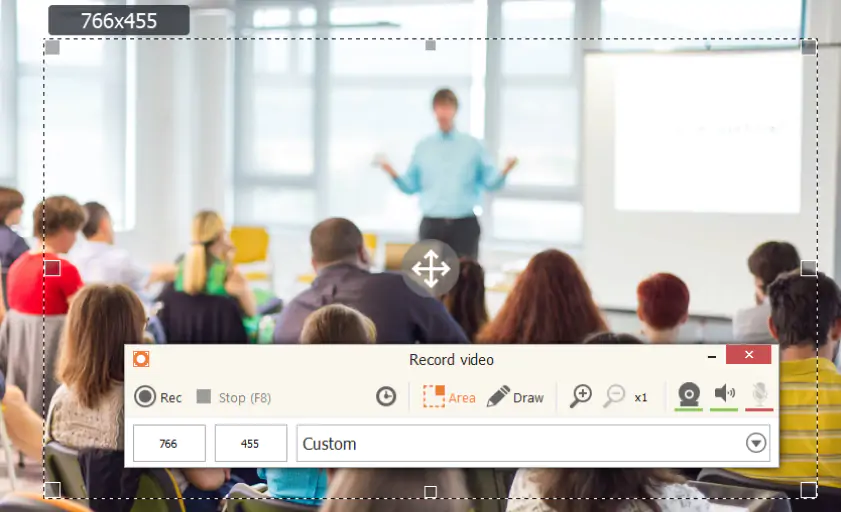
Movavi Screen Recorder runs smoothly on Windows 7 systems, capturing both full-screen and custom area recordings with modest hardware demands. The software records smoothly on Windows 7, even on machines with limited RAM.

The interface feels straightforward – select your recording area, choose audio sources, and hit record. It captures system audio and microphone simultaneously, which works well for creating tutorials or recording video calls. The built-in editor lets you trim clips and add annotations before saving.

The software records at 1080p and keeps file sizes reasonable. The final video still looks clean with no obvious quality drop. Export options include MP4, AVI, and MOV formats, with presets for different devices and platforms.

Pros:
  • Light system resource usage on older hardware

  • Clean interface that doesn't confuse beginners

  • Simultaneous screen and webcam capture

  • Built-in basic editing tools

  • Multiple export format options

Cons:
  • Free trial adds watermark to recordings

  • Advanced features require paid upgrade

  • No live streaming functionality

  • Limited annotation tools compared to specialized software

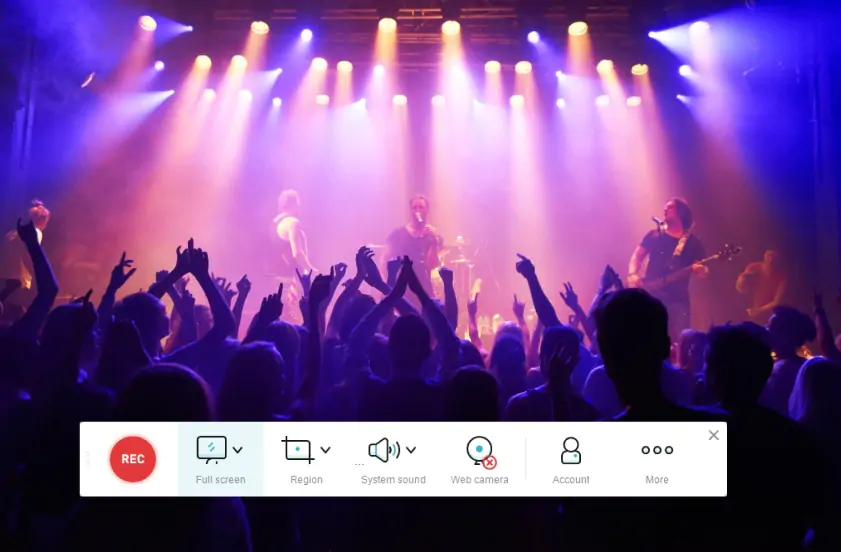
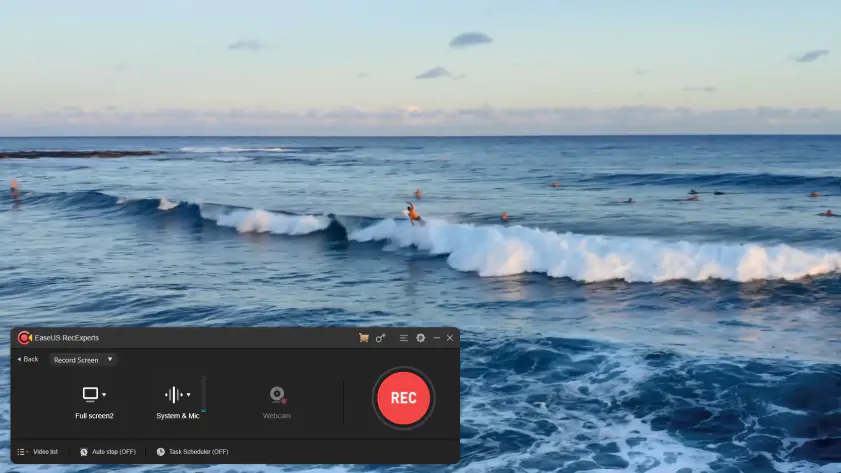
EaseUS RecExperts targets users who need more than basic recording functionality. The software includes screen annotation tools, webcam overlay options, and scheduled recording features that work reliably on Windows 7 systems.

When testing presentation recording, the software handled transitions smoothly and maintained audio sync throughout longer sessions. The annotation toolbar appears during recording, so you can highlight areas or add arrows as the capture continues.

File size optimization is well-managed – recordings compress to reasonable sizes with clear output. The software supports export to common formats and includes basic editing features for trimming unwanted sections.

Pros:
  • Real-time annotation during recording

  • Scheduled recording with timer function

  • Webcam and screen recording simultaneously

  • Good compression and clear video output

  • Stable performance on older systems

Cons:
  • Free version adds watermarks to all recordings

  • Interface feels cluttered with too many options

  • Export process slower than competitors

  • Some advanced features locked behind paywall

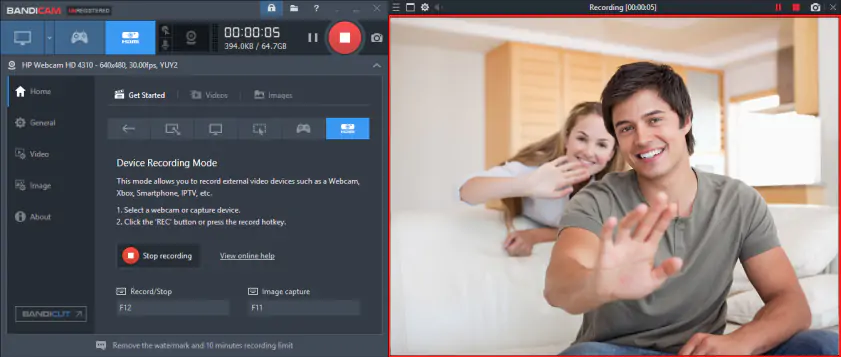
Bandicam specializes in high-performance recording, particularly for gaming content. The software uses hardware acceleration to maintain frame rates while recording, making it suitable for capturing gameplay on Windows 7 machines that might struggle with other recorders.

During testing with older games, Bandicam maintained smooth recording even when the system was under load. The software creates smaller file sizes than most alternatives and preserves video quality, which helps when storage space is limited.

The interface stays minimal during recording – just a small overlay showing recording status and frame rate. This is optimal for gaming where screen real estate matters.
Pros:
  • Excellent performance during gaming sessions

  • Small file sizes with good quality retention

  • Minimal interface overlay during recording

  • Hardware acceleration support on compatible systems

  • Reliable frame rate maintenance

Cons:
  • Free version limits recording time to 10 minutes

  • Watermark appears on free recordings

  • Limited editing features

  • Focus mainly on gaming rather than general use

  • Higher license cost compared to alternatives

What users say:

Users frequently praise Bandicam's recording quality and compact file sizes on YouTube, though many criticize the prominent watermark in the free version and find the full license expensive for occasional use.

Icecream Screen Recorder simplifies screen capturing for the average user. The software suits creating quick how-to videos or capturing specific application windows with easy-to-follow controls.

The recording process involves three steps: select area, choose audio source, start recording. No complicated settings menus or advanced configurations that might confuse casual users. The software includes basic editing tools for trimming clips and adding simple annotations.

Quality remains consistent for typical desktop recording scenarios. The software exports to popular formats and uploads directly to cloud services, which helps when sharing recordings with others.

Pros:
  • Simple three-click recording process

  • Direct upload to cloud storage services

  • Good performance on low-spec systems

  • Clean, uncluttered interface

  • Basic editing tools included

Cons:
  • Free version limited to 5-minute recordings

  • No advanced annotation features

  • Limited export format options

  • Occasional audio sync issues with longer recordings

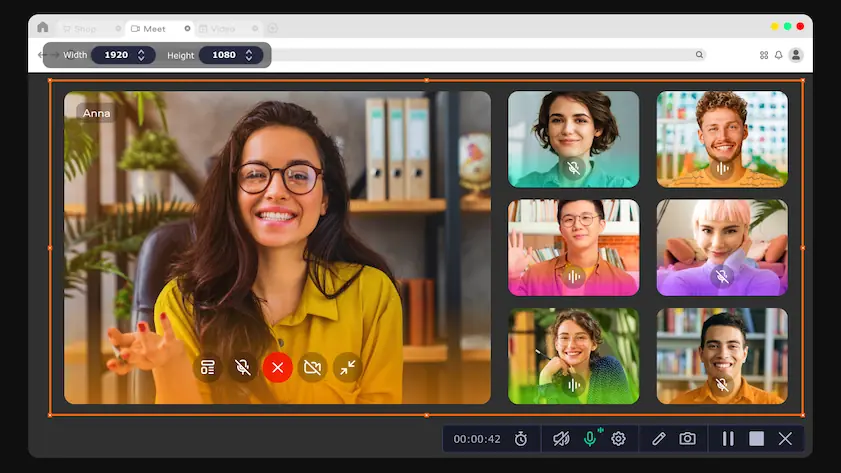
ScreenRec focuses on quick screen sharing and lightweight recording. The software installs quickly and uses minimal system resources, making it suitable for older Windows 7 machines with limited performance.

The recording workflow emphasizes speed – select an area and start recording immediately. Files upload automatically to ScreenRec's cloud service, generating shareable links for quick distribution. This approach works well for bug reports or quick demonstrations.

Recording quality stays adequate for most business use cases, though it doesn't match specialized software for high-quality content creation. The focus clearly lies in convenience rather than advanced features.

Pros:
  • Very light system resource usage

  • Automatic cloud upload and link sharing

  • Quick installation and setup process

  • Free tier includes reasonable recording time

  • Good for collaborative work environments

Cons:
  • Limited local storage options

  • Requires internet connection for full functionality

  • Basic recording quality compared to dedicated software

  • Few customization options for power users

Online screen recorders for Windows 7

Screencapture.com works as a basic free screen recorder for Windows 7 that records screen activity directly in the browser. It suits cases where desktop installation is not possible or a quick recording is enough.

The recording process starts immediately after granting browser permissions. You can capture the entire screen, specific applications, or browser tabs depending on your needs. Quality remains acceptable for most documentation and tutorial purposes.

Since everything runs online, the service depends on your internet connection stability. Slower connections may affect recording quality or cause interruptions during longer sessions.

Pros:
  • No software installation required

  • Works on any Windows 7 browser

  • Immediate access without signup

  • Good for quick, one-off recordings

  • No system resource impact

Cons:
  • Requires stable internet connection throughout recording

  • Limited recording quality compared to desktop software

  • Browser compatibility issues with older versions

  • No advanced editing or annotation features

What users say:

Users appreciate the browser-based setup because it avoids a separate desktop installation, but frequently mention feature limitations and dependency on stable internet connection.

Apowersoft's online recorder provides browser-based screen capture with more features than basic web recorders. The service includes webcam recording, system audio capture, and basic annotation tools accessible through your web browser.

Setup requires installing a launcher application, which bridges the gap between pure online tools and desktop software. Once configured, the service captures screens effectively and processes recordings through the cloud.

The free version includes advertising and some limitations on recording length, but provides enough functionality for basic Windows 7 screen recorder tasks when desktop installation isn't possible.

Pros:
  • More features than pure browser-based recorders

  • Webcam and audio recording capabilities

  • Cross-platform compatibility through browsers

  • No major software installation needed

  • Processing happens in the cloud

Cons:
  • Requires launcher app installation anyway

  • Free version includes intrusive advertising

  • Upload times depend on internet speed

  • Limited control over recording quality settings

What users say:

Reddit users often mention Apowersoft's convenient interface and comprehensive features, but frequently complain about aggressive advertising in the free version and time restrictions on recordings.

How to record screen on Windows 7: Quick setup guide

Before recording:

  • Close unnecessary background applications to free up system resources
  • Check available disk space – video files consume significant storage
  • Test microphone levels if recording voice commentary
  • Choose appropriate frame rate (30fps works for most content, 60fps for smooth gaming)

Basic recording steps with Movavi Screen Recorder:

  1. Download and install the software from the official website.
  2. Launch the program and select recording area (full screen or custom region).
  3. Configure audio sources (system sounds, microphone, or both).
  4. Click the Record button and start the action you want to capture.
  5. Press Stop when finished, then save or edit your recording.

For online recorders:

  1. Navigate to the service website (Screencapture.com or Apowersoft).
  2. Grant browser permissions for screen and audio access.
  3. Select recording parameters and start capturing.
  4. Download the finished file or copy the sharing link.

Choosing the right tool for your needs

  • Quick clips and demonstrations: Online recorders like Screencapture.com cover basic recording needs through the browser. Perfect for showing someone a quick process or capturing a bug report.
  • Tutorial creation: EaseUS RecExperts or Movavi Screen Recorder provide annotation tools and editing features needed for educational content. Both handle longer recording sessions reliably.
  • Gaming content: Bandicam maintains frame rates during intensive recording and keeps file sizes manageable. Essential for content creators on older systems.
  • Business presentations: Movavi Screen Recorder or EaseUS RecExperts include webcam integration and professional export options for polished results.
  • System resource concerns: ScreenRec and online alternatives use minimal local resources, ideal for older machines that struggle with demanding desktop software.
  • Budget constraints: Free tiers from Icecream Screen Recorder or online services cover basic needs, though with limitations on recording length or quality.

Most users find Movavi Screen Recorder offers the best balance of features, performance, and reliability on Windows 7 systems. The software fits everyday screen recording and stays light enough for older hardware. It also gives users enough flexibility for different content types.

Frequently asked questions

What's the best free screen recorder for Windows 7?

Movavi Screen Recorder provides the most reliable performance on Windows 7, though the free trial includes watermarks. For completely free options, try ScreenRec for basic recording or online tools like Screencapture.com for occasional use.

Can I record system audio on Windows 7?

Yes, most desktop recorders capture system audio automatically. Online recorders may have limitations depending on your browser version. Test audio recording before important sessions to ensure everything works correctly.

Do screen recorders slow down old Windows 7 computers?

Desktop recorders use system resources, but modern software like Movavi Screen Recorder optimizes performance for older hardware. Online recorders transfer processing to remote servers, reducing local system impact.

How much storage space do screen recordings need?

A 10-minute 1080p recording typically requires 100-500 MB depending on content complexity and compression settings. Gaming footage and high-motion content creates larger files than static presentations.

Are online screen recorders safe to use?

Reputable services like Screencapture.com are generally safe, but avoid uploading sensitive content to online platforms. For confidential material, use desktop software that processes recordings locally.

Can I edit screen recordings after capture?

Most desktop recorders include basic editing features for trimming clips and adding annotations. For advanced editing, you'll need dedicated video editing software or choose recorders with more comprehensive built-in editors.

Have questions?
If you can’t find the answer to your question, please feel free to contact our Support Team.
Join us for discounts, editing tips, and content ideas

1.5M+ users already subscribed to our newsletter

By signing up, I agree to receive marketing emails from Movavi and agree to Movavi's Privacy Policy.