Movavi Video Suite
Everything you need to create and edit multimedia files

MOV files are multimedia containers originally created by Apple for QuickTime, storing video, audio, and text tracks in separate layers. While they offer excellent quality and editing flexibility, many users struggle with compatibility issues on non-Apple devices.
Key takeaways:
The MOV format emerged in 1998 alongside Apple's QuickTime technology. Unlike simpler video formats, MOV files work as sophisticated containers – think of them as digital boxes holding separate video, audio, and subtitle tracks that play simultaneously.
This multi-track architecture makes MOV files particularly valuable for video editing. You can modify individual elements without rebuilding the entire file. Professional editors appreciate this flexibility, though it comes with a trade-off: larger file sizes compared to compressed formats like MP4.
High-quality video with minimal compression artifacts
Multiple track support for complex projects
Excellent editing capabilities without data rewriting
Strong web browser compatibility
Limited native support outside Apple ecosystem
Larger file sizes than compressed alternatives
May require additional software on Windows/Android
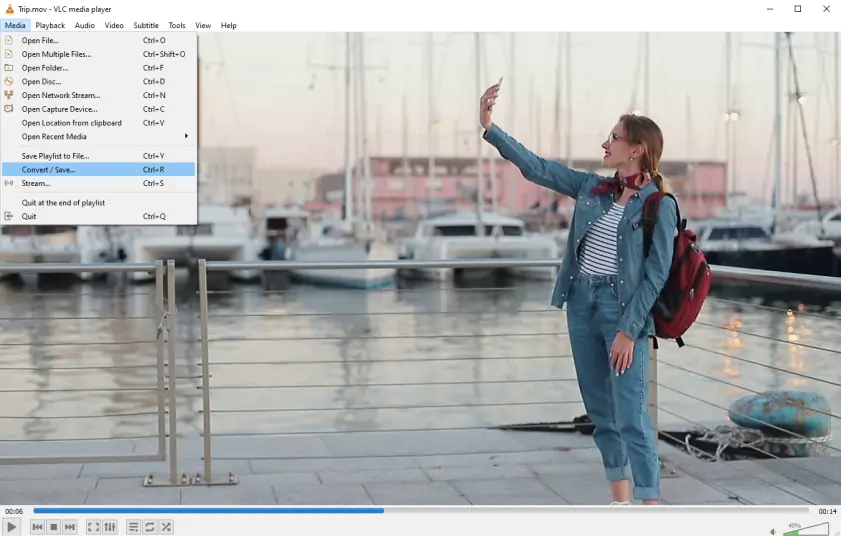
VLC remains the Swiss Army knife of media players. This open-source powerhouse opens virtually any MOV file you throw at it, regardless of the codec used during creation.
The interface might look dated, but VLC's codec library is unmatched. I've tested files from vintage QuickTime exports to modern iPhone recordings – everything plays without additional downloads.
Platform: Windows, macOS, Linux, mobile platforms
Price: Free
Completely free with no ads
Massive codec support built-in
Available on every major platform
Reliable performance with damaged files
Interface feels outdated
Advanced features buried in menus
Can struggle with some newer Apple codecs
💬 What users say:
Users consistently praise VLC's universal format support and stability, though many criticize the dated interface and sometimes confusing navigation options.

Apple's original MOV player remains the gold standard for compatibility. If a MOV file exists, QuickTime will likely play it flawlessly.
QuickTime handles Apple-specific codecs that sometimes trip up third-party players. However, it's limited to basic playback – no advanced features or format conversion.
Platform: macOS (discontinued for Windows)
Price: Free
Perfect compatibility with Apple MOV files
Lightweight and fast
Simple, distraction-free interface
Handles Apple-specific codecs flawlessly
Mac only (Windows support discontinued)
Very basic feature set
No format conversion options
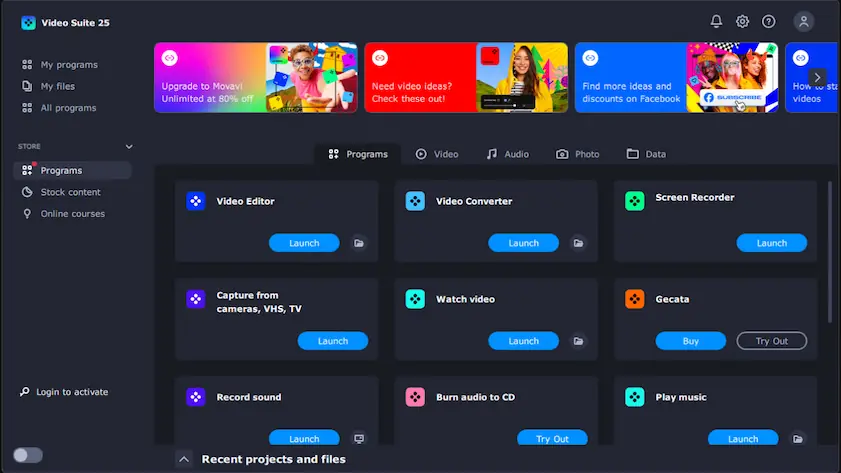
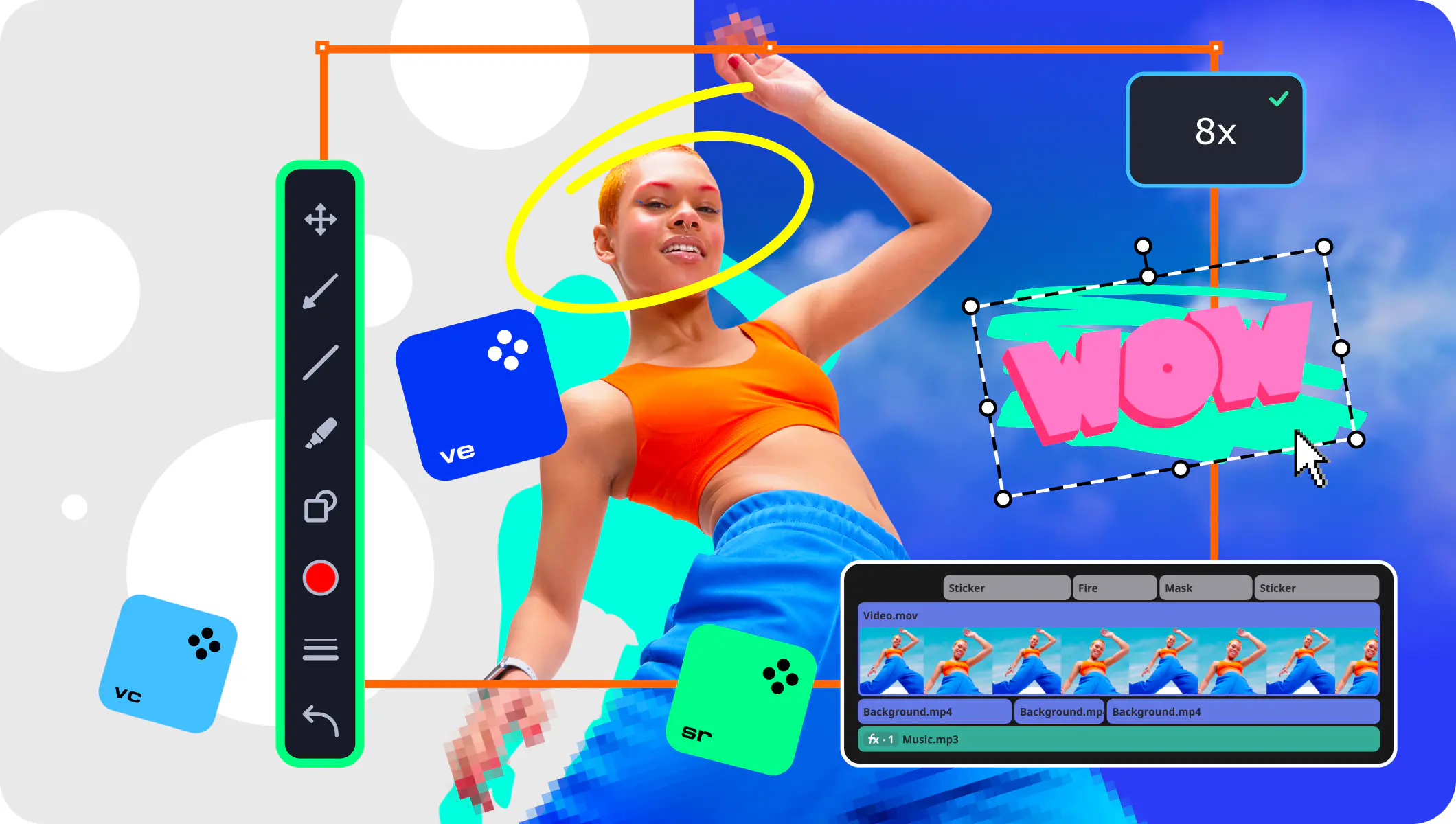
Movavi Video Suite handles MOV files alongside 180+ other formats, combining playback with conversion and basic editing tools in one interface.
The software includes a dedicated media player that opens MOV files instantly, plus color correction tools and subtitle support. During testing, 4K MOV files from an iPhone played smoothly without stuttering – something that surprised me given the file sizes were over 2GB each.
Platform: Windows, macOS
Price: Free trial, $189.95 full version
Plays MOV files without codec downloads
Includes conversion tools for format switching
Handles 4K content smoothly
Built-in basic editing features
Free trial adds watermarks
Full price higher than simple media players
Some features feel excessive for basic MOV playback

5KPlayer targets users dealing with high-resolution MOV files. The software includes hardware acceleration for smooth 4K and 5K playback, plus built-in downloading tools for online content.
The player handled a 5K MOV file from a Red camera surprisingly well, though the interface occasionally froze during scrubbing through the timeline.
Platform: Windows, macOS
Price: Free with premium features available
Optimized for 4K/5K MOV playback
Hardware acceleration support
Built-in video downloading features
Clean, modern interface
Occasional stability issues with large files
Premium features locked behind paywall
Limited editing capabilities
💬 What users say:
Users appreciate the high-quality 4K playback capabilities and built-in download features, but frequently complain about intrusive advertising in the free version.
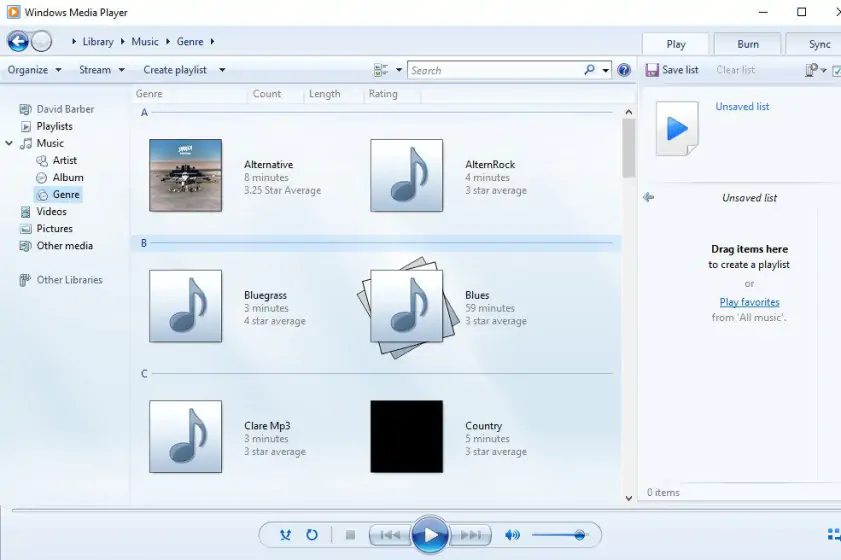
Microsoft's built-in player opens many MOV files directly on Windows 10 and 11, though compatibility depends on the specific codecs used.
During testing, newer iPhone MOV files played perfectly, but older QuickTime exports sometimes refused to load. The experience varies significantly based on your MOV file source.
Platform: Windows
Price: Free (built-in)
Pre-installed on Windows
No additional downloads required
Familiar interface for Windows users
Basic playlist functionality
Inconsistent MOV codec support
Limited customization options
No format conversion features
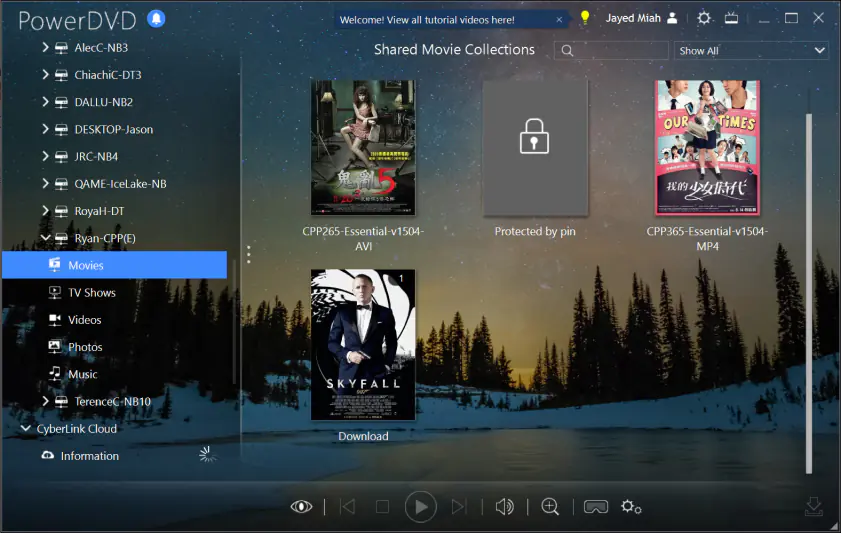
PowerDVD positions itself as a premium media experience, with advanced audio processing and video enhancement features for MOV playback.
The software includes AI-powered video enhancement that can improve older or compressed MOV files. Premium features justify the cost if you frequently work with video content.
Platform: Windows
Price: $44.99
Advanced audio and video processing
AI enhancement for older videos
Professional-grade playback features
Excellent Blu-ray support
Expensive for basic MOV playback
Complex interface overwhelming for casual users
Windows only
💬 What users say:
Users praise the excellent Blu-ray playback quality and advanced audio/video settings, but often criticize the high licensing cost and feature complexity for basic home use.
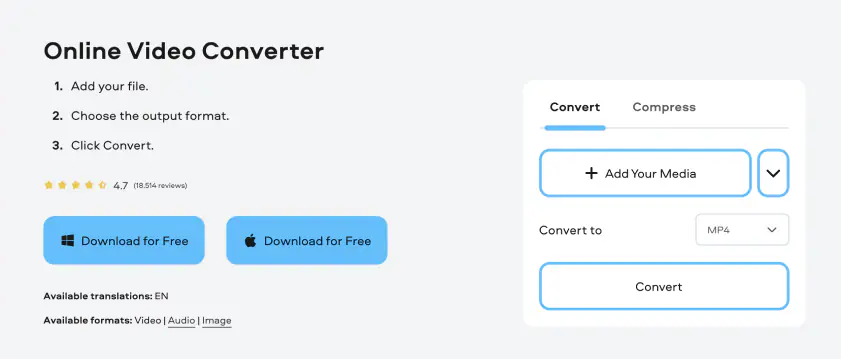
For MOV files that won't play locally, this web-based converter transforms them into more compatible formats like MP4 without software installation.
The service handled a 200MB iPhone MOV file in about three minutes, converting to MP4 with minimal quality loss. Useful when you need quick compatibility fixes.
Platform: Web-based
Price: Free with limitations, paid plans from $9.95
No software installation required
Fast conversion speeds
Multiple output formats supported
Works on any platform with web browser
Requires internet connection
File size limits on free plan
Conversion removes original MOV benefits

This Korean-developed player offers extensive customization options and codec support, making it popular among power users who need precise MOV playback control.
PotPlayer's interface is highly configurable – almost overwhelming at first glance. But for users who want specific audio/video tweaks, it delivers incredible granular control.
Platform: Windows
Price: Free
Extensive customization options
Strong codec support
Advanced subtitle handling
Hardware acceleration available
Complex interface intimidates beginners
Windows only
Learning curve for advanced features
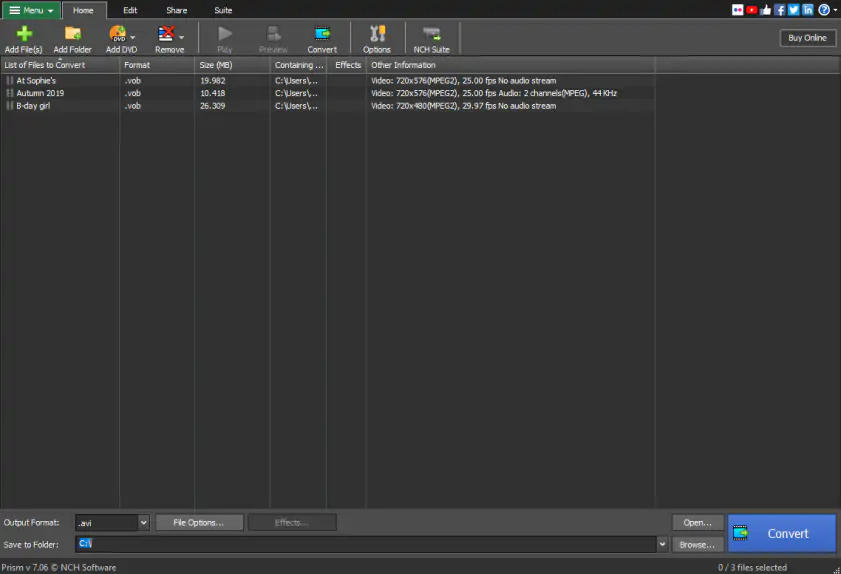
When MOV files need format conversion for broader compatibility, Prism handles batch processing efficiently across multiple files simultaneously.
I processed fifteen iPhone MOV files to MP4 in under ten minutes. The conversion quality remained high, though some metadata was lost in the process.
Platform: Windows, macOS
Price: Free for personal use
Batch conversion capabilities
Multiple format support
Free for personal projects
Simple, straightforward interface
Commercial use requires license
Limited playback features
Conversion-focused rather than viewing
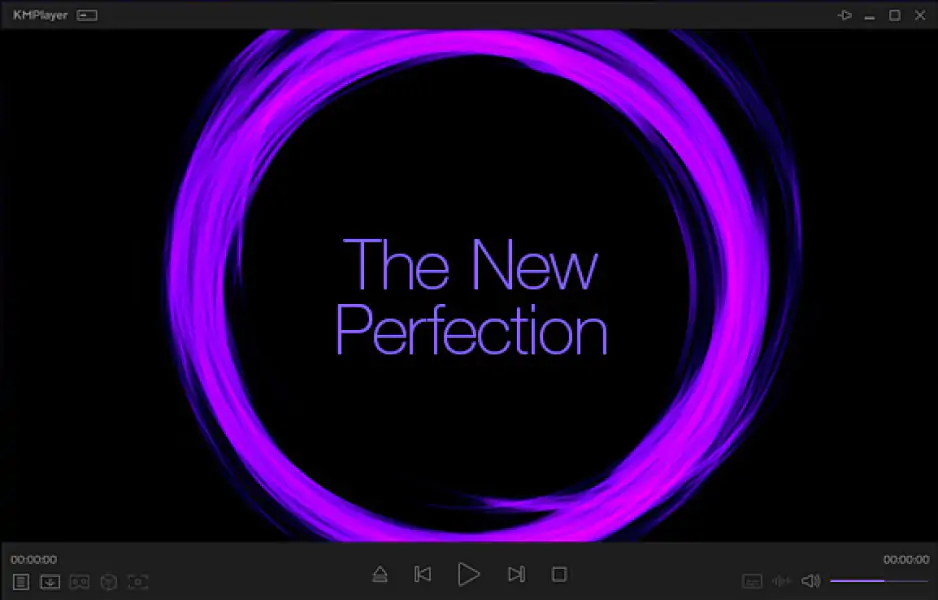
KMPlayer combines media playback with built-in codecs and customization options, handling most MOV files without additional downloads.
The player includes 3D video support and various enhancement filters. Some features feel gimmicky, but the core MOV playback remains solid and reliable.
Platform: Windows, macOS, mobile platforms
Price: Free with ads, premium version available
Built-in codec support
3D video playback capabilities
Multiple platform availability
Regular updates and improvements
Ad-supported free version
Interface can feel cluttered
Some advanced features are premium-only
Quick MOV viewing: Start with your system's built-in player (QuickTime on Mac, Windows Media Player on Windows). If compatibility fails, download VLC for universal support.
Professional work: Movavi Video Suite or CyberLink PowerDVD offer advanced features beyond basic playback, including editing and enhancement tools.
Conversion needs: When MOV files won't play anywhere, use Movavi Online Video Converter or Prism for format switching to MP4.
High-resolution content: 5KPlayer or PotPlayer handle 4K/8K MOV files with hardware acceleration for smooth performance.
Most users find VLC sufficient for general MOV playback needs. The software's comprehensive codec support eliminates compatibility headaches without requiring payment or registration.
MOV files use codecs that aren't always included with Windows. Install VLC Media Player or use Windows Media Player on Windows 10/11, which includes better MOV support than earlier versions.
Yes, but it depends on the conversion method. Both formats can use similar codecs, so a proper converter like Movavi Video Suite can maintain quality while improving compatibility.
Both are container formats, but MOV is optimized for Apple devices while MP4 offers broader compatibility. MOV files often have better editing flexibility but larger file sizes.
Not necessarily – quality depends on the codec and bitrate used, not the container format. MOV files from professional cameras may appear higher quality due to less compression during recording.
Install VLC for Android or convert MOV files to MP4 using an online converter. Android doesn't include native MOV support, so third-party players are necessary.
MOV files often use less compression to maintain editing flexibility and quality. iPhones record in MOV format with high bitrates, resulting in large files that can be compressed later if needed.
How to Use VLC to Convert MOV to MP4 – Movavi Video Converter
How to Change Video Format | Video File Converter Online
What Is an AVI File and How to Open One – Movavi Converter
Top 7 Best AVI Converters for a Mac [2026] – Movavi
Convert M4V to MP4 Online for Free (Easy Tool) – Movavi
10 Best Free MP3 Converters for a Mac [2026] – Movavi
11 Best VOB File Players [Win & Mac] – Movavi Converter
8 Best Ways to Convert MTS to MP4 [Windows & Mac]



1.5M+ users already subscribed to our newsletter