Step 1. Import your MP3 file
Launch Movavi Video Editor on your desktop. Click Add Files or drag and drop the MP3 file directly into the program window.
Movavi’s MP3 Cutter
Fast and easy editing: cut, crop, adjust colors and speed
One-click AI tools: auto subtitles, noise removal, and more
By clicking the download button, you're downloading a trial version of the program.*
Online MP3 Cutter
Why Movavi stands out
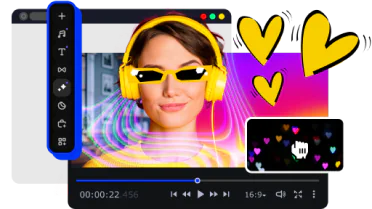
Beginner-friendly with pro-level features
Movavi balances professional-grade features with an interface that even complete beginners can quickly master.
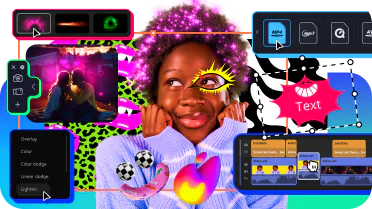
Tons of built-in effects and music
Movavi comes loaded with built-in transitions, titles, overlays, music tracks, sounds, frames, backgrounds, stickers, and more.
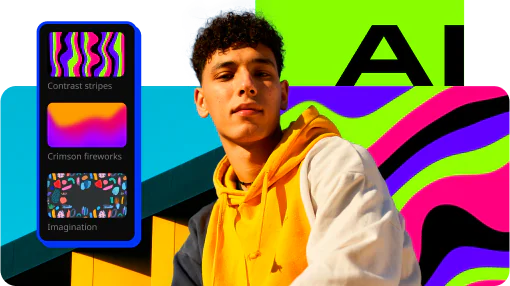
One-click AI
Movavi makes it super-easy to create subtitles, remove pauses, clean up noisy audio, track motion, change out backgrounds, and more – all automatically, no technical skills needed.

Smooth performance
Movavi is lightweight, easy to set up, and runs smoothly – even if your laptop isn’t top-of-the-line.
Features of Movavi’s MP3 cutter
AI noise removal
Automatically remove car, wind, and other uncool sounds from your clips with our AI-driven audio denoiser. Create videos with crisp sound that viewers are sure to appreciate.
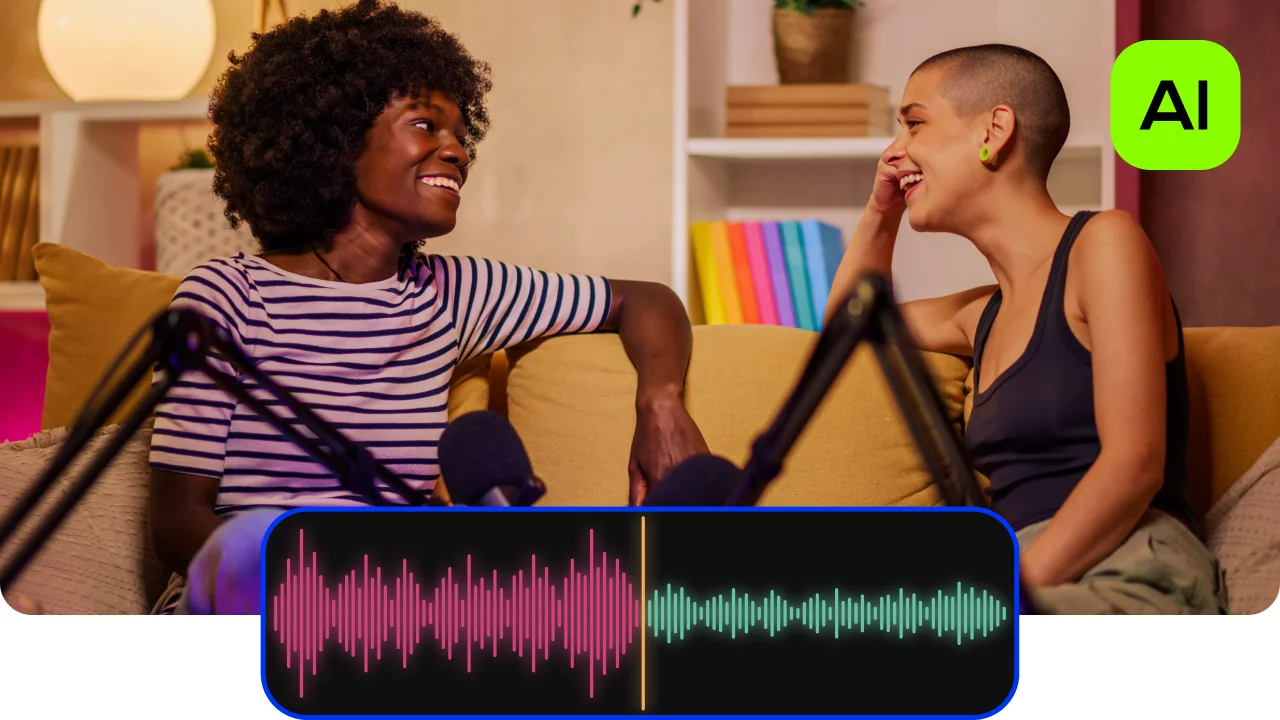
Audio editing
Make your videos sound amazing: add effects, fine-tune with the equalizer, toss in some reverb, drop in smooth transitions with fade-ins and fade-outs. Auto-sync, beat detection, and easy voice-over recording let you perfect your audio in no time.
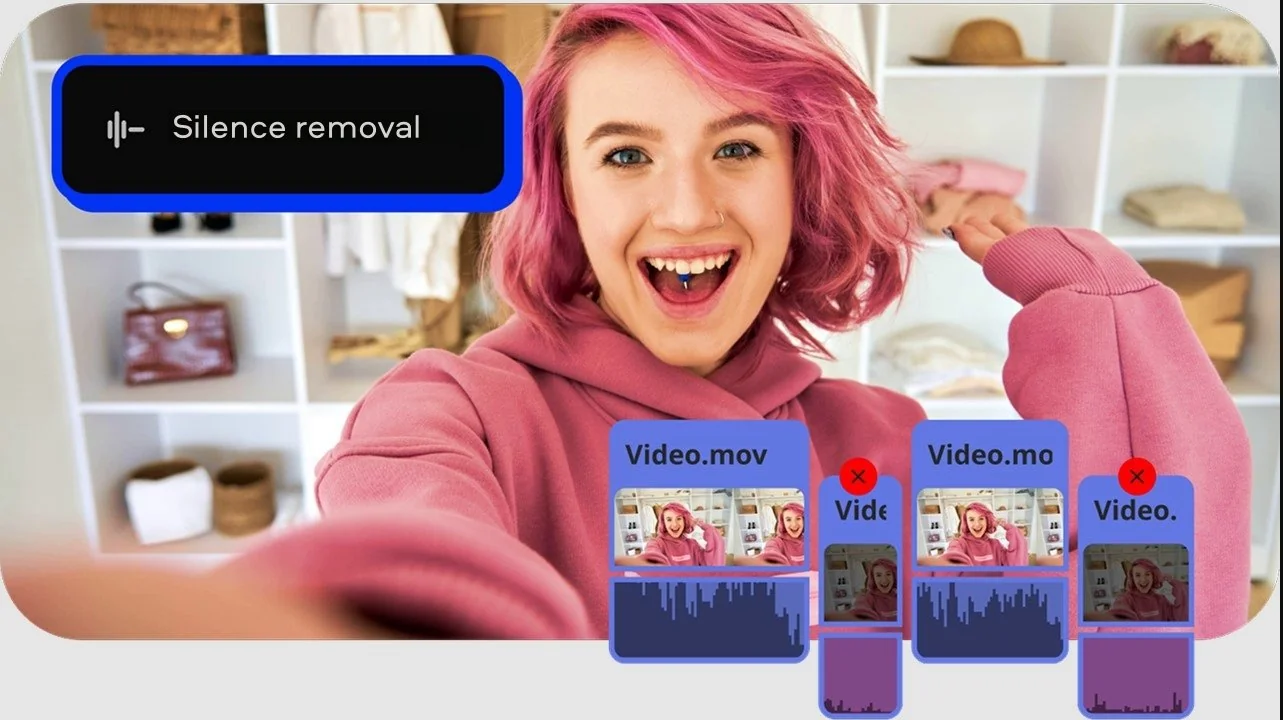
Silence removal
Cut out unwanted pauses automatically or fine-tune the pause length and volume threshold yourself. Skip the tedious cleanup and make your videos more dynamic in a flash.
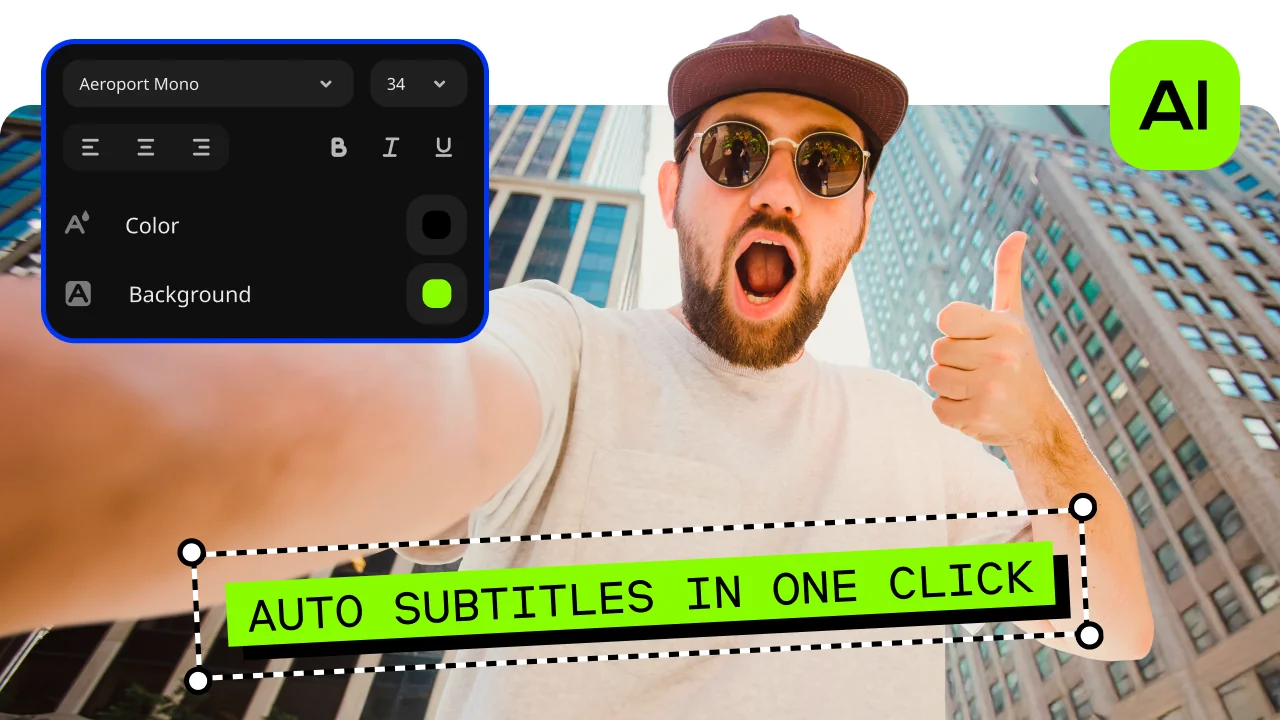
Automatic subtitles
Let AI quickly turn your speech into text and automatically create captions for your videos in almost any language. Just choose the font, text color, position – and you’re all set!
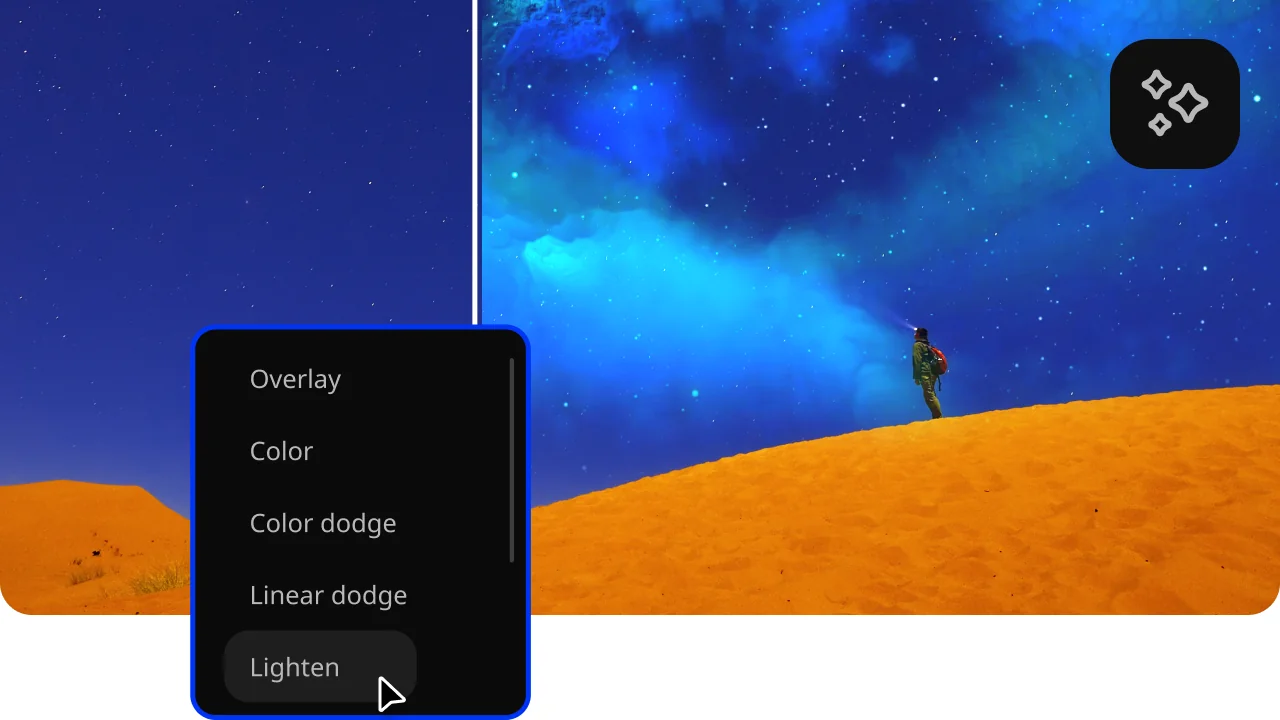
Hundreds of drag-and-drop cinematic effects
Supercharge your videos with tons of creative, professionally designed effects. Add stickers for cool accents, transitions for smoother stories, overlays for extra style, and there’s even more!
How to cut MP3 with Movavi Video Editor
Step 1. Import your MP3 file
Launch Movavi Video Editor on your desktop. Click Add Files or drag and drop the MP3 file directly into the program window.
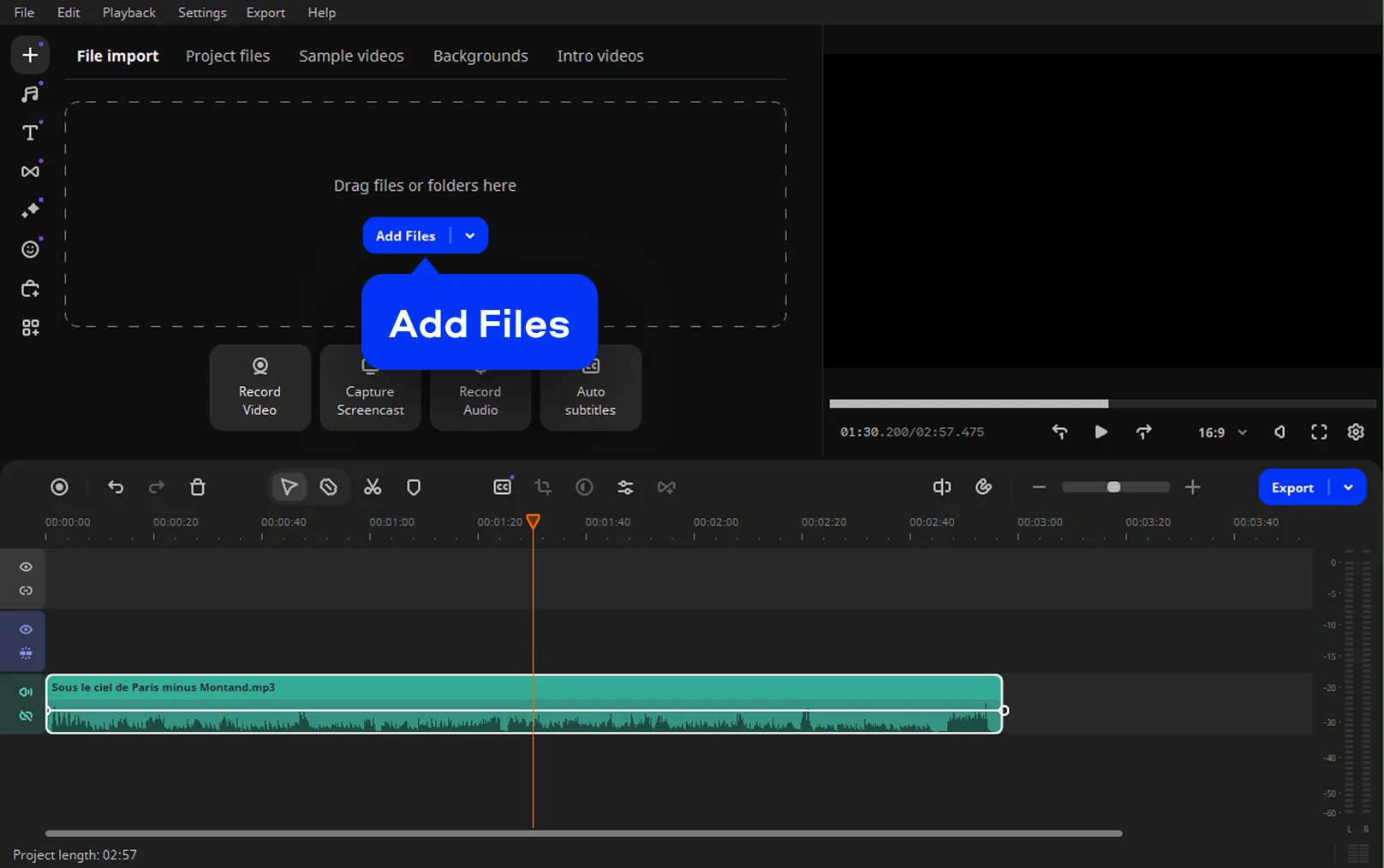
Step 2. Trim the audio track
Drag the MP3 file onto the timeline, move the playhead to the desired position, and use the Split tool. Delete unnecessary fragments or adjust the edges to keep only the exact audio segment you need.
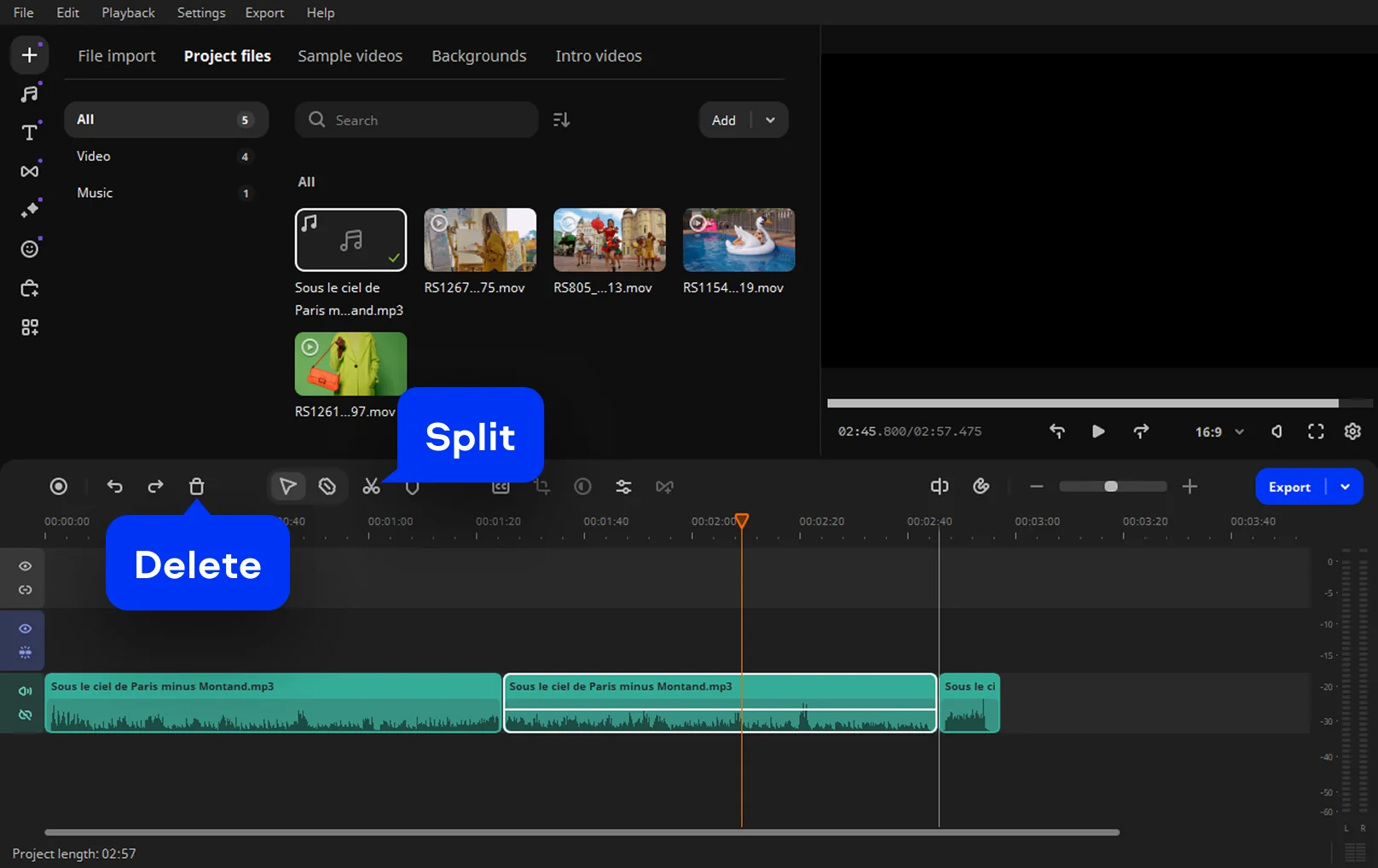
Step 3. Use the MP3 in your video
Place the trimmed MP3 clip under your video track to sync it with visuals. Adjust volume, add fade-in or fade-out effects, and preview the result to ensure the audio fits perfectly.
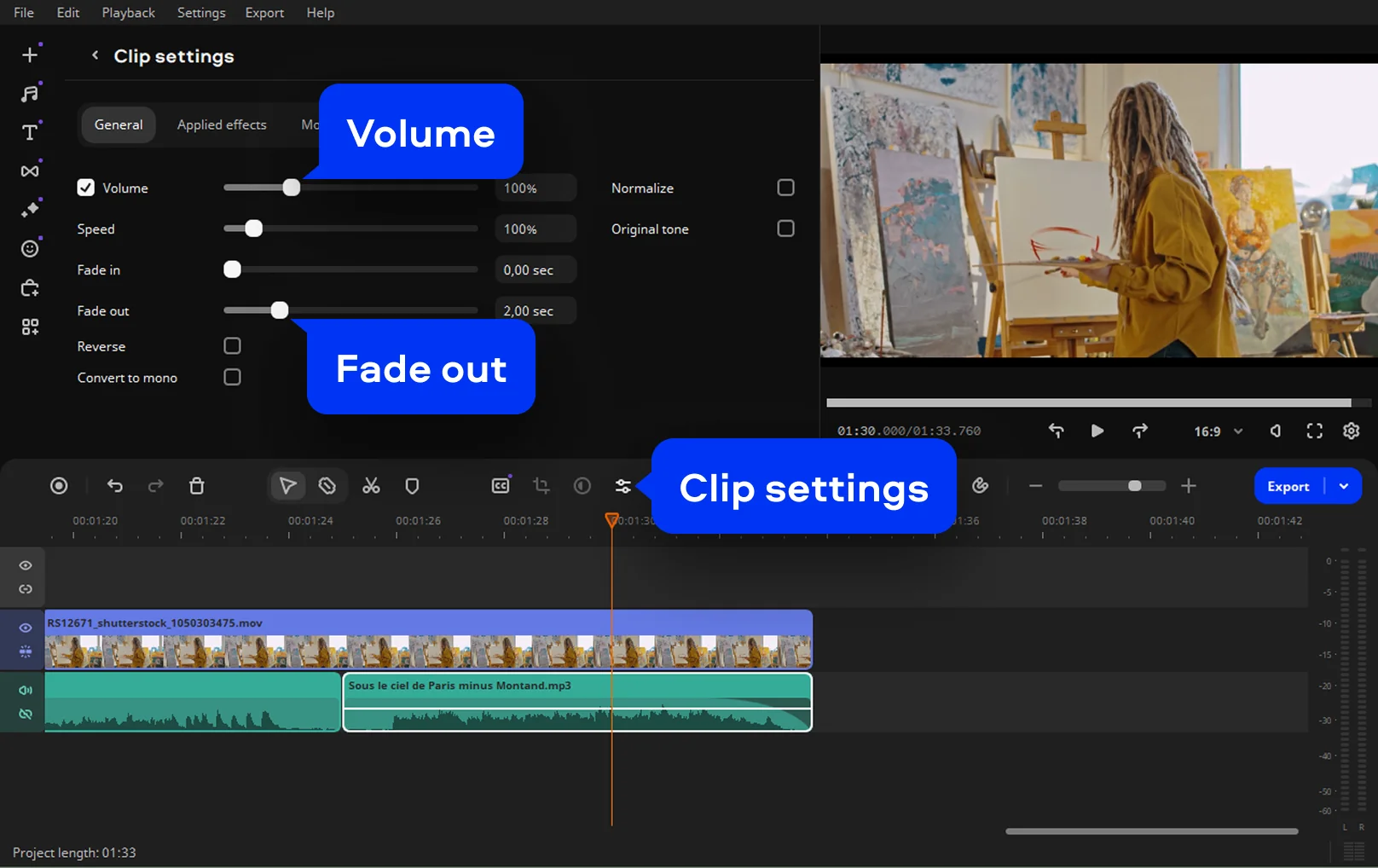
Step 4. Export the final video
Once everything is ready, click Export, choose your preferred video format and quality settings, and save the finished video with the edited MP3 audio included.
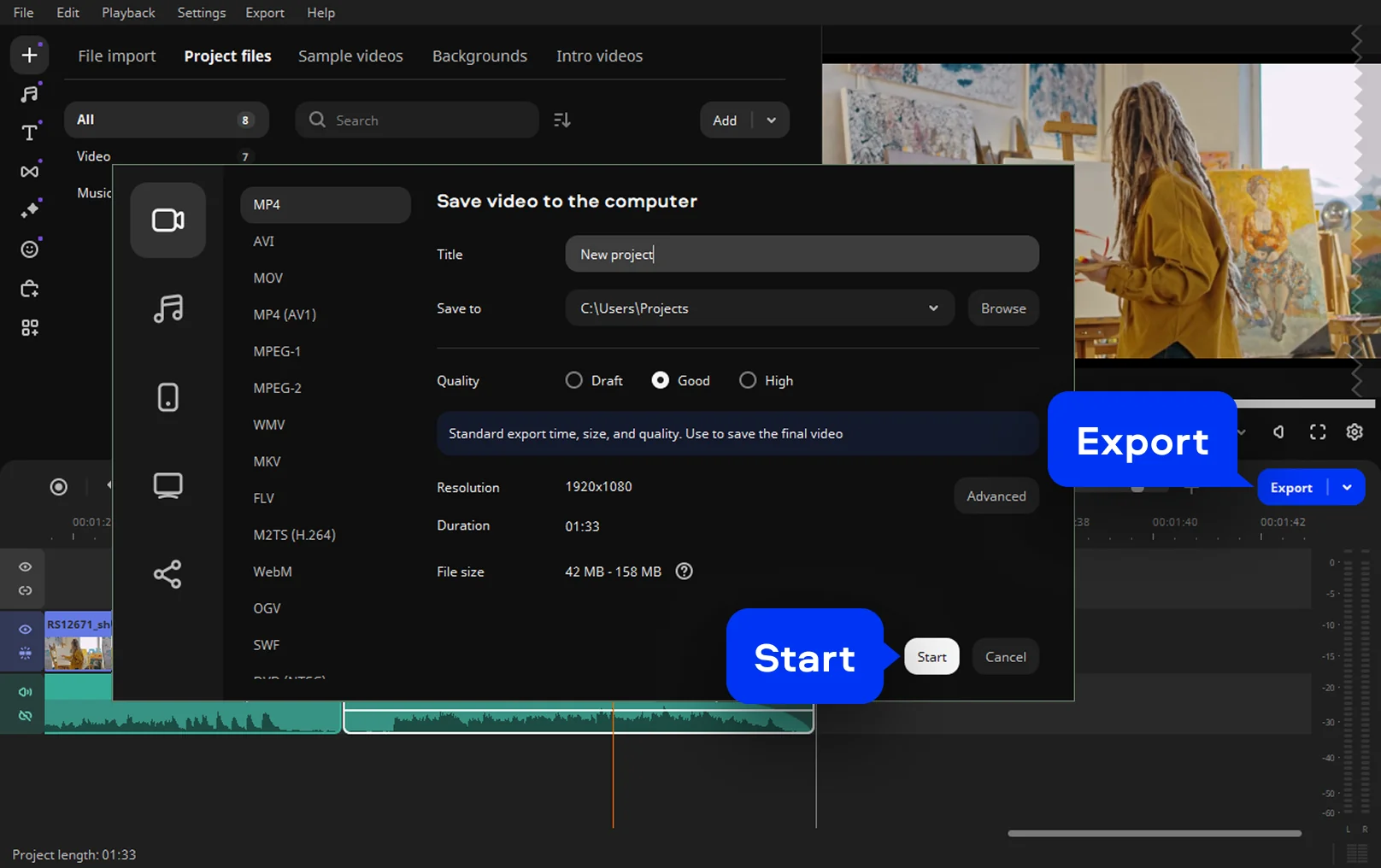
More tools for easy video editing

How to choose the best audio cutter
Picking an audio cutter is less about long feature lists and more about how the tool behaves in real use. Online editors work for quick fixes. When audio becomes part of your routine, desktop software usually feels steadier and easier to rely on.
Key criteria to consider
Before comparing tools, focus on what actually helps you finish edits without friction. These points come from everyday use, not ideal setups.
How Movavi Video Editor helps you transform MP3 audio
Movavi Video Editor treats audio as part of the project, not a separate task. MP3 files drop into the timeline, edits stay visible, and changes are easy to adjust.
Seen this way, choosing an audio cutter becomes practical. It is about control, clarity, and how smoothly the tool fits into your work.
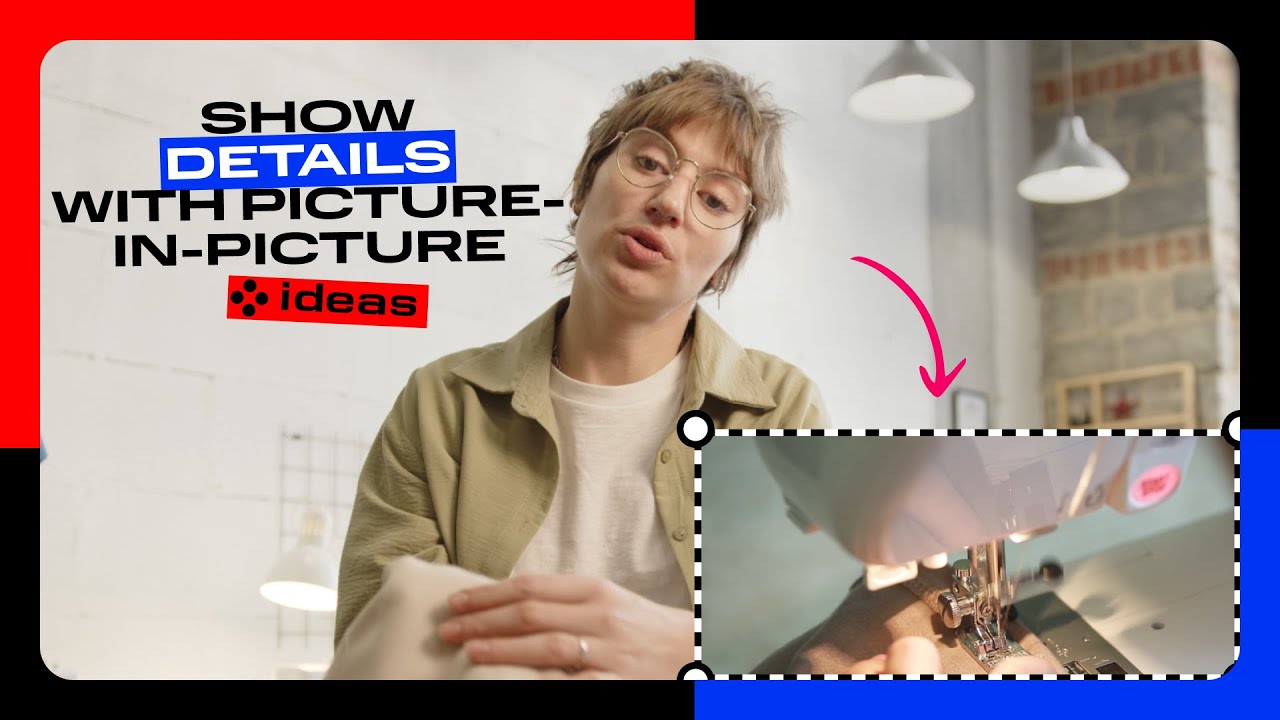
Show a detailed view with picture-in-picture
Use the picture-in-picture position to add a second angle or close-up right on top of your video – highlight the details your viewers need to see.
Show “before” and “after” in one frame
Split the screen to highlight “before” and “after” to capture changes, surprises, and fun moments in a single frame.

Frequently asked questions
With most online MP3 cutter tools, the process is hands-on and visual. You upload the file, play the track, then slide the markers until the right moment clicks. It is very much a listen first, cut second approach. If that feels a bit imprecise, Movavi Video Editor gives you a full timeline and waveform, which makes it easier to cut MP3 with confidence instead of trial and error.
Yes, and it is often the reason people search for a free MP3 cutter in the first place. You pick the part of the song you like, cut MP3 online, then download the short clip. It works well for simple ringtones. When you want to soften the start or tweak the volume, Movavi Video Editor offers a few extra controls that make the result sound cleaner.
Most online tools stick to the essentials. MP3 is always there, and WAV is usually supported too. Some services add AAC or M4A, but not all of them. Movavi Video Editor supports a wider set of formats, which helps if your audio comes from different sources or needs to be reused later.
A good online MP3 cutter lets you play back the selected section before you download the file, which helps catch rough edges early. With Movavi Video Editor, previewing feels even more natural. You can listen to the clip directly on the timeline, make a quick adjustment, and play it again until the cut sounds right.
Most online MP3 cutter tools work in a mobile browser, so you can cut MP3 online on a phone or tablet if needed. The small screen can make precise edits harder, but it is workable for simple tasks. Movavi also offers mobile apps for Android and iPhone, which are better suited for editing on the go, while the desktop version remains the most comfortable option for detailed audio work.
Some free online tools let you switch formats, but choices are often limited. With Movavi Video Editor, exporting works differently. After you cut the audio, you can choose another format and download a version that fits how you plan to use the file, not just what a basic MP3 cutter allows.
We’re the #1 choice for millions of people from all around the world. Join our thriving community and create stunning content with incredible ease.
70M+


*The free version of Movavi Video Editor may have the following restrictions depending on the build: watermark on exported clips, 60-second video or 1/2 audio length limit, and/or some advanced features unavailable when exporting videos.


1.5M+ users already subscribed to our newsletter