Step 1. Get the editor up and running
Install Movavi Video Editor on your desktop and launch it. The process is straightforward, and before you have time to overthink it, a blank timeline is waiting for your first clip.
Movavi Video Editor
Simple, beginner-friendly tools: edits without complex setup
Fast workflow: suitable for quick edits and simple projects
One-click AI tools: auto subtitles, noise removal, and more
By clicking the download button, you're downloading a trial version of the program.*
Free Online Video Editor Without a Watermark
Why Movavi Video Editor stands out
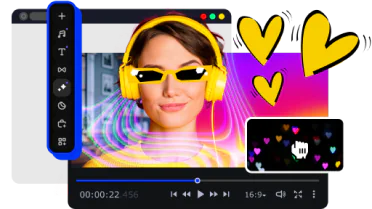
Beginner-friendly with pro-level features
Movavi balances professional-grade features with an interface that even complete beginners can quickly master.
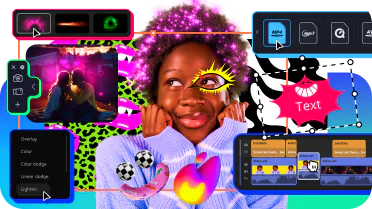
Tons of built-in effects and music
Movavi comes loaded with built-in transitions, titles, overlays, music tracks, sounds, frames, backgrounds, stickers, and more.
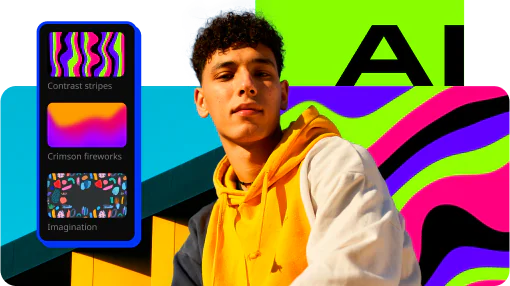
One-click AI
Movavi makes it super-easy to create subtitles, remove pauses, clean up noisy audio, track motion, change out backgrounds, and more – all automatically, no technical skills needed.
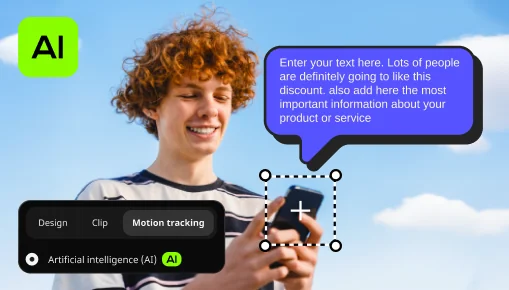
Smooth performance
Movavi is lightweight, easy to set up, and runs smoothly – even if your laptop isn’t top-of-the-line.
Features of Movavi Video Editor
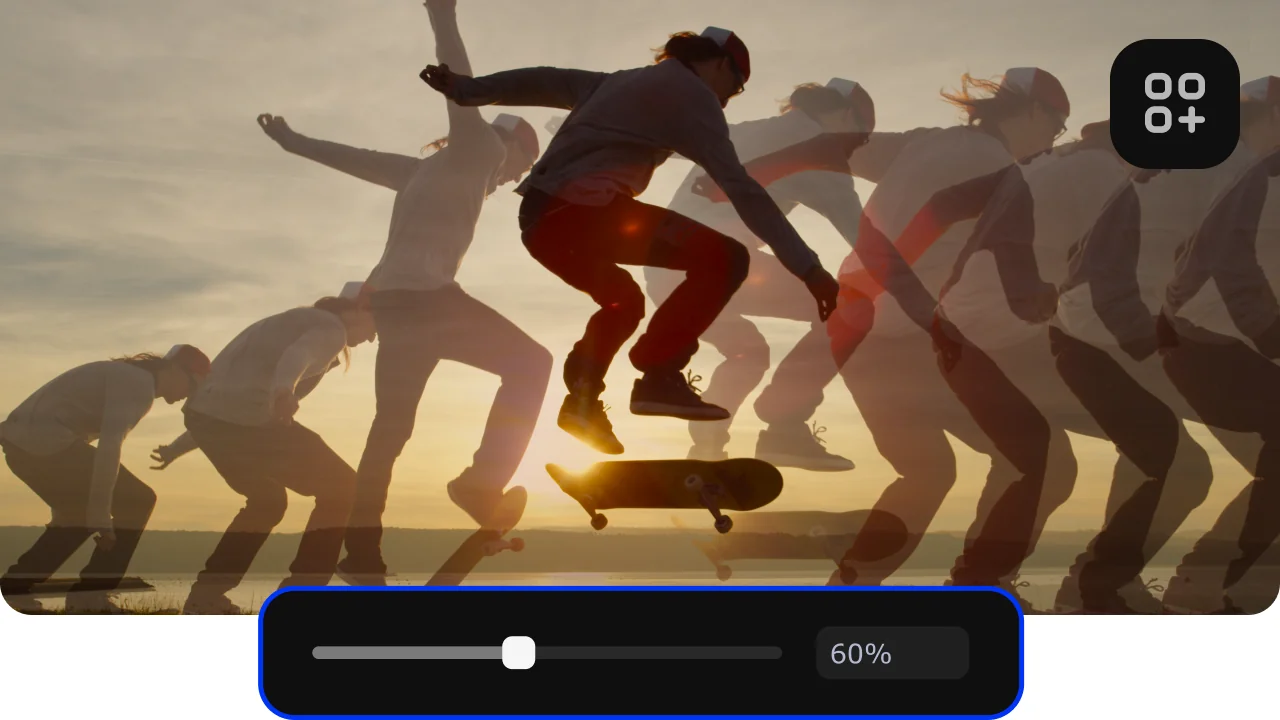
AI motion tracking
Enhance reality in your videos with additional moving graphics. Just click, and AI will quickly attach any photos, videos, emojis, or memes to objects in your footage.
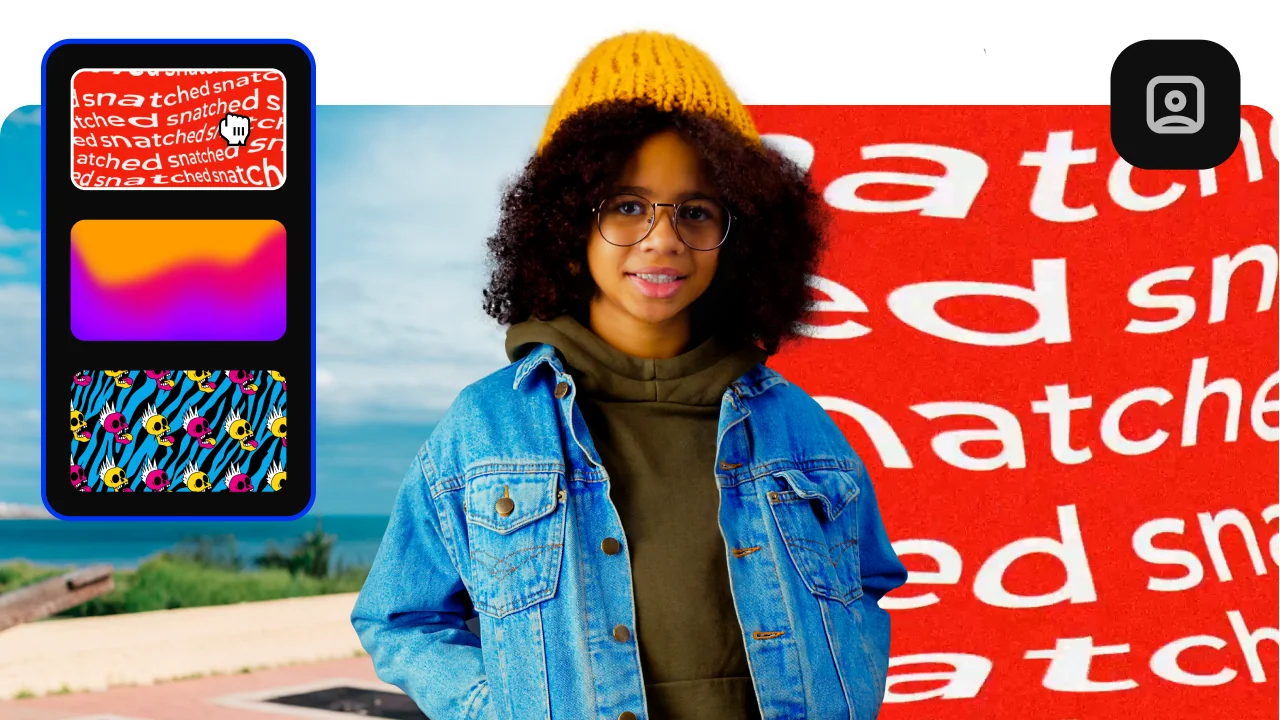
AI background removal
Use the power of the AI to instantly swap backgrounds in your videos with no green screens. Drop in a new vibrant scene and get ready for an avalanche of likes on socials!
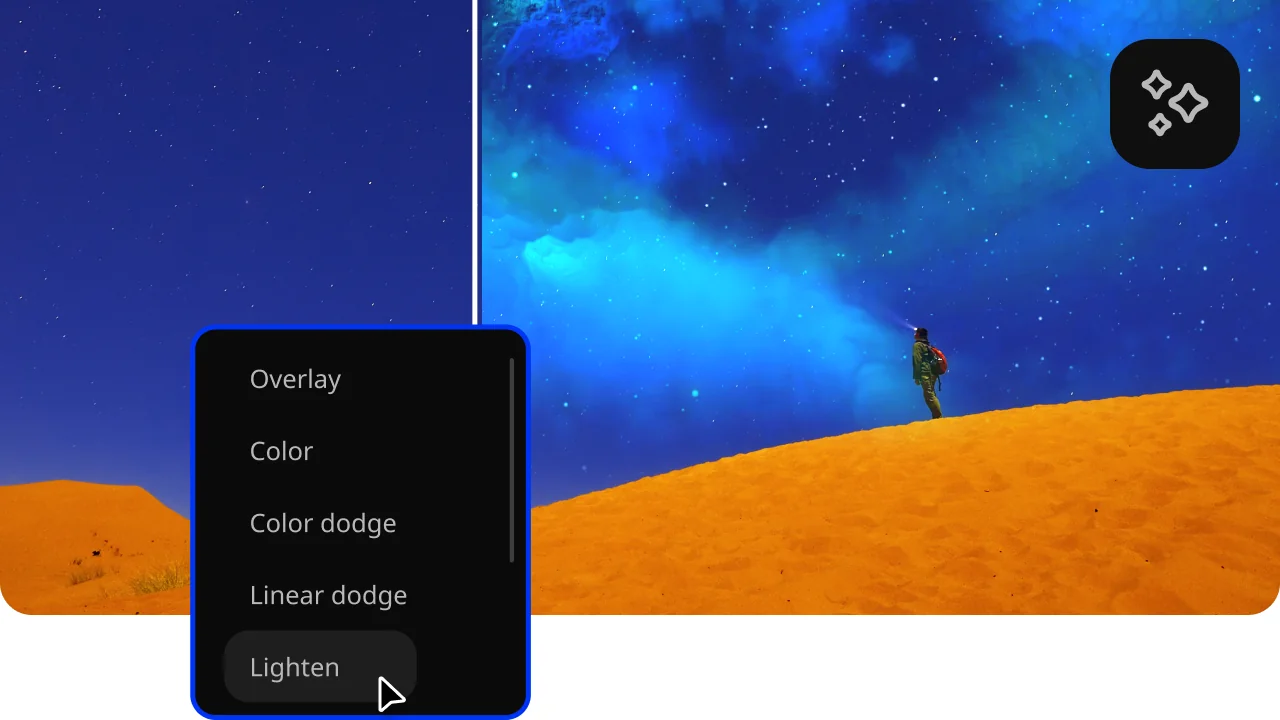
Hundreds of drag-and-drop cinematic effects
Supercharge your videos with tons of creative, professionally designed effects. Add stickers for cool accents, transitions for smoother stories, overlays for extra style, and there’s even more!
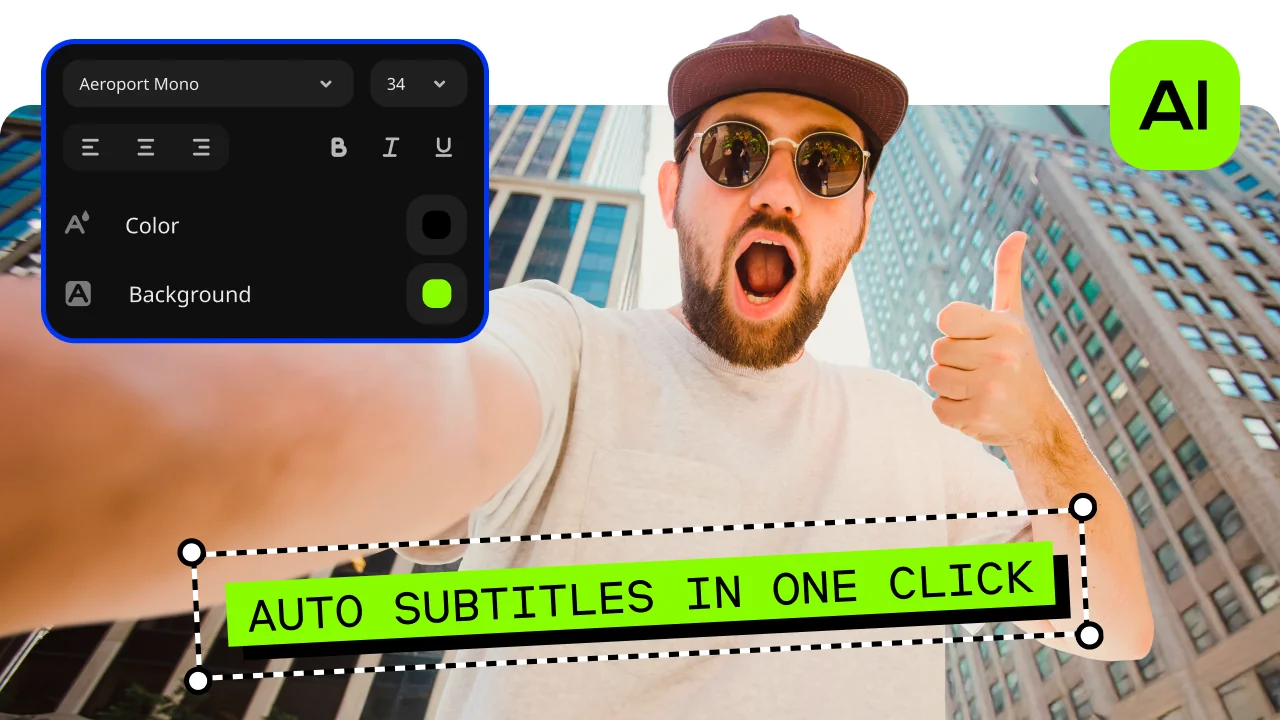
Automatic subtitles
Let AI quickly turn your speech into text and automatically create captions for your videos in almost any language. Just choose the font, text color, position – and you’re all set!
Overlays, stickers, and transitions
Use stickers to add fun and personality, overlays to give extra style, and transitions to keep your storyline flowing smoothly. Make every moment pop and keep your viewers hooked.

How to edit videos with Movavi Video Editor without a watermark
Step 1. Get the editor up and running
Install Movavi Video Editor on your desktop and launch it. The process is straightforward, and before you have time to overthink it, a blank timeline is waiting for your first clip.
Step 2. Drop in your footage
Click Add Files and bring in your videos, photos, and audio files, then start cutting things down to size. The tools are laid out logically, so video editing feels more like decision-making than technical problem-solving.

Step 3. Edit your video
This is where titles, transitions, and effects come into play. You can keep things subtle or lean into style, while built-in ai features quietly handle repetitive tweaks and cleanup in the background.

Step 4. Export the final cut
Click Export and pick your format and resolution. With the full version activated, the finished video is saved exactly as intended – clean, complete, and watermark-free.

More tools for easy video editing

Tips to edit videos for free with no watermark
Creating videos that look polished doesn’t have to be complicated or expensive. With Movavi Video Editor, users can experiment, learn, and produce engaging content without worrying about visual clutter on the final result. The software combines an approachable interface with flexible tools, making it suitable for beginners and experienced creators alike.
One popular use case is social media content creation. Creators often start with short clips recorded on a phone, then enhance them with simple cuts, captions, and background music. Using Movavi as a free online video editor with no watermark alternative on desktop allows users to prepare clean drafts, test pacing, and preview storytelling ideas before publishing. The result is scroll-stopping content that feels intentional rather than rushed.
Another common scenario is educational or tutorial videos. Teachers, coaches, and online educators can assemble screen recordings, voiceovers, and slides into structured lessons. Clear timelines and easy-to-use editing panels help organize information logically, while export presets simplify the final download process. This makes it easier to share lessons across platforms or embed them into learning systems.
A third example is personal storytelling. Travel videos, family montages, or hobby-related projects benefit from thoughtful editing and subtle effects. Movavi works well as a standalone app for turning raw clips into memorable stories, whether the goal is archiving moments or sharing them with friends.
Across these scenarios, the key advantage is flexibility. Users can explore the software as a creative tool, experiment with styles, and gradually refine their skills. The absence of a watermark keeps the focus on the story itself, helping videos feel authentic and complete.
Frequently asked questions
Online workflows give you flexibility. You can move between devices, work from different locations, and still export sharp, professional-looking video in 1080p without wrestling with complex setups.
A single long video can become several shorter clips, vertical edits for social feeds, or updated versions with new captions that speak to a different audience.
Subtitles make videos easier to follow, more accessible, and far more shareable across borders. They help your content travel without losing its message.
Yes. Automation is built in to speed up routine tasks, but creative choices stay where they belong – with you, not the software.
We’re the #1 choice for millions of people from all around the world. Join our thriving community and create stunning content with incredible ease.
70M+


*The free version of Movavi Video Editor may have the following restrictions depending on the build: watermark on exported clips, 60-second video or 1/2 audio length limit, and/or some advanced features unavailable when exporting videos.


1.5M+ users already subscribed to our newsletter