Step 1. Upload files
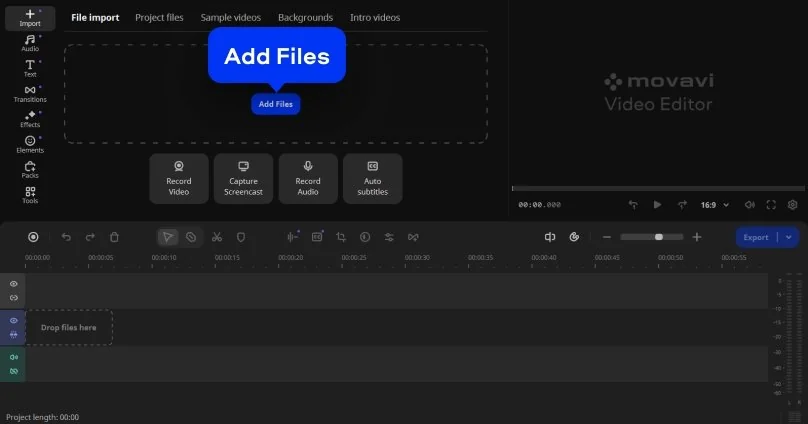
Launch Movavi Video Editor and click on Add Files to upload files you need for the project, then drag them on the Timeline.
YouTube Intro Maker by Movavi
Fast and easy editing of YouTube videos: cut, crop, adjust colors and speed
Hundreds of filters, transitions, titles, overlays for YouTubers
YouTube export options for different formats and resolutions
By clicking the download button, you're downloading a trial version of the program.*
Free YouTube Intro Maker
Why Movavi’s YouTube intro maker stands out
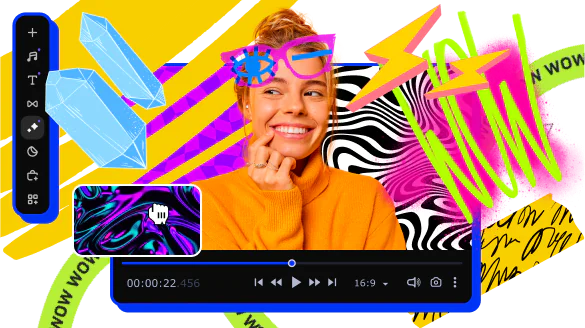
Beginner-friendly with pro-level features
Movavi balances professional-grade features with an interface that even complete beginners can quickly master.
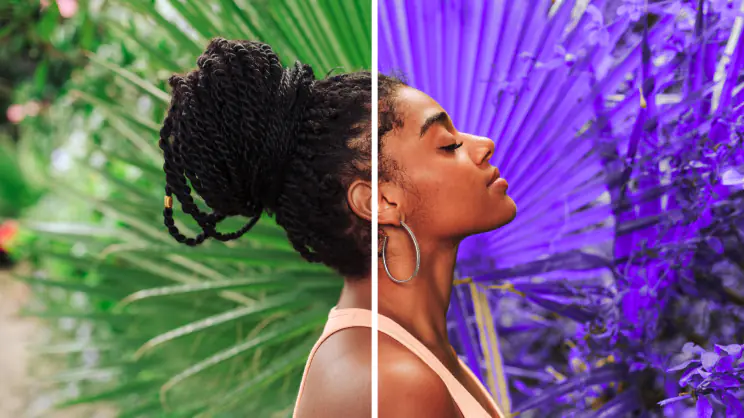
Tons of built-in effects and music
Movavi comes loaded with built-in transitions, titles, overlays, music tracks, sounds, frames, backgrounds, stickers, and more.
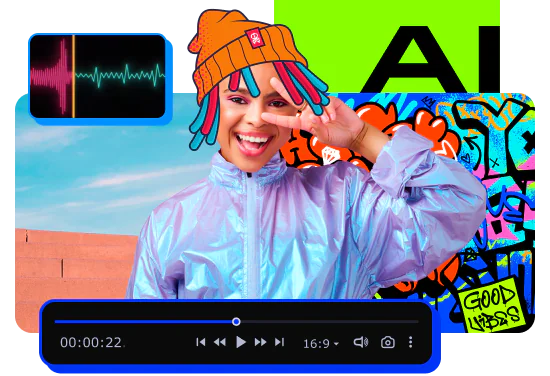
One-click AI
Movavi makes it super-easy to create subtitles, remove pauses, clean up noisy audio, track motion, change out backgrounds, and more – all automatically, no technical skills needed.
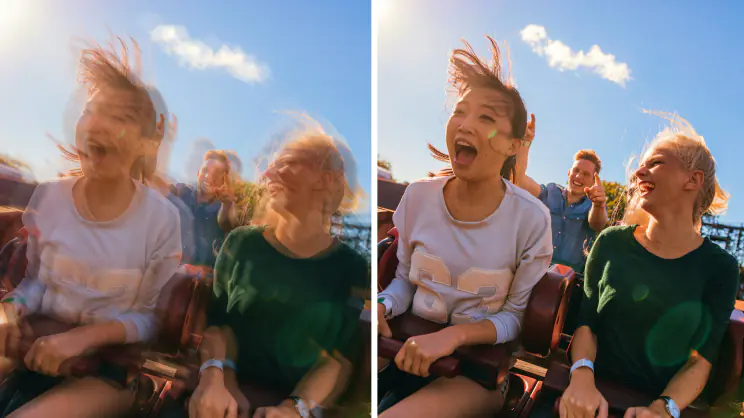
Smooth performance
Movavi is lightweight, easy to set up, and runs smoothly – even if your laptop isn’t top-of-the-line.
Features of Movavi’s YouTube intro maker
Overlays, stickers, and transitions
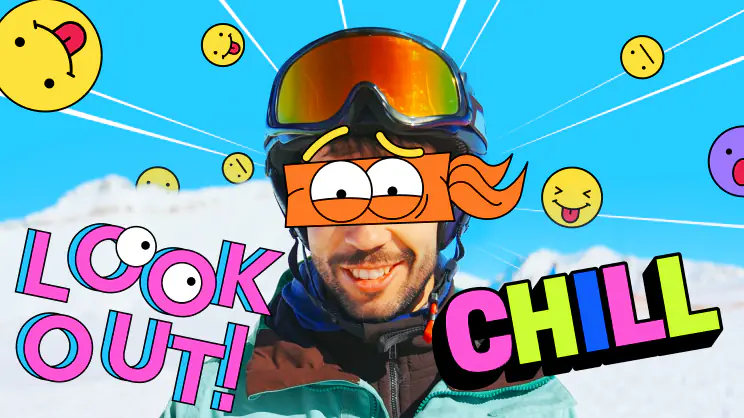
Use stickers to add fun and personality, overlays to give extra style, and transitions to keep your storyline flowing smoothly. Make every moment pop and keep your viewers hooked.
Hundreds of drag-and-drop cinematic effects
Supercharge your videos with tons of creative, professionally designed effects. Add stickers for cool accents, transitions for smoother stories, overlays for extra style, and there’s even more!
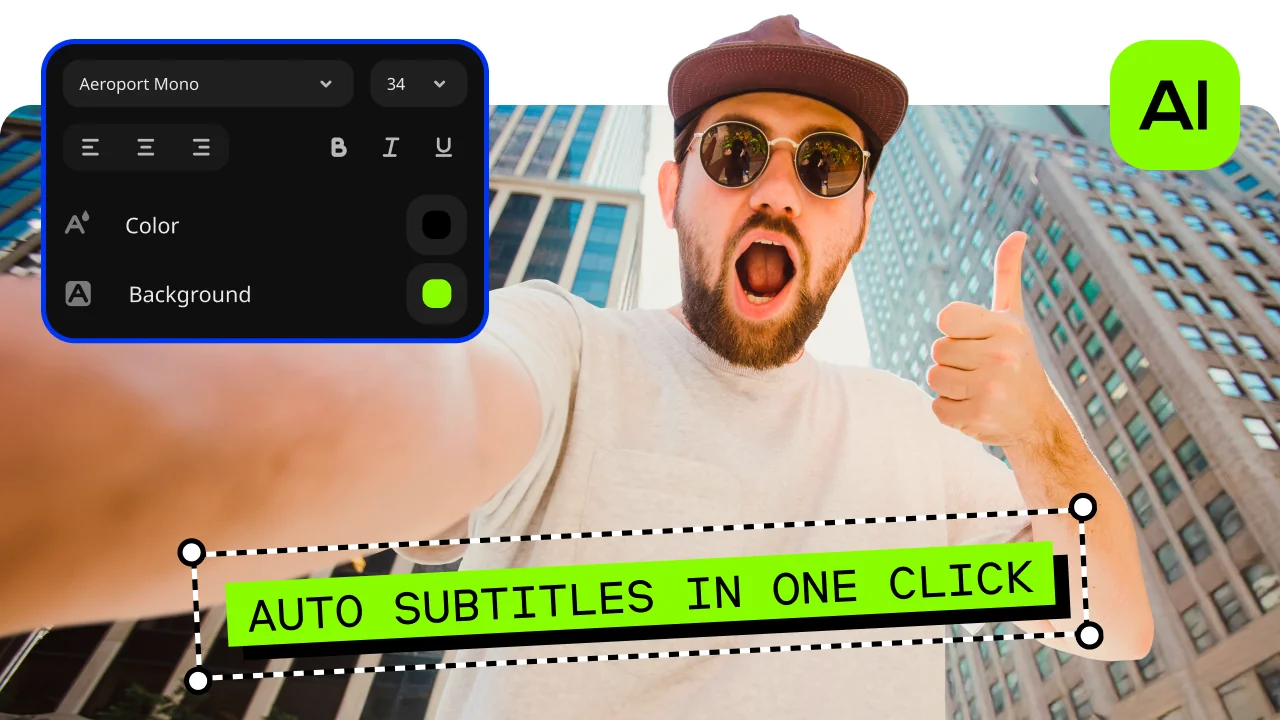
Automatic subtitles
Let AI quickly turn your speech into text and automatically create captions for your videos in almost any language. Just choose the font, text color, position – and you’re all set!
AI background removal
Use the power of the AI to instantly swap backgrounds in your videos with no green screens. Drop in a new vibrant scene and get ready for an avalanche of likes on socials!

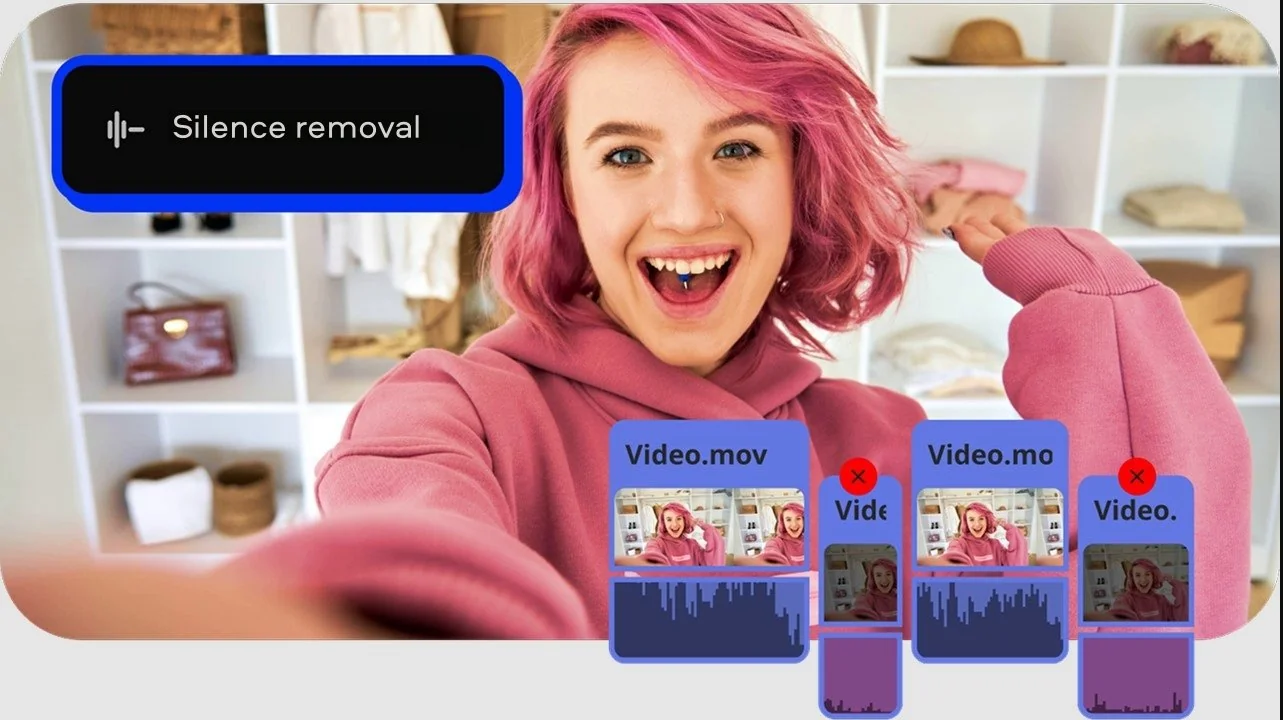
Silence removal
Cut out unwanted pauses automatically or fine-tune the pause length and volume threshold yourself. Skip the tedious cleanup and make your videos more dynamic in a flash.
How to use the free intro maker for YouTube from Movavi
Step 1. Upload files
Launch Movavi Video Editor and click on Add Files to upload files you need for the project, then drag them on the Timeline.
Step 2. Add text, media, and branding elements
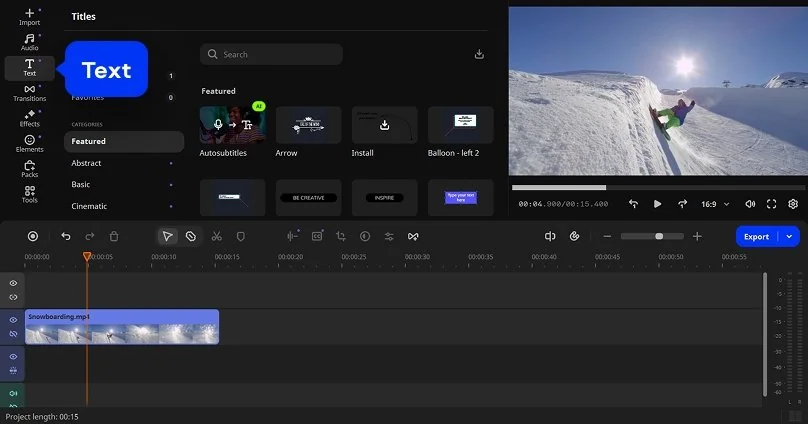
Import logos, images, or short video clips into the timeline and add animated text for the channel name or slogan. Use built-in fonts and presets to keep the intro clean, readable, and visually consistent.
Step 3. Apply animations, effects, and transitions
Enhance the intro by adding motion presets, simple effects, and smooth transitions. Keep animations short and dynamic so the intro feels professional without distracting viewers from the main content.

Step 4. Export the intro for YouTube
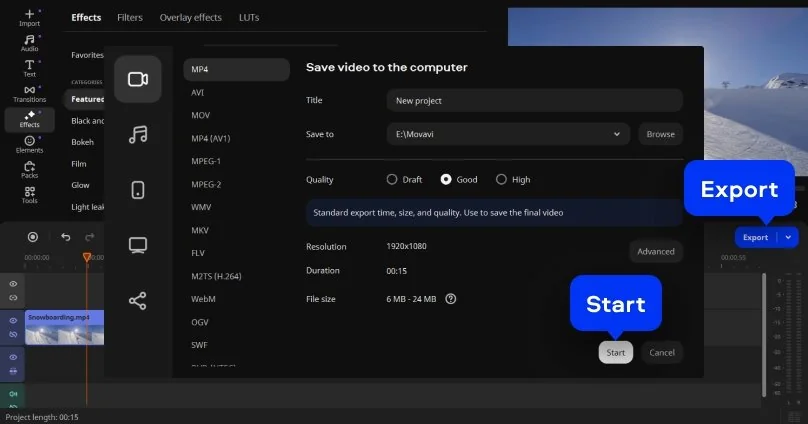
Preview the intro, make final timing adjustments, and click on Export to save the video using a YouTube-compatible preset. The result is a polished intro clip ready to be added to future videos or reused across the channel.
More tools of a YouTube intro maker
Tips to make an intro for YouTube
Let’s be honest: most intros fail in the first three seconds. Too long, too loud, or clearly made with a random free YouTube intro maker at 2 a.m. A good intro isn’t decoration, it’s a handshake. It tells viewers what kind of YouTube channel they’ve landed on and whether it’s worth their time. After testing different tools and workflows, one thing stood out: free tools are fine to start, but they hit a wall fast. That’s where Movavi Video Editor goes beyond a basic YouTube video intro maker and gives creators real control.
Practical tips before you start
Short wins. Five to seven seconds is the sweet spot if you care about retention and perceived quality. Focus on motion, not noise: one clean animation beats five flashy effects. And always build your intro as a reusable template – something you can tweak once and reuse forever. That’s the real trick behind how to make a YouTube intro free and easy without redoing everything every week.
Case 1. The beginner channel that wants to look legit
If you’re launching your first channel and just want something better than a static logo, a free intro maker for YouTube might get you moving. But with Movavi Video Editor, you can start from a solid base and actually improve it: custom text animations, logo motion, even light cartoon-style effects if that fits your vibe. The result feels intentional, not autogenerated by a YouTube intro generator free tool that thousands of others are using.
Case 2. The brand or business channel that needs consistency
For tutorials, reviews, or company content, consistency beats creativity. Movavi lets you design one intro, lock it in, and reuse it across every upload. You control timing, colors, fonts, and transitions – things a free intro maker with no watermark rarely handles well. Once ready, you simply download and reuse, keeping your brand instantly recognizable from the first frame.
Case 3. The creator who wants to grow and experiment
This is where most free tools fall apart. With Movavi, your intro can evolve: layered video, synced music beats, animated logos, and precise cuts. What starts as “how to make an intro for YouTube” turns into a creative playground. You’re not limited by presets or forced into one rigid style – you’re working with a real desktop app, not a shortcut.
Final recommendation
If you just want something quick, a YouTube intro creator online will do the bare minimum. But if you care about ease of use, control, scalability, and long-term growth, clearly sits in a different league. It’s not just about making an intro, it’s about owning your opening seconds.

Frequently asked questions
Because attention spans are shorter than a skipped ad. An intro is your split second to say “this is worth it” before someone’s thumb does its thing. Nail it, and viewers lean in; miss it, and they’re gone without a goodbye.
You drop a beat onto the timeline and let it breathe – simple as that. The smart move is choosing something sharp and minimal, trimming it so it lands right on the visual punch, then cutting before it turns into background noise.
Technically, yes – and practically, kind of. You can build videos without paying, but the best toys live behind the paywall, so sooner or later you’ll notice the leash.
Sometimes yes, sometimes absolutely not. Free tools love reminding you they’re free, usually in the corner of your video, so check before you export, or be ready to redo the whole thing elsewhere.
Keep it tight: your channel name, a quick visual hook, and a hint of what viewers will get from you. Skip long animations, skip full sentences, and definitely skip explaining yourself. If your intro needs context, it’s already too long.
We’re the #1 choice for millions of people from all around the world. Join our thriving community and create stunning content with incredible ease.
70M+


*The free version of Movavi Video Editor may have the following restrictions depending on the build: watermark on exported clips, 60-second video or 1/2 audio length limit, and/or some advanced features unavailable when exporting videos.


1.5M+ users already subscribed to our newsletter