
Movavi Video Editor
  • Fast and easy editing: cut, crop, adjust colors and speed
  • One-click AI tools: auto subtitles, noise removal, and more
  • Hundreds of filters, transitions, titles, overlays

By clicking the download button, you're downloading a trial version of the program.*

Change Video Speed Online

How to adjust video speed with the online video speed editor

When I need to tweak a clip fast, without installing software or opening a heavy editor, Movavi’s online video editor is my go-to. This online video speed controller and slow motion video maker runs straight in the browser, keeps things clean, and lets you control video speed without technical headaches.

Step 1. Add your video

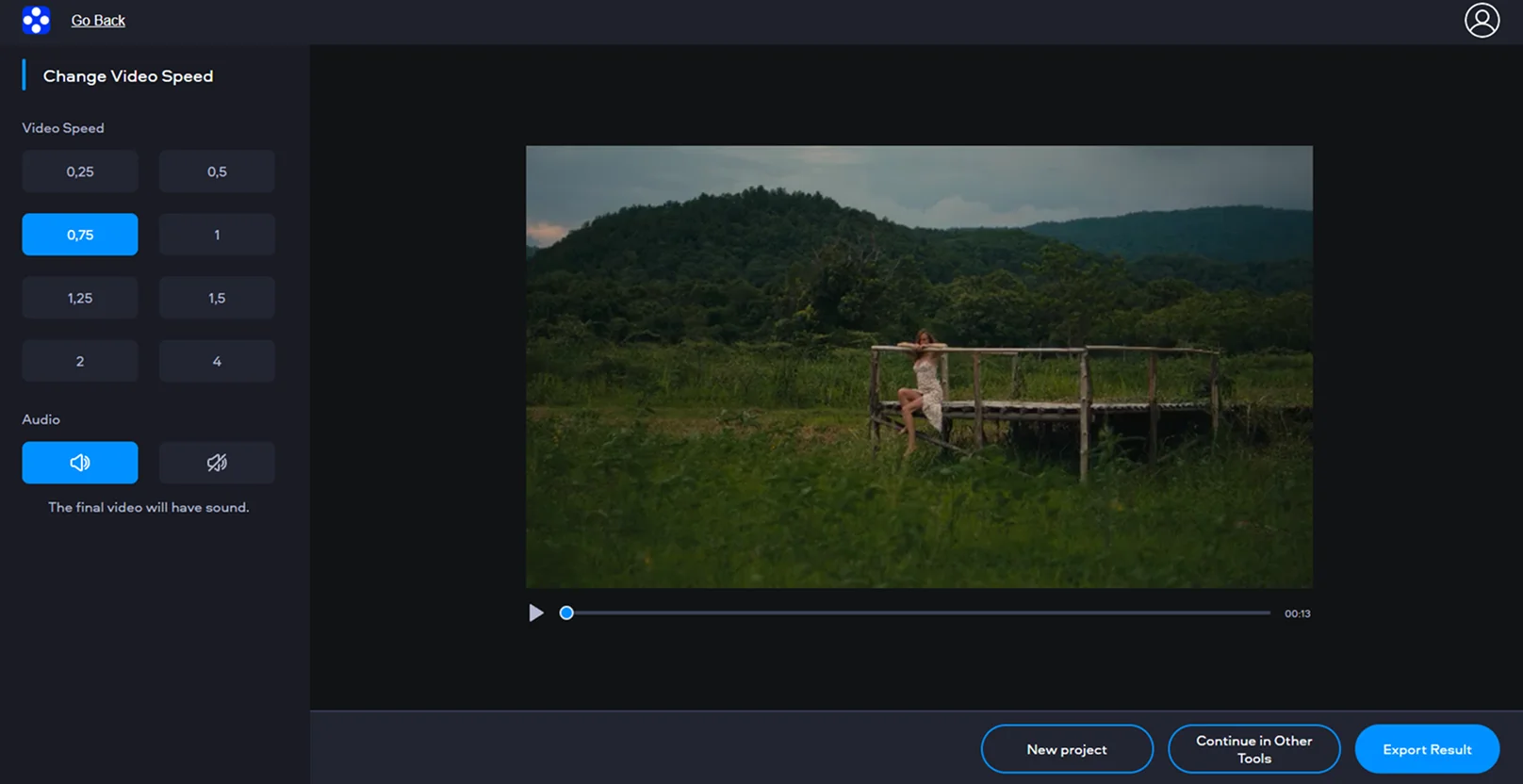
Click the Upload Files button on the banner. You upload the clip directly from your device, and the editor opens it automatically on the timeline.

Step 2. Change the playback speed

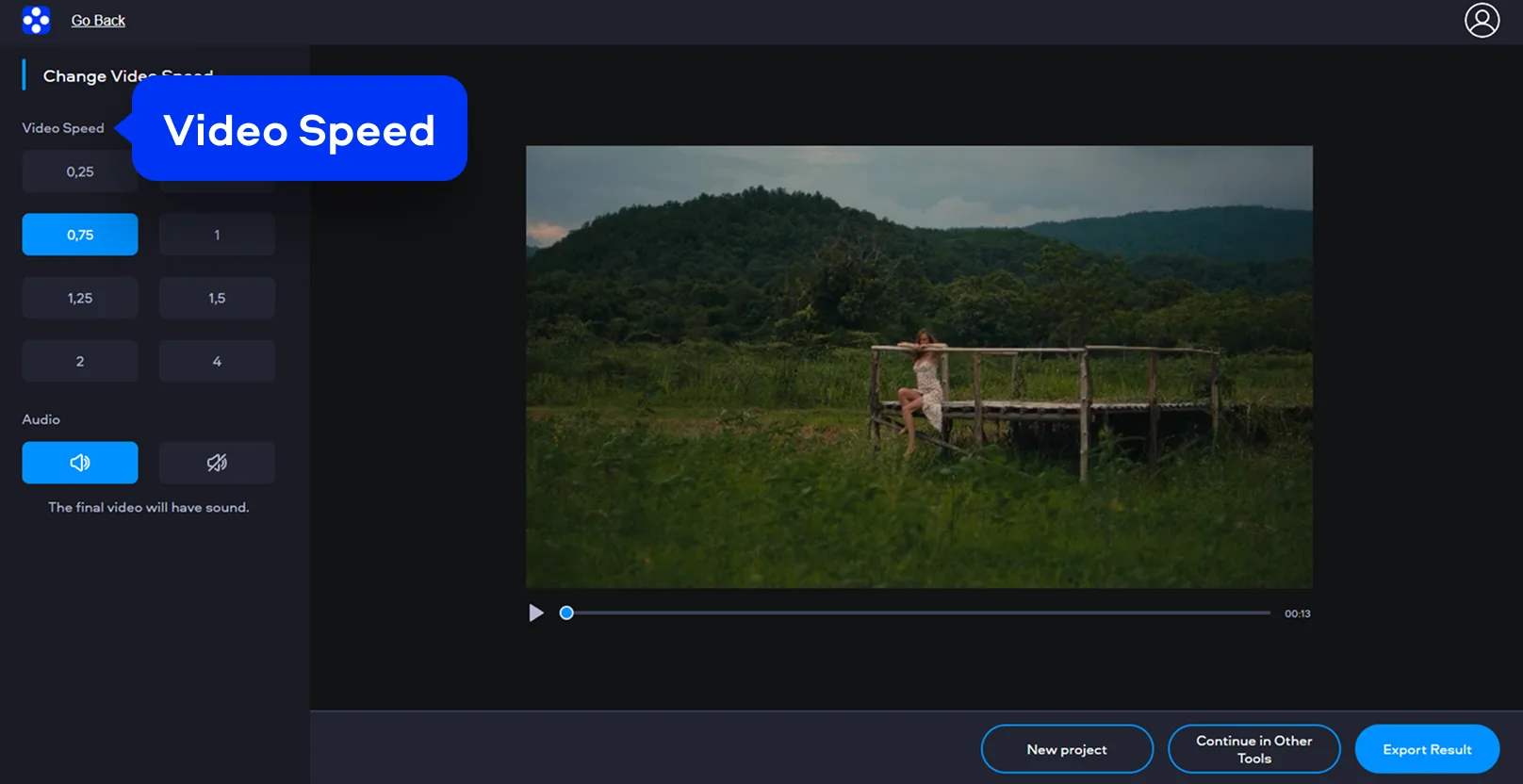
Select a speed preset in the menu on the left. You can speed things up or slow them down smoothly, depending on the effect you want.

Step 3. Export the result

Preview the clip, then click Export Result. The video is processed online and saved with the new speed, ready to download or share.

How to speed up a video or slow down a video on PC or Mac

When I’m working seriously on a clip and want full control in order to speed up a video or slow down a video, I switch to Movavi Video Editor. It’s a desktop editor and video speed changer that feels lightweight but gives you precise tools to push the rhythm or slow things down without breaking the image.

Step 1. Open Movavi Video Editor and add your clip

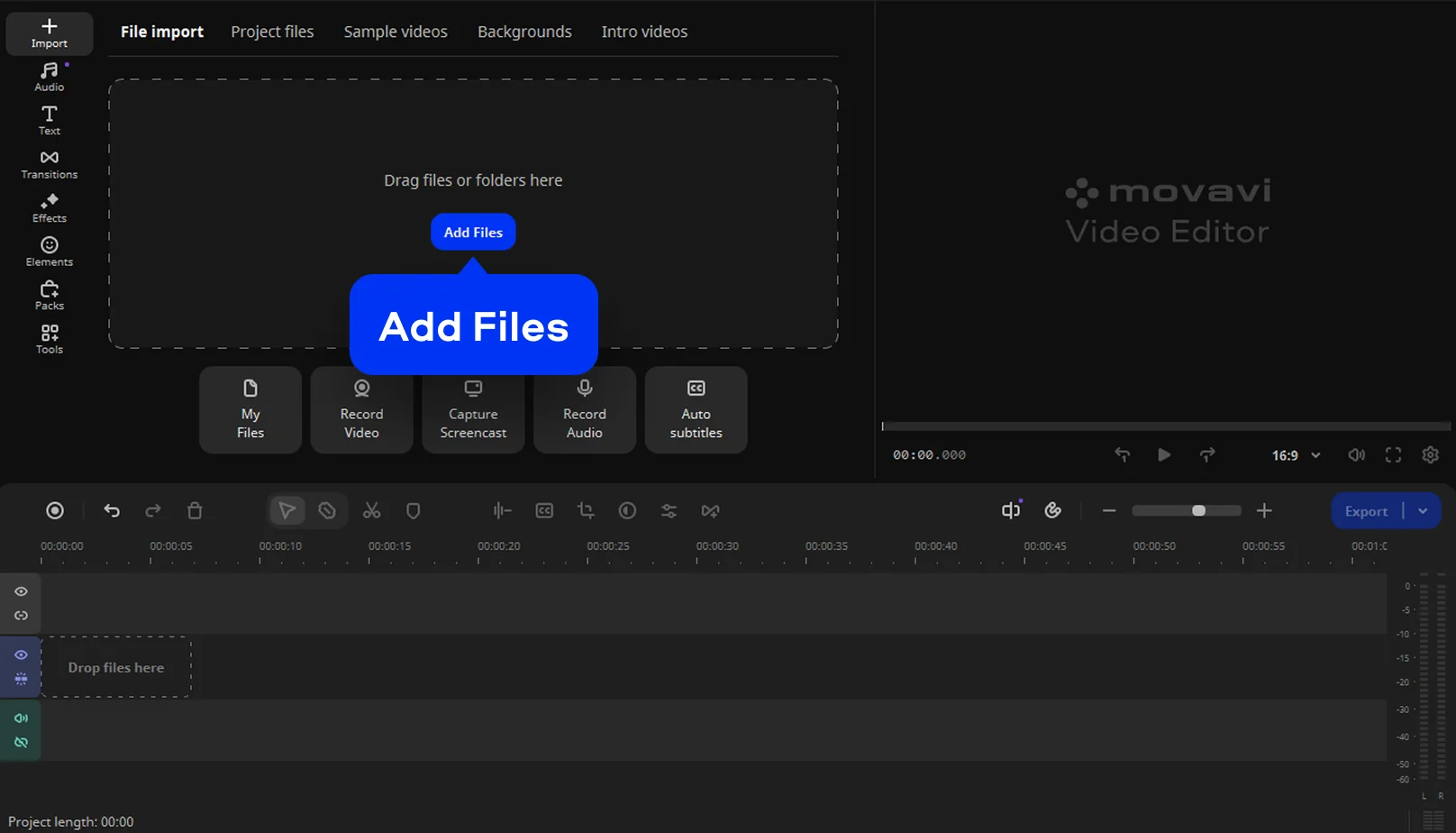
Launch the program, click Add Files, and import your video. Drag it onto the Timeline so you can work directly on the sequence.

Step 2. Adjust the video speed

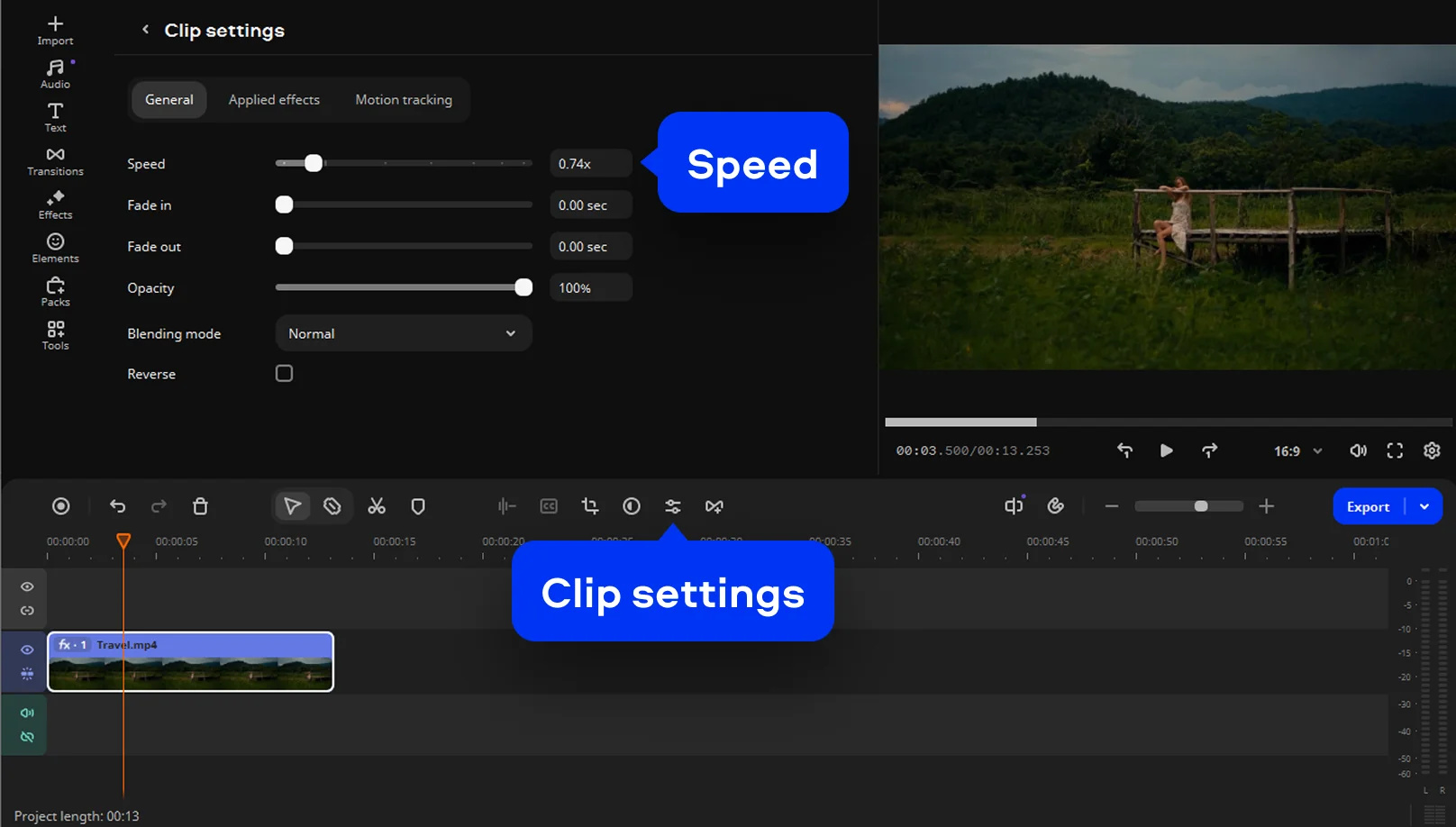
After selecting the clip, open the Clip settings, and then drag the Speed slider to the right or left to make a fast forward video or slow it down.

Step 3. Preview and export

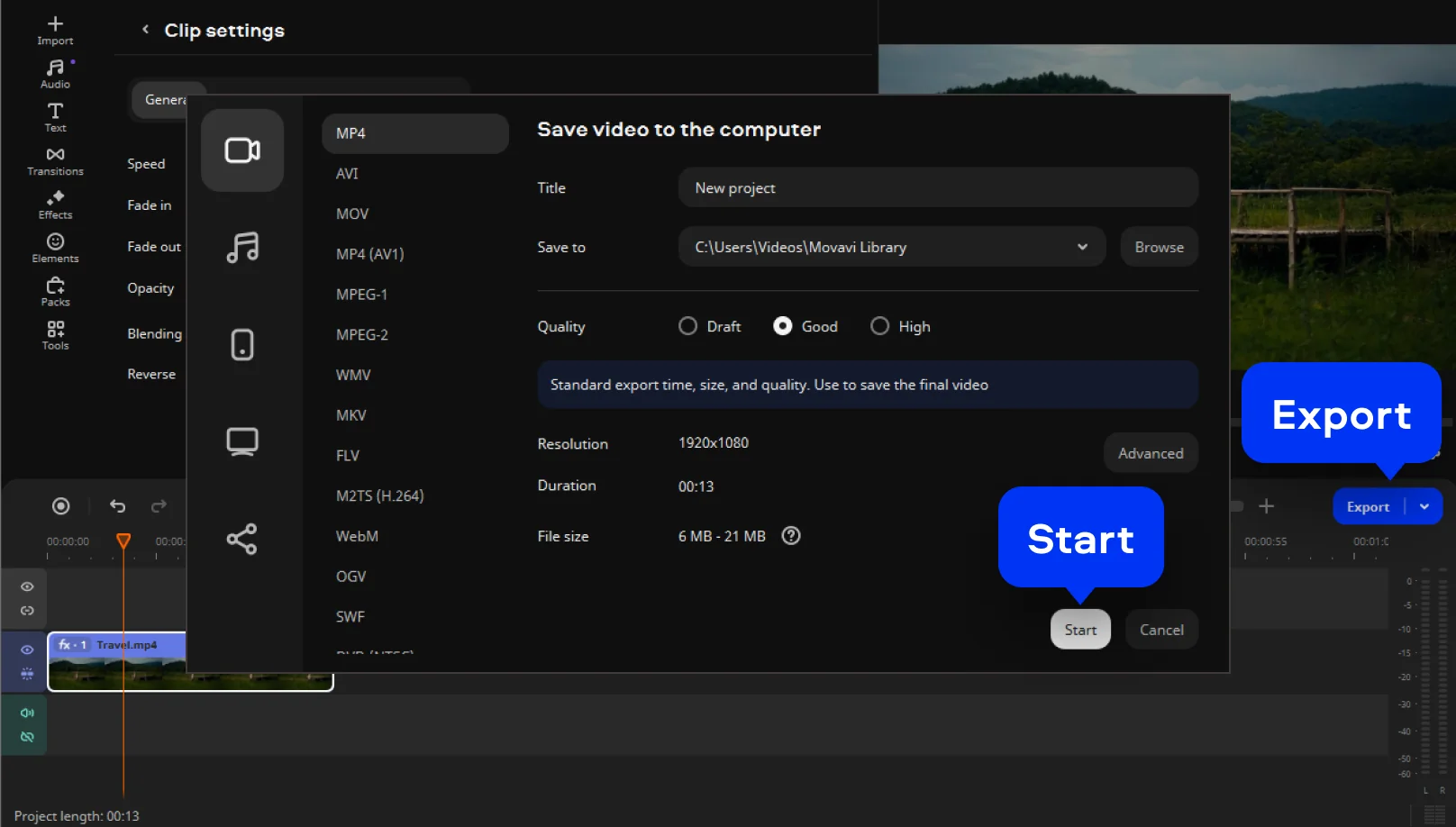
Watch the result in the preview window. When it looks right, click Export, choose your format, and save the final video to your computer.

Movavi Video Editor
Create awesome videos easily

*The free version of Movavi Video Editor may have the following restrictions depending on the build: watermark on exported clips, 60-second video or 1/2 audio length limit, and/or some advanced features unavailable when exporting videos.

Movavi Video Editor

Why choose Movavi

We’re the #1 choice for millions of people from all around the world. Join our thriving community and create stunning content with incredible ease.

70M+

users

190+

countries

15+

updates per year

10,000+

effects to choose from

Frequently asked questions

How can I change the speed of a video online for free?

When I need it done fast and free, I open a browser and use an online video speed editor like Movavi’s tool. You upload the clip, change playback speed, export, and you’re done.

How do I make a video slow motion or fast motion?

It’s basically a speed control game. In order to adjust video speed I either lower the speed value for slow motion or push it past 1× for fast motion, then preview until the rhythm feels right.

Will changing the video speed affect the video quality?

Yes, it can, especially with heavy slow motion. Good editors use frame interpolation to keep things smooth, but the cleaner your original footage, the better the final result.

Can I change video speed on my iPhone or Android?

Absolutely. Both iOS and Android offer basic speed tools, and online editors work straight from the mobile browser if you don’t want to install another app.

How do I change video speed for Instagram, TikTok, or YouTube?

I adjust the speed before uploading, keeping the platform format in mind. Short, punchy speed changes work best for TikTok and Reels, while YouTube gives you more room to play with pacing.

Can I use Movavi Online Video Editor on Android and iPhone?

Yes – it works on both Android and iPhone, and it’s free to use.

Is Movavi Online Video Editor completely free?

Yes. All features are available for free – no payment required.

Does Movavi Online Video Editor add a watermark when exporting videos?

No. You can export videos without a watermark.

Movavi Video Editor
Create awesome videos easily

*The free version of Movavi Video Editor may have the following restrictions depending on the build: watermark on exported clips, 60-second video or 1/2 audio length limit, and/or some advanced features unavailable when exporting videos.

Movavi Video Editor
Join us for discounts, editing tips, and content ideas

1.5M+ users already subscribed to our newsletter

By signing up, I agree to receive marketing emails from Movavi and agree to Movavi's Privacy Policy.