Movavi’s online video maker is the kind of tool you open when you want a clean edit and a clean export – a free online video editor with no watermark solution with no drama, no clutter, and no mysterious “why is there a logo on my footage?” moment. It works right in your browser as a web-based video editor with no watermark, keeps the interface friendly, and proves itself one of the best online video editors for actually getting a video finished.
Movavi Video Editor
Simple, beginner-friendly tools: edits without complex setup
Fast workflow: suitable for quick edits and simple projects
One-click AI tools: auto subtitles, noise removal, and more
By clicking the download button, you're downloading a trial version of the program.*
Free Online Video Editor with No Watermark
How to use no-watermark video editor for free online
Step 1. Add your footage
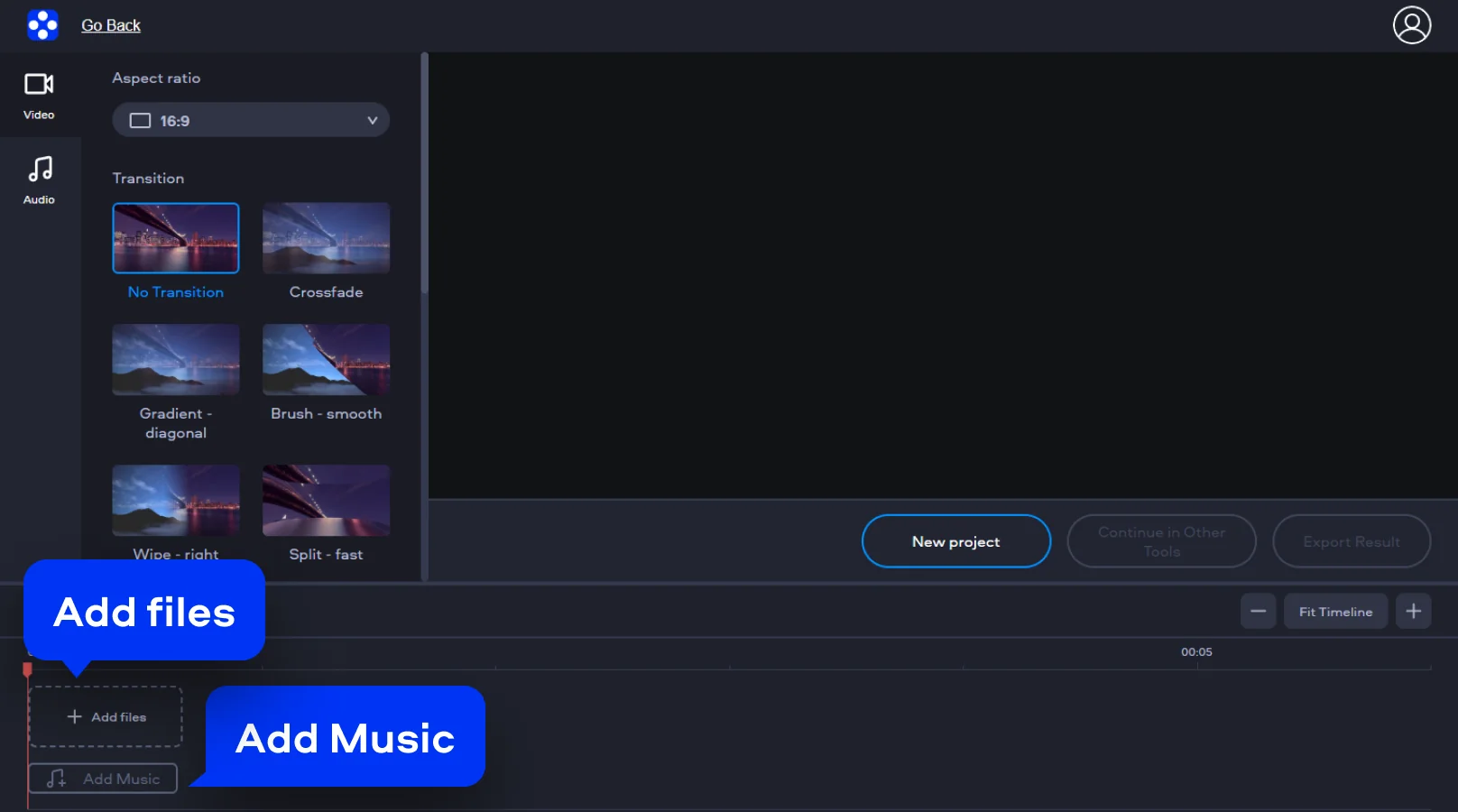
Click Upload Files and upload your clip to start the project with this online video editor without a watermark, built for creators who want results fast. If you’re building a montage, you can also hit Add Music right there to add music to the video online in just a few clicks.
Step 2. Edit the video
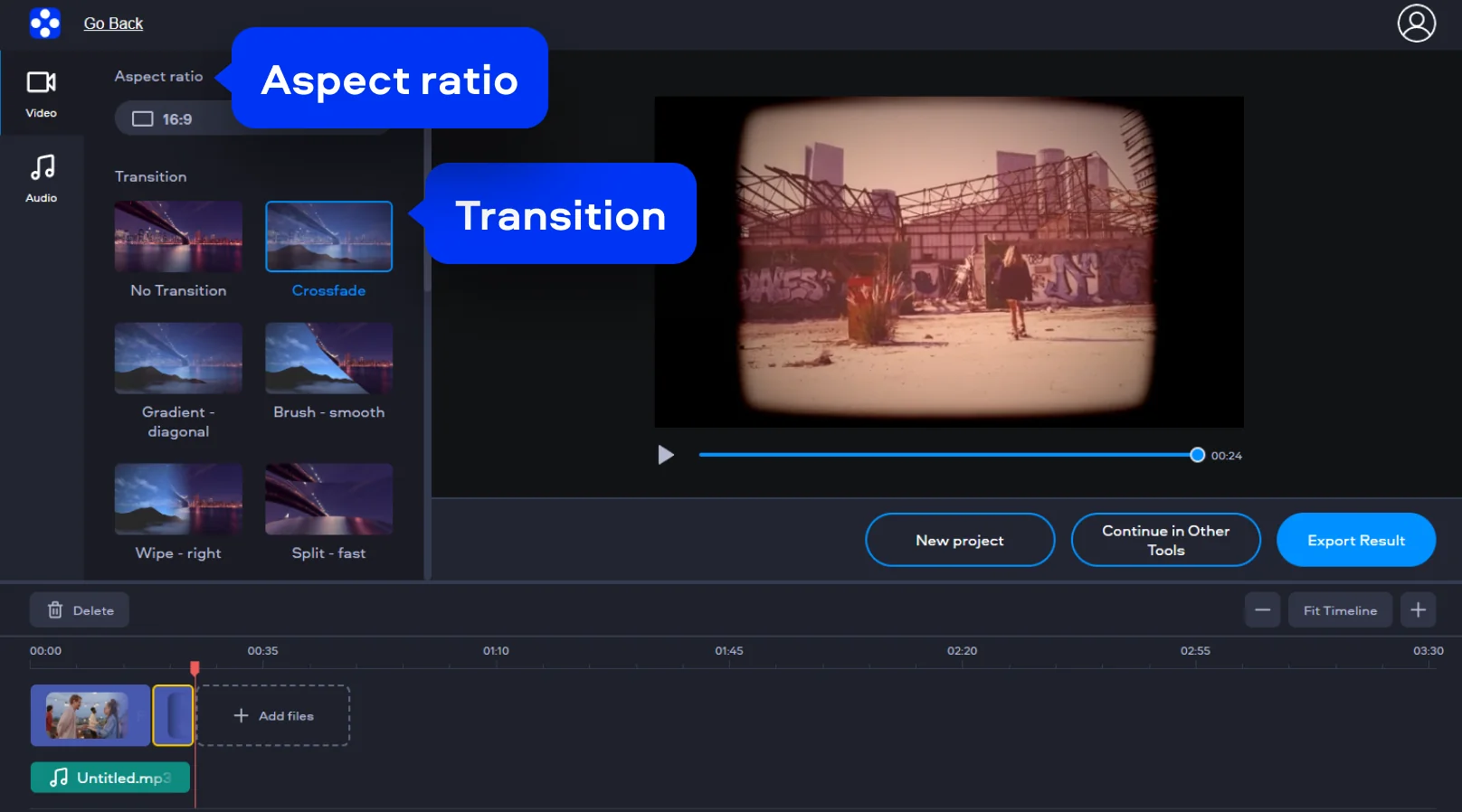
Set the Aspect ratio (for example, 16:9) so your video fits the platform you’re aiming for, then arrange your clips on the timeline, and refine the pacing until it feels right. Add a Transition like Crossfade when you want scenes to flow instead of bumping into each other, or quickly merge video files into one seamless sequence.
Step 3. Export the result
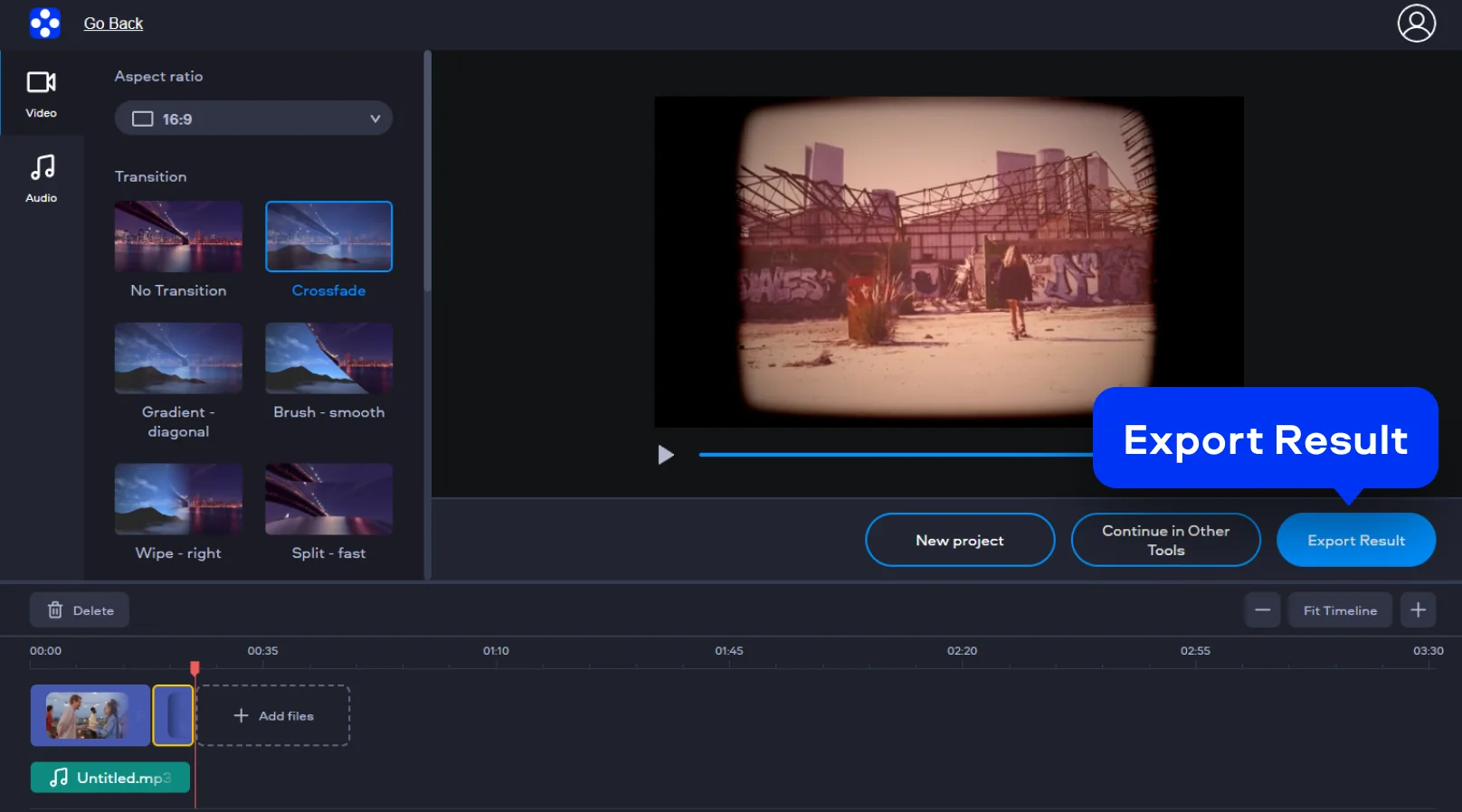
When everything plays smoothly, click Export Result to render the final video and download it using this no-watermark video editor for free.
How to edit videos with Movavi Video Editor without a watermark
Movavi Video Editor is the step-up choice when you want more control – cleaner cuts, better pacing, stronger sound, and visuals that feel intentional instead of “assembled,” making it a powerful alternative to free video editors online for desktop creators. The big advantage is flexibility: multi-track editing, richer effects, precise audio tools, and a workflow that stays comfortable even when your project grows past a few clips. It’s built for creators who want speed without sacrificing polish, and it’s especially handy when you’re editing regularly for YouTube, Instagram, or client work.
Step 1. Get the editor up and running
Install Movavi Video Editor on your desktop and launch it. The process is straightforward, and before you have time to overthink it, a blank timeline is waiting for your first clip.
Step 2. Drop in your footage
Click Add Files and bring in your videos, photos, and audio files, then start cutting things down to size. The tools are laid out logically, so video editing feels more like decision-making than technical problem-solving.

Step 3. Edit your video
This is where titles, transitions, effects, an auto subtitles generator, and even text-to-speech video tools come into play. You can keep things subtle or lean into style, while built-in ai features quietly handle repetitive tweaks and cleanup in the background.

Step 4. Export the final cut
Click Export and pick your format and resolution. With the full version activated, the finished video is saved exactly as intended – clean, complete, and watermark-free.

Why choose Movavi
We’re the #1 choice for millions of people from all around the world. Join our thriving community and create stunning content with incredible ease.
70M+


users
countries
updates per year
effects to choose from
Frequently asked questions
Why should I edit videos online?
Why should I edit videos online?
Online workflows give you flexibility, especially when you can edit videos online for free with no registration and no sign-up, and move between devices without extra steps. You can move between devices, work from different locations, and still export sharp, professional-looking video in 1080p without wrestling with complex setups.
How do I repurpose video content?
How do I repurpose video content?
A single long video can become several shorter clips, vertical edits for social feeds, or updated versions enhanced with a screen recorder online tool for fresh additions.
Why should I translate video subtitles into other languages?
Why should I translate video subtitles into other languages?
Subtitles make videos easier to follow, more accessible, and far more shareable across borders. They help your content travel without losing its message.
Does the video editor include AI tools?
Does the video editor include AI tools?
Yes. Automation is built in to speed up routine tasks, but creative choices stay where they belong – with you, not the software.
Can I use Movavi Online Video Editor on iPhone and Android smartphones?
Can I use Movavi Online Video Editor on iPhone and Android smartphones?
Yes, Movavi Online Video Editor can be used on iPhone and Android smartphones, completely free of charge.
Is Movavi Online Video Editor completely free?
Is Movavi Online Video Editor completely free?
Yes, Movavi Online Video Editor is a completely free video editing tool.
Does Movavi Online Video Editor add a watermark on videos?
Does Movavi Online Video Editor add a watermark on videos?
No, you can export your files without a watermark completely free of charge.
Movavi Video Editor
Create awesome videos easily
*The free version of Movavi Video Editor may have the following restrictions depending on the build: watermark on exported clips, 60-second video or 1/2 audio length limit, and/or some advanced features unavailable when exporting videos.

Join us for discounts, editing tips, and content ideas


1.5M+ users already subscribed to our newsletter