
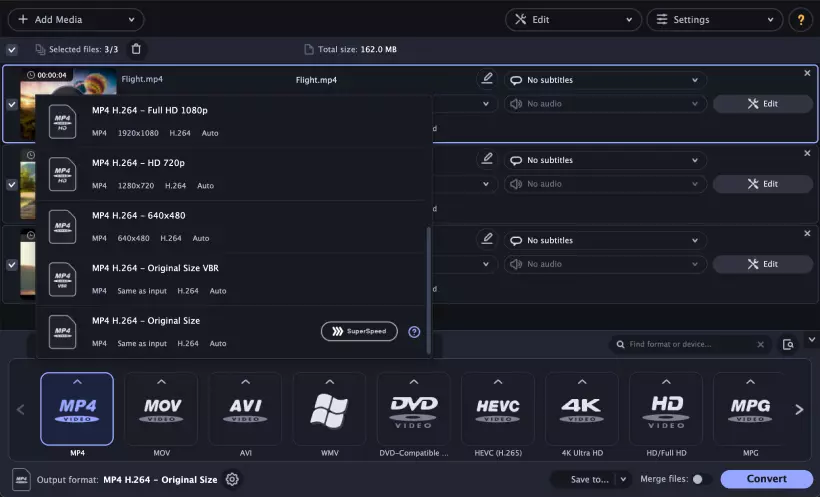
Converting videos from MKV to MP4 can be a real pain, but Movavi Video Converter makes it a whole lot easier. It's got a clean and simple interface, which is great because it doesn't overwhelm you with a ton of options. Plus, it can handle multiple files at once, so you can convert a bunch of videos all at the same time. What really sets it apart, though, is its GPU acceleration – it genuinely makes a big difference in how fast your conversions are. With the SuperSpeed mode activated, Movavi Video Converter handles files in no time with no quality loss. For users who want to convert videos and overlay subtitles at the same time, Movavi Video Converter offers a built-in subtitles finder, which makes it possible to watch movies and shows with original voices. According to Capterra, Movavi Video Converter is perfect for people who want to quickly change video formats without having to navigate a complicated settings menu.
12 Best Free MKV to MP4 Converters for Windows and Mac [2026]
Converting MKV files to MP4 isn't just about changing formats – it's about making your videos work everywhere. While MKV handles multiple audio tracks and subtitles beautifully, most devices and platforms prefer the simpler MP4 structure.
Key takeaways
- Desktop converters: 5-15x faster than online tools, support unlimited file sizes, require software installation
- Online converters: Convenient for files under 1 GB, no downloads needed, slower processing speeds
- Task-specific recommendations: Large 4K files → desktop tools, quick one-time conversions → online converters, maximum control → HandBrake
- Speed factors: GPU acceleration (desktop) vs. CPU processing (online), file size directly impacts conversion time
Best MKV to MP4 converters for desktop
Ratings
Pros:
GPU acceleration speeds up conversion significantly
Maintains 4K quality without visible degradation
Batch processing handles dozens of files simultaneously
Built-in video editing tools for basic adjustments
Cons:
Free trial adds watermarks to output files
Full version requires purchase after trial period
Limited codec customization compared to HandBrake
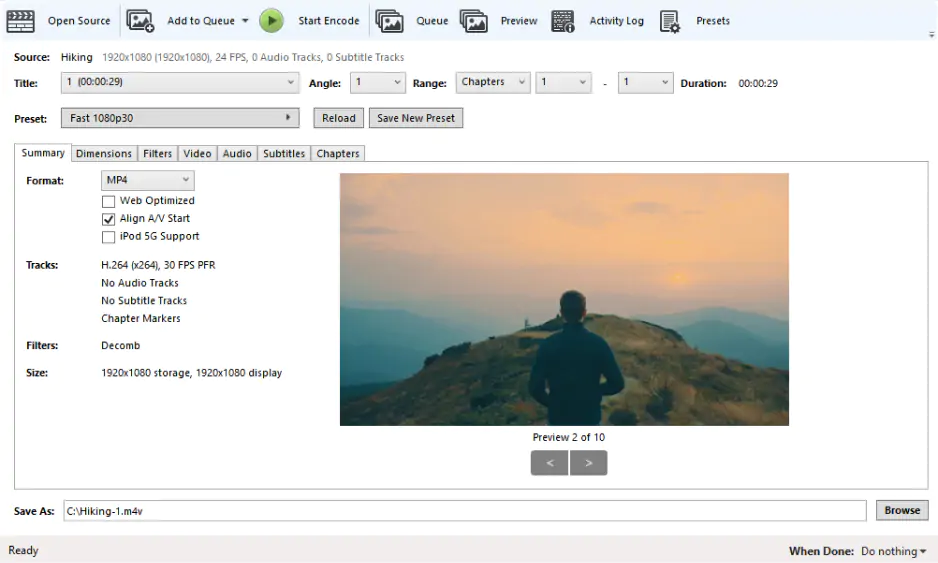
This free video converter puts you in charge of every detail when it comes to encoding. What makes HandBrake stand out is its preset system, which is really detailed, and the fact that you can tweak lots of settings – something that professionals really like. PCMag thinks HandBrake is one of the top free software choices for converting videos, and that's saying something. With HandBrake, you get a lot of control over how your videos are converted, which is pretty useful if you want things done just right.
Pros:
Completely free with no limitations or watermarks
Extensive codec options and quality settings
Cross-platform support (Windows, Mac, Linux)
Active community providing custom presets
Cons:
Steeper learning curve for beginners
CPU-only processing slower than GPU-accelerated tools
Interface can overwhelm users wanting simple conversion
3. VLC
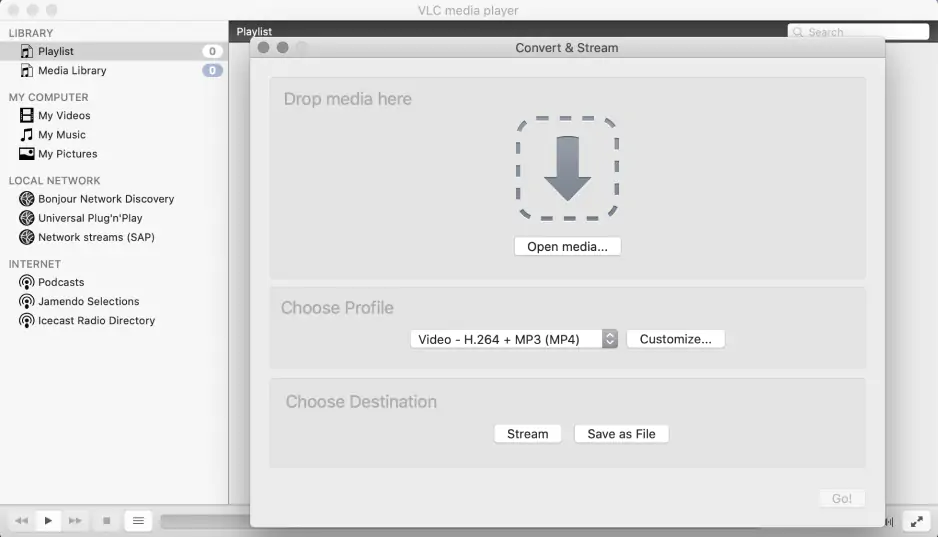
Lots of people already have VLC on their computers, which makes it a super quick way to convert MKV files to MP4 when you need to. The best part is that you don't have to download anything extra – the converter is already built in. Plus, PCMag thinks VLC is one of the top apps out there because it's really reliable and can handle tons of different file formats.
Ratings
Pros:
Already installed on most computers
No additional software download required
Supports wide range of input formats beyond MKV
Completely free for unlimited conversions
Cons:
Basic output quality settings only
No batch processing for multiple files
Slower processing compared to dedicated converters
What users say:
Reddit users consistently praise VLC's versatility as both a media player and format converter, with YouTube commenters highlighting its reliability across different platforms and formats. Users appreciate that VLC handles 99% of video formats and provides consistent playback capabilities, making it a trusted solution for media conversion needs. The PC version receives particular praise from users for its robust performance and comprehensive format support. However, Reddit users report significant issues with the Android version, specifically noting that every video has audio out of sync with lips, and even after spending hours adjusting sync settings, users cannot get the timing right.
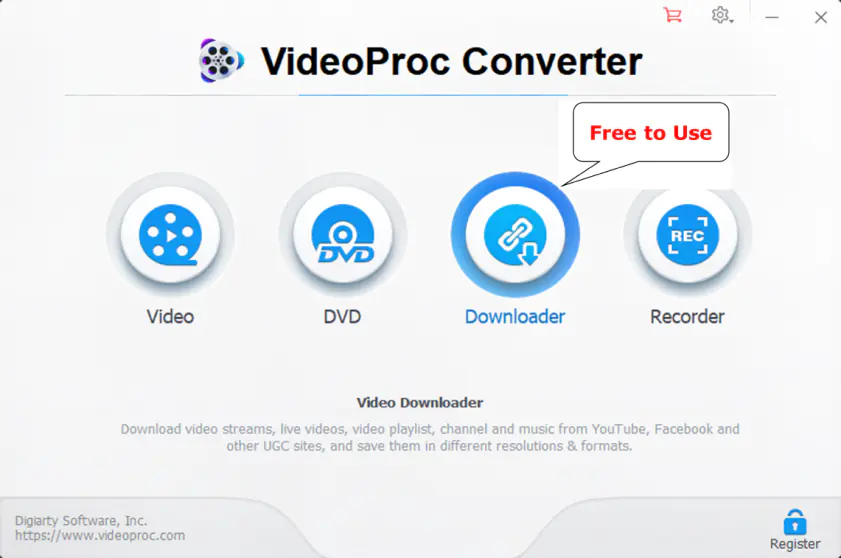
VideoProc leverages hardware acceleration effectively, making it particularly strong with large video files. The software balances ease of use with advanced features for power users. According to PCMag, VideoProc Converter is an AI video editor that can help you make quick edits with AI assistance features.
Pros:
Level-3 hardware acceleration for fast processing
Integrated screen recorder and downloader tools
Stable performance with 4K and HDR content
Clean interface without overwhelming options
Cons:
Full version requires paid license
Free version limits conversion time
Resource-intensive during processing
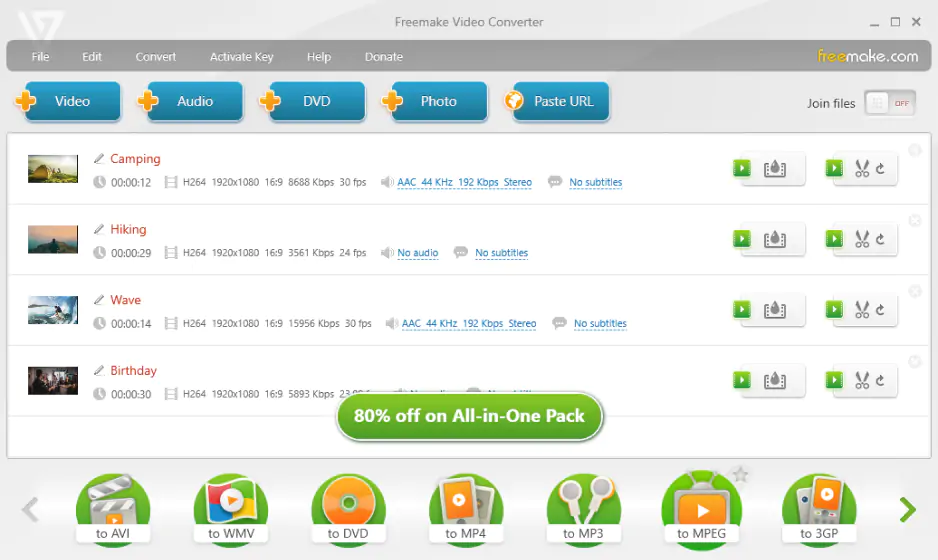
Freemake is all about making things easy for you, with a design that's simple to use. Plus, it works with a huge number of formats – over 500! It also has special settings just for YouTube, which helps make your videos look great on social media platforms.
Pros:
Simple drag-and-drop interface
Pre-configured presets for popular devices
Integrated video editing capabilities
Supports subtitle embedding during conversion
Cons:
Windows-only compatibility
Promotional branding on free version output
Slower processing without premium upgrade
6. Winxvideo AI
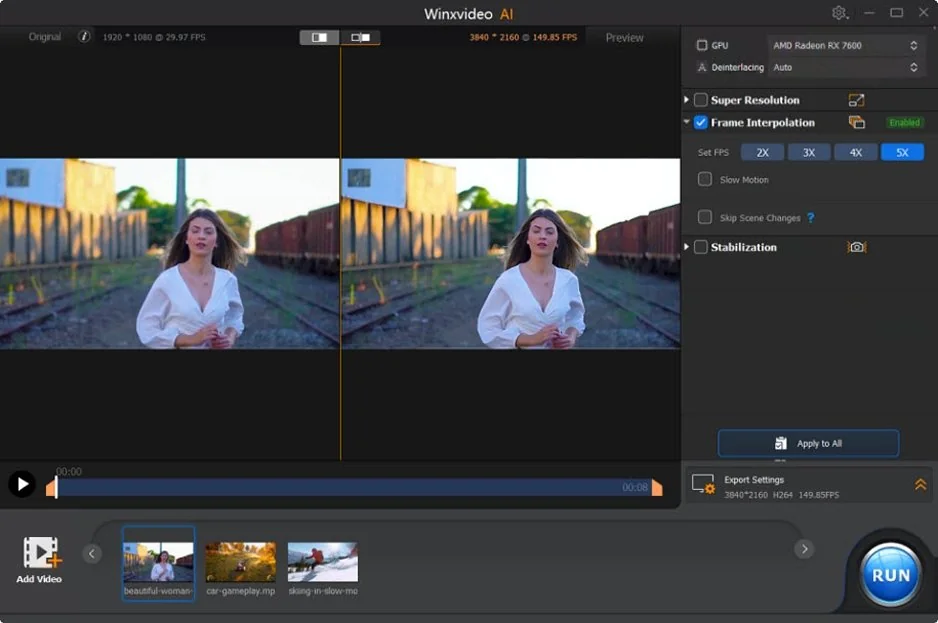
This converter stands out for its AI enhancement features alongside standard format conversion. Winxvideo AI handles damaged or corrupted MKV files better than most alternatives.
Pros:
AI upscaling improves video quality during conversion
Excellent stability with large 4K files
Hardware acceleration support for modern GPUs
Built-in video repair for damaged files
Cons:
AI features require significant processing power
Free version includes output limitations
Interface complexity increases with AI options
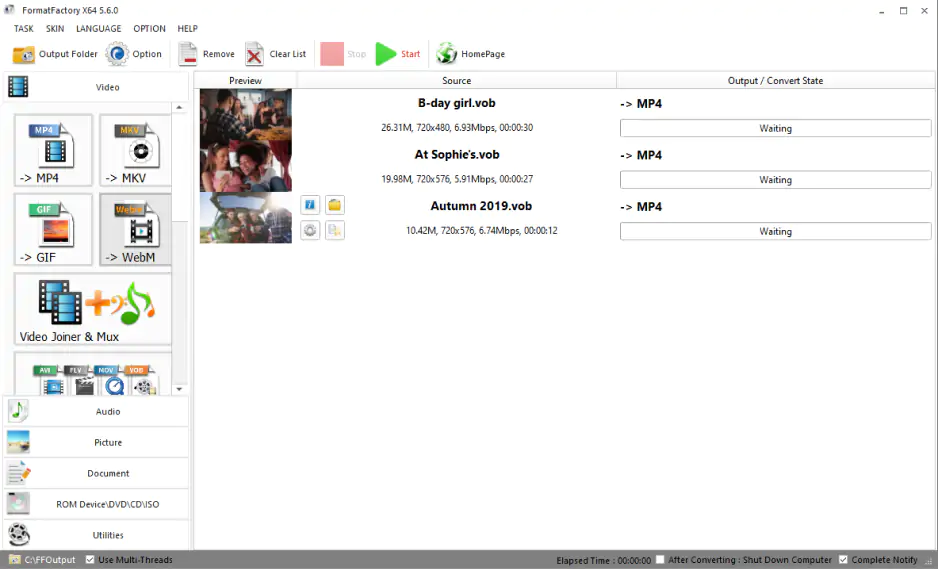
FormatFactory is really useful for converting old file formats that most newer converters don't support anymore. It's especially helpful when you have older MKV files or files with unusual codec combinations that you need to convert. This makes it a valuable tool to have, since it can handle these legacy formats that others often ignore.
Pros:
Extensive format support including legacy codecs
Batch conversion with queue management
Completely free for personal use
Lightweight installation footprint
Cons:
Windows-only platform support
Interface feels dated compared to modern alternatives
Limited quality control options
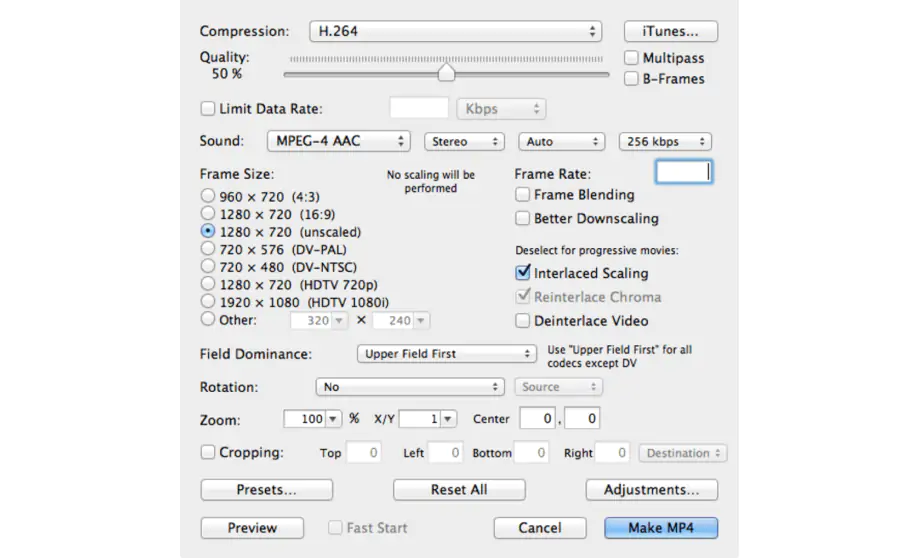
This converter is really great for older computers because it doesn't use up a lot of resources. The interface is also very simple, which is good because it just focuses on helping you convert your files.
Ratings
Pros:
Minimal system resource requirements
Fast conversion for standard definition content
Simple interface without unnecessary features
Reliable performance on older hardware
Cons:
Limited support for newer codec standards
No hardware acceleration capabilities
Basic output quality options only
Best online MKV to MP4 converters
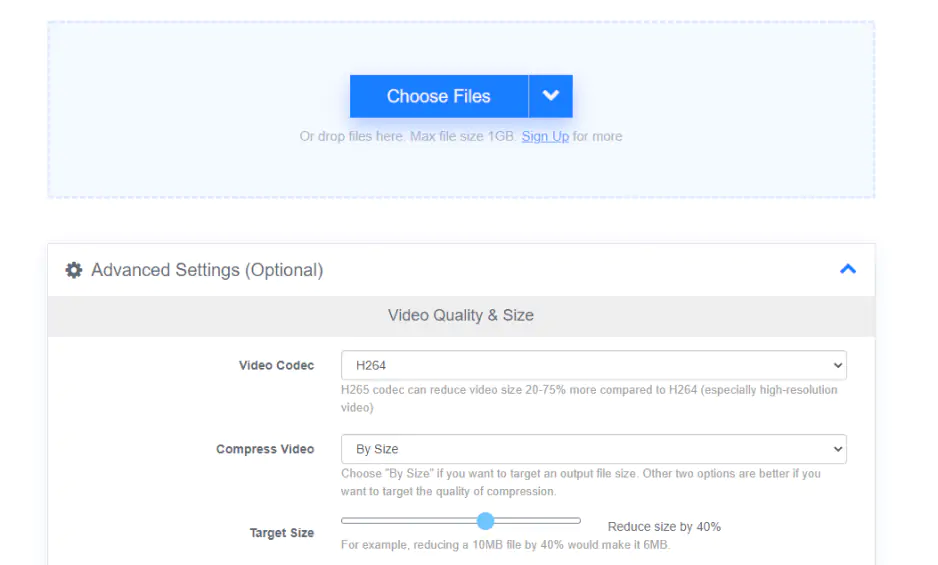
FreeConvert.com offers the most generous file size limits among free online converters. The 1 GB limit accommodates most personal video files without requiring registration.
Ratings
Pros:
1 GB file size limit for free users
No registration required for basic conversions
Multiple quality preset options
Clean interface without excessive advertisements
Cons:
Upload speed depends on internet connection
Processing time increases with file size
Limited batch conversion capabilities
10. Convertio
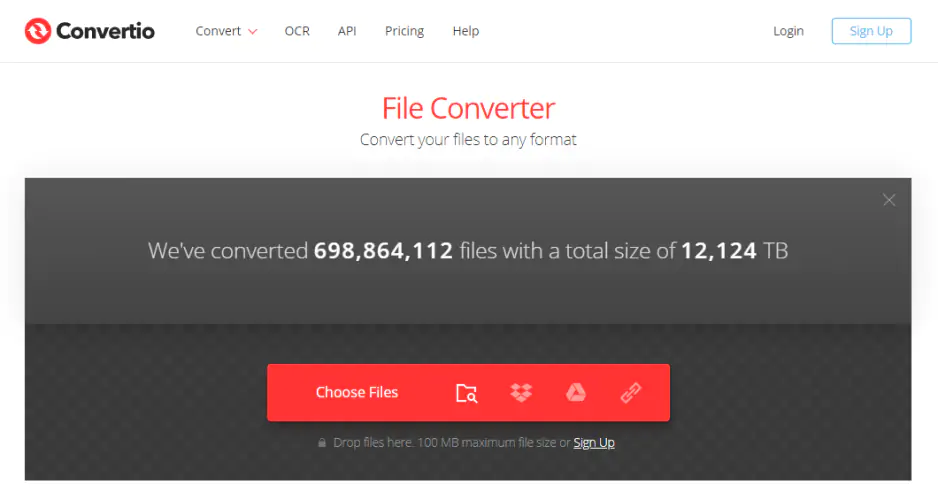
This online converter integrates with cloud storage services, making it convenient for files already stored in Google Drive or Dropbox. Convertio handles the download and upload process automatically.
Ratings
Pros:
Direct integration with cloud storage services
Supports conversion of files up to 100 MB free
Preview feature shows conversion progress
Multiple output quality options
Cons:
Small file size limit for free users
Requires account creation for larger files
Processing speed varies with server load
11. CloudConvert
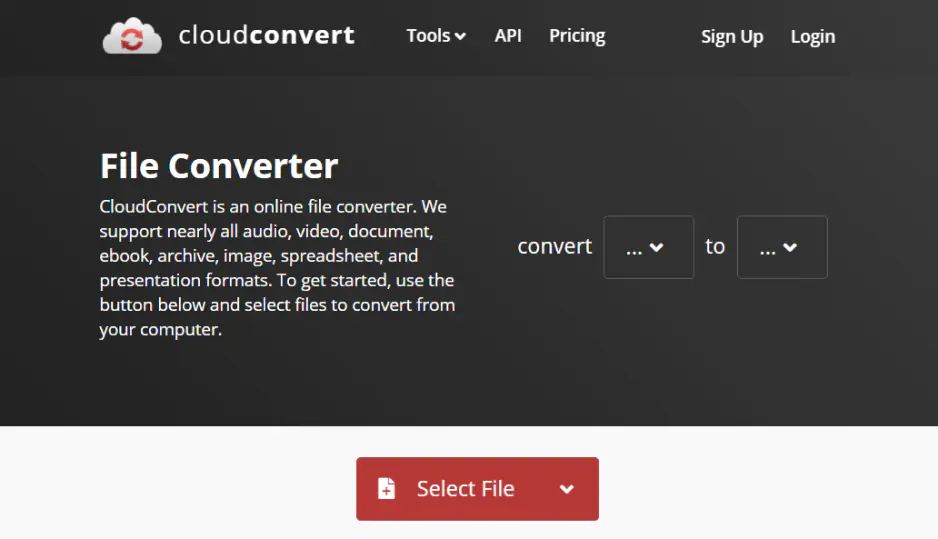
CloudConvert provides detailed quality settings that most online converters skip. The service allows custom bitrate and resolution adjustments during conversion.
Pros:
Advanced quality control options
API access for developers
Supports custom output parameters
Reliable processing with consistent results
Cons:
Credit-based system limits free usage
Complex interface for basic conversion tasks
Slower processing during peak hours
12. Zamzar
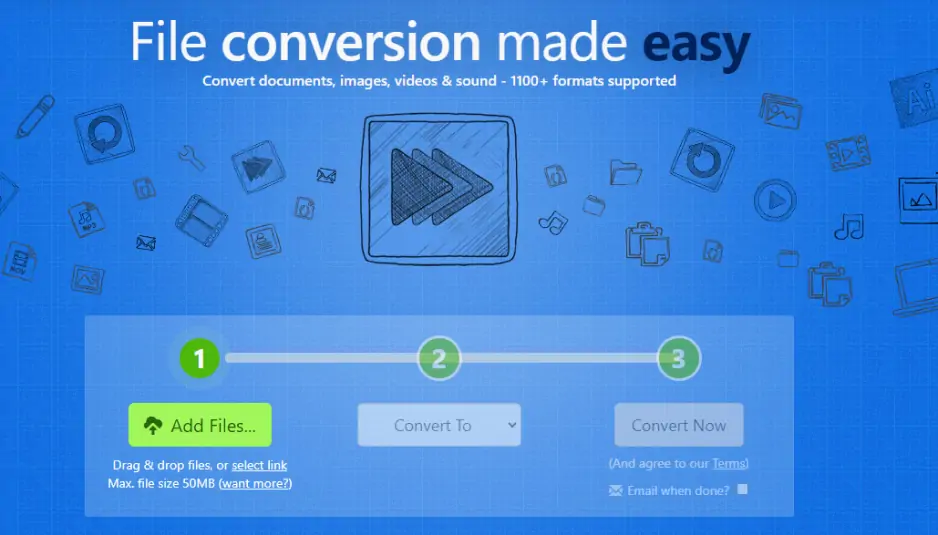
Zamzar is a great tool that lets you convert files and have them sent to you by email. This is really useful if you don't want to wait around for your files to download. While you're busy doing other things, Zamzar works behind the scenes to convert your files.
Pros:
Email delivery eliminates download waiting
Simple three-step conversion process
Supports files up to 50 MB for free users
No software installation required
Cons:
Small file size limit restricts usage
Email delivery creates privacy concerns
No real-time conversion progress updates
Task-specific recommendations
- Quick one-time conversion (under 100 MB): Online converters like FreeConvert.com work perfectly. Upload, convert, download – done in minutes.
- Regular conversion work: Desktop software pays off quickly. HandBrake for free users, Movavi Video Converter for speed priority.
- Large 4K files (over 1 GB): Desktop converters only. GPU acceleration becomes essential for reasonable processing times.
- Maximum quality control: HandBrake provides the deepest settings. Adjust every parameter to match your exact requirements.
- Batch processing multiple files: Desktop software handles queues better. Set up dozens of files and let the converter run overnight.
The choice often comes down to frequency. Converting one vacation video? Go online. Building a media library? Invest in desktop software that saves hours over time.
Frequently asked questions
What's the quality difference between MKV and MP4 after conversion?
What's the quality difference between MKV and MP4 after conversion?
When you convert videos, the quality stays the same if you use the same codec, like H.264. This is because MKV and MP4 are just containers, not ways to compress videos. The only time you'll lose quality is if you lower the bitrate or resolution.
Can I convert MKV files larger than 4 GB?
Can I convert MKV files larger than 4 GB?
Desktop converters handle any file size your storage allows. Online converters typically limit files to 100 MB-1 GB depending on the service. For files over 4 GB, use desktop software like HandBrake or Movavi Video Converter.
Why do some MKV files fail to convert?
Why do some MKV files fail to convert?
Corrupted files, unusual codec combinations, or DRM protection can cause conversion failures. Try a different converter first – some handle problematic files better. If multiple converters fail, the source file likely has damage.
Will conversion affect subtitles embedded in MKV files?
Will conversion affect subtitles embedded in MKV files?
When you're converting a video from MKV to MP4, most converters will keep the subtitle tracks. But with HandBrake, you get to choose which ones to keep and which ones to throw away. Some online converters, though, might get rid of the subtitles to make the process easier and faster.
How long does MKV to MP4 conversion typically take?
How long does MKV to MP4 conversion typically take?
A 1 GB file takes 5-15 minutes with desktop software using GPU acceleration, 20-45 minutes with CPU-only processing. Online converters add upload/download time, extending total time to 30-60 minutes for the same file.
Is it legal to convert MKV files to MP4?
Is it legal to convert MKV files to MP4?
Converting your own video files between formats is legal. Converting copyrighted content you don't own may violate copyright laws depending on your location and intended use.
Similar guides
What Is an MKV File and How to Open MKV Format?
11 Best Free MOV Converters [Mac/Windows/Online]
What Is FLV and How to Play FLV Files – Movavi Converter
Convert FLAC to ALAC & Vice Versa – Movavi Audio Converter
3 Ways to Compress Videos for Facebook [PC/Online/App]
How to Rip a DVD in 7 Easy Ways [Windows 10/8/7 & Mac]
Convert MOV to MP4 [Free & Online] – Movavi Video Converter

Have questions?
If you can’t find the answer to your question, please feel free to contact our Support Team.
Join us for discounts, editing tips, and content ideas


1.5M+ users already subscribed to our newsletter