Need more tools?
Bring your creative ideas to life with Movavi Video Converter – the all-in-one program.
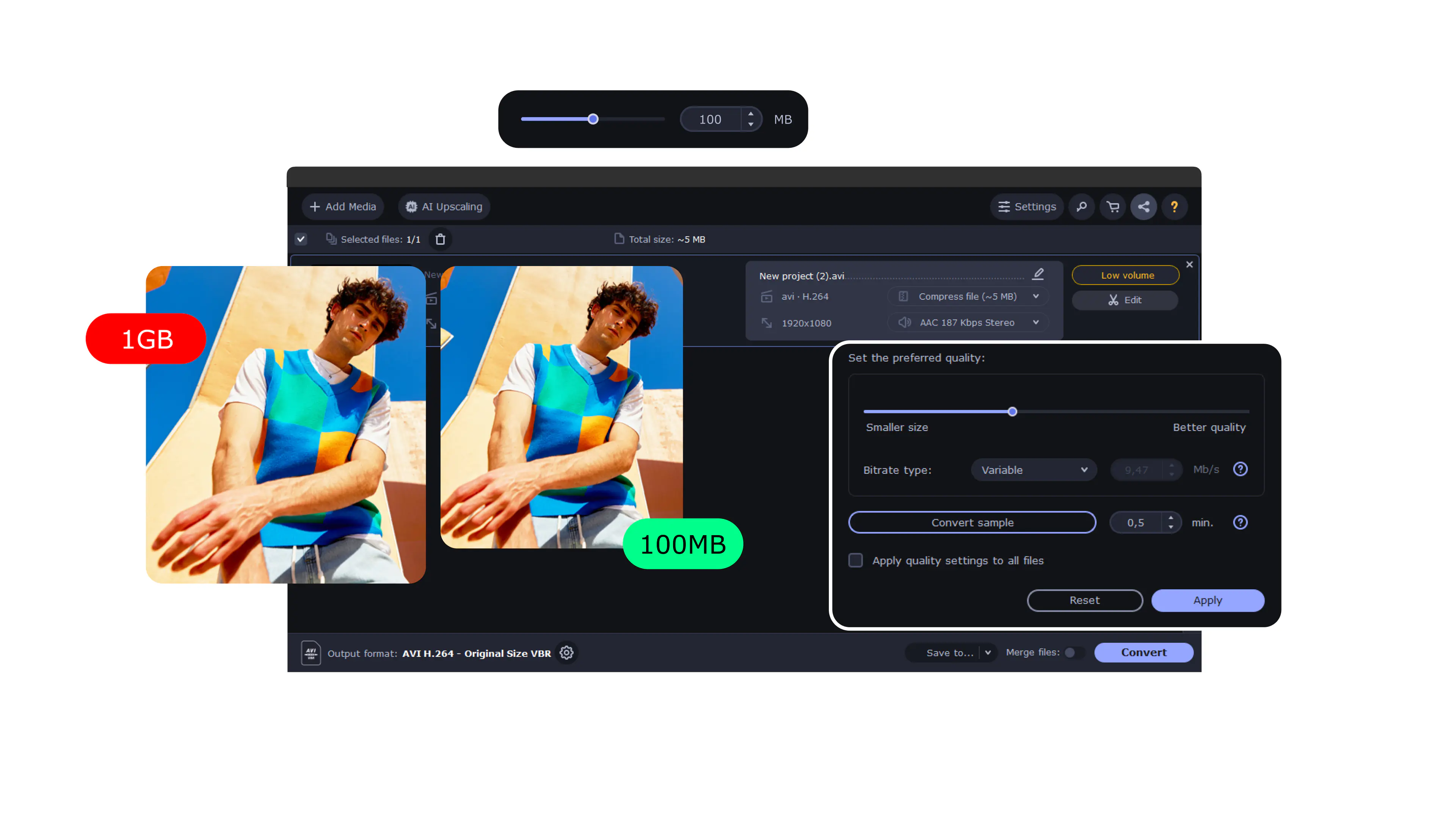
Audio Compressor
If you need to reduce audio file size, try Movavi Video Converter
How to compress audio with Movavi Video Converter
Audio format compression comparison
Quick interpretation
Research sources
A Preliminary Study on Quality of Experience (QoE) Assessment of Compressed Audio Formats – ResearchGate
Review of Audio Compression Formats & Post-Processing Impact – Acoustics 2024 Proceedings
Comparative Analysis of Modern Formats of Lossy Audio Compression – CEUR Workshop
Compression Performance Analysis of Different File Formats – Audio Block Study (WAV/MP3/FLAC)
Common Audio Compression Formats (FLAC, MP3, WAV, WMA explained) – FutureLearn
Reasons to use the tool from Movavi to compress files
Frequently asked questions
If you think of an audio file as luggage, compression is the opposite of packing loosely. You can make things fit better sometimes by reorganizing data or by skipping parts most people won’t notice. Smaller files take less space, move faster across the internet, and stream more evenly. Depending on how it’s done, you can either keep everything or allow a small loss of quality in exchange for convenience.
Uncompressed files like WAV or AIFF store the sound as is. They sound great but take up a lot of room. Compressed formats aim to shrink the amount of space the data takes up: lossless formats keep all the information and simply encode it more tidily, while lossy codecs skip over those parts that the ear usually ignores. It’s basically a trade-off between precision and file size.
Only in some cases. Lossless formats sound exactly the same once unpacked. Lossy codecs remove pieces of the signal, which can create a slightly “thin” or artifact-heavy sound when the bitrate is low. At higher bitrates, most listeners will struggle to tell the difference, and many never do unless they compare carefully.
FLAC, ALAC, WavPack, APE – these are the most common choices. They shrink files but don’t alter the audio itself. People use them when storing music collections, keeping project backups, or preserving material they may want to restore later at full quality.
The purest form is uncompressed – WAV or AIFF. They’re large but unaltered. If you want the same quality in a smaller file, FLAC or ALAC are the usual go-to formats. High-bitrate AAC or Opus can come impressively close, though they aren’t exact copies of the original waveform.
Lossy codecs are built for this. Opus and AAC usually manage the best balance between size and clarity, especially for streaming. MP3 works too, though it’s less efficient at similar settings. Speech-focused codecs like Speex or low-bitrate Opus keep voice recordings compact while still clear enough for listening.
Lossless encoding keeps every bit of the source and can be reversed. Formats like FLAC and ALAC do this. Lossy codecs shrink the audio further by cutting information out permanently. MP3, AAC, Opus and Ogg Vorbis fall into this category. Lossy is practical for streaming or portable storage; lossless is better when you want to preserve the original.
Bitrate usually determines how it sounds. A lower bitrate tends to dull and distort some details. Codec choice matters as well – Opus or AAC often outperform MP3 at the same bitrate. Sample rate and bit depth affect nuance and dynamic range, but outside studio environments, most people don’t notice a significant difference.
Yes. Batch compression lets you pick a folder, album or podcast series and process everything in one pass. You can apply one setting to all the tracks or adjust them separately. This is helpful when organizing large libraries or preparing audio for upload.
As long as the files never leave your device or travel through secure transfer, the content stays private. Only the size changes – you’re not giving ownership or access to anyone. Problems appear only if cloud services are involved and configured without due regard for privacy and security.
Need more tools?
Bring your creative ideas to life with Movavi Video Converter – the all-in-one program.


1.5M+ users already subscribed to our newsletter