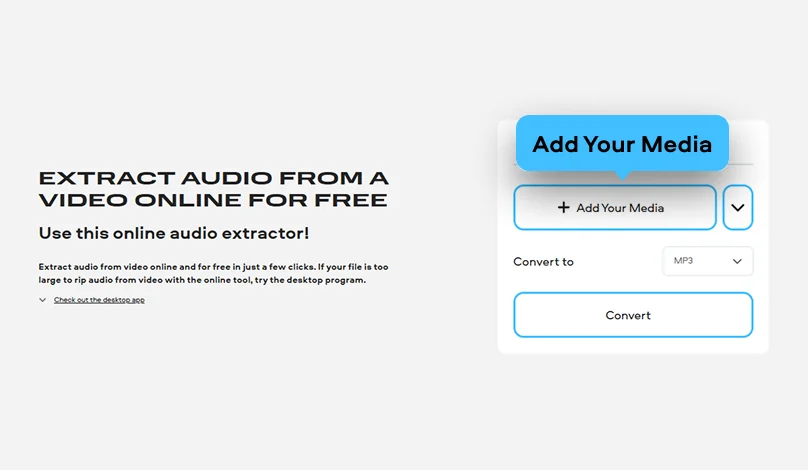
Step 1. Add your video to the app
Click Add Your Media and choose the video. Remember that your file shouldn’t be larger than 500 MB.
Extract audio from video online and for free in just a few clicks. If your file is too large to rip audio from video with the online tool, try the desktop program.
Need to extract audio from a video online for quick use? Movavi’s free audio extractor runs online in the browser. You can use it to pull audio from MP4s online and other video file formats, saving just the sound track without needing the full video file. The app also handles large video files smoothly, with no extra steps required.
Click Add Your Media and choose the video. Remember that your file shouldn’t be larger than 500 MB.
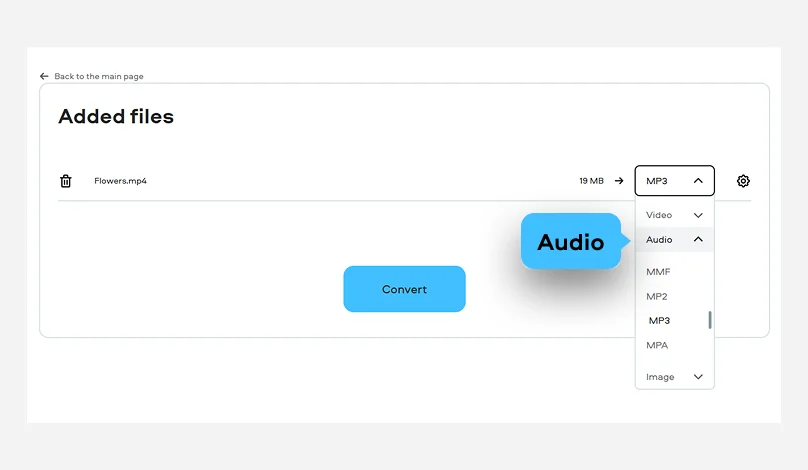
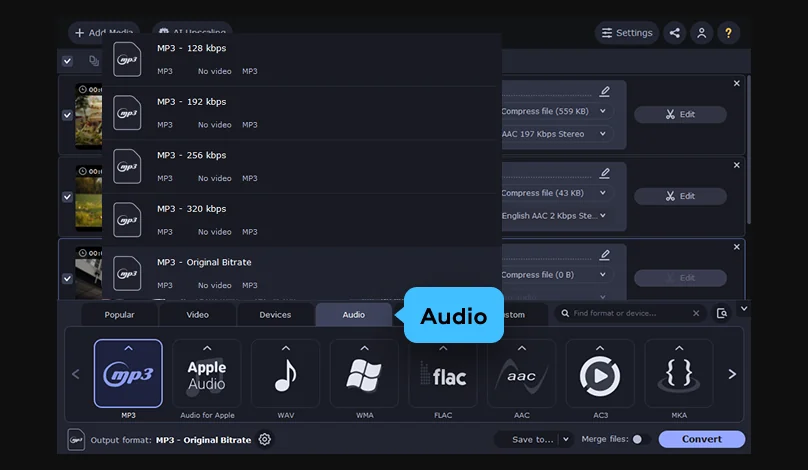
To extract audio from your video, open the Audio format list and select a suitable file format.
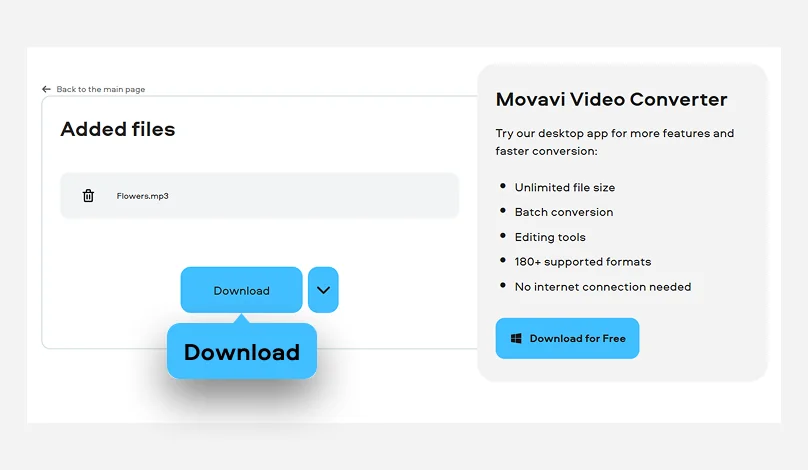
Hit the Convert button. After the process is complete, click Download.
3G2, 3GP, ASF, AVI, DVD (NTSC), DVD (PAL), FLV, M1V, M2T, M2TS, M2V, M4V, MJPEG, MKV, MOV, MP4, MPEG, MPEG-TS, MPG, MTS, MXF, OGV, SWF, TOD, TS, VOB, WebM, WMV, WTV
Movavi Video Converter is an extremely capable app to extract audio from video files on both Windows PC and Mac. You can save audio from a video in formats like MP3, FLAC, AAC, or M4R, while preserving quality and ripping from AVI, MP4, MOV, and more.
Converting clips to MP3 and separating audio tracks for a quick project is seamless. Even handling larger movie files, it stays smooth and doesn't crash. The software makes it easy to learn tricks like batch conversion and exporting directly to an iPhone or external device.
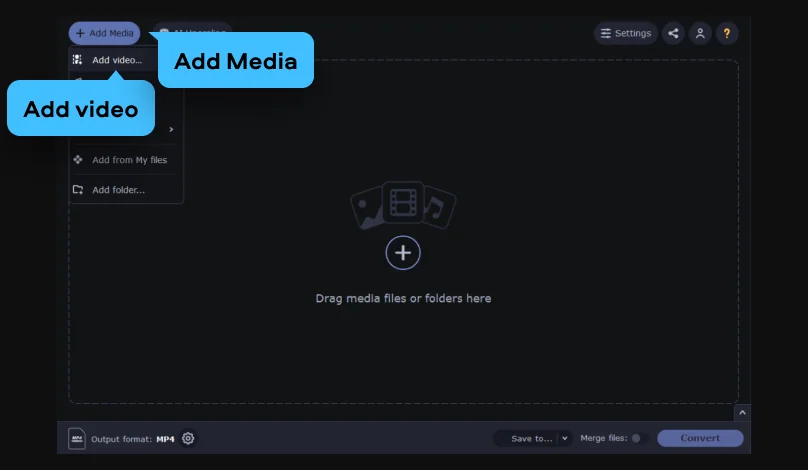
Upload your videos to the audio extractor by clicking Add Media > Add video. You can select multiple videos at once if you want to extract audio from videos in a batch.
Click on the Audio tab at the bottom of the program window. Select the suitable output audio format.
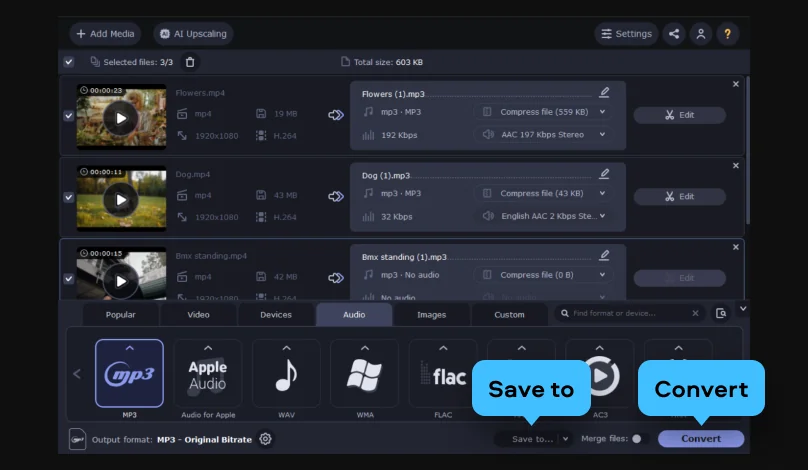
Click Save to to select the desired folder where you want to save the file and then click Convert. Once the process of stripping audio from video is complete, the MP3 extractor opens the folder automatically.
3GP, 3G2, 3GP2, 3G2P, 3GPP, ASF, AVCHD, AVI, DivX, DVD, FLV, F4V, M2TS, TS, MTS, M2S, M2T, MKV, MKM, MOV, QT, MP4, M4V, MPG, MPEG, MPE, M2P, M1V, M2V, VOB, DAT, MOD, TOD, VRO, IFO, MXF, OGG, OGV, OGM, RM, RMVB, RAM, RAX, RMX, SWF, WebM, WMV, WTV, AMV, AV1, AVS, BIK, BNK, CAVS, CDG, DPG, DV1394, DVR-MS, EA, FFM, FILM, FILM_CPK, FLC, FLI, FLM, FLT, FLX, GXF, H.261, IVR, MJ2, ML20, MPEG-3, MTV, MVI, MXG, NC, NSV, NUT, NUV, R3D, REC, RVA, RMS, RPL, RTSP, SDP, SMK, SXA, THD, THP, TRP, VFW, WM, WMVHD, WPG
We’re the #1 choice for millions of people from all around the world. Join our thriving community and create stunning content with incredible ease.
Millions


Yes, you can convert audio to video. Movavi Video Converter is extract-audio-from-video software that allows you to split audio from video with lightning-fast conversion speeds. All you need to do is install Movavi Video Converter and get started. It even allows you to maintain the audio quality easily, adjust the sound or edit background noise.
Yes, it can extract audio from video. Audacity rips audio from a video and allows you to edit it or enhance its quality for a more professional-sounding audio clip. It even allows you to combine clips and audio tracks to make podcasts, music clips, and even audiobooks as an open-source video editing tool.
Try using Movavi Video Converter. Follow the instructions below:
Lots of tools let you separate an audio from a video for free, including Movavi Video Converter or VLC Media Player. Movavi offers a free trial version of its software, during which you can convert videos to audio formats such as MP3, M4A, or FLAC with high-speed processing and no quality loss. VLC Media Player is a free, open-source option that supports audio extraction from various video formats.



1.5M+ users already subscribed to our newsletter