Movavi Video Editor
Create awesome videos easily

Key takeaways:
LumaFusion remains one of the most capable mobile video editors, but Windows users face a problem – there's no official desktop version. The app works perfectly on Android phones and Chromebooks, yet millions of Windows 10 and Windows 11 users are left searching for solutions.
Here are four proven ways to access LumaFusion-style editing on your PC, plus some alternatives that might work even better for desktop workflows.
The closest thing to getting the actual LumaFusion for PC is running it through an Android emulator. BlueStacks handles this job reliably, though you'll need some patience for the initial setup.
How it works:
1. Download BlueStacks (free version works fine)
2. Install and sign in with your Google account
3. Open Google Play Store within the emulator
4. Search and download LumaFusion ($29.99)
5. Launch and edit like you would on a tablet
While the setup is straightforward, the actual editing experience is highly unstable. Due to critical GPU video decoding bugs in emulation, timeline scrubbing is laggy, and real-time playback frequently drops frames, making precise editing nearly impossible. File management becomes the biggest headache – you'll need to import videos into the emulator's storage system first.
Performance reality check: Expect 4K exports to take 2-3x longer than native desktop software. The emulation layer adds overhead, and LumaFusion wasn't optimized for keyboard shortcuts anyway.

Authentic LumaFusion interface and features
Access to mobile-specific tools like touch-based keyframing
Familiar workflow if you've used LumaFusion before
Slower rendering than native desktop apps
Severe GPU decoding bugs causing timeline lag and playback stuttering
Awkward file management between Windows and emulator
What users say:
A Reddit user highlights LumaFusion's compatibility with native transitions packs, specifically mentioning a free "Wobble & Zoom" transitions pack that works seamlessly with the software. The user appears to appreciate the collaborative aspect and tutorial resources available for extending LumaFusion's functionality with additional transition effects.
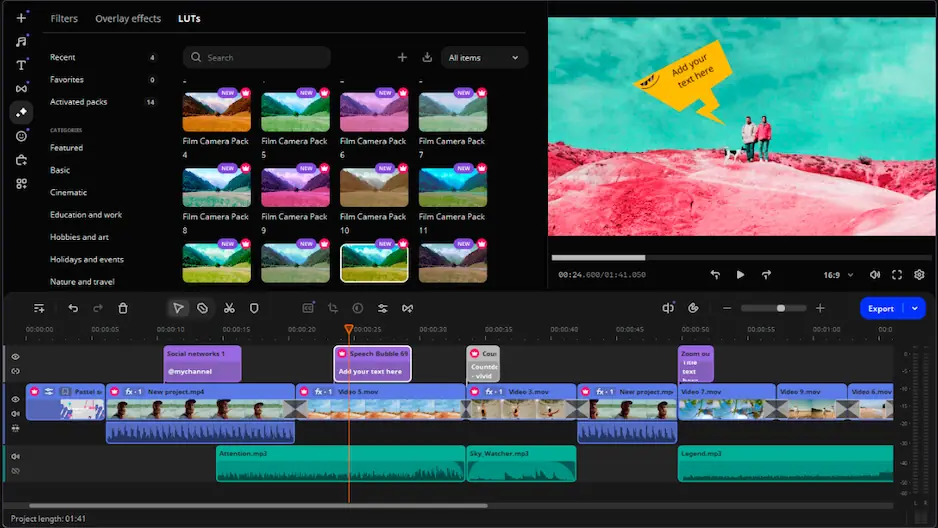
If you want desktop-optimized editing, Movavi Video Editor delivers most of LumaFusion's capabilities with better performance on Windows machines, though its free trial version comes with significant limitations like watermarks and restricted audio export.
The interface clicks immediately – drag clips to timeline, trim with precision tools, stack multiple video tracks without fuss. What impressed me during testing was the AI background removal working without green screens, something LumaFusion struggles with on mobile hardware.
Color correction happens through intuitive sliders rather than LumaFusion's touch-based color wheels. For desktop editing, this actually speeds up workflow. The built-in effects library covers 6,000+ options, from basic transitions to complex particle systems.
AI features worth noting:
The timeline supports unlimited tracks, unlike LumaFusion's six-track limitation. Export options include direct upload to YouTube and social media platforms with optimized presets.
Free trial available to test core features
AI-powered tools outperform mobile alternatives
Faster rendering on desktop hardware
Intuitive keyboard shortcuts
Free version adds a large watermark and cuts audio files in half
Requires paid upgrade for unrestricted use
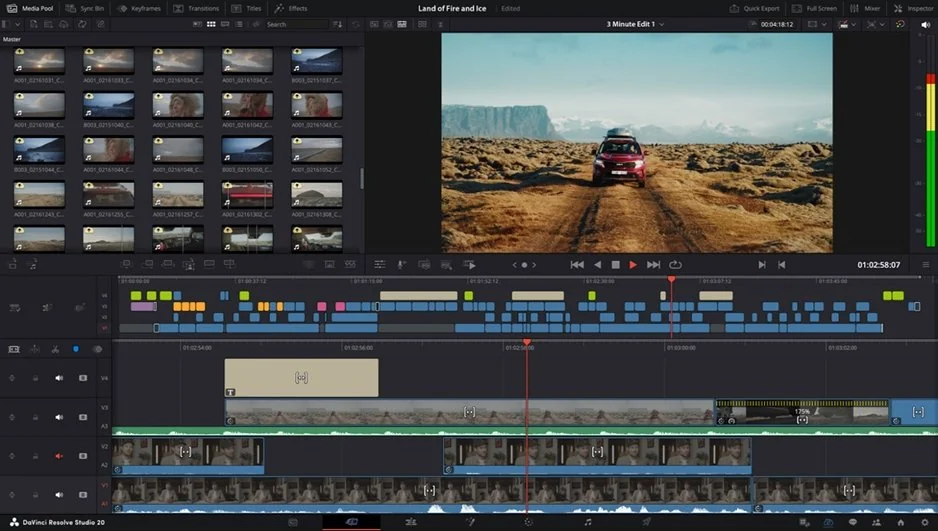
For editors who've outgrown LumaFusion's limitations, DaVinci Resolve offers Hollywood-level tools completely free. The catch? Expect weeks of learning before you're comfortable.
Resolve handles everything LumaFusion does, then adds professional color grading, multi-cam editing, and Fairlight audio mixing. The node-based color system feels intimidating initially but provides far more control than mobile apps allow.
What sets it apart: Built-in collaboration tools let multiple editors work on the same project simultaneously. Try doing that with any mobile editor.
Completely free with professional features
Industry-standard color grading tools
Handles 8K footage without breaking sweat
Regular updates with new capabilities
Steep learning curve for beginners
Requires powerful hardware (16GB RAM minimum, 32GB recommended for 4K)
Interface overwhelms casual users
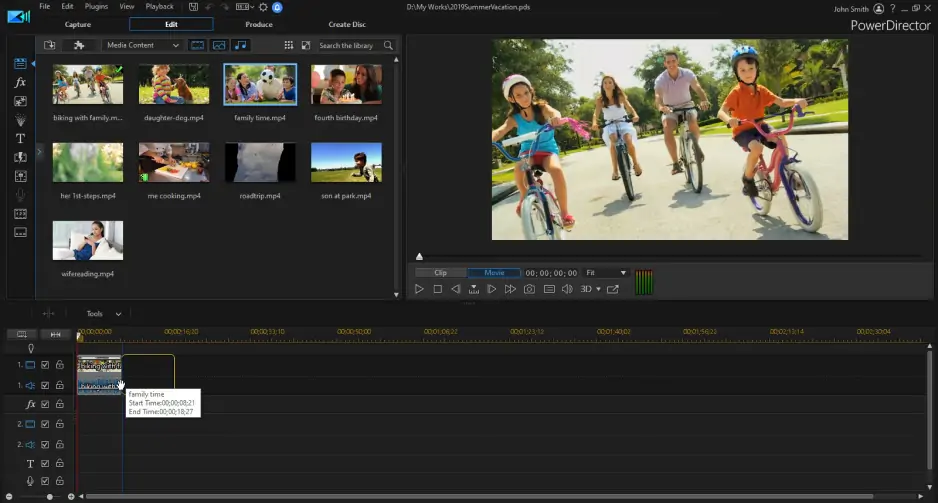
CyberLink's PowerDirector 365 bridges the gap between beginner-friendly and professional, with AI features that automate tedious tasks. The subscription model ($4.33/monthly) includes regular content updates and cloud storage.
The standout feature? AI-powered sky replacement that automatically masks complex shapes like tree branches. LumaFusion's manual masking tools can't compete with this level of automation.
Motion tracking works exceptionally well for adding graphics to moving objects – something I use frequently for product demos. The timeline feels responsive even with dozens of clips loaded.
Advanced AI features automate complex tasks
Regular content library updates included
Smooth performance on mid-range hardware
Mobile app syncs projects across devices
Requires ongoing subscription for full features
Some users report occasional stability issues
Preview rendering can slow down complex projects
For quick social media clips: Stick with Windows built-in video editor or try the BlueStacks emulator route if you're already comfortable with LumaFusion.
For regular content creation: Movavi Video Editor provides the best balance of features and ease-of-use, though you will need the paid version to export videos without watermarks.
For professional work: DaVinci Resolve remains unbeatable if you have time to learn it properly. PowerDirector 365 offers a middle ground with AI assistance.
For mobile workflow continuation: The emulator approach makes sense if you're already invested in LumaFusion projects and need exact compatibility.
During my testing, I found desktop alternatives consistently outperformed emulated mobile apps for anything beyond basic edits. The mouse-and-keyboard workflow simply handles complex timelines better than touch-based interfaces.

No, LumaFusion only supports Android and ChromeOS officially. Emulators remain the only way to run the actual app on Windows systems.
No, the free trial version is highly restricted—it overlays a large watermark on your exported video and cuts audio tracks in half. For professional work, purchasing the full version is mandatory.
Movavi Video Editor needs about 2GB of disk space. DaVinci Resolve requires 8GB of disk space and a minimum of 16GB RAM (32GB for 4K). Emulators like BlueStacks require around 5GB of disk space, plus extra storage for the LumaFusion app and your media files.
DaVinci Resolve leads in 4K performance, followed by PowerDirector 365. Movavi handles 4K reasonably well on modern hardware. Emulated LumaFusion struggles most with high-resolution footage.
PowerDirector 365 offers the best cross-device syncing. Movavi and DaVinci Resolve focus on desktop workflows. Emulated LumaFusion can't sync with mobile versions due to technical limitations.
DaVinci Resolve provides the most comprehensive free feature set, though with a steeper learning curve. Movavi only offers a limited free trial that watermarks your output, so it cannot be considered a fully free alternative.
21 Best Free Video-Editing Software in 2026
Top 9 Final Cut Pro Alternatives for Windows in 2026
13 Best iMovie Alternatives for Windows, Mac, and Mobile in 2026
InShot for PC: The best desktop alternatives
Windows Movie Maker Review 2026 – Pros and Cons, Pricing
KineMaster for PC: Best Windows & Mac Alternatives in 2026
Final Cut Pro for Windows: 14 Alternatives [Download for free]
Windows Movie Maker Alternative – Free Download



1.5M+ users already subscribed to our newsletter