Step 1. Upload your video
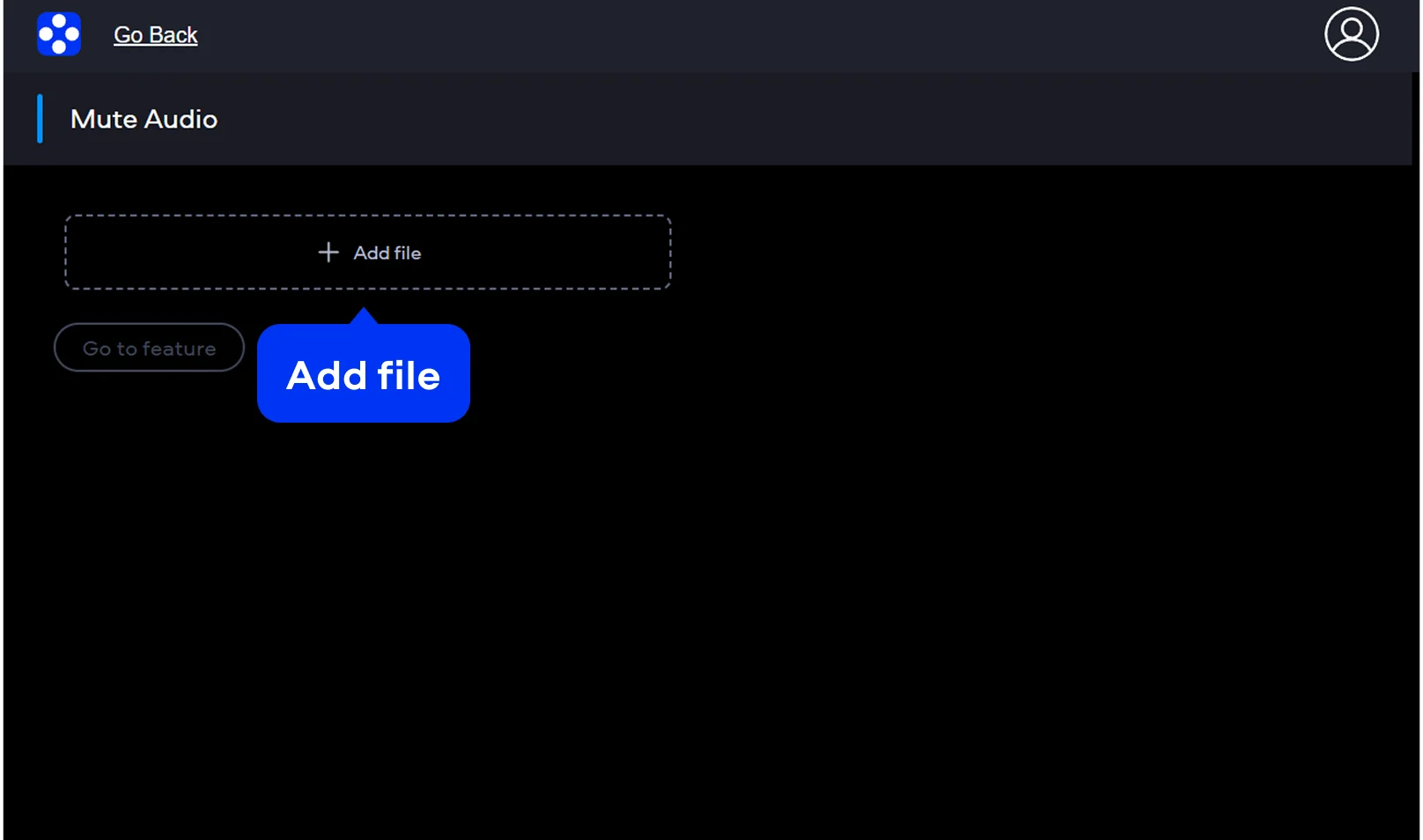
Click the Upload Files button. Then click Add file and select a clip that you need to mute.
Movavi Video Editor
Remove unwanted noise or completely mute videos in one click with Movavi Video Editor’s advanced audio tools and AI-driven background noise cancellation.
By clicking the download button, you're downloading a trial version of the program.*
Remove Audio From Video
How to silence a video or mute a video online
Movavi online video editor is a browser-based app that allows you to silence video content without the clutter of complex software. Online hosted, it is ideal for desktop and mobile sound delete projects. Every interaction is privacy protected with secure encryption. You can be sure that with this free online tool, your visual stories remain yours alone until you’re ready to share them with the world.
Step 1. Upload your video
Click the Upload Files button. Then click Add file and select a clip that you need to mute.
Step 2. Mute the video
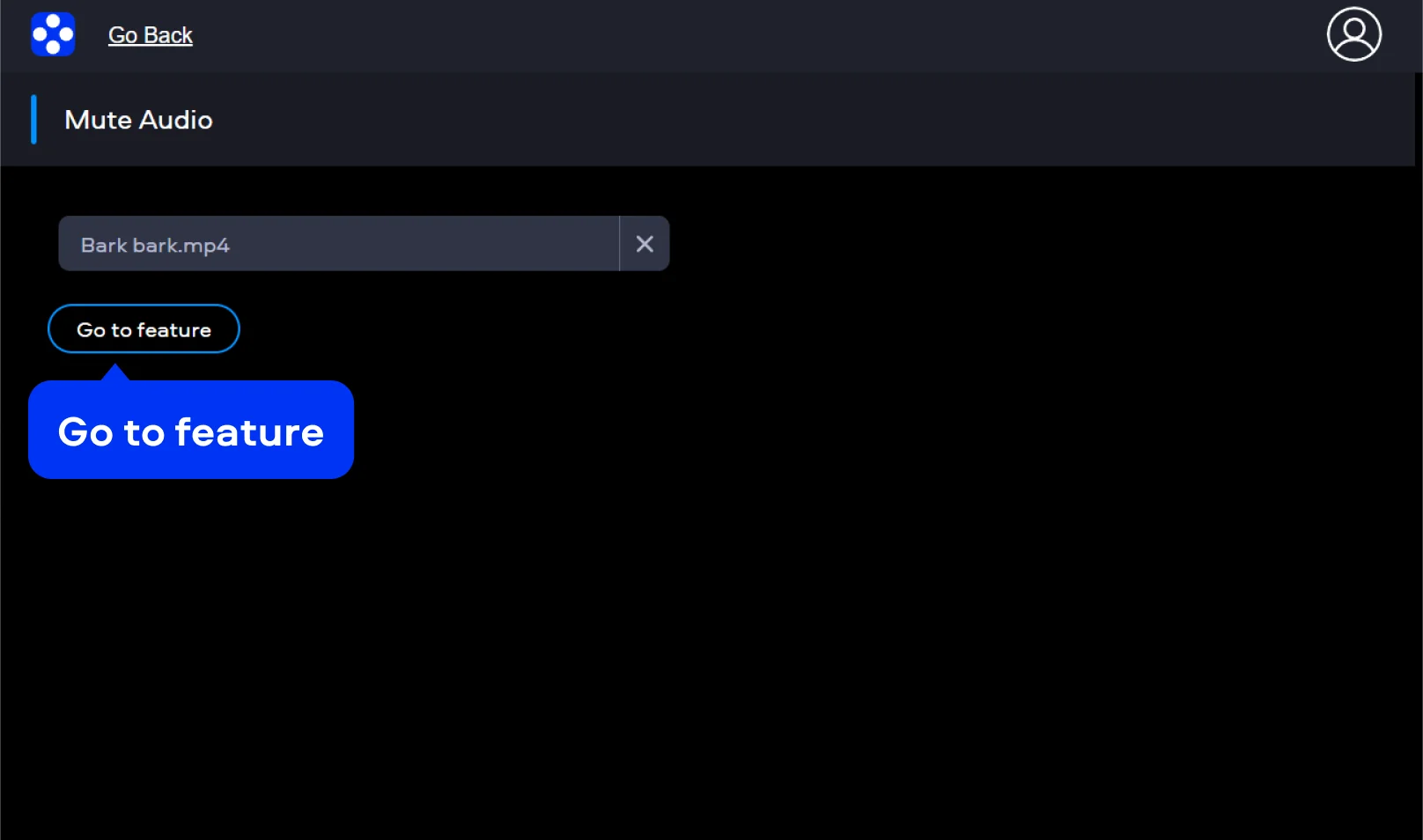
Once your video is uploaded, click Go to feature. With a single, intuitive action, the app works its magic to remove sound from video content. There are no confusing sliders or hidden menus.
Step 3. Download the muted video
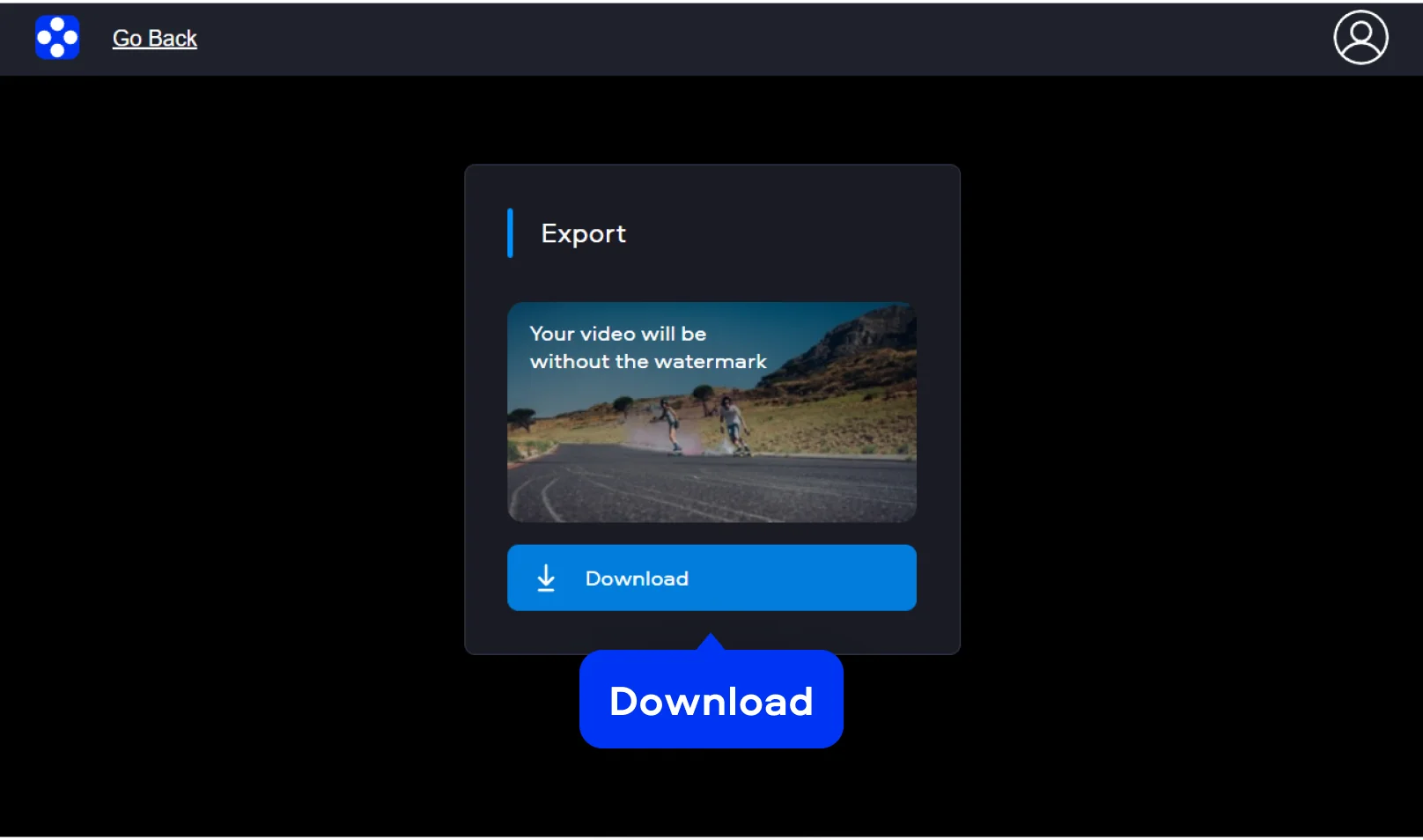
With the audio successfully detached, your silent video is ready. Click the Download button to save your result. Your file returns to you polished and professional, processed without a watermark.
How to mute a video on desktop
For creators who demand deeper precision and a broader toolkit, Movavi Video Editor is your ultimate studio companion. The software provides a video track environment where you can manipulate every frame with ultimate accuracy. Beyond just silencing, it easily lets you remove audio from videos entirely. This desktop video mute tool clears the audio slate. You get room to build layered soundscapes, voiceovers, or ambient textures without slowing down, even with large files.
Step 1. Upload your file
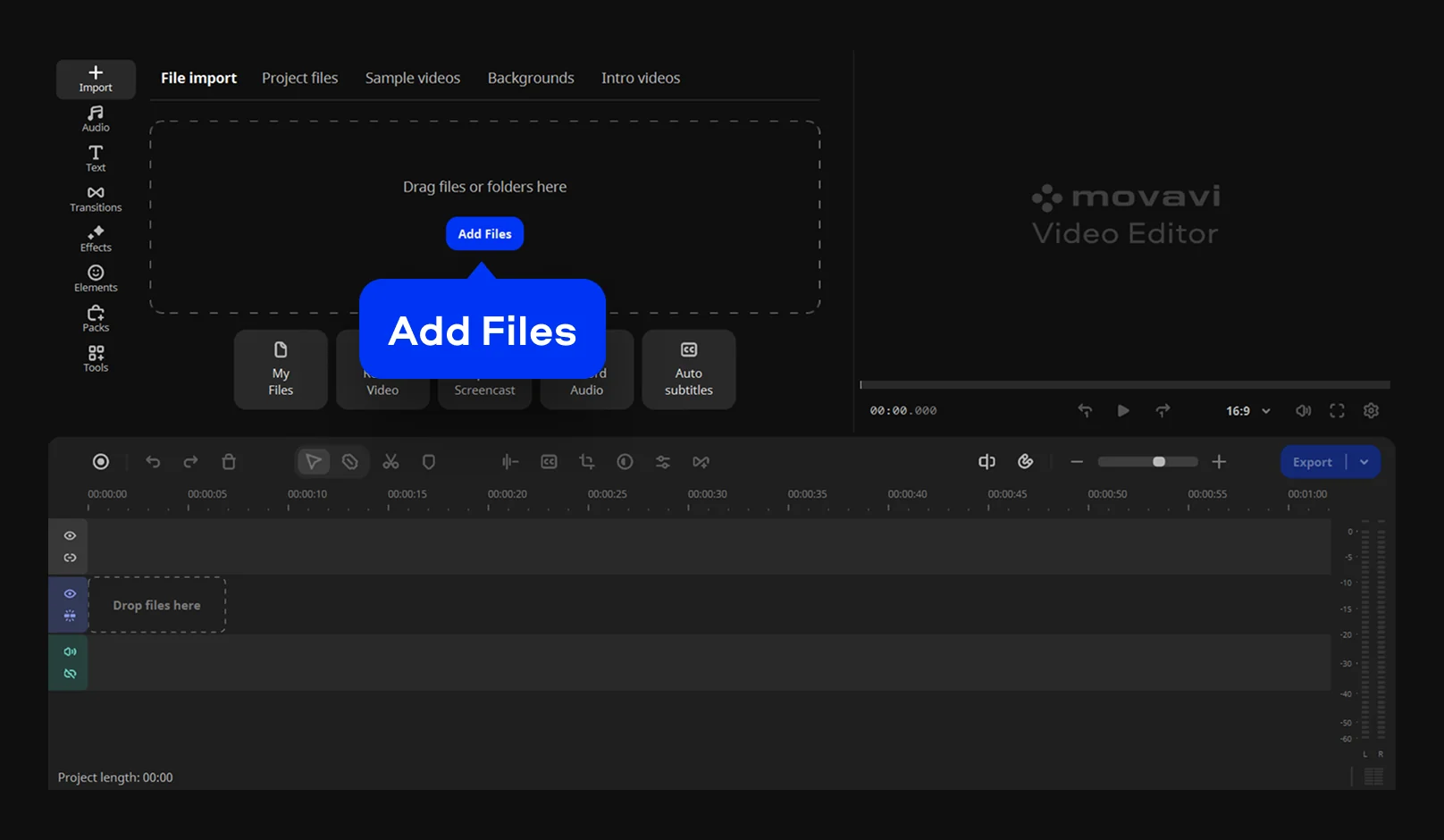
Click the Add Files button to bring your media into the project. Drag your clip down onto the timeline.
Step 2. Delete audio from the video
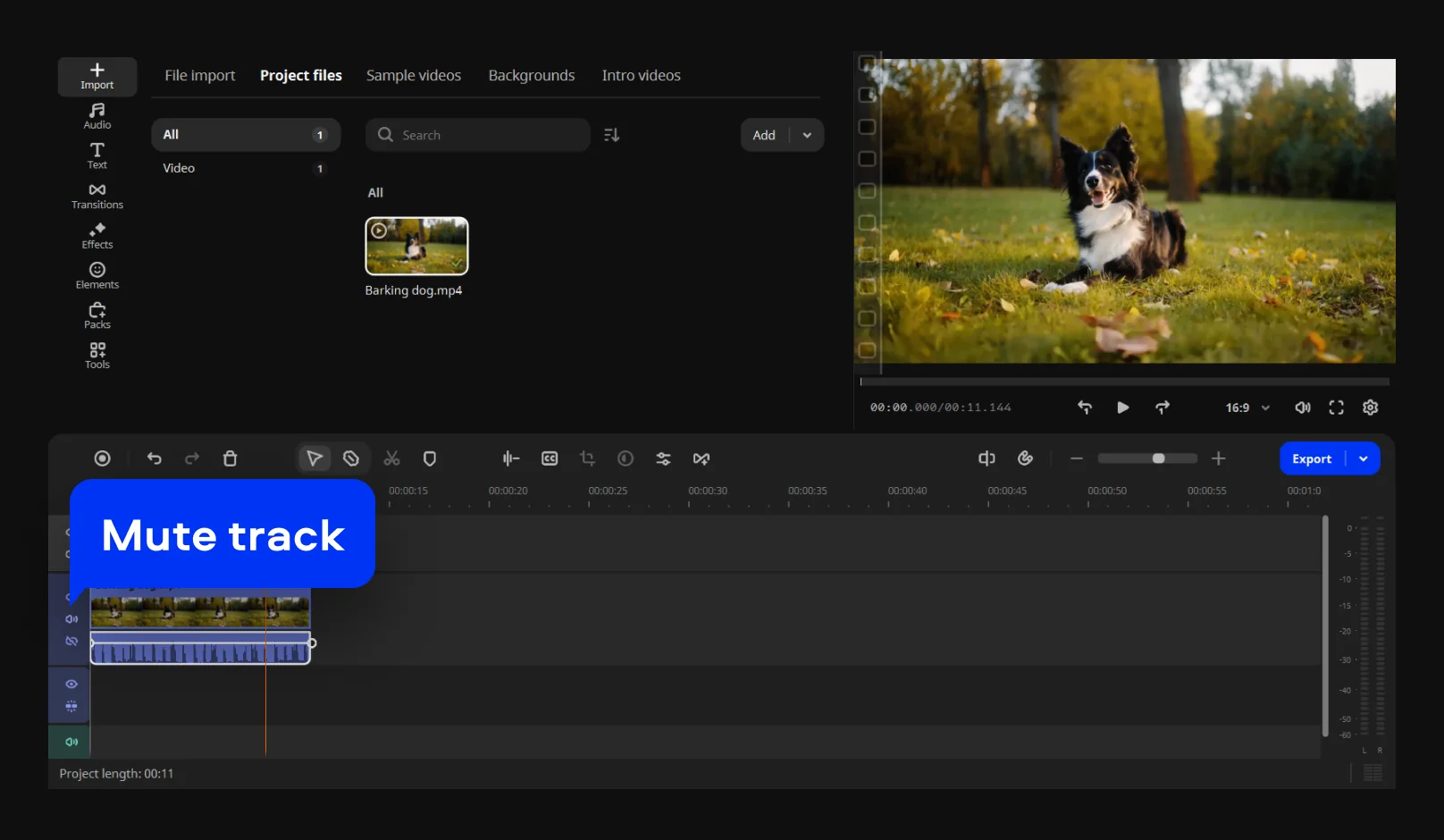
To quickly silence video tracks, look at the left side of the timeline. Locate the Mute track icon (a small speaker symbol) on the specific audio or video row. Clicking this instantly silences the entire track.
Step 3. Export the video
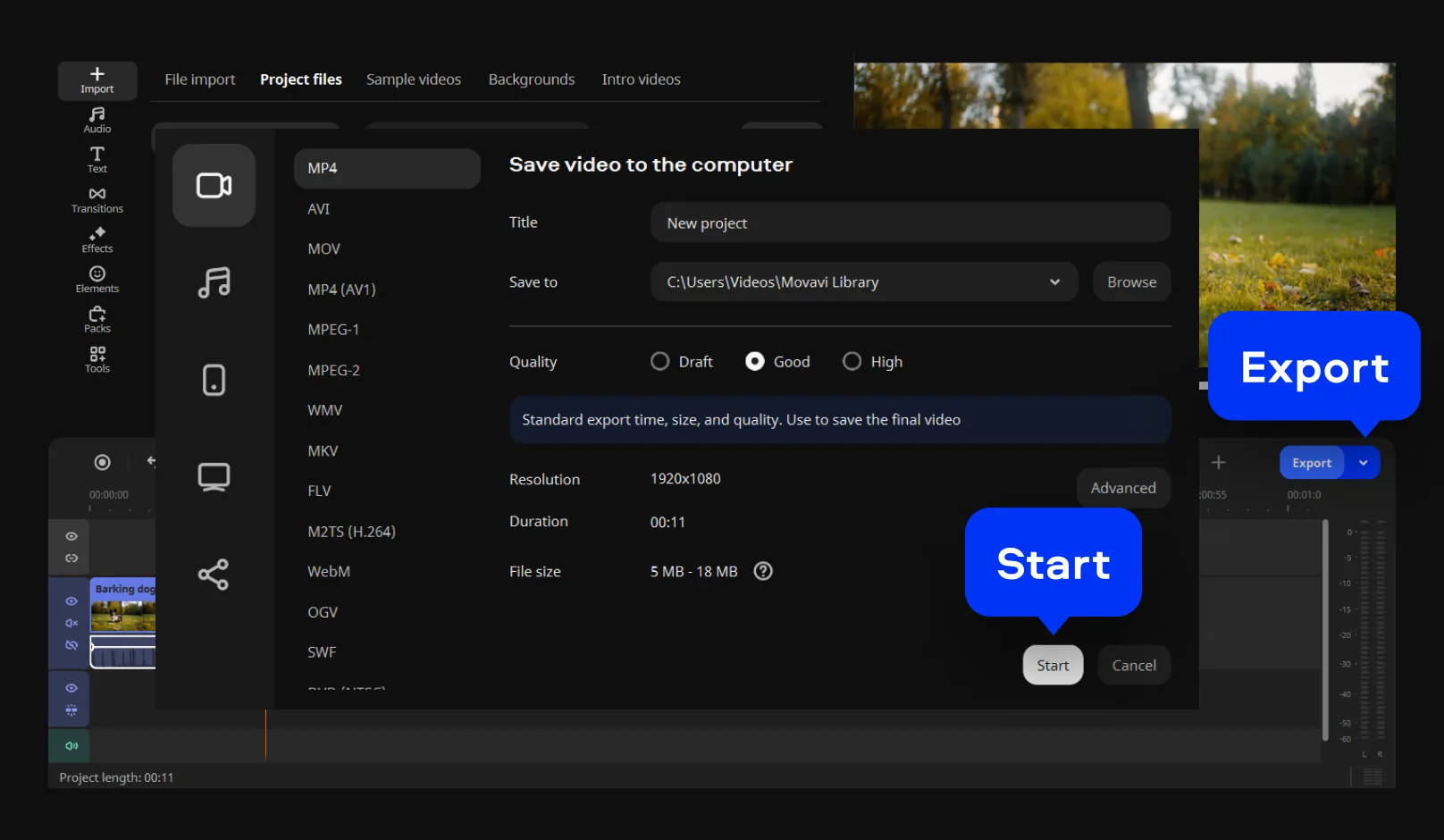
Once you are satisfied with the result, click the prominent Export button. Choose your preferred format and quality settings. Finally, hit the Start button.

We’re the #1 choice for millions of people from all around the world. Join our thriving community and create stunning content with incredible ease.
70M+


Frequently asked questions
Yes, both tools discussed above offer this essential freedom. Use the web-based online audio remover for a quick, automated fix. For precision, Movavi Video Editor on desktop lets you delete audio from video tracks. Both methods leave your visuals pristine. You can then layer new, intentional sounds without any original interference.
The best way to remove audio from a video is by using a reliable video editing program, like Movavi Video Editor. Its straightforward interface and powerful tools allow you to easily remove, extract, and edit audio tracks without sacrificing video quality. It's suitable for users of all skill levels, from beginners to experienced video editors.
You can mute a video without losing the audio using Movavi Video Editor. It offers a 'mute' feature that silences video tracks without deleting the audio, allowing you to easily adjust video volume or add a new audio track later. This is convenient for users who want to temporarily silence video without affecting the original audio.
Movavi Video Editor is the best solution to remove background music from a video. Its advanced features let you extract individual audio tracks, making it easy to separate and remove unwanted background music. This is especially useful for video creators looking to replace background music with their own soundtracks.
You can mute a video using the free online video editor by Movavi. Simply visit the site and upload file through your browser. The video mute tool then processes the clip without adding any watermarks. Once finished, you can download muted video instantly.
Whether using the online video editor or desktop version, your resolution stays intact. This prevents unnecessary compression of the visual data. You get no quality loss for your MP4 or MOV. The result is a sharp, professional video that is perfectly silent.
The free online tool by Movavi is fully optimized for your smartphone. It is entirely browser-based and requires no installation. It works smoothly on both iPhone and Android. Simply tap to upload a file from your mobile gallery, just mind the file size limit. It is the optimal way to mute videos online.
Yes, with the Movavi online video editor you can mute MP4s for all major social media platforms. Use them to prep your Instagram Reels or a cinematic TikTok video. Stripping background noise ensures a clean slate for trending app music.
Yes – it works on both Android and iPhone, and it’s free to use.
Yes. All features are available for free – no payment required.
No. You can export videos without a watermark.
*The free version of Movavi Video Editor may have the following restrictions depending on the build: watermark on exported clips, 60-second video or 1/2 audio length limit, and/or some advanced features unavailable when exporting videos.


1.5M+ users already subscribed to our newsletter