Movavi Video Editor
  • Fast and easy editing: cut, crop, adjust colors and speed
  • One-click AI tools: auto subtitles, noise removal, and more
  • Hundreds of filters, transitions, titles, overlays

By clicking the download button, you're downloading a trial version of the program.*

Reverse Videos Online for Free

How to use the Movavi video reverser online

The Movavi online video reverser is a browser-based solution that allows you to reverse video playback quickly and efficiently. The tool is designed for simple, single-purpose editing and helps you reverse MP4 files with minimal effort. It produces high-quality results that work well for social media content, including TikTok videos and Instagram Reels.

To reverse a video online using Movavi’s tool, follow these steps:
Step 1. Add your video file

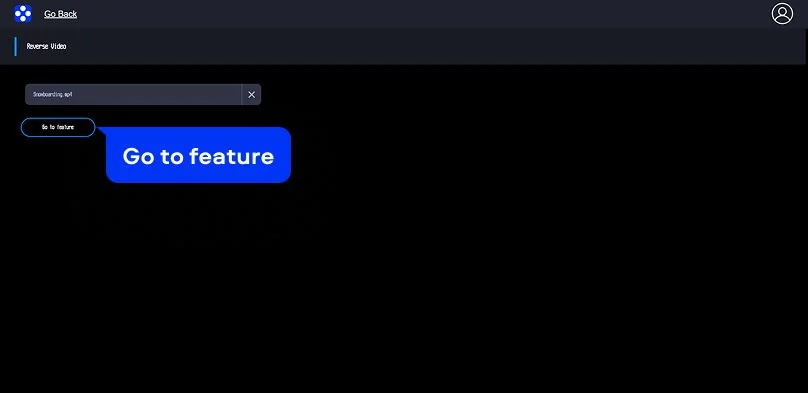
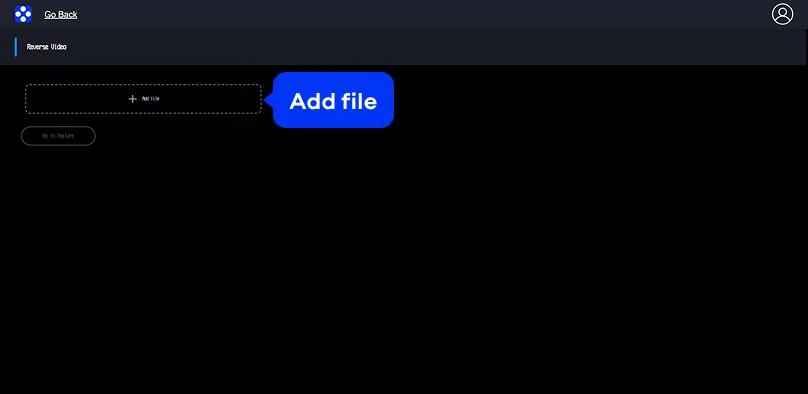
Click the Upload Files button located on the banner at the top of the screen. Once the tool opens, click Add file again and select the video you want to reverse from your device. The file will begin uploading automatically.

Step 2. Apply the reverse effect

After the upload is complete, click Go to feature to continue. The video reverse effect is applied automatically, without requiring any manual adjustments. You can preview the result in the player before downloading the file.

Step 3. Download the reversed video

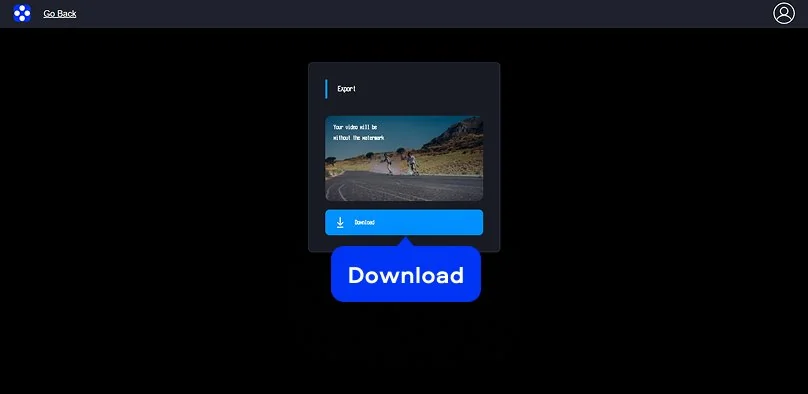
Click Download to save the processed video to your device and play video backwards whenever needed. The exported file is saved with no watermark and is ready for further use or sharing. You can also copy a link to download the video on another device.

How to reverse a video on desktop

Movavi Video Editor is a desktop video-editing program created for users who want professional results without complicated tools. The interface is clean and easy to navigate, so both beginners and experienced editors can work comfortably. With this software, you can trim video clips, add effects and transitions, and adjust audio tracks. It also supports exporting projects for different platforms, while hardware acceleration provides fast video processing during export.

Follow these steps and get to know how to reverse a video using Movavi Video Editor:

Step 1. Import your video clip

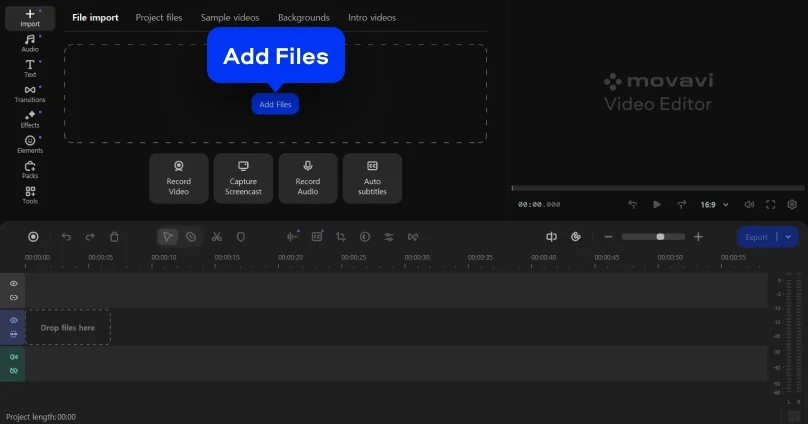
Open Movavi Video Editor on your computer and click the Add Files button to import the video you want to edit. After the file appears in the media library, drag it onto the timeline at the bottom of the screen. At this stage, you can also mute the video if needed before applying further edits.

Step 2. Enable the reverse effect

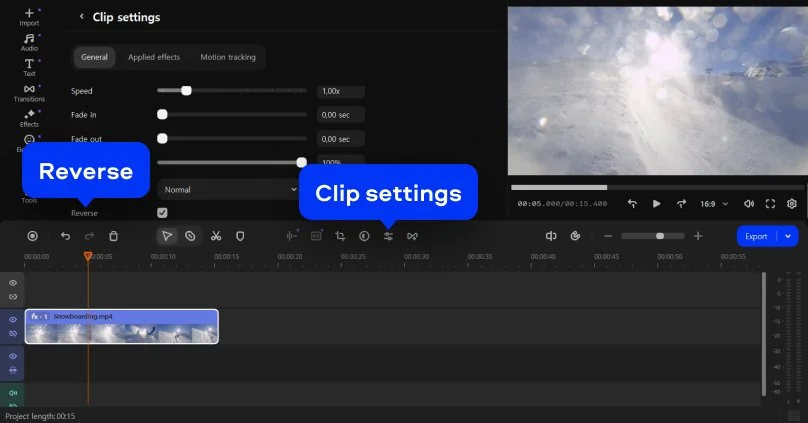
Click the video clip on the timeline to make sure it is selected. Then open the Clip settings panel, where you can adjust playback options and other parameters. Locate the Reverse option and enable it to make the clip play backward. If required, you can also change video speed to fine-tune the playback result.

Step 3. Export your reversed video

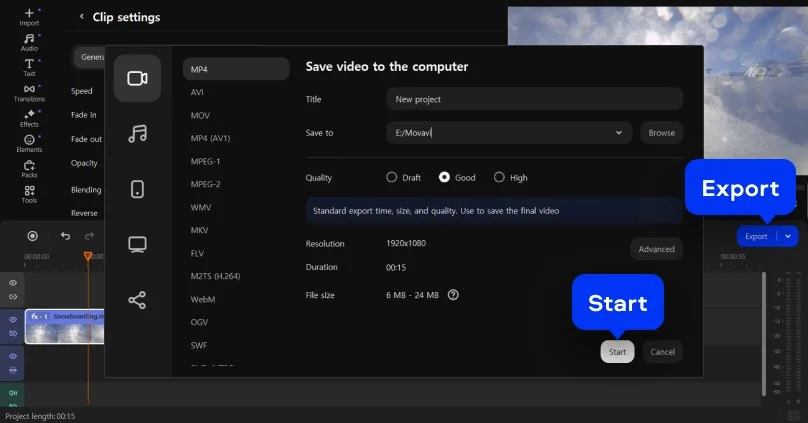
Once the reverse effect is applied, click Export to open the export window. Choose your preferred output format and export to MP4 or another supported format, select a destination folder, and start saving the finished video.

Movavi Video Editor
Create awesome videos easily

*The free version of Movavi Video Editor may have the following restrictions depending on the build: watermark on exported clips, 60-second video or 1/2 audio length limit, and/or some advanced features unavailable when exporting videos.

Movavi Video Editor

Why choose Movavi

We’re the #1 choice for millions of people from all around the world. Join our thriving community and create stunning content with incredible ease.

70M+

users

190+

countries

15+

updates per year

10,000+

effects to choose from

Frequently asked questions

How can I reverse a video online for free?

You can reverse a video using Movavi’s free online video reverser directly in your web browser. The tool allows you to upload a file, apply the reverse effect, and preview the result without installing software. This online solution is suitable for quick edits and simple projects.

Does the video reverser tool add a watermark?

No, videos processed with Movavi’s online video reverser are exported without a watermark. This allows you to use the final file for social media, presentations, or further editing without visible branding.

Which video formats are supported?

Movavi’s online video reverser currently supports MP4 files only, which makes it suitable as an MP4 reverser for common video content. At the same time, the desktop version supports a wide range of popular video formats, providing more flexibility when working with files from different devices and sources.

Is it safe to upload my videos to this website?

Yes, uploading videos to Movavi’s website is safe. Files are processed automatically and are not stored longer than 24 hours. Our online rewind tool is designed for temporary use and helps protect user content during processing.

Can I use the video reverser on iPhone, Android, or Mac?

Yes, Movavi’s online video reverser works on iPhone, Android, Mac, and Windows because it runs in a browser. You can start using the tool with no registration, although logging in may be required when exporting the finished video.

Can I use Movavi Online Video Editor on Android and iPhone?

Yes – it works on both Android and iPhone, and it’s free to use.

Is Movavi Online Video Editor completely free?

Yes. All features are available for free – no payment required.

Does Movavi Online Video Editor add a watermark when exporting videos?

No. You can export videos without a watermark.

Movavi Video Editor
Create awesome videos easily

*The free version of Movavi Video Editor may have the following restrictions depending on the build: watermark on exported clips, 60-second video or 1/2 audio length limit, and/or some advanced features unavailable when exporting videos.

Movavi Video Editor
Have questions?
Have questions?
If you can’t find the answer to your question, please feel free to contact our Support Team.
Join us for discounts, editing tips, and content ideas

1.5M+ users already subscribed to our newsletter

By signing up, I agree to receive marketing emails from Movavi and agree to Movavi's Privacy Policy.