Movavi’s online slideshow maker gives you a simple digital workspace to turn your creative ideas into video. You don't need to download any third-party software onto your computer. You just make a slideshow by simply uploading your favorite memories to the video slideshow creator. You can easily arrange your shots, pick smooth transitions, and pair them with a catchy tune in just a few clicks. When you want to create a slideshow online for friends or family without needing any editing experience – Movavi’s online free slideshow maker is the path to take.
Movavi Video Editor
Create professional slideshows with music, artistic transitions, and AI-powered effects in Movavi Video Editor – the intuitive tool for fast, high-quality photo and video editing.
By clicking the download button, you're downloading a trial version of the program.*
Slideshow Maker Online & Free
How to create a slideshow online
Step 1. Upload files
Click the Upload Files button on the site banner. Next, click Add file and upload your first picture for the slideshow.
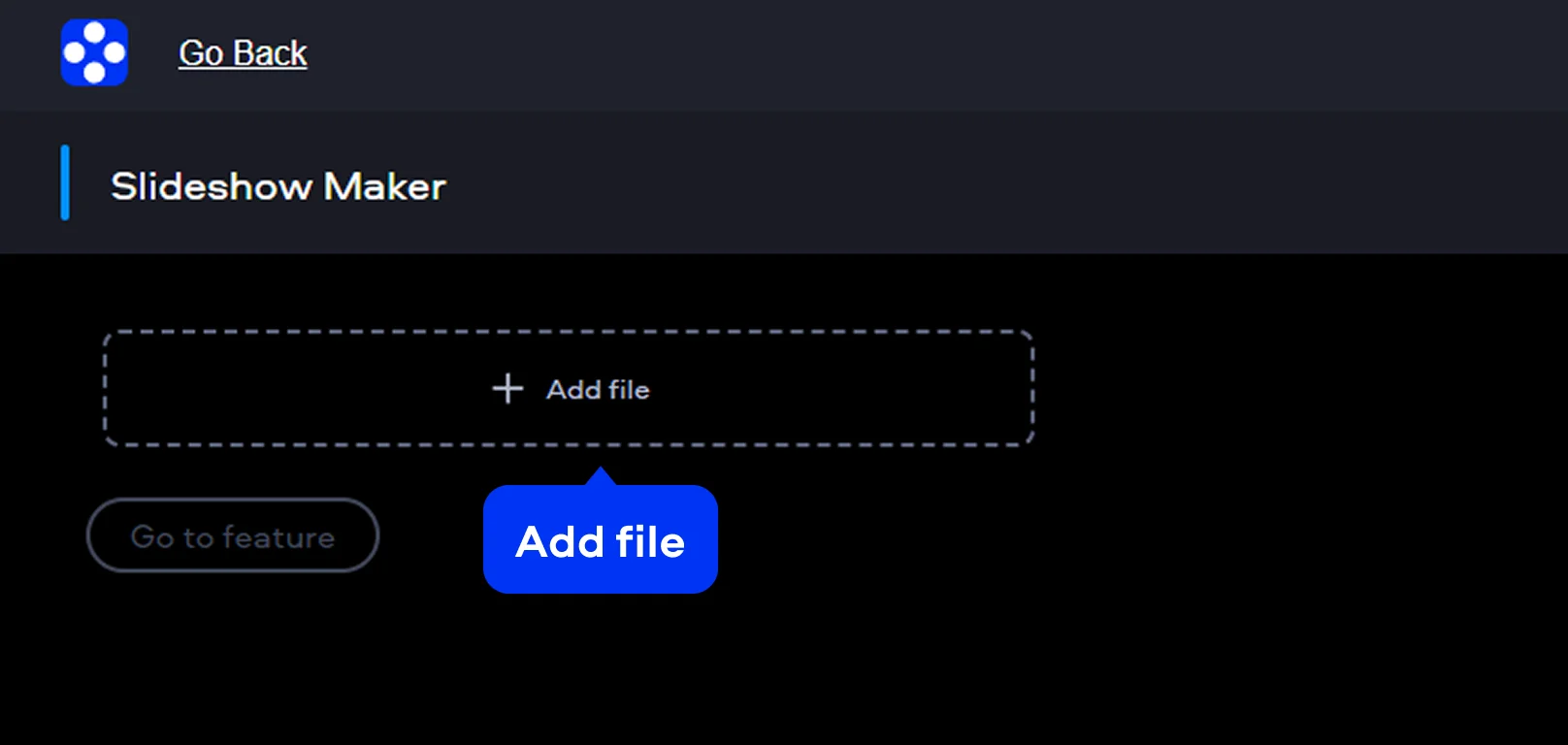
Step 2. Create a slideshow
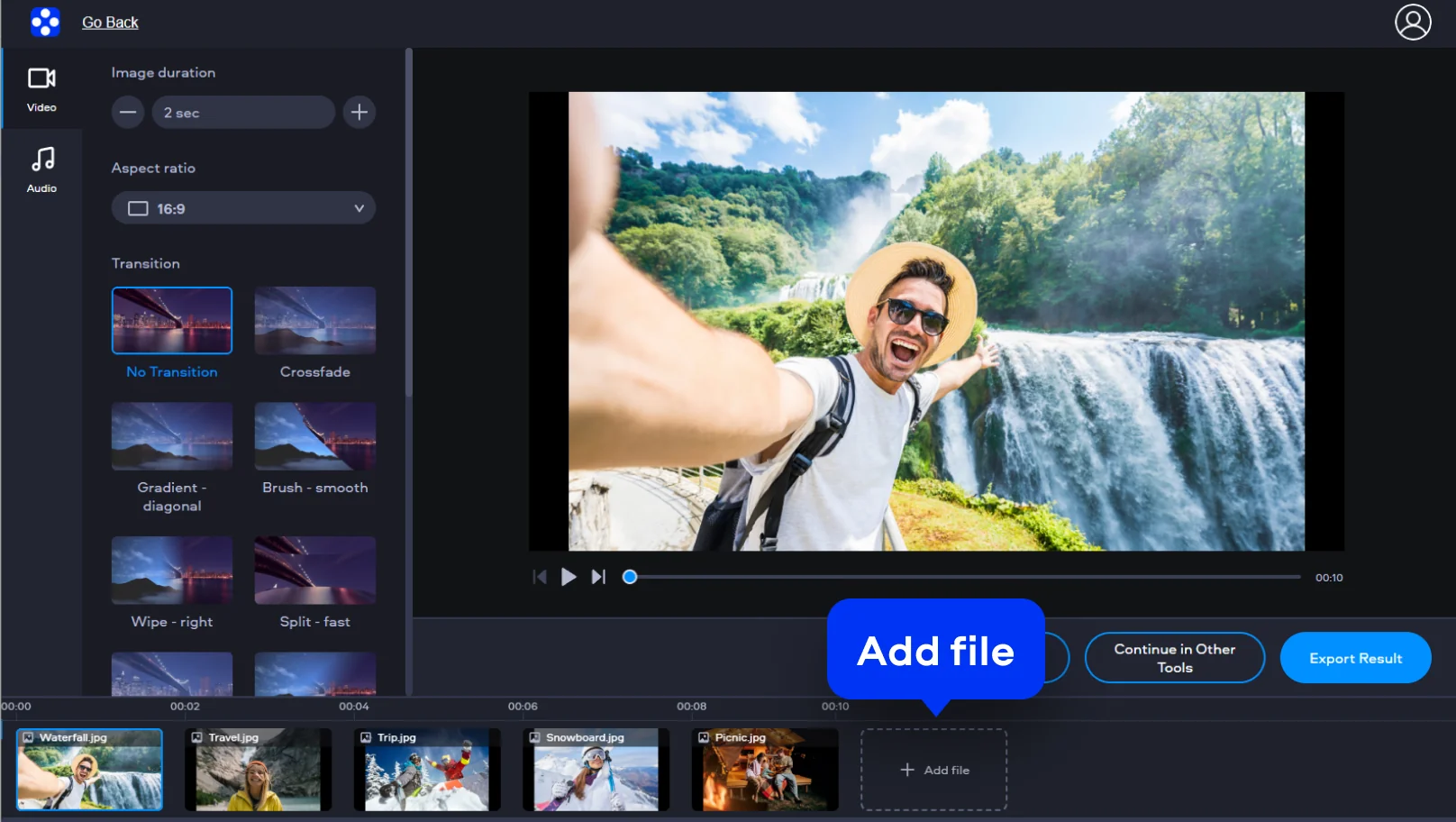
Upload the rest of the pictures for your slideshow by clicking the Add file button on the timeline. You can change the precise order of your slides. Utilize the integrated functions to make a video from photos by tailoring the display duration for each asset. You can also weave in transitions to guarantee a sophisticated movement between disparate scenes. This photo slideshow maker online lets you calibrate the timing to satisfy a specific rhythmic pattern.
Step 3. Export the slideshow
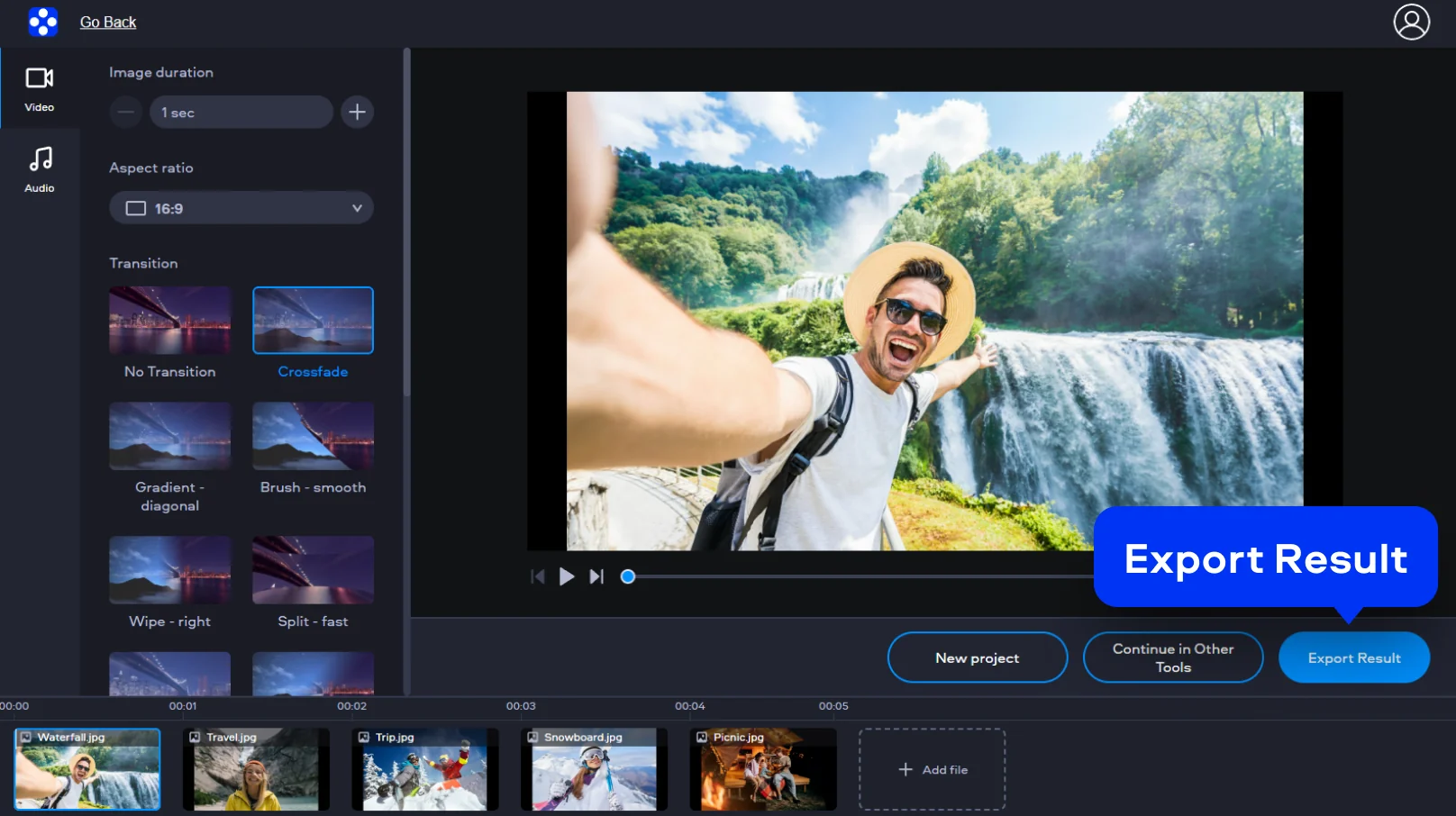
Click the Export Result button to let the remote servers process your high-resolution file. You can then download the completed video directly to your local storage for distribution.
How to use the desktop slideshow maker
For users who want strong creative control, Movavi Video Editor is a powerful desktop solution. Some of the best slideshow maker softwares, it goes beyond basic tools and offers a focused set of features for more detailed visual work. You can explore an expansive library of filters, overlays, audio compositions to add music to slideshow within the application, as well as transitions and effects. The desktop version manages massive batches of files with great speed and precision.
Step 1. Add files to the program
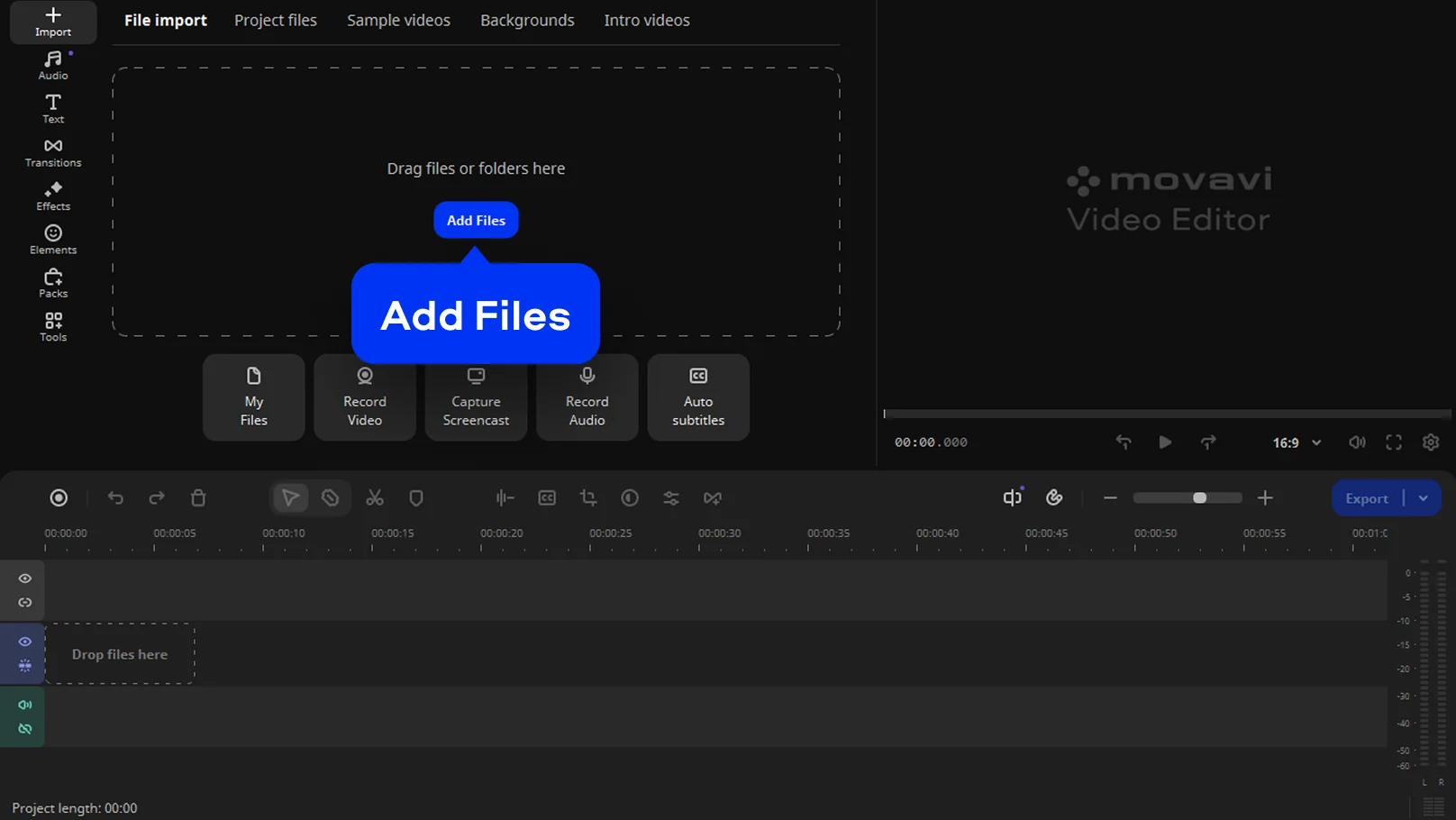
Run the installer and follow the prompts to initialize the software. Once active, you can navigate two distinct creative workflows. Click the Add Files button to upload your media files.
Step 2. Edit the slideshow
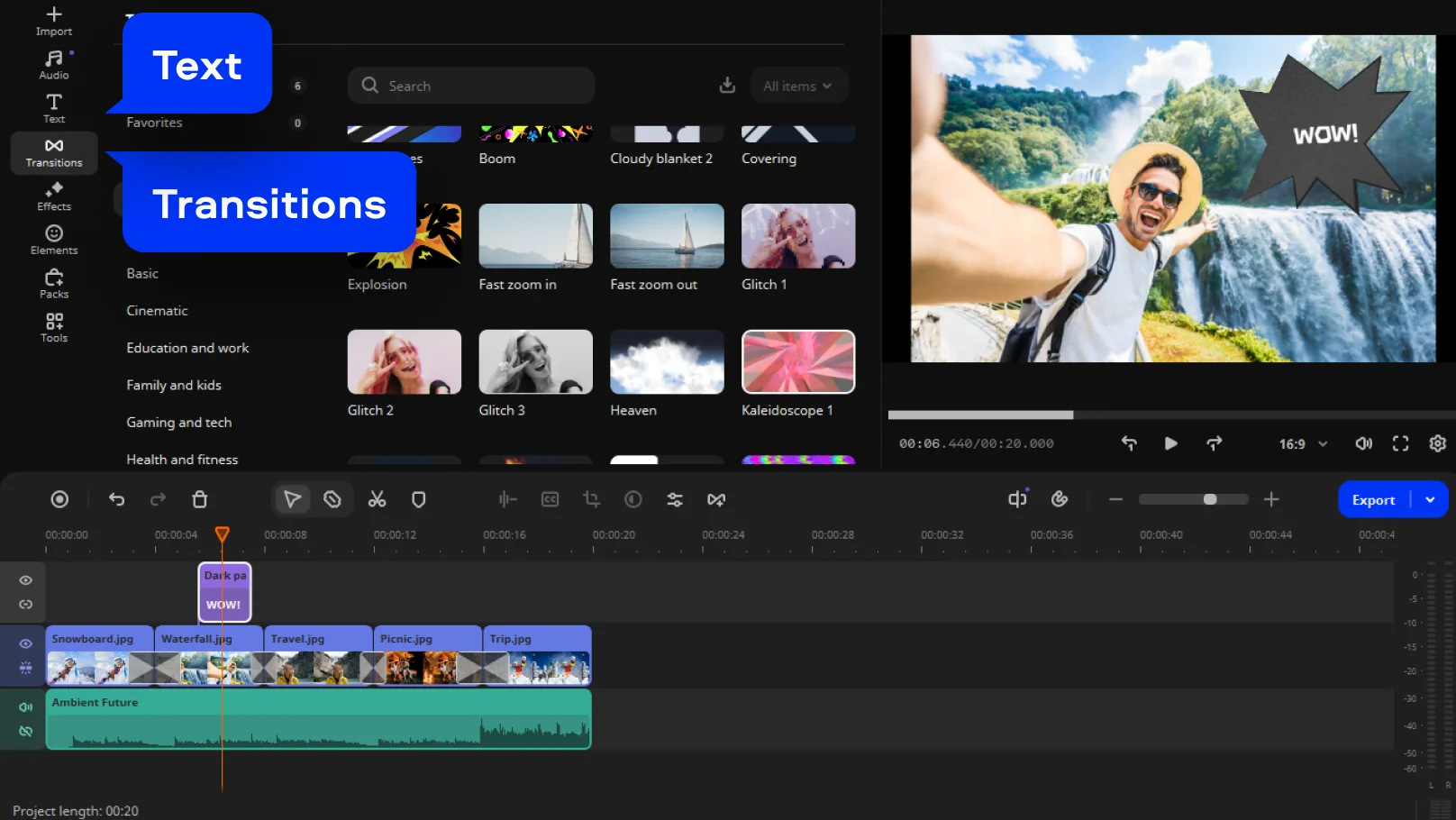
Browse the Transitions tab to discover dozens of distinct styles for your sequence. Drag your preferred animations between clips on the timeline to establish a smooth visual flow. You can also add context by navigating to the Text tab for captions.
Step 3. Export your project
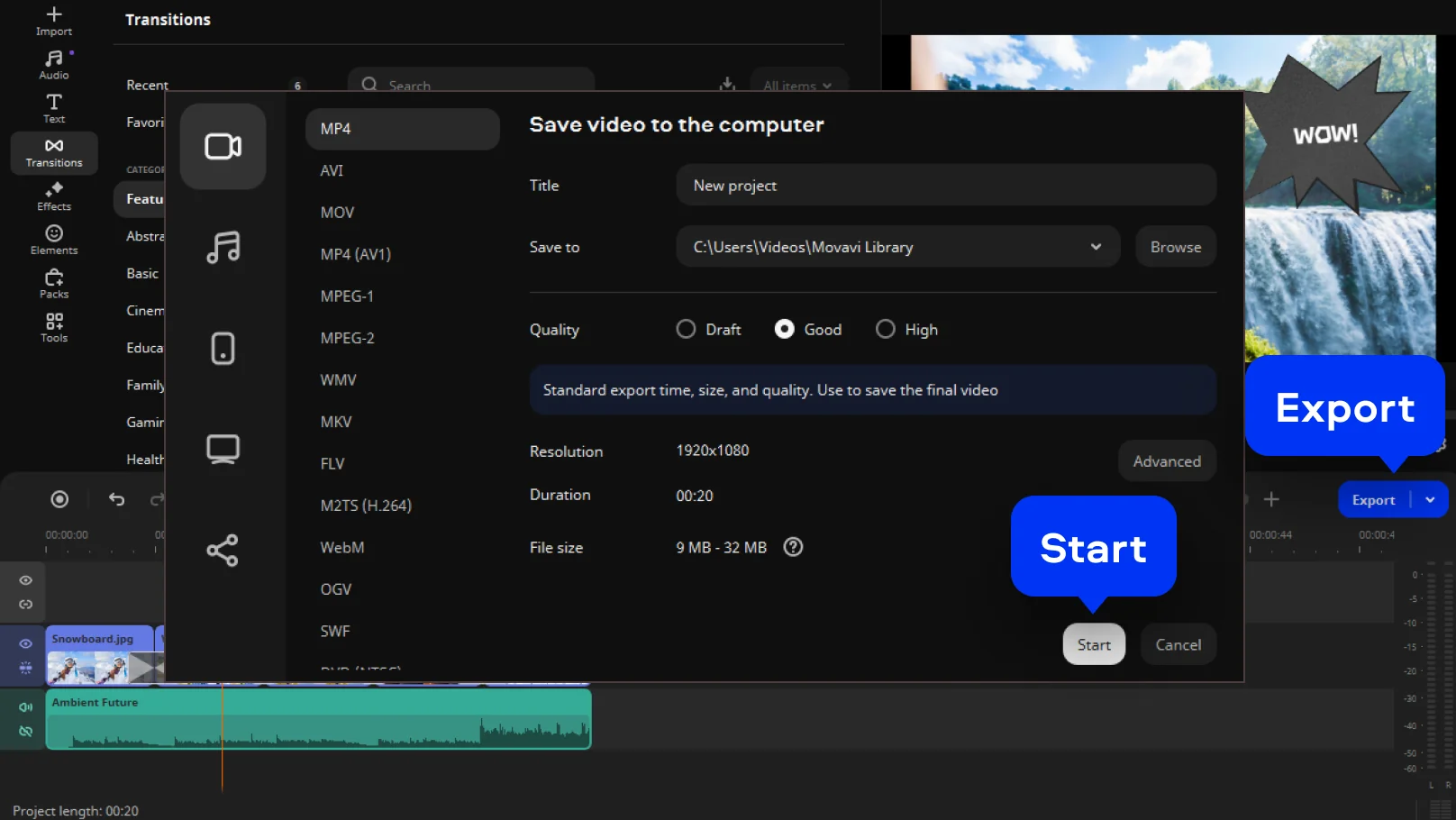
Once the edit feels cohesive, click the Export button. Pick a format or select a pre-set profile for a specific device. Hit Start to save your high-fidelity project to your designated local folder.

Why choose Movavi
We’re the #1 choice for millions of people from all around the world. Join our thriving community and create stunning content with incredible ease.
70M+


users
countries
updates per year
effects to choose from
Frequently asked questions
What is the best free online slideshow maker with music?
What is the best free online slideshow maker with music?
Movavi’s web tool stands out for those balancing operational speed with output quality. It enables you to make a slideshow with music without wrestling with convoluted menus or overwhelming settings. You gain access to high-tier transitions and essential editing utilities directly within your browser window.
How can I make a slideshow online for free without downloading software?
How can I make a slideshow online for free without downloading software?
You can leverage a browser-centric slideshow creator to avoid the friction of local installations. Simply navigate to the Movavi site and upload your selected photos. This is an ideal way to make a photo slideshow online when working from a guest device. All you require is an internet connection to finalize your project quickly.
Can I create a slideshow with AI automatically?
Can I create a slideshow with AI automatically?
Yes, there’s a few AI slideshow generators available online. They can automatically align your visual assets to the specific tempo of your chosen audio track. You simply designate a core theme, and the logic handles the transition timing and slide durations. This enables you to create slideshows with music in just a few clicks.
Is there a watermark on the exported video?
Is there a watermark on the exported video?
Free online products often add a small logo to help support their service. But you can easily produce a slideshow without a watermark by using the full desktop version of the software. For example, if you utilize the full desktop version of Movavi Video Editor, you can export projects with no watermark. This ensures your final video appears professional and unbranded for any high-stakes audience.
What are the best aspect ratios for Instagram, TikTok, and YouTube?
What are the best aspect ratios for Instagram, TikTok, and YouTube?
For Instagram Reels and TikTok, you should adopt a vertical 9:16 aspect ratio. This ensures your montage occupies the entire mobile screen for maximum viewer immersion. YouTube projects are best rendered in a widescreen 16:9 format to suit desktop and TV monitors. You can easily modify these parameters in the export dialogue before triggering the final save. Aligning the ratio with the target platform prevents those distracting black bars on the frame edges.
Can I use Movavi Online Video Editor on Android and iPhone?
Can I use Movavi Online Video Editor on Android and iPhone?
Yes – it works on both Android and iPhone, and it’s free to use.
Is Movavi Online Video Editor completely free?
Is Movavi Online Video Editor completely free?
Yes. All features are available for free – no payment required.
Does Movavi Online Video Editor add a watermark when exporting videos?
Does Movavi Online Video Editor add a watermark when exporting videos?
No. You can export videos without a watermark.
Movavi Video Editor
Create awesome videos easily
*The free version of Movavi Video Editor may have the following restrictions depending on the build: watermark on exported clips, 60-second video or 1/2 audio length limit, and/or some advanced features unavailable when exporting videos.
Join us for discounts, editing tips, and content ideas


1.5M+ users already subscribed to our newsletter