From individual clips to a finished video collage file, ready to share.

Video Collage Maker for PC and Mac: Download for Free
Movavi Video Editor is a video collage maker for Windows and Mac that lets you combine clips, photos, and music into a single heartfelt video – with full control over layout, timing, and style.
Whether you want to make a video collage online or prefer a desktop tool with no file size limits, Movavi gives you a complete editing workspace to build, refine, and export your finished collage as an MP4, MOV, or other popular file formats.
Trusted by 70 million creators worldwide
Millions


of users
countries
updates per year
effects to choose from
Key features of the video collage maker
Everything you need to make a video collage with music, text, and custom layouts – free to download for PC and Mac.
Overlay track system for multi-clip collage layouts
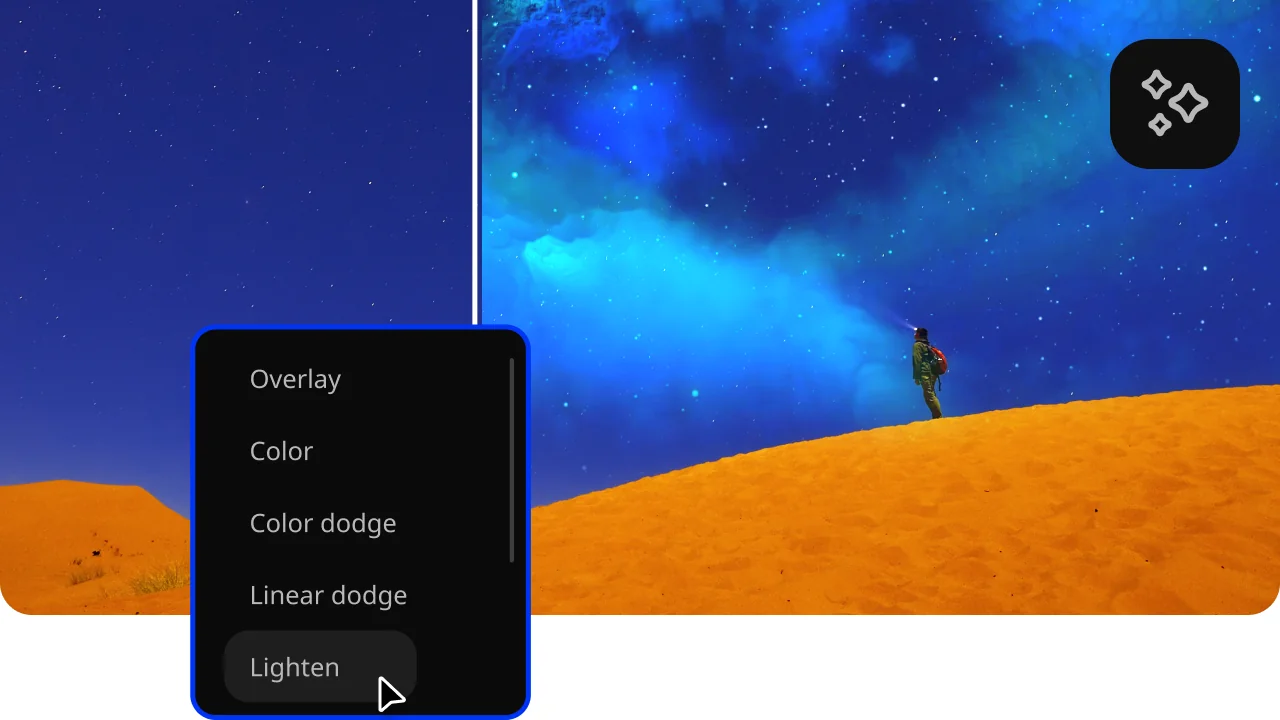
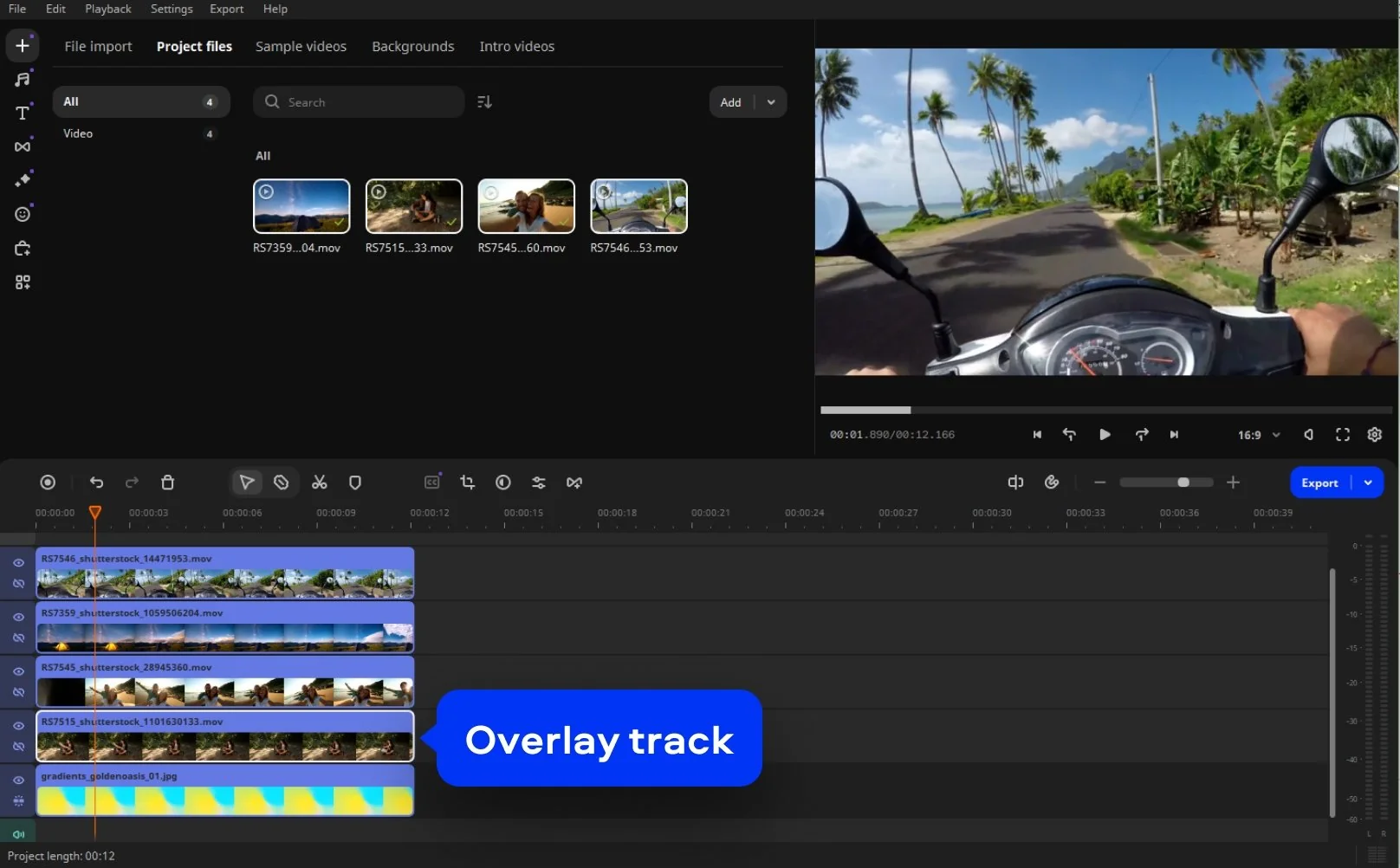
Movavi's overlay track system lets you layer multiple video files above a background clip on the Timeline, creating a multi-panel collage within a single frame. Each clip occupies its own overlay track, can be resized and repositioned independently in the preview window, and stays in sync with the overall collage duration. This approach supports two-clip side-by-side layouts, three-panel grids, and more complex compositions.
Picture in Picture mode – resize and reposition each clip
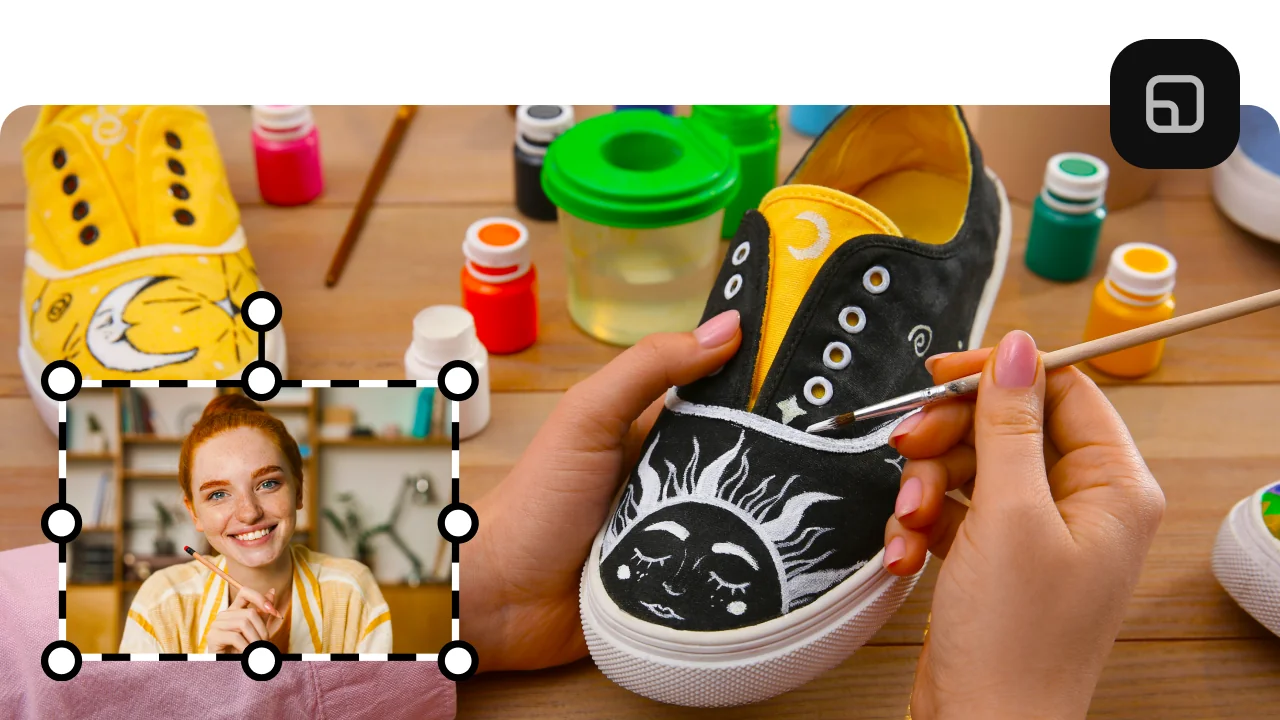
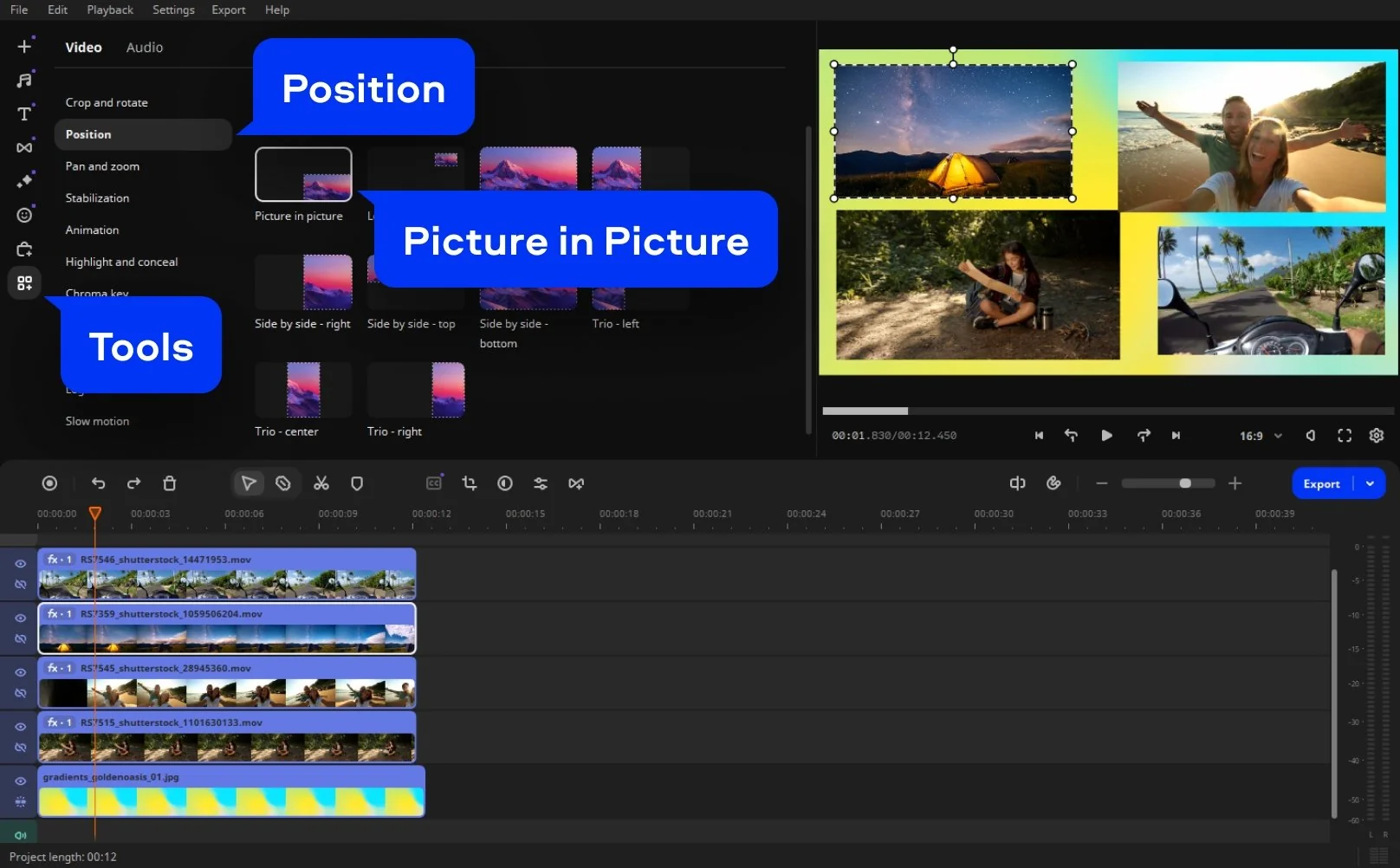
The Position tool's Picture in Picture mode gives you drag-and-resize control over every clip in the collage. Each video panel can be made larger or smaller, moved to any area of the frame, and layered in any order. This visual approach means you set up the collage layout by eye rather than by entering pixel coordinates, which is faster and easier for non-technical users.
Add a soundtrack from Movavi's library or your own files
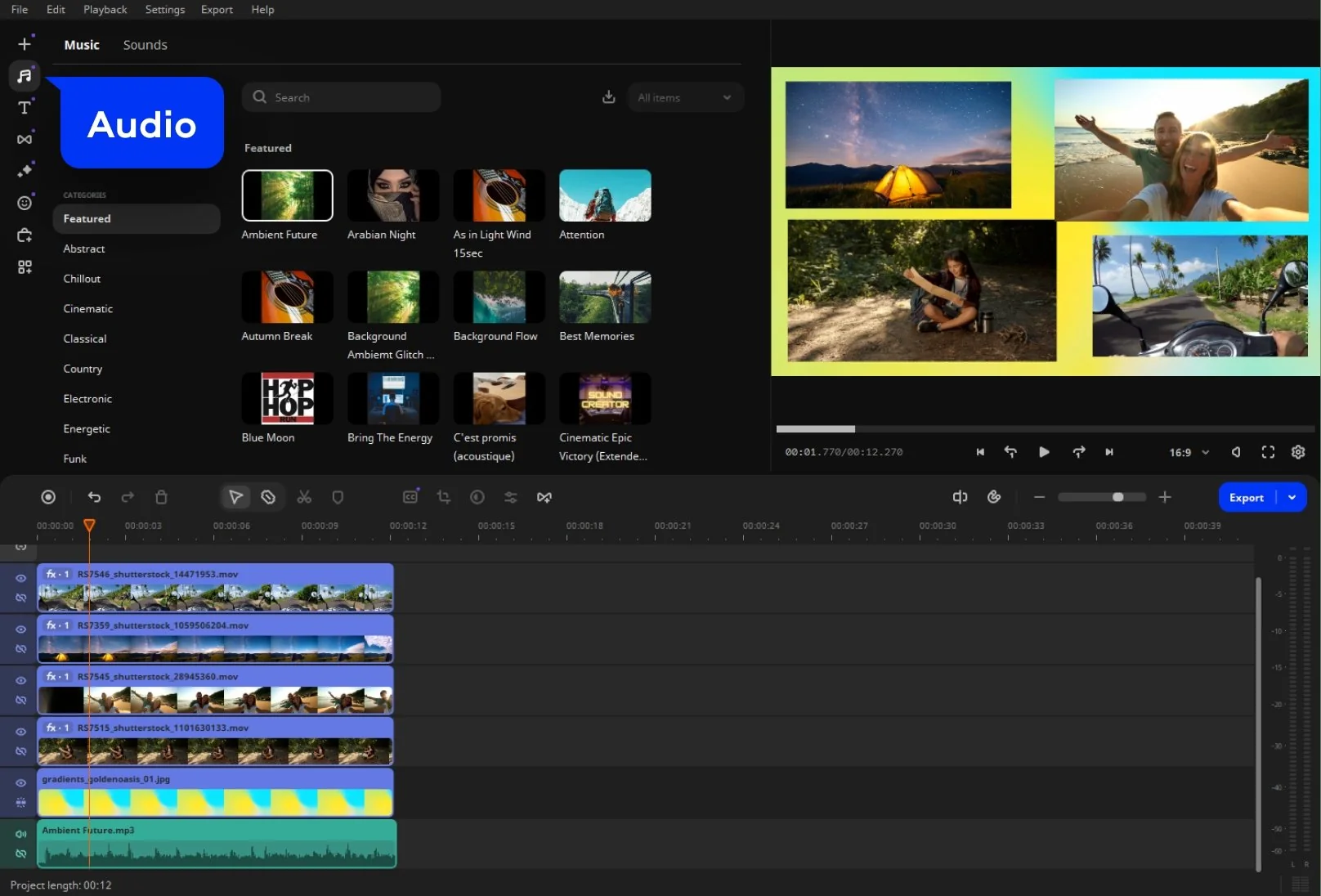
The Audio tab gives access to Movavi's built-in royalty-free music library as well as the option to upload any audio file from your computer. Once added to the Timeline, the music track can be trimmed, faded in and out, and adjusted in volume relative to the video audio. A well-chosen soundtrack gives a video collage a consistent emotional tone that ties the individual clips together.
Add text, titles, and captions to any clip
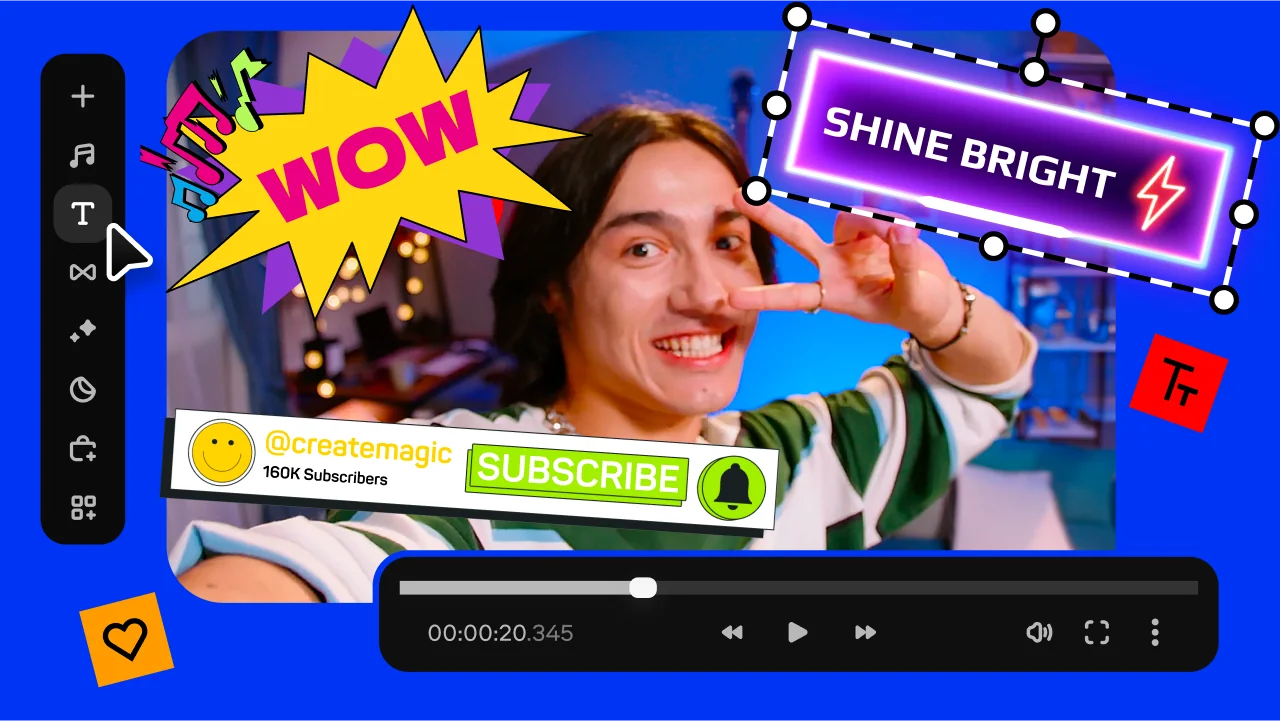
The Text tab provides access to a library of pre-styled title and caption presets that can be placed on any layer of the collage. Type your own text, choose a font, adjust the size and colour, and set how long the title stays on screen. Text elements can be positioned over a specific clip panel or across the full frame, and each one has its own start time and duration on the Timeline.
Why use Movavi as your free video collage maker
Three reasons Movavi is the practical choice over online video collage tools.
How to make a video collage with music – 6 steps
Step 1. Install the software
Launch the downloaded file. After the installation is complete, the program will open automatically.
Step 2. Choose a background for your collage
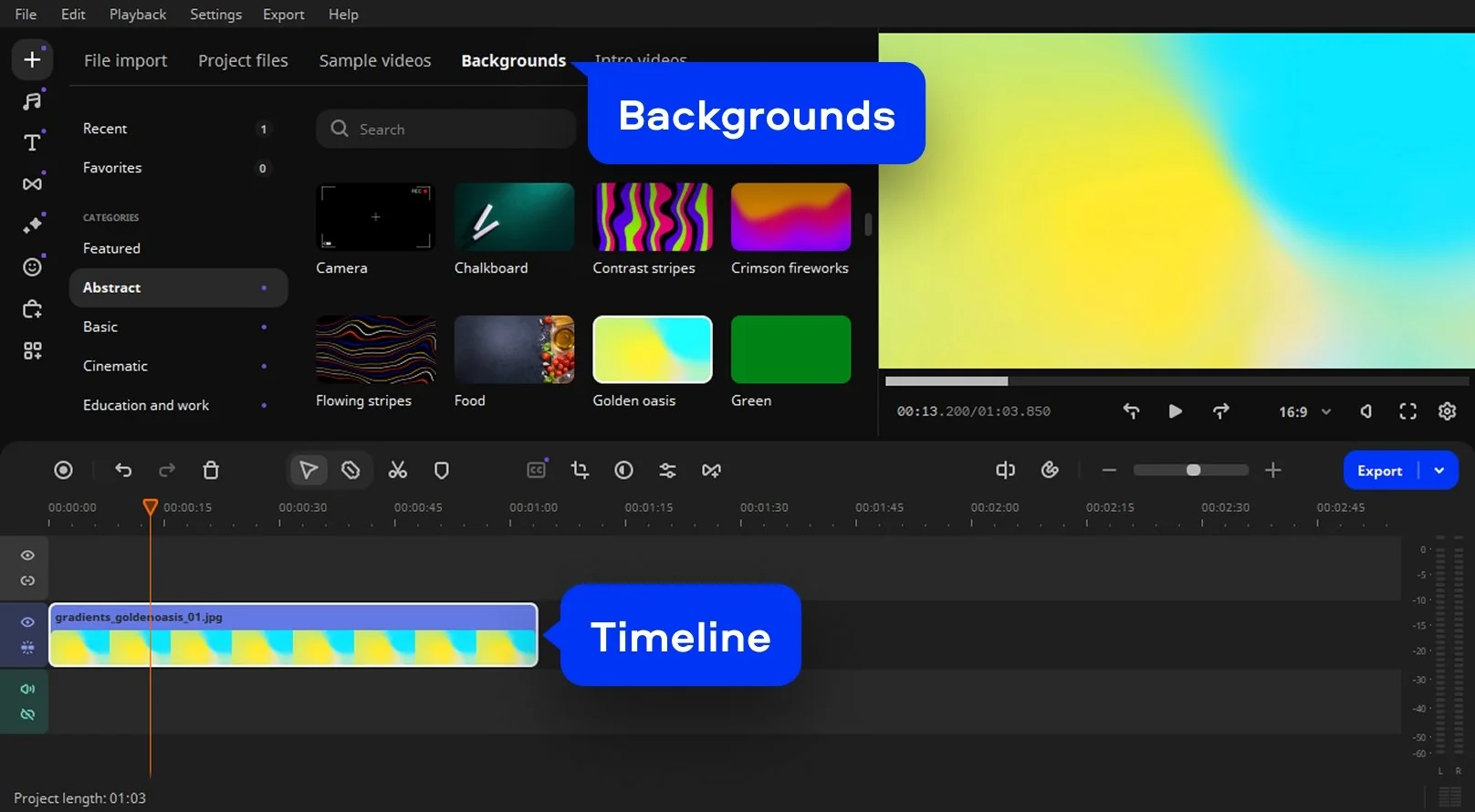
Select Backgrounds and pick a background clip for your collage. Drag and drop it onto the Timeline below. Set the duration of the clip by dragging the right boundary to the desired point on the Timeline.
Step 3. Add your files to the collage maker
Click the Add Files button and browse for the videos you want to include in your collage. Drag and drop files to the Timeline. Your files will be placed to the right of your background clip on the Video Track.

To start making the collage, first, you need to create an overlay track. Drag an added video up and drop it above the background clip. Repeat this process for all other components in your collage.
Step 4. Select position
Go to Tools, choose Position and then the Picture in Picture mode. Change the position as well as the size of your video. Repeat this process with the other video segments.
Step 5. Add music to set the mood
Go to the Audio tab. You can pick from Movavi’s library or use your own. Sync the beat with your visuals, and let the melody give your collage a heartbeat.
Step 6. Share your finished story
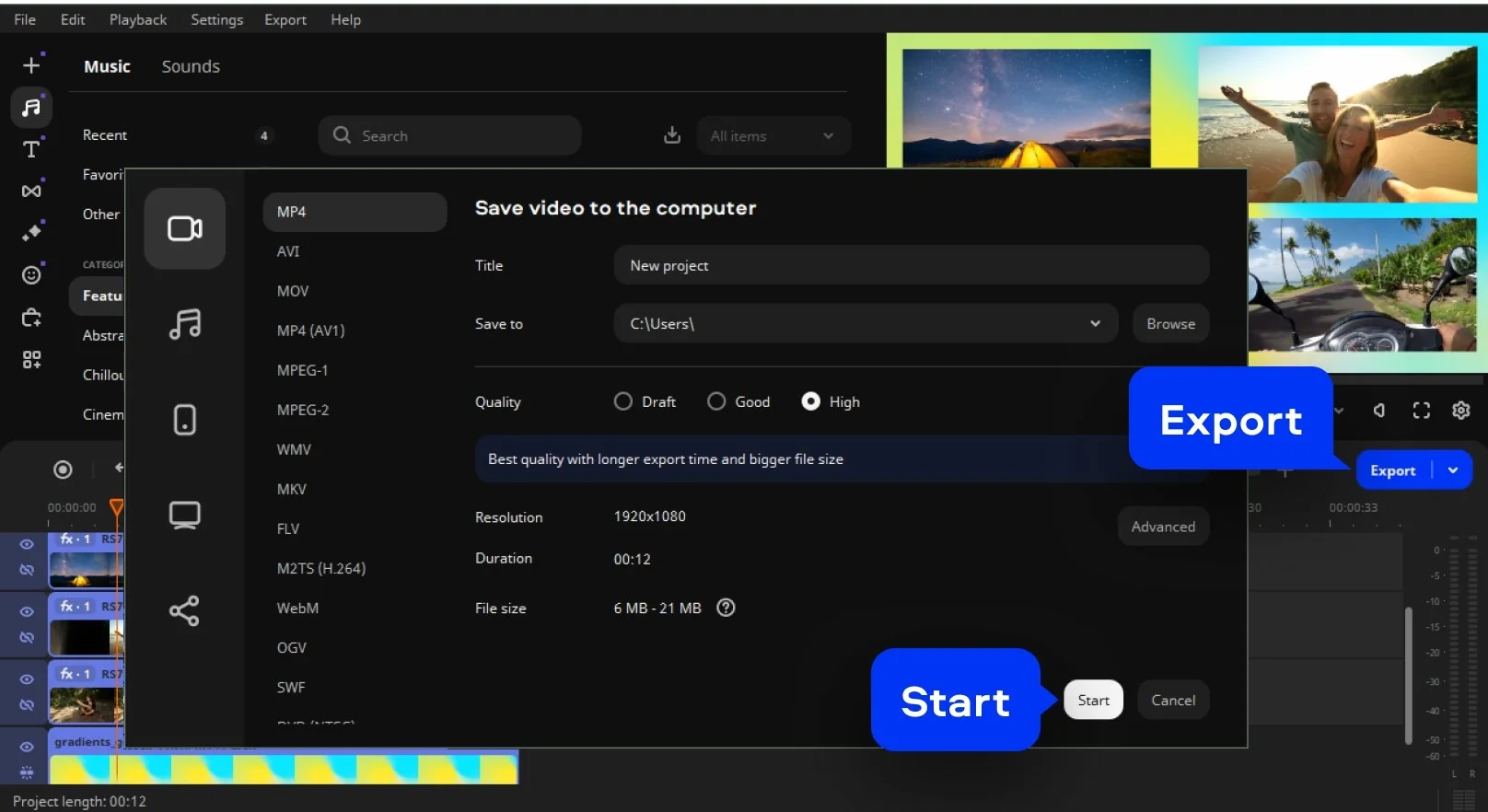
Click Export. Choose MP4, MOV, or any format you like and save your creation. Send it to friends or post it online… a thoughtful and beautiful collage of memories that whispers what words cannot.
Who uses a video collage maker
Video collages are a natural fit for personal memories, creative storytelling, and professional content alike.
Families and friends preserving memories · PERSONAL
Families creating anniversary tributes, birthday compilations, or travel recap videos use a video collage maker to bring together footage shot across different phones and cameras into a single, cohesive video they can share with everyone. Movavi's layout tools let them show multiple moments from the same trip or event simultaneously – a format that communicates the richness of a shared experience more effectively than a single sequential clip.
Students and teachers making recap videos · EDUCATION
Teachers producing end-of-year highlight reels and students assembling project presentations use video collage tools to combine documentation clips, interviews, and demonstration footage in one frame. A multi-panel layout lets an educator show a before-and-after comparison or display multiple student contributions side by side – a format that is engaging and information-dense without requiring advanced editing skills.
Social media creators and marketers · CONTENT CREATION
Content creators and social media managers who produce Instagram Reels, TikTok videos, and YouTube Shorts use free video collage maker tools to create the multi-clip, dynamic visual formats that perform well on those platforms. Movavi's text overlay tool lets them add captions and call-to-action messages to specific panels without a separate design app, keeping the entire collage production workflow in one place.
Movavi Video Editor
Create awesome videos easily

Frequently asked questions
Common questions about how to make a video collage, which tools to use, and how to add text.
How to make a video collage?
How to make a video collage?
To make a video collage with Movavi Video Editor, follow six steps:
- Install the app on your Windows or Mac computer – it is available as a free download with a 7-day full-access trial.
- Choose a background clip from the Backgrounds library and drag it to the Timeline to set the overall duration.
- Click Add Files, import your video files, and drag each clip onto the Timeline – then move each one onto its own Overlay Track above the background.
- Select each clip, go to Tools → Position → Picture in Picture, and resize and reposition it in the preview window.
- Open the Audio tab, add a music track from the library or upload your own file, and adjust the volume.
- Click Export, choose MP4, and save the finished video collage file. The same workflow applies whether you are making a two-clip side-by-side collage or a more complex multi-panel composition.
What are the best video collage maker apps?
What are the best video collage maker apps?
The best video collage maker tools divide broadly into desktop applications and browser-based or mobile apps. On desktop, Movavi Video Editor is the most accessible option for Windows and Mac: it supports unlimited file sizes, gives you full layout control, and includes audio and text tools – all available as a free download with a 7-day trial. Adobe® Premiere® Pro covers the same needs at a professional level with a subscription. For a free video collage maker that works in a browser without installation, Kapwing and Clideo are widely used online tools – both support multi-clip layouts and music, though they impose file-size limits and add watermarks on free plans. On mobile, PicPlayPost and Canva are the most flexible apps for making a video collage on iOS or Android. The right choice depends on whether you prioritise file quality, layout depth, or the convenience of working on a phone.
How to add text to a video collage?
How to add text to a video collage?
To add text to a video collage in Movavi Video Editor, open the Text tab in the media panel and browse the preset library. Each preset is a styled title or caption with a font, colour scheme, and animation already configured. Double-click a preset to add it to the Timeline, then type your own text in the editing panel. Set the text element's start time and duration on the Timeline so it appears at the right moment. To change the font, size, colour, or position, select the text clip and adjust the properties in the panel on the right. Text can be placed over a specific clip panel in the collage frame or centred across the full frame – use the position handles in the preview window to drag it where you want it. If you are using an online video collage maker instead of a desktop app, most browser-based tools including Kapwing and Clideo also have a text layer feature that works similarly, though with fewer font options and less precise timing control.
Join us for discounts, editing tips, and content ideas


1.5M+ users already subscribed to our newsletter