Movavi Video Editor

Create clear and natural voice-overs for your videos with an easy-to-use video editor

By clicking the download button, you're downloading a free version of the program.*

Meet the Voice-Over Video Software for Your PC and Mac

Record a voice-over video with ease

Turn your ideas into a polished voice-over video using the built-in microphone recorder. Capture your narration in real time and instantly place it on the timeline, so your audio naturally follows the visuals.

Add voice-over to video and refine the sound

Easily add a voice-over to a video, then fine-tune it with simple tools. Cut out mistakes, balance volume levels, reduce background noise, and apply effects to make your narration clear and consistent.

Sync voice and visuals without hassle

Line up your voice-over track with clips frame by frame and adjust timing as needed. Movavi Video Editor makes it simple to keep your story flowing smoothly, whether you’re working on tutorials, vlogs, or presentations.

Add voice-over to videos easily

Looking to create engaging voice-over videos with clear narration and well-structured visuals? Movavi Video Editor is a practical video maker with voice-over that brings video and audio editing together in one workspace.

The program supports widely used formats such as MP4, AVI, and MOV, making it easy to import your footage and prepare it for export on different devices. Its layout keeps all key tools within reach, so you can move between clips, audio tracks, and effects without losing track of your project.

For those exploring voice-over video editing, the editor offers a straightforward way to organize media, adjust timing, and shape the final result. From short clips to longer projects, it helps you build videos with narration that feel complete and well put together.

How to add a voice-over to a video

Step 1. Download and install Movavi Video Editor

Figuring out how to add a voice-over to a video starts with getting the right tool. Install Movavi Video Editor on your computer, and open the voice-over video app. It’s available for both Windows and Mac, and you can begin with the free version to see how it fits your needs.

Step 2. Add your video and record your voice

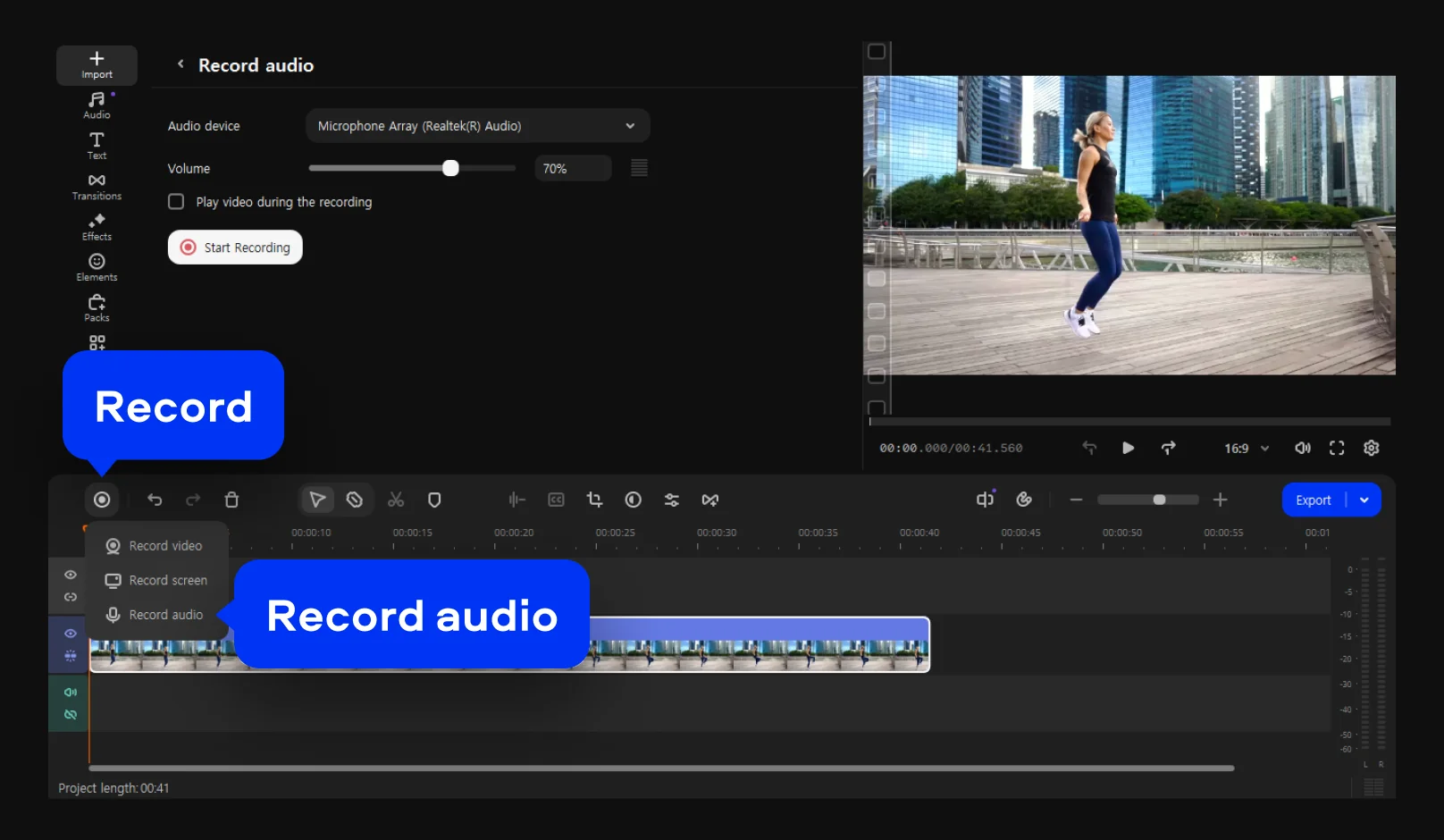
Import your clip using Add Files and drag it onto the timeline. Then click the Record button above the timeline. In the pop-up window, select Record audio and adjust input settings if needed. Place the playhead where you want the narration to start, press record, and begin speaking. When you stop, your voice track will appear directly on the timeline.

Step 3. Adjust the sound and export your video

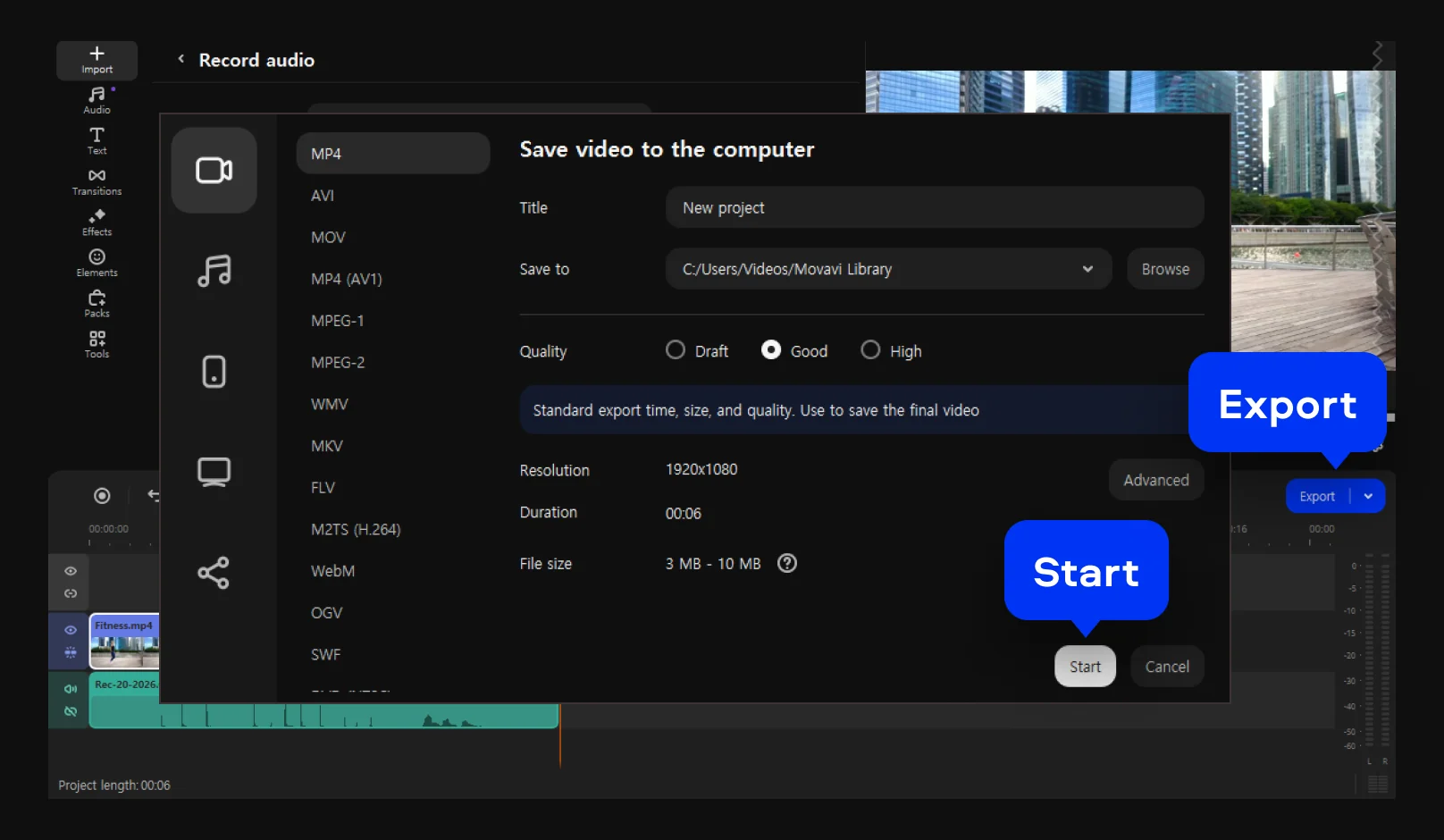
Listen through your project and balance the audio so your voice stays clear. If your original clip has sound, lower it or mute it to avoid overlap. When everything feels right, click Export, choose the format you need, and save your finished video.

Movavi Video Editor
Create awesome videos easily

*The free version of Movavi Video Editor may have the following restrictions depending on the build: watermark on exported clips, 60-second video or 1/2 audio length limit, and/or some advanced features unavailable when exporting videos.

Why choose Movavi

We’re the #1 choice for millions of people from all around the world. Join our thriving community and create stunning content with incredible ease.

70M+

users

190+

countries

15+

updates per year

10,000+

effects to choose from

Frequently asked questions

How do I create a voice-over for a video?

If you’re learning how to voice-over a video, start with a reliable voiceover app like Movavi Video Editor. This software lets you import your footage, place it on the timeline, and record your narration directly while watching the video.

After recording, you can fine-tune the audio by trimming unnecessary parts, adjusting volume levels, and making sure the voice track fits naturally with the video. Once everything looks and sounds right, simply export the completed video in your preferred format.

What equipment do I need for voice-over work?

You only need a few simple things to start recording voice-overs:

  • Microphone
  • Pop filter
  • Computer
  • Audio recording software
  • Headphones to prevent feedback or “bleed”

What do YouTubers use for voice-over?

Many YouTubers use various software and equipment for recording high-quality voice-overs. The specific equipment and software used varies depending on the YouTuber's budget, preferences, and the type of content they produce.

Microphones. A good microphone is essential for clear audio.

  • USB microphones (e.g., Blue Yeti, Audio-Technica AT2020USB+)
  • XLR microphones with an audio interface (e.g., Shure SM7B, Rode NT1-A)

Digital Audio Workstations (DAWs). These software applications are used for recording, editing, and processing audio.

  • Audacity (free and open-source)
  • Adobe® Audition®
  • Apple Logic Pro

Pop filters and windscreens. These accessories help reduce plosives (popping sounds) and wind noise during recording.

Noise reduction software. Tools like iZotope RX or the noise reduction features in DAWs can help clean up background noise and improve the clarity of voice-over recordings.

Which audio-recording software is the best?

The best audio-recording software for voice-overs depends on your specific needs, budget, and skill level. However, here are some popular options that many professionals use:

  • Audacity
  • Murf text to speech
  • Windows Voice Recorder
  • GarageBand
  • Movavi Video Editor
Movavi Video Editor
Create awesome videos easily

*The free version of Movavi Video Editor may have the following restrictions depending on the build: watermark on exported clips, 60-second video or 1/2 audio length limit, and/or some advanced features unavailable when exporting videos.

Join us for discounts, editing tips, and content ideas

1.5M+ users already subscribed to our newsletter

By signing up, I agree to receive marketing emails from Movavi and agree to Movavi's Privacy Policy.