Step 1. Download and install Movavi Video Editor
Download the Movavi Video Editor installer, open the downloaded file, and follow the on-screen instructions. Once installation is complete, launch the program to access the main editing workspace.
Movavi Video Trimmer
Trim and cut your footage with frame-by-frame precision in Movavi Video Editor, featuring a multi-track timeline and instant AI-powered editing tools.
By clicking the download button, you're downloading a trial version of the program.*
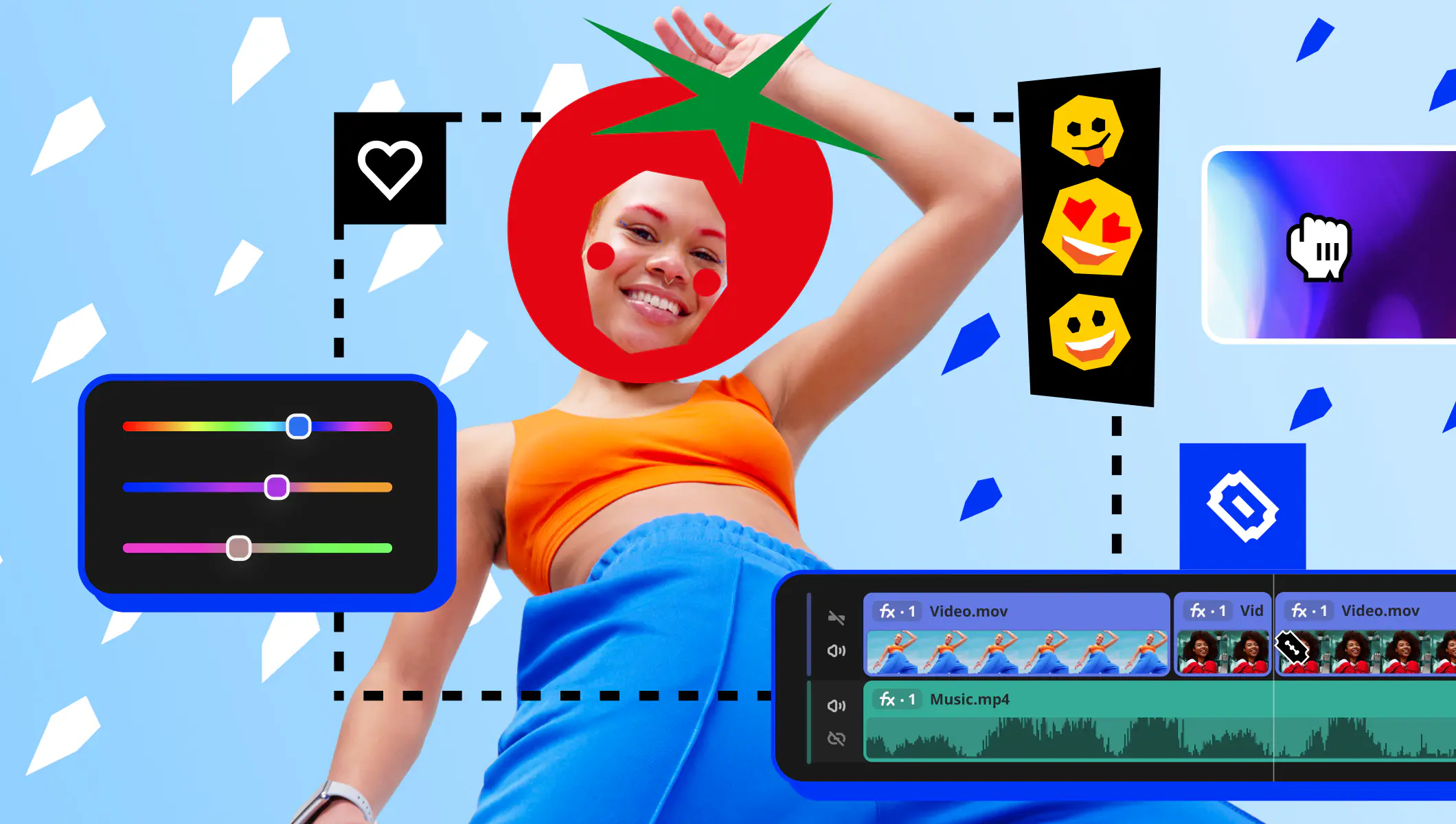
Beginner-friendly with pro-level features
Movavi balances professional-grade features with an interface that even complete beginners can quickly master.
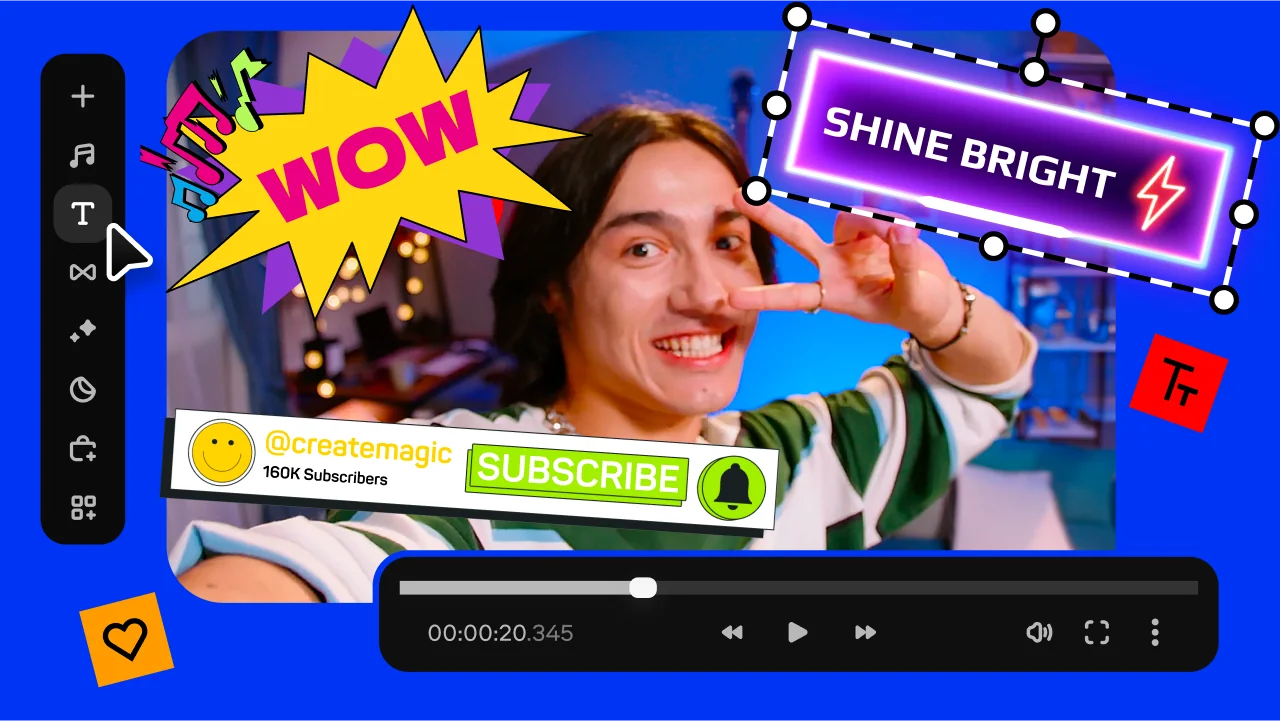
Tons of built-in effects and music
Movavi comes loaded with built-in transitions, titles, overlays, music tracks, sounds, frames, backgrounds, stickers, and more.

One-click AI
Movavi makes it super-easy to create subtitles, remove pauses, clean up noisy audio, track motion, change out backgrounds, and more – all automatically, no technical skills needed.
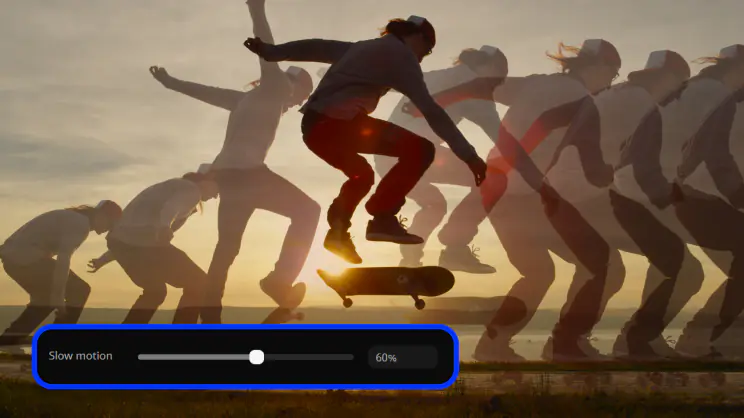
Smooth performance
Movavi is lightweight, easy to set up, and runs smoothly – even if your laptop isn’t top-of-the-line.
How to use the Movavi video trimmer
Download the Movavi Video Editor installer, open the downloaded file, and follow the on-screen instructions. Once installation is complete, launch the program to access the main editing workspace.
Click the Add Files button or simply drag and drop your video into the program window. After the file appears in the media area, drag it down to the timeline so you can start editing and trimming the clip.
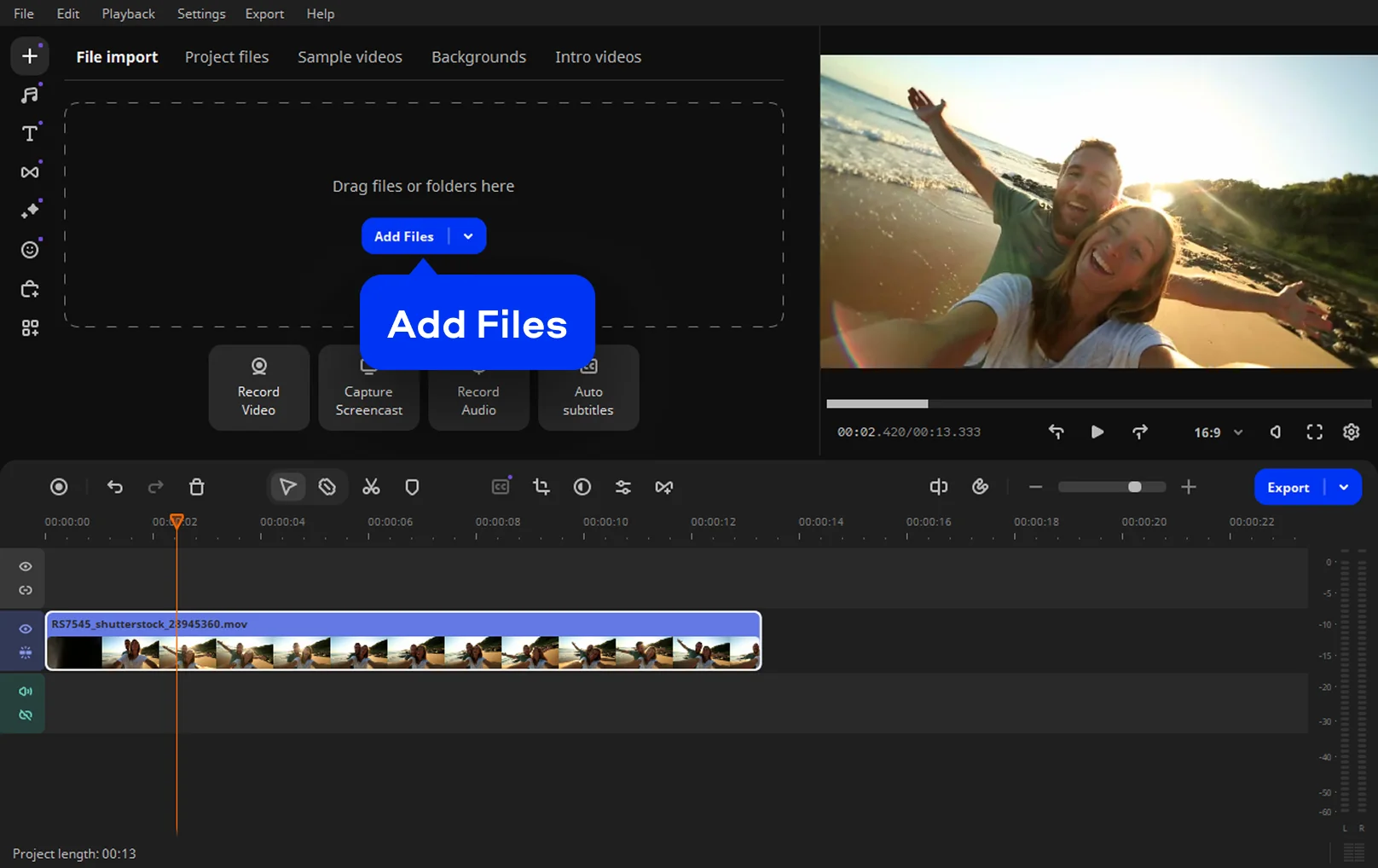
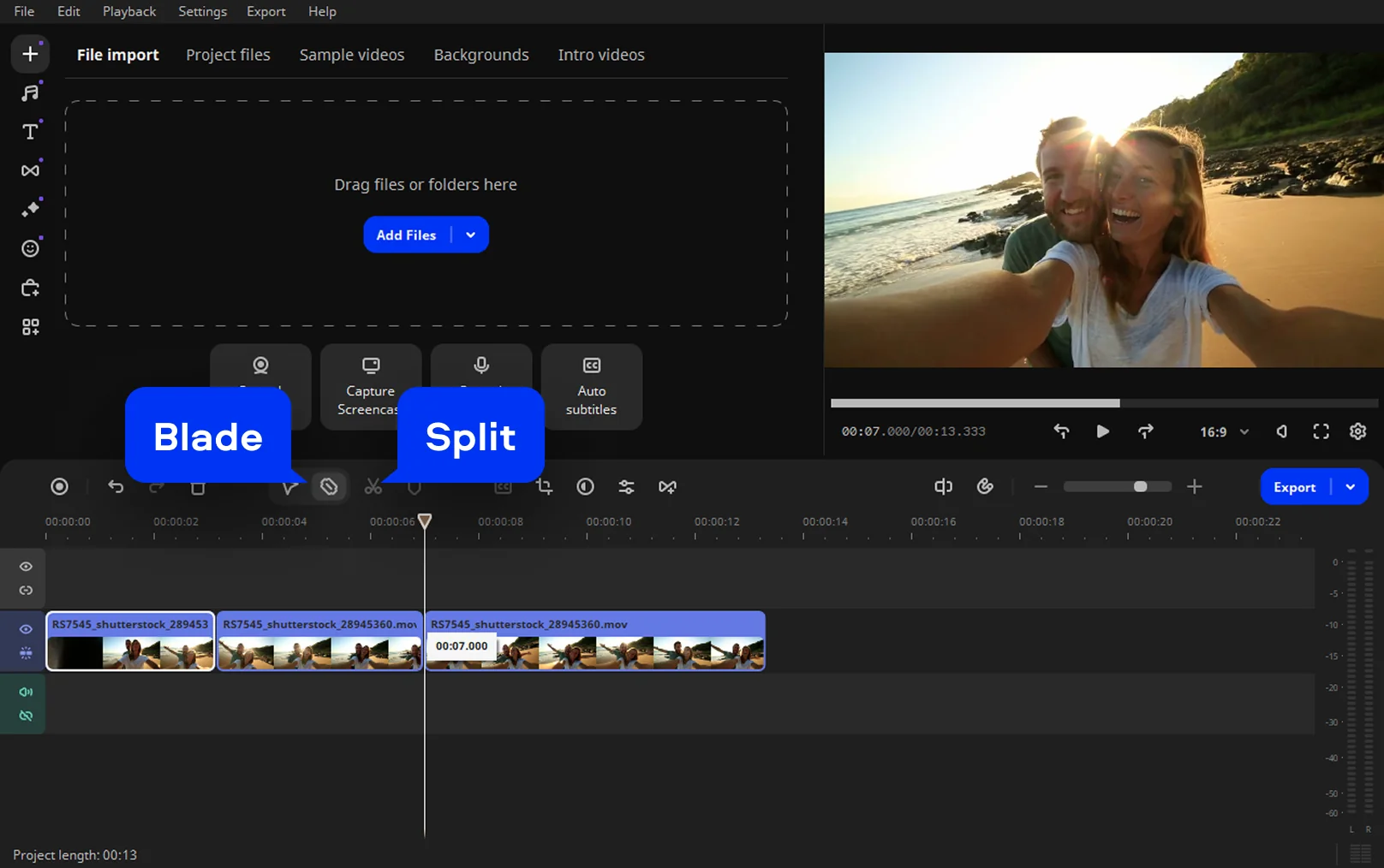
Move the playhead to the point where an unwanted part begins and use the Split or Blade tool to make precise cuts. Select the fragments you do not need and remove them, then close any empty gaps to keep the video smooth and continuous. This is also where you can rotate video, merge video clips or extract audio from video if required.
Click the Export button to open the saving options. Choose your preferred settings, including quality and destination folder, then start the export process. Once rendering is complete, the trimmed video will be ready to watch or share in 1080p with no watermark. If you need a higher resolution, 4K video support is also available.
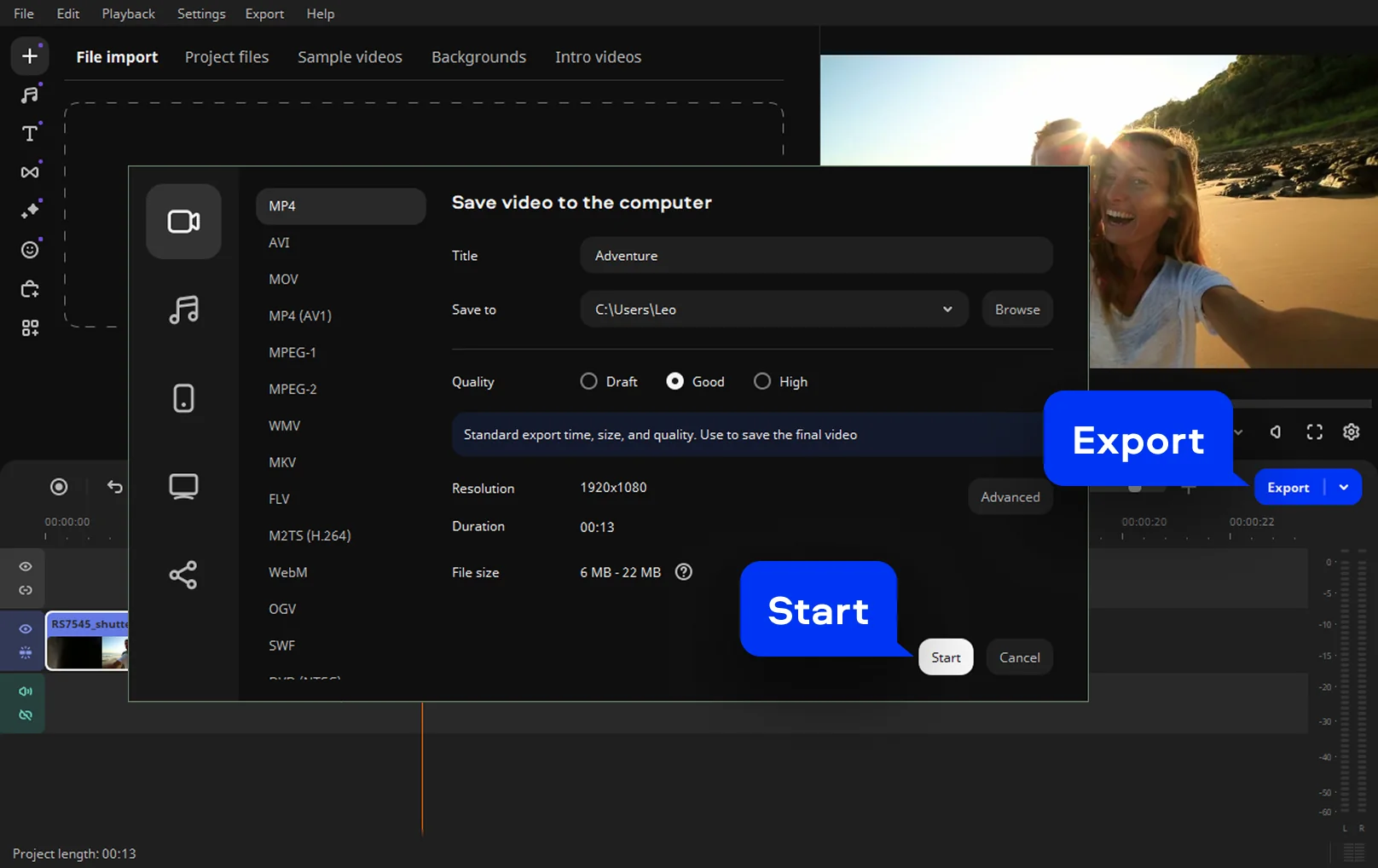
3GPP, 3GPP2, ASF, AVI, DivX, FLV, SWF, M2TS, M2T, MTS, TS, MKV, MOV, MP4, MPG, MPEG, MPE, M1V, MOD, TOD, MWV, M4V, MXF, OGV, QuickTime, RM, RMVB, WebM, WTV
You can easily trim a video on your iPhone using the Movavi App.
Firstly, download and open the Movavi App.
Get the Movavi App on App Store
To select a video for editing, simply tap it. Tap the scissors icon, then carefully slide the selected fragment upward to delete it. Once you are satisfied with the result, tap the Export icon to export your edited video.
With Movavi Video Editor, you can trim videos on your Mac using clear, straightforward tools that help you focus on the exact parts of the clip you want to keep.
Download and install the program on your Mac.
Download Movavi Video Editor for macOS
Click Add Files to upload your videos to the program. Drag and drop files to the Timeline. Use the Split or Blade tool to cut out unwanted fragments. Click Export to save the finished video.
To trim videos on your Android phone, use a powerful video-editing app by Movavi.
Start with downloading and open the Movavi App.
Get the Movavi App on Google Play
Tap the plus icon to upload a video from your device memory. Before making any cuts, choose the required screen format, including 1:1, 9:16, 4:5, or 16:9. Tap the scissors icon and move the highlighted fragment upward to delete it without changing the rest of the video. After checking that everything looks correct, tap the Save icon to export your edited video.
Why it’s worth trimming videos for free
Sometimes a video just needs a quick cleanup. Maybe the start is too long, maybe there’s an awkward pause in the middle, or maybe you filmed more than you actually need. The Movavi online video trimmer is built exactly for these moments. You open it, cut what doesn’t belong, and keep the parts that matter. No clutter, no learning curve, and no need for a separate downloader.
Quick tips for better results
From raw clips to watchable videos
Trimming is not just about cutting footage shorter. It helps shape the video so it feels clear, purposeful, and easy to watch, no matter what you are creating.
Why trimming alone often works
You do not always need effects or complex edits. Clean cuts already make a video feel intentional. With Movavi Video Editor, trimming becomes a quick habit that turns everyday footage into something ready to share, with a high-quality export that looks good across devices.

In real life, the difference shows up when you actually start editing. Trimming is what you do when the beginning drags on or the ending feels awkward. You grab the edges and shorten the clip. Cutting goes further. It lets you remove a sentence you stumbled over or a pause right in the middle.
It still doesn’t. Whether you use the online trimmer or the desktop version, the app never overwrites your source file. You end up with a new version instead. This makes it easy to experiment a bit, cut more than you planned, and then go back if you change your mind.
Usually, it’s over before you expect it to be. With Movavi’s online video cutter, short clips save so quickly that there’s barely time to check your phone. On a desktop, it can take a little longer, depending on the file and export settings, but simple trims move along without any noticeable pause. In practice, the real time sink is scrubbing back and forth, trying to decide where the cut should land, not waiting for the video to finish.
It’s pretty straightforward. You open the Movavi online trimmer, upload a video, and adjust the markers to decide which part you want to keep. Our browser-based editor keeps the process simple and focused on quick edits, without unnecessary settings or extra steps. When you’re finished, you save the edited clip as a new file, all without installing anything.
In practice, most everyday formats work without any extra steps. If you’re looking for an online MP4 cutter, the tool supports this format without any extra conversion. In addition to MP4, you can upload other common files like MOV, AVI, MKV, and a few others you’ll see on phones and cameras. If the video plays on your device, chances are the online trimmer can open it too.
For normal editing tasks, yes. The tool is designed to be safe and secure while you trim your clips, and it doesn’t replace or alter your original video. You always end up with a separate edited version. Still, as with any online service, it’s best to avoid uploading extremely sensitive footage if you’d rather keep everything fully offline.
Yes – it works on both Android and iPhone, and it’s free to use.
Yes. All features are available for free – no payment required.
No. You can export videos without a watermark.
We’re the #1 choice for millions of people from all around the world. Join our thriving community and create stunning content with incredible ease.
70M+


*The free version of Movavi Video Editor may have the following restrictions depending on the build: watermark on exported clips, 60-second video or 1/2 audio length limit, and/or some advanced features unavailable when exporting videos.


1.5M+ users already subscribed to our newsletter