Movavi Video Editor
Create awesome videos easily

Key takeaways:
CapCut made its name as a mobile video editor, but many creators want the precision that comes with desktop editing. The good news? You can get CapCut running on your Windows PC through several methods.
But here's what I discovered after testing the PC version – it feels like a mobile app stretched onto a big screen. The interface works, sure, but it lacks the timeline precision and advanced features you'd expect from proper desktop software.
That's why I've put together this guide covering not just how to get CapCut on your computer, but also five desktop alternatives that might serve you better. Each option targets different needs, from quick social media clips to professional projects.
Getting CapCut running on your PC takes a few different approaches. I tested all three methods on both Windows 10 and Windows 11 systems.
The simplest route is downloading directly from CapCut's website:
1. Visit the official CapCut website.
2. Navigate to the desktop app section.
3. Click the Windows download button.
4. Run the installer file once downloaded.
5. Follow the setup wizard.
The download weighs about 200 MB and installs like any standard Windows program.
For Windows 11 users, the Microsoft Store version integrates better with the system:
1. Open Microsoft Store from your Start menu.
2. Search for "CapCut".
3. Click "Install" on the official app.
4. Launch from your apps list.
This version updates automatically and follows Windows security protocols more closely.
If the above methods don't work in your region, emulators provide a workaround:
Using BlueStacks:
1. Download BlueStacks from their official website
2. Install and set up with your Google account.
3. Open Google Play Store within BlueStacks.
4. Search and install CapCut.
5. Launch from the BlueStacks home screen.
Using MEmu Play:
1. Download MEmu Play emulator.
2. Complete the setup process.
3. Access Google Play Store.
4. Install CapCut through the store.
5. Run the app from MEmu's interface.
The emulator route works, but adds an extra layer that can slow things down. I noticed more crashes and longer loading times compared to native desktop apps.
After spending weeks testing desktop alternatives, these five stood out for different reasons. Each brings something unique to Windows video editing.
1. OpenShot
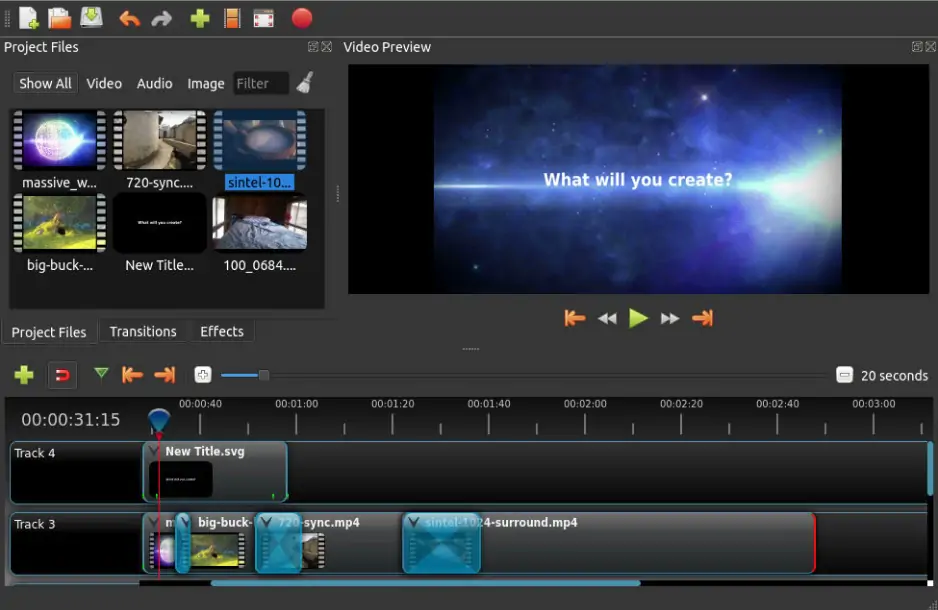
OpenShot takes the open-source approach seriously. No ads, no watermarks, no subscription pressure – just video editing tools that work.
The multi-track timeline handles complex projects better than CapCut's simplified version. I worked on a project with five video layers and eight audio tracks, and OpenShot kept everything synchronized without breaking a sweat.
One quirk I noticed: the preview can lag with complex effects, but the final export always renders smoothly. It's like the preview engine and export engine are two different beasts.
Completely free with no limitations
Cross-platform support (Windows, Mac, Linux)
Unlimited tracks for audio and video
3D animated titles and effects
Regular community-driven updates
Preview performance struggles with complex projects
Steeper learning curve for beginners
Occasionally crashes during long editing sessions
Limited customer support options
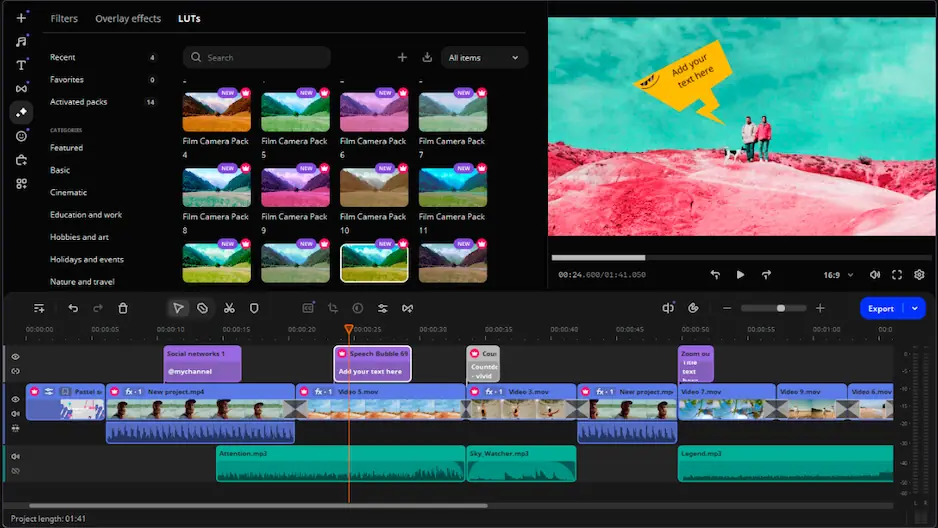
Movavi Video Editor feels like what CapCut should have been on desktop. The timeline is actually designed for mouse and keyboard work, not adapted from touch controls.
What impressed me most was the AI background removal. I threw a challenging video at it – someone walking in front of a busy street – and it handled the moving background surprisingly well. The edge detection stayed clean even when the person's hair moved.
The automatic subtitle generation works in multiple languages, and you can translate them to English with one click. That's genuinely useful for content creators targeting international audiences.
Intuitive timeline designed for desktop use
AI tools that actually work reliably
Extensive library of royalty-free music and sounds
4K video support without performance hits
Professional color correction tools
Advanced features require the paid version
Some AI features need internet connection
Export watermark in free version
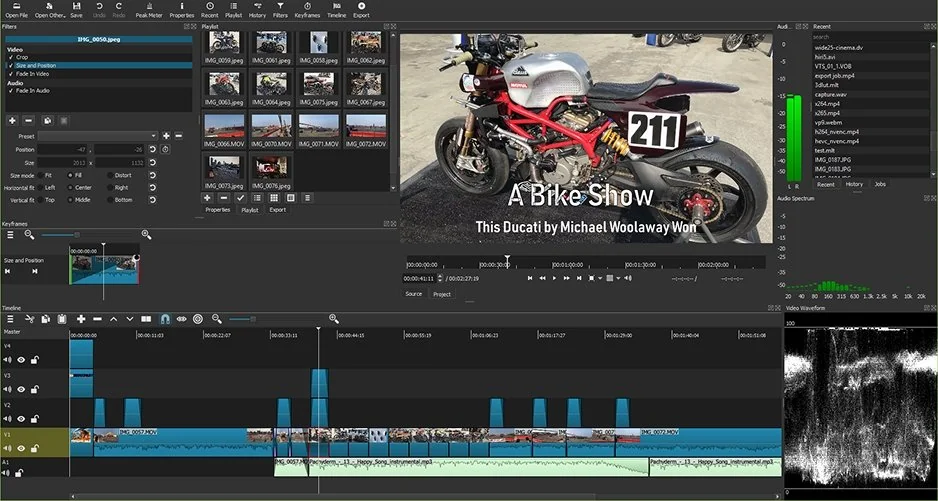
Shotcut surprised me with its format support. I threw every weird video file I had at it – old AVI files, random codecs from security cameras, even some corrupted clips. It handled them all without asking me to convert anything first.
The native timeline editing means you're working directly with your original files. No importing, no waiting for processing – just drag and drop to start cutting.
The audio filters deserve special mention. The noise reduction actually works better than some paid alternatives I've tested.
Supports virtually every video format
No import process – edit files directly
Advanced audio filtering capabilities
Hardware acceleration for smooth playback
Completely free forever
Interface feels dated compared to modern editors
Learning curve is steep for complex features
Some effects lack real-time preview
Documentation could be more beginner-friendly
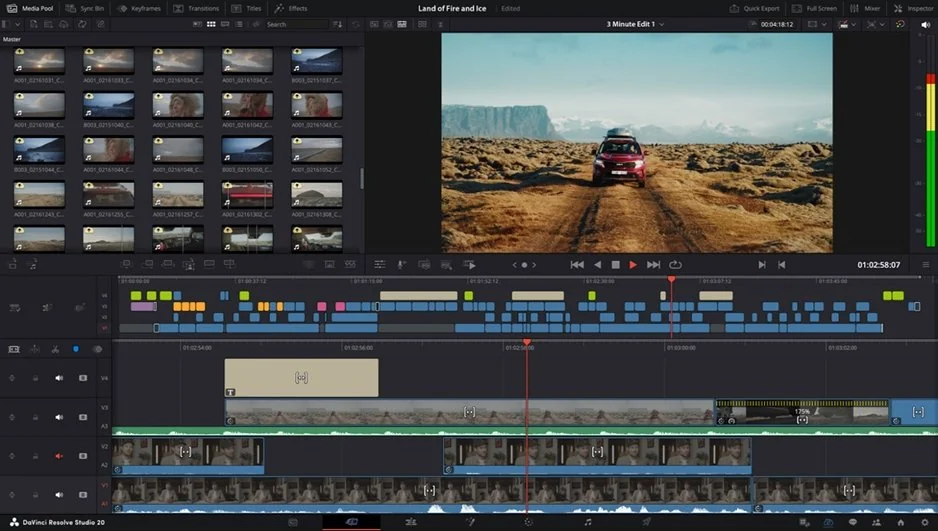
DaVinci Resolve is what happens when a company that makes $30,000 professional color grading systems decides to give away their software for free.
The color correction tools here make everything else look amateur. I took some washed-out footage from a cloudy day and transformed it into something that looked like golden hour. The primary and secondary color wheels give you control that CapCut can't even dream of.
Fair warning: this software will eat your RAM for breakfast. 16 GB is minimum if you want smooth performance with 4K footage.
Professional-grade color correction
Advanced audio post-production suite
Multi-user collaboration features
No watermarks or time limits in free version
Used by actual Hollywood productions
Requires powerful hardware to run smoothly
Overwhelming interface for casual users
Large download size (several gigabytes)
Steep learning curve for basic tasks
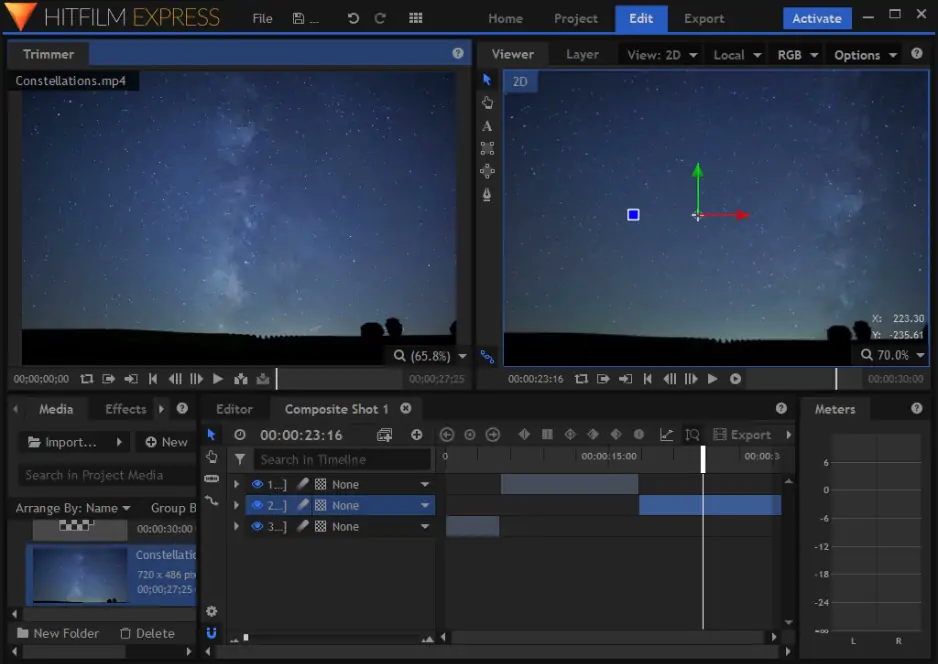
HitFilm Express bridges the gap between basic editing and visual effects work. The built-in particle systems and 3D compositing tools let you create effects that would require additional plugins in other editors.
I used it to add realistic smoke to a cooking video – something that would be impossible in CapCut and expensive in Adobe® After Effects®. The learning curve exists, but the results justify the effort.
The free version includes most features, but some advanced effects require purchasing add-on packs.
Built-in visual effects and compositing
Professional 3D model import and animation
Green screen tools that rival expensive alternatives
Active community with tutorials and resources
Regular feature updates
Resource-intensive during effects rendering
Some advanced features cost extra
Interface can feel cluttered for simple edits
Requires registration even for free version
The right choice depends on what you're actually trying to accomplish:
CapCut on desktop feels like a mobile app ported over – functional, but lacking the precision that proper desktop editing offers. Any of the options above will give you more control over your final result.

Yes, once downloaded and installed, CapCut works offline for basic editing. However, some features like cloud storage sync and certain effects require an internet connection.
The core editing tools are similar, but the PC version includes additional features like multi-track editing and better timeline controls. The interface is adapted for mouse and keyboard use.
CapCut has relatively modest system requirements. Windows 10 or 11 with 8 GB RAM and a modern processor should handle most editing tasks smoothly.
Yes, you can sync projects through your CapCut account, though some mobile-specific effects might not transfer perfectly to the desktop version.
The PC version is completely free with no watermarks or time limits, unlike many other video editing software options that restrict features in their free versions.
Movavi Video Editor offers the smoothest transition with its intuitive interface, while OpenShot provides more advanced features if you're willing to invest time in learning.
Top 19 Best Free Video Cutter Software 2026 [Free, Online]
Best Apps Like CapCut in 2026: 15 Alternatives for a PC & Online
Top 9 Final Cut Pro Alternatives for Windows in 2026
InShot for PC: The best desktop alternatives
KineMaster for PC: Best Windows & Mac Alternatives in 2026
LumaFusion for Windows: Best PC Alternatives [2026]
Final Cut Pro for Windows: 14 Alternatives [Download for free]



1.5M+ users already subscribed to our newsletter