Movavi Video Editor

  • Generate automatic subtitles with AI-powered tools

  • Add titles, captions, and subtitles to your video

  • Customize fonts, size, color, and position

By clicking the download button, you're downloading a trial version of the program.*

Add Text to a Video Online for Free

How to add text to videos online

Movavi’s online tool is designed to let you easily add text to a video, right in your browser with little to no effort. This web-based platform requires no installation – you can access it from any PC at any time. You can pick from various artistic styles to find the look that fits your footage best. It is a quick and effective way to add text to a video online for free, with no special expertise.

How to add text to a video for free with Movavi

Step 1. Upload your video

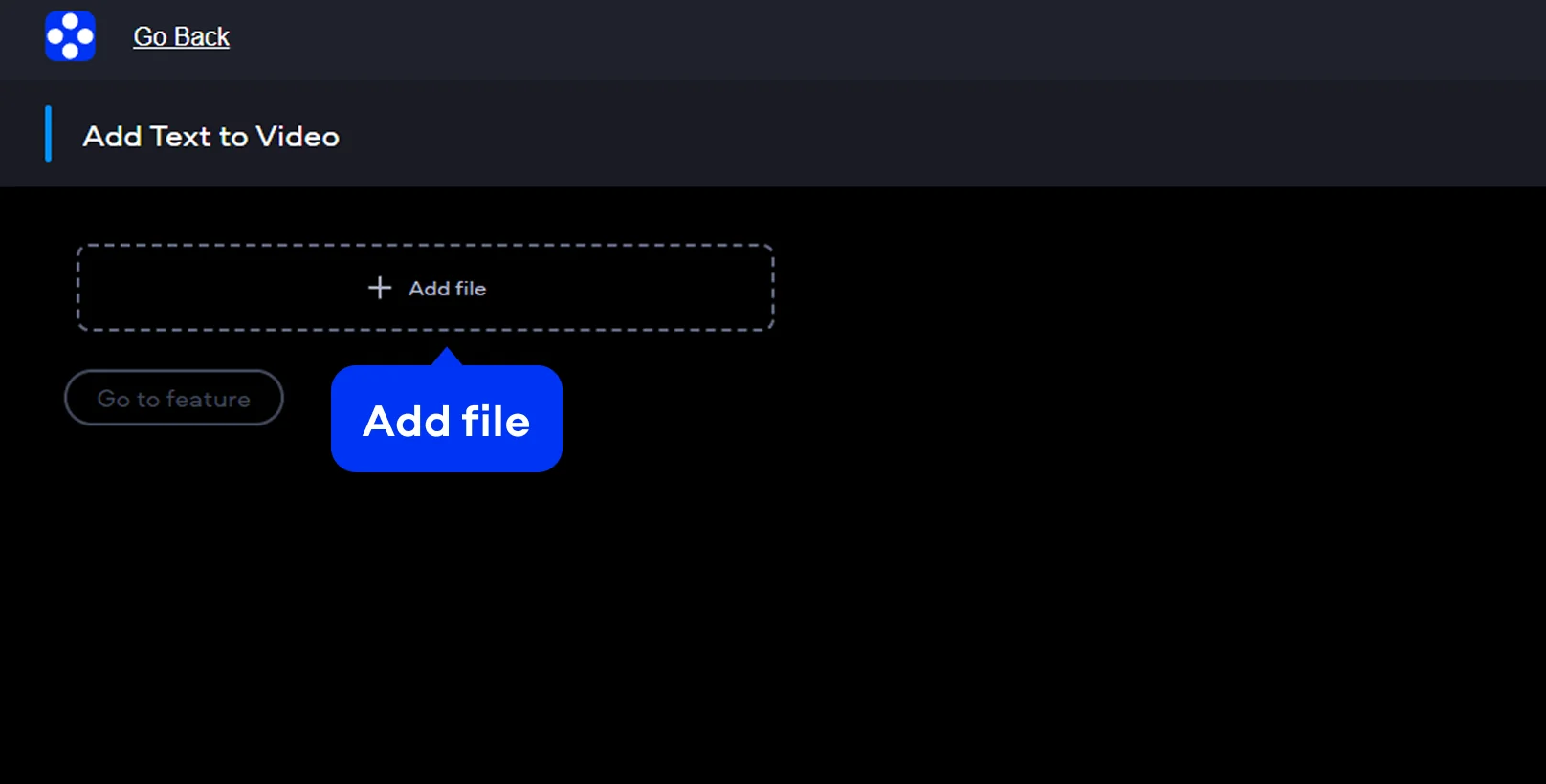
Start by clicking Add file to bring your footage into the editor directly from your device storage. You can simply drag your file into the window to begin your project on Windows or Mac. The system handles formats like MP4 natively, so you can skip the conversion and start working immediately.
Step 2. Add your text and edit it

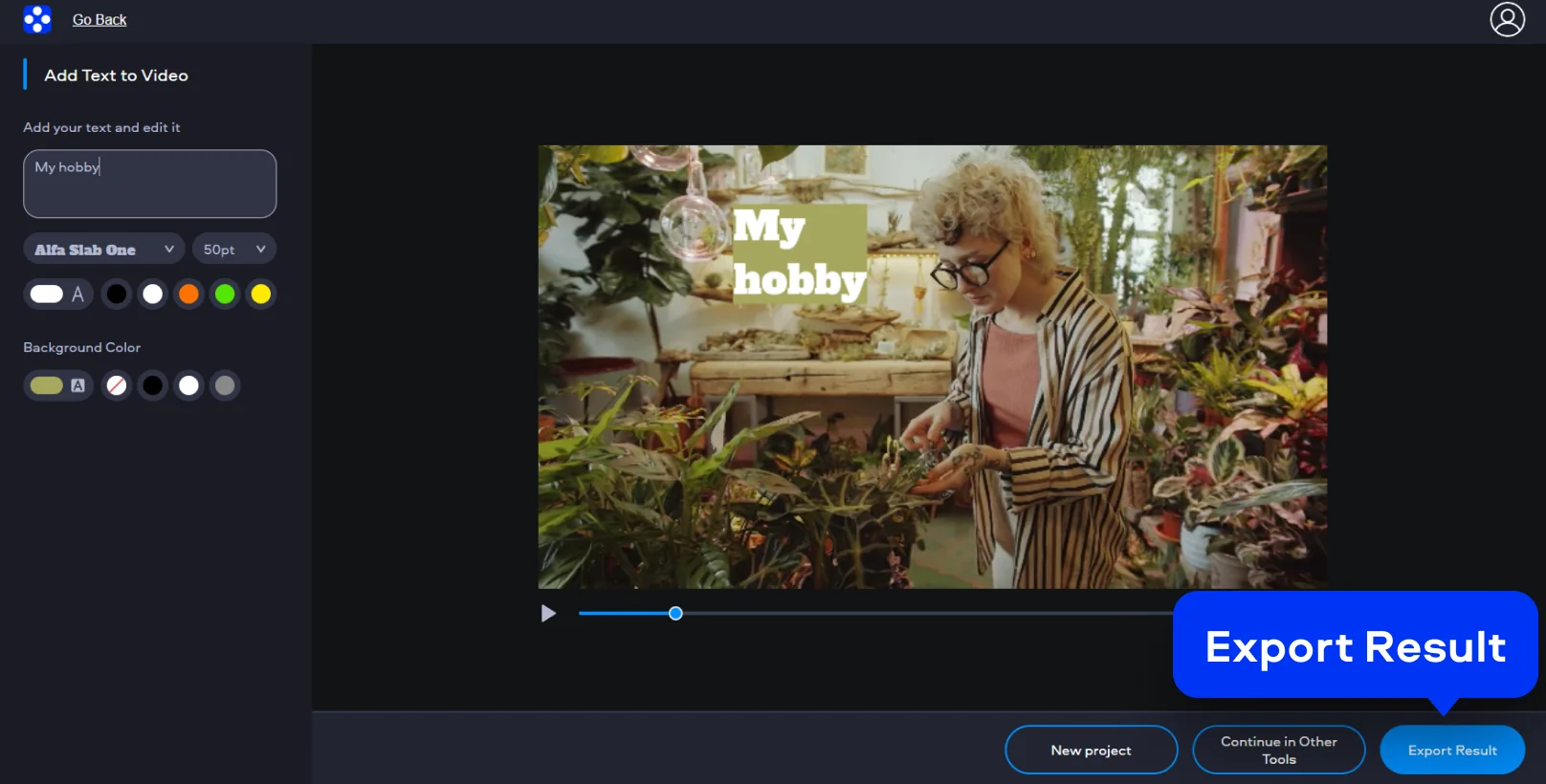
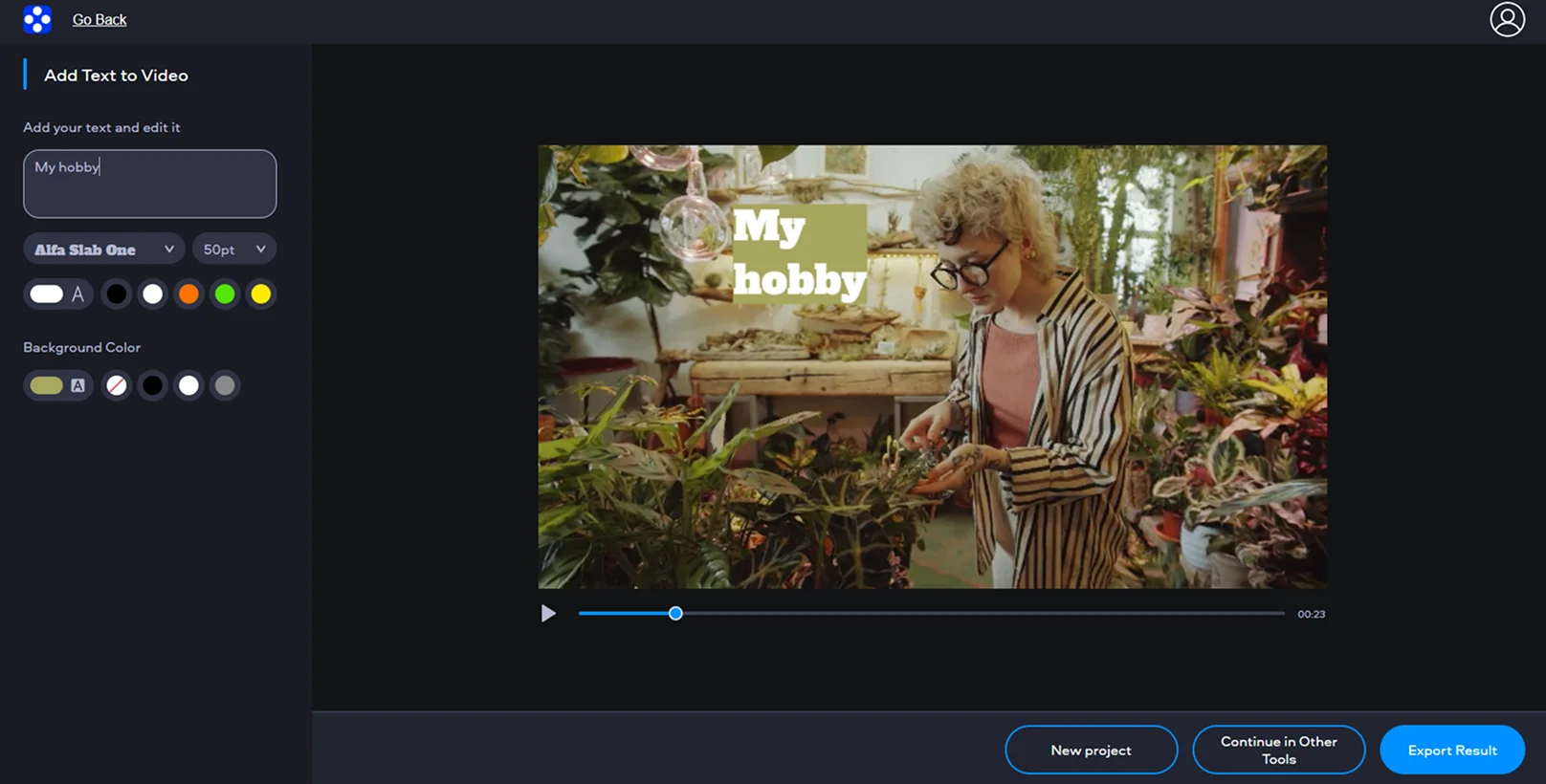
Type in your text in the editing window on the left. Select a visual style that matches your creative vision for the clip. You can edit the font, color, and size until your words feel right against the movement in your video.

Step 3. Export your video

Once you’re happy with the edit, hit the Export Result button to prepare your content for its final destination.

How to add text to a video on desktop

What makes adding text with Movavi Video Editor comfortable is the lack of friction. You place the text, adjust how it looks, preview the result, and save. When the process feels simple, you spend less time adjusting text and more time making sure the video actually says what it needs to say.

Step 1. Upload your video

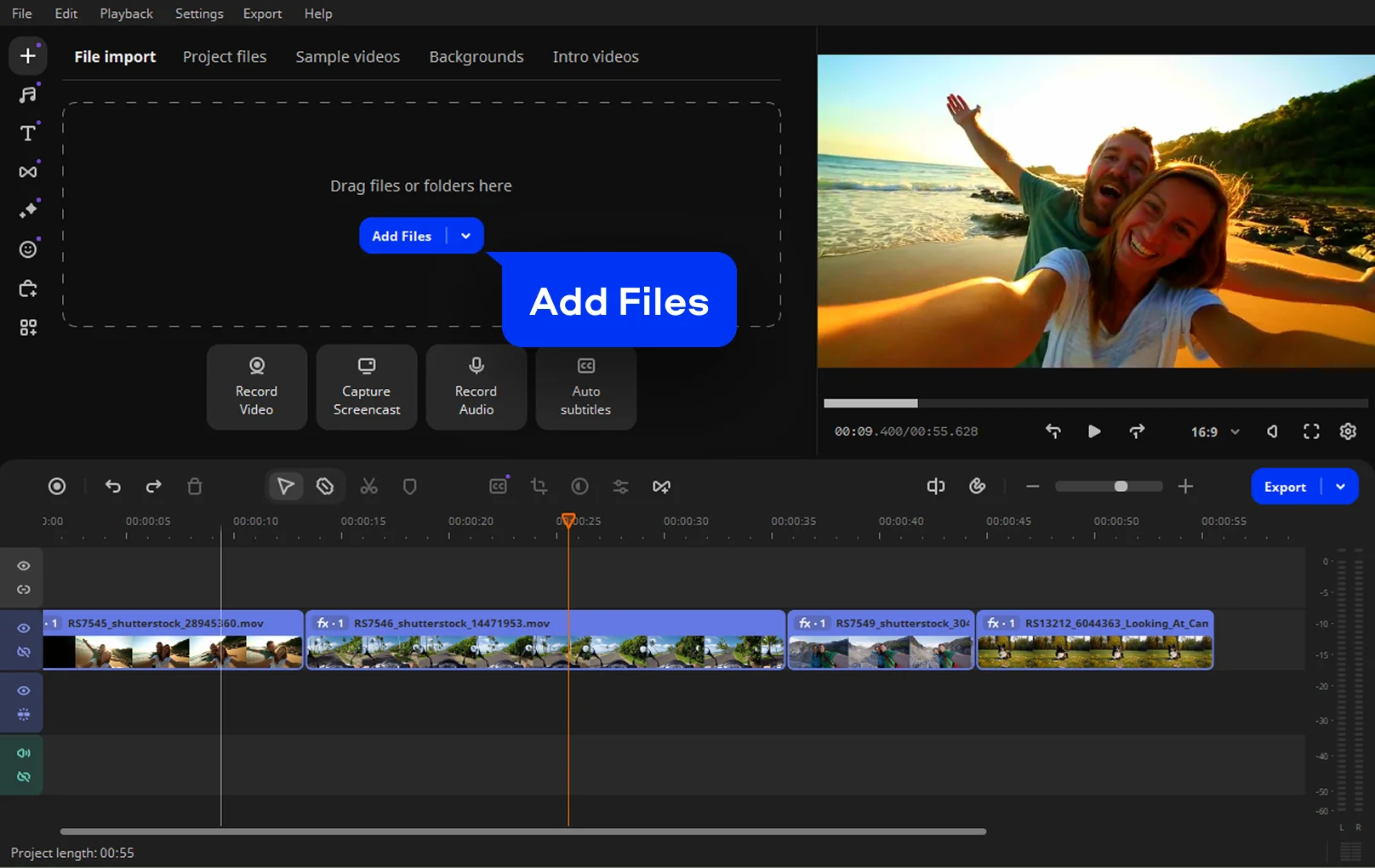
Click Add Files and select the video you want to edit from your device. You can also drag and drop the file into the software window to start working right away. Common formats like MP4 are supported, so no conversion is needed.

Step 2. Add text

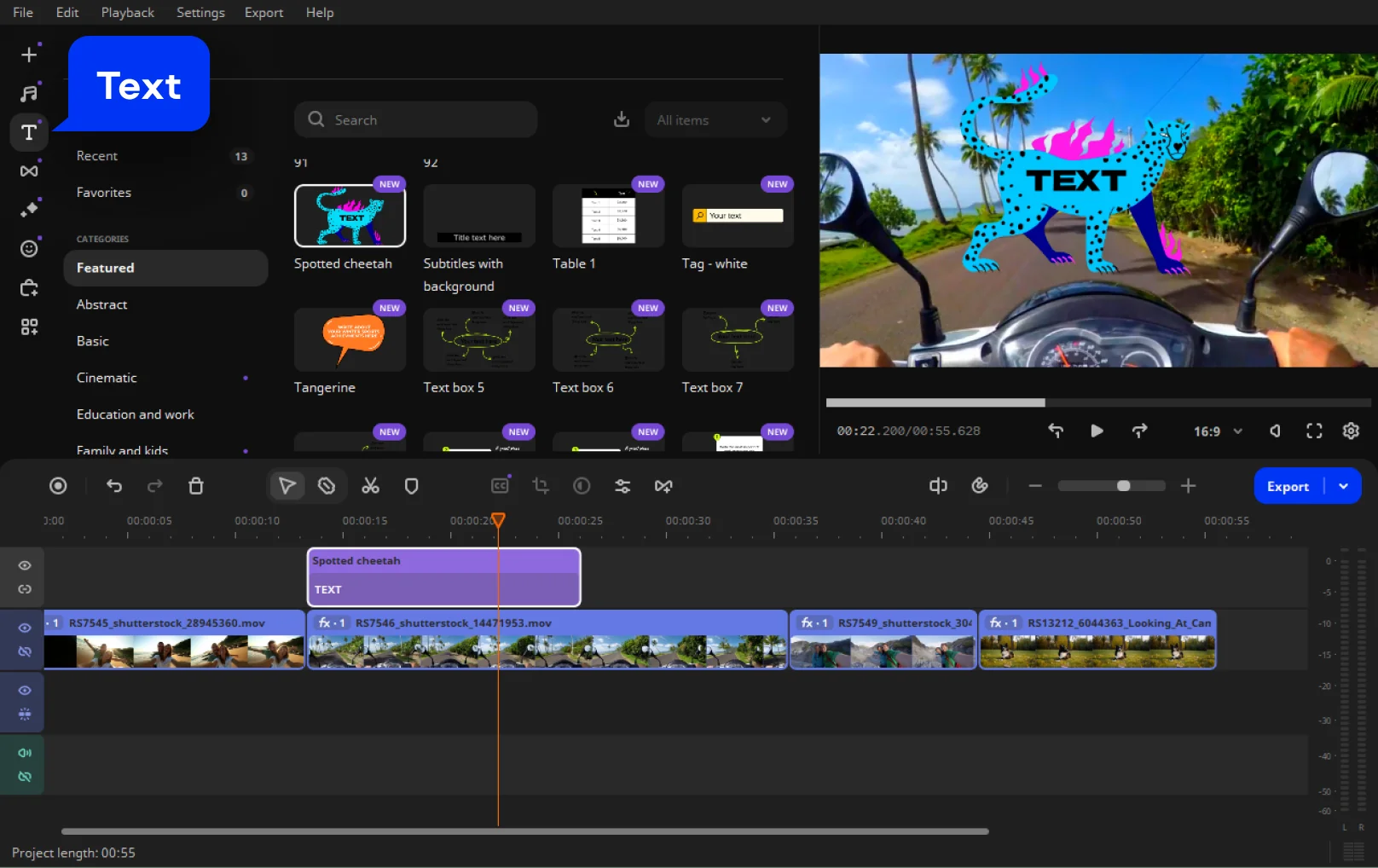
Open the Text tab, choose the style you like, and drag it to the timeline. Enter the text you want to place on the video. The text appears as a separate overlay, which you can move freely and position exactly where it fits the scene.

Step 3. Customize the text

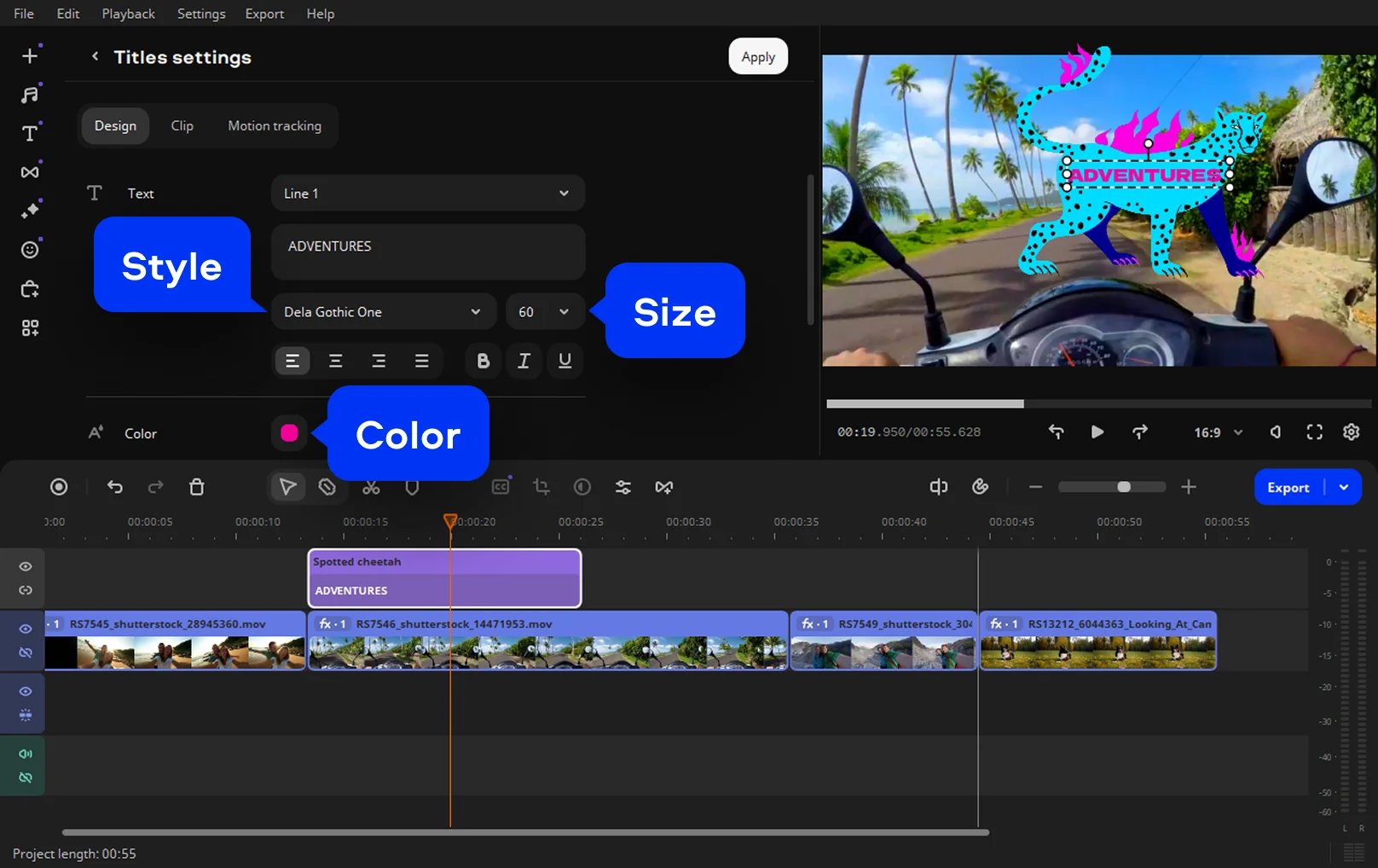
Adjust the font, color, size, and style to match the video’s tone. You can fine-tune placement and appearance so the text stays readable without distracting from the footage.

Step 4. Export the video

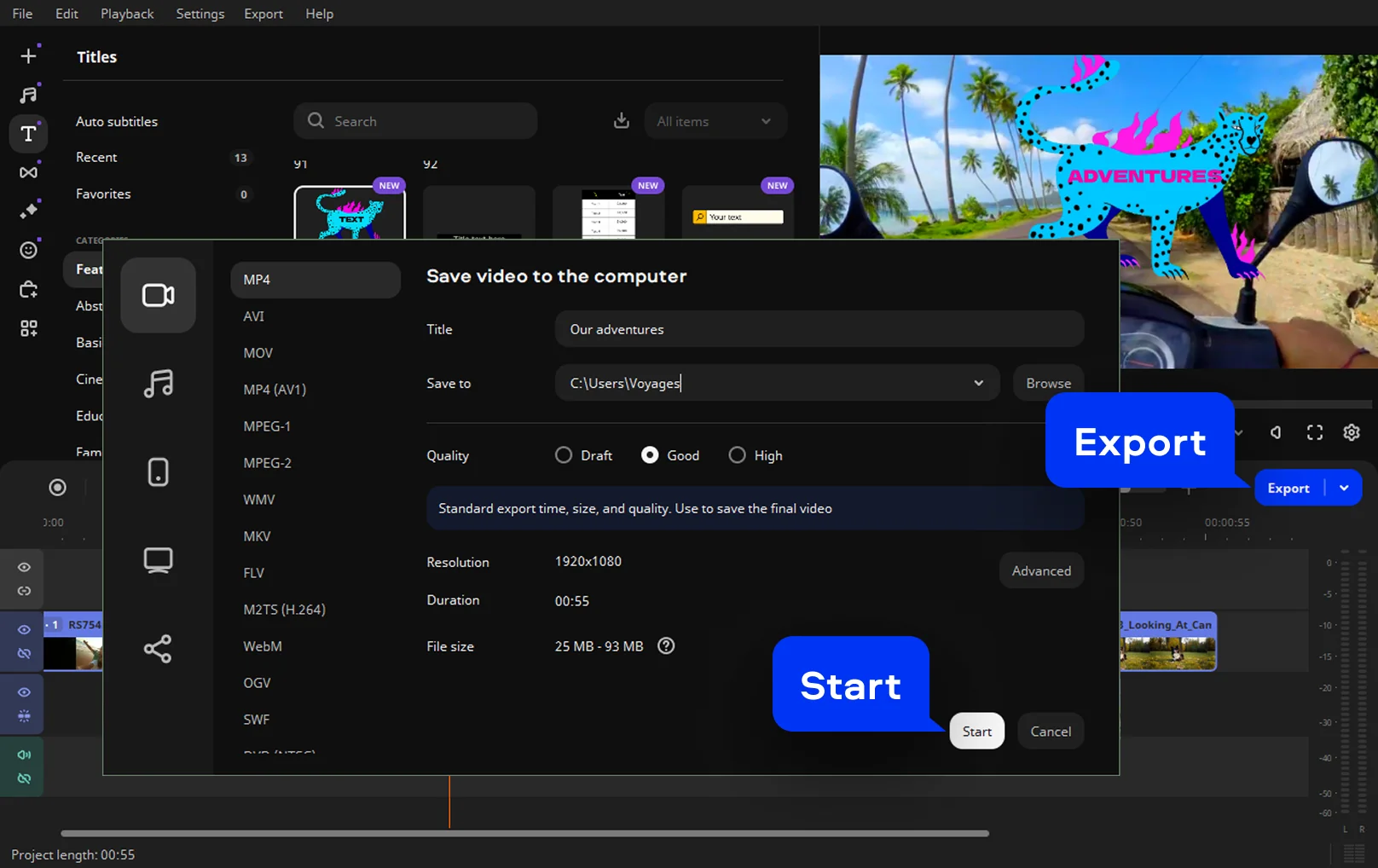
Click Export and specify saving settings. You can save the video for free with a watermark or use the paid version to export the final file with no watermark.

Movavi Video Editor
Create awesome videos easily

*The free version of Movavi Video Editor may have the following restrictions depending on the build: watermark on exported clips, 60-second video or 1/2 audio length limit, and/or some advanced features unavailable when exporting videos.

Movavi Video Editor

Why choose Movavi

We’re the #1 choice for millions of people from all around the world. Join our thriving community and create stunning content with incredible ease.

70M+

users

190+

countries

15+

updates per year

10,000+

effects to choose from

Frequently asked questions

How do I add text to a video online?

Open a video editor in your browser and upload the clip you want to work on. Once it loads, you can add text to video online by dropping text onto the video, moving it around, and adjusting how it looks. In Movavi’s online editor, it feels more like tweaking than editing. You try a font, nudge the text into place, watch the preview, then save when it looks right.

Can ChatGPT edit videos?

No. ChatGPT does not touch video files. ChatGPT’s AI is useful for explaining steps or helping you think through what you want to add, but the actual work still happens in an editor.

How do I add a name in a video?

This comes up a lot with intros or credits. You upload the video, add a text layer, and type the name. In Movavi’s editor, you can decide exactly when it appears, how long it stays on screen, and where it sits so it does not block the action.

How do I add text to a video in the gallery?

A video stored in your gallery cannot be edited directly. Select the file from your device and open it in an online editor. You can add text to video online for free, adjust how it looks, and export the edited version back to your gallery while keeping the original file intact.

Movavi Video Editor
Create awesome videos easily

*The free version of Movavi Video Editor may have the following restrictions depending on the build: watermark on exported clips, 60-second video or 1/2 audio length limit, and/or some advanced features unavailable when exporting videos.

Movavi Video Editor
Join us for discounts, editing tips, and content ideas

1.5M+ users already subscribed to our newsletter

By signing up, I agree to receive marketing emails from Movavi and agree to Movavi's Privacy Policy.