Step 1. Add your video
Open the tool in your browser and click the Add file button. Select the MP4 file from your device and wait for it to upload. After the upload is complete, click Go to feature to open the editing interface.
Movavi Video Editor
Split large MP4 files into segments with zero quality loss in Movavi Video Editor, the fast and easy solution for precise video fragmentation.
By clicking the download button, you're downloading a trial version of the program.*
Split Video Online for Free
How to cut a video online
Movavi’s online video cutter is a browser-based video tool that helps divide MP4 files into separate parts, with no download required. This convenient MP4 cutter supports quick edits on different devices and suits users who need a simple way to split videos online.
To cut MP4 video and divide it into separate parts, follow these simple steps using Movavi’s video splitter:
Step 1. Add your video
Open the tool in your browser and click the Add file button. Select the MP4 file from your device and wait for it to upload. After the upload is complete, click Go to feature to open the editing interface.
Step 2. Set the cut points
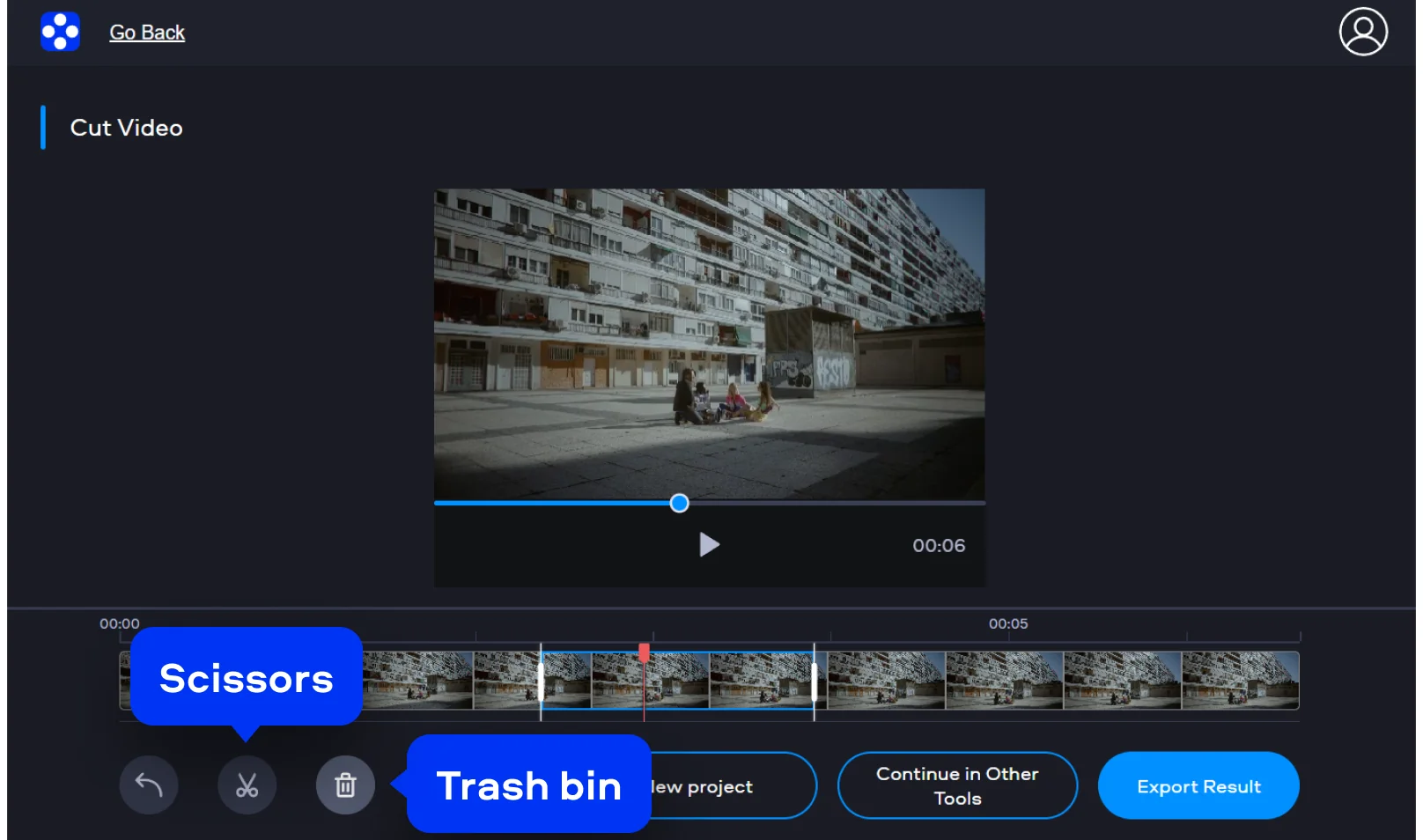
Use the timeline to navigate through the video and find the moments where it should be divided. Place the playhead at the required position and click the Scissors icon to cut the video. Move the markers as needed and preview the selected sections to confirm that the cuts appear at the correct points, delete unwanted parts by pressing the Trash bin icon.
Step 3. Save the result
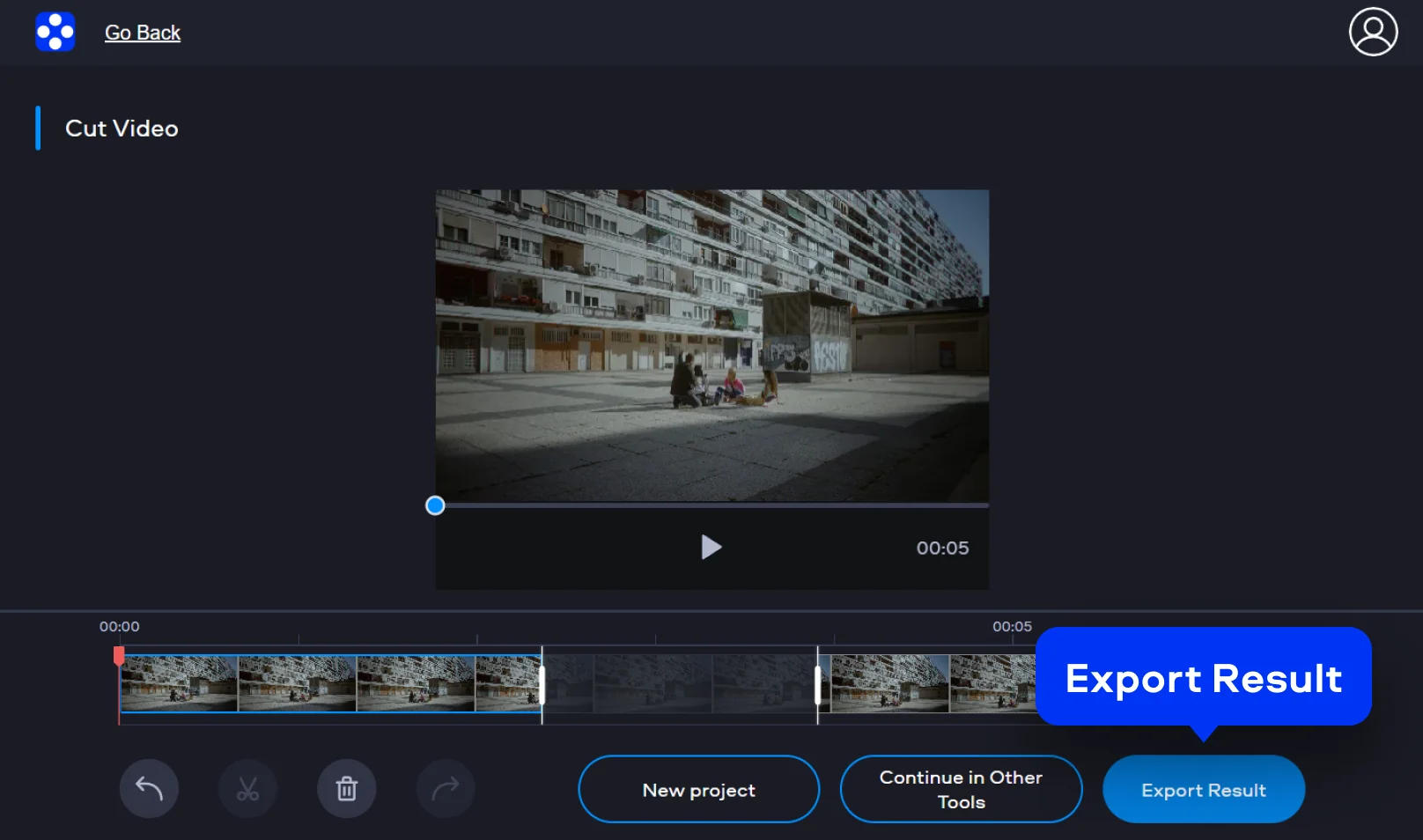
Once all edits are finished, review the video to make sure the changes look correct. Click Export Result and wait until the file is processed. When the process is complete, download the final video to your device with no watermark and use it as needed.
How to split a video on desktop
Movavi Video Editor is a desktop application for Windows and Mac computers designed for precise video editing tasks. It provides a clear timeline-based workspace and built-in tools that help users split videos into parts, extract video fragments, and efficiently split large MP4 files. Thanks to its timeline controls and split features, the program is a reliable MP4 splitter for everyday editing tasks.
Step 1. Add the video to the editor
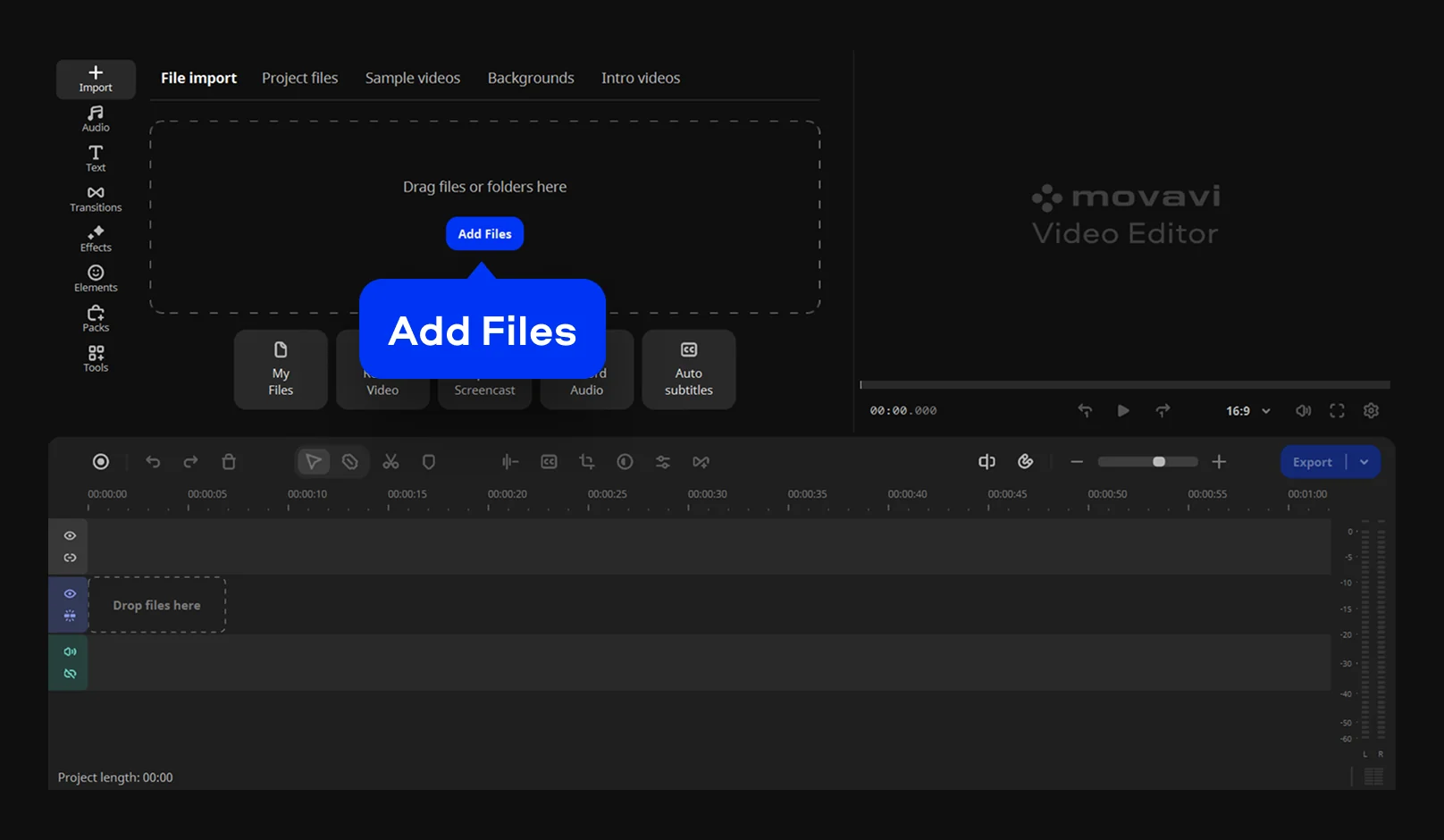
Open Movavi Video Editor and select Add Files to load the video you want to edit. The program supports fast video upload and opens MP4 files and other widely used formats directly, so you can start working without any preliminary conversion.
Step 2. Divide the video on the timeline
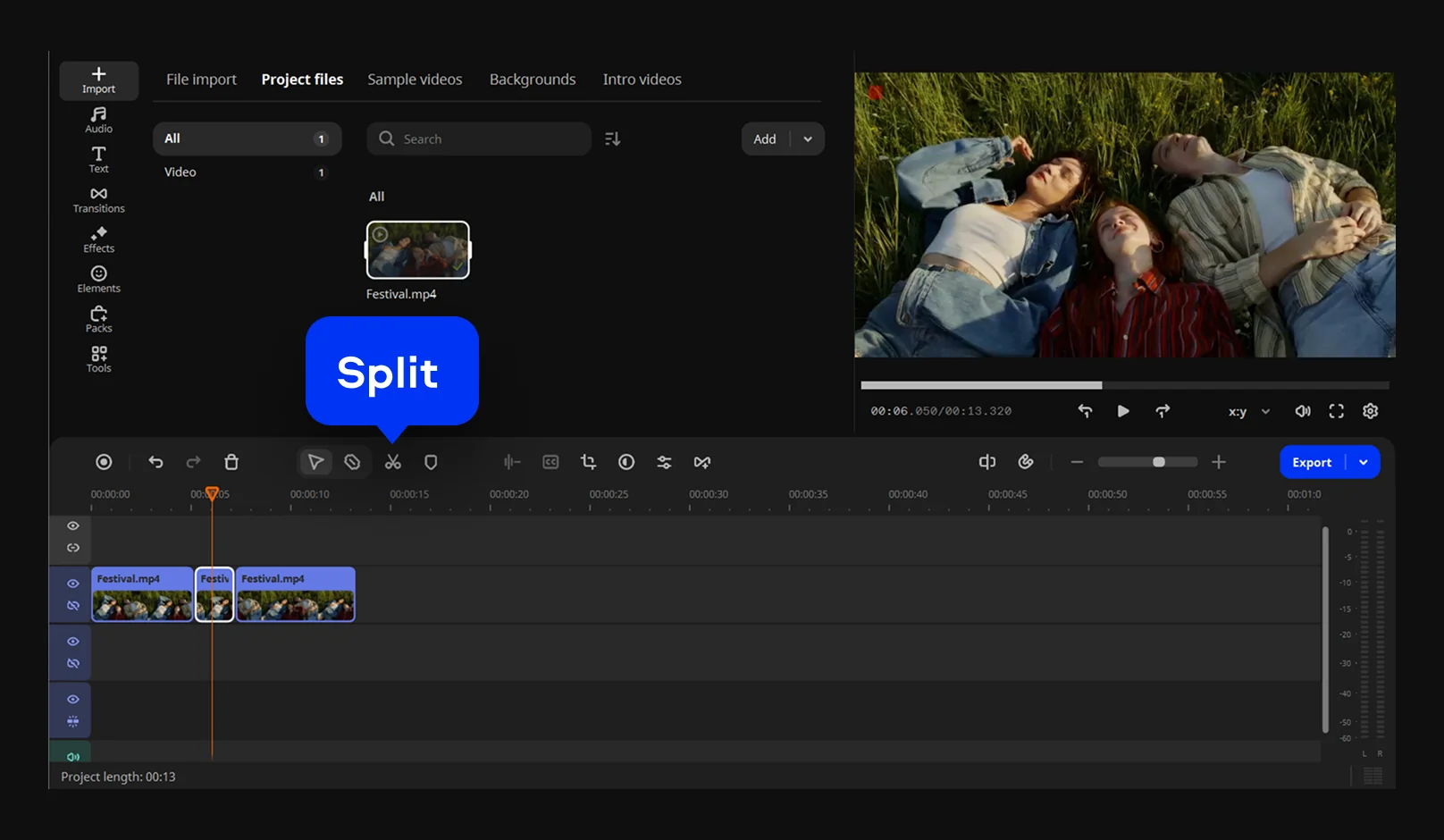
Place the video on the timeline and move the playhead to the exact position where the cut should appear. Click the Split tool to separate the clip into segments. After splitting, select the unwanted parts and delete them from the timeline if needed.
Step 3. Save the edited video
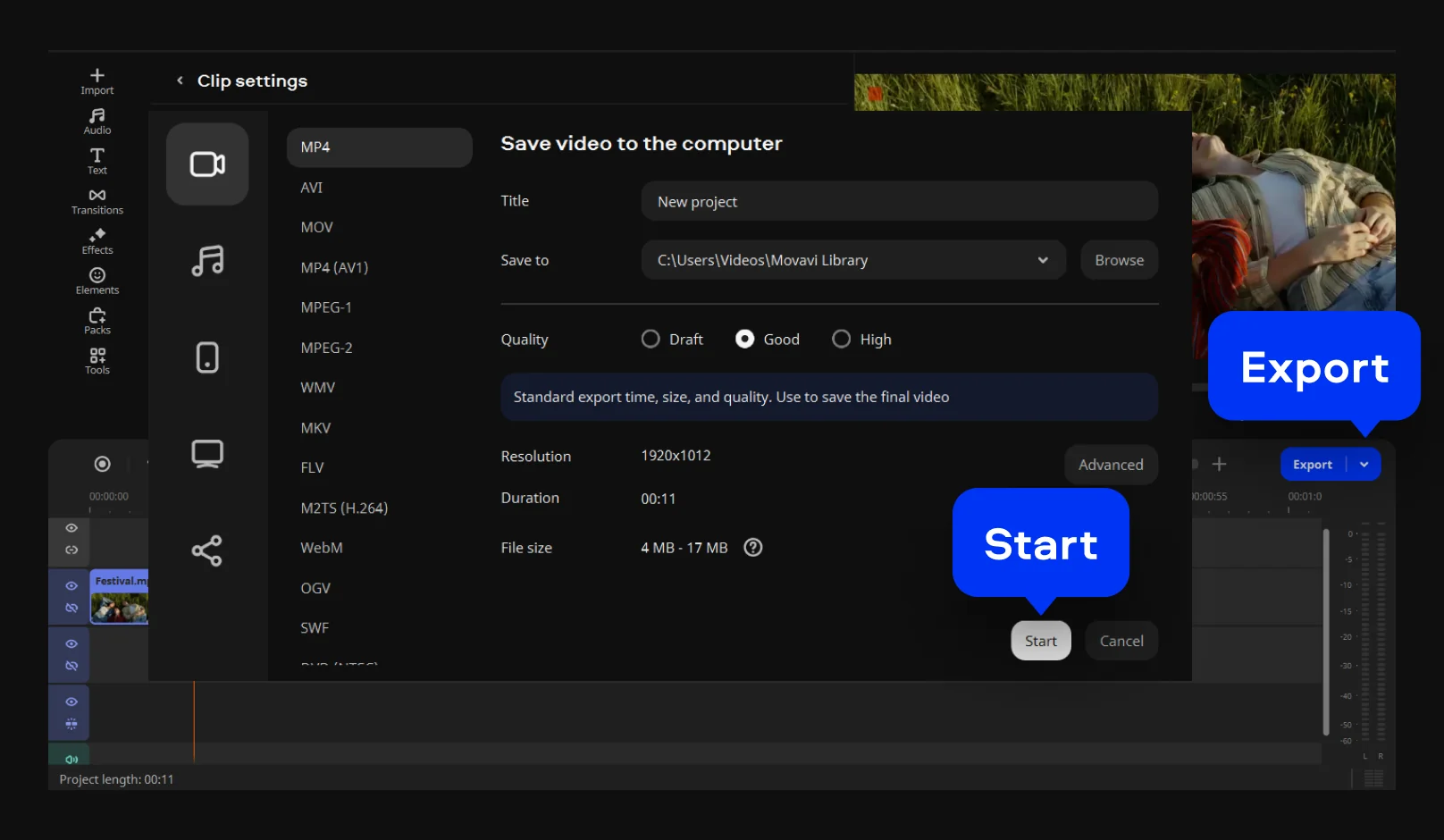
Once all changes are complete, click Export, choose the required format and quality settings, and confirm the save location. The program lets you convert and split video in one workflow, exporting the file according to the selected parameters while preserving the chosen quality and resolution.

We’re the #1 choice for millions of people from all around the world. Join our thriving community and create stunning content with incredible ease.
70M+


Frequently asked questions
You can split MP4s online using Movavi's browser-based tool that works without installation. The process is straightforward: upload your video, choose where the cuts should appear, and save the result. This free online video editor lets you trim MP4 files to remove unnecessary parts, which is useful when you only need a shorter clip instead of the full recording.
Movavi provides an online MP4 splitter that allows you to divide videos and download the result without adding watermarks. This makes it suitable for personal projects, social media content, or presentations where clean output is important.
Yes. At Movavi, we use cloud video processing to handle uploaded files automatically. Videos are processed only for editing and are not kept on our servers longer than needed. We do this to protect your privacy while still keeping online editing fast and convenient.
Yes, our online MP4 splitter can be opened in a browser on both iPhone and Android devices. You can edit videos on the go without installing additional apps, as long as you have an internet connection. If you prefer a dedicated solution, we also provide mobile-friendly video cutter apps for these platforms.
With the Movavi online tool, you can cut videos for Instagram or messaging apps by dividing longer clips into shorter segments that meet platform limits. Upload your video, move the timeline cursor to the desired point, and use the scissors icon to create separate parts. This is a practical MP4 slicer that helps you quickly adjust video length.
Yes – it works on both Android and iPhone, and it’s free to use.
Yes. All features are available for free – no payment required.
No. You can export videos without a watermark.
*The free version of Movavi Video Editor may have the following restrictions depending on the build: watermark on exported clips, 60-second video or 1/2 audio length limit, and/or some advanced features unavailable when exporting videos.


1.5M+ users already subscribed to our newsletter