Movavi Video Editor

Edit subtitles without slowing down

Meet the Free Subtitle Editor

Get a free download of Movavi Video Editor

Create auto subtitles in a click

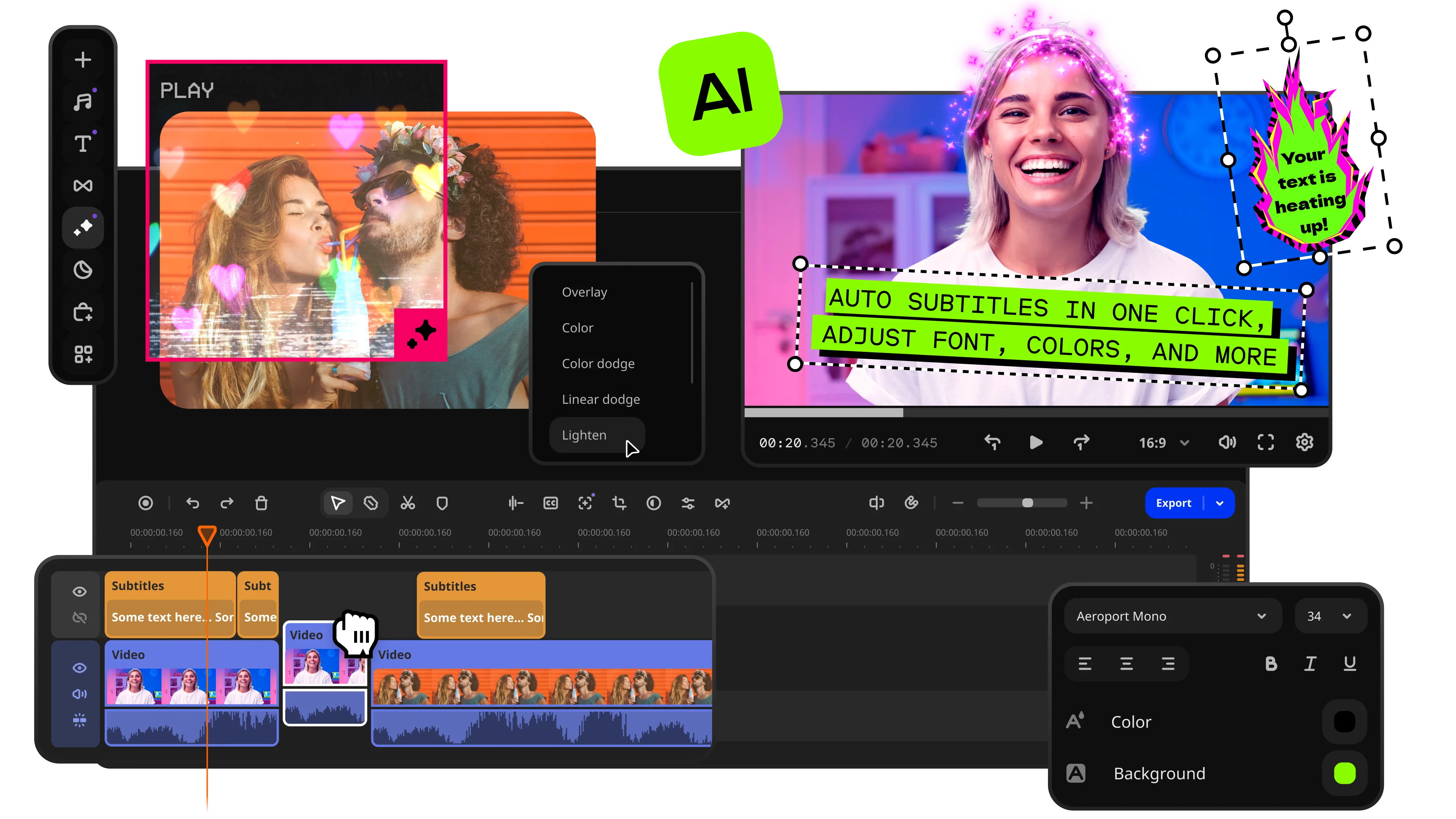
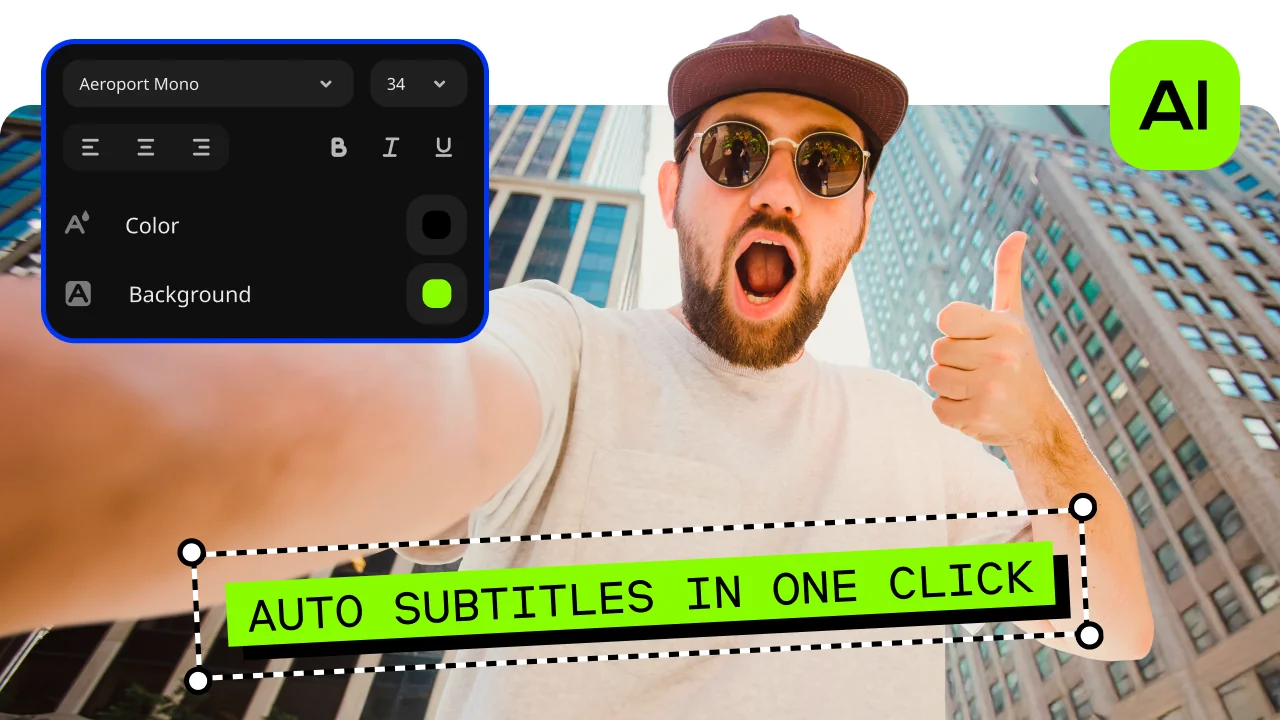
Movavi Video Editor works as a subtitle editor that can turn speech into text automatically. It also gives you a free download, so you can test the tool before you commit to the full version.

Adjust every line by hand

This subtitle software is not locked into automation. You can open the Text tab, type captions yourself, set precise timing, and change the font, size, color, and position until the subtitles sit right in the frame.

Export a finished video

Movavi Video Editor lets you export videos with embedded subtitles, which matters when you want one clean file ready for upload, review, or posting. It also supports common formats, so this subtitle program fits neatly into a normal editing workflow on Windows or Mac.

Edit subtitles quickly

Movavi Video Editor is a practical subtitle-editing software for people who want the job done in one app. You can add subtitles automatically, build them manually, or clean up an existing file without jumping between random browser tabs and extra downloads. The layout stays clear, which helps when you are fixing timing, checking line breaks, or making small style changes that affect readability more than most people admit.

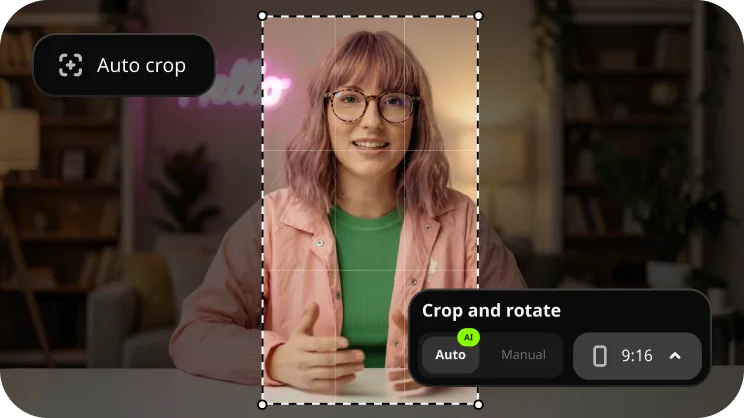
As a subtitle editing application, it includes all the essential features for your job: auto subtitles, text manipulation tools, font and color customization, positioning, and exporting the content along with embedded captions. This program works under both Windows and macOS environments, supports standard video file formats, and leaves enough room for quick editing without stripping off the simplicity. In case you require a straightforward subtitle editor, I would suggest you consider using this application as downloading and testing it will not take much time.

How to use the subtitle editor

Step 1. Add your video file

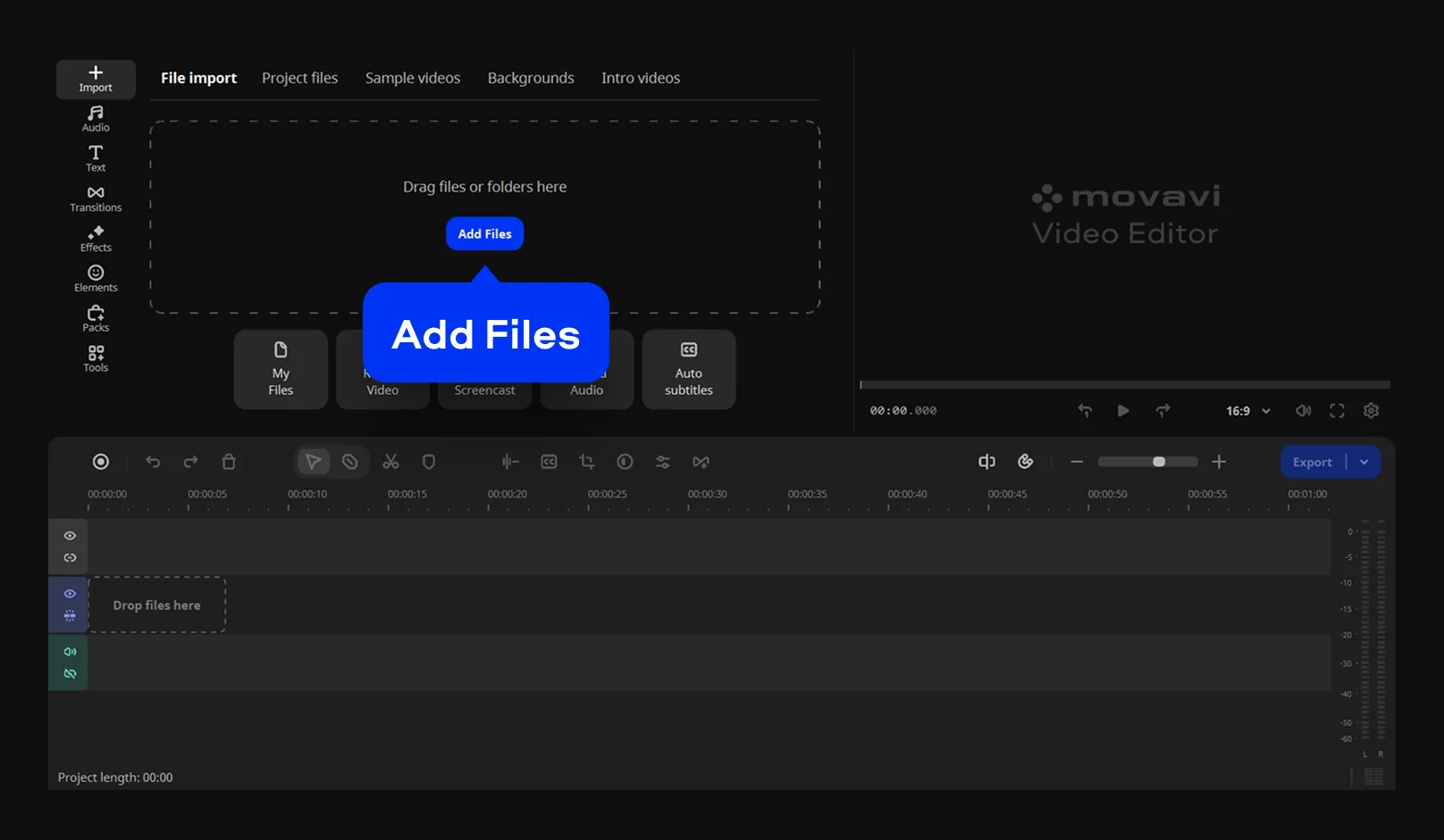
Open Movavi Video Editor and click Add Files, or drag your file straight into the program window. The app supports common formats like MP4, MKV, AVI, MOV, and WMV, so in most cases you can start editing right away instead of converting first.

Step 2. Add subtitles and edit the timing

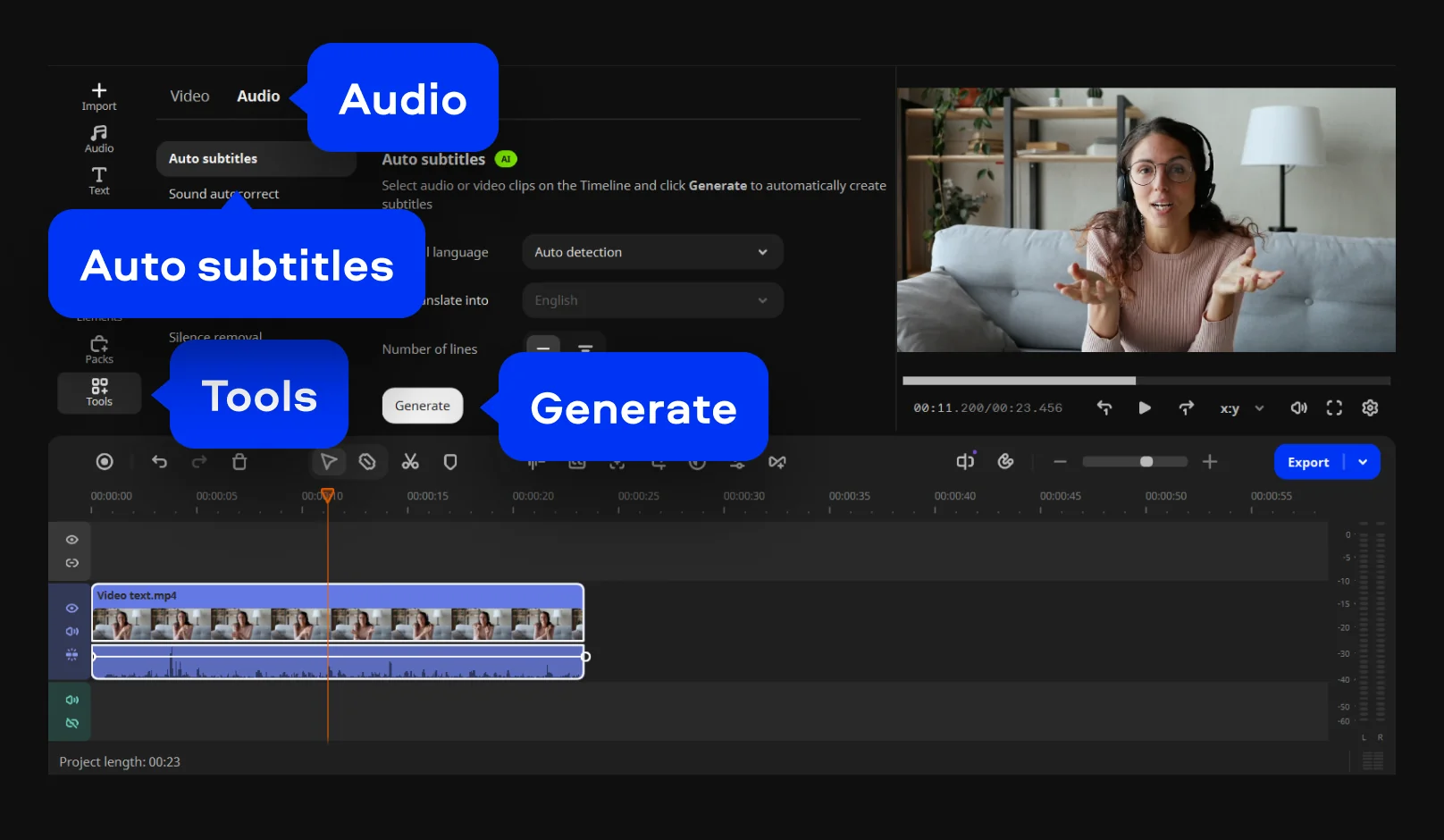
If you want the fast route, go to Tools, open the Audio tab, and click Auto subtitles.

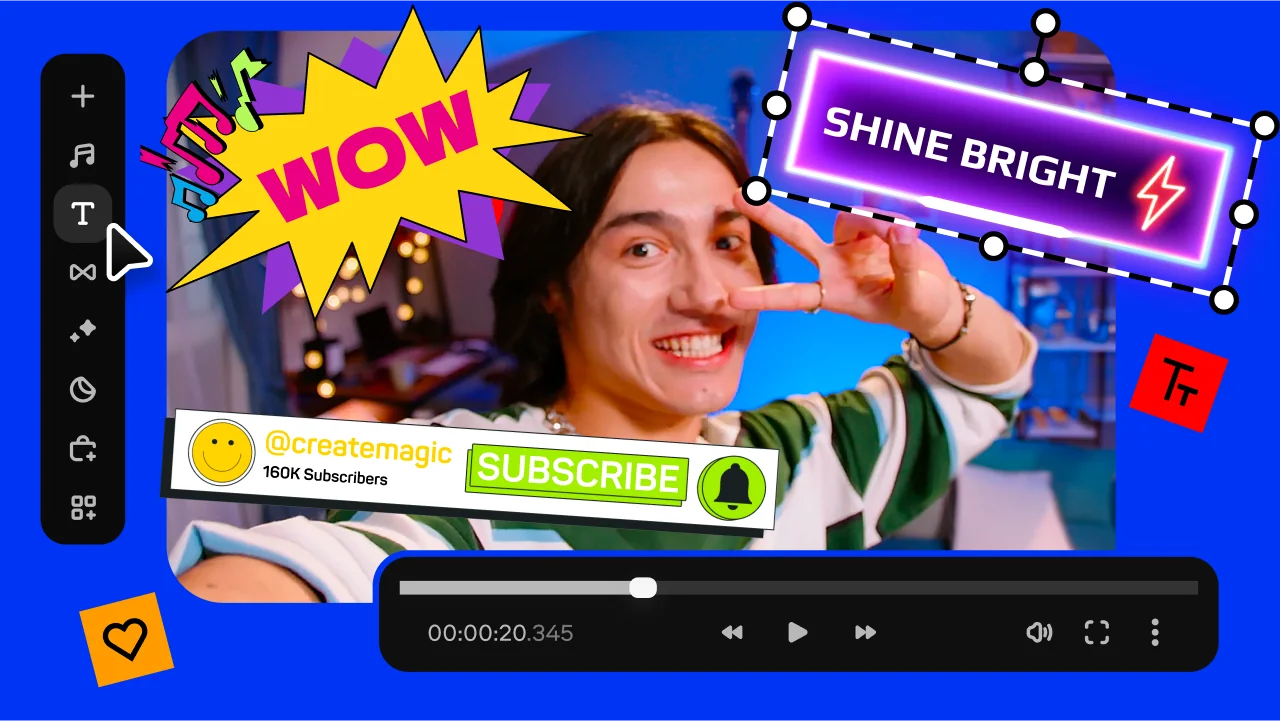
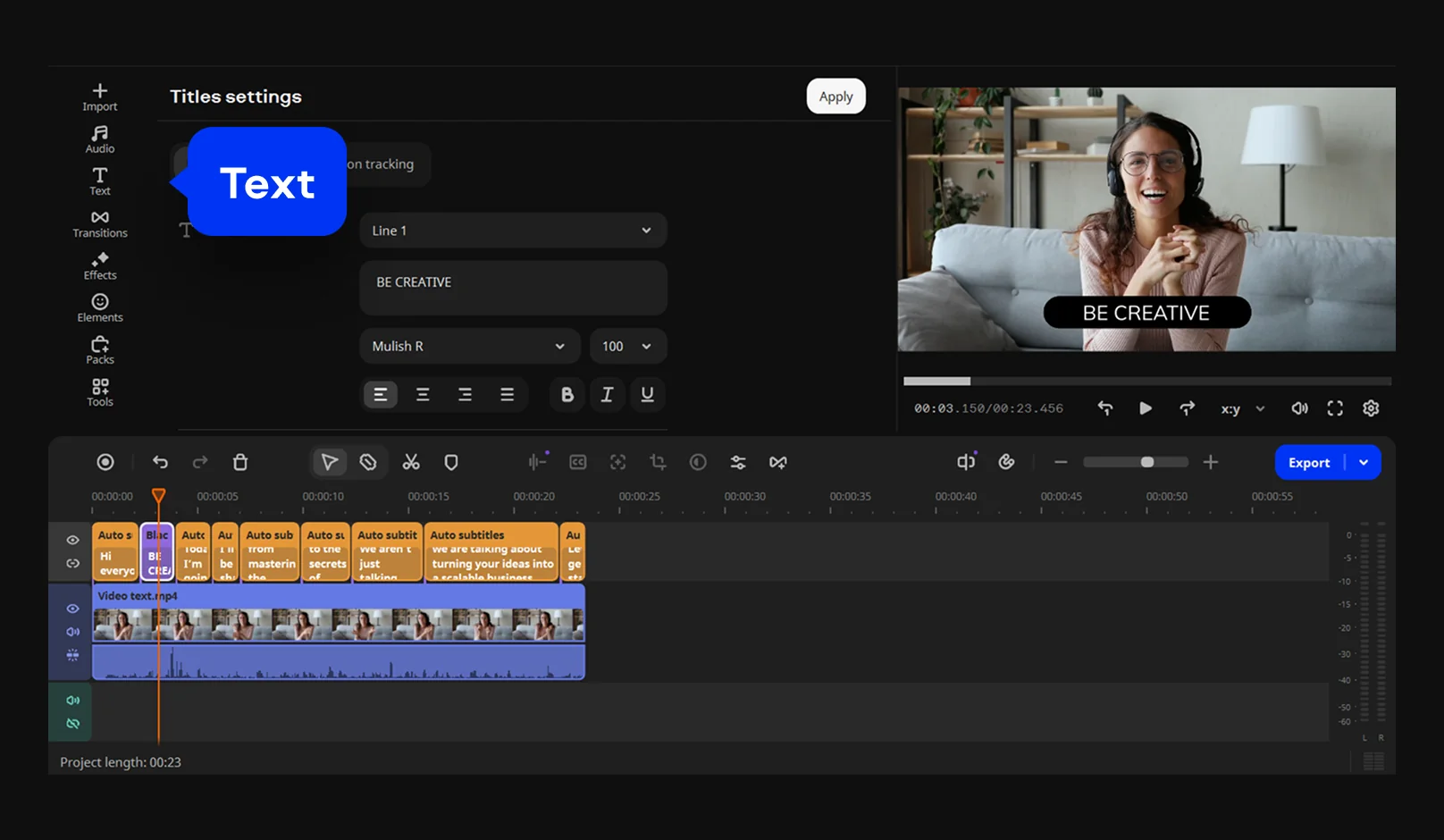
If you want full control, open the Text tab, choose a text preset, type your captions, and place each subtitle where it belongs on the timeline. This is the part where a good subtitle editor earns its keep: you can fix pacing, trim awkward delays, and make the text match the spoken line instead of settling for a rough draft.

Step 3. Customize and export

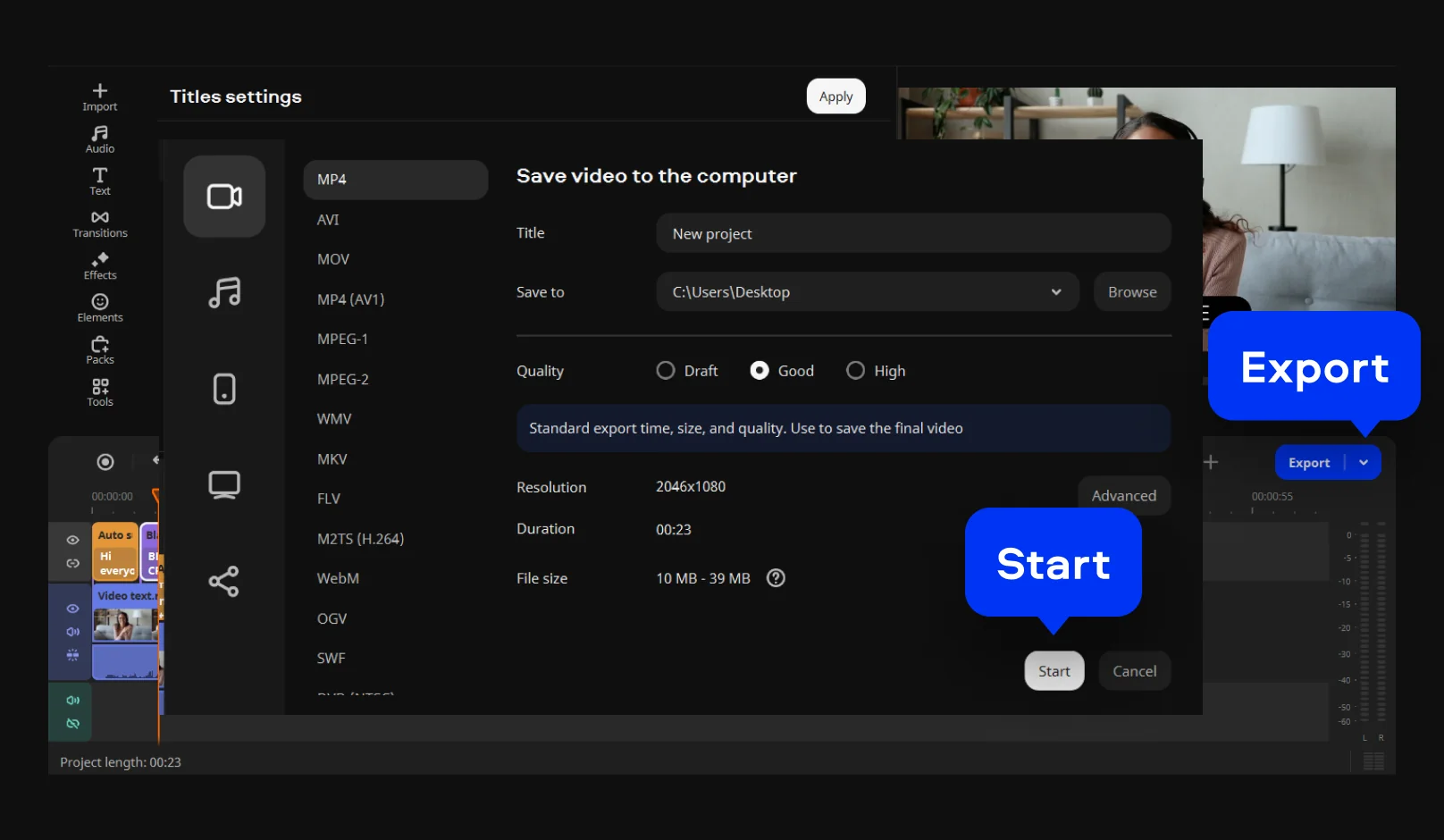
Once the captions are in place, adjust the font, size, color, style, and position so they stay readable from start to finish. Then hit Export, choose your settings, and save the final video with embedded subtitles. If your project calls for a separate subtitle file, Movavi’s online subtitle tool also lets you upload an SRT or download the one you created.

Movavi Video Editor
Create awesome videos easily

*The free version of Movavi Video Editor may have the following restrictions depending on the build: watermark on exported clips, 60-second video or 1/2 audio length limit, and/or some advanced features unavailable when exporting videos.

Why choose Movavi

We’re the #1 choice for millions of people from all around the world. Join our thriving community and create stunning content with incredible ease.

70M+

users

190+

countries

15+

updates per year

10,000+

effects to choose from

Frequently asked questions

What is the best free subtitle editor?

A strong answer is Movavi Video Editor if you want a subtitle editor with both automatic and manual tools in one place. It works on Windows and Mac, supports a free download, and gives you styling controls that many lightweight tools skip. The main thing to remember is that the free build may come with export limits.

How can I edit subtitles?

Launch the video in the subtitle application, generate captions through automatic recognition or manually, then synchronize the time code, line breaks, and positioning. Finally, customize the appearance of the text and produce the modified video clip. This is the basic process, which Movavi maintains straightforward.

Is subtitle editing safe?

Absolutely, as long as you utilize reliable subtitle editing applications, download them from their respective website, and retain a backup copy of the original file before exporting modifications. It is always the safest way to go about any modification task, particularly under strict deadlines.

Where do I download subtitle edits?

Using the Movavi Video Editor, you would export the edited video file, which has its subtitles integrated. Using the Movavi online subtitle editor, you could download the SRT subtitle file you have generated, or even export the video file.

Movavi Video Editor
Create awesome videos easily

*The free version of Movavi Video Editor may have the following restrictions depending on the build: watermark on exported clips, 60-second video or 1/2 audio length limit, and/or some advanced features unavailable when exporting videos.

Join us for discounts, editing tips, and content ideas

1.5M+ users already subscribed to our newsletter

By signing up, I agree to receive marketing emails from Movavi and agree to Movavi's Privacy Policy.