Movavi’s online video resizer is built for precise resizing without unnecessary layers of control. It opens instantly in your browser and works in your current tab, without downloads or system checks. The tool focuses on resizing only, keeping attention on proportions, resolution, and final output. You can resize video online, adjust proportions, and export a ready file within minutes.
Movavi Video Editor
Resize and rescale videos for YouTube, TikTok, or Instagram in Movavi Video Editor using smart cropping and automated aspect ratio presets.
By clicking the download button, you're downloading a trial version of the program.*
Resize Video Online for Free
How to use the video resizer online
Step 1. Add your video file
Open the online video resizer by clicking Upload Files on the banner and then click Add file. The upload begins immediately and remains inside the same browser window.
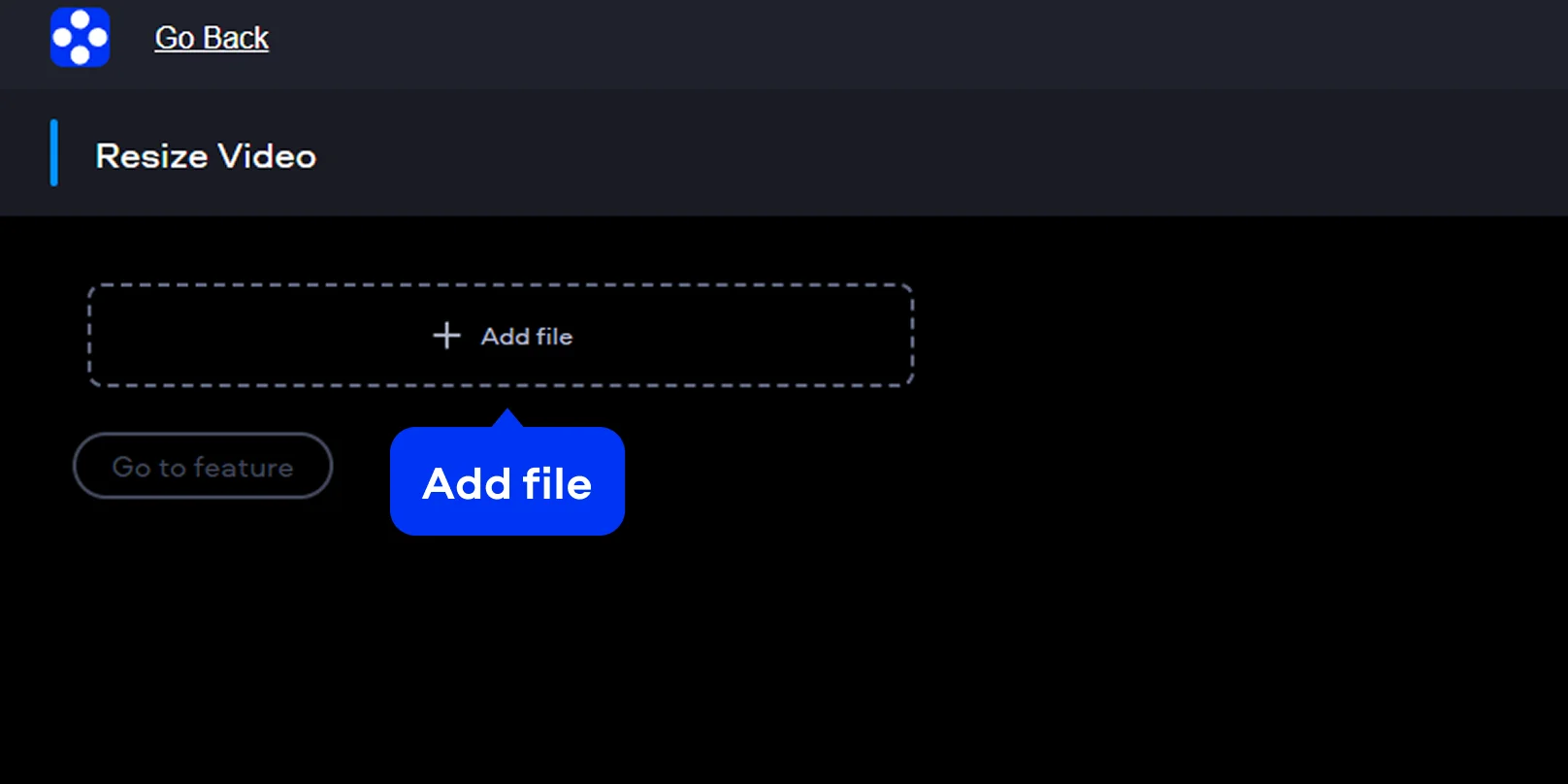
Step 2. Change the video size
The video aspect ratio changer allows fast transitions between popular formats. Use it as a 16:9 to 9:16 converter or convert the video to 4:5 for feed layouts. A live preview updates during every adjustment, helping avoid unexpected cropping.
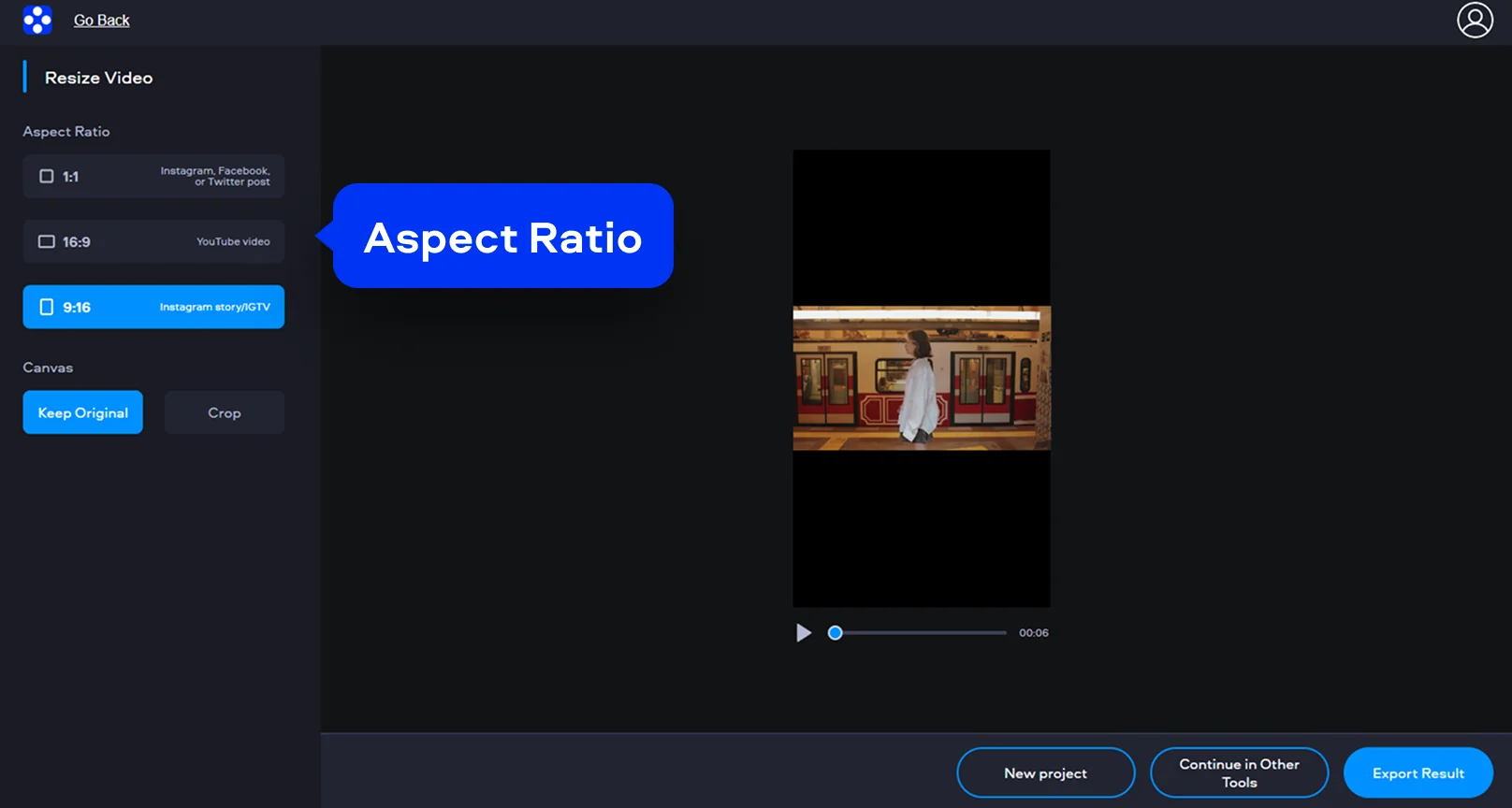
Step 3. Apply settings and export
Confirm the selected options and let the tool resize video resolution automatically. Download the finished file and use it immediately after export. Basic resizing is watermark-free, making this a practical free video resizer for routine tasks.
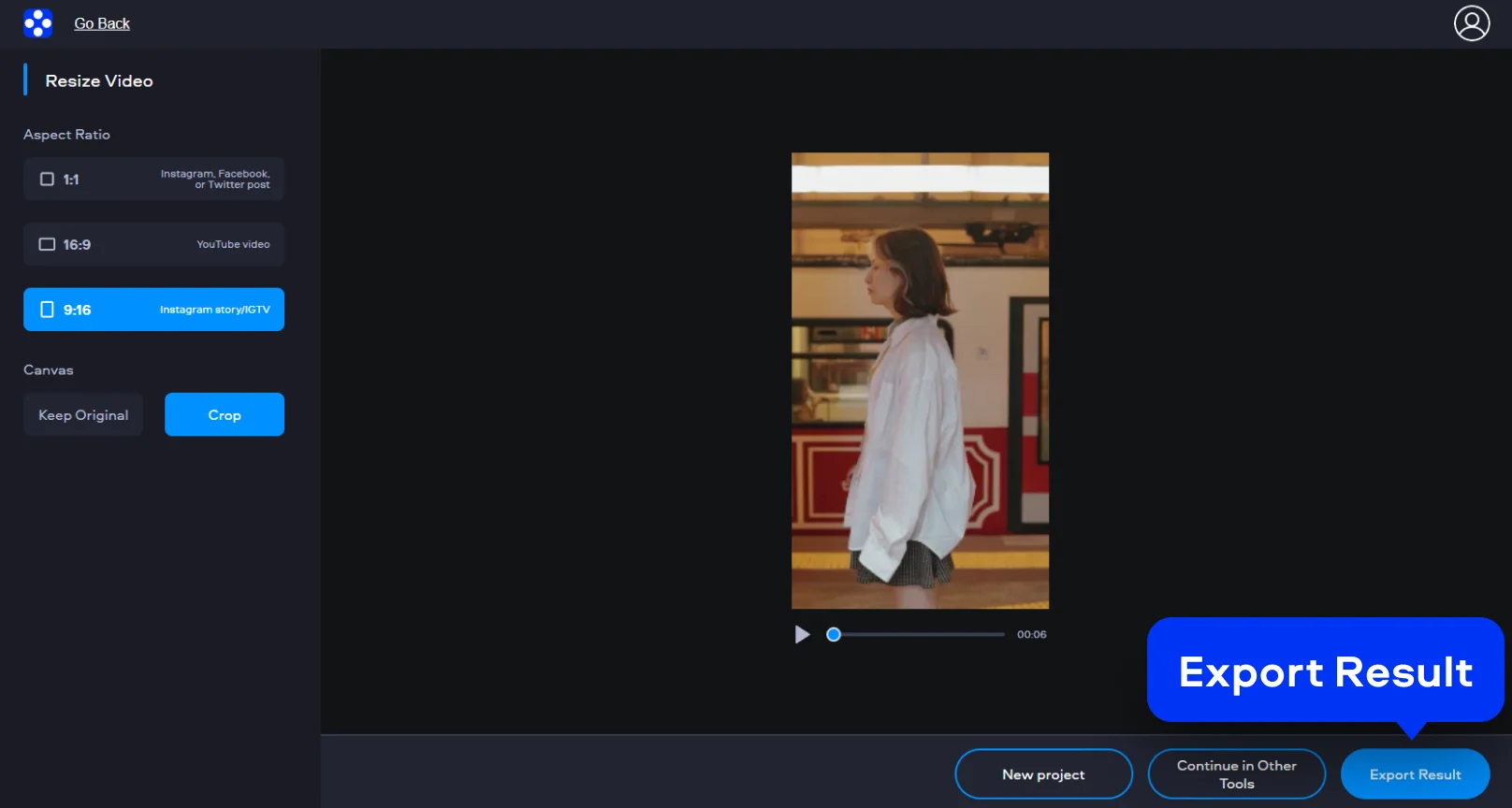
How to resize a video on desktop
Movavi Video Editor combines editing tools with clear project settings, without overloading the workspace. Resizing remains direct, even when working with long timelines or high-resolution footage. This desktop video resizer suits projects where accuracy outweighs speed. It also supports consistent dimensions across multiple clips.
Step 1. Import the video
Launch Movavi Video Editor and click Add Files to import your video. Drag the clip onto the timeline to begin working with the file. The editor supports MP4 and other common formats without conversion steps.
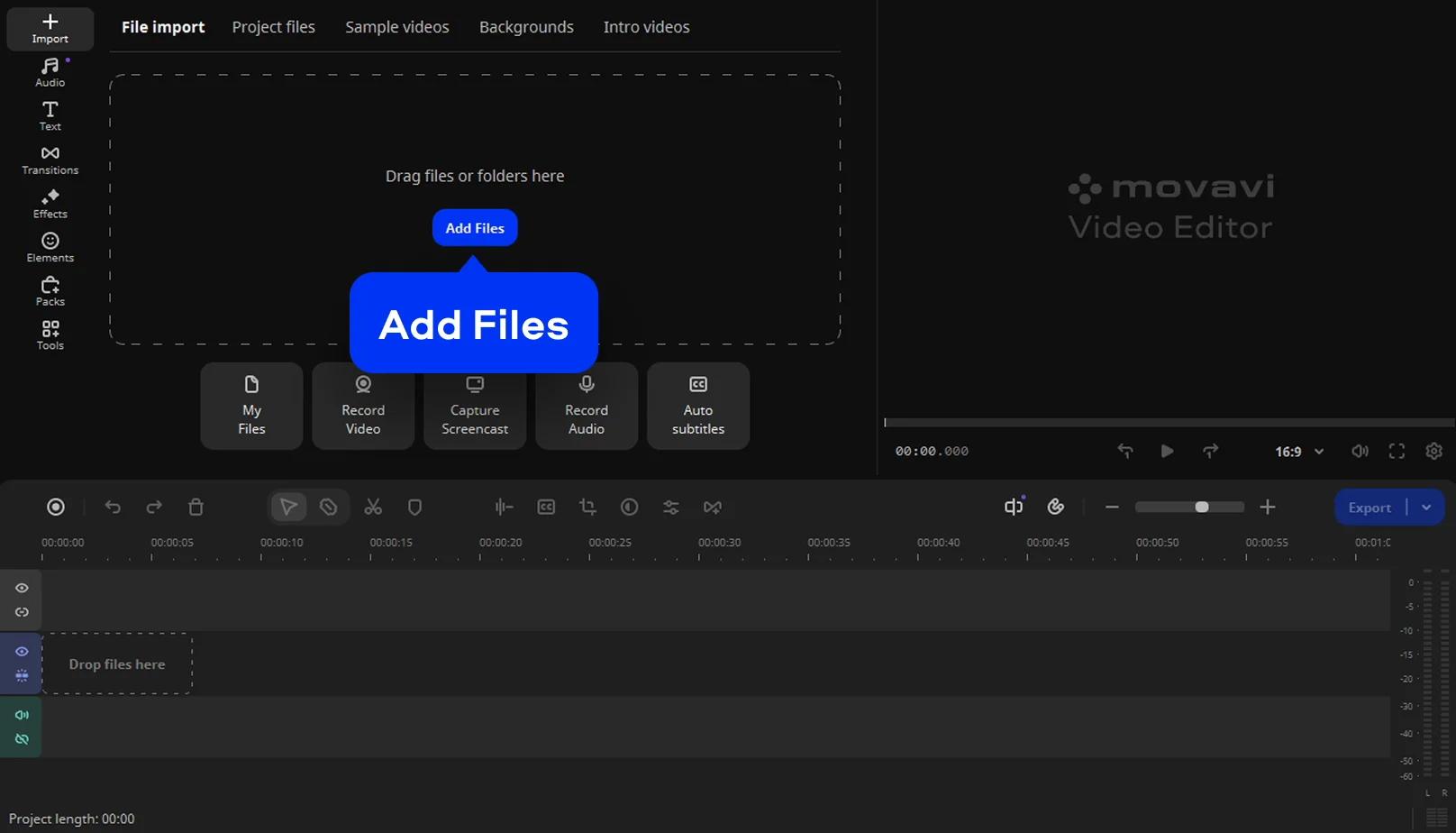
Step 2. Change video dimensions
Open the aspect ratio list under the preview window. You can enter exact width and height values or choose preset aspect ratios.
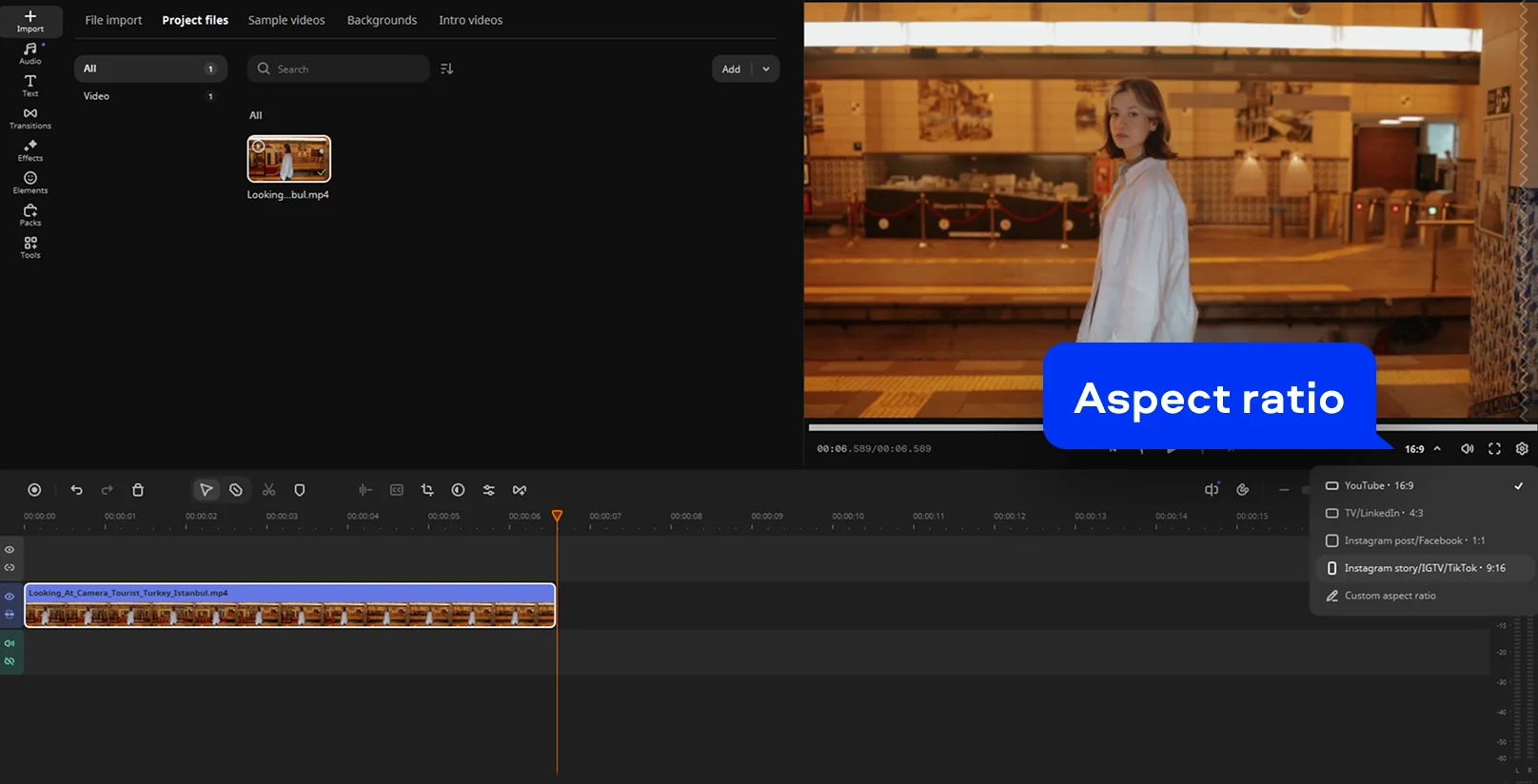
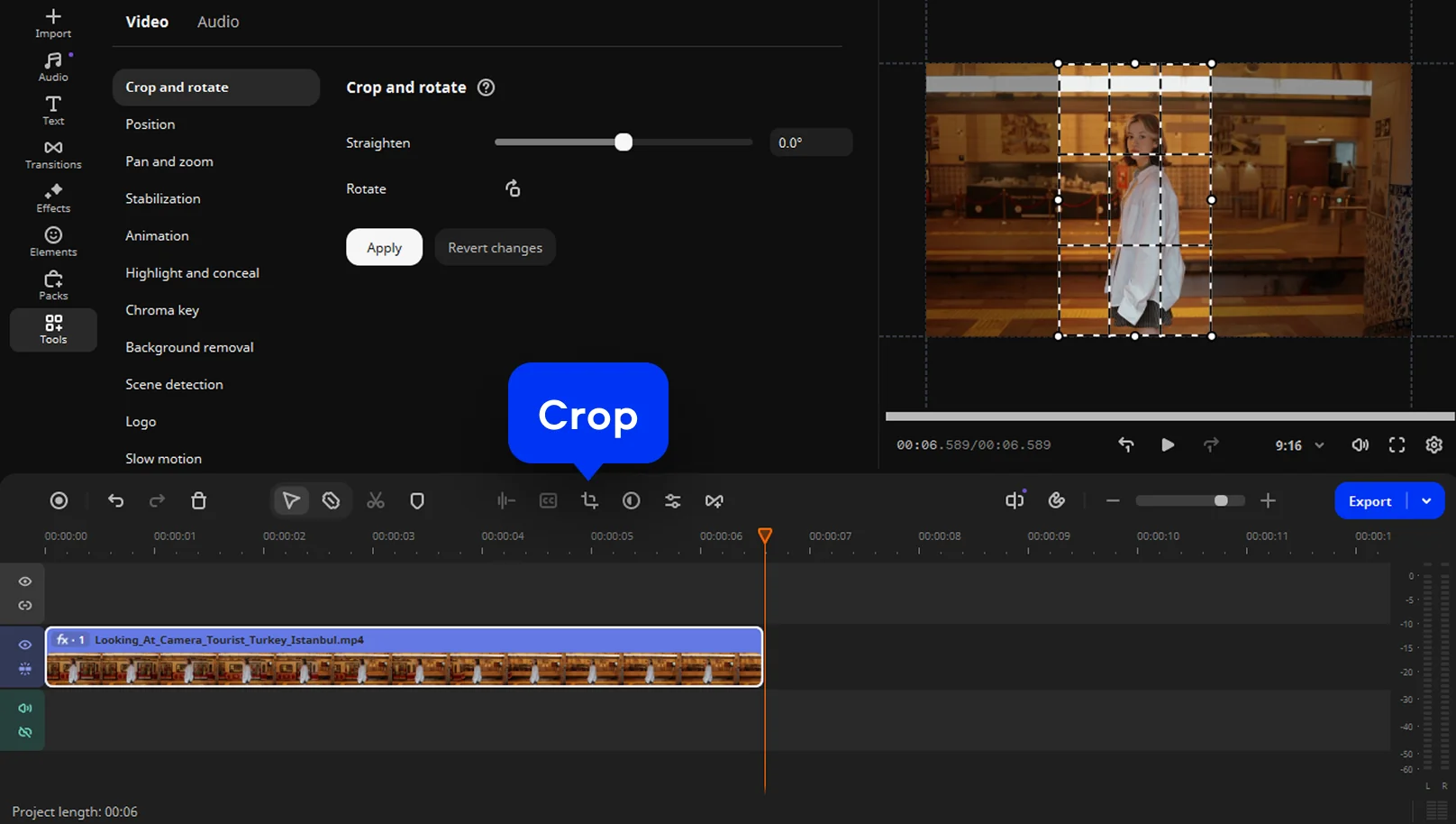
Crop tools can also be used when selective framing is required. The editor functions as a precise video size changer, not a generic converter.
Step 3. Export the video
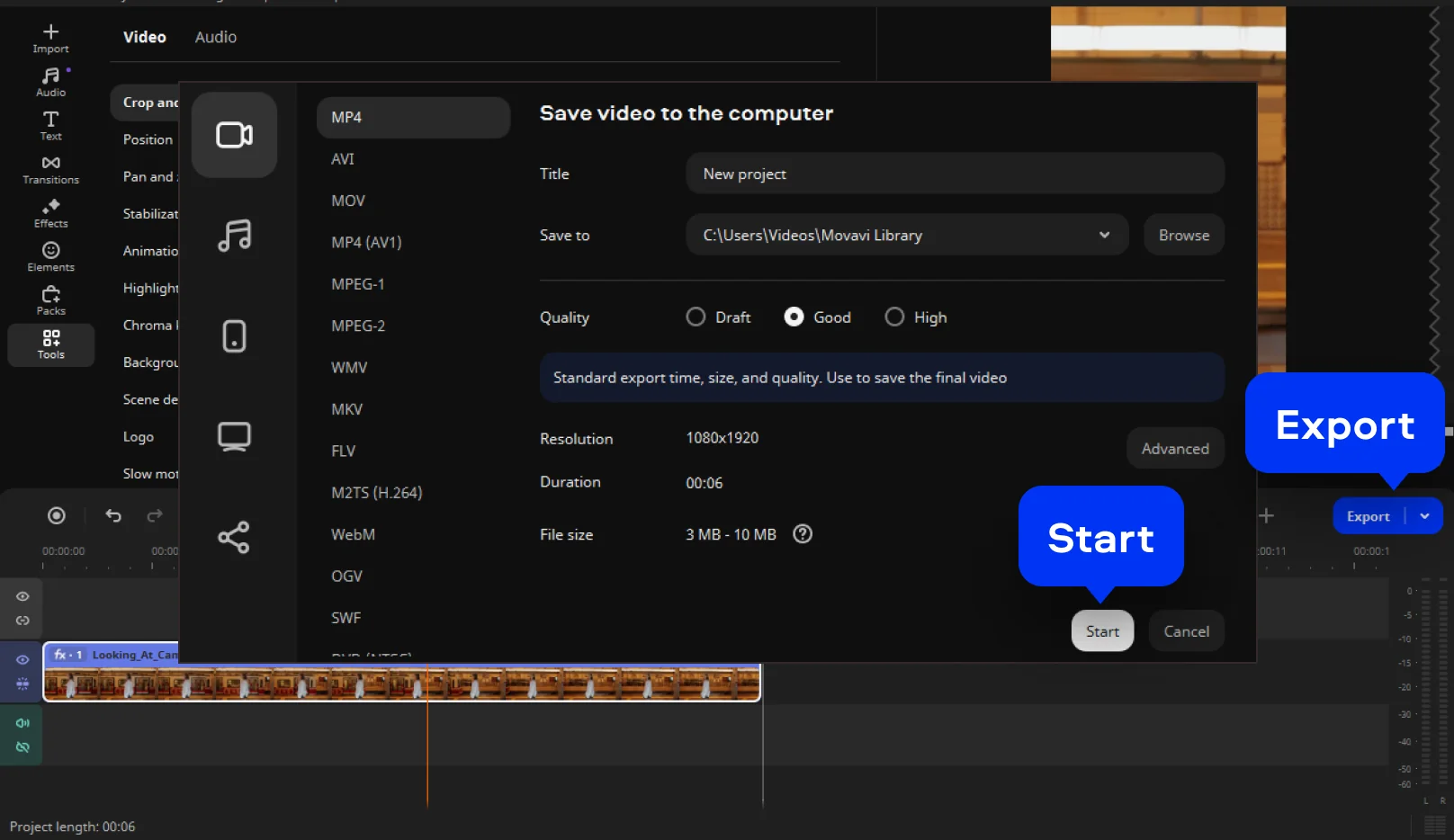
When the frame looks correct, click Export to open output settings. Choose the desired format and resolution for the final file. The software applies resizing cleanly, avoiding unnecessary compression. Desktop resizing works best for batch exports or detailed production workflows.

Why choose Movavi
We’re the #1 choice for millions of people from all around the world. Join our thriving community and create stunning content with incredible ease.
70M+


users
countries
updates per year
effects to choose from
Frequently asked questions
How do I resize an MP4 video?
How do I resize an MP4 video?
You can resize MP4 files using an online video resizer or desktop software from Movavi. Upload the file, select new dimensions or proportions, then export the updated version.
How do I change the frame width and height in video files?
How do I change the frame width and height in video files?
Use a video dimension changer that allows manual width and height input. Enter exact values inside the project or resize settings to change video pixels directly. This method ensures compatibility with custom layouts and embedded players.
How do I resize a video for Instagram?
How do I resize a video for Instagram?
Instagram requires specific formats depending on post type. Use a video aspect ratio changer in Movavi Video Editor to switch to 1:1, 4:5, or 9:16. This prevents automatic cropping and preserves important visual elements.
How can I reduce the size of a video file?
How can I reduce the size of a video file?
Reducing resolution or applying compression during export lowers file size effectively. Many tools combine resizing and compression within a single workflow. This approach balances clarity with smaller file weight.
What video resizer is free to use?
What video resizer is free to use?
Movavi’s online tool works as a free video resizer for basic resizing tasks. It lets users resize videoы for free directly through the browser.
How do I resize a video on a phone?
How do I resize a video on a phone?
Mobile resizing works best through browser-based tools. Open the online video resizer, upload the clip, choose dimensions, and export. The resized file downloads directly back to your phone storage.
Can I use Movavi Online Video Editor on Android and iPhone?
Can I use Movavi Online Video Editor on Android and iPhone?
Yes – it works on both Android and iPhone, and it’s free to use.
Is Movavi Online Video Editor completely free?
Is Movavi Online Video Editor completely free?
Yes. All features are available for free – no payment required.
Does Movavi Online Video Editor add a watermark when exporting videos?
Does Movavi Online Video Editor add a watermark when exporting videos?
No. You can export videos without a watermark.
Movavi Video Editor
Create awesome videos easily
*The free version of Movavi Video Editor may have the following restrictions depending on the build: watermark on exported clips, 60-second video or 1/2 audio length limit, and/or some advanced features unavailable when exporting videos.
Join us for discounts, editing tips, and content ideas


1.5M+ users already subscribed to our newsletter