Step 1. Install Movavi Video Editor
Download Movavi Video Editor and launch the installation file. Follow the on-screen instructions to install the app.
Add audio to a video with Movavi Video Editor
Fast and easy editing: cut, crop, adjust colors and speed
One-click AI tools: auto subtitles, noise removal, and more
Hundreds of filters, transitions, titles, overlays
By clicking the download button, you're downloading a trial version of the program.*
Add Audio to a Video Online
Features to add sound to a video
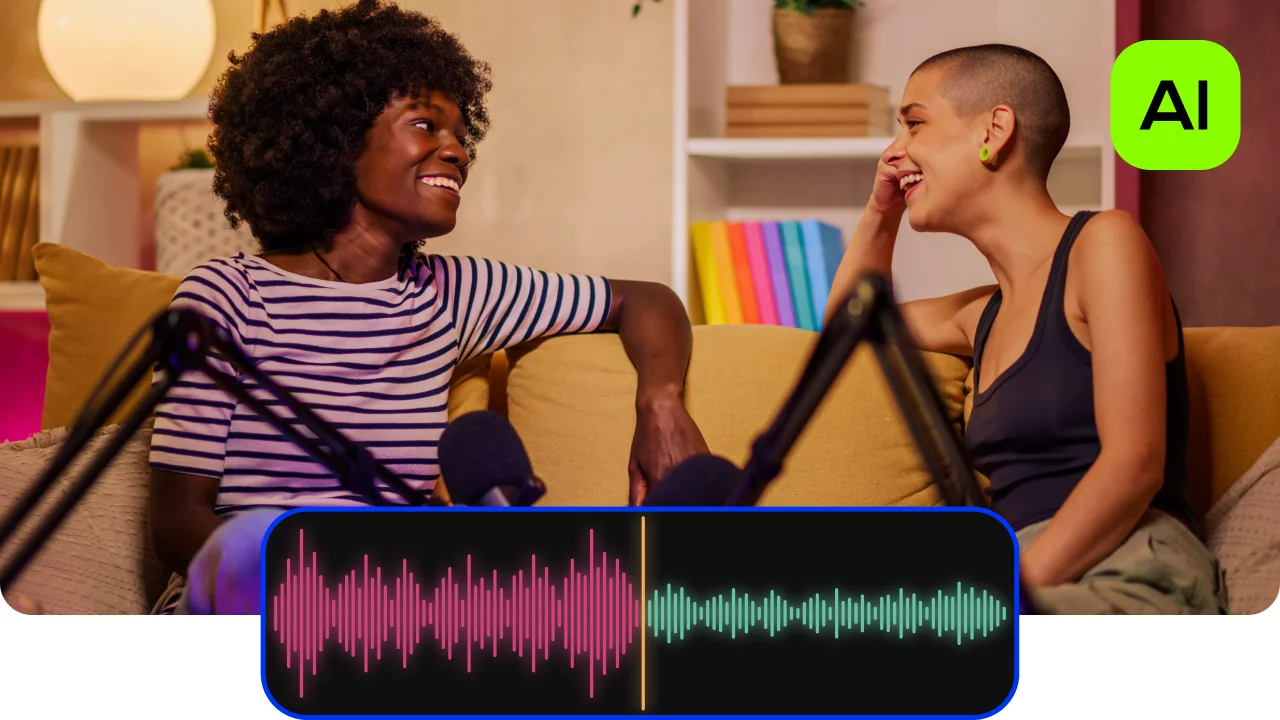
AI noise removal
Automatically remove car, wind, and other uncool sounds from your clips with our AI-driven audio denoiser. Create videos with crisp sound that viewers are sure to appreciate.
Automatic subtitles
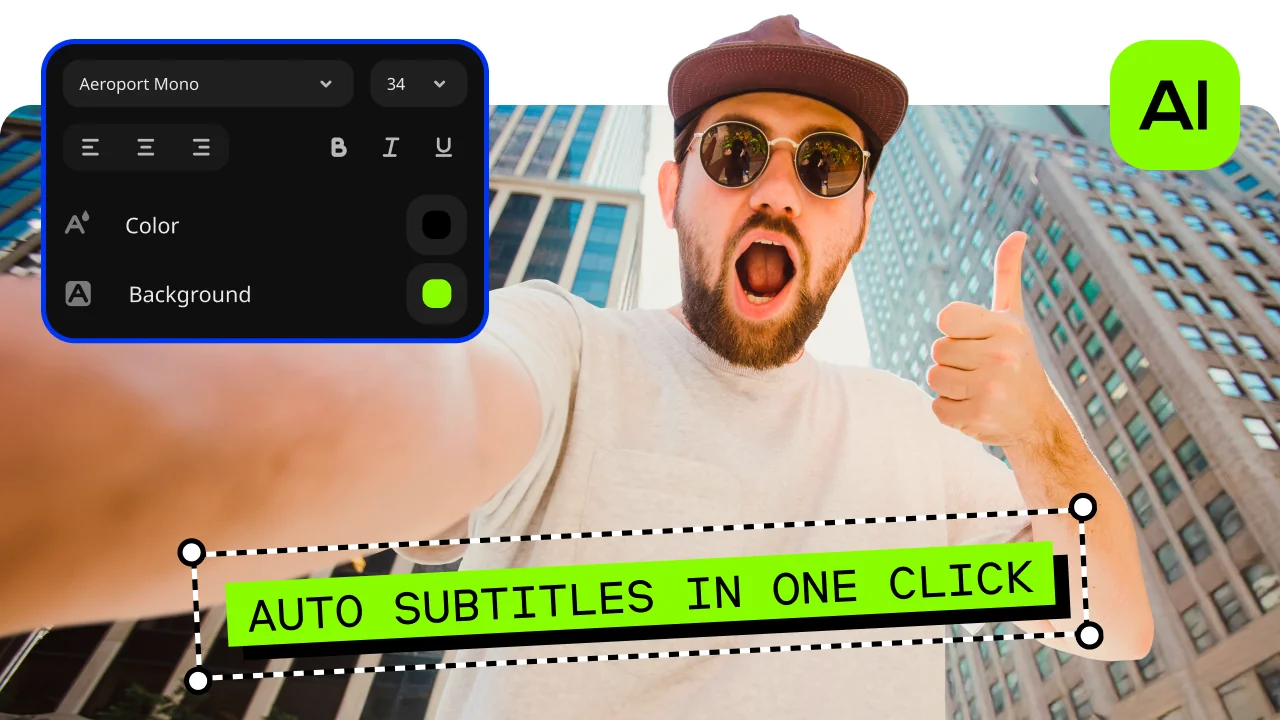
Let AI quickly turn your speech into text and automatically create captions for your videos in almost any language. Just choose the font, text color, position – and you’re all set!
Audio editing
Make your videos sound amazing: add effects, fine-tune with the equalizer, toss in some reverb, drop in smooth transitions with fade-ins and fade-outs. Auto-sync, beat detection, and easy voice-over recording let you perfect your audio in no time.

Silence removal
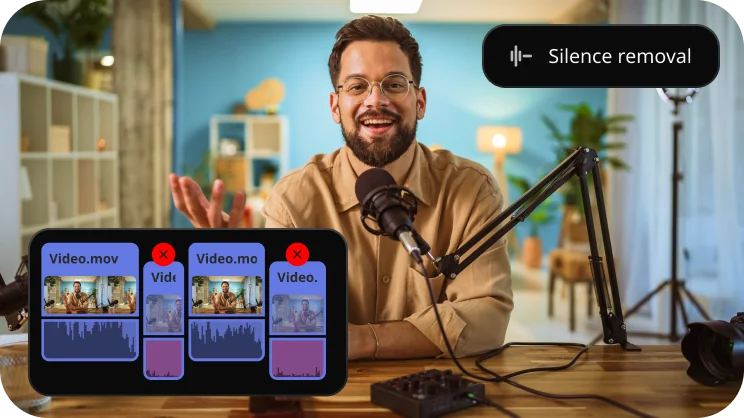
Cut out unwanted pauses automatically or fine-tune the pause length and volume threshold yourself. Skip the tedious cleanup and make your videos more dynamic in a flash.
How to add audio to a video with Movavi Video Editor
Step 1. Install Movavi Video Editor
Download Movavi Video Editor and launch the installation file. Follow the on-screen instructions to install the app.
Step 2. Import your video file
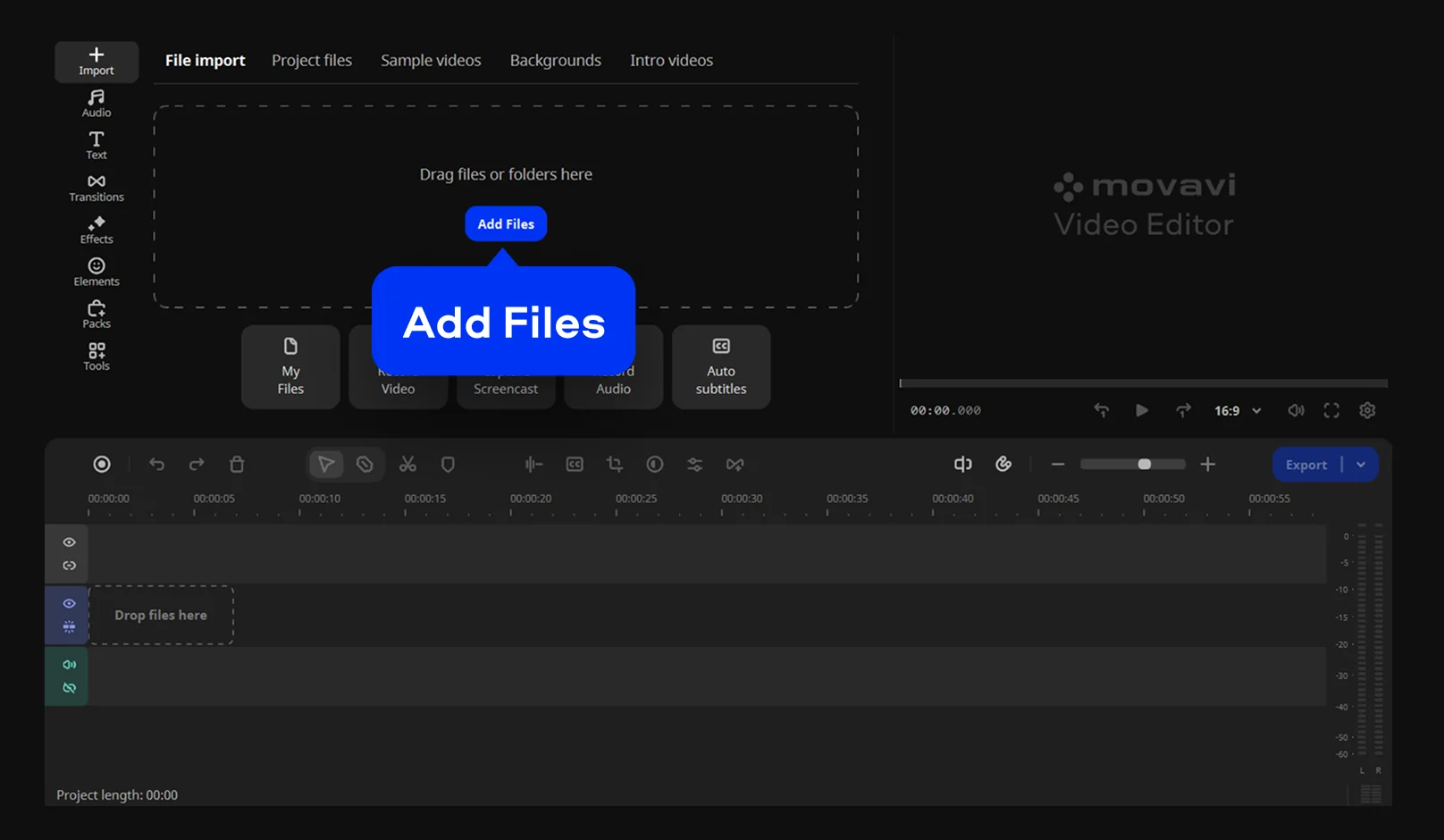
Add your video by dragging it into the program window or using the Add Files button. Place the clip on the timeline so you can see the visuals and prepare space below for the audio track.
Step 3. Add audio or music to the timeline
Import an audio file or song and drop it onto the audio track. You can trim the sound, move it along the timeline, and align it with key moments in the video.
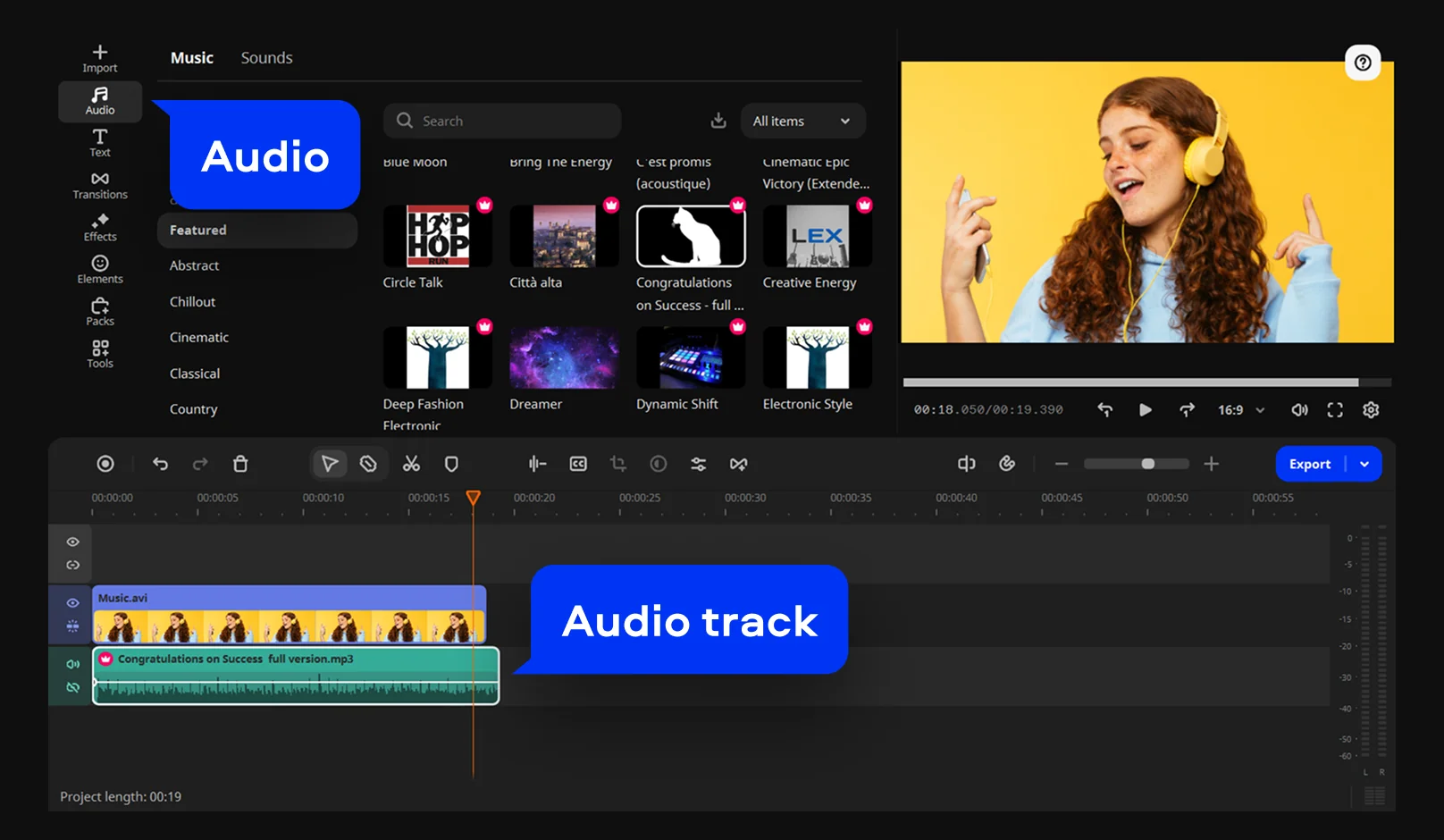
Step 4. Adjust volume and timing
To customize the new track, double-click on it. In the Clip settings, you can change the Volume and Speed or add a Fade in or Fade out effect using the slider. You can also enable Normalize to balance the volume or Reverse to play the track backwards by checking the box next to the setting.
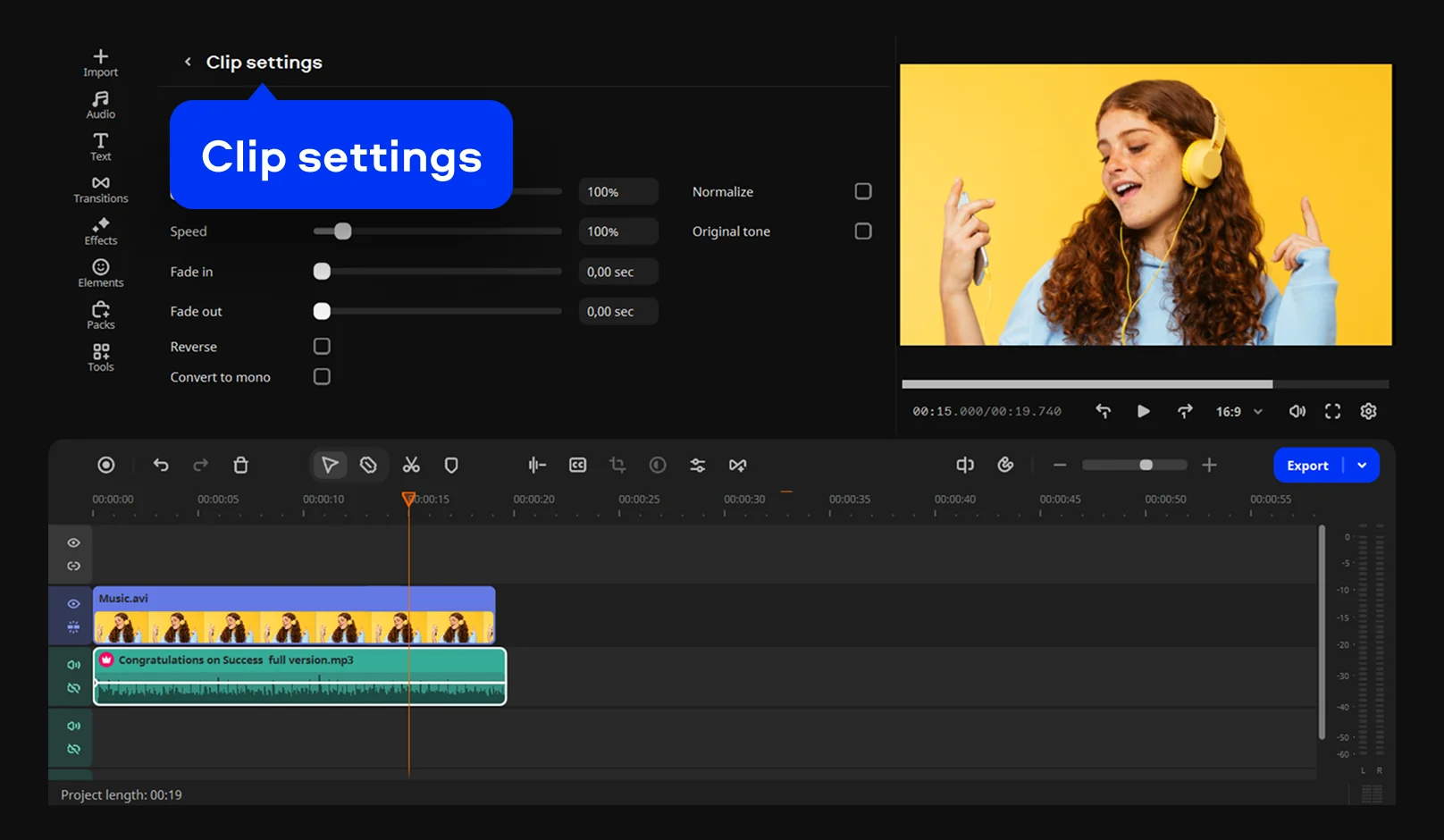
Step 5. Export the video with audio
Click Export, set the desired output parameters, and hit Start. The finished video saves with the added audio synced and ready for sharing or playback.
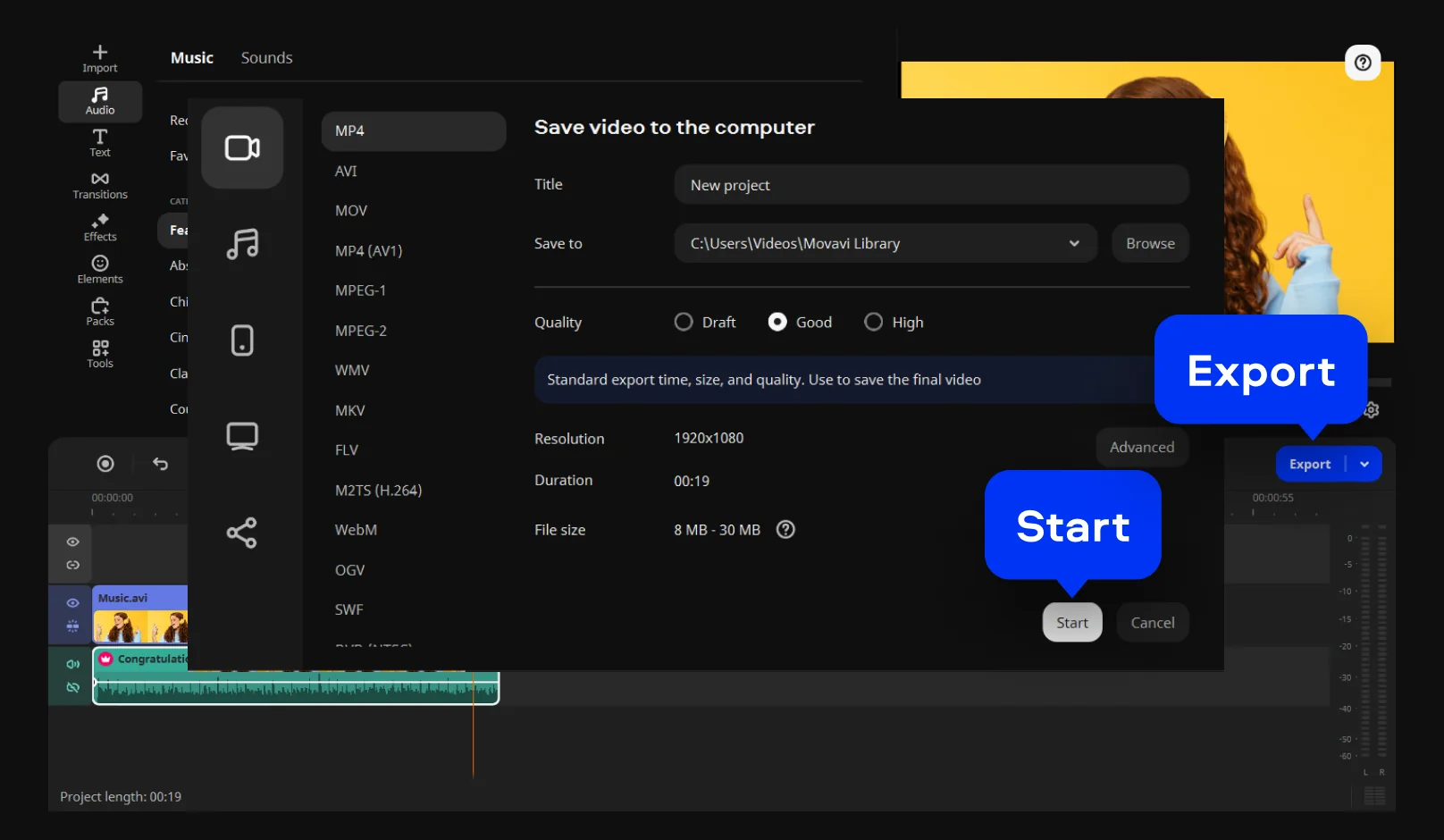
More tools for easy video and audio editing
Tips to add music to a video
Sound sets the tone long before the visuals do. A single clip can feel relaxed, tense, or personal just by changing the music underneath it. Before placing anything on the timeline, it is worth asking what kind of mood the video should leave behind. Here are a few practical tips to keep in mind:
How people use music in real projects with Movavi Video Editor
Looking at real examples makes these ideas easier to apply without overthinking the process.
Adding music is mostly about listening and adjusting. Movavi makes it easy to test ideas quickly, so you can trust your ear and shape the video as it comes together.

Frequently asked questions
Most editors solve this in a fairly direct way. You open the video, bring in an audio file, and place it where it feels right. Movavi Video Editor keeps this process simple, so you can focus on timing instead of menus. If you have ever searched for how to add music to a video, this is usually what people mean.
For quick edits, staying on your phone makes sense. Movavi’s iPhone app lets you choose a clip, add audio from your library, and save it without extra steps. It works well when you just want to add sound to a video and move on.
Free tools can be hit or miss. Some are limited, others hide restrictions until the end. Using Movavi’s free trial gives you room to test ideas, which often feels more flexible than a basic add music to video online option.
Voice works best when you can adjust it by ear. In Movavi Video Editor, you can record narration or add a voice track and place it over the video. This makes it easier to understand how to put music over a video or spoken audio when working with an MP4 file.
See other useful online tools
AI video-editing software
Video quality enhancer
YouTube video editor
Video resizer
Free movie maker
Video collage maker
Crop videos online
Flip videos online
Add text to videos online
Video trimmer online
Add subtitles to videos online
Video splitter online
Trailer maker online
Birthday video maker
Online YouTube intro maker
Merge video online
Online video editor no watermark
MP3 cutter
We’re the #1 choice for millions of people from all around the world. Join our thriving community and create stunning content with incredible ease.
70M+


Movavi Video Editor
*The free version of Movavi Video Editor may have the following restrictions depending on the build: watermark on exported clips, 60-second video or 1/2 audio length limit, and/or some advanced features unavailable when exporting videos.


1.5M+ users already subscribed to our newsletter