15 Best CapCut Alternatives for PC and Online in 2026

Edited by
EJ Tech
32,665

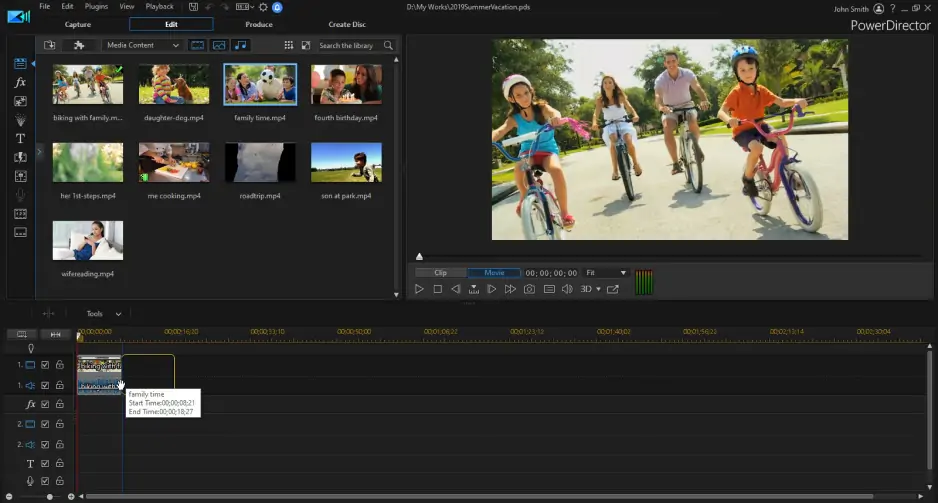
CapCut works great for quick mobile edits, but desktop projects need more horsepower. Whether you're hitting export limits, struggling with color grading, or just outgrowing the mobile-first interface, these alternatives offer the precision and features that CapCut can't match on PC.

Key takeaways

For beginners switching from mobile: Start with OpenShot or Movavi Video Editor – both keep the learning curve gentle while adding desktop power you actually need.

For creators making social content: Biteable and Kapwing handle templates and quick turnarounds without the timeline complexity that slows down short-form production.

For serious projects: DaVinci Resolve and Lightworks deliver professional-grade color correction and audio mixing that mobile editors simply can't touch.

For budget-conscious users: OpenShot, DaVinci Resolve, and VEED.IO offer robust free tiers that don't watermark your exports or limit project length.

For collaboration: Kapwing and Biteable let teams edit together in real-time, something impossible with mobile-only workflows.

Best desktop CapCut alternatives

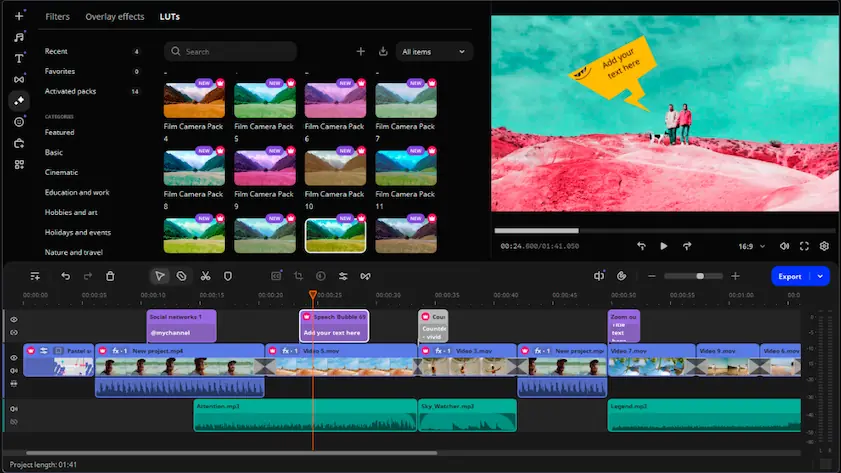
A clean interface that doesn't overwhelm beginners, but packs enough power for serious editing. The AI tools actually work – automatic subtitles caught mumbled words that other editors missed, and noise removal cleaned up wind noise without making voices sound robotic.

The timeline stays responsive even with multiple 4K clips, something that separated it from cheaper alternatives. Color correction happens in real-time with no lag, and the built-in effects library covers most needs without requiring external downloads.
Pros:
  • Smooth playback with heavy files

  • AI subtitle generation in multiple languages

  • One-click background removal for talking head videos

  • No learning curve shock for mobile users

Cons:
  • Free version adds watermarks

  • Annual subscription required for full features

  • Limited advanced audio mixing compared to pro tools

  • No collaborative editing features

What users say:

Users praise Movavi Video Editor for its straightforward and easy-to-navigate interface, with Reddit users highlighting features like auto silence removal, trim functionality, titles, effects, and intuitive drag-and-drop editing that makes it accessible for beginners. Users frequently mention its solid video converter and screen capturing capabilities, with one noting the step-by-step instructions displayed directly on screen during operation. Reddit users appreciate that it offers more depth for audio work including sound normalization compared to competitors, and praise its cost-effectiveness with a one-time purchase being significantly cheaper than alternatives like Filmora. However, some users note limitations in that it's not free software and you may eventually hit feature limits for more advanced editing needs. Based on 9 Reddit posts.

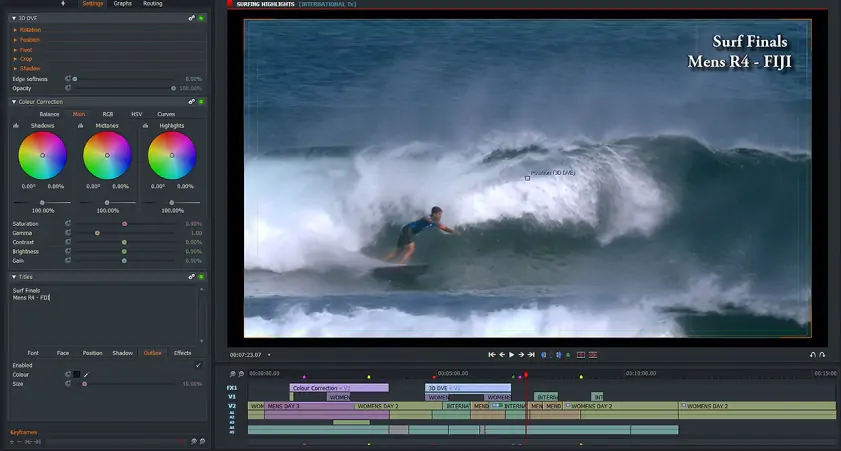
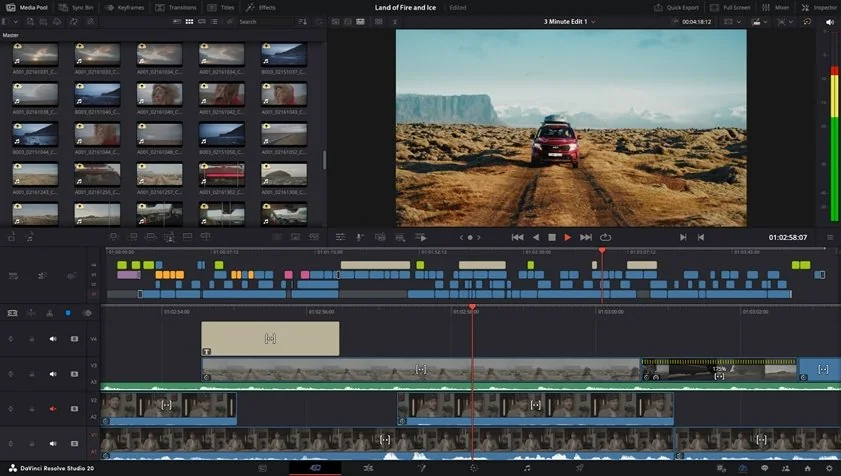
The closest thing to professional film editing you'll get for free. Color grading tools rival software costing thousands, and the audio mixing panel handles complex soundtracks with precision mobile apps can't touch.

Setup takes patience – this isn't a "download and go" editor. But once configured, it handles massive projects without breaking a sweat. The learning curve is steep, but YouTube tutorials fill the gaps that documentation misses.

Pros:
  • Hollywood-level color correction tools

  • Completely free with no watermarks

  • Multi-user collaboration on same project

  • Handles 8K footage smoothly

Cons:
  • Overwhelming interface for casual users

  • Requires powerful hardware for best performance

  • Long initial setup and configuration

  • Steep learning curve for beginners

What users say:

Users praise DaVinci Resolve as Hollywood-grade editing software with tons of advanced features, particularly highlighting its superior color correction wheels that feel more natural and intuitive than other editors. Reddit users frequently note its excellent stability and well-structured editing panels, with many emphasizing that the free version provides more than enough functionality for most users, requiring the paid Studio version only for complex VFX work. Users appreciate that it's comprehensive enough to use throughout one's entire editing career without needing to switch software as skills develop. However, Reddit users consistently report that DaVinci Resolve is too complex for light editing needs, with multiple users describing it as overwhelming for beginners and requiring significant time investment to learn effectively. Based on 8 Reddit posts.

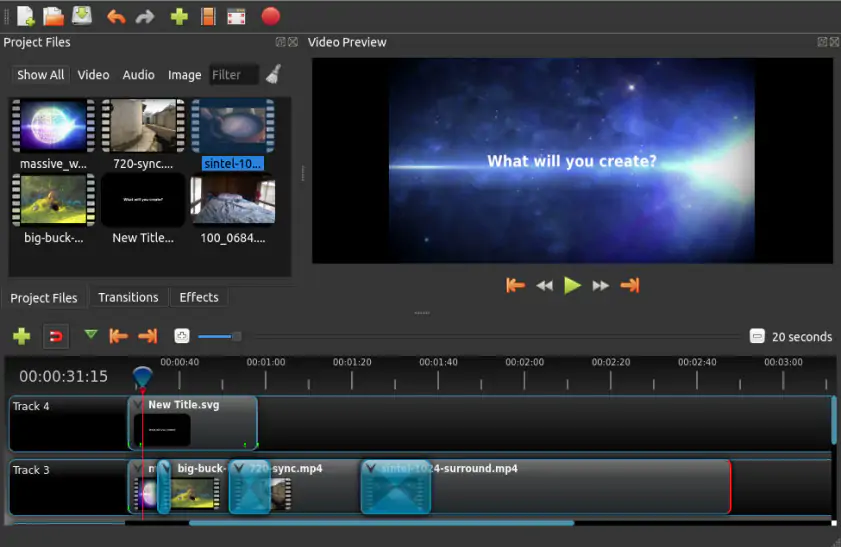
Simple, reliable, and genuinely free. Perfect for users who want desktop precision without paying subscription fees or learning complex interfaces. Drag-and-drop editing feels natural, and the timeline never gets cluttered even with multiple tracks.

Export options cover every platform you'd actually use, from YouTube to Instagram Stories. It's not flashy, but it works consistently – something many "feature-rich" alternatives struggle with.

Pros:

  • Completely free and open-source

  • Clean, uncluttered interface

  • Reliable exports in multiple formats

  • Cross-platform compatibility

Cons:

  • Limited built-in effects library

  • No advanced color correction tools

  • Slower rendering than paid alternatives

  • Basic audio editing capabilities

Speed-focused editing with AI tools that actually save time. Motion tracking works reliably for adding graphics to moving objects, and the auto-cut feature intelligently trims dead space from talking head videos.

The subscription model feels expensive for casual users, but the regular updates and cloud storage justify it for frequent creators. Templates lean heavily toward flashy effects, which works great for social content but less so for subtle edits.

Pros:
  • Fast AI-powered editing tools

  • Excellent motion tracking accuracy

  • Regular content updates and new features

  • Good performance with 4K footage

Cons:
  • Subscription required for full features

  • Templates can look overly stylized

  • Cloud storage costs extra

  • Interface can feel cluttered

Professional-grade precision with a unique timeline approach that takes getting used to. Once you adapt to the workflow, editing becomes incredibly precise – frame-perfect cuts happen naturally, and complex audio mixing feels intuitive.

The free version includes most core features, but export formats are limited. Still, it's used in actual film production, so the underlying engine handles demanding projects better than consumer-focused alternatives.

Pros:

  • Industry-standard editing tools

  • Unique timeline interface for precision work

  • Free version available with core features

  • Excellent audio editing capabilities

Cons:

  • Unusual interface requires adaptation

  • Limited export formats in free version

  • Not ideal for social media workflows

  • Steeper learning curve than simpler alternatives

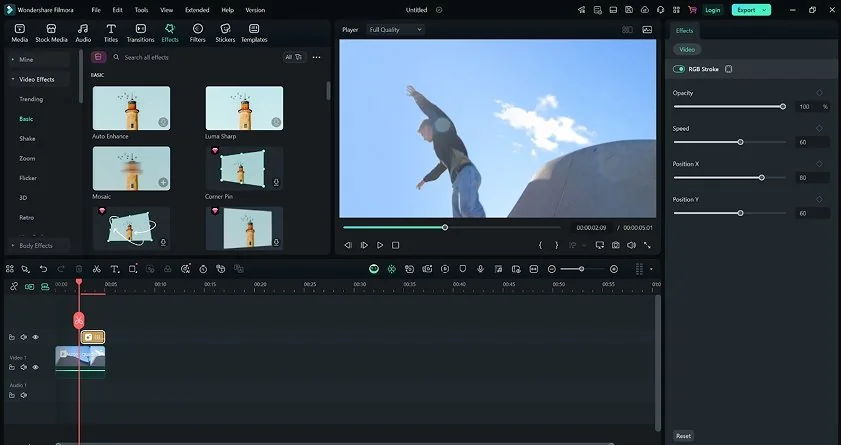
User-friendly design that bridges the gap between mobile simplicity and desktop power. The effects library is massive, and preview thumbnails make browsing actually useful instead of guesswork.

AI portrait mode removes backgrounds cleanly, though it struggles with complex hair details. The subscription feels reasonable compared to Adobe pricing, but the perpetual license option is limited in features.

Pros:
  • Large built-in effects library

  • Easy-to-browse interface design

  • Good AI background removal

  • Regular template updates

Cons:
  • Watermark on free version exports

  • Some effects look dated or overused

  • Limited advanced color grading

  • Subscription required for best features

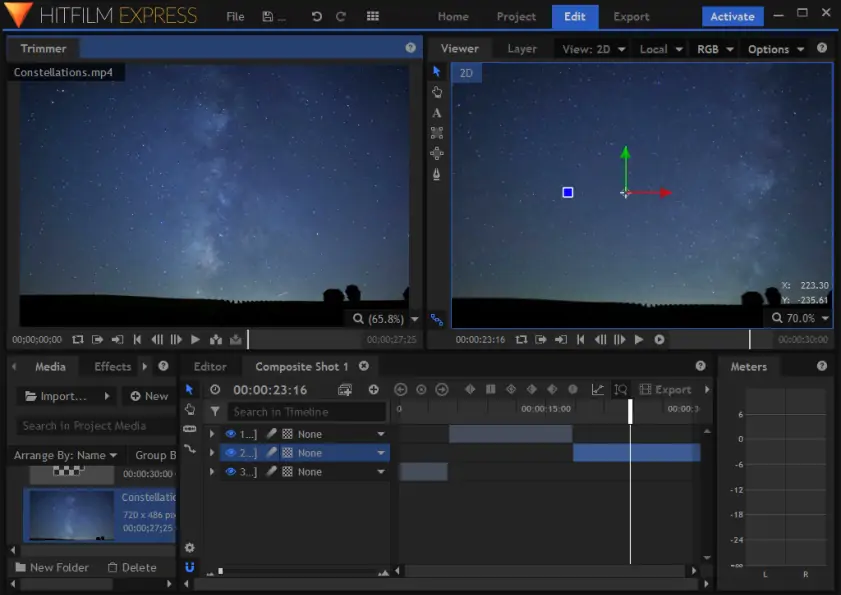
Free software with professional visual effects capabilities. If you need composite work, green screen removal, or motion graphics, this handles complex tasks that would require expensive plugins elsewhere.

The interface looks intimidating initially, but most users only need the basic editing timeline. Advanced features are there when you need them, but hidden well enough not to overwhelm simple projects.

Pros:
  • Professional VFX tools included free

  • No watermarks or export limitations

  • Excellent green screen removal

  • Regular community tutorials

Cons:
  • Complex interface for basic editing

  • Requires user account registration

  • Heavy system requirements

  • Long learning curve for advanced features

Best online CapCut alternatives

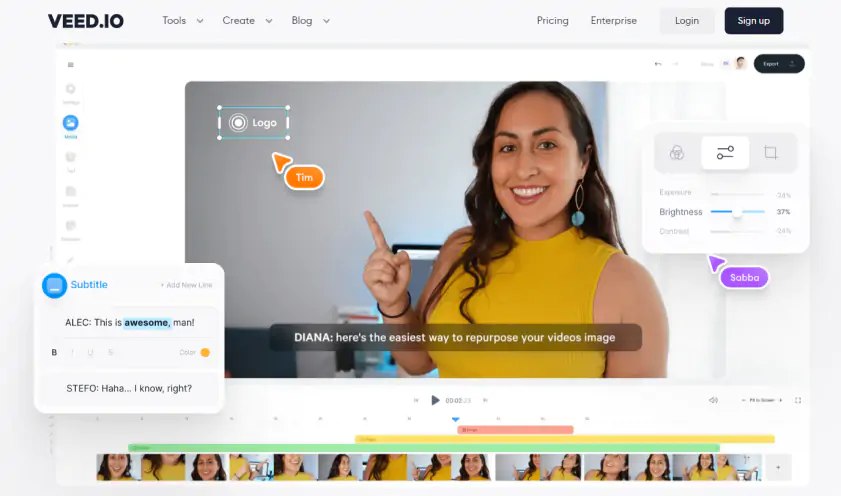
Browser-based editing that actually works smoothly. Automatic subtitle generation beats most desktop software, and the transcription accuracy impressed me with technical jargon and accents that usually trip up AI.

The free tier is genuinely useful, though export quality is limited. For quick edits and social media content, it eliminates the download-install-update cycle completely.

Pros:
  • Works entirely in browser

  • Excellent automatic subtitles

  • No software installation needed

  • Quick sharing and collaboration

Cons:
  • Limited free export quality

  • Requires stable internet connection

  • Fewer advanced editing features

  • Monthly limits on free accounts

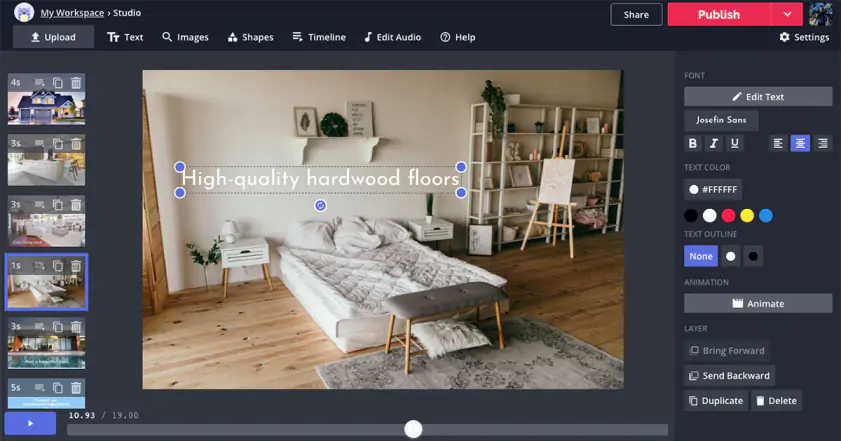
Template-heavy approach that speeds up social content creation. The Magic Animate feature turns static images into video backgrounds, which works surprisingly well for podcast clips and talking head content.

Collaboration features actually function – multiple editors can work simultaneously without conflicts. The AI tools feel more reliable than most web-based competitors.

Pros:
  • Real-time collaborative editing

  • Smart automation for social formats

  • Good template selection

  • Works across different devices

Cons:
  • Template-dependent workflow

  • Limited precision editing tools

  • Internet connection required

  • Subscription needed for HD exports

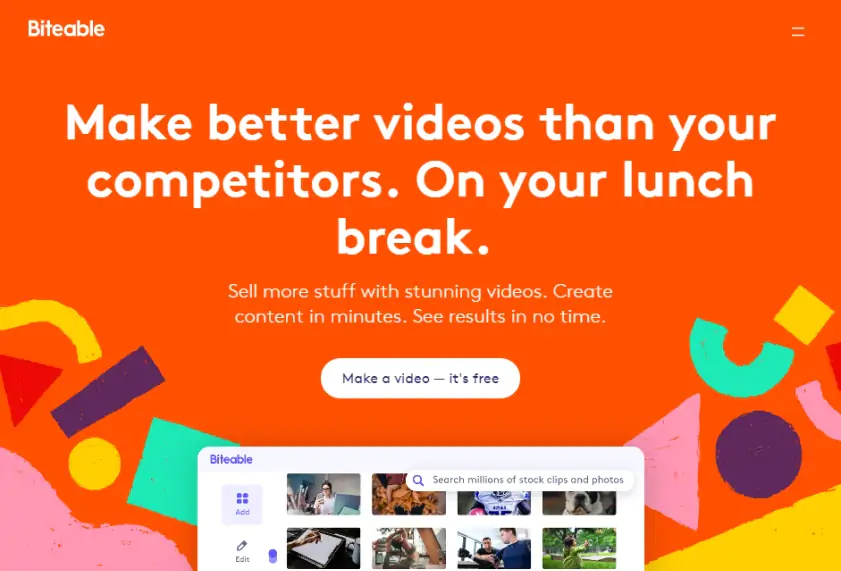
Template-focused platform that excels at quick, professional-looking videos. The talking avatar feature works well for explainer content, and templates adapt to different aspect ratios automatically.

Best for businesses needing consistent branded content rather than creative experimentation. The limitation becomes the strength here – constraints force faster decisions.

Pros:
  • Professional template designs

  • Quick video creation process

  • Automatic aspect ratio adaptation

  • Good for branded content

Cons:
  • Limited creative freedom

  • Template-dependent results

  • Subscription required for commercial use

  • Not suitable for complex editing

11. Lumen5

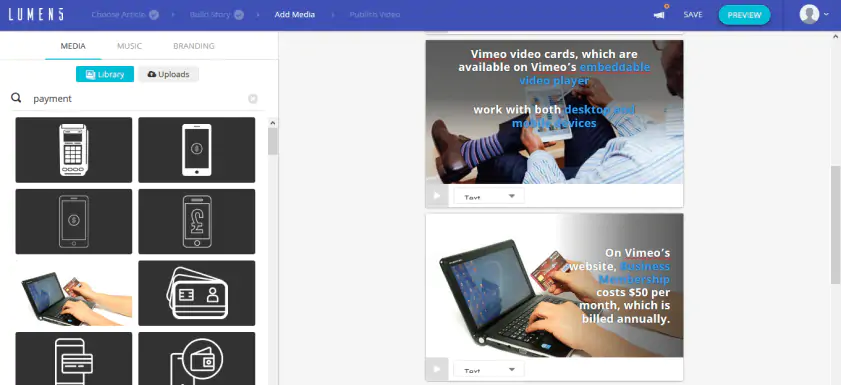
AI-powered script-to-video creation that works better than expected. Feed it a blog post or script, and it generates a rough cut with relevant stock footage and text overlays. The results need tweaking, but it provides a solid starting point.

The stock media library is extensive, though finding specific footage requires patience. Best for content creators who publish regularly and need to maintain consistent output.

Pros:
  • AI script-to-video generation

  • Large stock media library

  • Good for consistent content creation

  • Text-based editing approach

Cons:
  • Limited manual editing control

  • AI suggestions can be generic

  • Subscription required for quality exports

  • Not suitable for original footage

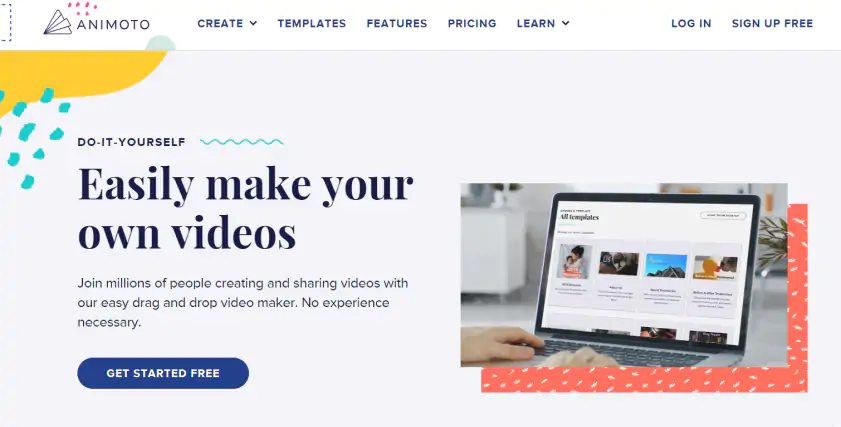
Drag-and-drop simplicity with professional polish. Templates actually look current rather than outdated, and the music library includes tracks that don't sound like elevator music.

Perfect for small businesses or personal projects where speed matters more than creative control. The results look professionally made even with minimal effort.

Pros:
  • Very easy to use interface

  • Modern template designs

  • Good music library included

  • Fast video creation

Cons:
  • Limited customization options

  • Template-based limitations

  • Subscription required for HD

  • Not suitable for complex projects

Best mobile CapCut alternatives

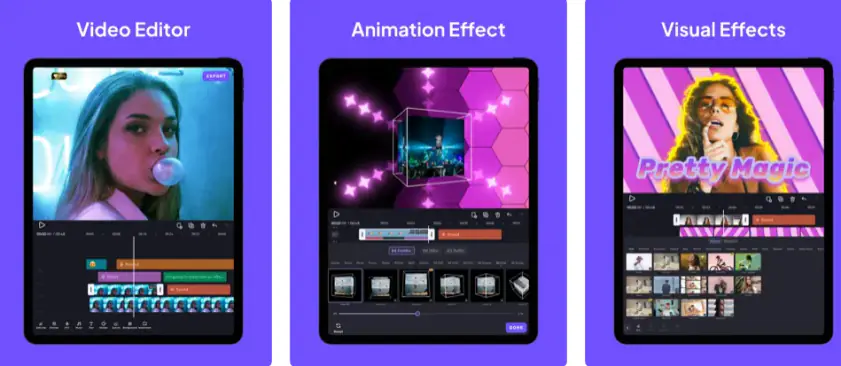
Mobile editor with desktop-like precision. The multi-layer timeline handles complex compositions, and keyframe animation lets you create motion graphics that rival computer-based work.

Chroma key (green screen) removal works remarkably well on phone footage, and the masking tools offer precision most mobile editors skip entirely.

Pros:
  • Professional-level mobile features

  • Excellent chroma key removal

  • Detailed keyframe animation

  • No watermark on free version

Cons:
  • Complex interface for mobile device

  • Battery drain during intensive edits

  • Learning curve steeper than simple editors

  • Some features require subscription

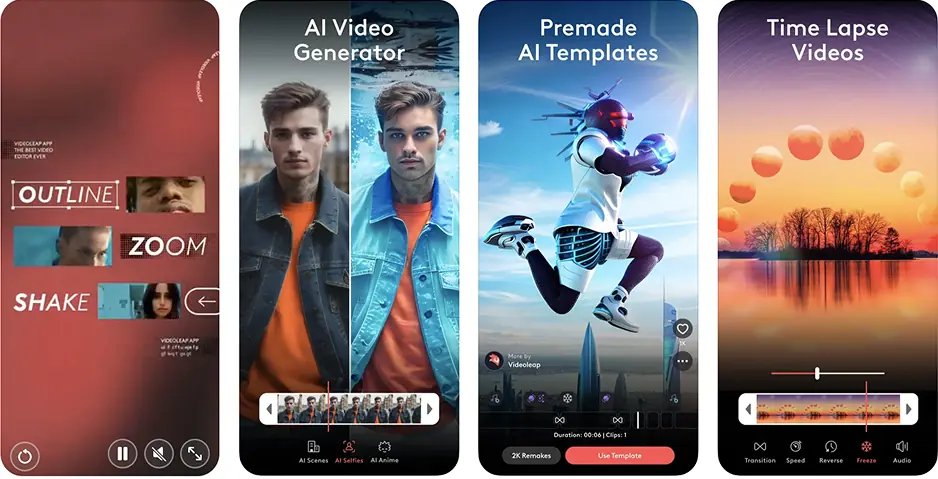
Intuitive timeline with powerful AI cleanup tools. The interface feels natural on touchscreens, and gesture controls speed up common edits significantly.

Filter quality exceeds most desktop alternatives, and the AI-powered features like object removal actually work reliably on mobile hardware.

Pros:
  • Intuitive touch-based interface

  • High-quality filters and effects

  • Good AI-powered editing tools

  • Regular feature updates

Cons:
  • Subscription model for full features

  • Heavy battery usage

  • Limited export resolution on free tier

  • iOS performance better than Android

15. VLLO

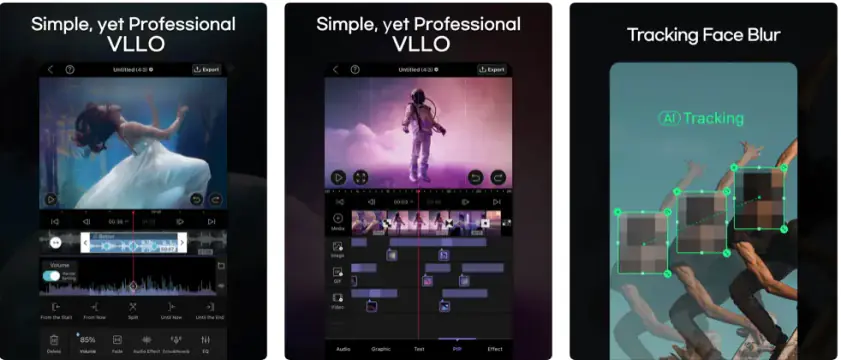
Clean interface focused on essential features. AI tracking follows moving subjects automatically, and auto-captions work well with clear speech.

Watermark-free exports in the free version set it apart from competitors. Background removal struggles with complex scenes but handles simple portraits well.

Pros:
  • No watermarks on free exports

  • Clean, focused interface

  • Good auto-caption accuracy

  • Reliable AI tracking

Cons:
  • Limited advanced features

  • Smaller effects library

  • Some tools require pro version

  • Android version less polished

Which CapCut alternative should you choose?

  • For quick social content: Biteable or Kapwing handle templates and fast turnaround better than timeline-heavy editors. The constraints actually speed up decision-making.

  • For learning video editing: Start with Movavi Video Editor or OpenShot. Both ease the transition from mobile editing without overwhelming new users with professional complexity.
  • For professional work: DaVinci Resolve offers Hollywood-level tools at no cost, but requires time investment. Lightworks provides similar precision with a more traditional approach.
  • For mobile editing: VivaCut bridges the gap between simple phone apps and desktop power, though Videoleap offers better ease of use.
  • For collaboration: Online editors like Kapwing and VEED.IO eliminate software version conflicts and allow real-time teamwork that desktop apps struggle to match.


Most creators need different tools for different projects. Keep a simple editor for quick fixes and a powerful one for serious work – trying to force one editor to handle everything usually creates more frustration than efficiency.

The best CapCut alternative depends on whether you're leaving mobile editing behind completely or just need desktop power for specific projects. Start with the free options that match your complexity needs, then upgrade only when limitations actually slow down your work.

Comparison table

App

Platform

Price

Best for

Key features

Desktop

$54.95/year

Beginners to intermediate

AI tools, clean interface, reliable performance

Desktop

Free

Professional work

Advanced color correction, collaborative editing

Desktop

Free

Basic editing

Simple interface, no watermarks, cross-platform

Desktop

$51.99/year

Fast content creation

AI editing, motion tracking, regular updates

Desktop

Free/Pro

Precision editing

Professional timeline, advanced audio tools

Desktop

$49.99/year

Social content

Large effects library, user-friendly design

Desktop

Free

VFX work

Professional visual effects, no export limits

Online

Free/Pro

Quick edits

Browser-based, auto subtitles, collaboration

Online

Free/Pro

Team projects

Real-time collaboration, social media formats

Online

$29/month

Business content

Professional templates, branded videos

Online

$19/month

Content marketing

Script-to-video AI, stock media library

Online

$15/month

Simple videos

Drag-and-drop, modern templates, music

Mobile

Free/Pro

Advanced mobile

Multi-layer timeline, keyframe animation

Mobile

$7.99/month

Creative mobile

Touch interface, AI tools, quality filters

Mobile

Free/Pro

Clean mobile editing

No watermarks, auto-captions, AI tracking

Frequently asked questions

What's the best free alternative to CapCut for PC?

OpenShot and DaVinci Resolve both offer complete editing without watermarks or time limits. OpenShot is easier for beginners, while DaVinci Resolve provides professional-level tools if you're willing to learn the interface.

Can online video editors replace desktop software like CapCut?

For basic editing and social media content, yes. VEED.IO and Kapwing handle most common tasks in a browser. However, complex projects with large files or advanced color grading still need desktop software for reliable performance.

Which CapCut alternative works best for social media content?

Biteable excels at template-based social videos, while Kapwing offers more flexibility with good automation tools. For mobile editing similar to CapCut, VivaCut provides the most advanced features without switching to desktop.

Do I need to pay for a CapCut alternative?

Not necessarily. Several excellent free options exist: OpenShot for basic desktop editing, DaVinci Resolve for professional work, and VEED.IO for quick online edits. Paid versions typically offer better effects libraries, cloud storage, and priority support.

What should I look for when switching from CapCut?

Focus on timeline performance with your typical project sizes, export format compatibility with your platforms, and whether the interface feels intuitive for your editing style. Many alternatives offer free trials – test with your actual footage before committing to subscriptions.

Have questions?
If you can’t find the answer to your question, please feel free to contact our Support Team.
Join us for discounts, editing tips, and content ideas

1.5M+ users already subscribed to our newsletter

By signing up, I agree to receive marketing emails from Movavi and agree to Movavi's Privacy Policy.