Step 1. Import your frames
Open Movavi Video Editor and click the Add Files button to add your image sequence or video clips. You can work from photos or video frames, keeping everything neatly ordered on the timeline for precise control.

Stop-Motion Video Maker by Movavi
Fast and easy editing: cut, crop, adjust colors and speed
One-click AI tools: auto subtitles, noise removal, and more
Hundreds of filters, transitions, titles, overlays
Features to create a stop-motion video from photos
Hundreds of drag-and-drop cinematic effects
Supercharge your videos with tons of creative, professionally designed effects. Add stickers for cool accents, transitions for smoother stories, overlays for extra style, and there’s even more!
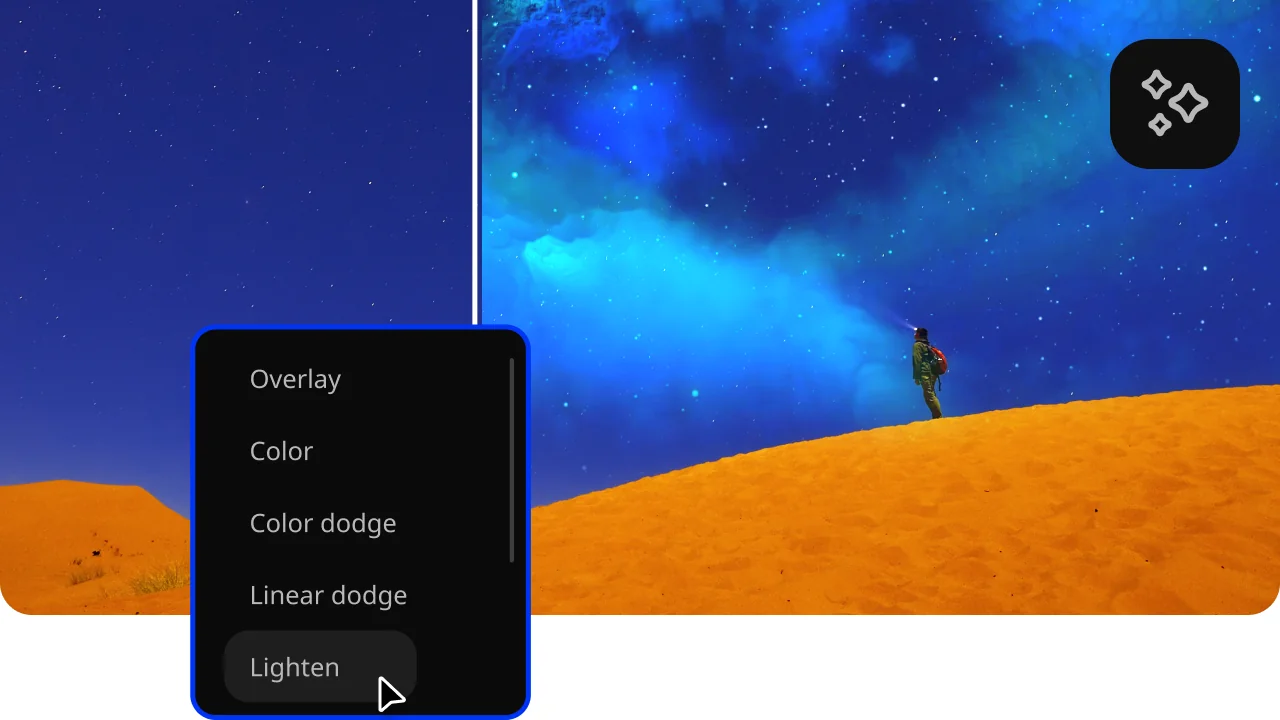
AI motion tracking
Enhance reality in your videos with additional moving graphics. Just click, and AI will quickly attach any photos, videos, emojis, or memes to objects in your footage.
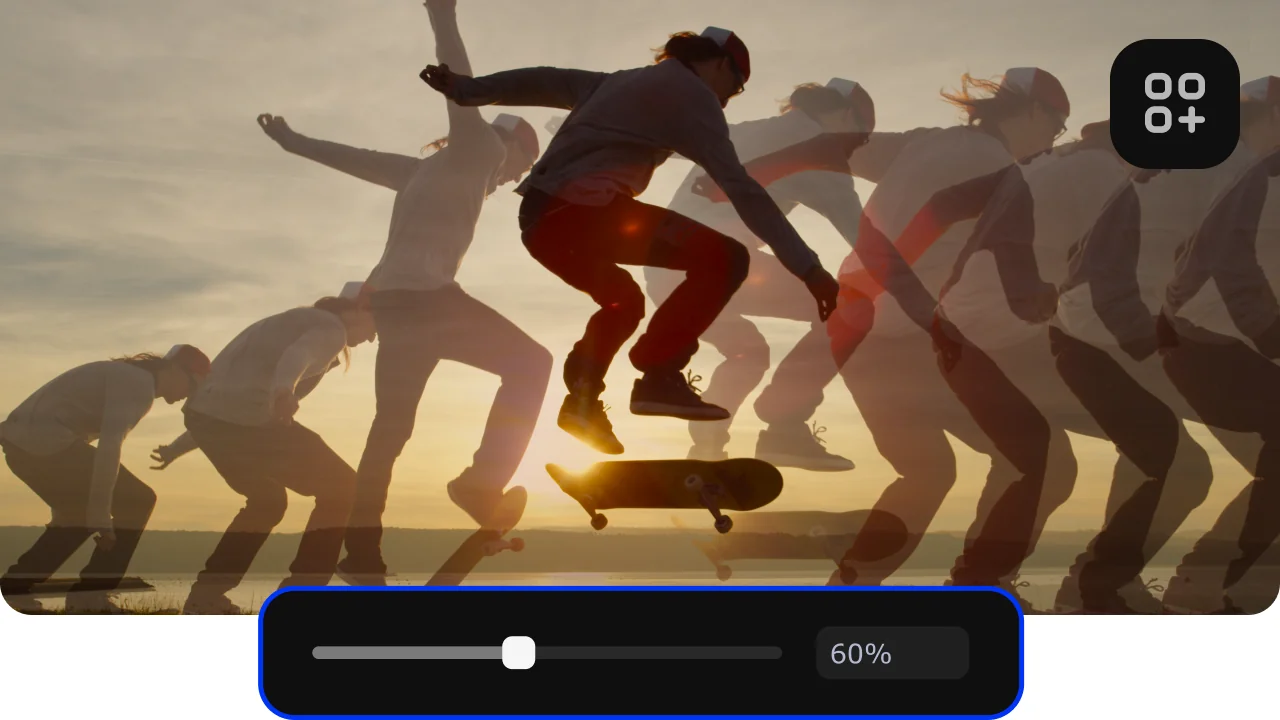
AI background removal
Use the power of the AI to instantly swap backgrounds in your videos with no green screens. Drop in a new vibrant scene and get ready for an avalanche of likes on socials!

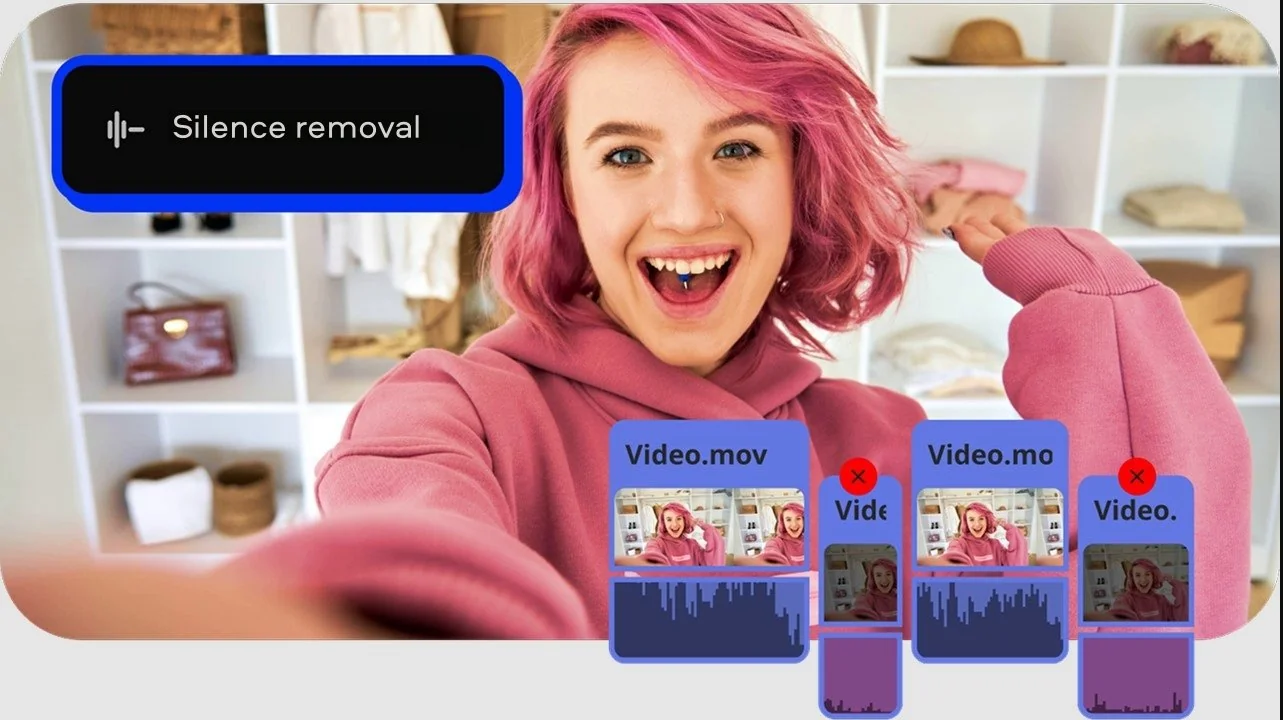
Silence removal
Cut out unwanted pauses automatically or fine-tune the pause length and volume threshold yourself. Skip the tedious cleanup and make your videos more dynamic in a flash.
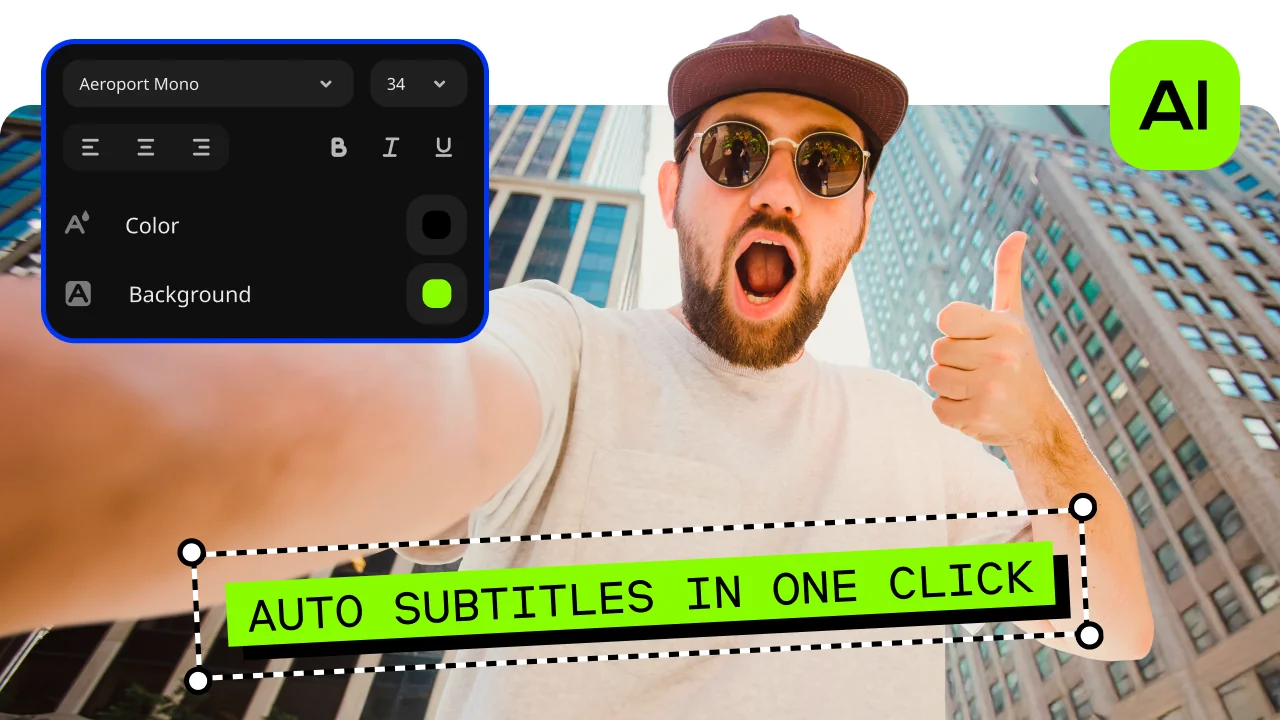
Automatic subtitles
Let AI quickly turn your speech into text and automatically create captions for your videos in almost any language. Just choose the font, text color, position – and you’re all set!
How to make a stop-motion video with Movavi Video Editor
Step 1. Import your frames
Open Movavi Video Editor and click the Add Files button to add your image sequence or video clips. You can work from photos or video frames, keeping everything neatly ordered on the timeline for precise control.
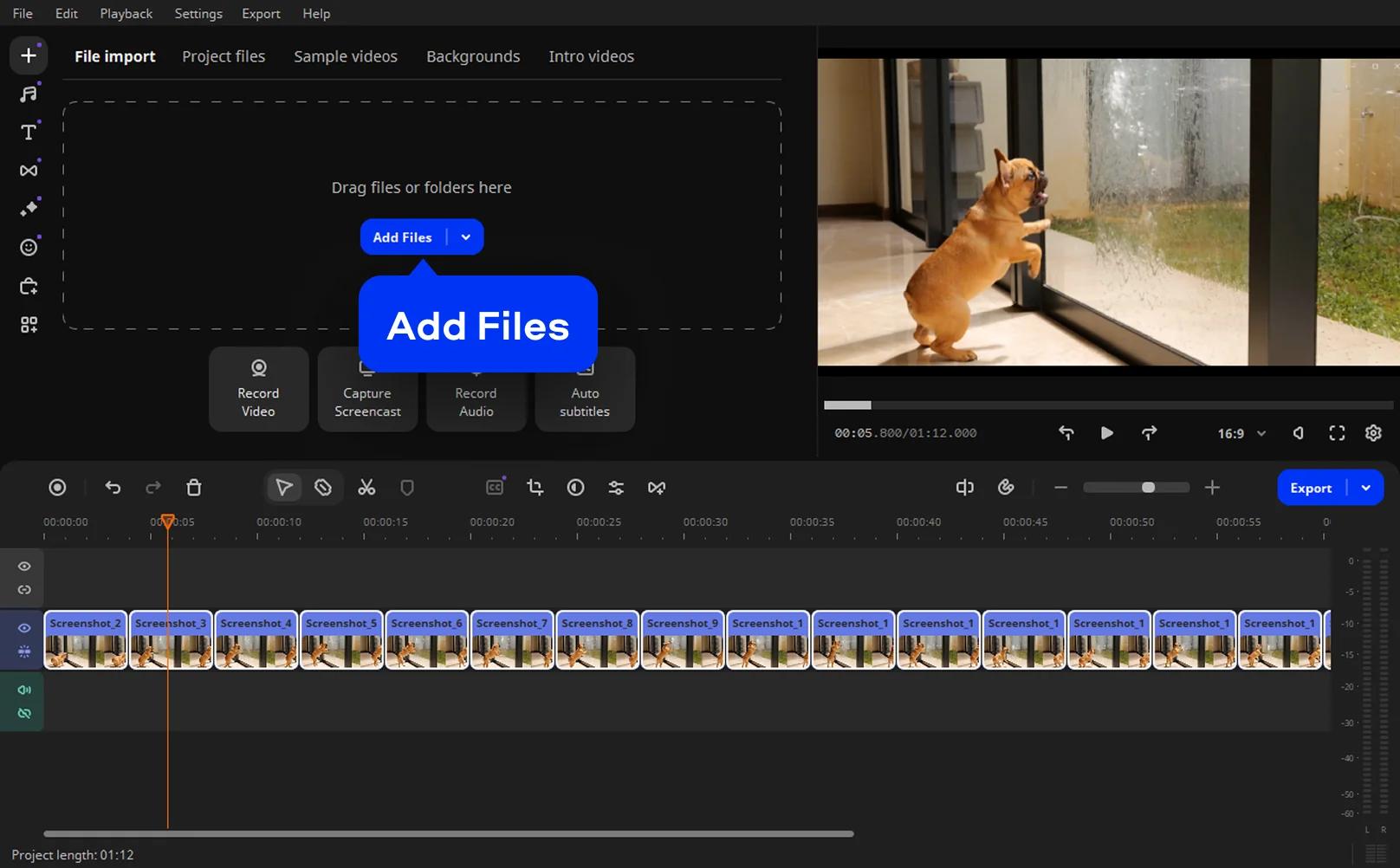
Step 2. Set the frame duration
Click Transitions settings and set the timing in the Photo clip duration field. To create a video with 24 frames per second, enter 00.042 in the field. To make a video with 12 FPS, enter 00.084. If you don’t have enough photos, choose a longer image duration. Click Apply to All Clips to set the duration.
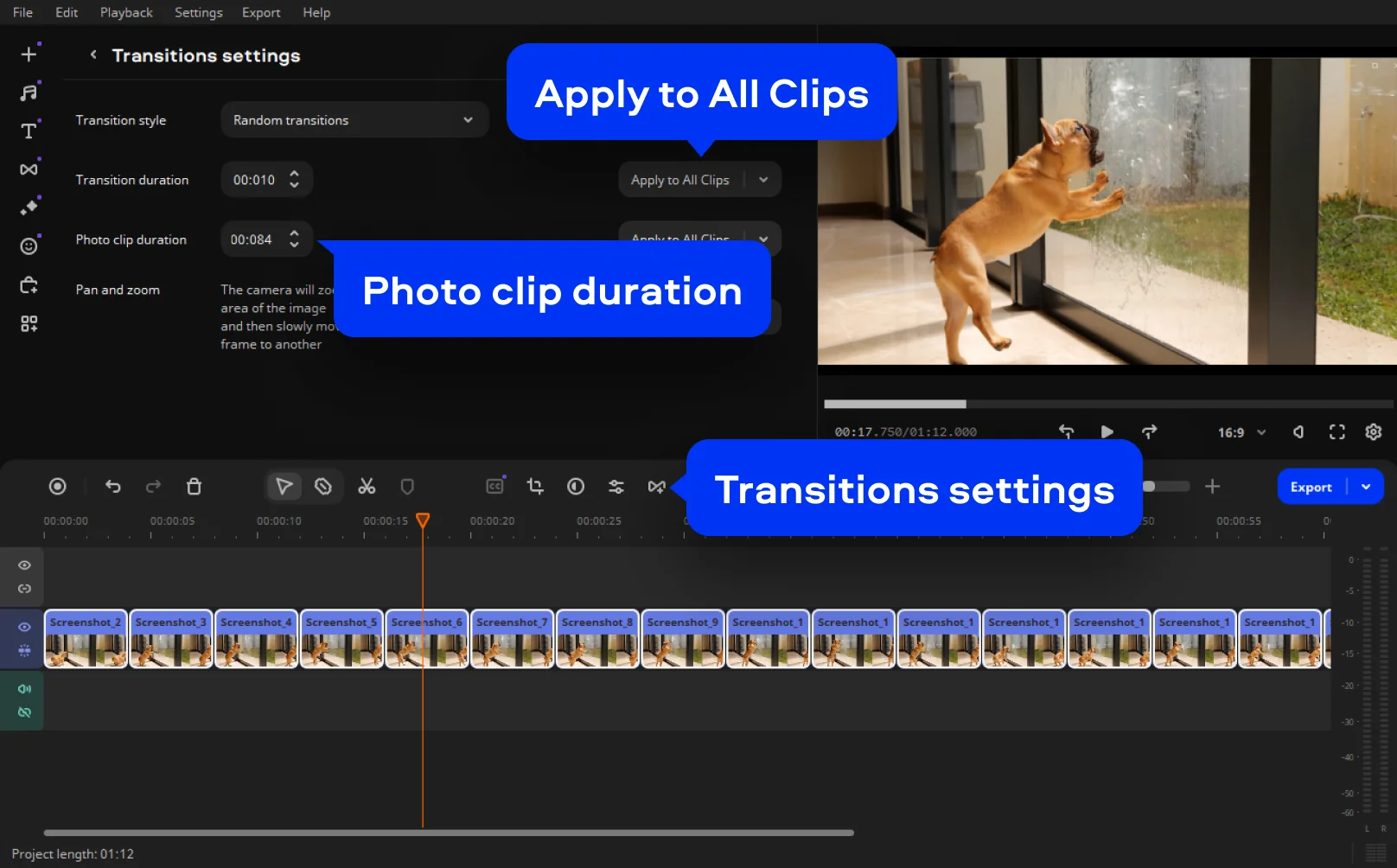
Step 3. Fine-tune the motion
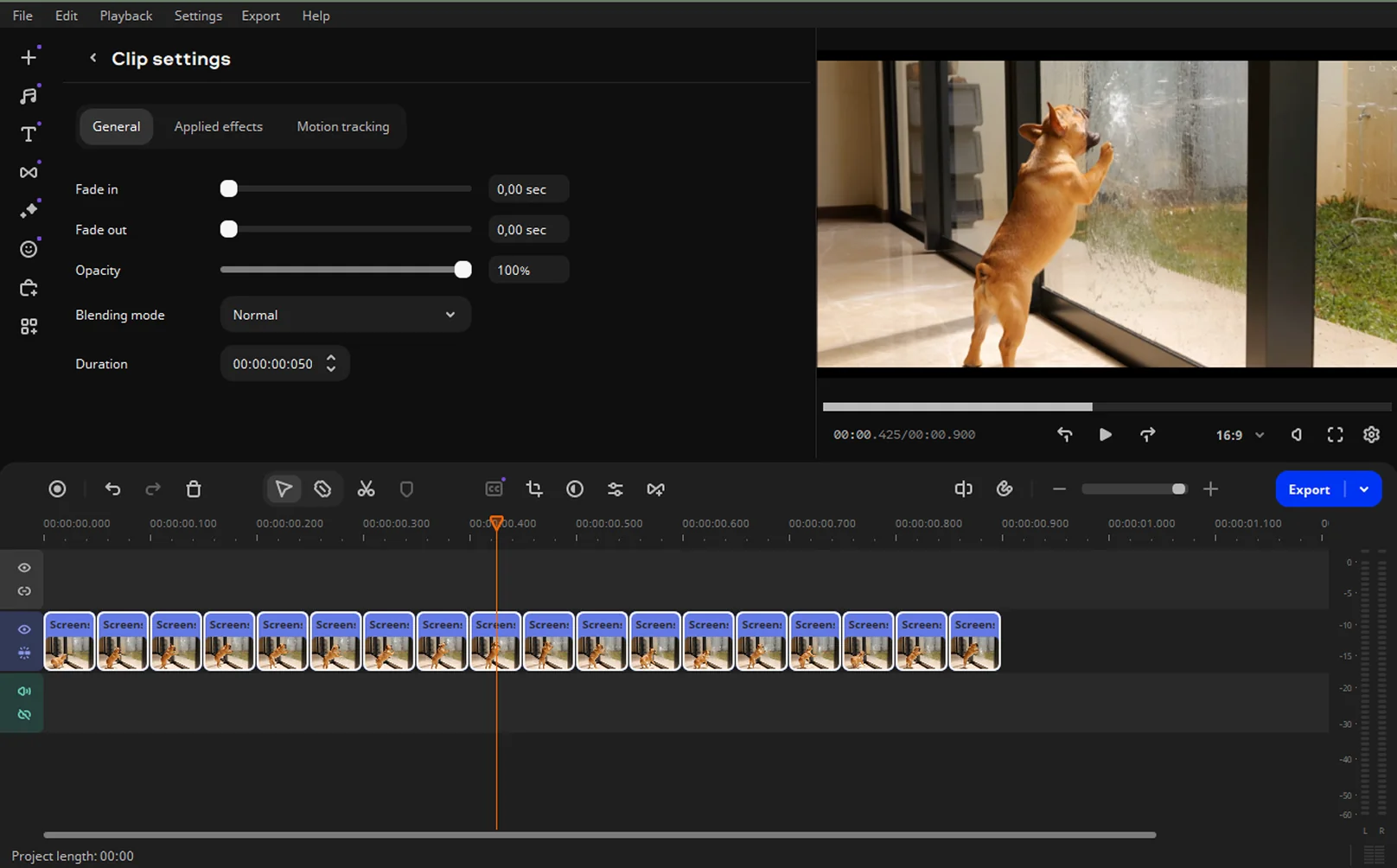
Trim frames, remove mistakes, and adjust speed until the movement feels natural. This is the heart of making animation feel intentional rather than accidental.
Step 4. Add sound and style
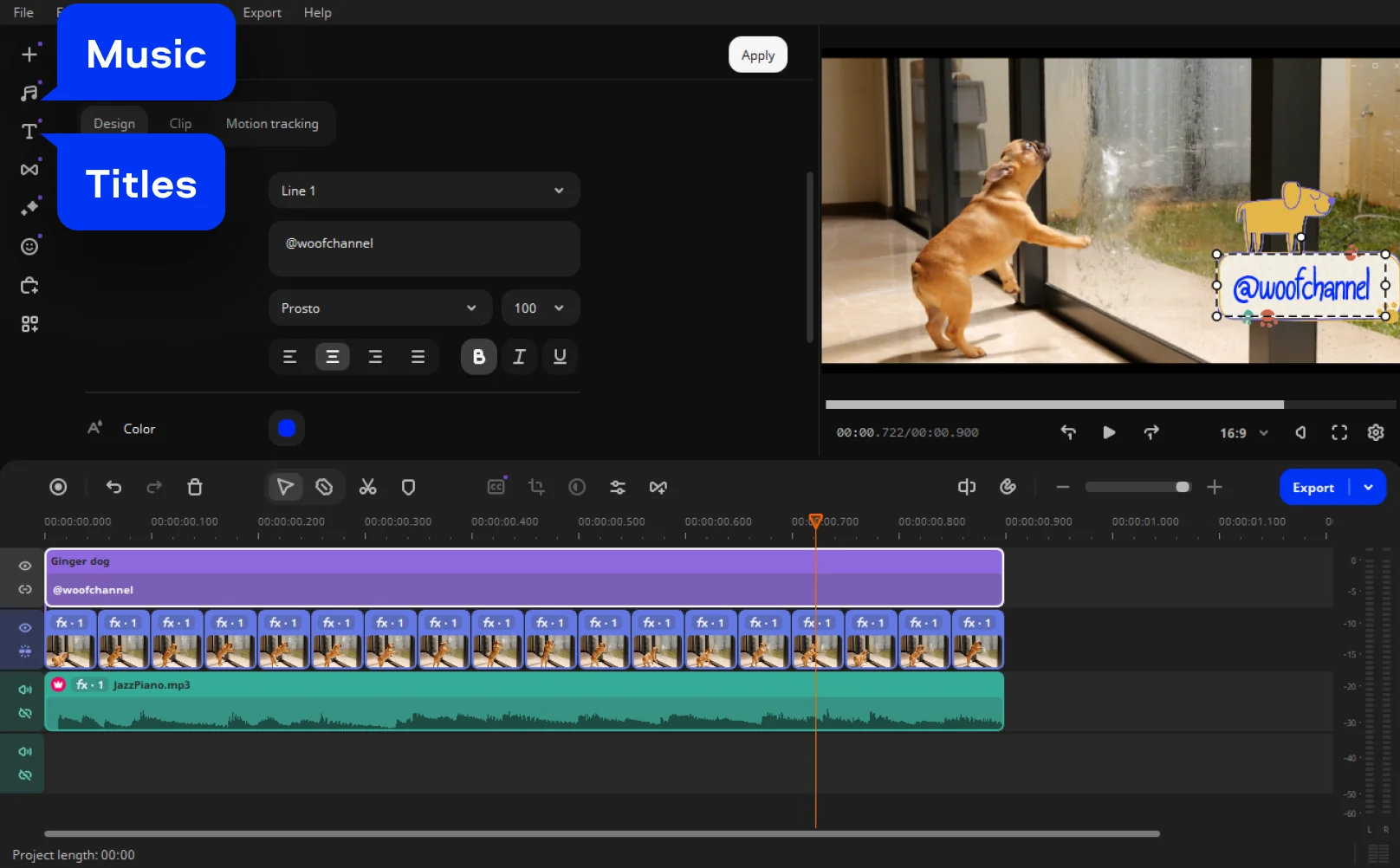
Drop in music, sound effects, or voice-over. Use titles and color tools to shape mood and pacing, helping the story turn from a sequence into a scene.
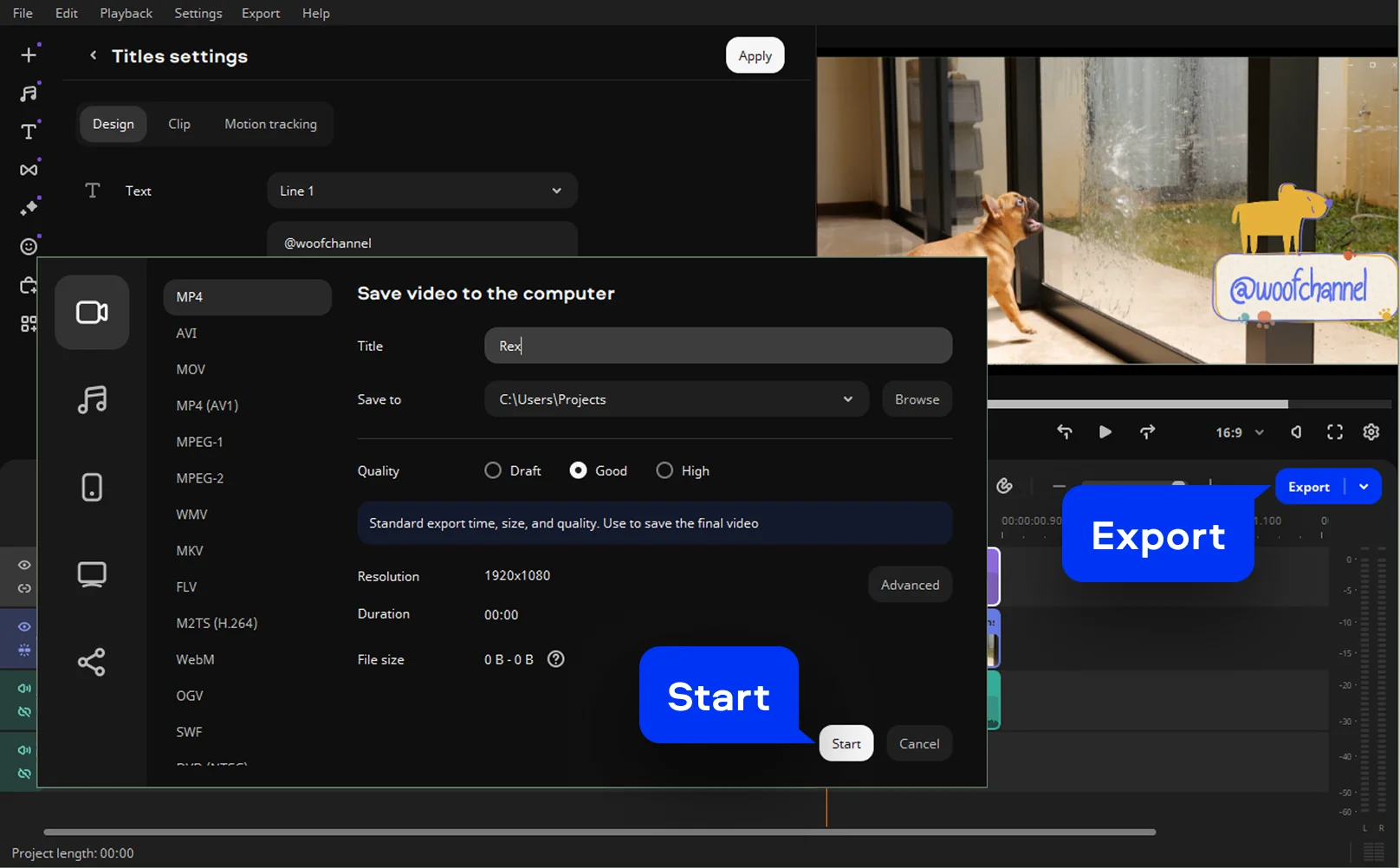
Step 5. Export and share
Click the Export button. Choose your format and resolution, then click Start. In minutes, you can make a stop-motion video ready for social feeds, presentations, or your personal archive.
More tools to edit stop-motion videos
Tips to create stop motion video
Stop motion is slow by nature, but the results don’t have to feel that way. With the right workflow, it becomes less about endless tweaking and more about intentional movement. If you’re figuring out how to make a stop-motion video with photos, Movavi Video Editor gives you room to experiment, recover from mistakes, and push simple ideas into something watchable – sometimes even memorable.
Creating a viral product reveal
Product stop motion is all about compression. You’re taking a process that might take minutes, hours, or even days and turning it into a few seconds of visual payoff. Think of a construction set snapping into place, a recipe assembling itself, or an outfit layering piece by piece without a visible hand.
Movavi Video Editor handles this kind of work well because it doesn’t panic when you throw a lot at it. You can import hundreds of photos in one go, arrange them cleanly on the timeline, and immediately control pacing by setting ultra-short frame durations. Speed is your friend here. Tight timing keeps the sequence energetic, while music from Movavi’s built-in library helps lock motion to rhythm. The result feels intentional, not rushed, perfect for social feeds where attention is short and everything happens online.
Artistic projects with clay or LEGO
More ambitious stop motion demands patience and forgiveness. When you’re animating characters made of clay or LEGO, mistakes are inevitable. A hand slips. A figure leans. A frame looks wrong only after you’ve shot ten more.
Movavi’s frame-level control lets you fix those moments without unraveling the entire sequence. You can stretch individual frames to create pauses for dialogue, then tighten action scenes to keep energy high. This flexibility is what makes longer-form animation manageable rather than exhausting. For creators weighing whether they need a full studio setup or a free stop-motion video maker to get started, this balance can make all the difference.
If your project calls for visual world-building, chroma key becomes surprisingly useful. Shooting on a simple green background allows you to replace environments later, giving small-scale sets a much bigger feel. It’s a practical solution that keeps production realistic without limiting imagination.
Process demonstrations with time-lapse elements
Some stories aren’t about characters, they’re about change. Growth, construction, decay, transformation. These projects live somewhere between time-lapse and stop motion, and they benefit from both approaches.
Import photos taken at regular intervals and start by adjusting animation speed until movement feels smooth, not jittery. Once the pacing works, layering becomes key. Titles, arrows, and callouts help guide the viewer’s eye, especially when subtle changes might otherwise go unnoticed.
Movavi’s text and graphics tools make it easy to pause the motion just long enough to explain what’s happening, then let the sequence continue. This balance keeps the video informative without turning it into a slideshow.
Creating «living photos»
Cinemagraph-style visuals rely on restraint. The goal isn’t movement everywhere, it’s movement somewhere. A flicker of water, drifting clouds, a looping flame. When done right, the effect feels calm, almost hypnotic.
Start by isolating the moving element and building its motion as a short stop-motion loop. Then layer it over a static image using cropping or masking tools. The Loop feature helps smooth transitions so the viewer can’t easily spot where motion resets.
These projects are especially effective when simplicity leads. The fewer moving parts, the stronger the illusion. Used sparingly, this technique turns still images into quiet, eye-catching moments that reward a second look.
In the end, good stop motion isn’t about complexity, it’s about control. Movavi Video Editor gives you that control without demanding technical gymnastics, which is often what keeps creative momentum alive long enough to finish the project at all.

Frequently asked questions
At its core, stop-motion animation is about patience and tiny adjustments. You move a real object just a little, take a photo, then do it again. Play those images back in order, and suddenly the inanimate feels alive. It’s one of the oldest animation techniques around, and it still resonates because you can feel the hands behind it. Nothing is simulated. Everything exists.
If you’ve seen Wallace & Gromit, Coraline, The Nightmare Before Christmas, or Fantastic Mr. Fox, you already know the charm. But stop motion isn’t limited to movie theaters. It shows up daily on social media, in product teasers, explainer videos, art-school projects, and looping visuals designed to quietly grab your attention. The format works just as well on a kitchen table as it does on a studio soundstage.
Stop motion matters because it asks you to slow down. In a world where everything is instant, this technique celebrates time, effort, and physical interaction with materials. That deliberate pace gives stop motion a warmth that purely digital animation often lacks. It also teaches creators something fundamental – how movement, timing, and storytelling actually work, one frame at a time.
You start small. Plan your idea, set up your camera, and keep everything steady. Take a photo, move the subject slightly, take another photo, and repeat. Once you’ve captured enough frames, you bring them into editing software, where timing is adjusted, mistakes disappear, sound comes in, and the whole thing finally clicks. This is where how to make a stop motion video becomes less mechanical and more creative.
It really depends on how far you want to go. Basic apps are fine for testing ideas or learning the basics, but more ambitious projects benefit from software that offers real control. Movavi Video Editor works well as a stop motion maker because it balances precision with approachability – powerful enough to shape a story, without feeling intimidating.
Absolutely. Many people begin with their phone because it’s always nearby and easy to use. Phones handle image capture just fine. Where they fall short is editing depth. As projects grow longer or more detailed, working on a computer tends to feel calmer, cleaner, and far more forgiving.
On an iPhone, a dedicated app lets you capture frames straight from the camera. The key is stability – use a tripod or solid surface, lock focus, and keep lighting consistent. Once the frames are ready, moving them to a desktop stop-motion video maker gives you better pacing, cleaner sound control, and a finish that feels deliberate rather than rushed.
See other useful online tools
AI video-editing software
Video quality enhancer
YouTube video editor
Video resizer
Free movie maker
Video collage maker
Crop videos online
Flip videos online
Add text to videos online
Video trimmer online
Add subtitles to videos online
Video splitter online
Trailer maker online
Birthday video maker
Online YouTube intro maker
Merge video online
Online video editor no watermark
MP3 cutter
We’re the #1 choice for millions of people from all around the world. Join our thriving community and create stunning content with incredible ease.
70M+


*The free version of Movavi Video Editor may have the following restrictions depending on the build: watermark on exported clips, 60-second video or 1/2 audio length limit, and/or some advanced features unavailable when exporting videos.



1.5M+ users already subscribed to our newsletter