
11 Best GIF Maker Software Tools [Desktop, Online & Mobile]

Edited by
Ben Jacklin
16,863

Making GIFs is something we all do now – like taking a funny video and making it a moment to share or creating animated pictures for presentations. The hard part isn't finding a tool to make GIFs, it's finding one that really does what you need it to do. We've all been there, trying to find the perfect GIF maker software that's easy to use and gives us the results we want. It's not just about making a GIF, it's about making one that's good quality and does what we want it to do. So, how do we find the right GIF editor program?

Key takeaways:

  • Desktop software offers the most control and advanced features for serious GIF creation
  • Online tools provide quick results without downloads – perfect for one-off projects
  • Mobile apps excel at capturing and editing content on-the-go
  • Choose based on your source material: video converters for clips, animation tools for custom graphics, screen recorders for tutorials

I've tested tools across all three categories to see which ones actually deliver. Some surprised me with their simplicity, others impressed with unexpected depth. Here's what I found works best for different scenarios.

How to choose the right type of GIF maker

Your goal

Best tool type

Why

Turn video clips into GIFs

Video converters

Handle video files natively with trimming options

Create animations from scratch

Animation software

Frame-by-frame control and drawing tools

Capture screen recordings as GIFs

Screen recording tools

Direct capture without conversion steps

Quick memes and simple edits

Online editors

No installation, instant sharing

Mobile content creation

Mobile apps

Shoot and edit in one place

The thing is, most of us need a variety of tools to get the job done, depending on the situation. For me, I like to keep a simple online editor handy for those quick tasks that don't require a lot of fuss. But when I need to get really precise and detailed, I switch to my trusty desktop software – it's just more reliable for those bigger projects.

Best desktop GIF maker software

I found that desktop apps were really reliable and had a lot of features. One of the best things about them is that they work even when you're not connected to the internet, and they can usually handle bigger files than the ones you use in your browser.

1. GIMP

  • Best for:

    Users who need pixel-perfect control and don't mind a learning curve

  • Why I picked it:

    Most powerful free option with professional-grade animation capabilities

  • Price:

    Free

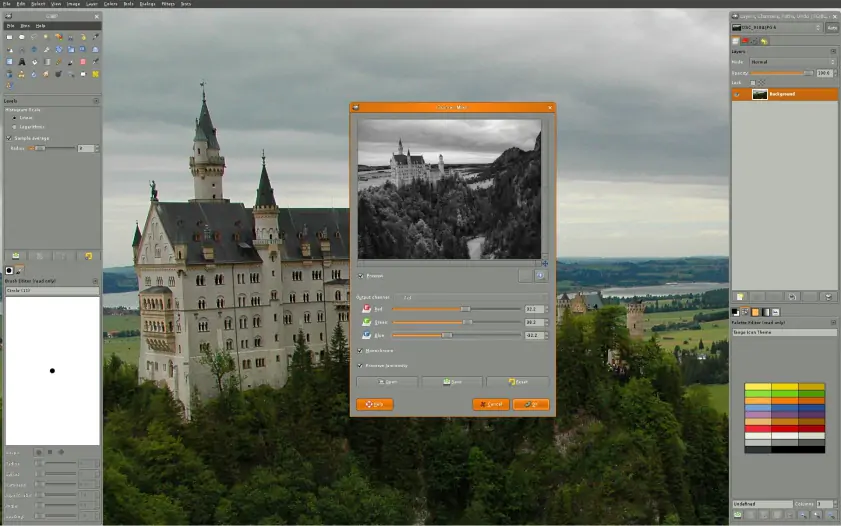
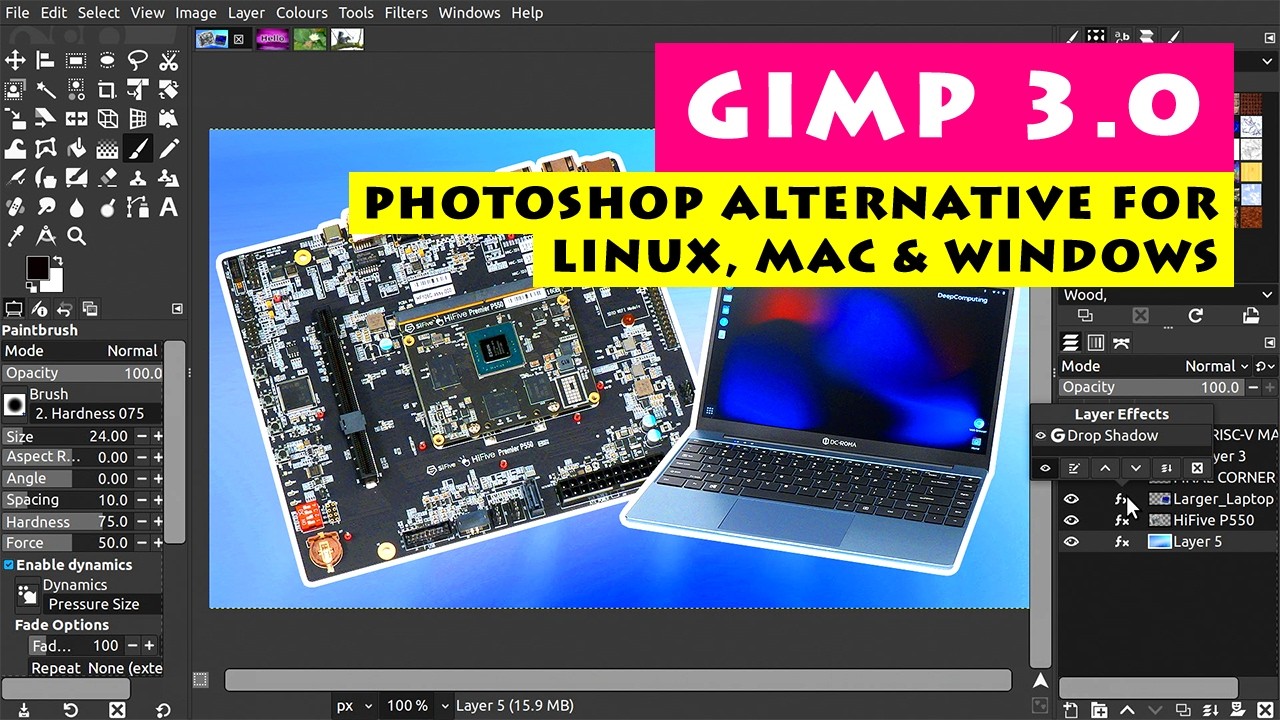
GIMP isn't just an image editor – it's a surprisingly capable GIF creation tool. The animation features run deeper than most people realize, giving you frame-by-frame control that rivals paid alternatives.

Working with GIMP's timeline took some getting used to, but once I understood the layer-based approach, creating smooth animations became straightforward. Each layer represents a frame, and you can control timing, transitions, and effects with impressive precision.

The software shines when creating GIFs from scratch or heavily modifying existing content. I used it to create complex animated logos and found the scripting capabilities helpful for repetitive tasks. According to PCMag, GIMP offers Photoshop-style layers, filters, and masking features as a no-cost alternative, though it requires patience to master.
Pros:
  • Completely free with no limitations

  • Professional animation tools including onion skinning

  • Extensive plugin ecosystem

  • Handles large files without performance issues

  • Cross-platform availability

Cons:
  • Steep learning curve for beginners

  • Interface feels outdated compared to modern alternatives

  • No direct video import (requires separate conversion)

  • Limited templates and presets

What users say on Reddit:

Reddit users appreciate GIMP as a powerful free alternative to expensive software, particularly praising its comprehensive feature set and lack of cost barriers. Many developers and designers note its effectiveness for professional work despite the learning curve. However, users consistently mention that the interface feels dated and can be overwhelming for newcomers. The community generally recommends GIMP for users willing to invest time in learning its workflow.

What YouTubers say:
What reviewers say:

Recent updates:

GIMP 3.2 was released in March 2026 with significant improvements including new non-destructive layers, Vector Layers for the Path tool, and upgraded MyPaint Brush tool with 20 new brushes. The update also includes improved UX/UI features and better file format support.

  • Best for:

    Converting existing video content into high-quality GIFs with editing flexibility

  • Why I picked it:

    It hits the sweet spot between being easy to use and having all the professional features you need.

  • Price:

    $54.95/year or $99.95 one-time purchase

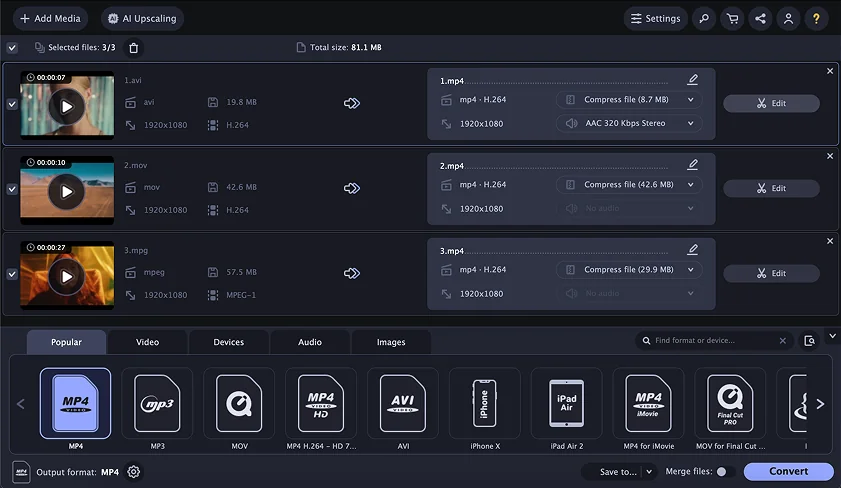
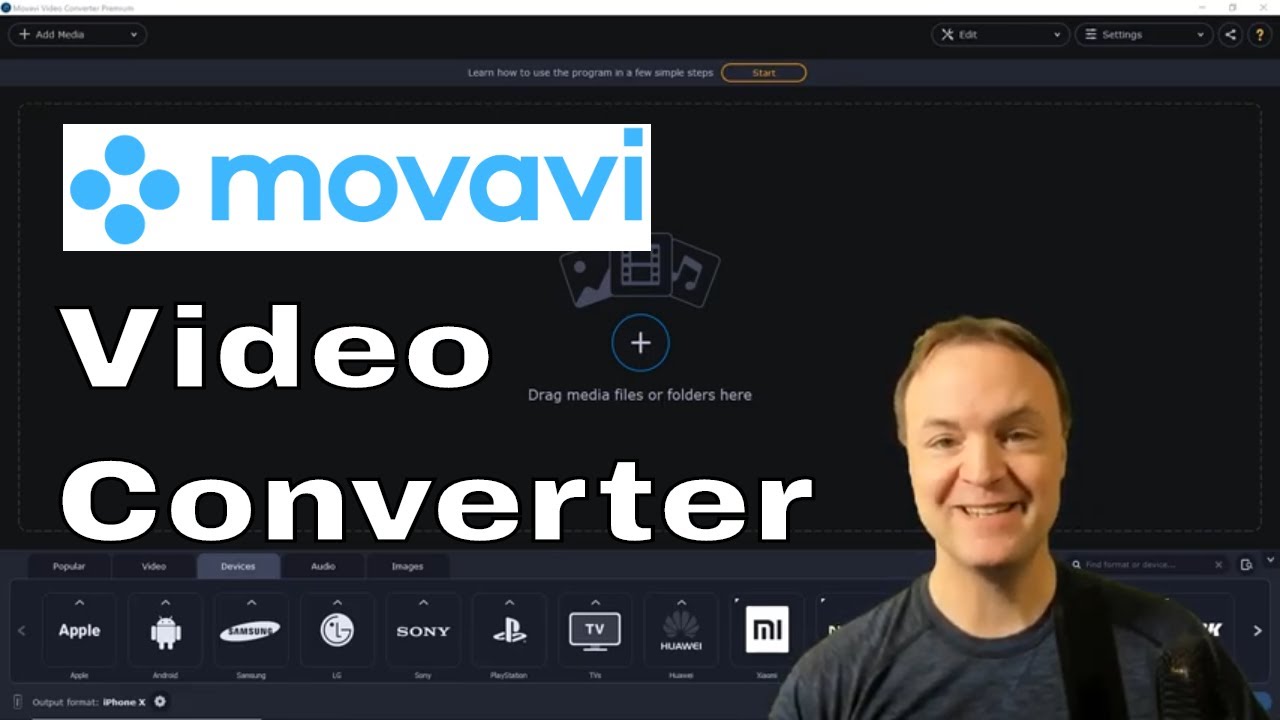
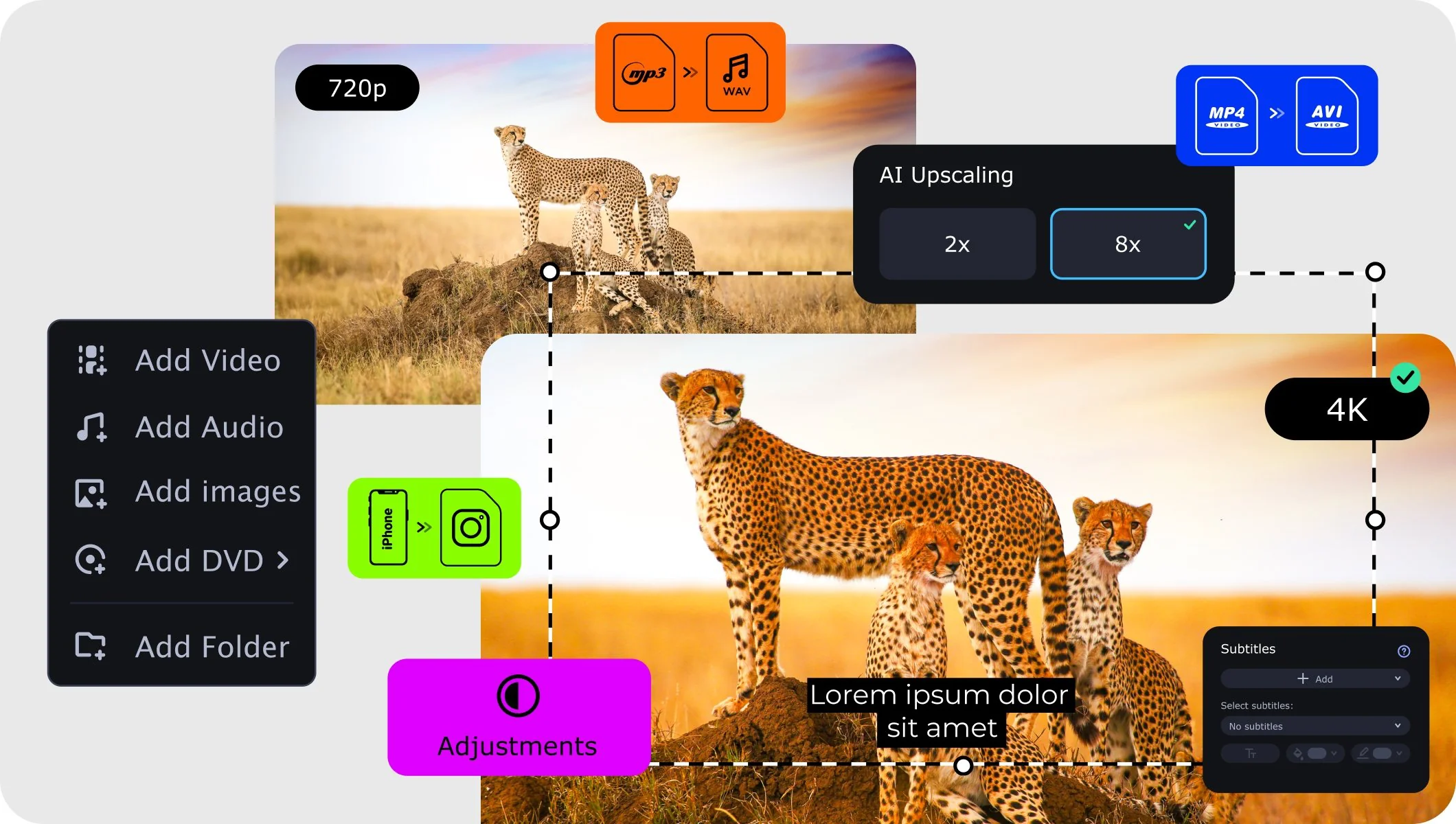
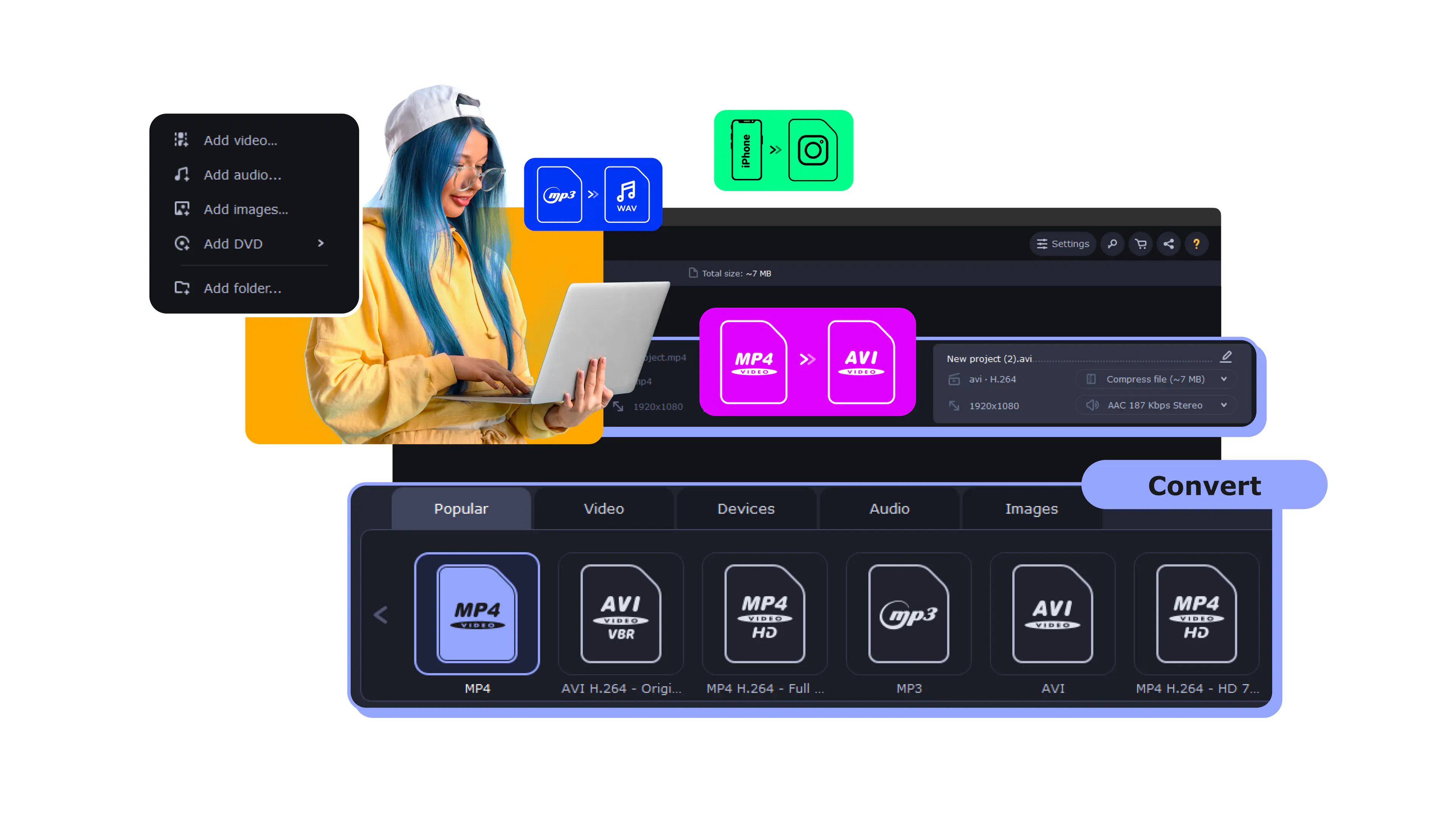
I was really impressed with how Movavi Video Converter made the whole process easy – from adding videos to making the final GIF just right. The interface is simple to use, but it still gives you all the controls you need.

This software is really versatile – it can handle over 180 different file formats, so you can pretty much use any video file you like. One of the features that I found really useful was the preview option, which gives you a sneak peek of what your GIF will look like before you actually convert it. You can also trim clips to get rid of any bits you don't want, adjust the playback speed to make it faster or slower, and even add some basic effects – all without having to switch between different programs, which is really convenient.

What really caught my attention was the AI upscaling feature when I was testing it out. I took some older videos that were pretty low-resolution and converted them, and the results were really impressive – they looked a lot sharper than I thought they would, even compared to the usual conversion methods. It's not just me, either – if you look at the reviews on G2 and Capterra, people are always raving about how easy the software is to use and how professional the output looks.

Pros:
  • Lightning-fast conversion with GPU acceleration

  • Built-in video-editing tools for trimming and effects

  • AI upscaling improves quality of low-resolution source material

  • Batch processing saves time with multiple files

  • No file size restrictions in the full version

Cons:
  • Free trial adds watermarks to exported GIFs

What users say on Reddit:

Reddit users appreciate Movavi Video Converter's user-friendly interface and its effectiveness for quick video conversion tasks. Many highlight how the software simplifies the conversion process compared to more complex alternatives, though some users note the free version's watermark limitations. Users consistently recommend it for beginners who need reliable conversion without technical complexity.

What YouTubers say:
What reviewers say:

Recent updates:

The most recent update of Movavi Video Converter was in December 2025 and focused primarily on polishes that speed up workflow rather than major overhauls.

3. N-Studio (former ScreenToGif)

  • Best for:

    Recording screen activity and instantly converting to animated GIFs

  • Why I picked it:

    Seamless screen capture with built-in editing makes it perfect for tutorials

  • Price:

    Free version; Professional plans from $3/month

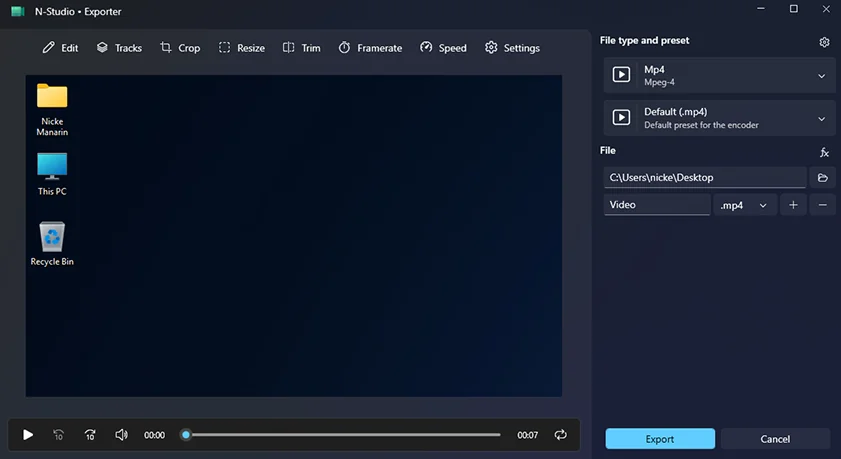
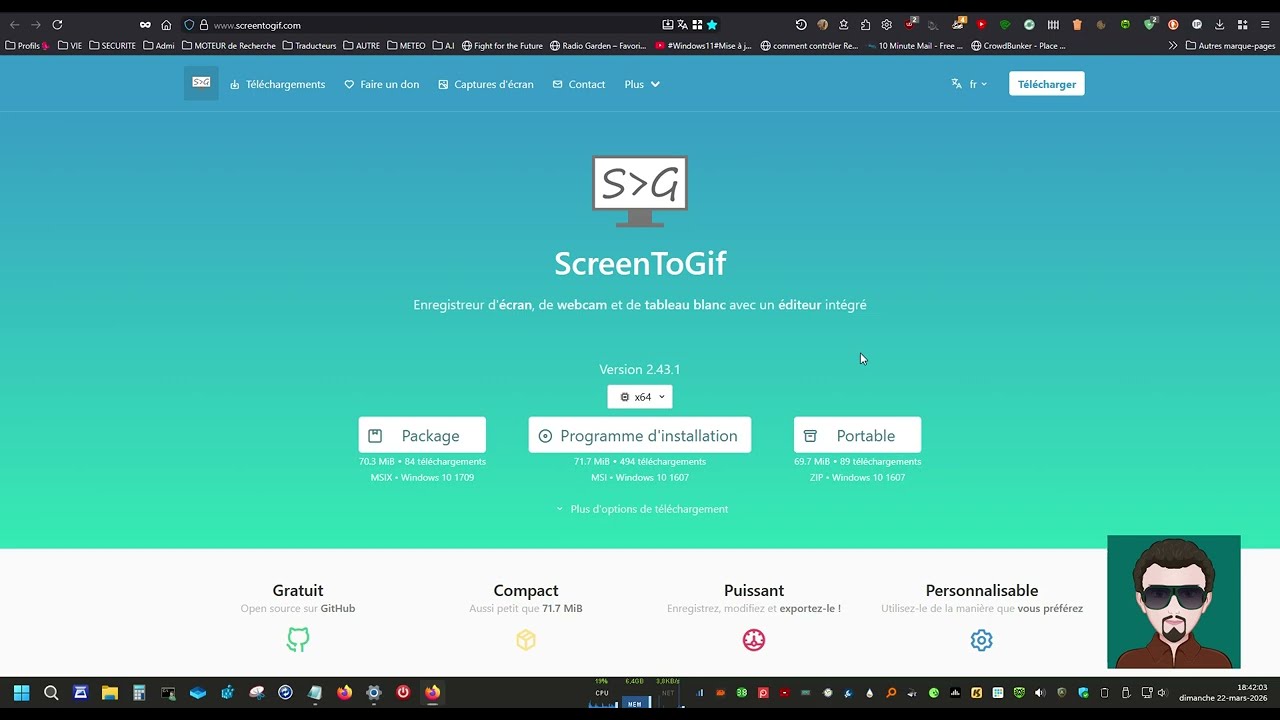
N-Studio is great for screen recording and exporting screencasts in the GIF format. The workflow feels natural: select your screen area, hit record, then edit the result in the same application.

During testing, I appreciated how the software automatically optimized file sizes without sacrificing too much quality. The frame editor lets you delete unwanted frames, add text overlays, and adjust timing – all within the same interface.

The software proved particularly useful for creating quick demo GIFs. Instead of recording video and then converting it separately, N-Studio handles everything in one step.

Pros:
  • Free version available

  • Direct screen recording eliminates the conversion step

  • Built-in editor with text and drawing tools

  • Automatic optimization reduces file sizes

  • Multiple export formats including MP4 and WebM

Cons:
  • Windows-only limitation

  • Limited animation features beyond screen recording

  • No video file import capability

  • Basic color correction tools

What users say on Reddit:

Reddit users appreciate simplicity and effectiveness for creating quick screen capture GIFs. Many developers and tech support professionals praise its straightforward workflow for creating tutorials and bug reports. Users note the software's reliability and appreciate that it's free with no limitations. However, some mention the lack of Mac support as a limitation, and a few users request additional features like audio recording within GIFs.

What YouTubers say:

Recent updates:

The update from May 2026 focuses on polishing the Region Share tool by adding crucial video adjustments like gamma correction and brightness compensation. It also delivers critical bug fixes for mouse rendering, ensuring that cursor placement and click effects align accurately in both recorded videos and editor thumbnails. The patch also stabilizes performance by resolving hidden FFmpeg errors and memory leaks within the screen capture module.

  • Best for:

    Pixel art animations and retro-style graphics

  • Why I picked it:

    Specialized tools for pixel-perfect animations with frame-by-frame precision

  • Price:

    Free

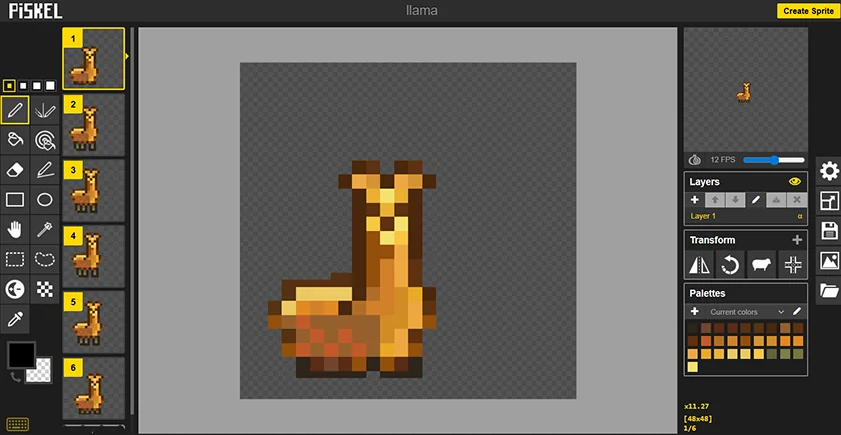
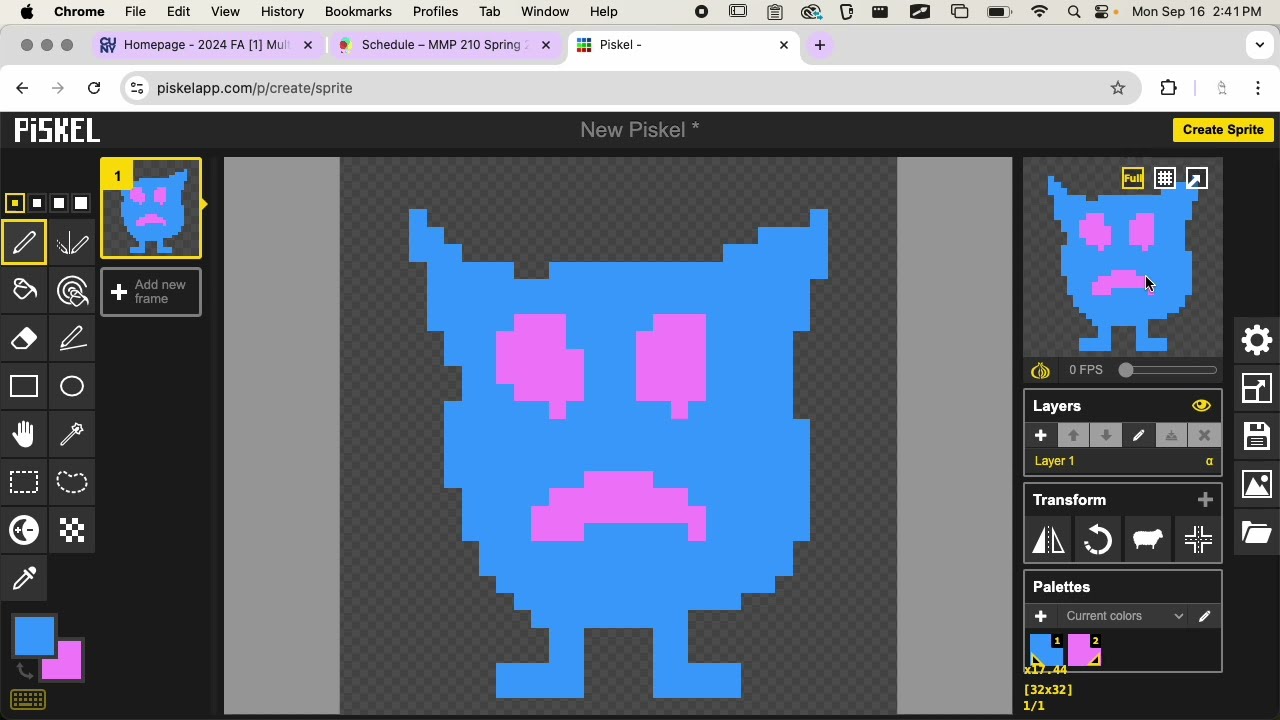
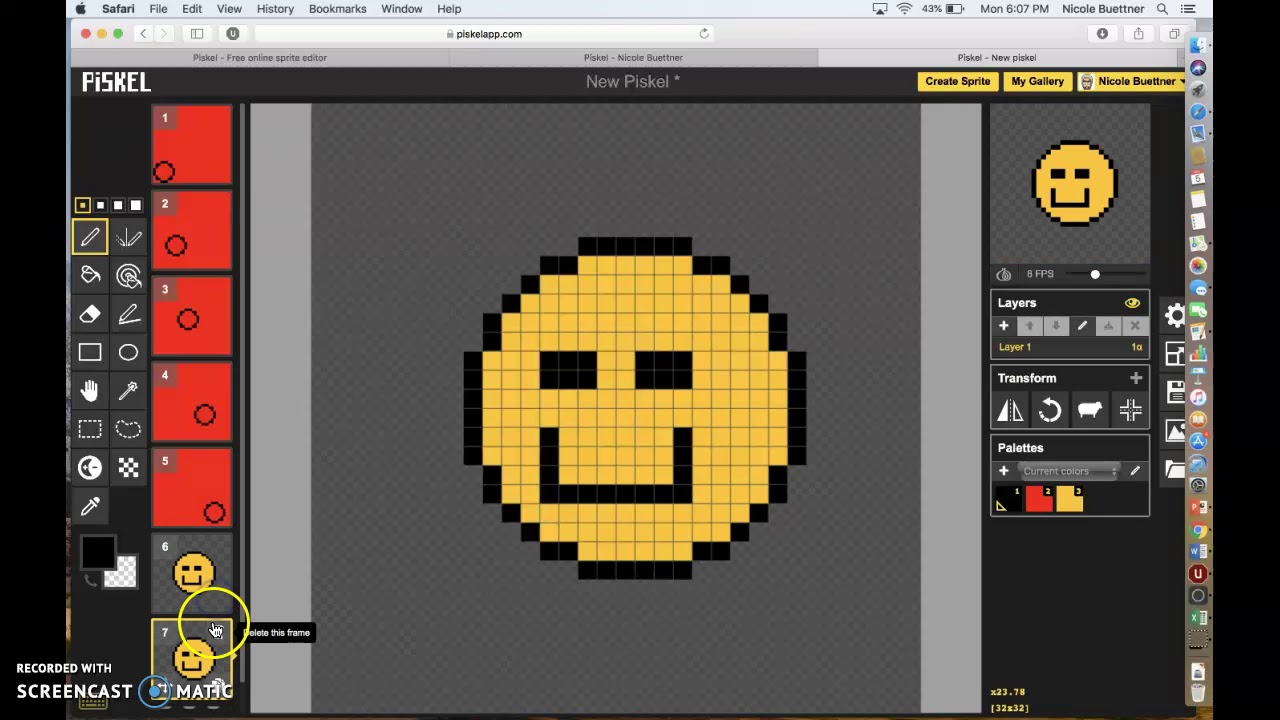
Piskel occupies a unique niche in GIF making – it's specifically designed for pixel art and sprite animation. If you're creating 8-bit style graphics or need frame-by-frame control, this tool delivers exactly what you need.

The onion skinning feature made animation work much more manageable. Seeing previous and next frames as ghosted overlays helped maintain consistency across sequences. The drawing tools feel responsive and designed specifically for pixel work.

I found the browser version surprisingly capable, though the desktop app offers better performance for complex animations. The export options include various format choices and optimization settings tailored to different use cases. Reddit users frequently praise Piskel's user-friendly UI and its effectiveness for creating sprite sheets during game development, with one developer noting they created a dozen sprite sheets in a single night during a hackathon.

Pros:
  • Specialized pixel art tools with grid snapping

  • Onion skinning for smooth animation workflow

  • Available as both web app and desktop software

  • Real-time preview during creation

  • Active community with shared resources

Cons:
  • This tool only works with pixel art, so it's not the best choice if you want to make GIFs from photos

  • Learning curve for non-artists

  • No video import functionality

  • Fewer effects compared to general-purpose editors

What users say on Reddit:

Reddit users frequently praise Piskel's user-friendly UI and its effectiveness for creating sprite sheets during game development, with one developer noting they created a dozen sprite sheets in a single night during a hackathon. Users highlight how Piskel saves hours compared to using GIMP for pixel art creation, making it particularly valuable for game developers who need to create prototypes quickly. However, users consistently point out the lack of opacity filters as a significant limitation, with multiple developers specifically requesting this feature that they miss from GIMP.

What YouTubers say:

Recent updates:

Piskel modernization efforts are ongoing with discussions about significant updates including moving away from Canvas as a data source and addressing browser compatibility issues. The development team is working on various improvements including better downscaling and new feature requests from the community.

Best online GIF makers

Browser-based tools offer convenience and accessibility. No downloads, no installations – just upload your content and start editing. Performance varies depending on your internet connection and file sizes.

  • Best for:

    Quick GIF creation with social sharing integration

  • Why I picked it:

    Largest GIF platform with seamless creation and distribution tools

  • Price:

    Free

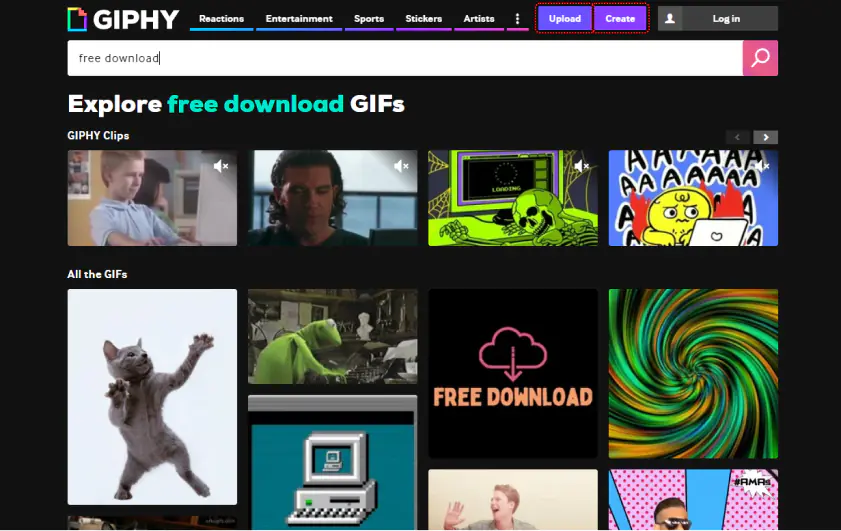
GIPHY's creation tools feel natural because they're built into the platform where most of us discover and share GIFs anyway. The interface prioritizes speed – you can go from video upload to published GIF in under a minute.

The text and sticker tools surprised me with their variety. Beyond basic overlays, you can add trending stickers, custom fonts, and even animated text effects. The social features make sharing immediate, which is perfect for meme creation.

Integration with other platforms means your GIFs automatically become discoverable in messaging apps and social media. This distribution advantage sets GIPHY apart from pure GIF creation tools. According to PCMag, GIPHY delivers real-time GIFs as they happen, helping to power live commentary and conversation on platforms like Twitter.

Pros:
  • Massive built-in audience for content distribution

  • Trending stickers and effects updated regularly

  • Mobile app mirrors desktop functionality

  • Direct integration with social platforms

  • No file size limits for uploads

Cons:
  • Limited advanced editing features

  • Content becomes public by default

  • Compression can reduce quality significantly

  • Fewer precision controls compared to desktop software

What users say on Reddit:

Reddit users have mixed opinions about GIPHY, with some appreciating its vast GIF library and easy integration across platforms, while others criticize the search quality and content moderation. Users note that GIPHY has become the default GIF provider for many messaging apps, making it convenient but sometimes frustrating when search results don't match expectations. Some users express concerns about content quality and the shift from Tenor to GIPHY in various applications.

What YouTubers say:
What reviewers say:

Recent updates:

GIPHY continues to expand its content library with new 2025 and New Year 2026 GIF collections. The platform maintains its position as the leading GIF search engine with regular content updates and improved search functionality.

  • Best for:

    Collaborative editing and template-based creation

  • Why I picked it:

    Modern interface with team features and extensive template library

  • Price:

    Free plan with limitations; Pro plans start at $16/month

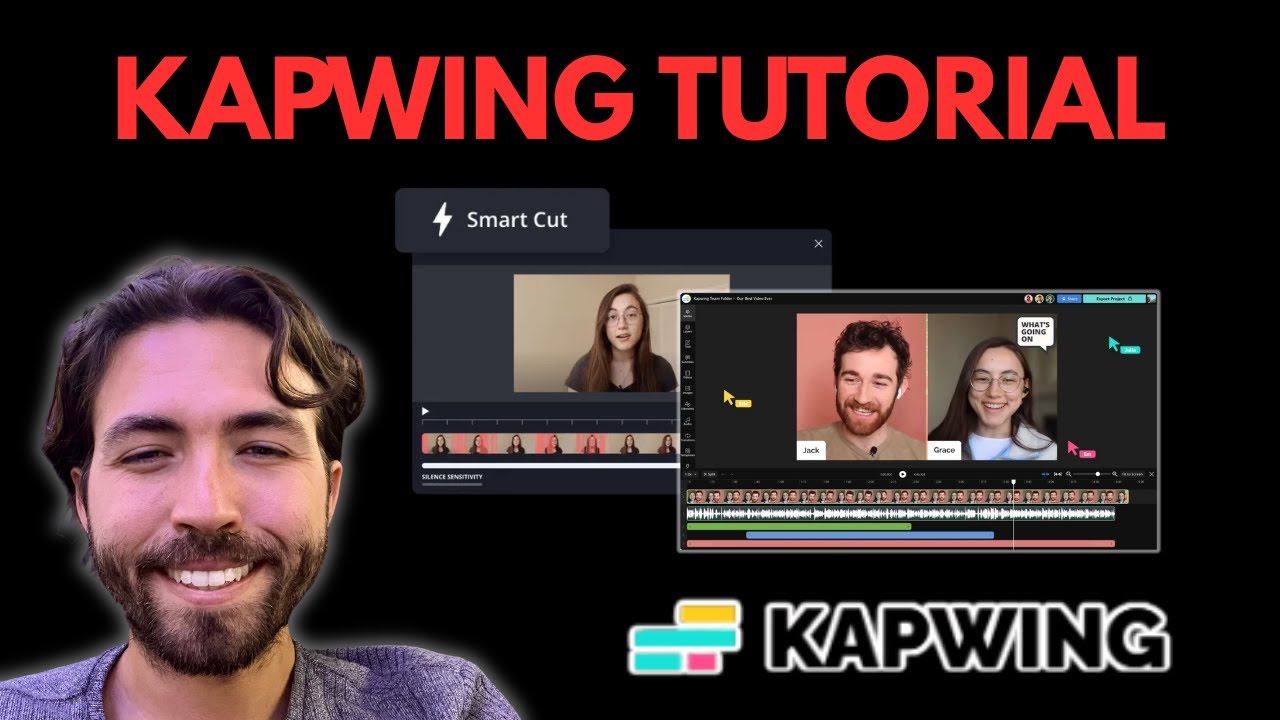
Kapwing feels like what online video editing should be – responsive, feature-rich, and accessible. The GIF creation tools integrate naturally with other video editing functions, so you can trim, add text, apply filters, and export all in one workflow.

The template system impressed me during testing. Rather than starting from scratch, you can pick from hundreds of animated templates and customize them with your content. This approach works particularly well for social media content.

Collaboration features let multiple people edit the same project, which I haven't seen in other best GIF editor options. For teams creating marketing content, this capability alone makes Kapwing worth considering. According to PCMag, video-editing firm Kapwing has been conducting research on AI-generated content trends across various platforms.

Pros:
  • Clean, modern interface that's beginner-friendly

  • Extensive template library for quick starts

  • Team collaboration features

  • Multiple export formats and quality settings

  • Regular feature updates and improvements

Cons:
  • Free plan includes watermarks

  • Large files can slow down browser performance

  • Advanced features require subscription

  • Internet dependency limits offline usage

What users say on Reddit:

Reddit users generally appreciate Kapwing's ease of use and accessibility for quick video editing tasks. Many users praise its browser-based approach and template system, though some express concerns about subscription pricing and limitations of the free tier. Users in various subreddits mention Kapwing as a viable alternative to more complex editing software, particularly for social media content creation.

What YouTubers say:
What reviewers say:

Recent updates:

Kapwing released significant updates in December 2025 including a new homepage design, Smart Music Selection feature, Script to Video Advanced Mode with character consistency, and a streamlined credit system. The platform continues to expand its AI-powered features for content creators.

  • Best for:

    Professional-quality editing with social media optimization

  • Why I picked it:

    Comprehensive video editing capabilities adapted perfectly for GIF creation

  • Price:

    Free trial; paid plans from $12/month

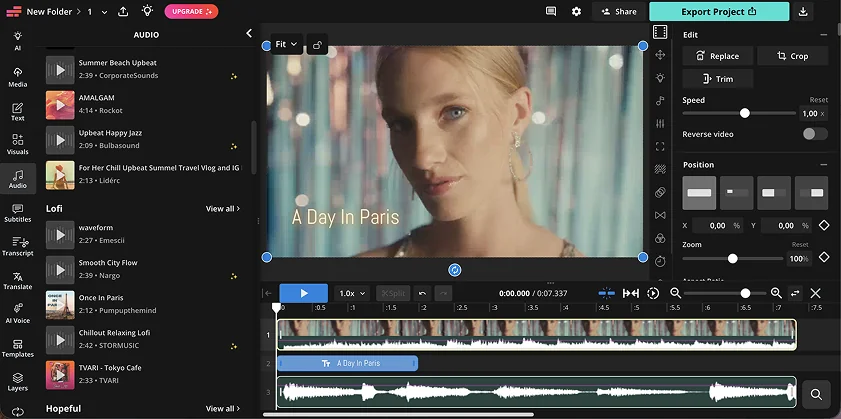
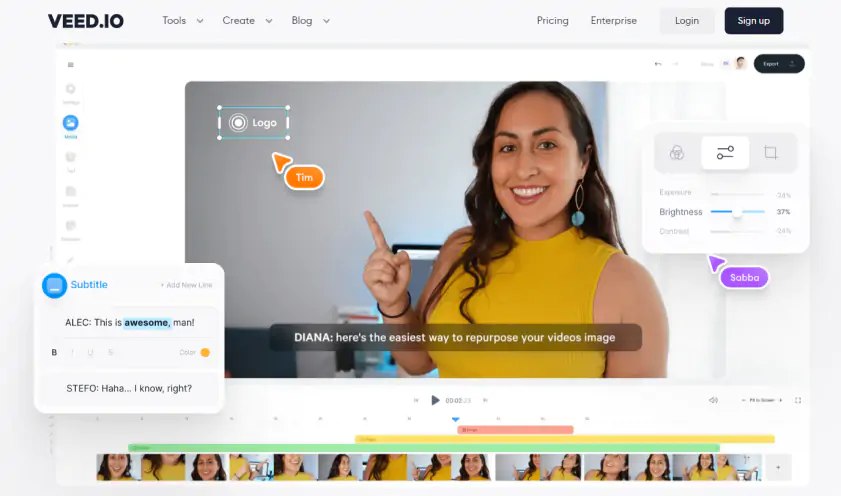
Veed.io brings video editing sophistication to GIF creation. The timeline-based editor feels familiar if you've used desktop video software, but it runs entirely in your browser with impressive performance.

Auto-subtitle generation worked surprisingly well during my testing. Even for GIFs with speech, having accurate captions generated automatically saved significant time. The social media templates ensure your GIFs fit platform requirements perfectly.

The AI-powered background removal tool stood out among online alternatives. While not perfect, it handled simple backgrounds well enough for most social content without requiring green screen footage.

Pros:
  • Professional timeline-based editing interface

  • AI-powered auto-subtitles and background removal

  • Social media templates with correct dimensions

  • High-quality output with minimal compression artifacts

  • Comprehensive audio editing tools

Cons:
  • Higher learning curve than simple GIF makers

  • Watermark in the free version

  • Premium features require subscription

  • Can be overwhelming for basic GIF needs

What users say on Reddit:

Reddit users have mixed experiences with Veed.io, with some praising its ease of use and AI features, while others express frustration with billing practices and subscription management. Users appreciate the browser-based editing capabilities and professional features, but some report difficulties with customer service and unexpected charges. Many acknowledge it as a useful tool for content creators despite these concerns.

What YouTubers say:
What reviewers say:

Recent updates:

The recent major update in 2025 introduced an all-new AI Agent, Editing with Script, Clips, AI Dubbing, and more.

Best mobile GIF apps

Mobile apps excel at capturing and editing content on the spot. The convenience of shooting, editing, and sharing from a single device makes them perfect for social content creation.

  • Best for:

    iOS users who want professional features in a mobile-first design

  • Why I picked it:

    Best balance of power and usability on mobile devices

  • Price:

    Free with in-app purchases; Pro version from $7.99/month

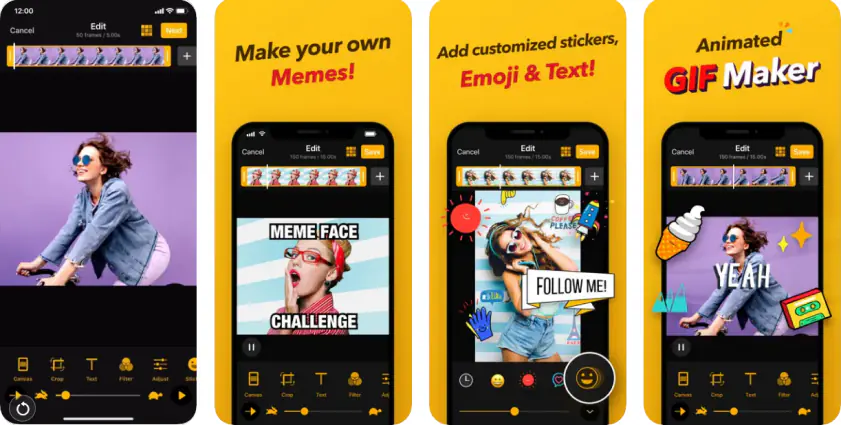
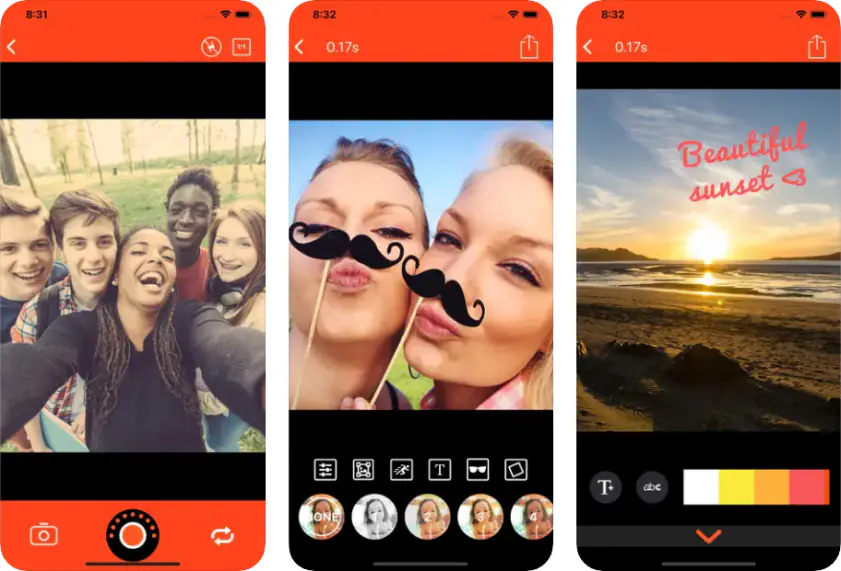
ImgPlay feels like desktop software adapted thoughtfully for mobile rather than dumbed down. The interface scales well to phone screens without sacrificing functionality. Recording video directly in the app and converting to GIF happens seamlessly.

The filter and effect options impressed me – they're clearly designed for modern social media aesthetics. Speed controls let you create smooth slow-motion or time-lapse effects that would require multiple apps otherwise.

Frame-by-frame editing on mobile sounds tedious, but ImgPlay's implementation works well. Touch controls feel natural for selecting ranges, adjusting timing, and applying effects.

Pros:
  • Intuitive mobile interface with gesture controls

  • High-quality output with customizable compression

  • Direct video recording within app

  • Extensive filter and effect library

Cons:
  • Premium features require subscription

  • Large files can drain battery quickly

  • Limited text customization options

What users say on Reddit:

Reddit users appreciate ImgPlay as a solid mobile GIF creation tool, particularly for iOS devices. Developers mention using it for creating GIF content in various projects, and it's often recommended as one of the better free mobile options for GIF making. Users note its effectiveness for converting Live Photos and video content into GIFs.

What YouTubers say:

Recent updates:

ImgPlay continues to receive regular updates with improvements to its GIF creation tools, AI background removal features, and enhanced social media integration. The app maintains its position as a leading mobile GIF maker with ongoing feature enhancements and performance optimizations.

  • Best for:

    Cross-platform mobile editing with social sharing features

  • Why I picked it:

    Reliable performance across different mobile platforms with comprehensive features

  • Price:

    Free with ads; Premium $2.99/month

GifMe! works consistently across both iOS and Android, which matters when collaborating or switching devices. The core functionality remains the same regardless of platform, avoiding the learning curve of different apps.

Recording quality impressed me during testing. The app handles various lighting conditions well and maintains good frame rates even on older devices. Built-in stabilization helps with handheld recording, though it's not a substitute for steady shooting.

Social integration goes beyond simple sharing – you can browse trending content for inspiration and see how others use similar techniques. This discovery element adds value beyond pure creation tools.

Pros:
  • Available on both iOS and Android

  • Built-in video stabilization

  • Social discovery features

  • Multiple export quality options

  • Offline editing capability

Cons:
  • Interface feels dated compared to newer apps

  • Free version includes ads

  • Limited advanced editing features

  • Compression quality varies by device

What users say on Reddit:

Reddit users appreciate GifMe! as a reliable cross-platform option for mobile GIF creation, though discussions are limited. The app appears in various recommendation lists for GIF creation tools, and users value its availability across different platforms. Some users note it as a solid alternative to platform-specific options.

Recent updates:

The app hasn’t received any major updates over the past few years, recent updates include minor bug fixes.

Specialized GIF creation tools

Some situations call for specialized approaches. These tools excel in specific scenarios where general-purpose software falls short.

  • Best for:

    Windows users who need basic animation without complexity

  • Why I picked it:

    Straightforward frame-based animation with no learning curve

  • Price:

    Free

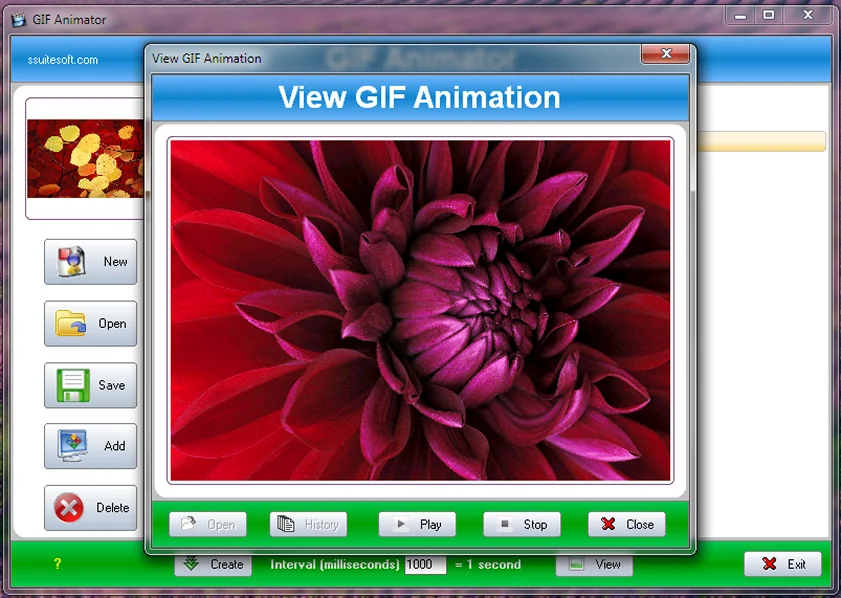
SSuite Gif Animator does one thing well – it takes a series of images and turns them into animated GIFs. The approach feels old-school but reliable. Import your frames, set timing, preview, and export. No subscription fees or feature bloat.

During testing, I appreciated the simple timeline view. Each frame appears as a thumbnail, making it easy to reorder, duplicate, or delete specific images. The preview function updates in real-time as you adjust timing settings.

For users who already have image sequences from other software, SSuite provides a clean conversion path.

Pros:
  • Free to use

  • Simple workflow perfect for beginners

  • Good performance with large image sequences

  • Small file size and resource usage

Cons:
  • Windows-only availability

  • No video import capability

  • Limited effects and transitions

  • Basic interface lacks modern features

What users say on Reddit:

SSuite Gif Animator receives limited discussion on Reddit, but is mentioned in lists of GIF creation tools as a basic option for Windows users. Users seeking simple, no-frills animation software occasionally reference it as an alternative to more complex tools, though detailed user experiences are not widely shared.

Recent updates:

The last release featured the addition of the PNG image format, interface enhancement, and other improvements to make GIF creation faster.

  • Best for:

    Cross-platform users who need simple animation tools without installation

  • Why I picked it:

    Java-based portability with essential animation features

  • Price:

    Free

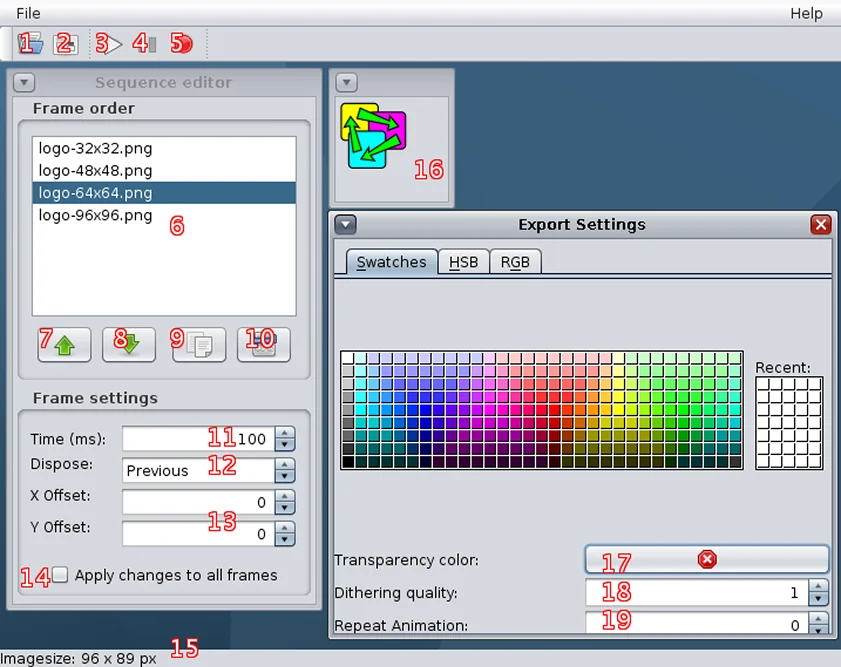
GiftedMotion runs as a portable Java application, meaning it works identically across Windows, macOS, and Linux without installation. For users who work across multiple systems, this consistency matters.

The interface prioritizes function over form. You get the tools needed for basic animation – frame management, timing control, and optimization settings – without visual polish or marketing features. This approach appeals to users who want reliability over aesthetics.

File size optimization impressed me during testing. The software applies intelligent compression that maintains visual quality while reducing file sizes significantly. For web use, this optimization can make the difference between usable and frustrating load times.

Pros:
  • True cross-platform compatibility via Java

  • Portable application requires no installation

  • Effective file size optimization

  • Clean, distraction-free interface

  • Free and open-source

Cons:
  • Requires Java runtime environment

  • Basic interface may seem outdated

  • Limited to image sequence input

  • No advanced effects or filters

What users say on Reddit:

Reddit discussions about GiftedMotion are minimal, though it's occasionally mentioned in lists of GIF creation tools. Users who need cross-platform compatibility and simple functionality may reference it as a portable option, but detailed user feedback is scarce on the platform.

Recent updates:

GiftedMotion remains available as a portable Java-based GIF animation tool, maintaining its position as a simple cross-platform option for basic GIF creation needs. The software continues to serve users who prioritize simplicity and portability over advanced features.

Making the right choice for your needs

Most people don't need every feature available. Here's how I'd approach the decision:

For occasional use: Start with online tools like Kapwing or GIPHY. They handle common tasks without software installation and let you test whether you need more advanced features.

For regular content creation: Desktop software like Movavi Video Converter offers better performance and more control. The time saved on larger projects justifies the learning curve.

For mobile-first workflows: ImgPlay or GifMe! work well when you're creating content directly from phone footage. The convenience of capture-to-share workflows suits social media posting.

For specific techniques: Specialized tools like N-Studio for screen recording or Piskel for pixel art deliver better results than general-purpose alternatives in their respective niches.

The format itself has limitations worth considering. GIFs work well for short animations under 10 seconds, but longer content often works better as MP4 video with modern compression. Many platforms now support video uploads with better quality and smaller file sizes than equivalent GIFs.

Movavi Video Converter
The ideal way to get your media in the format you need!

Frequently asked questions

What's the best file format to start with when creating GIFs?

When it comes to choosing the best video files to work with, MP4 is usually the way to go. This is because they're already compressed, so most software can handle them easily. You can also use MOV files from phones, as they tend to work pretty well too. On the other hand, it's best to avoid using highly compressed formats like FLV or WMV, as they can sometimes cause problems during conversion, like introducing unwanted artifacts into your video.

How can I reduce GIF file sizes without losing too much quality?

To make your GIFs load faster and work better, keep them short and simple. Try to keep them under 10 seconds long. Also, make the picture smaller, about 480px wide or less. And, don't make the frames go by too fast, 15fps is good for most things. Luckily, most software can help you make your GIFs smaller and better by getting rid of extra frames and using fewer colors in a smart way.

Do I need different software for different types of GIF projects?

Yes, typically. Screen recording tools work best for tutorials, video converters handle existing footage well, and animation software suits custom graphics. Using specialized tools for specific tasks usually produces better results than trying to force one program to do everything.

Can I create professional-quality GIFs without paid software?

GIMP is a great option for creating animations, and it's free. You also have online tools like GIPHY and Kapwing that can handle most of the common tasks without charging you a thing. When it comes to paid software, it's mostly about getting extra features that make things easier and faster, rather than being able to do something completely new.

What's the ideal length and size for GIFs on social media?

Most platforms prefer GIFs under 8MB and 15 seconds duration. Instagram and Twitter work best with square or vertical orientations around 500px wide. Facebook accepts larger files but shorter durations typically get better engagement.

Have questions?
If you can’t find the answer to your question, please feel free to contact our Support Team.
Join us for discounts, editing tips, and content ideas

1.5M+ users already subscribed to our newsletter

By signing up, I agree to receive marketing emails from Movavi and agree to Movavi's Privacy Policy.