Go to movavi.com/tools/compress-video-for-whatsapp in any browser. No installation needed.
Compress Video for WhatsApp – Free, Online, No Install
Movavi’s free online video compressor runs entirely in your browser – drop in your video, pick a compression level, and download a WhatsApp-ready file in under two minutes, with no installation and no sign-up required.
It supports MP4, MOV, MKV, AVI, and WMV files up to 500 MB – the formats WhatsApp accepts – so whether you’re prepping a Status clip, a family video, or a quick promo, the online tool gets it under the 16 MB limit without any hassle.
Compress to
Trusted by 70 million users worldwide
Millions


of users
countries
updates per year
effects to choose from
WhatsApp video specs
Max file size
16 MB (messages & Status)
Recommended format
MP4 (H.264 codec)
Also accepted
AVI, MKV, MOV, WMV, 3GP
Max resolution
1920 × 1080
Aspect ratio
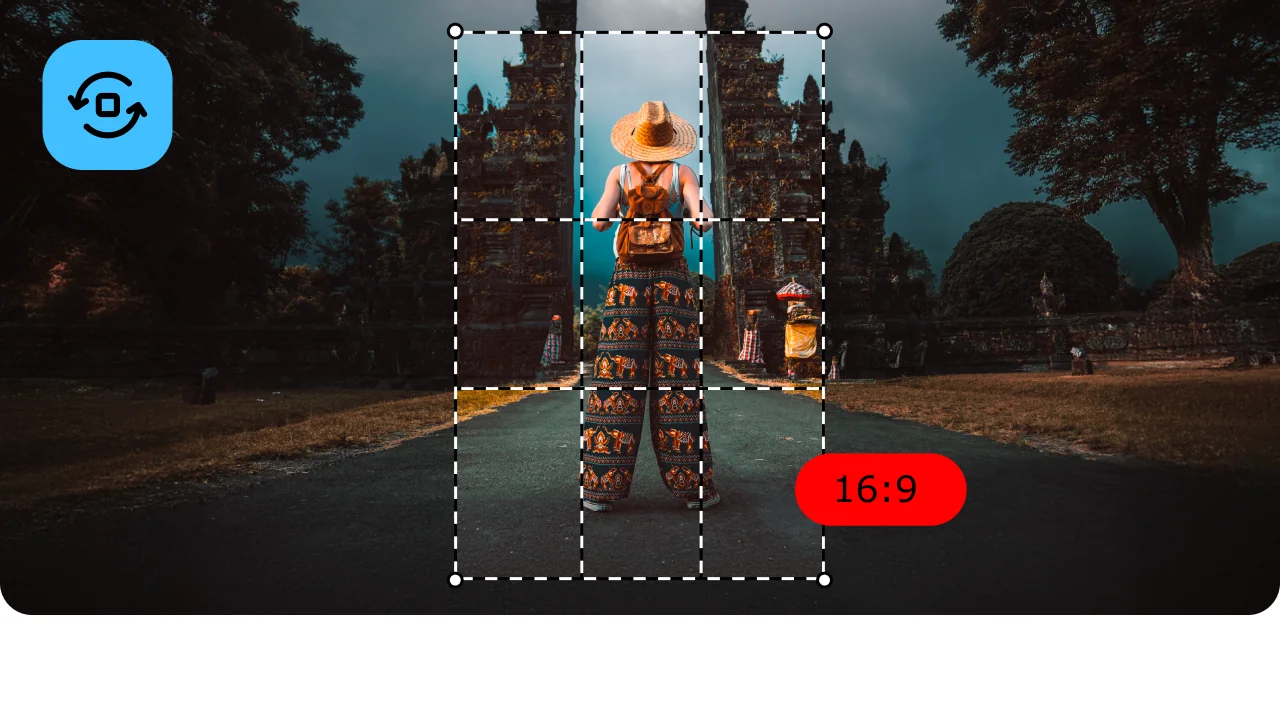
16:9 or 4:3
Sweet spot
720p at 1 Mbps ≈ 7 MB/min
Key features of the online video compressor
Everything you need to shrink a video for WhatsApp – right in your browser.
Runs in any browser – zero installation
The Movavi online video compressor works in Chrome, Safari, Firefox, and Edge on any device – no app to install, no account to create. Just open movavi.com/tools/compress-video-for-whatsapp, drop your file in, and compress it. It’s the fastest way to get a WhatsApp-ready video when you’re on the go or working on a computer that isn’t yours.
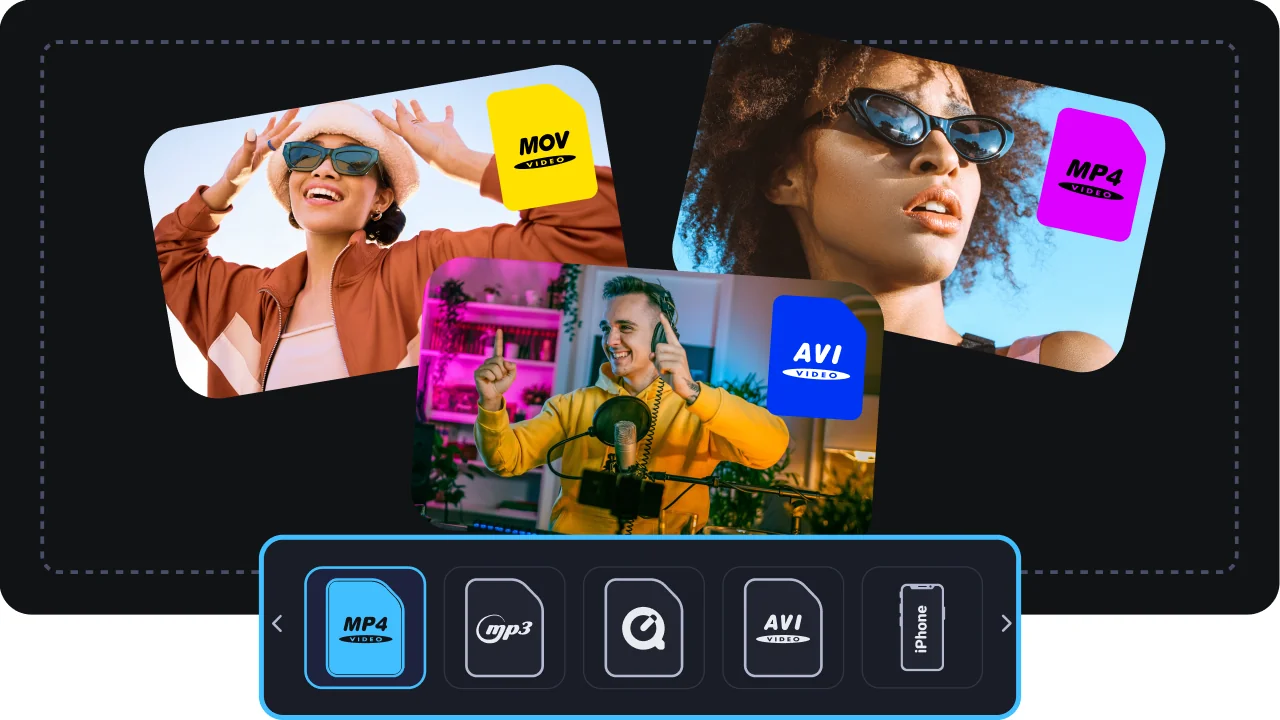
MP4, MOV, MKV, AVI, WMV – all formats WhatsApp accepts
The online tool handles every video format WhatsApp supports, so you don’t need to convert the file first. Drop in a MOV from your iPhone camera roll, an MKV from a screen recorder, or an AVI from an older camera – the compressor takes it and outputs a smaller file ready to send. Supports files up to 500 MB.
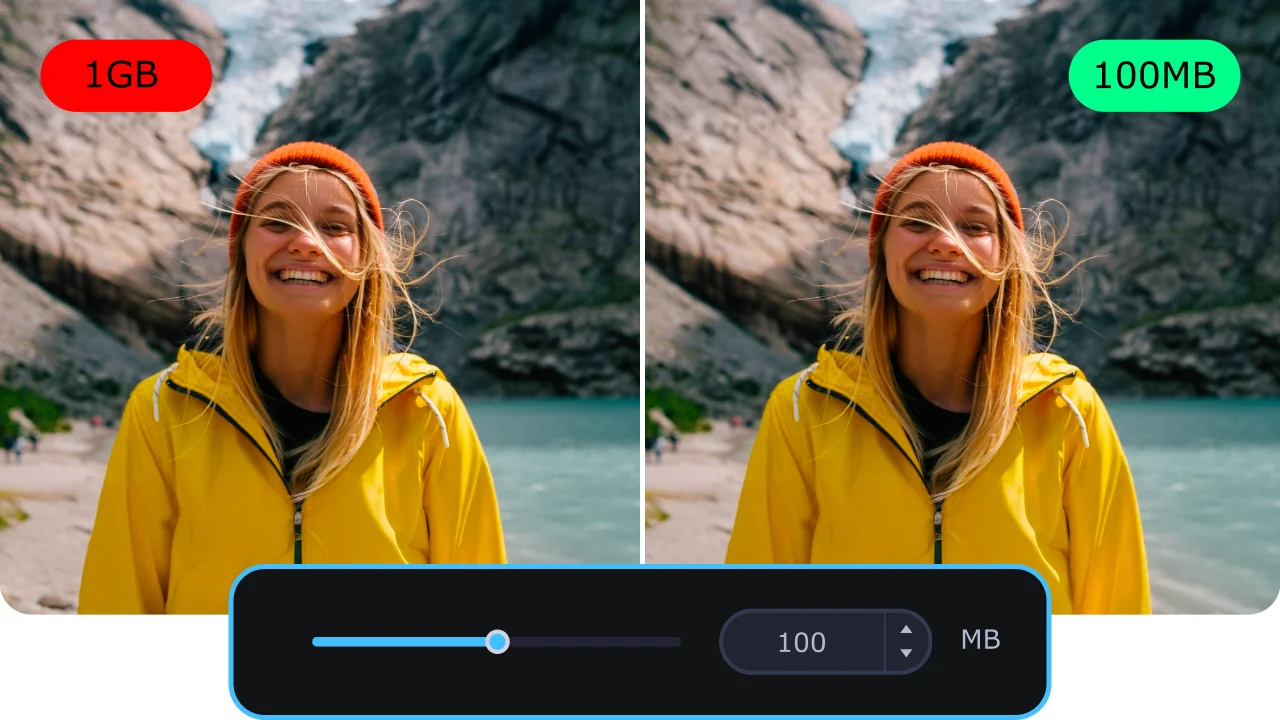
Pick your compression level – quality vs. size, your call
The online compressor gives you compression level options so you can balance quality and file size for your specific clip. For a quick chat video, a higher compression setting gets it under 16 MB with minimal visual difference on a phone screen. For a Status video where quality matters, a lighter setting keeps it sharper while still hitting WhatsApp’s limit.
Encrypted transfer – files deleted after processing
Your video is transferred through an encrypted connection and wiped from Movavi’s servers shortly after the compression is done. You’re not uploading personal content to a permanent cloud storage – the file exists on the server only long enough to process and download it. After that, it’s gone.
Why use Movavi’s online compressor for WhatsApp videos
Three reasons it beats hunting for a random compressor online.
How to compress video for WhatsApp online – 3 steps
Step 1. Add your file to the tool
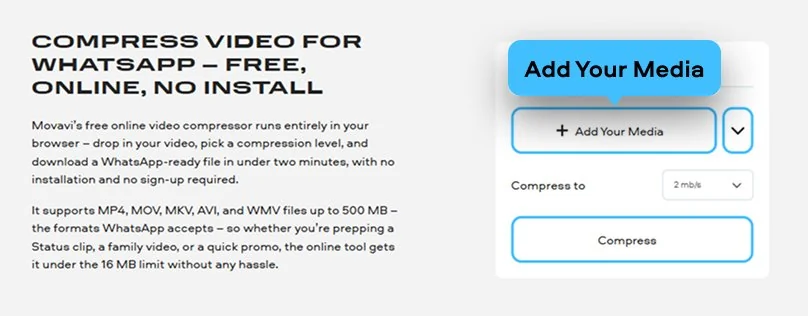
Click Add Your Media and choose the video you want to compress for WhatsApp. You can also drag the file straight onto the page. The tool accepts MP4, MOV, MKV, AVI, and WMV files up to 500 MB – all the formats WhatsApp supports. The file loads directly in the browser; no waiting for a slow upload progress bar.
Step 2. Choose your compression level
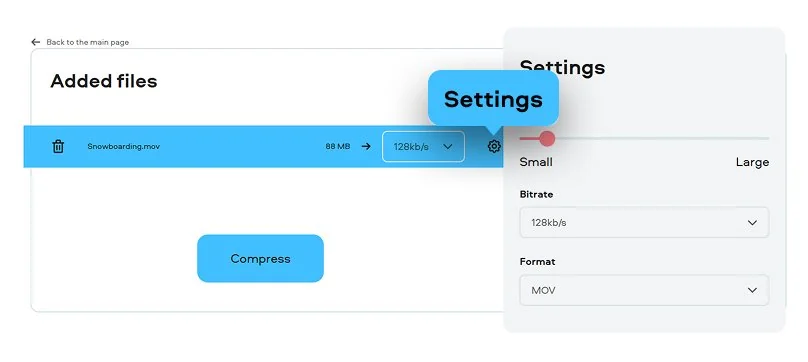
Select the level of compression that fits your needs. For a standard WhatsApp chat video, a higher compression setting easily gets most files under the 16 MB video size limit while keeping the clip watchable on a phone screen. For a Status video or anything where visual quality matters more, try a lighter setting first – you can always go higher if the output file is still too large.
Step 3. Save the compressed file
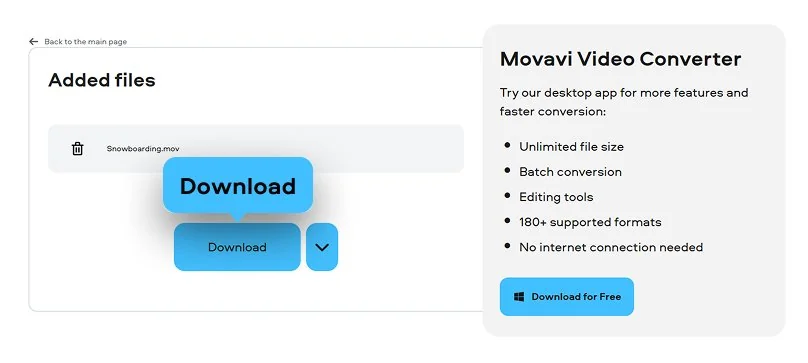
Choose your export option in the window that appears and save the compressed video. The file downloads straight to your device – desktop save folder on a laptop, camera roll on a phone. Open WhatsApp, attach the file to your chat or Status, and send. Total time from opening the page to hitting send: typically under 3 minutes.
Who uses this online compressor for WhatsApp
WhatsApp’s 16 MB cap hits everyone eventually. Here’s who reaches for this tool.
Families sharing moments in group chats · PERSONAL
Birthday videos, school plays, vacation clips – they all come off the phone at several hundred MB and bounce right off WhatsApp. A quick visit to movavi.com/tools/compress-video-for-whatsapp, a few seconds to drop the file in, and the compressed clip is ready to share in the family group chat before anyone has even asked why it’s taking so long.
Small businesses sending promos via WhatsApp Business · BUSINESS
A product demo video shot on a modern phone is easily 200–400 MB. Businesses that market through WhatsApp Business hit the 16 MB wall constantly. The online compressor handles a single promo clip in the browser in under two minutes – no app to manage, no software license to worry about, just a compressed video ready to send to customers.
Creators posting WhatsApp status daily · CONTENT CREATION
WhatsApp Status has the same 16 MB cap as direct messages, and HD status content needs compression before it goes up. The online tool is the fastest option when you’re prepping a Status clip on your phone – open movavi.com/tools/compress-video-for-whatsapp in your mobile browser, upload, compress, save to camera roll, post. The whole loop takes about two minutes.
Movavi Video Converter
The ideal way to get your media in the format you need!
Frequently asked questions
The most common questions about compressing and sending videos on WhatsApp.
How do I reduce the size of a video for WhatsApp?
How do I reduce the size of a video for WhatsApp?
The easiest way: go to movavi.com/tools/compress-video-for-whatsapp in any browser, drop in your video file, pick a compression level, and download the result. No installation, no sign-up, completely free. The online tool supports MP4, MOV, MKV, AVI, and WMV files up to 500 MB – all the formats WhatsApp accepts. If the first compression level still leaves the file over 16 MB, go back and pick a higher one. Switching to MP4 format and dropping to 720p resolution are the two biggest levers for cutting file size while keeping the video looking good on a phone screen.
How do I send a large video on WhatsApp?
How do I send a large video on WhatsApp?
If your large video file is over WhatsApp’s video size limit, compress it first using Movavi’s free online tool at movavi.com/tools/compress-video-for-whatsapp – takes under 2 minutes for most clips. Alternatively: upload the file to Google Drive or Dropbox and paste the link into the chat (no compression needed). WhatsApp also has a Document share option in the attachment menu that sometimes accepts slightly larger files than the standard video picker – worth trying if the file is only marginally over the limit. For very long HD videos, splitting into shorter parts and sending them sequentially is another option.
Can I compress a video on my phone?
Can I compress a video on my phone?
Yes – and Movavi’s online compressor is the easiest way to do it. Open movavi.com/tools/compress-video-for-whatsapp in Safari or Chrome on your iPhone or Android, tap Add Your Media, select the video from your camera roll, pick a compression level, and save the compressed file back to your phone. The whole process works in a mobile browser with no app to install. If you need a dedicated mobile app, Video Compress – Shrink Videos on iOS and Video Compressor & Video Cutter on Android are popular alternatives, though both require an install and show ads on the free tier.
How do I decrease the MB of a video?
How do I decrease the MB of a video?
Five things move the needle on video file size:
- Compress with the right tool – Movavi’s free online tool handles this in the browser with no install.
- Switch to MP4 format – it’s significantly more efficient than AVI or MOV for the same visual quality.
- Drop resolution to 720p – cuts 40–60% of file size with almost no visible difference on a phone screen.
- Reduce bitrate – the most direct dial; lower bitrate = smaller file, more compression artefacts at the same resolution.
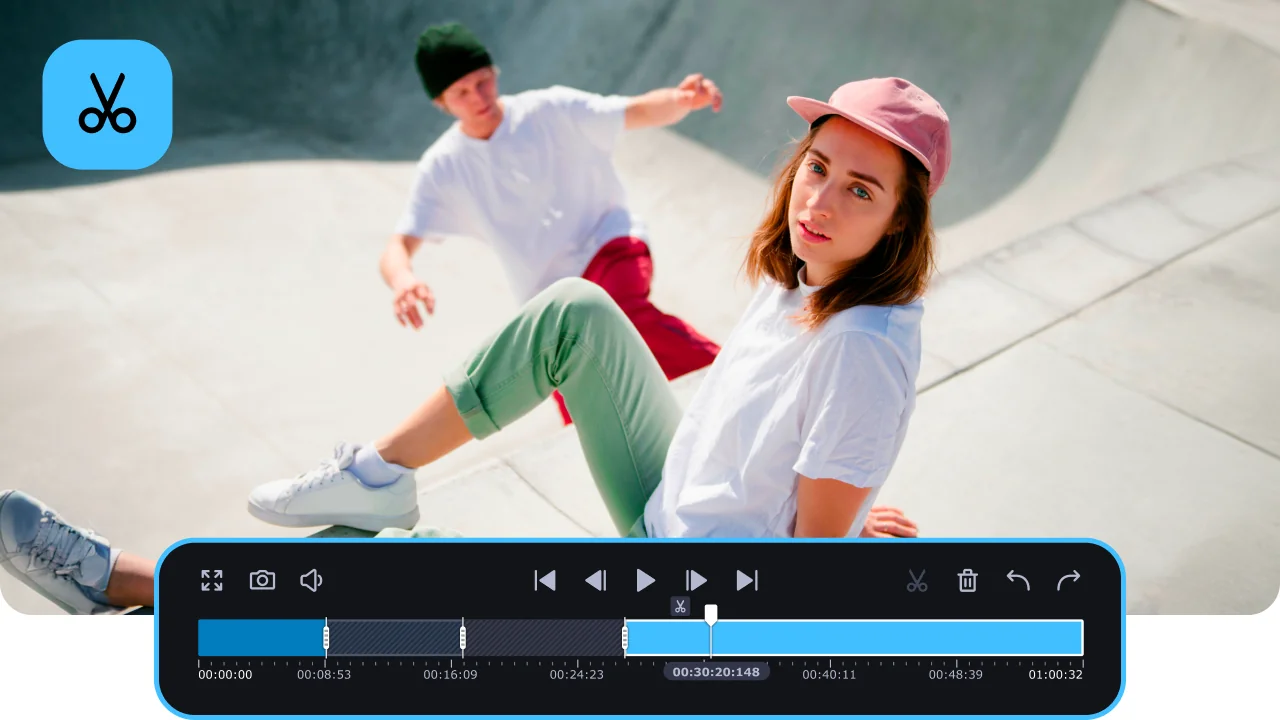
- Trim dead time – less duration means proportionally less file size. For WhatsApp, the target is staying under 16 MB – aim for 14–15 MB to give yourself a comfortable margin below the video size limit.
Popular compressors
Join us for discounts, editing tips, and content ideas


1.5M+ users already subscribed to our newsletter