Step 1. Download the split-screen video maker
Download the Movavi Video Editor installation file and launch it. Once the setup is completed, the program will open automatically.
How to Make a Split-Screen Video
Try Movavi Video Editor to put two videos side by side:
Add videos to Movavi Video Editor.
Transfer a video to an overlay track.
Create the desired type of a split-screen video.
Save your clip.
Key takeaways
Have you ever watched a video where the same person appears side by side, talking to themselves, and wondered how they pulled it off? Well, I’ve spent countless hours experimenting with different ways to put two videos side by side, and the truth is, the process is far more intuitive than I expected. Whether you’re making a reaction video, a comparison clip, or a tutorial with multiple camera angles, mastering split-screen editing opens up many creative possibilities.
My biggest frustration in the beginning, however, was identifying the right software to use. Some editors hide the split-screen feature so deep that you feel like you’re digging through a maze. Others overcomplicate simple steps until you start wondering if the whole idea is even worth the effort. After testing a range of tools, ranging from desktop to mobile apps, I found that Movavi Video Editor makes this process surprisingly straightforward. It made the entire process feel smooth, even for a complete beginner.
Meanwhile, I tested the desktop workflow thoroughly, then explored what’s possible on mobile for those who prefer editing on the go. In short, this guide provides a full picture on how to play two videos at the same time on different devices and players, and breaks down each method clearly so you can choose the approach that fits your workflow, your device, and the kind of split-screen video you want to create.
How to put two videos side by side on a desktop
If you wonder how to put two videos together to watch them simultaneously and create a stunning split-screen clip that will impress the viewers, you’ll need efficient video-editing software. We recommend you Movavi Video Editor! This easy-to-use app for Windows and macOS will help you to not only produce dramatic split-screen clips but also perform many other video-editing tasks like adding music, applying effects and transitions, exporting video to different output formats, and uploading it on YouTube.
Download Movavi Video Editor for Windows or Mac and start creating your split-screen videos now!
When making a split-screen video, remember about balancing the visual elements. Try matching the lighting, color grading, and framing in each clip for a cohesive look. This small adjustment can make a big difference in the final output.
To learn how to make a split screen, simply follow the instructions below.
Step 1. Download the split-screen video maker
Download the Movavi Video Editor installation file and launch it. Once the setup is completed, the program will open automatically.
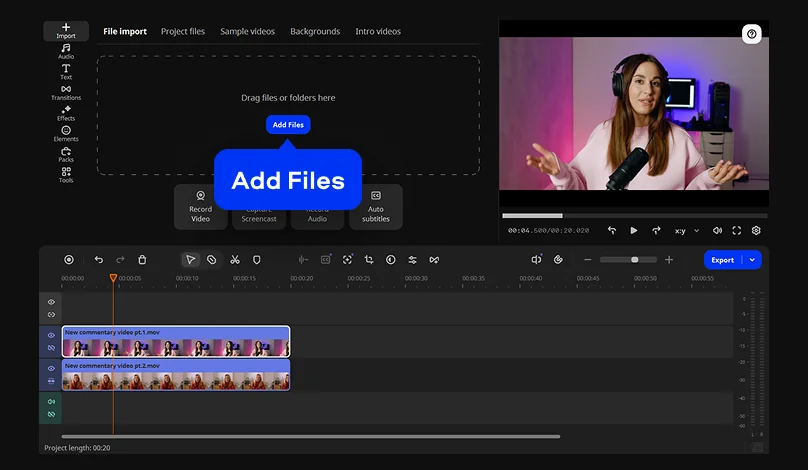
Step 2. Add videos to the program
As you've launched the program, click Add Files and locate the videos you want to combine. You can add videos directly from your camera, or make a recording of your desktop. Drag and drop your videos to the Timeline.
To make your video fancier, add some professionally directed footage from our stock video library. Open the Sample videos tab to select a video.
Step 3. Transfer a video to an overlay track
Your videos will be added to the Video Track on the Timeline in the lower part of the program window. First, select one of your videos and start dragging it up the Timeline – this will create an Extra Video Track above the main Video Track. Drop the video onto the Extra Video Track.
Step 4. Create a split-screen video
There are two ways of making a video compilation depending on how many clips you want to combine.
Combining two videos
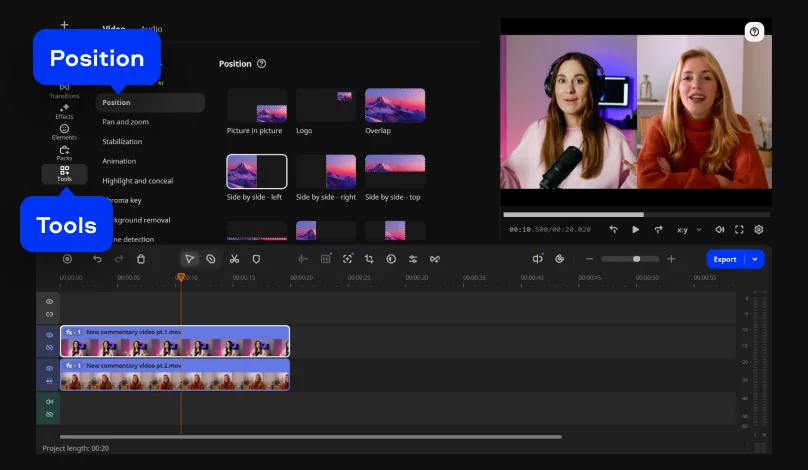
With our split-screen video editor, you can split a screen in half horizontally or vertically. To do this, open the Tools tab and click Position. Choose one of the Side by side options. Note that the videos will be split in half.
If you want to put your videos side by side without splitting them in half, use the Picture in picture option. First, you need to add a background image – for example, a simple black background. On the Import tab, click Backgrounds, find an image you like, and click it to download. Then drag the picture to the Timeline. Alternatively, you can add a picture from your library, click Add Files, and select an image you want to use as a background.
Now you need to drag the video you added before from the main Video Track to the Extra Video Track, so both videos are on the Extra Video Track. The background picture needs to stay on the main Video Track.
Open Tools > Position and choose the Picture in picture option. To change the video size, drag on its corners. Drag and drop the video to change its position in the background. Repeat the same actions to edit the second video.
Putting multiple videos side by side
With Movavi Video Editor, you can put as many videos side by side as you want. To do this, add a background image for your videos first. Open the Import tab, click Add Files, and locate a picture. Drag and drop the image to the Timeline. To add more videos to your project, click Add Files again and select the clips. Drag all your videos to the main Video Track along with the background image you added earlier. Now you need to move all the videos to the overlay (upper) track. Make sure that the background image stays on the main (lower) video track.
To create a multi-screen video, select the first video on the Overlay Track. Go to Tools > Position and select Picture in picture from the list. Drag on the edges of the video to change its size. Drag and drop the clip to position it over the background. Repeat these actions with every video on the Extra Video Track.
Step 5. Manage the sound
If you play your newly created split-screen video, you’ll hear the soundtracks of the clips you’ve added playing at the same time. If you’ve placed two videos side by side using different video tracks, you can mute one of the videos to avoid confusing your audience. To do this, simply click the Mute Track icon on either the Video Track or Extra Video Track.
If you’ve combined multiple clips into a single video track, it’s better to mute this track and add background music. First, click the Mute Track icon on the Extra Video Track. To add music from the built-in library, open the Audio tab. Click your choice of music sample to download it. After the download is complete, drag and drop the audio track to the Timeline. To add music from your own library, click the Add Files button and choose a track.
Step 6. Save your clip
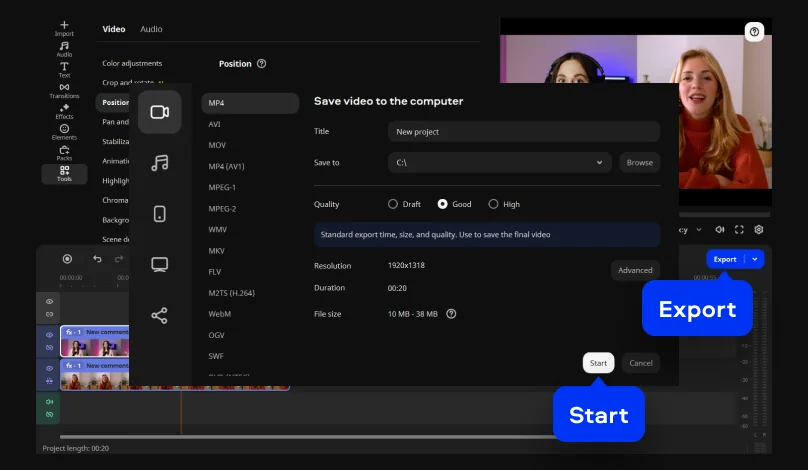
Now your side-by-side video is ready to wow your audience. Click the Export button and choose the appropriate tab at the left side of the pop-up window. You can save the video for viewing on your computer or mobile device or convert it for uploading to the web. Once you’ve entered the save settings, click Start.
Now you know how to put two videos side by side with Movavi Video Editor!
Split-screen videos are fantastic for before-and-after comparisons. For instance, this format can effectively highlight progress of a fitness transformation or a home renovation project.
How to put two videos side by side on a phone
Just like your desktop, creating split-screen videos on your iOS or Android phone is entirely possible. Of course, it requires a different approach, considering most mobile editing apps don't have advanced built-in split-screen tools like desktop software. Albeit, with the right app, you can still get high-quality results.
After testing multiple mobile editors, CapCut proved to be a reliable and straightforward option. The steps below show exactly how to put two videos side by side on an iPhone or Android using CapCut.
Step 1. Download CapCut
CapCut is available both on the Google Play and App Store, making it easily accessible for anyone to download and install on any compatible mobile device. As a first-time user, you may be required to sign up, but that doesn’t take long to do.
Also, it is important to note that the app offers both free and paid tiers, so if you are not a frequent user, you may not need to pay. Thankfully, some features, including the split-screen editing tool, do not require a paid subscription.
Download CapCut for iOS
Download CapCut for Android
Step 2. Create a new project
Once you’re done setting up my account, the app typically greets with a dashboard with a list of editing tools, part of which includes a main option that says Start New Project. If you are using an iPhone, you may come across two main options instead: New video and Edit photo. For editing multiple videos, choose the former by tapping the + icon, and subsequently select all the videos you plan to combine from the gallery.
Step 3. Choose an aspect ratio
Next, you can proceed to choose an aspect ratio depending on where you intend to post the video. There are presets for other social platforms, including Instagram and TikTok; if you are posting on TikTok, you can choose the custom preset 9:16 so the split-screen fits the platform correctly.
Step 4. Overlay your second video
Click on the video track, then scroll through the editing tools at the bottom towards the extreme right until you find the option that reads Overlay. Once you tap on this feature, the second video track automatically moves below. Long-press the track and move it towards the left side until both video tracks align at the beginning. Trim your clips if needed.
Step 6. Make extra adjustments
Mute one of the video tracks or both to avoid audio confusion. You can also record a new voiceover to match the new clip or just explore any of the free soundtracks from the built-in sound library.
Step 7. Export your video
Tap the Export button at the top-right corner of the app and choose the desired quality and format. The app proceeds to process the video and save it to your phone's camera roll.
How to choose the best app for your split-screen video
After recommending some apps for your split-screen video editing earlier, I’m sure you are wondering how I arrived at that list. Well, when deciding which software to use for creating split-screen videos, I considered several factors based on my testing experience.
For desktop users seeking the easiest approach, Movavi Video Editor works smoothly with its intuitive interface. The drag-and-drop overlay system makes it accessible even if you've never edited video before. The multiple export options let you save to various formats depending on where you plan to use the video.
iPhone users can explore apps with multi-track support and straightforward resizing controls like CapCut. While mobile editing takes longer than desktop editing, the convenience of editing on your phone sometimes outweighs the extra processing time.
If you are combining multiple clips, the approach is slightly different; let’s say you want to display three or more videos simultaneously, desktop software is essential. This is because mobile apps struggle with this complexity, and the rendering times become impractical. Thankfully, Movavi Video Editor also offers a great desktop experience for those who don’t mind investing time.
*The free version of Movavi Video Editor may have the following restrictions depending on the build: watermark on exported clips, 60-second video or 1/2 audio length limit, and/or some advanced features unavailable when exporting videos.

Frequently asked questions
You can easily create a picture-in-picture effect using Movavi Video Editor. Check out our detailed step-by-step guide by following the link below.
Read the guide on how to make a picture-in-picture video
You can combine multiple videos into one with Movavi Video Editor. Just follow these steps:
Apart from Photoshop®, there are many other programs that let you join pictures. Movavi Photo Editor is one. With this program, you can combine images in just a few clicks.
Learn more about Movavi Photo Editor
How to flip your videos
Best Adobe Alternatives to Use in 2025 [Free & Paid]
Best 15 Canva Alternatives Compared [Ultimate List for 2025]
How to Remove Background Noise from Audio and Video [3 Easy Ways]
How to Make a Short Film? | 5 Best Short Film Makers
18 Best Free Movie Makers for Windows 10/8/7 [2025]
1.5M+ users already subscribed to our newsletter