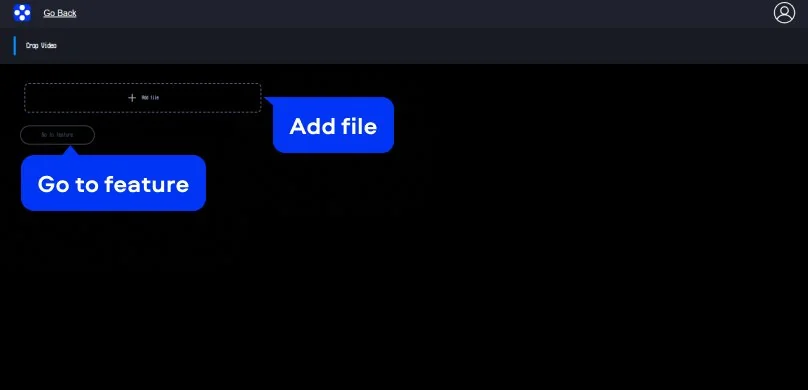
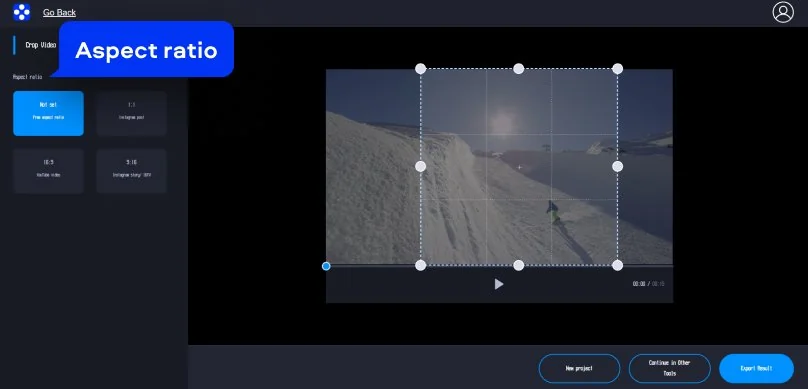
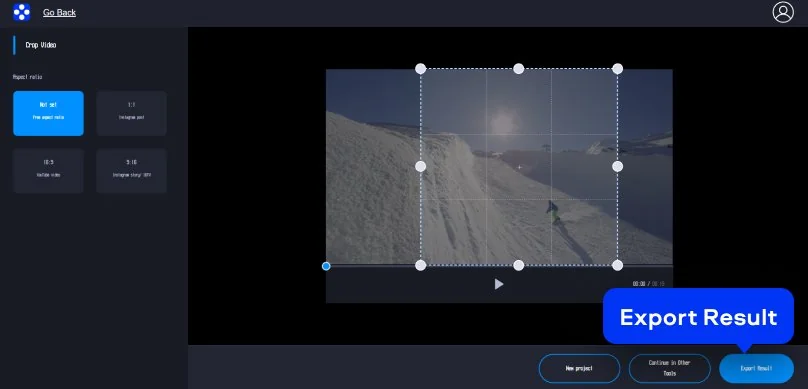
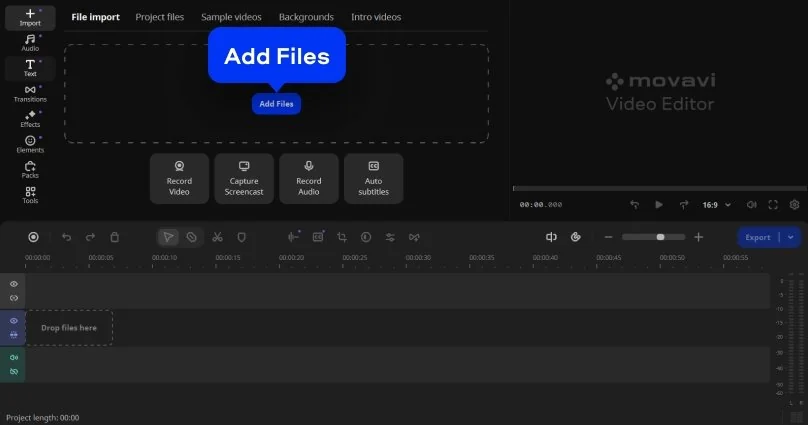

Step 1. Upload your video
Click Add Files and select the video you want to crop.
How to Crop Videos with Movavi Video Editor
Quick cropping: trim and reframe in seconds
Ready-made aspect ratios: 16:9, 1:1, 9:16, and more
Precise manual adjustments for perfect framing
By clicking the download button, you're downloading a trial version of the program.*
Free Online Video Cropper
Why Movavi video crop tool stands out
Beginner-friendly with pro-level features
Movavi balances professional-grade features with an interface that even complete beginners can quickly master.
Tons of built-in effects and music
Movavi comes loaded with built-in transitions, titles, overlays, music tracks, sounds, frames, backgrounds, stickers, and more.
One-click AI
Movavi makes it super-easy to create subtitles, remove pauses, clean up noisy audio, track motion, change out backgrounds, and more – all automatically, no technical skills needed.
Smooth performance
Movavi is lightweight, easy to set up, and runs smoothly – even if your laptop isn’t top-of-the-line.
Features to crop videos
Hundreds of drag-and-drop cinematic effects
Supercharge your videos with tons of creative, professionally designed effects. Add stickers for cool accents, transitions for smoother stories, overlays for extra style, and there’s even more!
Crop, resize, trim, cut, and flip videos
Shape your videos exactly how you want: crop, resize, trim, cut, or flip with ease. Turn raw clips into polished montages your viewers will love.
Split and splice videos
Cut, split, and splice your clips with ease. Rearrange sequences and build the perfect flow for your story.
Filters and LUTs
Use filters and LUTs to instantly change the look and feel of your video. Create a cinematic vibe, fix the lighting, or give your clips a unique style in seconds.
AI background removal
Use the power of the AI to instantly swap backgrounds in your videos with no green screens. Drop in a new vibrant scene and get ready for an avalanche of likes on socials!
How to crop videos with Movavi Video Editor
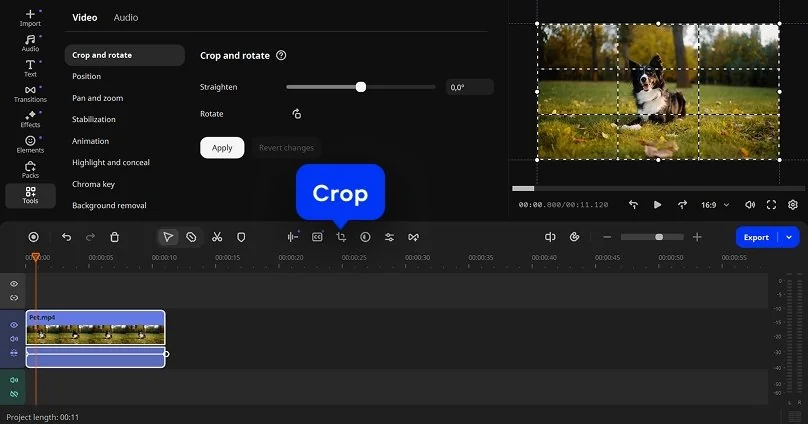
Step 1. Upload your video
Click Add Files and select the video you want to crop.
Step 2. Set the crop area
Click the Crop icon. Resize and move the frame to keep only the part of the video you need. To save changes, click the Apply button.
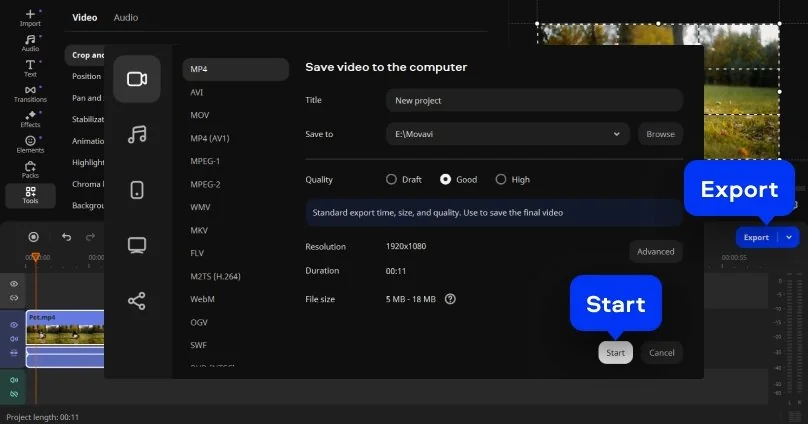
Step 3. Export the video
Click Export, select the export option, and save the file to your computer. The video is saved with the new frame and without extra borders.
More Tools for easy video editing
How to choose the best tool for cropping videos
Most people look for a video cropper when the framing feels wrong, whether it is extra space, an off-center subject, or a format mismatch, and they want it fixed fast. That is why many choose a video cropper online for quick edits without installing software.
Everyday scenarios where video cropping makes a difference
Here are a few practical examples that show how cropping is used in real projects and why the tool matters.
With Movavi, cropping stays simple. You adjust the frame, export the video, and move on without distractions.
Your videos stay private and secure
Movavi protects your files during every step of the cropping process. Videos are uploaded through a secure connection and used only for editing. Files are stored temporarily and removed automatically after processing, so your content is never kept longer than necessary. You can crop personal or work videos knowing your data stays private and protected.
Frequently asked questions
We’re the #1 choice for millions of people from all around the world. Join our thriving community and create stunning content with incredible ease.
*The free version of Movavi Video Editor may have the following restrictions depending on the build: watermark on exported clips, 60-second video or 1/2 audio length limit, and/or some advanced features unavailable when exporting videos.
1.5M+ users already subscribed to our newsletter