Step 1. Open your video in Movavi Video Editor
Launch Movavi Video Editor and drop your clip onto the timeline. The interface is clean, intuitive, and ready for quick sound fixes without hunting through menus.
Video Volume Booster by Movavi
Adjust the volume easily
Add audio effects
Trim your audio track
By clicking the download button, you're downloading a trial version of the program.*
Make a Video Louder Online
Why volume booster by Movavi stands out
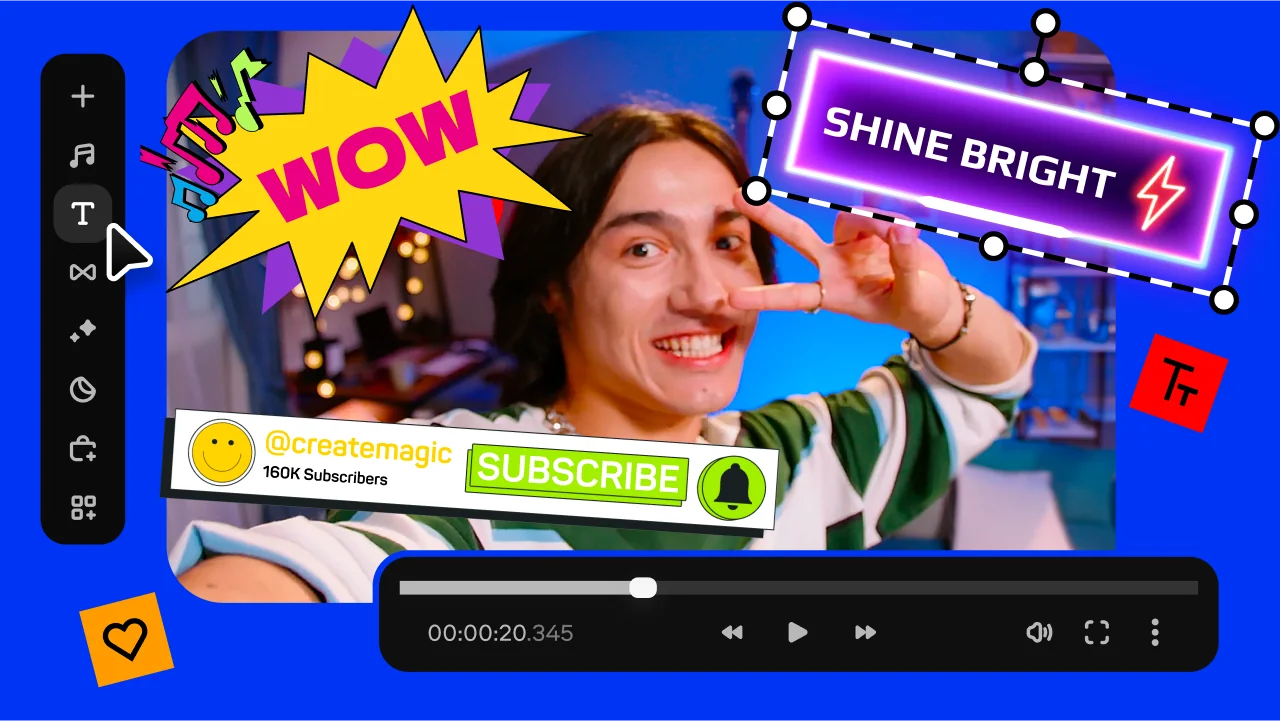
Beginner-friendly with pro-level features
Movavi balances professional-grade features with an interface that even complete beginners can quickly master.
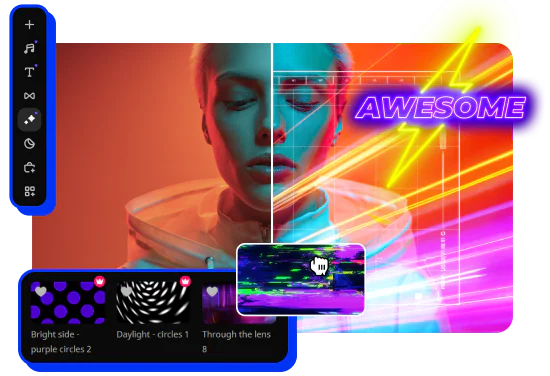
Tons of built-in effects and music
Movavi comes loaded with 10,000+ creative effects, built-in transitions, titles, overlays, music tracks, sounds, frames, backgrounds, stickers, and more.
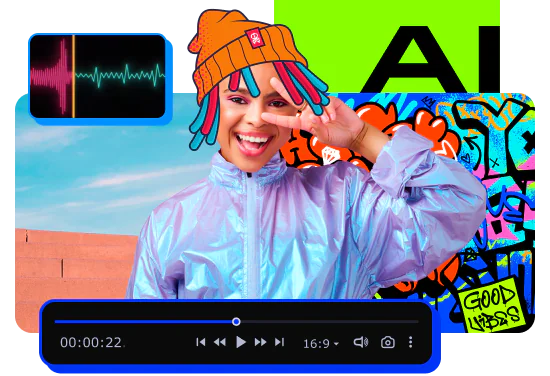
One-click AI
Movavi makes it super-easy to create subtitles, remove pauses, clean up noisy audio, track motion, change out backgrounds, and more – all automatically, no technical skills needed.
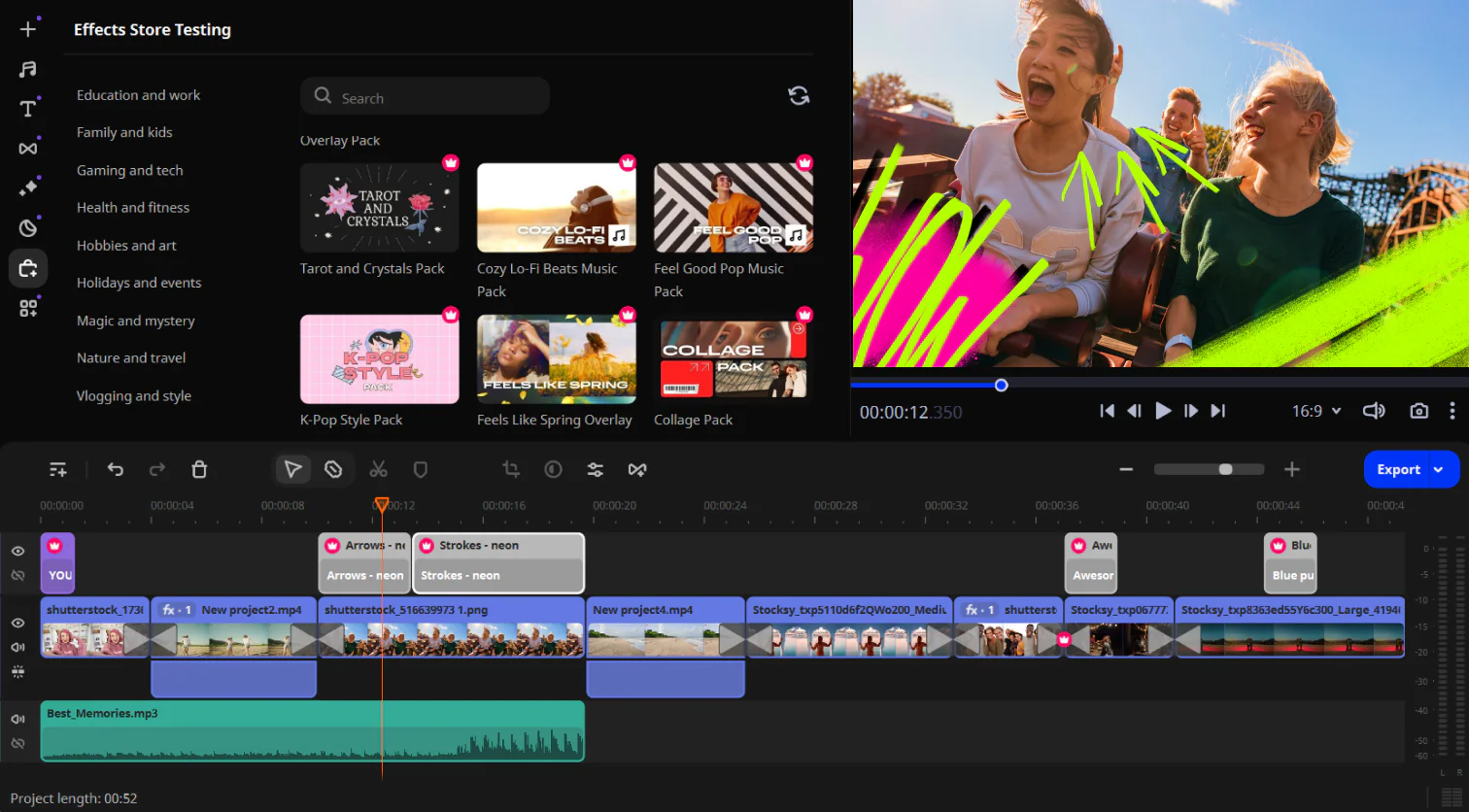
Smooth performance
Movavi is lightweight, easy to set up, and runs smoothly – even if your laptop isn’t top-of-the-line.
Features for video editing
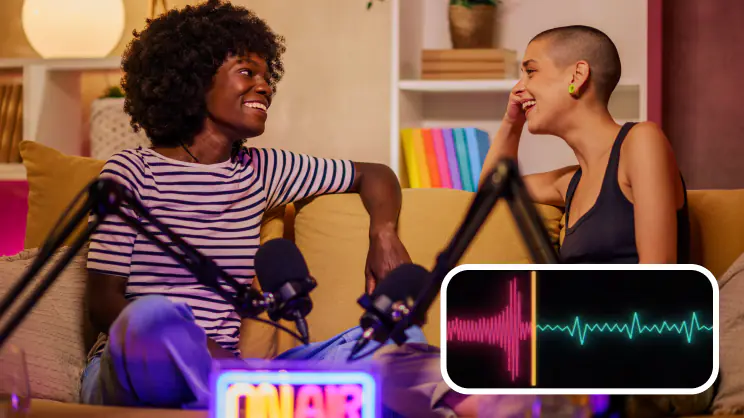
AI noise removal
Automatically remove car, wind, and other uncool sounds from your clips with our AI-driven audio denoiser. Create videos with crisp sound that viewers are sure to appreciate.
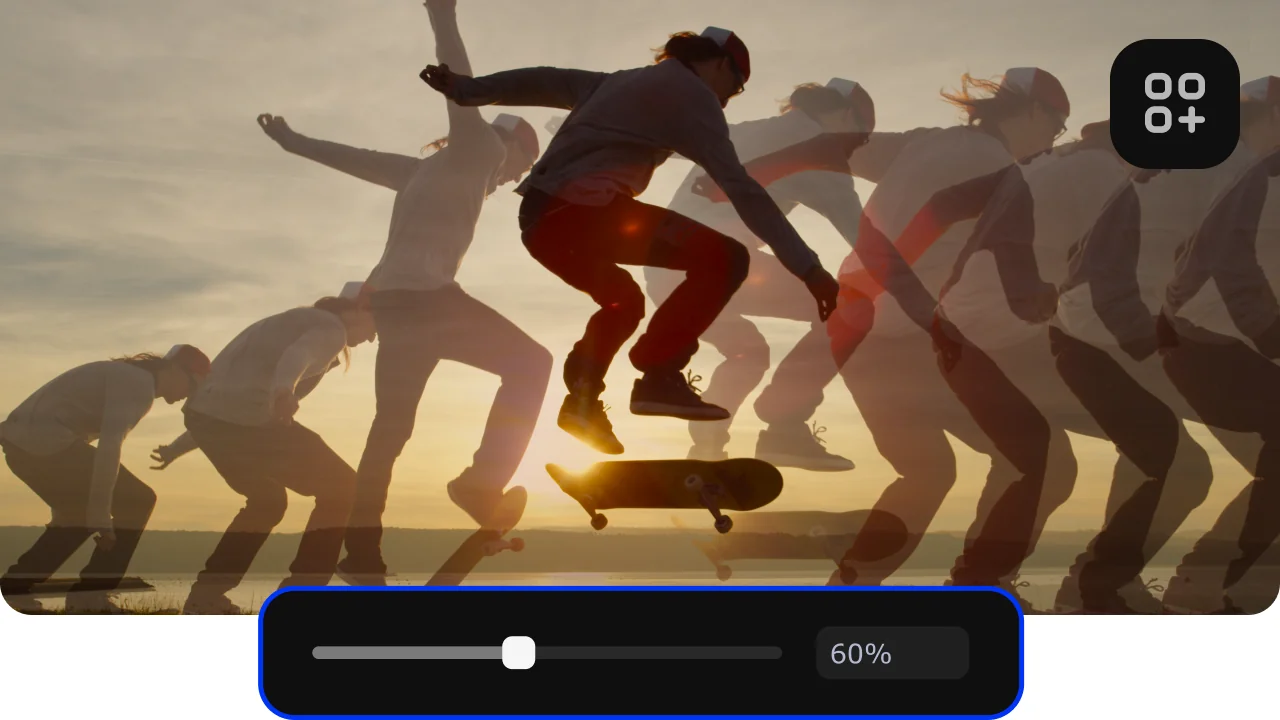
AI motion tracking
Enhance reality in your videos with additional moving graphics. Just click, and AI will quickly attach any photos, videos, emojis, or memes to objects in your footage.
AI background removal
Use the power of the AI to instantly swap backgrounds in your videos with no green screens. Drop in a new vibrant scene and get ready for an avalanche of likes on socials!

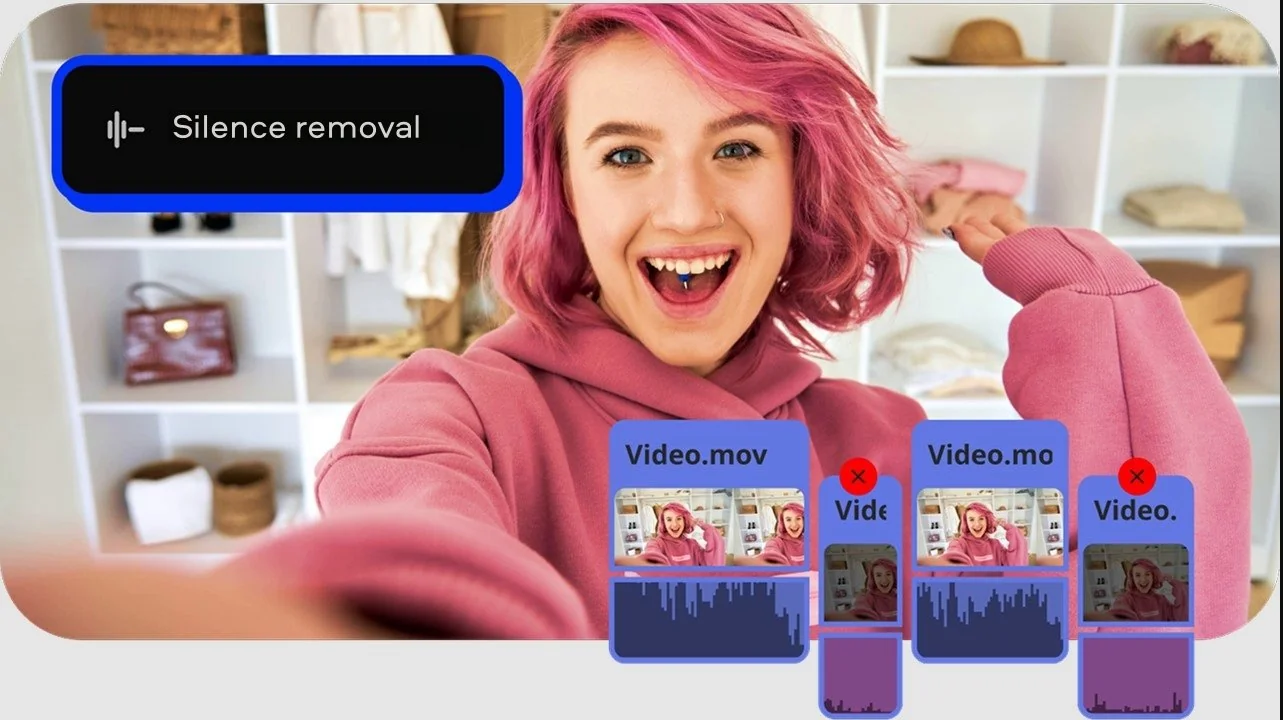
Silence removal
Cut out unwanted pauses automatically or fine-tune the pause length and volume threshold yourself. Skip the tedious cleanup and make your videos more dynamic in a flash.
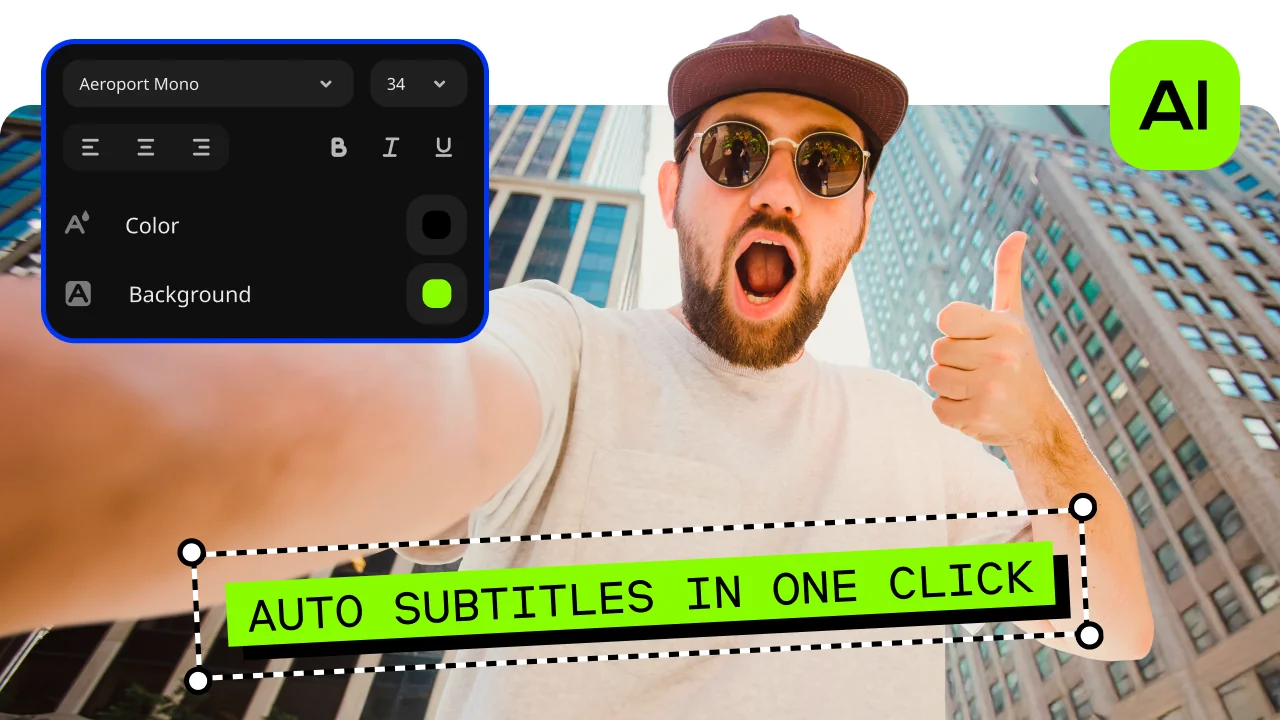
Automatic subtitles
Let AI quickly turn your speech into text and automatically create captions for your videos in almost any language. Just choose the font, text color, position – and you’re all set!
How to make video louder with Movavi Video Editor
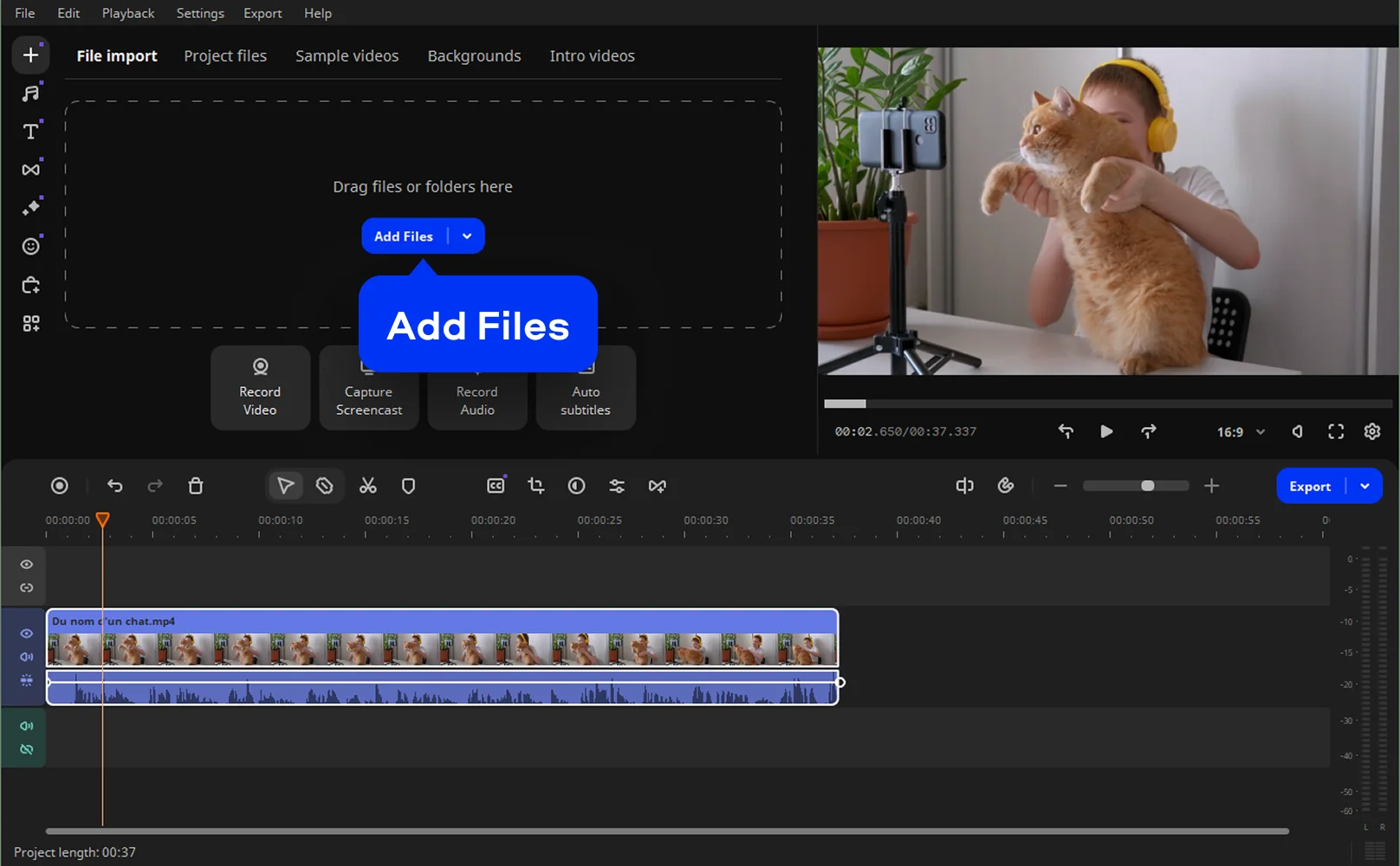
Step 1. Open your video in Movavi Video Editor
Launch Movavi Video Editor and drop your clip onto the timeline. The interface is clean, intuitive, and ready for quick sound fixes without hunting through menus.
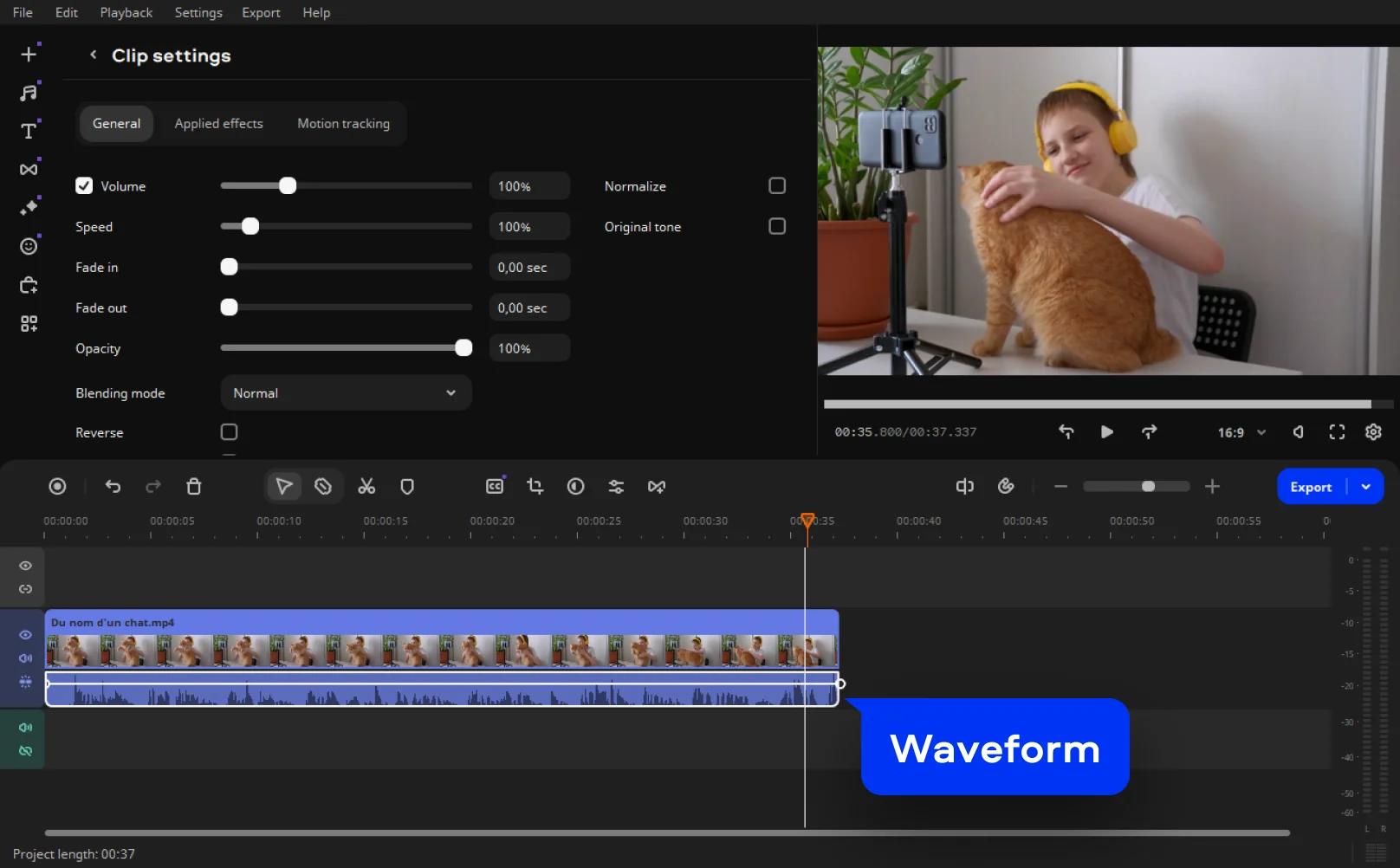
Step 2. Select the audio track
Double-click the audio waveform under your video. This activates volume controls and ensures changes apply precisely where you need them, not globally or by accident.
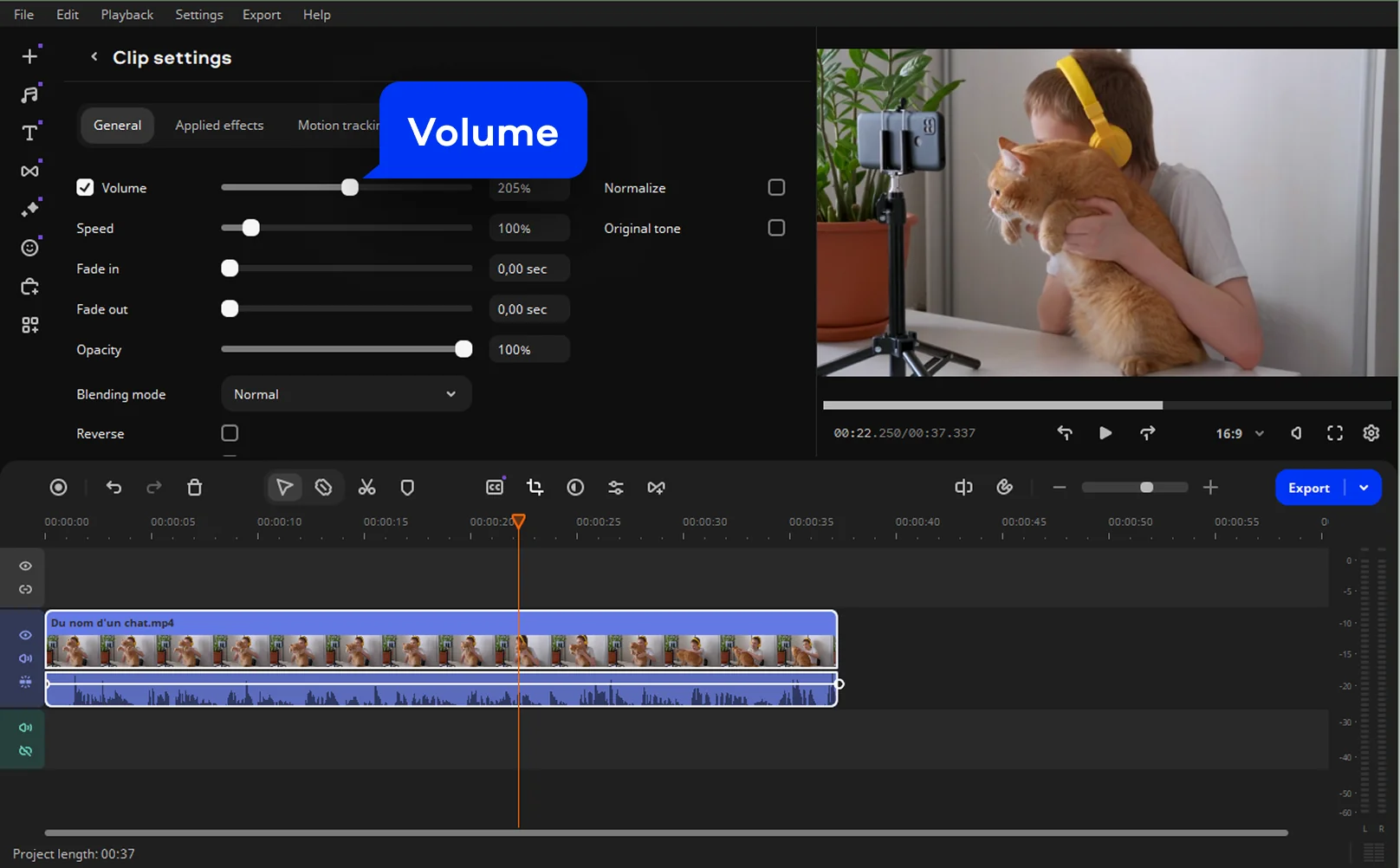
Step 3. Adjust the volume level
Use the volume slider to make the video louder gradually. Movavi Video Editor shows real-time feedback, so you can hear changes instantly and avoid distortion or blown-out sound.
Play the clip back through speakers or headphones. If needed, tweak volume levels or apply subtle enhancements to keep dialogue clear and balanced.
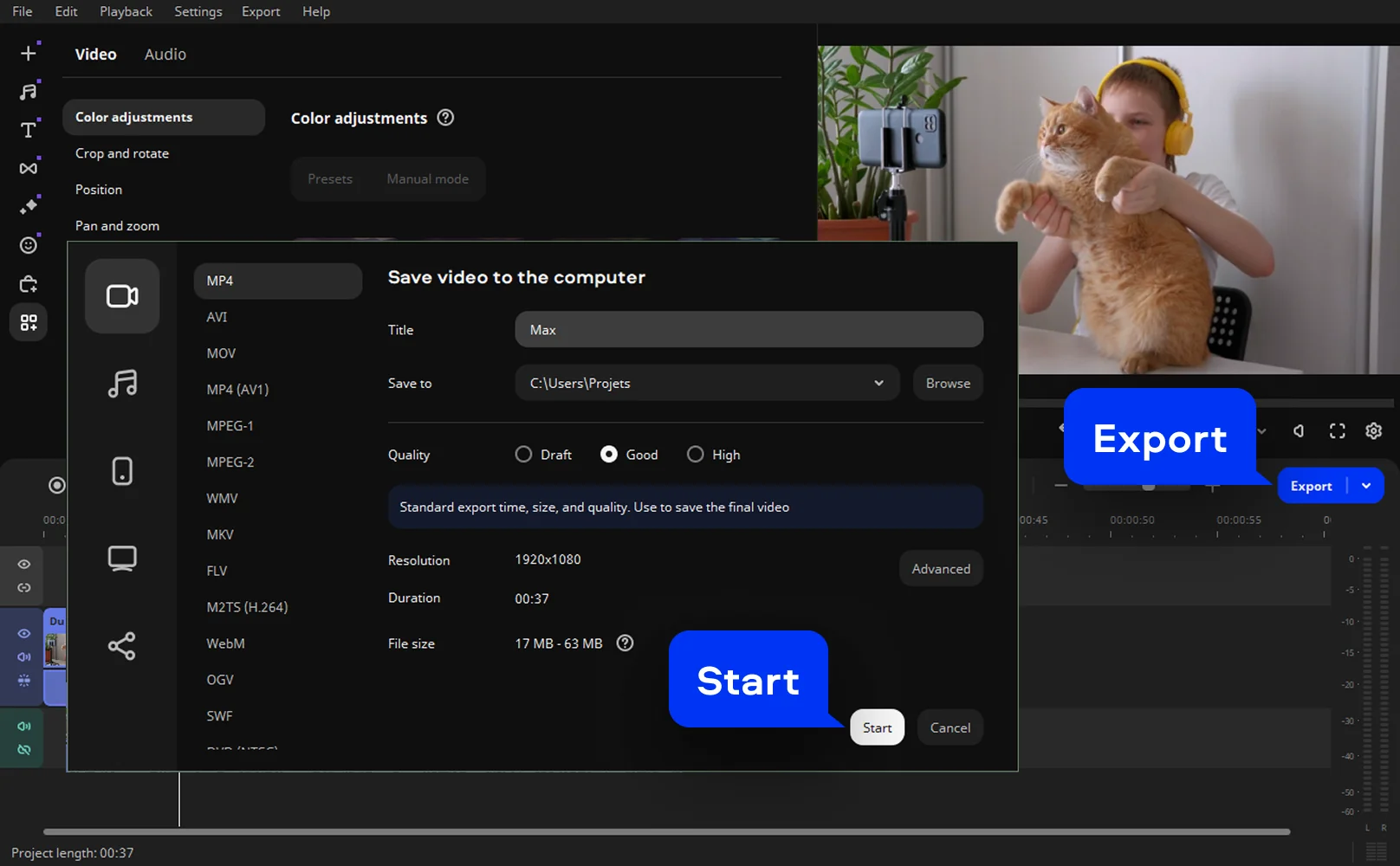
Step 4. Export your video
Click Export to save your project in the desired format and resolution. Your video now sounds fuller, clearer, and actually audible – as it should have from the start.
More tools for easy video editing
Tips to make videos louder
Boosting volume isn’t just about dragging a slider to the right and hoping for the best. Smart audio work is about intention, knowing what you want louder, why, and how far is too far. Movavi Video Editor works as both a video audio booster and a creative safety net, giving you control without overwhelming you.
Tip 1. Prioritize clarity over raw loudness
When dialogue is the star of the show, loudness alone won’t save you. Raise volume in small steps, listen back, then adjust again. Movavi helps enhance spoken audio so voices come forward naturally, staying present and intelligible rather than sharp or metallic. The goal is confidence, not shouting.
Tip 2. Fix uneven audio, not just quiet audio
A lot of videos aren’t truly “quiet” – they’re inconsistent. One sentence lands, the next disappears. That’s where Movavi Video Editor shines as a video sound enhancer, letting you smooth out dips and bumps so the audio feels steady and intentional. Viewers may not notice what you did, but they’ll feel the difference.
Tip 3. Boost only what matters
You don’t need to turn everything up. Selective volume control is what separates casual edits from polished ones. Raise the intro slightly, lift a key quote, or give a quiet reaction its moment. This approach lets you make video louder where it counts, without overwhelming the rest of the track.
Tip 4. Think about where the video will live
Audio that sounds fine on headphones can disappear on phone speakers. Before exporting, preview your edit in a few real-world scenarios. Movavi acts as a reliable video volume booster here, helping you strike a balance that works across devices and platforms.
Real-world examples of how to make a video louder
Case 1: social media creator. A TikTok creator dropped in a vertical mp4 clip filmed outdoors. Wind noise swallowed half the dialogue. By selectively boosting key phrases and trimming the peaks, the voice came back into focus without flattening the energy or killing the vibe.
Case 2: online educator. A course creator needed to increase video volume across a library of softly recorded lessons. Movavi worked as a straightforward increaser, bringing consistency to the audio and cutting down on student complaints without re-recording a single word.
Case 3: family archivist. Old home videos with barely audible voices were quietly rescued. No fancy setup, no studio gear – just thoughtful adjustments that turned faded memories into watchable keepsakes.
Movavi Video Editor also works well for users who want results without going fully online or relying on free tools that compress audio into mush. It’s control without chaos.

Frequently asked questions
Absolutely. A quiet video isn’t a lost cause – it just needs a thoughtful touch. With a proper video volume booster, you can raise sound levels while keeping voices intelligible and balanced. The trick is restraint. Increase the volume gradually, listen back often, and stop before the audio starts sounding strained or brittle. Loud is good. Clear is better.
Yes, and thankfully, no time machine is required. Even if a clip was recorded too quietly, you can still make video louder in post-production. Import the file, adjust the audio track, and export a new version with improved balance. It’s one of those fixes that feels small but dramatically improves how watchable a video becomes.
The simplest way is to open the file in editing software and adjust the audio track directly. Most editors include built-in controls to increase video volume safely. Preview your changes as you go, especially through regular speakers, so the sound feels natural rather than forced when you hit export.
An mp4 file is one of the easiest formats to work with. Import it into your editor, select the audio waveform, and raise the volume until dialogue or music sits comfortably. Since MP4 is widely supported, there’s no need for conversion, just adjust, preview, and save.
Start by loading the recording into an editor and boosting volume in small steps. Listen closely after each adjustment. If the sound feels thin, a subtle video sound enhancer can help bring clarity back before you export the final file.
Yes, you can increase video volume online using browser-based tools, and they’re fine for quick fixes. That said, desktop editors usually offer more control, fewer upload limits, and better sound quality – especially if you care about how the final video actually feels to listen to.
Install video-editing software on your computer and work directly with the audio track. This gives you more precision than browser tools and lets you use a proper video audio booster without worrying about compression or file-size caps.
It can – if you push things too far. Extreme boosts introduce distortion and harsh clipping. Moderate adjustments, frequent previews, and a light touch go a long way. Think of volume as seasoning, not the main ingredient.
Yes, and this is where good editing really shows. You can isolate sections, boost a quiet quote, or lift an intro without touching the rest. A focused increaser makes your video feel intentional rather than uniformly loud.
See other useful online tools
AI video-editing software
Video quality enhancer
YouTube video editor
Video resizer
Free movie maker
Video collage maker
Crop videos online
Flip videos online
Add text to videos online
Video trimmer online
Add subtitles to videos online
Video splitter online
Trailer maker online
Birthday video maker
Online YouTube intro maker
Merge video online
Online video editor no watermark
MP3 cutter
We’re the #1 choice for millions of people from all around the world. Join our thriving community and create stunning content with incredible ease.
70M+


*The free version of Movavi Video Editor may have the following restrictions depending on the build: watermark on exported clips, 60-second video or 1/2 audio length limit, and/or some advanced features unavailable when exporting videos.



1.5M+ users already subscribed to our newsletter