
Movavi Screen Recorder
The perfect way to record anything from your screen
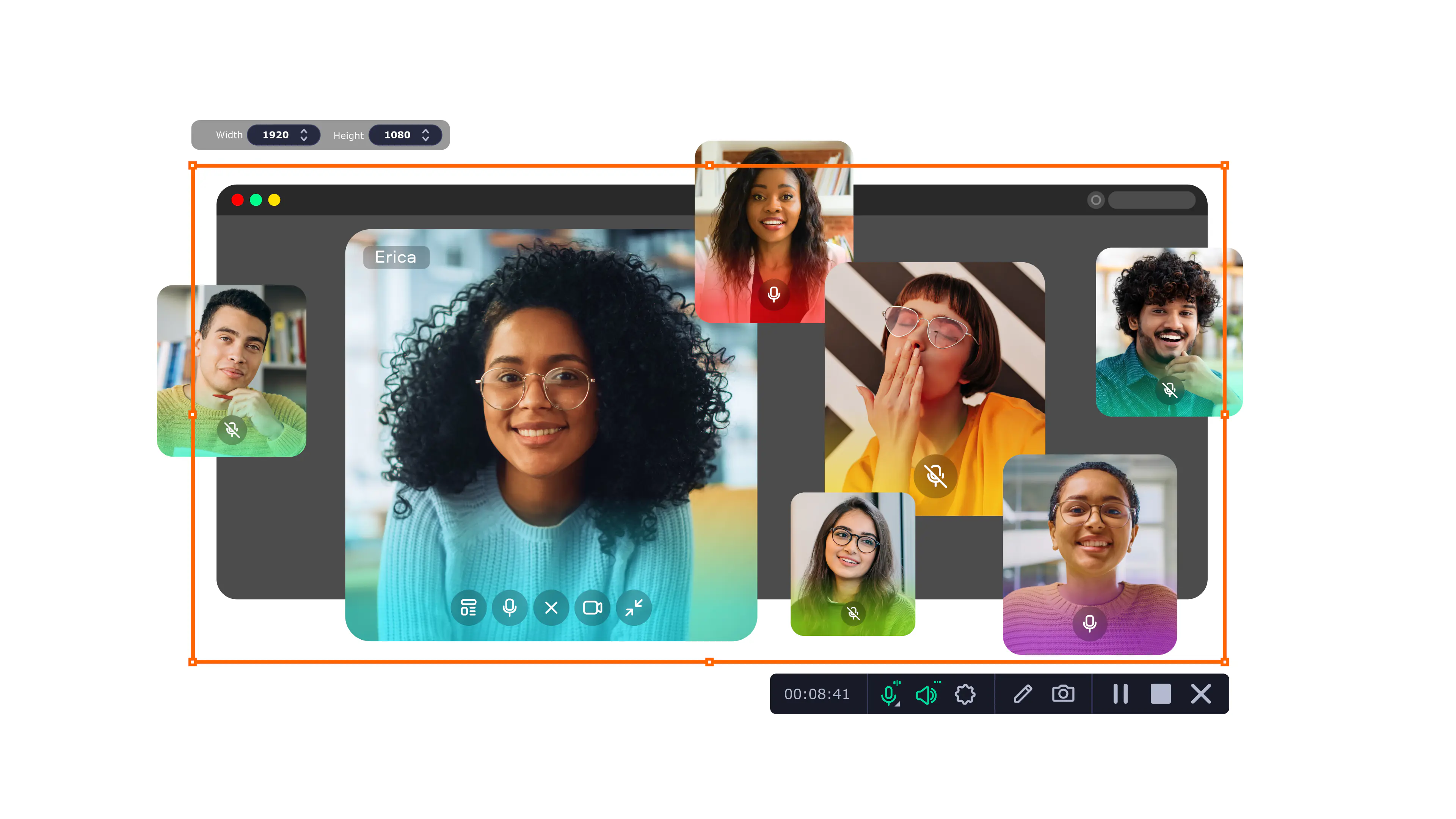
How to Record Video Calls in Messenger [Android/iPhone/
Windows]
Use Movavi Screen Recorder to capture a Facebook video:
Record video calls in HD
Capture system sound and microphone
Record screen and webcam at the same time
One of the most used methods to keep in touch with people is instant messengers, not only for chatting but also for video calling. The article will help you learn how to record your video calls in Messenger easily with the help of the right screen recorder.
Quick summary
Recording great quality videos: Movavi Screen Recorder
Recording video calls without downloading any apps: iOS built-in recording tool
Hassle-free recording on Android: Mobizen Screen Recorder

Our goal is to provide you with only verified information. To ensure this, Movavi Content Team does the following:
When selecting products to include in our reviews, we research both demand and popularity.
The team tests all the products mentioned in this article.
When testing, we compare the key characteristics of the products, which include selecting capture area, schedule recording, showing keystrokes and mouse, and other significant features.
We study user reviews from popular review platforms and make use of this information when writing our product reviews.
We collect feedback from our users and analyze their opinions of Movavi software as well as products from other companies.
How to record video calls in Messenger – Best ways
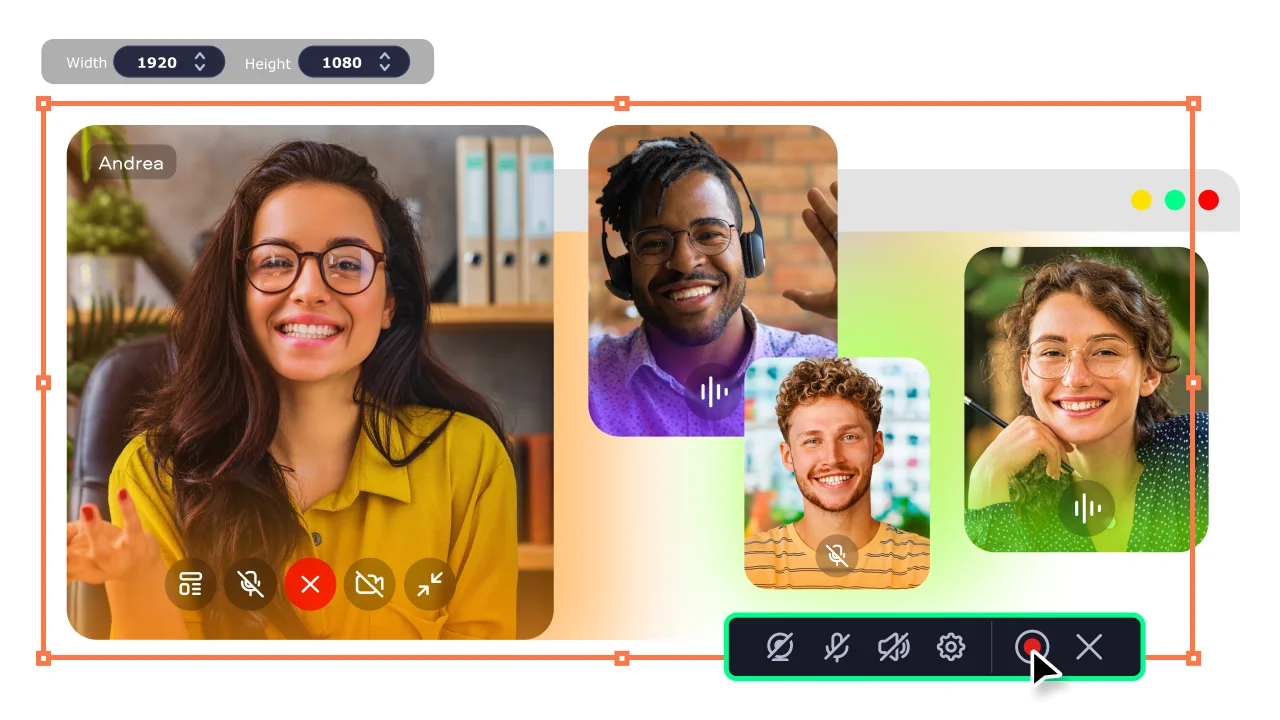
Movavi Screen Recorder is a trusted application to record online calls, meetings, and webinars. It lets you make all the parameters of recording easily customized according to your needs. Simply press the ‘Start recording’ button to record your video call in high quality.
The best thing about Movavi Screen Recorder is that you can edit your recording later. The application has the ability to capture your microphone and system sound independently. You can also make screenshots and edit them as well.
Key features:
How to record Messenger video calls with sound
How to record Messenger calls on iOS
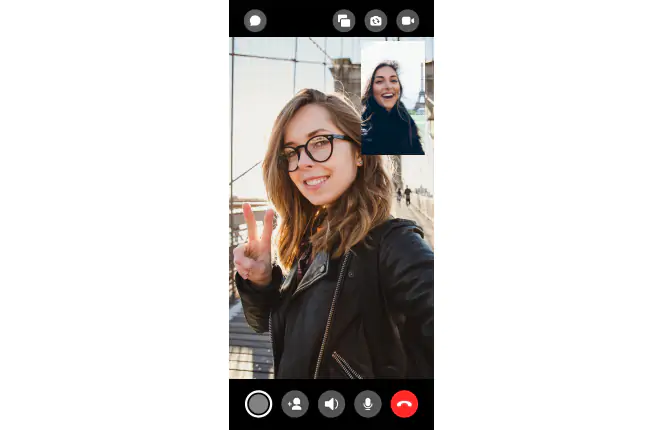
Recording of Messenger calls on iOS is very simple because iOS has an inbuilt screen recording. It allows the users to record anything on their screens along with the audio. It can serve all your basic screen recording requirements with a single click only.
Here’s how to record a call in Messenger on an iPhone (iOS):
How to record Messenger calls on Android
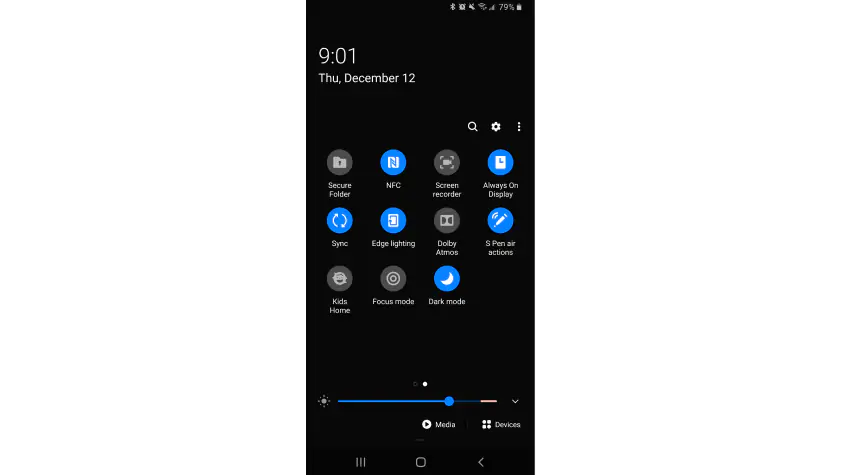
Recording calls via a messenger on Android is actually easier than most people think. If your phone is running Android 11 or higher, it already has a screen recording function – no additional downloads are required. With it, you can save both video and sound right from your screen.
Here’s how you can do it:
How to record Facebook Messenger calls on Android with Mobizen
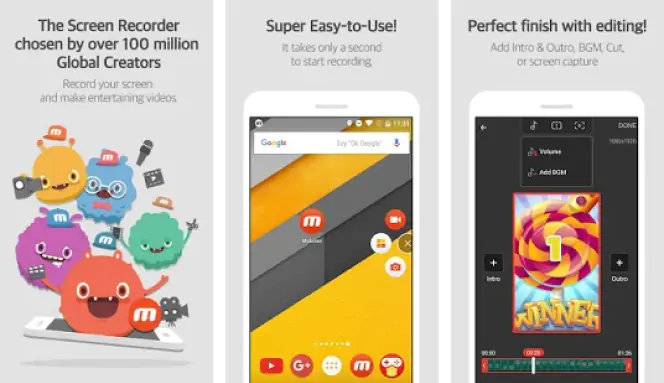
Can you record your Android phone calls? Sure! You can record Messenger calls on Android with a lot of third-party applications. For example, Mobizen Screen Recorder is a great choice. It’s equipped with various features that simplify the process of recording calls.
Here’s how to record calls in Messenger on Android devices:
Now you know how to screen record Messenger calls on your Android device.
There are some common reasons why more people want to record Facebook video chats today. Let’s have a look at them.
Create your own content: When you need to collect material to make your presentation or video content, it can help you if you record video calls. It could be anything like a statement, consultation, or interview. You can adjust your recording settings using the recording application and utilize the recording the way you like.
Maintain a record of video meetings: It can help you maintain a record of video calls between members of an organization or business associates. Indeed, recording a video call is always more efficient than taking notes.
Produce information libraries: If you need to attend calls from your coworkers or college professor to discuss anything, it could be helpful to record the call. You can refer to your recording later if you need. Also, you can share the same with your other colleagues or friends.
Save memories: If you are all set to attend a video call from a friend or a family member who lives far or with whom you do not get that much chance to talk, you can record your video call. You can play the recording if you miss that person.
Here are some tips that can support you in recording better video calls.
Try to be aware of your surroundings. If you require being on camera at the time of a call, ensure to check around you. You can close the window of there is lots of outside noise. Opt for a soft fill on your face using a desk lamp, but stay away from harsh light.
Make sure that you clean your device camera as a dirty camera can easily affect the video call quality. You will need to clean your device camera before starting a video call.
Try to use headphones. External noise can easily make any kind of call quite problematic. Using a headphone can help you reduce unnecessary noise.
Pause all your downloads. One of the primary aspects that can easily affect your video call quality is internet speed. Having a slow internet connection would result in choppy video and audio. So, pause all kinds of downloads while making video calls to get the maximum speed and smooth video quality.
Get a proper video call recording software. Doing so will help you record important video calls, and you can get back to them whenever you need.
Recording FB Messenger video calls is not a tough thing to do. You need a proper recording application that can help you with the task. You can choose any from the applications above. A great choice would be to go for the Movavi Screen Recorder. Always make sure that you opt for an application before checking your requirements. Trying out various applications to find the right one without first checking the features is foolish. Choose a software that is easy to use and does not involve much hassle.
Frequently asked questions
Yes, it is possible to record Facebook video calls. You will need a third-party screen recording application like Movavi Screen Recorder for your laptop and PC or Mobizen Screen Recorder for a smartphone. There are plenty of other choices that you can find today. Also, you can opt for the in-built screen recording feature in your device, if any.
No, Facebook Messenger cannot record video calls directly. You will need a third-party application like Movavi Screen Recorder to record Messenger voice calls.
Unfortunately, there’s no way to know if someone is recording your video call on Messenger. The app doesn’t send any notifications to alert users when someone starts recording.
You can use the following apps to record your calls:
There are plenty of apps you can use. On an iPhone, try a built-in iOS recorder, which is very convenient since you don’t need to download any extra app. On Android, use Mobizen Screen Recorder – a full-featured recording app.




1.5M+ users already subscribed to our newsletter