How to Brighten a Video – 8 Easy Ways (Quick Fixes & Pro Tips)

To brighten your video, use Movavi Video Editor!

1. Download and install the program.

2. Add a video clip to brighten up.

3. Adjust the video brightness.

4. Save the edited video.

By clicking the download button, you're downloading a free version of the program.*

Edited by
Ben Stockton
37879

Key takeaways

  • I tested several ways to brighten dark footage, from desktop editors like Movavi Video Editor and Premiere® Pro to quick online tools. Each method works best for a different situation.
  • Most editing apps let you brighten a video through exposure, gamma, or shadow controls. Some tools boost the image cleanly, while others introduce more noise or color shifting.
  • The right tool depends on what you need… quick results, fine-tuning, batch edits, or noise reduction.
  • Brightening too aggressively can cause noise, banding, and washed-out colors but adjusting shadows and midtones often gives a much cleaner result.
  • My tip: brighten gradually and always reduce noise before sharpening. Export once in high quality to avoid introducing more compression artifacts.

I’ve found that there are a few instances where I need to brighten videos up. This sometimes happens when I am using my phone to grab some quick footage. it isn’t always easy to get the right settings on your video camera or smartphone to improve this – there are plenty to choose from, after all. If you’re struggling, you can use a video editor to brighten dark videos quickly afterwards.

I have come across multiple methods for how to make dark videos brighter and clearer and found them to be useful in different scenarios. I sometimes even edit footage and videos from YouTube (like concert videos) to be able to see better or to better fit an edited montage. Here’s a quick shortlist of some video lightening editors you can use to get you started.

Program

OS

Download

Windows, macOS, Linux

Any, web-based

Any, web-based

iOS, Android
disclaimer_person

At Movavi, we’re committed to providing you with verified information only. Here’s what we do to ensure this:

  • When selecting products to include in our reviews, we research both demand and popularity.

  • All products mentioned in this article have been tested by Movavi Content Team.

  • When testing, we compare key parameters, including video and audio trimming, visual effects, stabilization, video quality adjustments, saving and sharing videos, and other significant features.

  • We study user reviews from popular review platforms and make use of this information when writing our product reviews.

  • We collect feedback from our users and analyze their opinions of Movavi software as well as products from other companies.

InShot
4.7/5
Editor's choice
Movavi Video Editor
5/5
iMovie
4.5/5

How to brighten a video on iPhone and Android

I love the suite of tools that come with phones but they aren’t always reliable. I often use them for simpler tasks as it means no downloading of any other software. Rather than upload your photos to a PC or Mac, you can brighten dark videos on the go using your iPhone or Android smartphone using an app. There aren’t many software options with free downloads, such as online video editors, that will work as well as tools like Movavi App and InShot do on your smartphone.

Movavi Clips

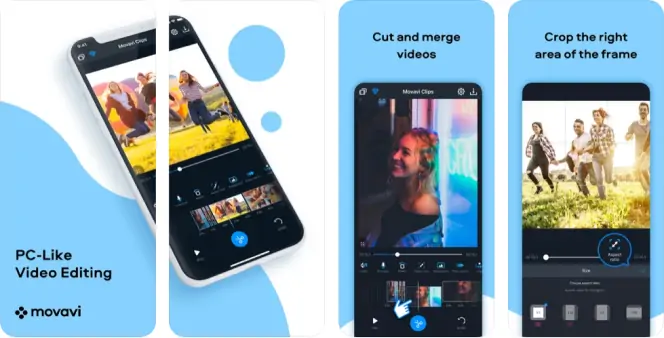
Movavi App is an advanced but easy-to-use video editor for your smartphone. It brings the power of Movavi’s desktop editor to mobile devices. Within minutes of using it for the first time I was able to embrace the features to crop and rotate videos, as well as brighten videos, add text or image filters, insert music tracks, and more.

I have regularly used it to edit video or export it directly to social media, allowing your friends and family to quickly view your changes. Movavi App is free to use (with some limitations), but you can try all paid features with a built-in free trial.

If you want to fix the video brightness using Movavi App and brighten videos on iPhone and Android devices, here’s what you’ll need to do.

Step 1. Download and install Movavi App

Before you begin, download and install the Movavi Clips app from the Google Play or Apple App Store using the links below.

Download Movavi Clips for iOS

Download Movavi Clips for Android

Step 2. Select the video file for editing

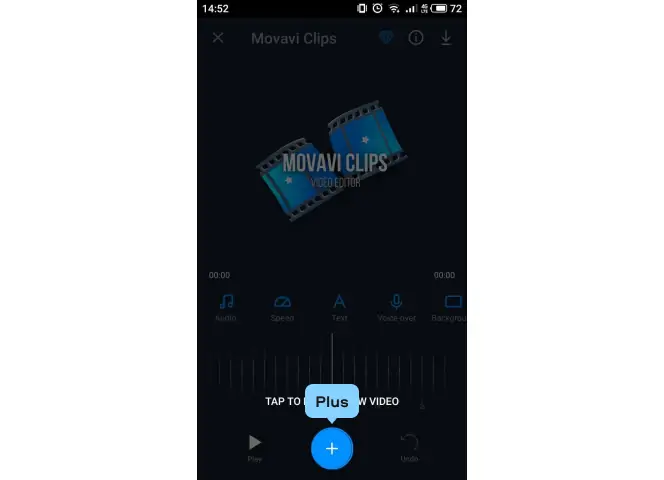
Add files to the video lighting editor

After installing Movavi Clips, launch the app and select your video clip. If necessary, you will be prompted the app the necessary permissions to access your local video files.

Step 3. Adjust the video brightness

Brighten dark videos

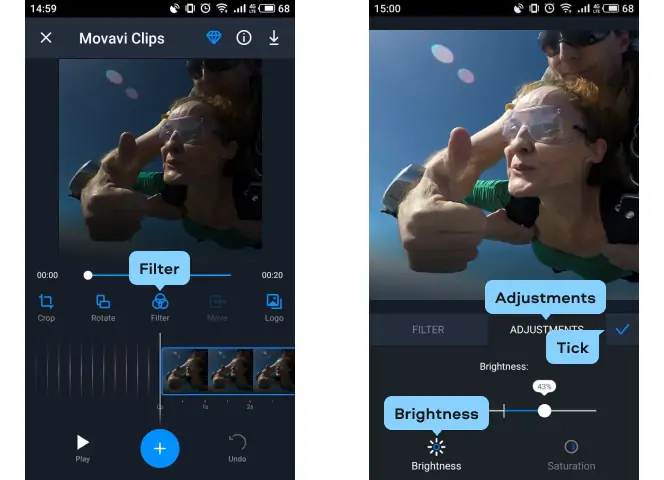
In the main video editing menu, swipe right through the various tools, then tap Adjustments > Brightness.

Using your finger, move the Brightness slider right to increase the brightness or left to decrease it. I’ve found this feature to give a lot of control over how bright the video is, you might want to test a few options. If you’re happy with the video preview above, tap the tick icon to save your choice.

Step 4. Save your video

Adjust brighteness manually in the video brightness editor

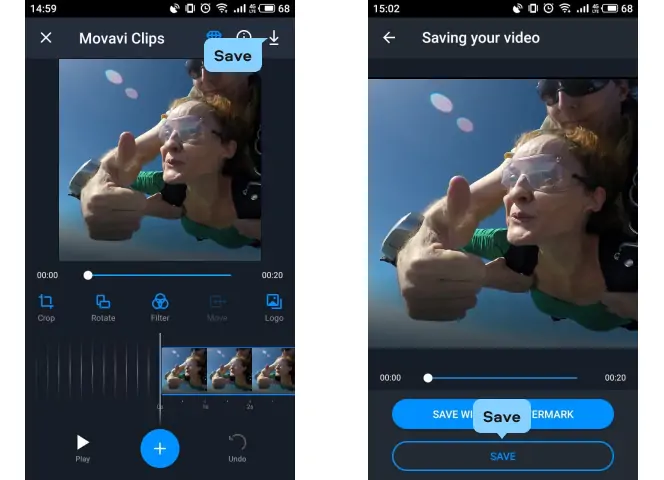
Adjust your video further using Movavi Clips’s extensive video editing tools, if you need to. If you’re happy with the video brightening, you can save the video by pressing the Export button in the top right.

Choose a video resolution before tapping the Save button at the bottom. If you don’t have a premium subscription, you may see a watermark applied to your video in the bottom-right corner of the video file.

InShot

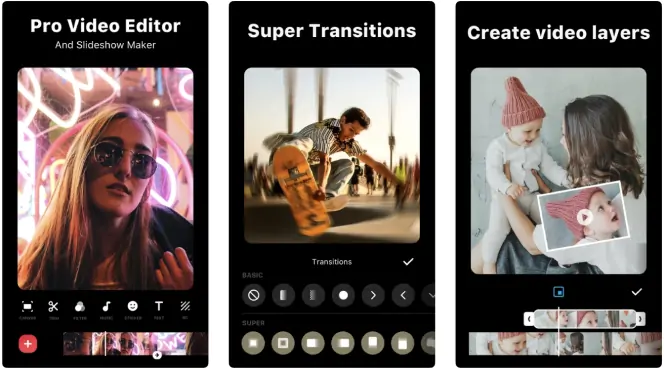
I’ve tested out some other options including InShot. This is an alternative video editing app for iPhone, iPad, and Android users. It has a number of professional-grade features that allow you to cut up, trim, merge, and alter your video clips. I also found it easy to also apply custom transitions, filters, audio tracks, text, and more.

InShot is made for social media lovers. It allows you to quickly pick up your video snaps, edit them, and then post them to your TikTok or Instagram accounts (or anywhere else you might wish). It’s free to use, although some transitions and effects require an in-app subscription.

Here’s how to brighten a video without losing quality using InShot.

1. Download and install InShot
You’ll need to start by downloading and installing InShot on your Android, iPhone, or iPad device from the App Store or Play Store.

Download InShot for iOS
Download InShot for Android

2. Select the video clip for editing
Once the InShot app is installed, open it on your device.

Click Video to select a video clip to edit. Using the on-screen menu, choose a video file (or files) to edit, then press the green tick icon in the bottom-right.

3. Adjust the video brightness
The video clip (or clips) you selected will appear in the edit menu. To brighten the video using InShot, tap Filter > Adjust using the carousel options at the bottom.

Make sure the Lightness slider is selected by tapping the icon. Using your finger, move the Lightness slider to the right to increase the video brightness. If you need to decrease the brightness, move the slider left instead. I found it to be pretty sensitive.

When you’re ready to save your changes, tap the tick icon directly above the slider twice to return to the main editing menu.

4. Adjust the video brightness
In the main editing menu, you can make further changes to your video clip (such as trim the video, apply text or music, etc). If you’re happy to save the brightened video clip, press Save in the top-right.

You’ll need to choose the resolution and frame rate you’d like to use for your video clip, with the estimated file size listed beneath. Make any additional changes (or leave the settings intact), then tap Save again to save the edited video clip.


How to lighten a video with Movavi Video Editor

I’ve found a detailed way to edit brightness on a video on a Mac or Windows PC is to use Movavi Video Editor. Professional-grade features in a beginner-friendly interface, Movavi Video Editor can help you create the videos you need with ease – no difficult-to-understand features or user interfaces to decipher here.

Movavi Video Editor will let you brighten your video clips in just a few clicks. I also like the powerful editing features that can give a really professional feel. It can crop, rotate, and trim your video files, or you can apply transition and filter effects, custom music tracks, Instagram-friendly stickers, and more. Whether you’re a beginner or pro, Movavi Video Editor is the perfect tool for video editors, and you can try it free with a 7-day trial.

If you’re unsure how to lighten a video, Movavi Video Editor will get the job done quickly on Windows or Mac. Here’s what you’ll need to do.

Step 1. Download and install Movavi Video Editor

Start by downloading the Movavi Video Editor installation file on your Windows PC or Mac.

Once you’ve downloaded the installation file, open the file and follow any on-screen instructions to complete the installation.

Step 2. Add a video clip to brighten up

Save the brightened video

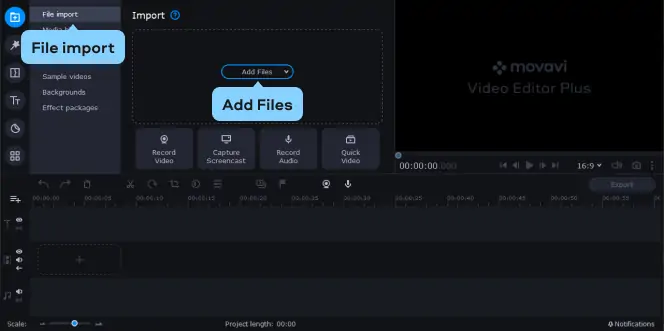
Open Movavi Video Editor once the installation is complete. Drag your video file into the File import section to open it, or press Add Files to select it manually.

The video file will appear in the Project files – drag and drop the file into the Timeline section at the bottom of the window to open it for editing. I tested it on a clip of my dog where he was doing his tricks outside in the dark and even a 10-20% increase made a big difference while still keeping the video quality.

Step 3. Adjust the video brightness

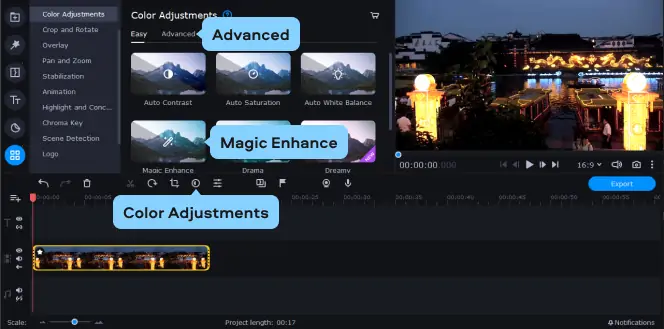
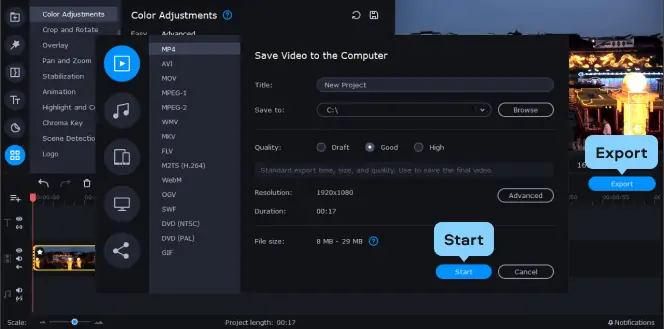
To adjust the brightness, press the Color Adjustments icon above the Timeline section. Press Magic Enhance to automatically improve the video’s brightness and contrast levels or select the Advanced tab to change these settings manually.

I like the fact that there is an automatic way to do this. To adjust the brightness, press the Color Adjustments icon above the Timeline section. Press Magic Enhance to automatically improve the video’s brightness and contrast levels or select the Advanced tab to change these settings manually.

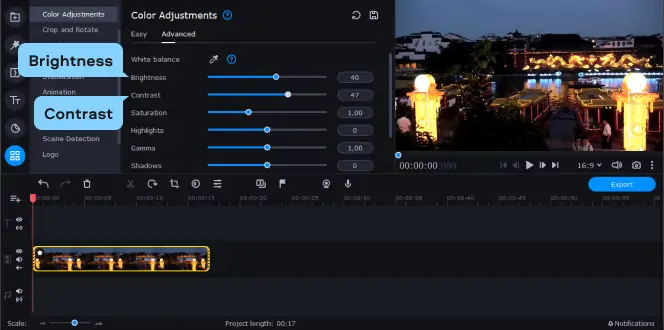
In the Advanced tab, move the Brightness and Contrast sliders towards the right to increase those settings, or left to decrease them. Make any additional changes to your video’s color settings (such as saturation and tint levels) as required.

Step 4. Save the edited video

When you’re ready to save the video, press the Export button. Confirm your file output settings, including the video title, resolution, quality, and file type, then press Start to save the video.

Movavi Video Editor
Create awesome videos easily

*The free version of Movavi Video Editor may have the following restrictions depending on the build: watermark on exported clips, 60-second video or 1/2 audio length limit, and/or some advanced features unavailable when exporting videos.

Movavi Video Editor

How to make a video clearer on a Mac

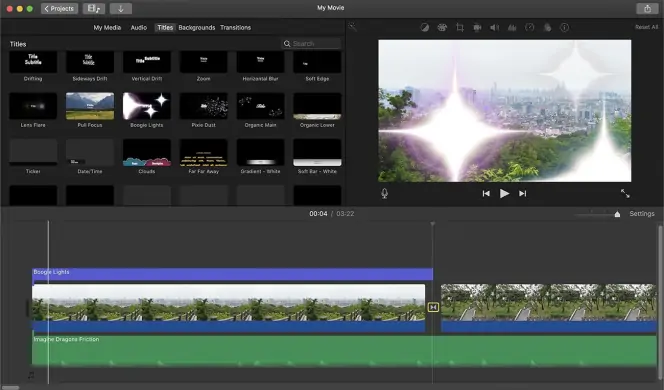
I think Apple still rules the roost when it comes to free editing software being inbuilt and while Movavi Video Editor is one of the best tools available to brighten a video on a Mac, you can also use the built-in iMovie app to do this. iMovie is Apple’s free video editing tool and although it’s limited in features, it does allow you to improve the brightness on darker video clips.

iMovie should come with your Mac but, if it isn’t installed, you can download the software for free.

Download iMovie

If you want to know how to make a video brighter using iMovie on a Mac, here’s what you’ll need to do.

1. Open a video clip in iMovie

To start, open iMovie on your Mac. Press Create New > Movie to create a new video editing project. Press Import Media to insert a video clip into your iMovie project.

Make sure to drag and drop the inserted video clip into the Timeline section at the bottom afterwards.

2. Adjust the video brightness

With the video clip selected, you can automatically adjust your video’s brightness and other color settings by pressing the Color Balance button above the video preview, then pressing the Auto button.

I tend to go in more detail and press the Color Correction button next to it to change your brightness and contrast settings manually, then move the various sliders in the multi-slider panel on the right to increase the brightness and contrast. If you want to decrease these values, move the sliders to the left instead.

3. Save the video

Once you’ve edited the video, you’ll need to save it. To do this, press Share > Export File in the top right.

In the File window that appears, confirm your file resolution, format, quality, and compression settings, then press Next to continue. You’ll need to choose a file name and save location for your clip, then press Save to save the edited file.

How to brighten dark videos for free in VLC

I always have the latest VLC as a tool on my computer. It has helped me make quick conversions but also brighten dark videos quickly. Freely available for Windows (multiple versions) and Mac users, VLC is the go-to player for playing almost every type of video file imaginable.

Lesser known, however, is VLC’s tools for tweaking videos during playback. If you’re struggling to see a dark video in VLC, you can increase the brightness and contrast levels in the settings menu. You can download VLC by following one of the links below.

Download VLC for Windows
Download VLC for Mac
Download VLC for other operating systems

If you want to brighten dark videos for free in VLC, here’s what you’ll need to do.

1. Open a video file in VLC
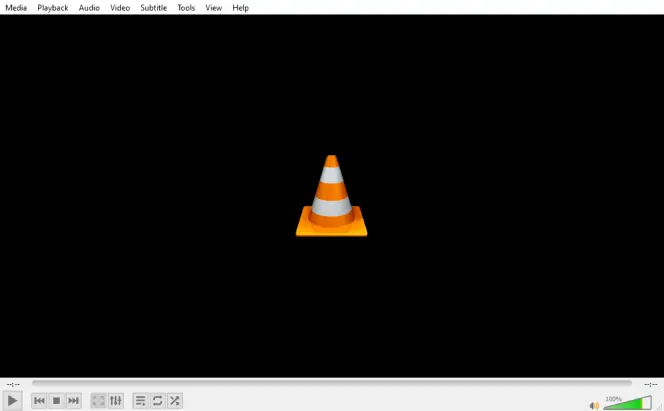
To start, open your video file in VLC by pressing File > Open File.

2. Adjust the brightness settings
Once you’ve opened the video, you’ll need to open VLC’s settings menu to change the brightness and contrast.

On a Windows PC, press Tools from the menu bar, then press Effects and Filters. In the Preferences window, select Video Effects > Essentials, make sure that the Image adjust checkbox is selected, then move the Brightness and Contrast sliders to the right to increase their values (or left to decrease them).

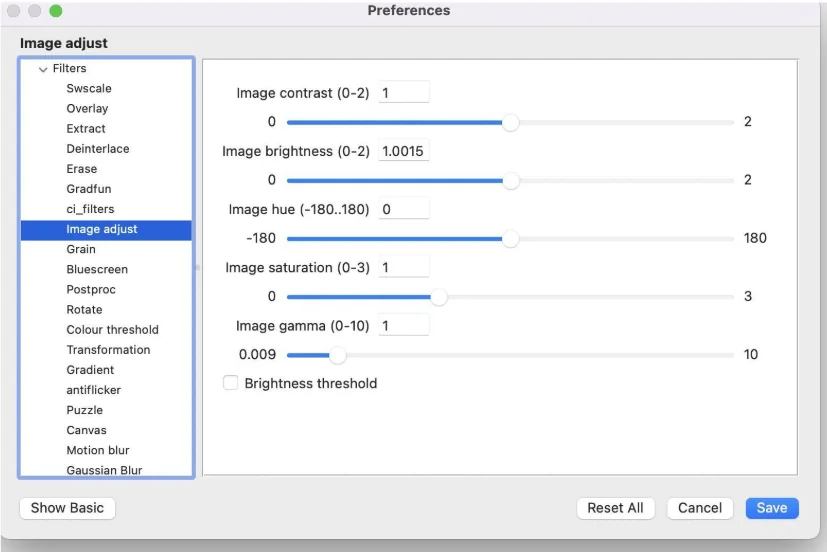
On a Mac, press VLC > Preferences in the menu bar. In the Preferences menu, press Video > Show All to view all of the video settings. From the side-menu, select Video > Filters > Image adjust, then increase the Image contrast and Image brightness values to increase those settings (or decrease them, if you prefer). They are at a value of 1 by default and you can increase them by 0.0001 increments.

3. Save the settings
Once you’ve applied the brightness changes to your VLC settings, press Close (on Windows) or Save (on a Mac).
If the change is successful, VLC should make a dark video more visible with increased brightness and contrast settings as your video plays. I find this to be the quickest and simplest way (even though the interface could be more intuitive).

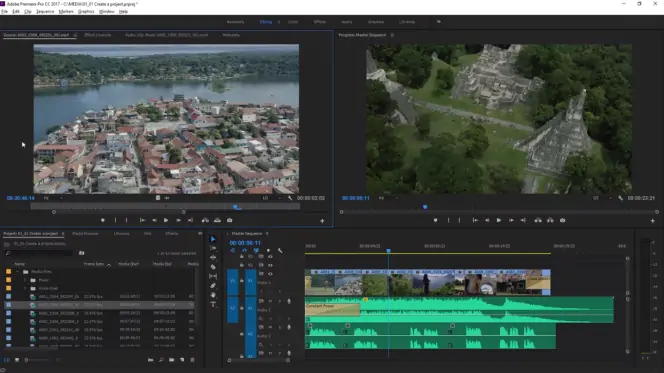
How to use Adobe® Premiere® Pro – a professional video brightener

I have experimented with the professional methods of how to make dark videos brighter. If you’re a Hollywood filmmaker, TV producer, YouTube content creator, or another type of video creating professional, you might have Adobe® Premiere® Pro in your video editing arsenal.

This powerful video editor supports almost any feature you can imagine needing, from basic crops and trims to complex 3D transitions and effects, with support for up to 8K video and VR support included. It’s complex, it’s powerful, and if you need it to enhance a video to make it lighter, Adobe® Premiere® Pro can do that, too.

Here’s how to brighten a dark video using Adobe® Premiere® Pro.

Download Adobe® Premiere® Pro

1. Open your video in Adobe® Premiere® Pro
Open your video clip and make sure it’s visible in the Timeline section at the bottom of Adobe® Premiere® Pro’s interface.
Once you’ve inserted the clip, make sure to select it in the Timeline section to make changes.

2. Adjust the brightness settings
With the clip selected, press Effects in the menu to the right of the Timeline section. From there, press Video Effects > Color Correction > Brightness & Contrast. Drag the Brightness and Contrast effect and drop it onto the selected video track in the Timeline section.

This will allow you to make changes to the brightness and contrast levels in your video clip, using Adobe® Premiere® Pro as a video brightener and video lighting editor. In the top right, use the Effects Controls menu panel to customize the brightness and contrast levels to allow you to lighten up your video without losing quality.

In the Brightness & Contrast section, increase the Brightness and Contrast values to do this. The video preview to the left will allow you to see the changes immediately.

3. Save your video
Once you’ve made your changes, you’ll need to save your video. To do this, press File > Export > Media.

I also tend to delve into more settings in the Export Settings window. Select the video format and codec settings you wish to use, as well as any other additional settings. Press the Output Name value to choose a new filename and save location for your video.

When you’re ready to proceed, press Export to begin saving your video.

How to adjust video brightness online with Clideo

I needed a browser-based solution where I could quickly brighten a clip without installing anything. Clideo fit the bill and was a pretty efficient tool.

When I tested Clideo, I uploaded a dark MP4, slid the brightness and contrast controls, previewed the result, and downloaded the new file all in under ten minutes. The interface lets you adjust brightness, saturation and contrast together, and supports formats like MOV, MP4, AVI.

Follow the instructions to learn how to make dark videos brighter using Clideo.

  1. Open Clideo’s Adjust Video tool on your browser.
    Go to Clideo
  2. Click Choose file and upload your video (Windows, Mac, or mobile).
  3. Click on the clip in the timeline to bring up an editing menu.
  4. Once uploaded, use the Brightness slider (and optionally Opacity as well as Contrast, Saturation) on the right until the video looks properly lit.
  5. Choose the output format (MP4 is a safe bet) and click Export.
  6. Preview and then click Download to save your brightened video.

How to use the VEED.IO video brightness editor

I was working on a social clip and needed to adjust brightness quickly online, even on my tablet. VEED delivered with a clean UI and mobile support.

In my test, I uploaded a MOV file, selected the Adjust tab, dragged the brightness slider, and exported within minutes. It also supports other effects (contrast, saturation) so I fine-tuned the look for sharing.

Here’s how to make a dark video brighter online using VEED.IO:

  1. Head to the VEED.IO video brightness editor tool.
    Go to VEED.IO
  2. Click Get Started Now and upload your video.
  3. Select the video track and click the Adjust tab.
  4. Drag the Brightness slider to increase light, and optionally tweak the other settings.
  5. Click Export, then Download to save your brightened video.

How to brighten a video on iPhone and Android

I love the suite of tools that come with phones but they aren’t always reliable. I often use them for simpler tasks as it means no downloading of any other software. Rather than upload your photos to a PC or Mac, you can brighten dark videos on the go using your iPhone or Android smartphone using an app. There aren’t many software options with free downloads, such as online video editors, that will work as well as tools like Movavi App and InShot do on your smartphone.

Movavi App

Movavi App is an advanced but easy-to-use video editor for your smartphone. It brings the power of Movavi’s desktop editor to mobile devices. Within minutes of using it for the first time I was able to embrace the features to crop and rotate videos, as well as brighten videos, add text or image filters, insert music tracks, and more.

I have regularly used it to edit video or export it directly to social media, allowing your friends and family to quickly view your changes. Movavi App is free to use (with some limitations), but you can try all paid features with a built-in free trial.

If you want to fix the video brightness using Movavi App and brighten videos on iPhone and Android devices, here’s what you’ll need to do.

Step 1. Download and install Movavi App
Before you begin, download and install the Movavi App from the Google Play or Apple App Store using the links below.
Download Movavi App for iOS
Download Movavi Clips for Android

Step 2. Select the video file for editing
After installing Movavi App, launch the app and select your video clip. If necessary, you will be prompted the app the necessary permissions to access your local video files.

Step 3. Adjust the video brightness
In the main video editing menu, swipe right through the various tools, then tap Adjustments > Brightness.

Using your finger, move the Brightness slider right to increase the brightness or left to decrease it. I’ve found this feature to give a lot of control over how bright the video is, you might want to test a few options. If you’re happy with the video preview above, tap the tick icon to save your choice.

Step 4. Save your video
Adjust your video further using Movavi App’s extensive video editing tools, if you need to. If you’re happy with the video brightening, you can save the video by pressing the Export button in the top right.

Choose a video resolution before tapping the Save button at the bottom. If you don’t have a premium subscription, you may see a watermark applied to your video in the bottom-right corner of the video file.

InShot

I’ve tested out some other options including InShot. This is an alternative video editing app for iPhone, iPad, and Android users. It has a number of professional-grade features that allow you to cut up, trim, merge, and alter your video clips. I also found it easy to also apply custom transitions, filters, audio tracks, text, and more.

InShot is made for social media lovers. It allows you to quickly pick up your video snaps, edit them, and then post them to your TikTok or Instagram accounts (or anywhere else you might wish). It’s free to use, although some transitions and effects require an in-app subscription.

Here’s how to brighten a video without losing quality using InShot.

1. Download and install InShot
You’ll need to start by downloading and installing InShot on your Android, iPhone, or iPad device from the App Store or Play Store.

Download InShot for iOS
Download InShot for Android

2. Select the video clip for editing
Once the InShot app is installed, open it on your device.

Click Video to select a video clip to edit. Using the on-screen menu, choose a video file (or files) to edit, then press the green tick icon in the bottom-right.

3. Adjust the video brightness
The video clip (or clips) you selected will appear in the edit menu. To brighten the video using InShot, tap Filter > Adjust using the carousel options at the bottom.

Make sure the Lightness slider is selected by tapping the icon. Using your finger, move the Lightness slider to the right to increase the video brightness. If you need to decrease the brightness, move the slider left instead. I found it to be pretty sensitive.

When you’re ready to save your changes, tap the tick icon directly above the slider twice to return to the main editing menu.

4. Adjust the video brightness
In the main editing menu, you can make further changes to your video clip (such as trim the video, apply text or music, etc). If you’re happy to save the brightened video clip, press Save in the top-right.

You’ll need to choose the resolution and frame rate you’d like to use for your video clip, with the estimated file size listed beneath. Make any additional changes (or leave the settings intact), then tap Save again to save the edited video clip.
Why brightening a video creates noise (and how to fix it)

Knowing how to brighten a video without losing quality is a key skill here. Whenever I push the brightness of a dark clip, I almost always see more grain and blotchy color in the shadows. That isn’t your editor “ruining” the video. It’s just making existing problems more visible. Most cameras record extra noise in dark areas because the sensor is trying to boost a weak signal.

When we brighten a shot in post, we’re not just lifting the real image – we’re also lifting that sensor noise and any compression artifacts from the codec. The result is speckled shadows, dancing pixels in flat areas like walls, and sometimes weird color patches.

Over-compressed footage reacts even worse. If the original file was shot with a low bitrate or heavy compression, brightening it will reveal blockiness and banding that looked “hidden” at normal exposure.

Here’s how I usually deal with noise when I have to brighten a clip:

Brighten carefully
I start with small exposure or gamma adjustments instead of dragging brightness to the max. Often a mix of a slight exposure boost plus contrast and midtone adjustments looks cleaner than a huge brightness jump.

Use targeted noise reduction
I apply noise reduction to the noisiest parts only (usually shadows). In many editors you can use a noise reduction effect and lower its strength so faces and edges don’t turn into mush.

Tweak shadows and blacks instead of everything
Instead of brightening the whole image, I lift shadows slightly and keep blacks close to black. That helps keep contrast while still revealing detail.

Add a little sharpening after noise reduction
Noise reduction can soften the image. I add a small amount of sharpening to bring back detail, but not so much that the noise reappears.

Avoid re-exporting too many times
Each re-encode can add more compression artifacts. I try to do all my fixes in one timeline and export once to a high-quality format.

My rule of thumb is to fix exposure on the camera whenever you can. When that’s not possible, brighten gently, control the noise, and accept that extremely dark footage will never look as clean as something that was shot correctly in the first place.

Summary

I was surprised at just how much you could do with video from a standard iPhone and even the fact that you could greatly improve the look and feel of some YouTube videos by making simple edits. You’ll need to understand how to make dark videos brighter and clearer using one of the tools at your disposal. I find it easy to brighten videos using Movavi Clips on your smartphone. If you want to do more with the video footage then a professional editor like Adobe® Premiere® Pro, or a good all-rounder like Movavi Video Editor may be advisable.

Movavi Video Editor
Create awesome videos easily

*The free version of Movavi Video Editor may have the following restrictions depending on the build: watermark on exported clips, 60-second video or 1/2 audio length limit, and/or some advanced features unavailable when exporting videos.

Movavi Video Editor

Frequently asked questions

How do I brighten a dark video?

I usually increase exposure or the brightness slider in a video editor, then adjust contrast to keep the image from looking low quality or washed out.

Will brightening reduce quality?

It can. When you lift brightness, you also lift noise in the shadows. A light touch and some noise reduction helps a lot.

Can I brighten a video online?

Yes. Tools like Clideo and VEED let you upload a clip and change the brightness installing anything.

What values work best for low-light video?

I usually start with small changes: brightness +10–20, contrast +5–10, and slight shadow lifting. Big jumps tend to create more noise.

Does Movavi do auto-brighten?

Yes. Movavi has presets within the Color Adjustments menu that boosts brightness and contrast automatically. It works well for clips that are underexposed.

Have questions?
Have questions?
If you can’t find the answer to your question, please feel free to contact our Support Team.
Join us for discounts, editing tips, and content ideas

1.5M+ users already subscribed to our newsletter

By signing up, I agree to receive marketing emails from Movavi and agree to Movavi's Privacy Policy.