Step 1. Import your media files
Install and launch Movavi Video Editor. Drop your video onto the timeline. The layout is refreshingly intuitive, so even first-timers can get their bearings without a tutorial spiral.

Remove Background Noise from Videos
Try Movavi Video Editor!
Fast and easy video noise reduction
One-click AI tools
Hundreds of filters, transitions, titles, overlays
Features to remove background noise from videos
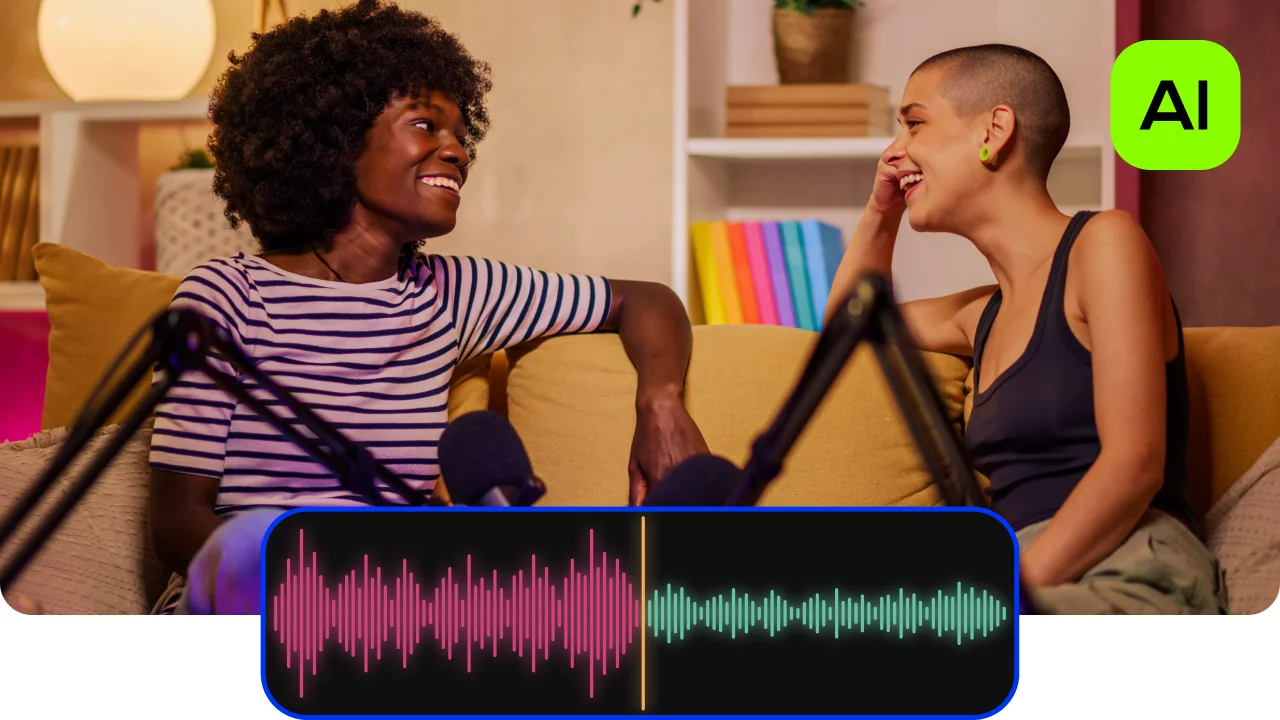
AI noise removal
Automatically remove car, wind, and other uncool sounds from your clips with our AI-driven audio denoiser. Create videos with crisp sound that viewers are sure to appreciate.
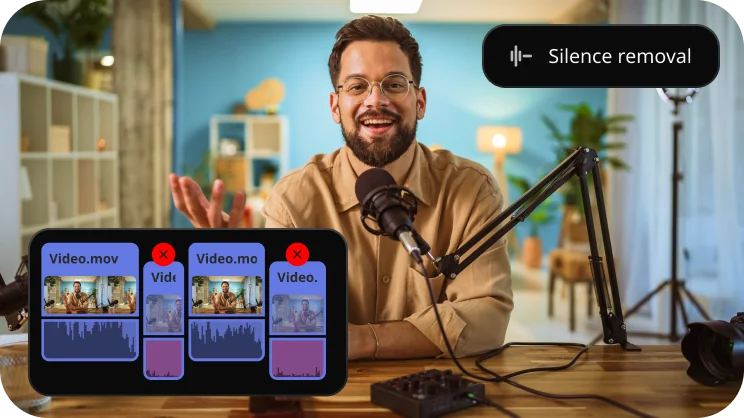
Silence removal
Cut out unwanted pauses automatically or fine-tune the pause length and volume threshold yourself. Skip the tedious cleanup and make your videos more dynamic in a flash.
Audio editing
Make your videos sound amazing: add effects, fine-tune with the equalizer, toss in some reverb, drop in smooth transitions with fade-ins and fade-outs. Auto-sync, beat detection, and easy voice-over recording let you perfect your audio in no time.

How to remove background noise from video files with Movavi Video Editor
Step 1. Import your media files
Install and launch Movavi Video Editor. Drop your video onto the timeline. The layout is refreshingly intuitive, so even first-timers can get their bearings without a tutorial spiral.
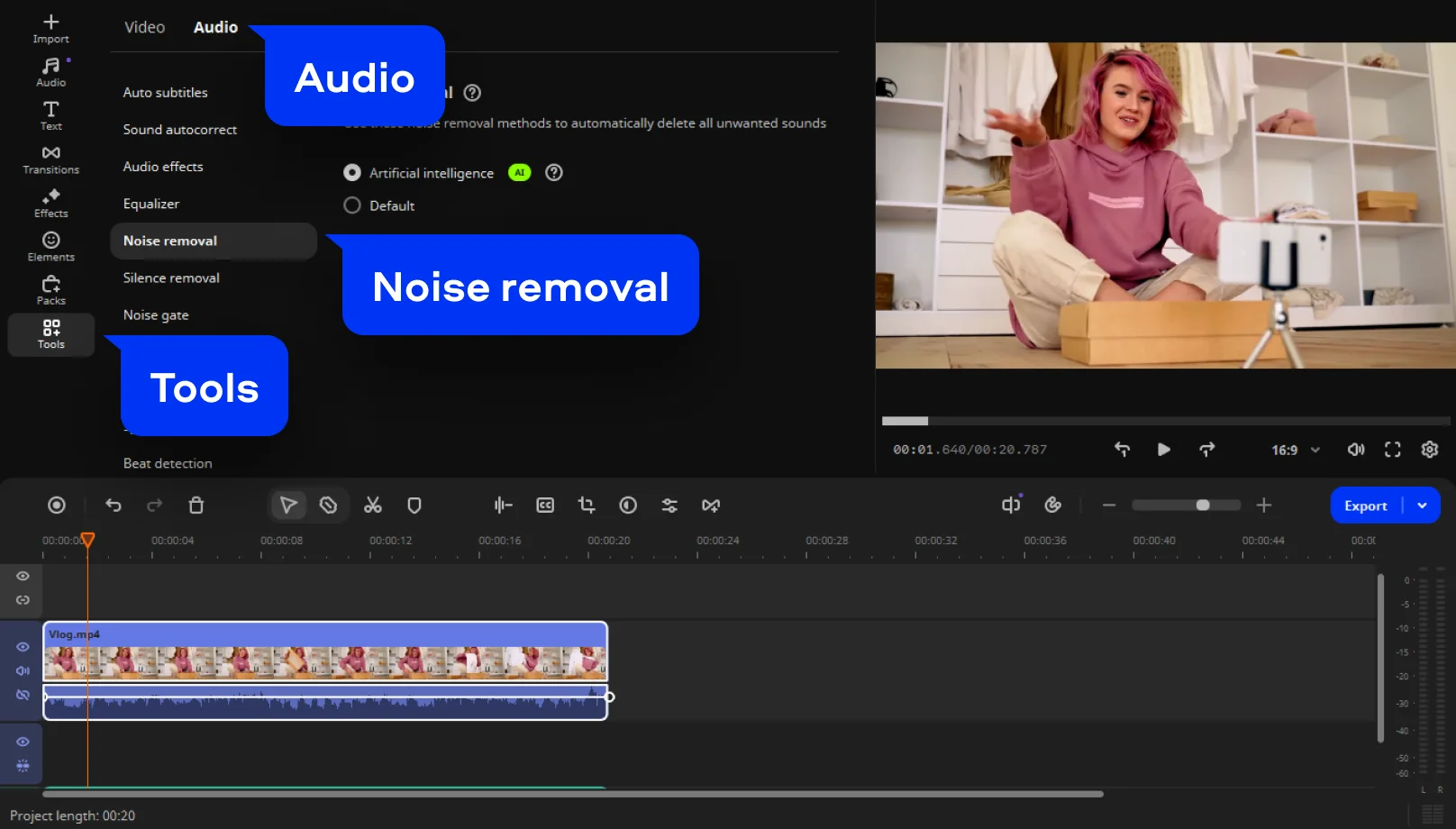
Step 2. Open the audio tools
Open Tools > Audio and select Noise removal. This is where background noise removal begins, quietly working to sharpen clarity while keeping speech intact.
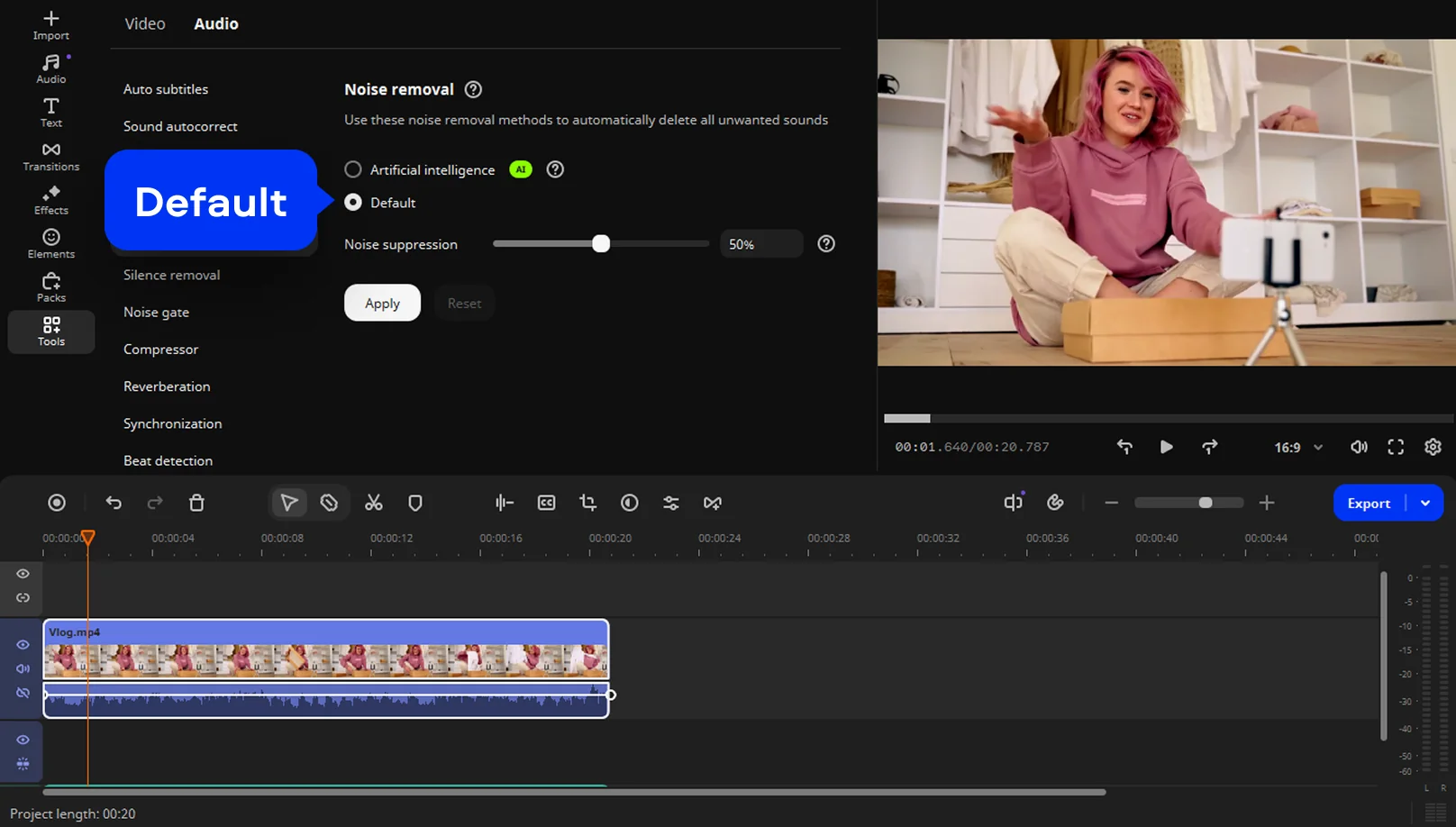
Step 3. Adjust noise reduction settings
You can remove noise automatically – just select the AI option from the menu. To remove noise manually, choose Default and move the Noise suppression slider.
Step 4. Enhance and export
Give the clip a final listen, make small tweaks if needed, then export in your preferred format. The result feels polished and noticeably cleaner.
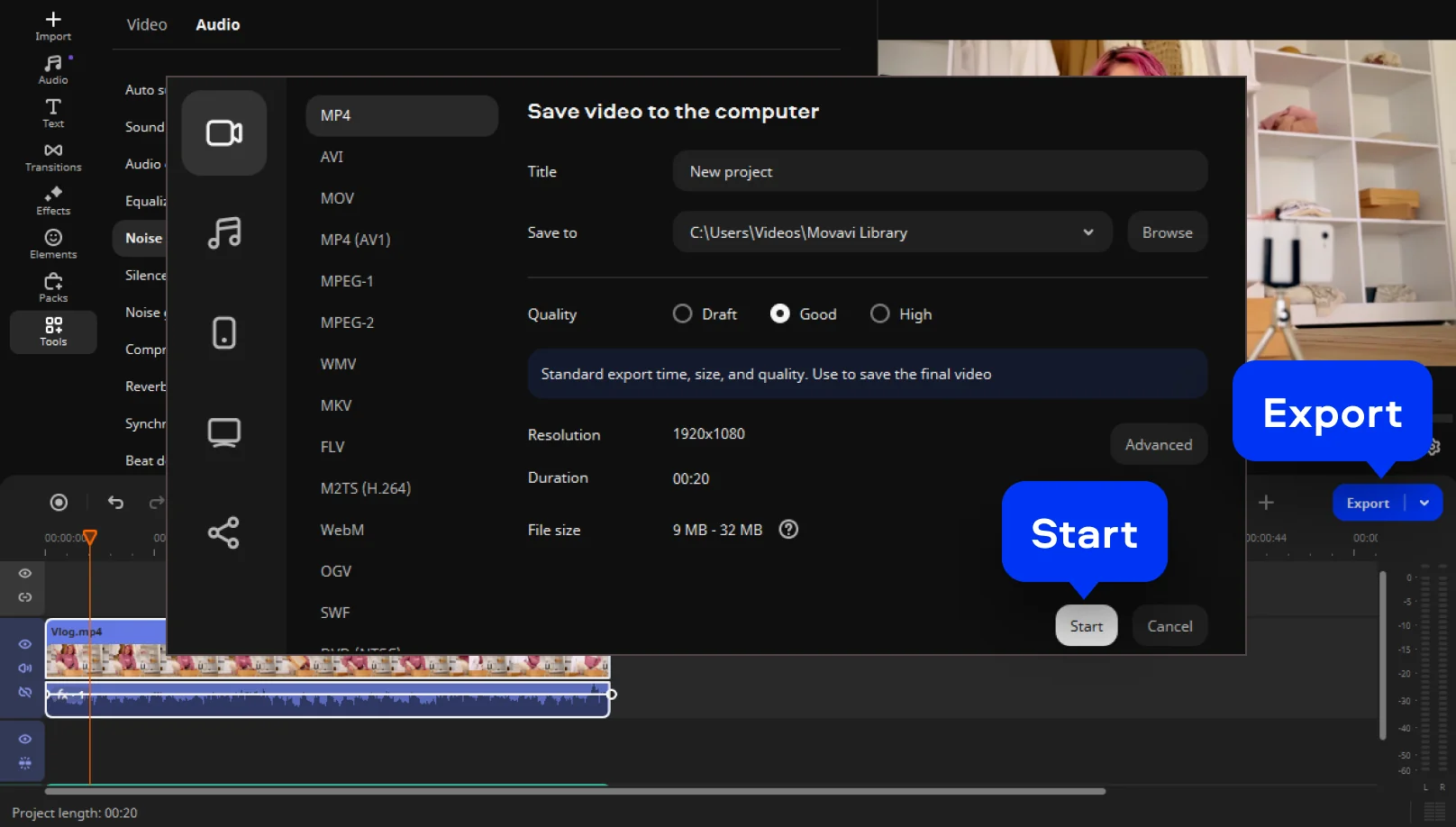
Step 5. Export and share your creation
Click Export when your video is ready. Choose the desired format (MP4, MOV, AVI) and resolution up to 4K. Upload directly to YouTube or save it locally to share later.
More tools for easy editing
Tips to choose and use a background noise remover
Finding the right background noise remover isn’t about grabbing the trendiest app on the market. It’s about understanding what your footage is asking for. A quiet podcast recorded in a bedroom, a travel vlog filmed beside a busy road, and a late-night screen recording each bring their own kind of audio chaos. The job is matching the tool to the mess.
If your work revolves around interviews, tutorials, or explainers, protecting the natural character of a voice should come first. Push noise reduction too hard and speech starts to sound flat, distant, or oddly mechanical. Tools like Movavi Video Editor handle background noise removal with a lighter touch, letting you clean up distractions without erasing personality. For creators recording YouTube explainers in untreated rooms, this makes it easier to remove background noise from video while keeping speech warm and believable.
Short-form content comes with different problems. Outdoor social clips often collect wind, traffic, or crowd noise whether you invite it or not. While an online tool may promise instant fixes, limited controls can leave you stuck with generic results. Desktop editors give you the freedom to reduce noise selectively instead of applying a blunt filter. That level of control matters when you’re aiming for consistent quality across posts.
Educational and professional recordings benefit even more from careful video noise reduction. Teachers, trainers, and course creators can get rid of keyboard clicks, background hum, or room echo, turning rough recordings into something listeners can actually stay with. The improvement may feel subtle, but it adds up – cleaner audio means fewer distractions and stronger focus.
Free tools deserve a skeptical eye. A background noise remover free option can be handy for quick tests or simple fixes, but these tools often limit export quality or rely on heavy compression. They might reduce noise, but they can also strip away nuance. Paid editors offer more control, especially when removing layered sounds like ambient hiss mixed with sudden interruptions.
One rule editors live by: preview early and often. Don’t wait until export to hear the damage. Noise reduction is powerful, and overdoing it can make audio feel thin. A light clean up usually sounds more natural than aggressive filtering.
Finally, remember that good audio starts before editing. Use the best mic you can, record in quieter spaces, and treat noise reduction as a cleaner, not a cure-all. Used well, the right tool doesn’t just reduce noise – it makes content calmer, clearer, and far more pleasant to hear.

Frequently asked questions
Desktop editors like Movavi Video Editor stand out because they balance ease of use with adjustable noise reduction tools. Instead of relying on one-click fixes, they give you control over processing, helping avoid that hollow, overfiltered sound.
Yes, free tools exist and can help with basic tasks. Most come with limits, though – lower export quality, watermarks, or heavy processing. They’re fine for experiments, less so for finished work.
If you’re wondering how to remove background noise from video, the process is straightforward: import the clip into an editor, enable noise reduction, adjust the intensity until the audio feels balanced, preview the result, and export.
Mobile apps can handle simple noise reduction for short clips. They usually lack precision, which becomes noticeable in longer or more detailed projects.
Use editing software designed to isolate speech and lower unwanted sound. Start gently, listen closely, and fine-tune until you take out distractions without stripping the life out of the recording.
Common causes include weak microphones, noisy rooms, wind, electrical interference, or recording too far from the sound source. Editing helps, but better recording conditions always win.
See other useful online tools
AI video-editing software
Video quality enhancer
YouTube video editor
Video resizer
Free movie maker
Video collage maker
Crop videos online
Flip videos online
Add text to videos online
Video trimmer online
Add subtitles to videos online
Video splitter online
Trailer maker online
Birthday video maker
Online YouTube intro maker
Merge video online
Online video editor no watermark
MP3 cutter
We’re the #1 choice for millions of people from all around the world. Join our thriving community and create stunning content with incredible ease.
70M+


Movavi Video Editor
*The free version of Movavi Video Editor may have the following restrictions depending on the build: watermark on exported clips, 60-second video or 1/2 audio length limit, and/or some advanced features unavailable when exporting videos.


1.5M+ users already subscribed to our newsletter